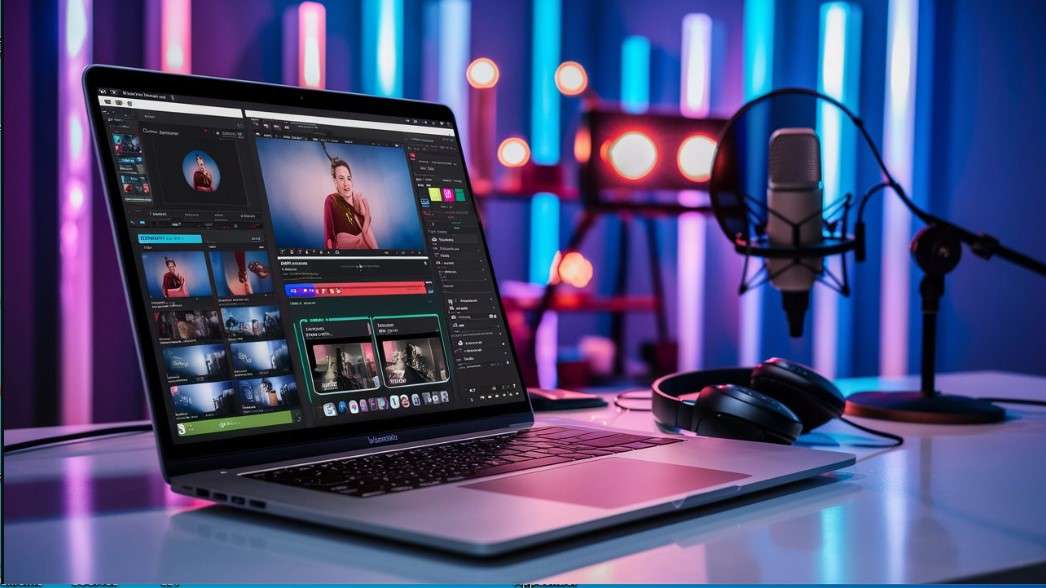
For most creators in the United States, the best laptop for live streaming is the 14-inch MacBook Pro with an M4 Pro chip if you want long battery life, quiet operation, and strong video work. For Windows users, the ASUS ROG Zephyrus G16 with a dedicated NVIDIA GeForce RTX GPU is a better fit for gaming streams and demanding scenes.
The right choice still depends on your stream. A webcam stream needs far less power than a 1080p gaming stream with alerts, guests, screen capture, and several browser tabs. This guide explains what to buy, what to avoid, and how to match a laptop to your setup in the U.S.
Quick answer: Which laptop is best for live streaming?
The best laptop for live streaming should have:
- A modern 8-core or better processor
- At least 16 GB of RAM
- At least 512 GB of SSD storage
- A dedicated GPU for gaming streams
- hardware video encoding, such as Apple VideoToolbox or NVIDIA NVENC
- A strong cooling system
- Reliable Wi-Fi 6 or Wi-Fi 6E
- Enough ports for a camera, microphone, capture card, and monitor
Here are the best choices by use case:
| Best for | Recommended laptop type | Why it fits |
|---|---|---|
| Webcam, podcast, and talk streams | MacBook Pro 14-inch with M4 Pro | Quiet, fast, long battery life |
| Windows streaming | ASUS ROG Zephyrus G16 | Strong CPU and dedicated NVIDIA GPU |
| Gaming on a budget | Lenovo Legion 5 or similar gaming laptop | Good cooling and upgrade options |
| Portable streaming | MacBook Air with M3 or newer chip | Light and capable for simple streams |
| Professional production | MacBook Pro 16-inch or high-end Windows creator laptop | More screen space and sustained power |
No laptop is best for every streamer. The biggest decision is whether the laptop must play and stream a game at the same time.
For a camera-only stream, an Apple MacBook Air or a mid-range Windows laptop may be enough. For gaming, choose a laptop with a dedicated NVIDIA GPU and strong cooling.
What makes a laptop good for live streaming?
A good streaming laptop must handle four jobs at once:
- Run your streaming software.
- Capture video from a camera or game.
- Encode the video for Twitch, YouTube Live, or another platform.
- Keep your stream stable while other apps remain open.
The processor, graphics chip, memory, storage, ports, and internet connection all affect the result.
Processor
The processor runs OBS Studio, browser tabs, alerts, chat tools, and other background apps.
For most users:
- Basic level: Intel Core i5, AMD Ryzen 5, Apple M-series chip, or similar
- Better level: Intel Core i7, AMD Ryzen 7, Apple Pro chip, or similar
- Heavy use: Intel Core i9, AMD Ryzen 9, Apple Max chip, or similar
A newer mid-range chip can beat an older high-end chip. Do not judge a laptop by the Core i7 or Ryzen 7 label alone. Check the chip generation and cooling design.
Graphics processor
The GPU matters most when you stream games.
A dedicated NVIDIA GeForce RTX GPU can use NVENC, a hardware encoder built into many NVIDIA graphics chips. This can reduce the work placed on the CPU.
Apple laptops use hardware media engines through macOS and supported apps. They can perform very well for camera streams, video work, and many console-capture setups. However, Windows gaming laptops offer wider game and driver support.
Integrated graphics can work for:
- Webcam streams
- Talking-head videos
- Interviews
- Screen tutorials
- Console streams through a capture card
A dedicated GPU is safer for:
- PC game streaming
- 3D games
- Multiple camera sources
- Animated scenes
- Virtual backgrounds
- High-resolution recording during a live stream
RAM
RAM holds the apps and data that are in use.
- 8 GB: Usable only for light streaming
- 16 GB: Best starting point for most people
- 32 GB: Better for gaming, editing, guests, and many browser tabs
- 64 GB: Useful for advanced production, not needed by most streamers
If the laptop has soldered memory, choose 32 GB if your budget allows. You may not be able to upgrade it later.
Storage
Use an SSD, not a hard disk drive. An SSD helps OBS launch faster and makes video files easier to manage.
Choose:
- 512 GB SSD: Minimum sensible amount
- 1 TB SSD: Better for regular recording
- 2 TB SSD: Useful for frequent local recordings and video editing
A one-hour recording can take a large amount of space, especially at high quality. An external USB-C SSD can help, but it should not replace adequate internal storage for apps and project files.

Best laptops for live streaming by use case
The following recommendations focus on fit, not brand loyalty. Prices and configurations change often in the U.S., so compare the exact CPU, GPU, RAM, storage, display, and warranty before buying.
Best overall: 14-inch MacBook Pro with M4 Pro
The 14-inch MacBook Pro with an M4 Pro chip is a strong all-around choice for creators who use macOS.
It fits:
- Webcam streams
- Podcasts
- Interviews
- YouTube Live
- Screen tutorials
- Video editing after the stream
Its main strengths are the efficient Apple silicon chip, quiet operation during light work, a sharp display, and long battery life compared with many gaming laptops.
The limit is game support. macOS does not support every Windows PC game, and some capture cards, plugins, and streaming tools work better on Windows. If your main stream is PC gaming, choose a Windows laptop with a dedicated NVIDIA GPU instead.
A 16 GB model can work for simple streams. A 24 GB or 36 GB configuration gives more room for video editing, browser tabs, and large scenes.
Best Windows laptop: ASUS ROG Zephyrus G16
The ASUS ROG Zephyrus G16 is a good match for Windows users who want one laptop for gaming, streaming, and editing.
Depending on the configuration, it can include:
- An Intel Core Ultra processor
- A dedicated NVIDIA GeForce RTX GPU
- 16 GB or more RAM
- A fast SSD
- A high-refresh-rate display
The dedicated GPU can encode a stream while the main GPU renders a game. This is often more useful than buying a laptop with a very powerful CPU but weak graphics.
The trade-offs are typical of gaming laptops: fan noise, heat, higher weight, and shorter battery life during demanding work. Use the charger during long streams. A laptop GPU also cannot be upgraded later, so choose the GPU carefully.
Best value for gaming streams: Lenovo Legion 5 series
A Lenovo Legion 5 configuration with a modern Ryzen 7 or Core i7-class processor and an RTX 4060-class GPU can offer a strong balance of price and performance.
It is a good fit when you need:
- PC game streaming
- A larger screen
- Better cooling
- Upgradeable memory or storage
- Several ports
The exact model matters. Legion 5 systems can vary by year, display, GPU, and memory. Check the full model number rather than relying only on the product family name.
This type of laptop is less portable than a MacBook Air or a thin Windows laptop. It is best for a desk-based setup.
Best portable option: MacBook Air with M3 or newer
A MacBook Air with an M3 or newer chip can handle simple live streams well.
It is suitable for:
- Webcam broadcasts
- Online classes
- Product demos
- Interviews
- Screen sharing
- Basic video editing
Its fanless design is quiet, which helps when the laptop sits near a microphone. The main limit is sustained heat. Long, demanding workloads can reduce performance compared with a MacBook Pro or a gaming laptop.
Choose at least 16 GB of memory. The base storage may fill quickly if you save many recordings.
Best professional setup: MacBook Pro 16-inch or high-end Windows creator laptop
A 16-inch MacBook Pro or a Windows creator laptop with 32 GB of RAM is useful for people who stream and edit video every day.
The larger screen helps with:
- OBS scene control
- Chat monitoring
- Audio meters
- Guest windows
- Video editing timelines
A high-end Windows creator laptop with an RTX GPU may be the better option if you use demanding PC software, 3D tools, or Windows-only plugins.
The downside is cost. Do not pay for this class of machine if you only plan to stream a webcam and microphone.

How much laptop power do you need?
Your stream type sets the minimum useful hardware.
| Stream type | Suggested laptop |
|---|---|
| Webcam and microphone | 16 GB RAM, modern mid-range CPU |
| Screen recording and presentation | 16 GB RAM, modern CPU, SSD |
| Console stream with capture card | 16 GB RAM, modern CPU, hardware encoder |
| PC game at 1080p | 16–32 GB RAM, dedicated RTX GPU |
| PC game plus recording and editing | 32 GB RAM, stronger RTX GPU, 1 TB SSD |
| Multi-camera production | 32 GB RAM, strong CPU, dedicated GPU, many ports |
These are starting points, not guarantees. Game settings, scene complexity, camera resolution, encoder choice, and frame rate all change the workload.
A simple webcam stream may use little CPU. A game stream with animated alerts, noise removal, background blur, multiple browser sources, and local recording can use much more.
What internet speed do you need for live streaming?
Your upload speed must be higher than your stream bitrate, with room for normal network use.
A practical rule is:
Required upload speed = stream bitrate × 1.5 to 2
For example, a stream with a 6 Mbps bitrate should have about 9 to 12 Mbps of stable upload capacity available. This is a planning rule, not a guarantee.
The connection must also be stable. A fast plan with packet loss can still produce dropped frames.
For many 1080p streams, creators use a bitrate in the range recommended by the streaming platform. Twitch and YouTube can change their guidance, so check the current official settings before going live.
Use Ethernet when possible. If you need Wi-Fi, use a strong Wi-Fi 6 or Wi-Fi 6E connection and keep the laptop near the router. Avoid starting a major game download or cloud backup during a live broadcast.
What ports and accessories does a streaming laptop need?
A laptop alone may not provide everything your setup needs.
Look for:
- USB-A for older microphones and capture cards
- USB-C for newer cameras, drives, and hubs
- HDMI output for a second monitor
- A 3.5 mm audio jack if you use wired headphones
- A reliable webcam connection
- Ethernet through a built-in port or adapter
You may also need:
- A USB microphone
- A capture card for a console
- A camera
- A small key light
- Headphones
- An external SSD
- A powered USB hub
- An Ethernet adapter
Do not connect many high-power devices to a cheap unpowered hub. A capture card, camera, microphone, and external drive may all compete for power and bandwidth. A powered dock can make the setup more reliable.

How to set up a laptop for live streaming
Start with the simplest setup, then add devices one at a time.
1. Install the streaming software
OBS Studio is a widely used free option for Windows and macOS. Download it from the official OBS Project website.
Update:
- The operating system
- OBS Studio
- Graphics drivers on Windows
- Camera software
- Capture-card drivers or utility apps
Avoid downloading OBS from unofficial sites.
2. Run the OBS setup wizard
OBS can test your system and suggest basic settings. Treat the result as a starting point.
It may not account for every game, camera, plugin, or network issue. Test a private or unlisted stream before broadcasting to a public audience.
3. Add your sources
Common sources include:
- Webcam
- Microphone
- Display capture
- Window capture
- Game capture
- Browser alerts
- Images and overlays
- Capture-card video
Keep scenes simple at first. Add one source, then test it.
4. Select a hardware encoder
If your laptop supports one, use a hardware encoder such as:
- NVENC on supported NVIDIA GPUs
- Apple VideoToolbox on macOS
- Intel Quick Sync on supported Intel systems
- AMD hardware encoding on supported systems
The exact name depends on the operating system and OBS version. A hardware encoder can reduce CPU load, but it does not remove the need for a capable GPU or stable drivers.
5. Test video and audio
Record a short local clip before going live. Check:
- Voice clarity
- Game audio
- Lip sync
- Frame drops
- Black screens
- Camera exposure
- Text size
- Notification sounds
Use headphones during the test. They help reveal echo and audio delay.
6. Watch performance while streaming
OBS provides statistics such as:
- Dropped frames
- Rendering lag
- Encoding lag
- Network status
Each symptom points to a different problem.
- Dropped frames: Often a network issue
- Rendering lag: Often a GPU or scene-load issue
- Encoding lag: Often an encoder or CPU/GPU load issue
- Audio delay: Often a device or filter timing issue
Lower game settings or output resolution before buying a new laptop. A small setting change may solve the problem.

Common mistakes when choosing a streaming laptop
Buying for the stream instead of the full workload
A laptop may run OBS well but fail when it must also run a demanding game. Choose based on the heaviest task you will perform.
Choosing 8 GB of RAM
Eight gigabytes may work for basic video calls, but it leaves little room for OBS, a game, browser tabs, and alerts. Sixteen gigabytes is a safer starting point.
Ignoring cooling
Thin laptops can be fast for short tasks but slow down during long streams. Look for reviews that discuss sustained performance, fan noise, and heat. Do not place the laptop on a bed, blanket, or soft surface.
Assuming a high refresh-rate display improves the stream
A 165 Hz or 240 Hz screen can make games look smoother to the player. It does not automatically improve the broadcast. Streaming quality depends more on encoding, bitrate, resolution, and network stability.
Forgetting the webcam and microphone
A powerful laptop cannot fix poor lighting or bad sound. Viewers often forgive a modest camera more easily than harsh light, echo, or unclear speech.
Using the laptop on battery for a long stream
Performance may drop on battery power. Plug the laptop into its charger during demanding streams, and keep airflow clear.
MacBook or Windows laptop for live streaming?
Choose a MacBook when you value:
- Quiet operation
- Battery life
- Video editing
- A simple camera-based setup
- Apple software and hardware integration
Choose Windows when you need:
- PC gaming
- Wider game support
- NVIDIA NVENC
- More upgrade options
- A larger choice of ports and accessories
- Windows-only plugins or production tools
Both platforms can run OBS and support high-quality live streams. The best platform is the one that supports your games, camera, capture card, and editing tools.
Frequently asked questions
Is 16 GB of RAM enough for live streaming?
Yes, 16 GB is enough for many webcam, console, and light gaming streams. Choose 32 GB if you stream demanding PC games, edit video, use many browser sources, or run several production apps at once.
Is a gaming laptop better for streaming?
A gaming laptop is often better for PC game streaming because it has stronger cooling and a dedicated GPU. It is not automatically better for webcam streams, where a quiet MacBook or thin Windows laptop may be more comfortable.
Can a laptop stream to Twitch and YouTube at the same time?
It can, but multistreaming adds work. You may need extra software or a cloud multistream service. Two live outputs can also increase network and encoding demands. Test the setup before using it for an important broadcast.
Do I need a capture card?
You need a capture card when you want to bring video from a console or another computer into the laptop. You may not need one for a webcam stream or a game running directly on the laptop.
Can an affordable laptop stream games?
Yes, if you choose suitable games and settings. Look for a modern processor, 16 GB of RAM, an SSD, and a dedicated GPU such as an RTX 4050 or better. Performance will vary by game, resolution, cooling, and encoder settings.
Key takeaways
- The MacBook Pro 14-inch with M4 Pro is a strong overall choice for camera-based streaming and video work.
- A Windows laptop with an NVIDIA RTX GPU is usually better for PC gaming streams.
- Buy at least 16 GB of RAM and a 512 GB SSD.
- Choose 32 GB of RAM for demanding games, editing, or multi-camera work.
- Use Ethernet when possible.
- Test OBS, your camera, microphone, and network before going live.
- Match the laptop to your hardest task, not just to the word “streaming.”
Conclusion
The best laptop for live streaming is the one that can handle your full setup without heat, noise, or dropped frames becoming a problem.
For most U.S. creators who stream cameras, interviews, podcasts, or tutorials, the 14-inch MacBook Pro with M4 Pro is a balanced choice. For PC gaming, choose a Windows gaming laptop with a dedicated NVIDIA GPU, 16 GB or more RAM, and strong cooling. Before you buy, list your games, cameras, capture devices, editing apps, and target resolution. That list will point you to the right laptop more reliably than a brand name alone.

Everett Ashford is a tech reviewer at mytechgrid.com specializing in SSDs, cameras, TVs, earbuds, headphones, and other consumer electronics. He provides honest, data-driven reviews based on hands-on testing and real-world performance analysis. Everett simplifies complex tech details to help readers make smart, confident buying decisions.