Connect Bose earbuds to your Mac via Bluetooth: enable pairing on the earbuds, open Mac Bluetooth, and select the device.
I’ve paired Bose earbuds with Macs for years across macOS versions. This guide shows exactly how to connect Bose earbuds to Mac, step by step. I’ll give clear steps, real-world tips, and fixes I use when one side won’t connect or sound drops. Read on to pair fast and keep the connection stable.
Why pair Bose earbuds to your Mac?
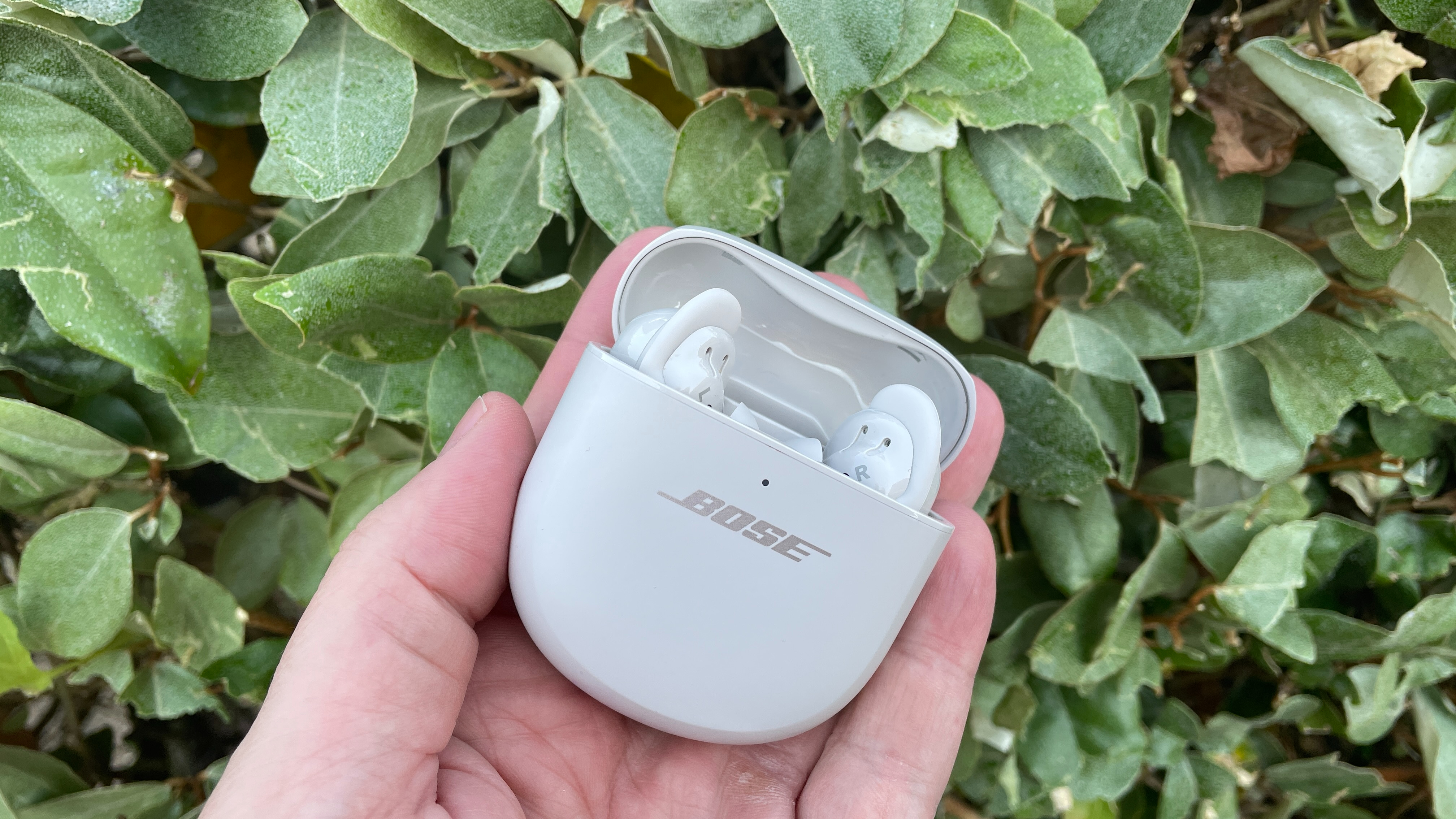
Pairing Bose earbuds to Mac gives you better audio for calls, music, and video. Macs use Bluetooth audio standards that work well with most Bose models. Knowing how to connect Bose earbuds to Mac saves time and avoids frustration when you switch devices.
Common benefits include clear voice calls, low-latency audio for video, and hands-free mic use. I use Bose earbuds daily for editing and calls. They perform best when macOS Bluetooth settings are set right.
Quick checklist before pairing
- Charge the earbuds to at least 20 percent for stable pairing.
- Update your Mac to the latest macOS minor release for better Bluetooth compatibility.
- Close apps that use audio exclusively, like DAWs or VOIP apps.
- Turn off nearby Bluetooth devices that might auto-connect and interfere.
Doing these quick steps reduces pairing errors when you try to connect Bose earbuds to Mac. I learned to charge first after one long meeting where low battery caused dropout.

Step-by-step: Pairing new Bose earbuds to Mac
-
Turn on Bluetooth on your Mac.
- Click the Apple menu, choose System Settings or System Preferences, then Bluetooth.
- Make sure Bluetooth is set to On.
-
Put your Bose earbuds into pairing mode.
- For many Bose models press and hold the power button until a Bluetooth light blinks or you hear “Ready to pair.”
- For newer models, open the case with earbuds inside and hold the button on the case.
-
Find the earbuds on your Mac.
- In the Bluetooth list, wait for your Bose earbuds to appear with a name like “Bose QC Earbuds” or the model name.
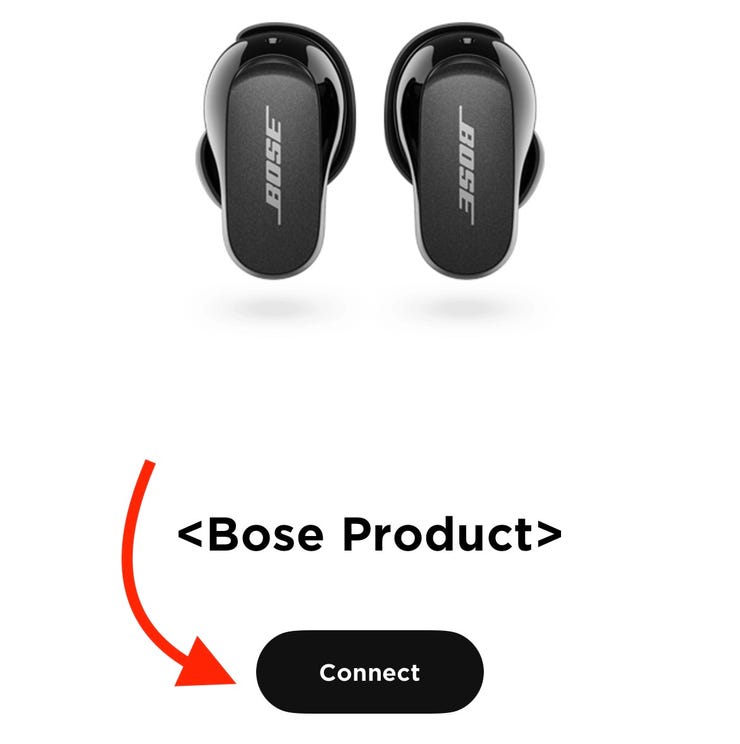
- Click Connect next to the earbuds.
-
Confirm connection.
- You’ll see “Connected” in Bluetooth settings.
- Select the earbuds as the audio output in the Sound settings if audio doesn’t route automatically.
-
Test audio and mic.
- Play a short track or use Voice Memos.
- Check microphone input in System Settings > Sound > Input.
Following these steps will reliably show you how to connect Bose earbuds to Mac in most cases. If pairing fails, move to the troubleshooting section below.
Reconnecting or switching from another device
- If your earbuds were already paired to a phone, disable Bluetooth on that phone first. This prevents automatic reconnect.
- On the Mac, open Bluetooth preferences and double-click the earbuds name if they don’t reconnect automatically.
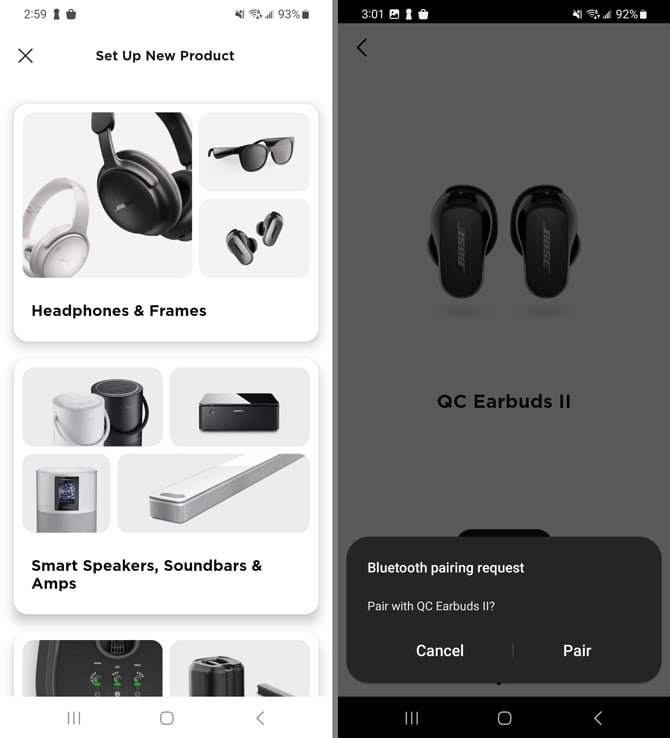
- If you frequently switch between Mac and phone, use the Bose Connect app or the earbuds’ multipoint feature if your model supports it.
I keep Bluetooth off on my phone when I need stable audio on my Mac. That avoids accidental switching mid-call.

Troubleshooting common issues when connecting Bose earbuds to Mac
-
Problem: Earbuds not appearing in Bluetooth list.
- Solution: Reset the earbuds’ Bluetooth by powering off and back on. Put them in pairing mode again. On Mac, toggle Bluetooth off and on.
-
Problem: Connected but no sound.
- Solution: Open System Settings > Sound and choose the earbuds as the output device. Also check app-level audio settings.
-
Problem: Left or right channel missing.
- Solution: Re-seat the earbuds in the case and restart them. Check for firmware updates for the earbuds.
-
Problem: Poor audio quality or lag.
- Solution: Move closer to the Mac and remove obstacles. Turn off other Bluetooth devices. Use wired audio if latency is critical.
-
Problem: Microphone not working in calls.
- Solution: In System Settings > Sound > Input, select the Bose earbuds as the input. Quit and restart conferencing apps if needed.
These fixes reflect common causes I’ve encountered. If problems persist, a firmware update or factory reset can help.
Advanced tips and settings
- Select codecs and quality: macOS chooses codecs automatically. Some Bose models support enhanced codecs that macOS may not use. For best quality, keep macOS updated.
- Use Audio MIDI Setup: Open Audio MIDI Setup to verify sample rates and channels. This helps when you need higher fidelity for editing.
- Reset Bluetooth module on Mac: If Bluetooth is flaky, reset the Bluetooth module by turning Bluetooth off and on, or use Terminal steps in advanced guides. Do this only if basic fixes fail.
- Manage multipoint: If your Bose earbuds support multipoint, pair them with both Mac and phone, then manually switch if automatic switching fails.
I once had stuttering due to 2.4 GHz interference. Switching Wi‑Fi to 5 GHz cleaned the audio up instantly.
Battery, firmware and model-specific notes
- Battery status: macOS shows battery levels for many Bluetooth devices. Check the menu bar Bluetooth icon or System Settings.
- Firmware: Keep your earbuds’ firmware updated using the Bose app. Firmware fixes often solve pairing or audio issues.
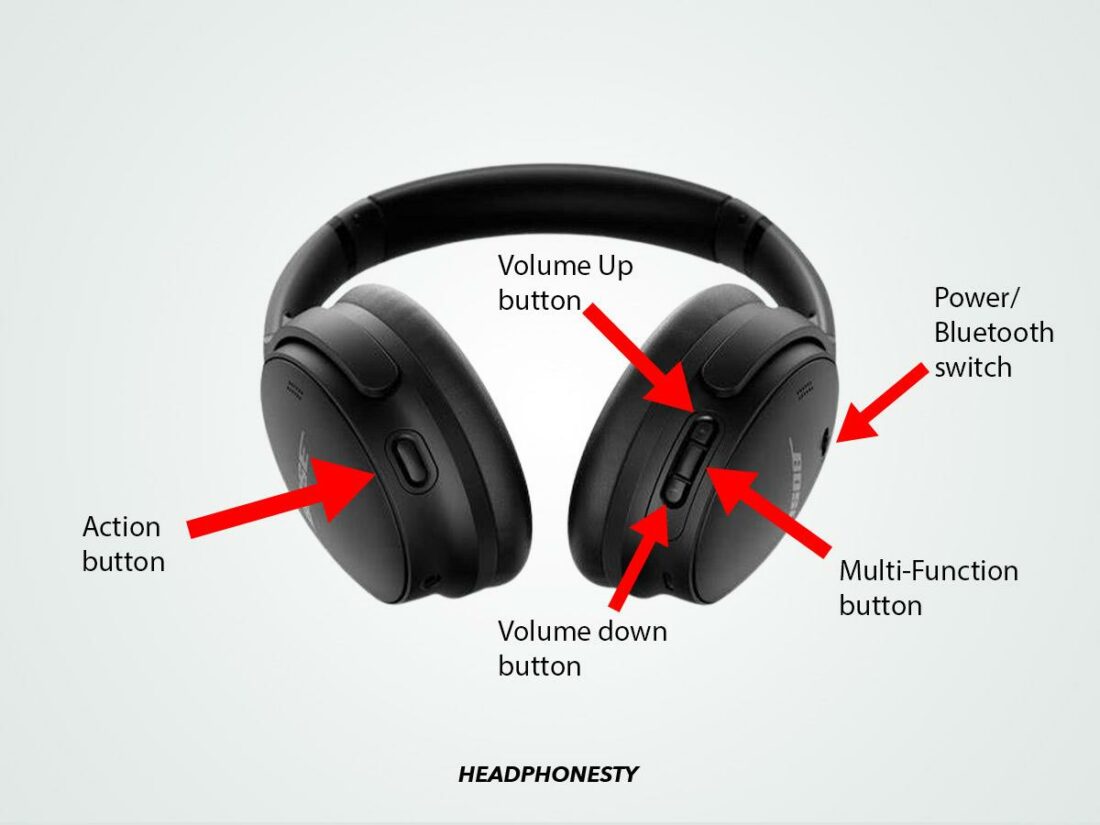
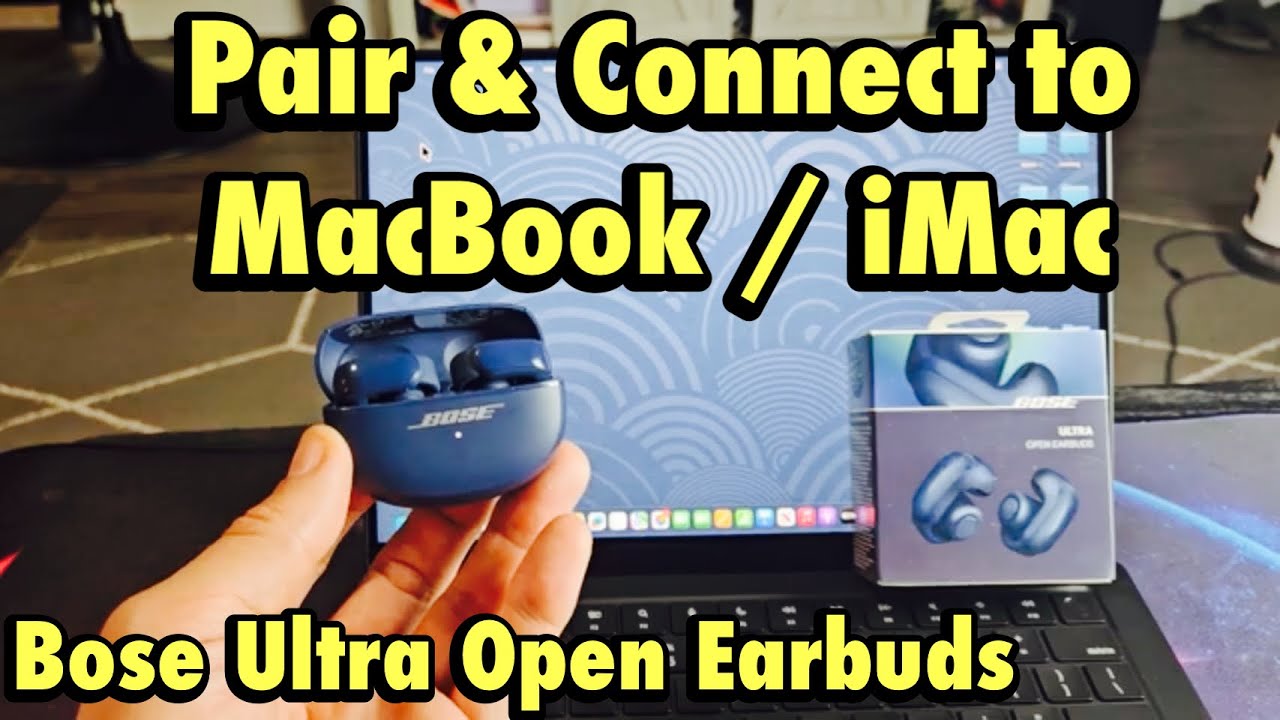
- Model variations: QC Earbuds, QuietComfort Earbuds II, Sport Earbuds, and Ultra models pair similarly but their pairing buttons or cases differ slightly. Follow the model’s quick start if the general steps don’t work.
I update firmware monthly. A single firmware patch once resolved my intermittent mic dropouts on calls.

Frequently Asked Questions of how to connect bose earbuds to mac
How do I put my Bose earbuds into pairing mode?
To enter pairing mode, press and hold the power or Bluetooth button until a light flashes or you hear a voice prompt saying “Ready to pair.” Each model may use a slightly different button or hold time.
My Mac says connected but no sound — what now?
Open System Settings > Sound and choose the earbuds as the Output device. If sound still doesn’t play, quit the app and reconnect the earbuds.
Can I use Bose earbuds for Mac calls and music at the same time?
Yes. Most Bose earbuds use Bluetooth profiles that support both audio playback and a microphone for calls. Audio quality may drop when the mic is active.
Why do my earbuds keep switching to my phone?
If your phone’s Bluetooth is active and paired, it may auto-connect. Turn off Bluetooth on the phone or disable auto-connect in the phone’s Bluetooth settings.
How do I reset my Bose earbuds if pairing fails?
Reset methods vary by model but generally involve holding the power button or a combination of the case and earbuds buttons for several seconds. After resetting, put earbuds back into pairing mode.
Conclusion
You now have a clear, practical path for how to connect Bose earbuds to Mac. Start with the checklist, follow the pairing steps, and use the troubleshooting tips if things go sideways. Keep firmware current and manage device priorities to avoid automatic switching. Try these steps now and you’ll likely fix most issues in minutes.
Take action: pair your earbuds, test them in a call, and leave a comment with any issues you hit. If you found this helpful, subscribe or share to help others connect confidently.

Everett Ashford is a tech reviewer at mytechgrid.com specializing in SSDs, cameras, TVs, earbuds, headphones, and other consumer electronics. He provides honest, data-driven reviews based on hands-on testing and real-world performance analysis. Everett simplifies complex tech details to help readers make smart, confident buying decisions.