Press Bluetooth on your Samsung, put earbuds in pairing mode, and select them in Settings → Bluetooth.
I’ve helped dozens of people set up earbuds with Samsung phones, and I’ll walk you through every step clearly. This guide covers Bluetooth pairing, wired connections, troubleshooting, audio tips, and real-world advice from my own testing so you can connect earbuds to Samsung phone fast and keep them working reliably.

Quick steps to connect earbuds to a Samsung phone
Use this short checklist when you need to pair or plug in earbuds quickly.
- Turn on Bluetooth in Settings or Quick Panel.
- Put earbuds into pairing mode (consult the manual).
- Open Settings → Connections → Bluetooth and tap the earbud name.
- Confirm pairing or enter PIN if asked.
- Test sound and microphone in Music or Phone app.
These steps apply whether you use true wireless earbuds, wired USB-C earbuds, or a 3.5mm adapter. If pairing fails, try the troubleshooting section below.

Pairing Bluetooth earbuds: step-by-step
Follow these clear steps to pair Bluetooth earbuds to a Samsung phone and keep them connected.
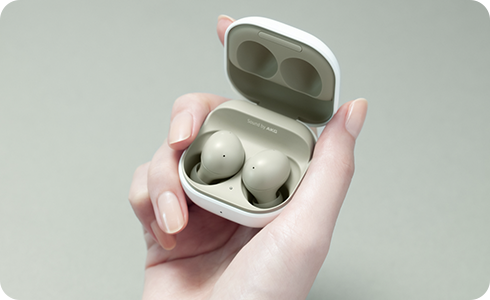
- Charge both earbuds and case to ensure power.
- On the earbuds, enter pairing mode. This usually means holding a button on the case or earbuds for 3–6 seconds until a light flashes or a voice prompt says “pairing.”
- On the Samsung phone, open Settings → Connections → Bluetooth.
- Toggle Bluetooth on. Wait while the phone scans and lists nearby devices.
- Tap your earbuds name when they appear. If prompted, confirm pairing or enter 0000 or 1234.
- Wait for “Connected” status and test audio by playing music.
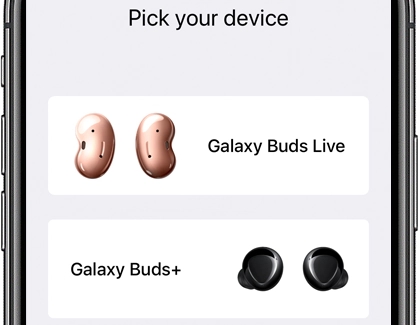
Tips for Samsung Galaxy Buds or Samsung-branded earbuds:
- Install the Galaxy Wearable app for firmware updates and extra settings.
- Use the app to check battery levels and change touch controls.
- Some Samsung phones show a pop-up pairing card for quick connect.
If pairing doesn’t show the earbuds:
- Bring earbuds and phone close together.
- Turn Bluetooth off and on again on the phone.
- Restart the earbuds by placing them in the case and removing them.
Source: pizzavilleusa.com
Connecting wired earbuds to a Samsung phone
Not all Samsung phones have a headphone jack any more. Here’s how to connect wired earbuds.
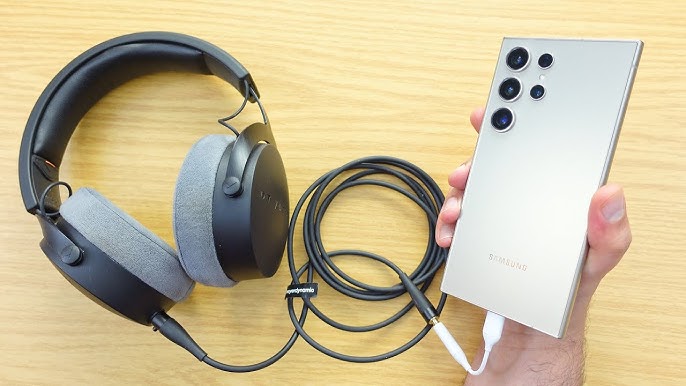
- For phones with a 3.5mm jack: plug earbuds in and set media volume.
- For phones without a jack: use the USB-C port. Plug USB-C earbuds directly into the port if they match.
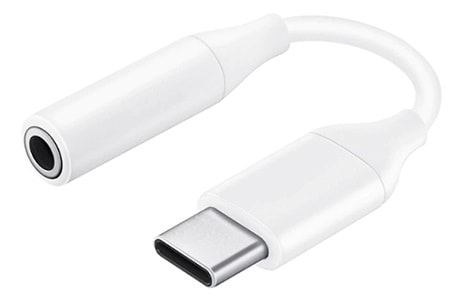
- If your earbuds are 3.5mm and your phone needs USB-C, use a high-quality USB-C to 3.5mm adapter.
- If audio doesn’t play, try another app or restart the phone. Check the adapter for damage.
Keep in mind that some adapters only support audio and not in-line mic or controls. Test mic and controls before relying on them for calls.
Troubleshooting common connection problems
If your earbuds won't connect, drop sound, or have low volume, try these fixes.
- Restart both the phone and earbuds.
- Forget the device in Bluetooth settings and re-pair.
- Reset the earbuds to factory settings (check the manual).
- Make sure only one Bluetooth audio device is actively connected.
- Check battery levels on both earbuds and phone.
- Toggle Airplane mode on and off to reset wireless radios.
- Update phone software and earbud firmware through the companion app.
If static or dropouts persist:
- Move away from Wi-Fi routers or microwave ovens.
- Turn off other Bluetooth devices that may interfere.
- Try changing the codec in Developer Options if you’re an advanced user.
When nothing works, test the earbuds with another phone to see if the issue is the earbuds or the Samsung phone.

Tips to improve audio and call quality
Small settings changes can make a big difference when you connect earbuds to a Samsung phone.
- Use the Galaxy Wearable app for EQ and fit tests if using Galaxy Buds.
- Keep the phone near your earbud while on calls; distance can reduce call quality.
- Select the best codec supported by both devices (SBC, AAC, aptX, or Samsung Scalable Codec) for lower latency and better sound.
- Clean ear tips and phone microphone openings to avoid muffled sound.
- Use mono mode for weak Bluetooth connections to keep calls stable.
For gamers or video watchers, enable low-latency mode or a suitable codec to reduce sync delay.

Compatibility and codec notes
Understanding compatibility helps when you connect earbuds to a Samsung phone.
- Modern Samsung phones support Bluetooth 5.x, which offers better range and lower power use.
- Earbuds and phone must support the same codec for best audio (for example, AAC on iPhones and many Androids, aptX on some Androids).
- Some Samsung features like auto-switch or pop-up pairing work best with Samsung-branded earbuds.
- Wired USB-C earbuds may use digital audio and need compatible drivers on the phone.
If you plan to use noise-canceling or spatial audio features, confirm both the earbuds and phone support them for the feature to work properly.
Personal experiences and lessons learned
I’ve paired many earbuds with Samsung phones over years of testing. Here are real tips I learned the hard way.
- Always charge the case before pairing. Low battery often causes pairing to fail.
- When using third-party earbuds, don’t expect Samsung-only features like pop-up pairing or advanced EQ.
- Resetting the earbuds and clearing Bluetooth cache on the phone fixed my most persistent pairing issues.
- I once wasted time because an adapter only supported audio but not microphone functions; buy adapters that list mic support.
- Keep the companion app installed. Firmware updates fixed dropouts I saw on older earbuds.
A friendly tip: label your earbuds in Bluetooth settings (when supported) so you can spot the correct device among many similar names.
Frequently Asked Questions of how to connect earbuds to samsung phone
How do I put my earbuds into pairing mode?
Most earbuds enter pairing mode by holding a button on the case or the earbuds for several seconds until a light blinks or you hear a voice prompt. Check your earbud manual for exact steps because models differ.
Why won’t my Samsung phone find my earbuds?
This often happens when the earbuds are not in pairing mode, the battery is low, or Bluetooth on the phone is off. Restart both devices, charge them, and try again.
How can I use the microphone on wired earbuds with a Samsung phone?
If your phone has a 3.5mm jack or a compatible USB-C adapter that supports microphones, the mic should work automatically. Test in the voice recorder or call app to confirm.
What do I do if sound is choppy or drops out?
Move closer to the phone, reduce interference from other devices, and make sure earbuds and phone firmware are updated. If it still drops, reset the earbuds and re-pair.
Can I connect two pairs of earbuds to one Samsung phone?
Some Samsung phones support Dual Audio, which lets you stream audio to two Bluetooth devices at once. Enable Dual Audio in Bluetooth settings if your phone model supports it.
Conclusion
Connecting earbuds to a Samsung phone is usually quick but can need a few simple steps or fixes. Follow the pairing steps, keep software up to date, and use the companion app when available to get the best sound and stability. Try the troubleshooting tips if things go wrong, and remember small habits—charging the case, resetting devices, and using quality adapters—solve most issues.
Take one action now: try pairing your earbuds while following the checklist above. If you run into trouble, leave a comment with your phone model and earbud name so I can help.

Everett Ashford is a tech reviewer at mytechgrid.com specializing in SSDs, cameras, TVs, earbuds, headphones, and other consumer electronics. He provides honest, data-driven reviews based on hands-on testing and real-world performance analysis. Everett simplifies complex tech details to help readers make smart, confident buying decisions.