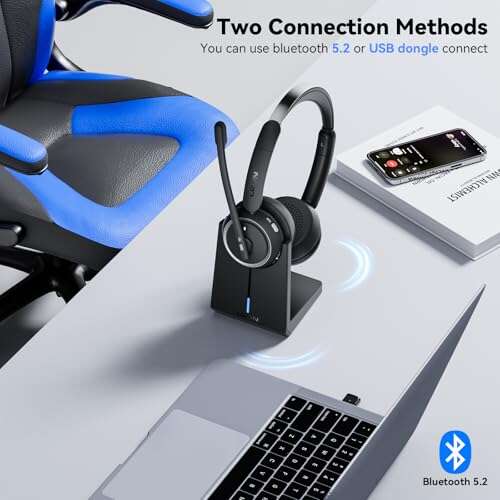
Pair via Bluetooth: enable pairing mode on WH-1000XM4 and add device in laptop Bluetooth.
I’ve spent years testing headphones and troubleshooting laptop audio. This guide shows exactly how to connect Sony WH-1000XM4 headphones to laptop, step by step, with tips I use in real life. You’ll learn Bluetooth pairing for Windows and macOS, wired options, fixes for common problems, and ways to get the best sound and call quality. Read on and you’ll have your WH-1000XM4 working with your laptop in minutes.

Why pair your Sony WH-1000XM4 with a laptop
Pairing the WH-1000XM4 to a laptop lets you enjoy great noise canceling, clear calls, and rich music. The headphones shine for work calls, travel, and focused music listening. Knowing how to connect Sony WH-1000XM4 headphones to laptop ensures smooth setup and the best audio performance for meetings and media.

What you need before you start
Make sure you have the essentials.
- Your Sony WH-1000XM4 with enough battery charge.
- A laptop with Bluetooth turned on or a 3.5mm/USB cable for wired use.
- Updated Bluetooth drivers on Windows or the latest macOS updates on Mac.
These simple checks cut setup time. If Bluetooth is off or drivers are old, pairing can fail. Always charge the headphones above 20% before you start.
How to connect Sony WH-1000XM4 headphones to laptop (Windows 10 and 11)
Follow these steps to pair via Bluetooth on Windows. They apply to both Windows 10 and 11 with minor UI differences.
- Turn on laptop Bluetooth: open Settings > Devices > Bluetooth & other devices and toggle Bluetooth on.
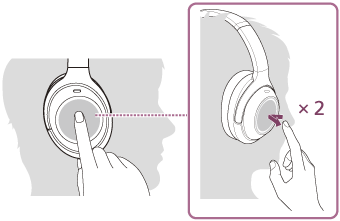
- Put the WH-1000XM4 in pairing mode: hold the power button for about 7 seconds until the voice guide says “Bluetooth pairing” and the indicator flashes blue.
- On the laptop, choose Add Bluetooth or other device > Bluetooth. Select “WH-1000XM4” from the device list.
- Wait for “Connected” confirmation. Set the headphones as the default playback and communication device in Sound settings if needed.
- Test audio and microphone in Settings > Sound or in your app of choice.
Troubleshooting tips while pairing on Windows:
- If the laptop does not find the headphones, restart Bluetooth or reboot both devices.
- Remove old pairings on the headphones by resetting them and clear the laptop’s Bluetooth device list if it shows a ghost entry.
- If audio is poor, check Bluetooth drivers in Device Manager and update them.

How to connect Sony WH-1000XM4 headphones to laptop (macOS)
Pairing on a Mac is quick and reliable. Follow this short flow.
- Open System Settings (or System Preferences) > Bluetooth and turn Bluetooth on.
- Put the WH-1000XM4 in pairing mode by holding the power button until pairing voice prompt and the light flashes blue.
- Click “Connect” next to WH-1000XM4 in the Mac’s Bluetooth list.
- Set the headphones as the sound output in System Settings > Sound > Output. Choose WH-1000XM4 for microphone in Input if you want to use the built-in mic on the headphones.
If macOS shows separate options for “Hands-Free” and “A2DP” pick A2DP for better music quality. For calls, use the hands-free option but expect slightly lower audio fidelity.

Wired connection: 3.5mm and USB options
If Bluetooth is unavailable or you want zero latency, use a wired connection.
- 3.5mm cable: Plug the supplied audio cable into the headphone jack and the laptop’s headphone port. This gives stable audio with no Bluetooth compression.
- USB connection: The WH-1000XM4 does not act as a USB audio device for high-res sound, but a USB audio adapter can help if your laptop lacks a headphone jack.
Wired use is great for low battery or when you need perfect sync for video. It also bypasses Bluetooth driver issues.
Troubleshooting common issues when connecting Sony WH-1000XM4 to laptop
Here are quick fixes for the usual problems. Keep steps short and try one fix at a time.
- No sound after connecting: Check that WH-1000XM4 is selected as the output in system sound settings.
- Laptop won’t find headphones: Turn Bluetooth off and on, then re-enable pairing on the headphones.
- Poor audio quality or robotic voice in calls: Switch from hands-free profile to A2DP for music. For calls, consider using an external microphone or USB headset for clearer voice.
- Repeated disconnects: Move closer, remove obstacles, and check for Bluetooth interference from other devices. Update drivers or firmware if the problem persists.
People also ask-style quick answers
What if my laptop has no Bluetooth? Use a USB Bluetooth adapter. It’s cheap and plugs in easily.
Can I use the headphones for Zoom calls? Yes. Set them as both input and output in Zoom audio settings for the best experience.
How do I reset the headphones? Hold power and NC/AMBIENT buttons for about 7 seconds to reset pairing memory.

Tips for best audio and call quality
Small adjustments make a big difference. Try these tips.
- Enable Sony Headphones Connect app on your phone to update firmware and customize EQ. Firmware updates can improve laptop pairing stability.
- Use the A2DP profile for music and switch to hands-free only when you need the mic.
- For calls, use a quiet room and keep the laptop’s mic as a backup if the headphone mic sounds muffled.
- Keep Bluetooth drivers current on Windows and keep macOS updated on Mac.
From my experience, firmware updates once solved a weird drop in audio on my laptop. I run updates monthly. Simple maintenance like this prevents most problems.
Frequently Asked Questions of how to connect sony wh-1000xm4 headphones to laptop
How do I put my WH-1000XM4 into pairing mode?
Hold the power button for about 7 seconds until you hear “Bluetooth pairing” and the indicator blinks blue. Then search for the device on your laptop’s Bluetooth menu.
Why won’t my laptop find WH-1000XM4?
Common causes are Bluetooth off, low headphone battery, or the headphones already paired to another device. Turn off other Bluetooth devices, charge the headphones, and try again.
Can I use the WH-1000XM4 microphone on my laptop?
Yes. Select WH-1000XM4 as the input device in your laptop’s sound settings and in your app’s audio settings for calls and recordings.
Is wired connection better than Bluetooth for the WH-1000XM4?
Wired connections give zero latency and no Bluetooth compression. Use 3.5mm for live monitoring or when battery is low.
How do I update the WH-1000XM4 firmware for laptop compatibility?
Use the Sony Headphones Connect app on a smartphone to install firmware updates, which can improve stability with laptops and other devices.
Conclusion
You now have a clear path to connect Sony WH-1000XM4 headphones to laptop, whether you use Bluetooth on Windows or macOS, or a wired option. Try the steps, update firmware, and use the troubleshooting tips if you hit snags. Start by pairing once and then fine-tune sound profiles for music or calls. If you found this guide helpful, try the steps now and leave a comment with your setup or questions — I’ll help you troubleshoot.

Everett Ashford is a tech reviewer at mytechgrid.com specializing in SSDs, cameras, TVs, earbuds, headphones, and other consumer electronics. He provides honest, data-driven reviews based on hands-on testing and real-world performance analysis. Everett simplifies complex tech details to help readers make smart, confident buying decisions.