To connect Helix Bluetooth headphones, turn them on, enter pairing mode, and select them in your device’s Bluetooth menu.
Learning how to connect Helix Bluetooth headphones is simple once you know which button starts pairing mode. This guide explains the full process for phones, tablets, computers, and TVs, plus the fixes that help when your headphones do not appear or keep disconnecting.
What you need before pairing Helix headphones
Before learning how to connect Helix Bluetooth headphones, check a few basic items. Your headphones should have enough battery, and the device you want to use should support Bluetooth. Most modern phones, tablets, laptops, and smart TVs meet this requirement.
Keep the headphones close to your device during setup. A distance of 3 feet or less works best for the first connection. Also, turn off Bluetooth on nearby devices that may already be connected to the headphones.
Most Helix models use a multifunction power button. The button may sit on the side of one ear cup or near the charging port. Since Helix products can vary by model, the exact button name and light color may differ.

How to connect Helix Bluetooth headphones to a phone
The steps below work for most Android phones and iPhones. The names of some menus may vary slightly by operating system version.
Put the headphones into pairing mode
- Charge the headphones for at least a few minutes.
- Turn the headphones off if they are already on.
- Press and hold the power or multifunction button.
- Keep holding it for about 5 to 10 seconds.
- Watch for a flashing blue, red and blue, or white light.
- Listen for a voice prompt such as “pairing” or “Bluetooth pairing.”
A steady light often means the headphones are already connected. A flashing light usually means they are ready to pair. If the light does not flash, turn the headphones off and repeat the process.
Connect on an iPhone
- Open the Settings app.
- Tap Bluetooth.
- Turn Bluetooth on.
- Wait for the Helix headphones to appear under Other Devices.
- Tap the headphone name.
- Wait until the status changes to Connected.
If your Helix model shows a number or a name with “BT,” select that listing. Do not tap a different nearby device by mistake.
Connect on an Android phone
- Open Settings.
- Tap Connected devices, Connections, or Bluetooth.
- Turn Bluetooth on.
- Choose Pair new device if needed.
- Tap the name of your Helix headphones.
- Confirm the pairing request.
Android may ask for a PIN on older Helix models. Try 0000 or 1234 if the manual does not list another code.
This is the basic answer to how to connect Helix Bluetooth headphones: activate pairing mode, open Bluetooth settings, and select the headphones. Once paired, your phone should connect to them automatically when both devices are on.
How to connect Helix Bluetooth headphones to a computer
Helix headphones can work with Windows PCs, Mac computers, and many Chromebooks. The computer must have Bluetooth built in or use a compatible USB Bluetooth adapter.
Pair with a Windows PC
- Turn on the headphones and place them in pairing mode.
- Open Start and select Settings.
- Choose Bluetooth & devices.
- Turn Bluetooth on.
- Select Add device.
- Choose Bluetooth.
- Select your Helix headphones.
- Click Done when pairing is complete.
After pairing, click the speaker icon in the Windows taskbar. Select the Helix headphones as the sound output device. If you can hear audio but the microphone does not work, open the sound settings and choose the Helix headset as the input device too.
Pair with a Mac
- Put the headphones into pairing mode.
- Open the Apple menu.
- Select System Settings.
- Click Bluetooth.
- Find the Helix headphones in the list.
- Click Connect.
On older macOS versions, Bluetooth may appear under System Preferences. After connecting, open Control Center and select the Helix headphones under Sound if your Mac does not switch audio automatically.
Pair with a Chromebook
- Click the time in the lower-right corner.
- Click the Bluetooth icon.
- Turn Bluetooth on.
- Select Pair new device.
- Choose the Helix headphones.
- Follow any prompt on the screen.
When troubleshooting how to connect Helix Bluetooth headphones to a computer, check the output device first. Many computers remain set to their built-in speakers even after Bluetooth pairing succeeds.

How to connect Helix Bluetooth headphones to a TV
Bluetooth TV support varies by brand and model. Look for a Bluetooth, Audio, Sound Output, or Wireless Speaker option in your television’s settings.
- Turn on the Helix headphones.
- Hold the power button until pairing mode starts.
- Open the TV’s Settings menu.
- Go to Sound or Audio Output.
- Choose Bluetooth Speaker List or a similar option.
- Select the Helix headphones.
- Confirm the connection.
Some TVs support Bluetooth headphones only for audio output. Others may introduce a small delay between the picture and sound. This delay is common with wireless audio and does not always mean the headphones are faulty.
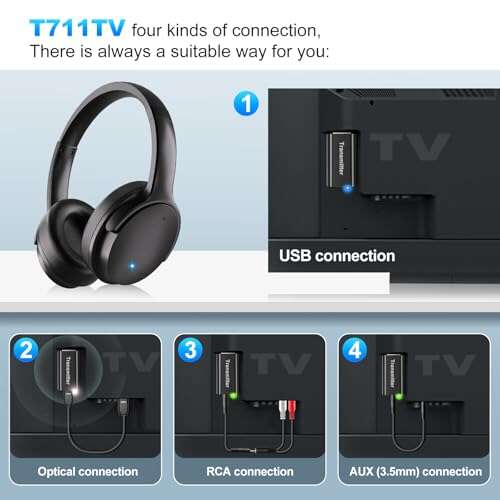
If your TV has no Bluetooth option, use a Bluetooth transmitter connected to the television’s optical, AUX, or headphone output. Choose a transmitter that matches the port available on your TV.
How to reconnect Helix headphones after the first setup
After the first successful pairing, reconnecting should take only a few seconds. Turn on the headphones, turn on Bluetooth on your device, and wait for the saved connection to return.
If the headphones do not reconnect, open your Bluetooth menu and tap the Helix device name. You may see options such as Connect, Pair, or Use for media.
Keep in mind that some headphones remember several devices but connect to only one at a time. If the headphones connect to your tablet, they may not connect to your phone until the tablet’s Bluetooth is turned off.
A useful habit is to disconnect the headphones from the last device before switching to another. This small step often makes how to connect Helix Bluetooth headphones much faster.
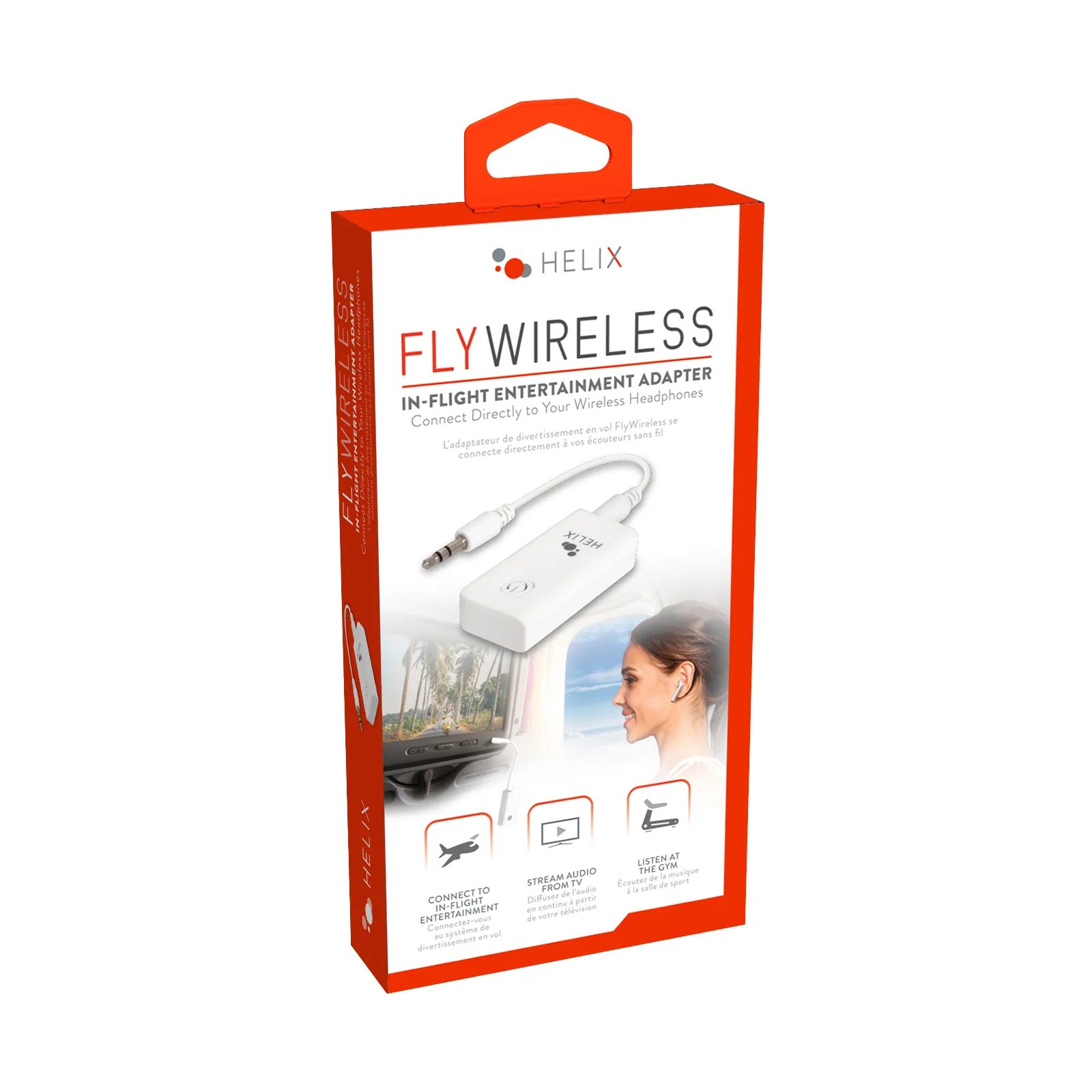
Helix headphones are not showing in Bluetooth
If the Helix headphones do not appear in the Bluetooth list, they may not be in pairing mode. A normal power-on light is not always the same as a pairing light.
Try these steps:
• Turn the headphones off and on again.
• Hold the power button longer, usually 5 to 10 seconds.
• Move the headphones close to the phone or computer.
• Turn Bluetooth off, wait 10 seconds, and turn it on again.
• Close the Bluetooth settings screen and reopen it.
• Disconnect the headphones from another nearby device.
• Charge the headphones before trying again.
Also check whether your device has reached its Bluetooth connection limit. Removing old or unused devices can help, especially on computers and smart TVs.
When I troubleshoot how to connect Helix Bluetooth headphones, the most common mistake is releasing the power button too soon. The headphones turn on, but they never enter pairing mode.
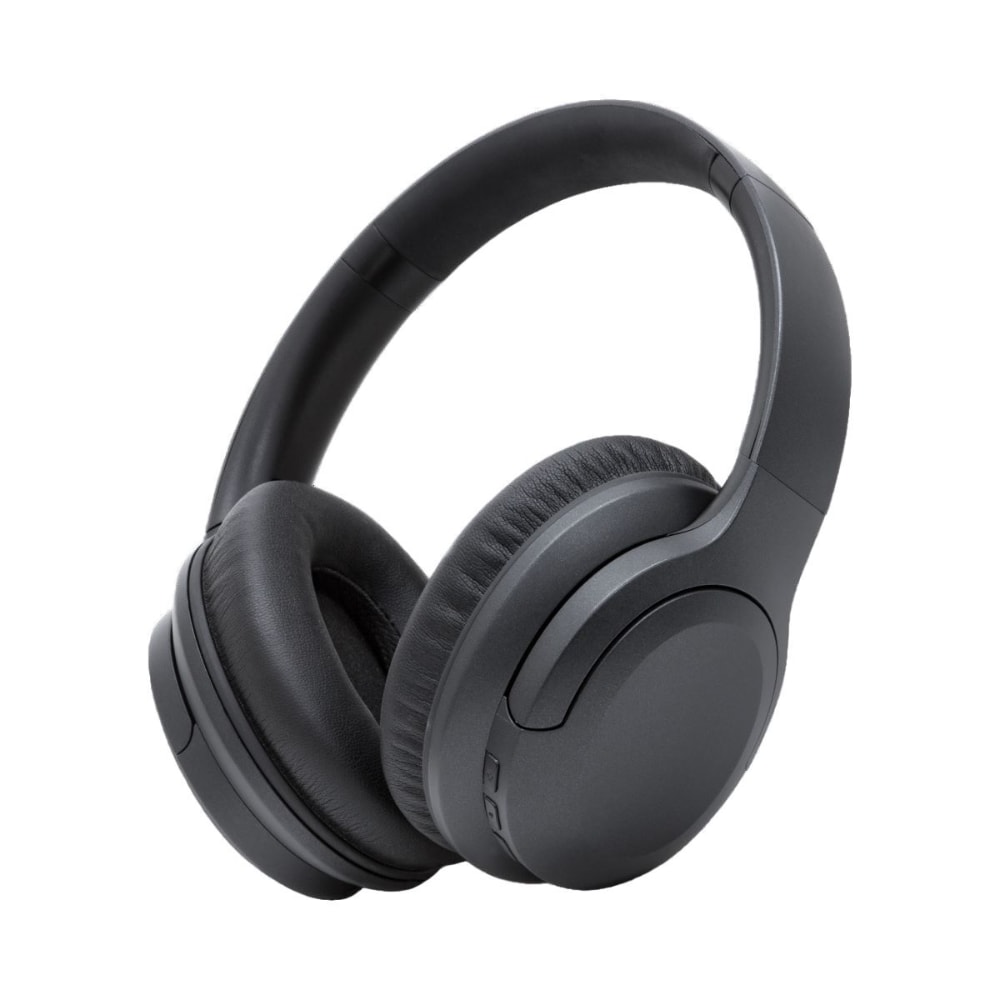
Helix headphones connect but produce no sound
A Bluetooth connection does not always mean your device selected the headphones for audio. Your phone or computer may still send sound through its built-in speaker.
On a phone, start playing audio and check the media output control. Choose the Helix headphones from the available devices.
On Windows, click the sound icon and select the Helix headphones. On a Mac, open Control Center, choose Sound, and select the correct output.
If you are using a computer, you may see two Helix options. One may say Headphones, while another may say Headset. The Headphones option often provides better music quality. The Headset option activates the microphone but may reduce sound quality.
Helix headphones keep disconnecting
Intermittent Bluetooth connections can come from low battery, distance, wireless interference, or software issues. Bluetooth works best when the headphones and source device have a clear path between them.
Try the following:
• Keep the headphones within 30 feet of the source device, with fewer walls between them.
• Charge both the headphones and the source device.
• Move away from crowded Wi-Fi routers or other wireless devices.
• Remove the Helix headphones from the Bluetooth list and pair them again.
• Restart the phone, computer, or TV.
• Install available system updates.
Bluetooth range depends on the device, walls, radio interference, and the headphone model. A manufacturer’s advertised range is usually measured in open space, not through several rooms.
One lesson from testing wireless headphones is that a crowded desk can cause more trouble than people expect. A laptop, wireless mouse, Wi-Fi router, and phone may all compete for space. Moving the headphones closer often reveals whether range is the real issue.
How to reset Helix Bluetooth headphones
A reset can clear a damaged or confusing pairing record. The reset method is not identical on every Helix model, so check the model’s guide when possible.
Common reset methods include:
- Remove the headphones from every saved Bluetooth device.
- Turn the headphones off.
- Press and hold the power button for 10 to 15 seconds.
- Release the button when the light pattern changes.
- Charge the headphones.
- Turn them on and enter pairing mode again.
Some models use the power button and volume buttons together. Others reset when you hold the multifunction button while connecting the charging cable. Do not force a reset sequence if the manual gives different instructions.
After resetting, treat the headphones like a new device. This means repeating the steps for how to connect Helix Bluetooth headphones from the start.
Pairing problems to avoid
Small setup mistakes can prevent a successful connection. Avoid these common errors:
• Trying to pair while the headphones are connected to another device.
• Searching for the headphones before pairing mode starts.
• Keeping the headphones too far from the phone or computer.
• Ignoring a low battery warning.
• Selecting the wrong Bluetooth device from the list.
• Pairing with a TV that does not support Bluetooth audio.
• Forgetting to choose the headphones as the audio output.
• Resetting the headphones before trying a simple reconnect.
The best approach is to change one thing at a time. This makes the cause easier to find and prevents confusion.
Tips for better Bluetooth headphone performance
After you learn how to connect Helix Bluetooth headphones, a few habits can improve daily use:
• Keep the headphones charged between uses.
• Store them in a cool, dry place.
• Clean the charging contacts with a dry, soft cloth.
• Keep the firmware and source device software updated.
• Avoid bending or damaging the charging cable.
• Turn Bluetooth off on devices you no longer use.
• Use the correct audio profile for music or calls.
• Keep the headphones within a practical range.
Battery life can decline over time. This is normal for rechargeable lithium-ion batteries. Heat, deep discharge, and long periods without charging can also affect battery performance.
For calls, place the microphone side of the headphones in a clear position. Clothing, hair, and wind can reduce microphone quality even when the Bluetooth connection is strong.
How long does pairing take?
Most Helix Bluetooth headphones pair within one minute. The first connection may take longer because your device must discover and save the headphones.
If pairing takes more than a few minutes, restart Bluetooth and place the headphones back into pairing mode.
Can Helix headphones connect to two devices at once?
Some Helix models support multipoint Bluetooth, while others connect to only one device at a time. Check the model guide for multipoint support before expecting automatic switching.
If multipoint is not available, disconnect the headphones from the first device before pairing them with a second one.
Why do my Helix headphones say connected but have no sound?
Your device may have connected for calls but not selected the headphones for media audio. Open the sound or media output menu and manually choose the Helix headphones.
On a computer, check both the output and input device settings.
How do I put Helix headphones into pairing mode?
Turn the headphones off, then press and hold the power or multifunction button for about 5 to 10 seconds. Release it when the indicator flashes or you hear a pairing prompt.
The exact light pattern may differ by model.
What should I do if my Helix headphones are not charging?
Try another compatible cable, charger, and power outlet. Check the charging port for dust and make sure the plug is fully inserted.
If the headphones still show no charging light after several attempts, the battery, cable, or charging port may need professional service.
Conclusion
Learning how to connect Helix Bluetooth headphones usually takes only a few steps: charge them, activate pairing mode, open Bluetooth settings, and select the correct device. If the connection fails, check pairing mode, distance, battery level, saved devices, and audio output before assuming the headphones are broken.
Start with your phone or computer nearby and follow the process slowly. Once the first pairing works, reconnecting should be quick and easy. If this guide helped, explore more Bluetooth audio tips or share your experience in the comments.

Everett Ashford is a tech reviewer at mytechgrid.com specializing in SSDs, cameras, TVs, earbuds, headphones, and other consumer electronics. He provides honest, data-driven reviews based on hands-on testing and real-world performance analysis. Everett simplifies complex tech details to help readers make smart, confident buying decisions.