Pair your Jabra headset via Bluetooth or USB in minutes — follow step-by-step pairing and settings.
I’ve helped dozens of people and IT teams set up Jabra devices. This guide shows exactly how to connect Jabra headphones to computer, step by step, with clear tips, real-life fixes, and settings you can trust. You’ll learn Bluetooth pairing, using a Jabra USB adapter, wired options, driver checks, and quick troubleshooting. Stick with me and you’ll get your Jabra working cleanly for music, video calls, and gaming.
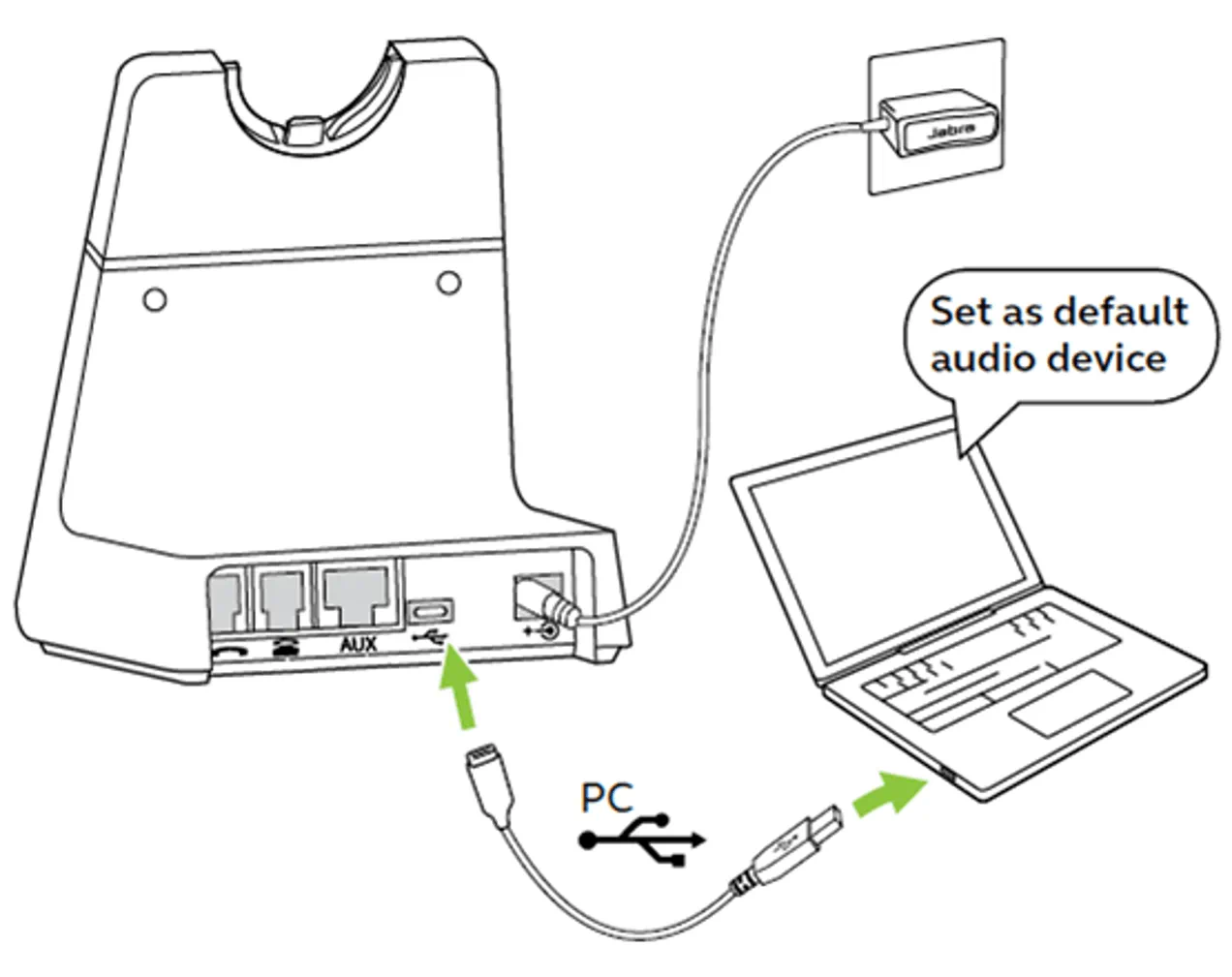
Quick overview: what you need to connect Jabra headphones to computer
Most Jabra models connect in three ways: Bluetooth, Jabra USB adapter (Link), or wired USB/3.5mm. Choose the method your model supports. Check battery charge, Bluetooth on the PC, or the right cable and audio drivers. This article covers Windows and macOS steps, common issues, and practical tips.
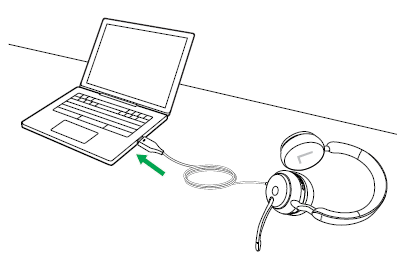
How to connect Jabra headphones to computer via Bluetooth (Windows 10 / 11)
Follow these steps to pair Jabra over Bluetooth on Windows. Keep the steps short and simple.
- Turn on the Jabra headphones and enable pairing mode.
- For many Jabra models, hold the power button until the LED flashes blue.
- Open Windows Settings > Devices > Bluetooth & other devices.
- Toggle Bluetooth on if it’s off.
- Click Add Bluetooth or other device > Bluetooth.
- Choose your Jabra device name from the list.
- It appears as Jabra Elite, Jabra Evolve, or similar.
- Confirm pairing and test audio with Sounds or a video.
If Windows asks to set as default audio device, accept. If you see two Jabra entries (Headset and Hands-Free), pick “Headphones” or “Stereo” for music and “Hands-Free” for calls.
From my experience, Bluetooth pairing is fast but sometimes requires a second try. Rebooting Bluetooth on both devices solves most issues.
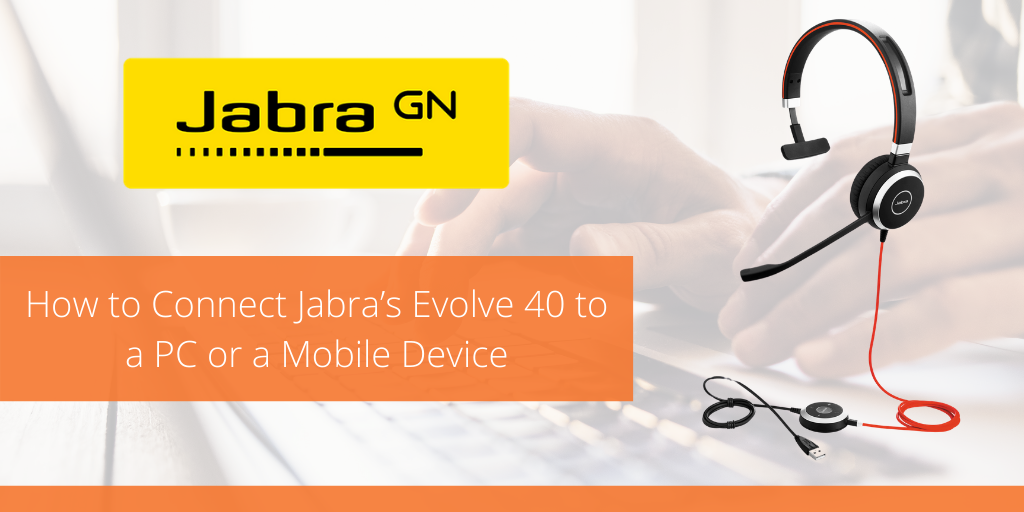
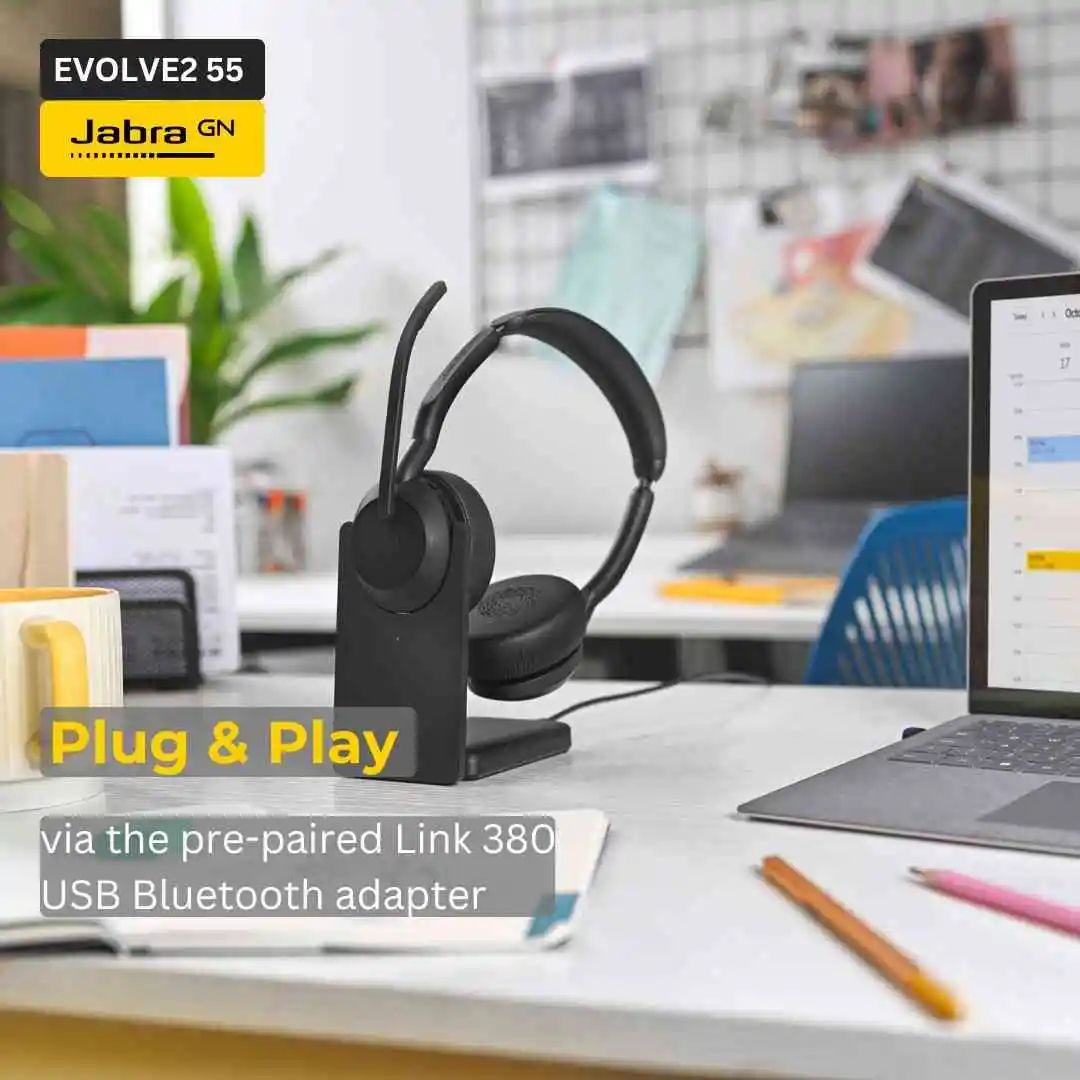
How to connect Jabra headphones to computer using the Jabra USB adapter (Link)
A USB adapter gives a more stable link for calls and conferencing.
- Plug the Jabra Link USB adapter into a free USB port on your computer.
- Switch the Jabra headset to wireless pairing mode.
- The adapter and headset pair automatically in most cases.
- In Windows Sound settings, set Jabra Link as the default input and output.
The Jabra Link removes latency and connection drops. IT teams often prefer this for call centers and hybrid work. If the adapter doesn’t pair automatically, re-seat the USB adapter or try a different USB port.
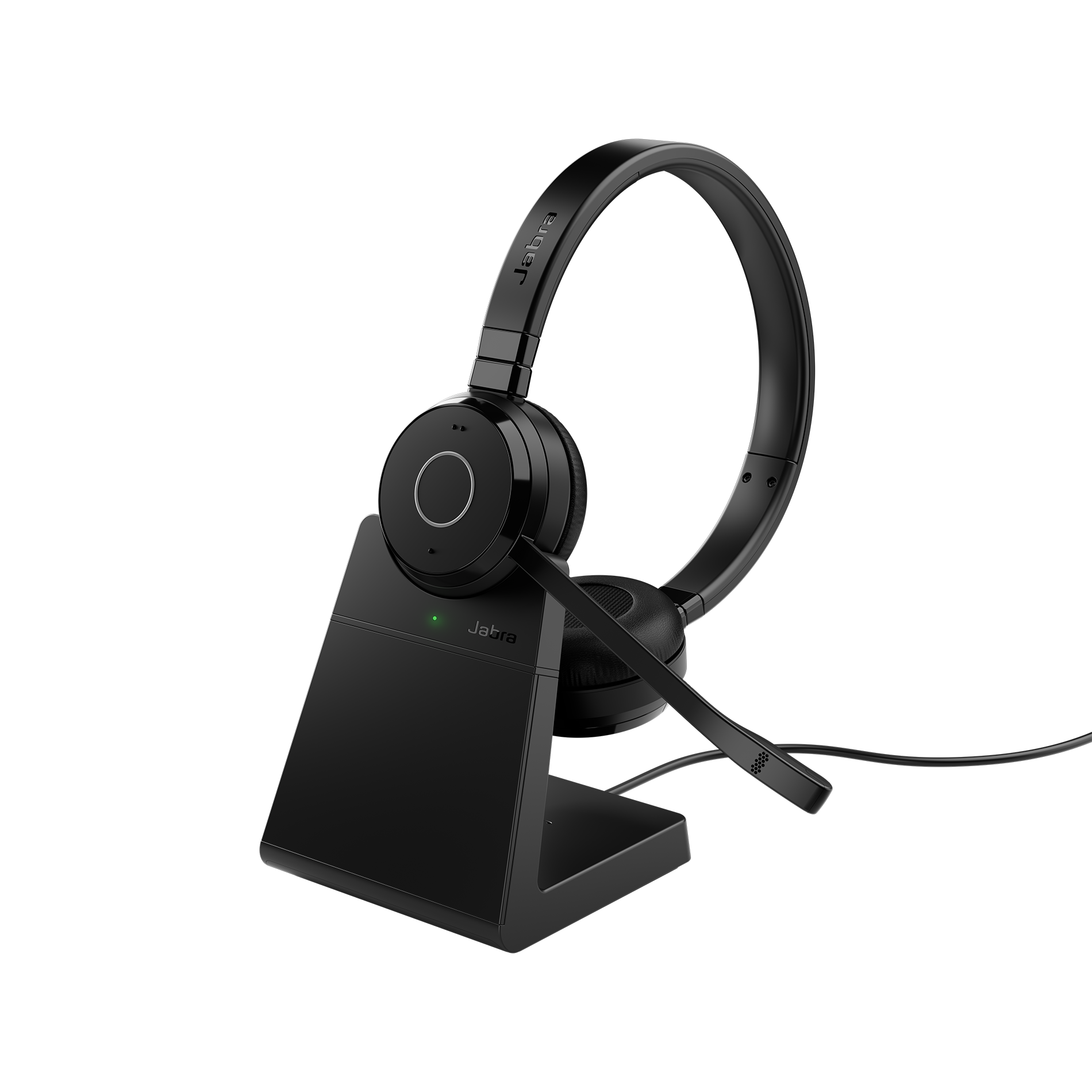
How to connect Jabra headphones to computer with a cable (USB-C or 3.5mm)
Wired links are the simplest and most reliable option.
- Check the cable type your Jabra uses: USB-C or 3.5mm audio jack.
- Plug the cable into the headset and the computer.
- For USB-C, Windows may install drivers automatically.
- Open Sound settings and select the wired device as default.
Wired mode avoids Bluetooth latency and battery limits. If sound is low or mic doesn’t work, check the cable for damage and ensure the headset is in wired mode if needed.
Drivers, firmware, and sound settings for Jabra
Correct drivers and firmware keep the headset working well.
- Update Windows or macOS to the latest patch that supports Bluetooth stacks.
- Install Jabra Direct or Jabra Sound+ app to update firmware and change settings.
- In Windows Sound Control Panel, set sample rate to 44.1 kHz or 48 kHz for best results.
- Select the correct input (microphone) and output (headphones) devices.
I always run the Jabra app after pairing. It often fixes mic profiles, firmware issues, and call quality. If you rely on the headset for work calls, schedule firmware updates during off hours.
Troubleshooting common problems when you connect Jabra headphones to computer
Problems happen. Here are quick fixes that work most of the time.
- No sound after pairing
- Make sure the Jabra device is set as default playback device in Sound settings.
- Re-pair the headset and restart your audio app.
- Mic not detected
- Choose the Hands-Free or Communication device under Input in Sound settings.
- Check app permissions for microphone access (Windows Privacy Settings).
- Frequent dropouts
- Move closer to the PC or remove USB 3.0 devices that can cause interference.
- Use the Jabra Link USB adapter for a more stable connection.
- Bluetooth won’t pair
- Remove the headset from known devices and try Add Device again.
- Restart Bluetooth service (Windows: Services > Bluetooth Support Service).
- Low volume or poor quality
- Switch from Hands-Free to Stereo for music.
- Update firmware via Jabra Direct.
From field experience, interference and outdated firmware are the top two issues. Fix those first.
Best settings and tips for calls, music, and gaming with Jabra
Small settings changes improve the everyday experience.
- For calls, use the Hands-Free profile and enable noise cancellation in the Jabra app.
- For music or games, pick Stereo mode and set the audio sample rate to 48 kHz.
- Mute the in-app mic and use the headset mute to avoid accidental unmuting.
- Keep firmware current; it can improve battery life and voice clarity.
- Use the Jabra USB adapter for low latency in video calls and gaming.
I recommend creating two audio device profiles on your PC: one for calls and one for media. Switch quickly as needed.
Personal experience: lessons learned while helping users connect Jabra headphones to computer
I’ve set up Jabra headsets for remote teams, students, and home office users. Here are what I learned.
- Always check for the Jabra app first. It fixes many weird issues.
- USB adapters beat Bluetooth for reliability in busy Wi‑Fi environments.
- Teach users how to switch audio profiles; many think pairing is the only step.
- Keep an inexpensive USB sound card handy if a laptop’s audio stack misbehaves.
One time, a whole team had low mic volume. Firmware update and changing the input device fixed it in under 10 minutes. Small steps save hours.
PAA-style questions within the article
Q: Can I use Jabra headphones with any computer?
A: Yes, most Jabra models support Bluetooth or wired connection and work with Windows and macOS, though features vary by model.
Q: Will firmware updates erase my settings?
A: Updates rarely erase user settings, but make a note of custom equalizer presets before major updates.
Q: Is the Jabra Link adapter necessary?
A: It’s not required but it provides the most stable connection for calls and reduces latency.
Frequently Asked Questions of how to connect jabra headphones to computer
How do I put my Jabra headphones into pairing mode?
Press and hold the power button until the LED flashes blue. Some models use a dedicated Bluetooth button. Check the voice prompt on the headset.
My computer finds the Jabra but won’t connect. What should I do?
Remove the Jabra device from your Bluetooth list and add it again. Restart Bluetooth on the PC and the headset, then try pairing one more time.
Which audio profile should I use for the best mic quality?
Choose the Hands-Free profile for calls and meetings. For higher music quality, pick Stereo or A2DP instead.
Why does my Jabra mic sound low in video calls?
Check app microphone permissions and ensure the headset input is selected. Update firmware and drivers if the problem continues.
Can I use Jabra headphones with conferencing apps like Zoom or Teams?
Yes. Select the Jabra device for speaker and microphone in the app’s audio settings and test before joining calls.
Conclusion
You now have a clear roadmap for how to connect Jabra headphones to computer: choose Bluetooth, USB adapter, or wired mode, update firmware, and set audio profiles for calls or music. Try the steps, update the Jabra app, and keep a USB adapter if you need rock-solid call quality. If one method fails, switch to another—wired or adapter—and test again.
Take action today: pair your headset, run the Jabra app, and leave a note below about your setup or any stubborn issue you hit. Your feedback helps others and sharpens these tips.

Everett Ashford is a tech reviewer at mytechgrid.com specializing in SSDs, cameras, TVs, earbuds, headphones, and other consumer electronics. He provides honest, data-driven reviews based on hands-on testing and real-world performance analysis. Everett simplifies complex tech details to help readers make smart, confident buying decisions.