Pair your Jabra and iPhone via iOS Bluetooth: enable pairing on Jabra, open iPhone Settings > Bluetooth, then tap Jabra.
I’ve spent years testing earbuds and headsets, and I know how frustrating simple pairing can be. This guide walks you through how to connect jabra headphones to iphone step by step. I’ll cover basic pairing, special modes, common fixes, and tips to keep audio and battery strong. Read on and you’ll pair with confidence.
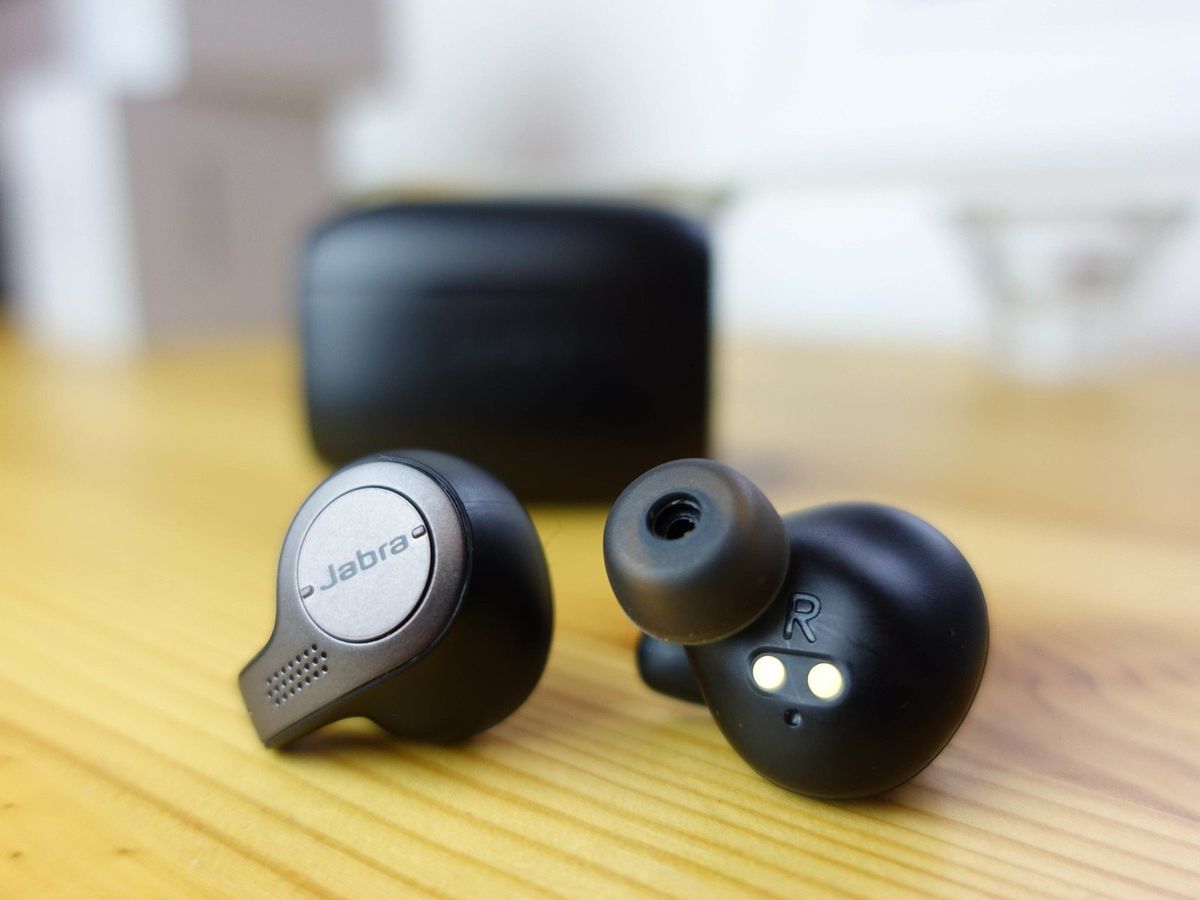
Quick checklist before you start
A few quick checks save time. Make sure your Jabra is charged. Turn on Bluetooth on your iPhone. Close other active Bluetooth devices near you. These steps make how to connect jabra headphones to iphone fast and reliable.

Step-by-step pairing guide: how to connect jabra headphones to iphone
Follow these steps to pair most Jabra models with an iPhone. The process is simple and works for wired pairing modes and true wireless models.
- Turn on the Jabra headset or earbuds.
- Put the Jabra into pairing mode.
- For many Jabra earbuds press and hold the power button for 3–5 seconds until the LED flashes blue or you hear a voice prompt.
- For some models, open the case and hold the multifunction button.
- On the iPhone, open Settings.
- Tap Bluetooth and toggle it on.
- Look for your Jabra name under “Other Devices.”
- Tap the Jabra listing to pair and connect.
- Wait until the status reads “Connected.” You are now finished.
If the name does not appear, turn Bluetooth off and on. Try steps again. This method shows the basic flow of how to connect jabra headphones to iphone in most cases.
src="https://images.surferseo.art/0f98f345-85f0-4bc9-9aed-59fe082cb2de.png"
alt="Pairing modes and iOS settings for how to connect jabra headphones to iphone”
style=”max-width: 100%; height: auto; border: 2px solid black; border-radius: 10px; display: block; margin: 0 auto;”
loading=”lazy”
/>
Pairing modes and iOS settings for how to connect jabra headphones to iphone
Jabra offers different pairing flows by model. Some use a single-button pairing. Others use the case or a pairing app. iOS can show device battery levels and options.
- Standard pairing: Jabra in pairing mode, iPhone Bluetooth on, tap device.
- Automatic rejoin: Once paired, Jabra should reconnect when turned on near the iPhone.
- Dual pairing or multipoint: Some Jabra models support two devices. You can switch audio on the Jabra or via iPhone Control Center.
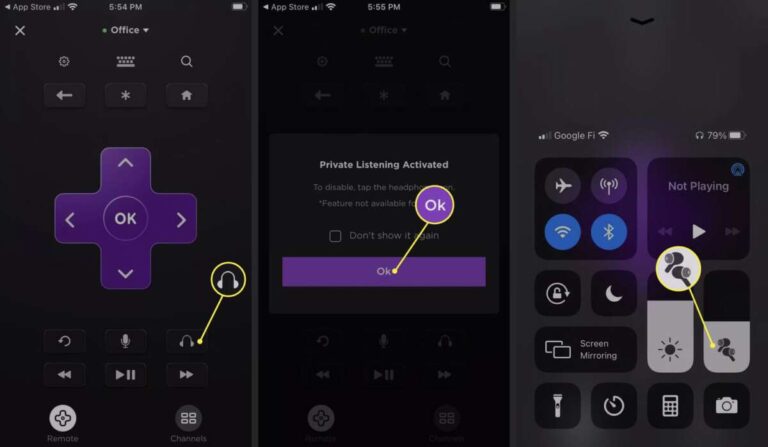
Check iPhone Control Center for quick audio routing. If you see “Headphones” there, select your Jabra. Knowing these settings helps when you learn how to connect jabra headphones to iphone quickly.
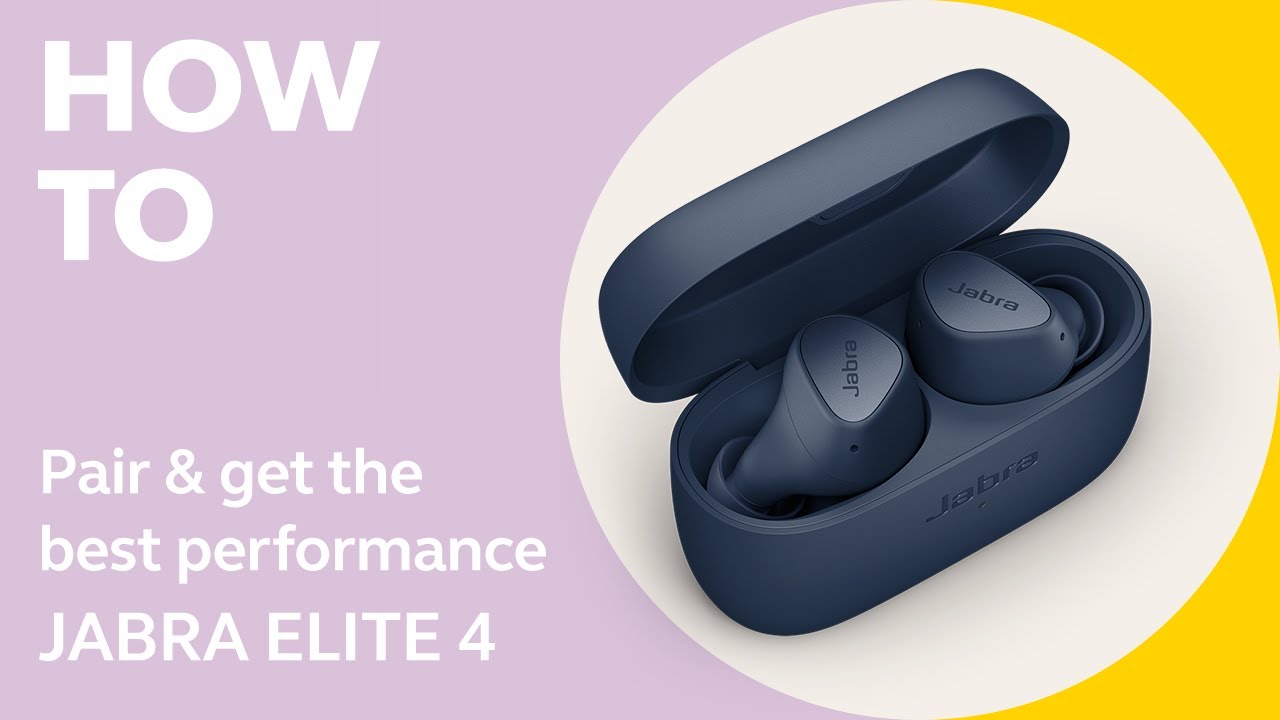
Common quick questions
Q: Can my iPhone show Jabra battery level?
A: Yes. Many Jabra models report battery to iOS when connected. Check the Batteries widget or the Control Center audio tile.
Q: Do I need the Jabra app?
A: No. The app adds features and firmware updates. But you can pair without it.
Troubleshooting: how to connect jabra headphones to iphone when pairing fails
If pairing fails, stay calm. Try simple fixes first. These tend to resolve most problems.
- Restart the Jabra device by powering it off and on.
- Forget the Jabra on iPhone: Settings > Bluetooth > tap the info icon > Forget This Device. Then pair again.
- Restart the iPhone.
- Fully charge both devices.
- Move away from other Bluetooth devices and Wi‑Fi routers that may cause interference.
If the device still won’t pair, reset the Jabra to factory settings per the manual. This often clears stubborn pairing issues. These steps cover common ways to solve how to connect jabra headphones to iphone problems.
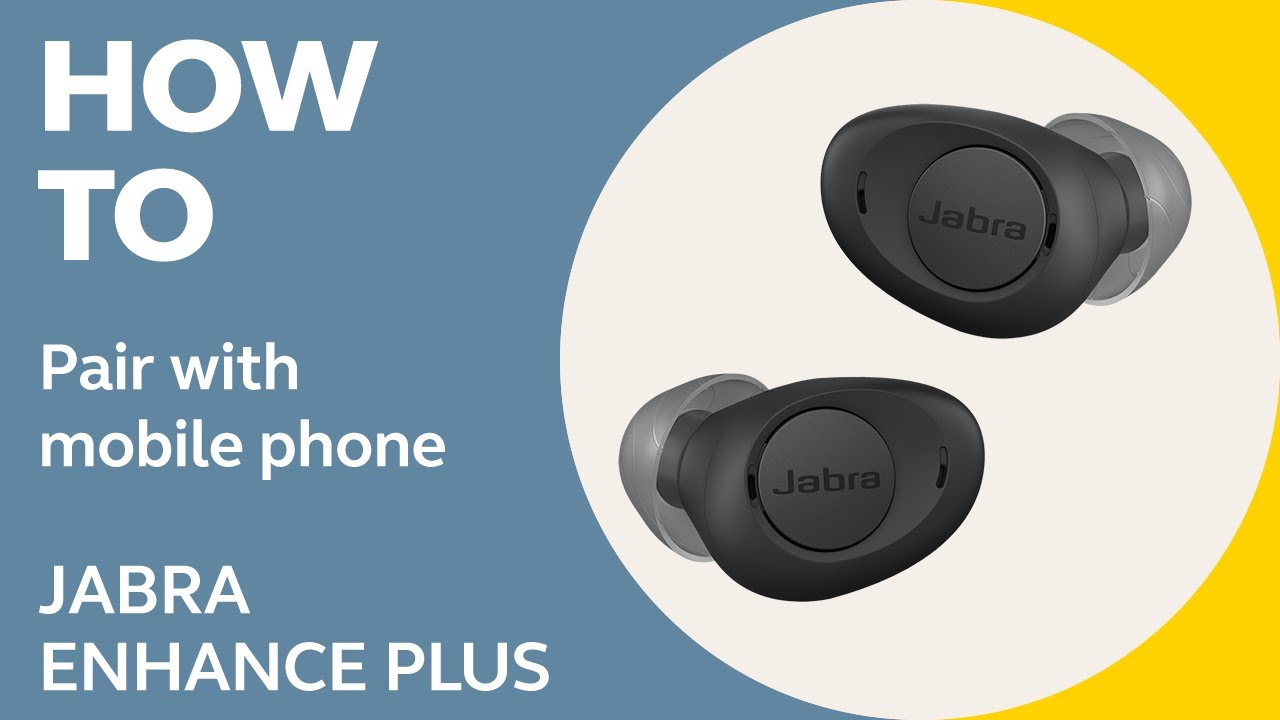
Tips for best audio and battery when you connect jabra headphones to iphone
Good habits make daily use smooth. Here are tips I learned from long testing.
- Keep firmware updated via the Jabra app for bug fixes and better pairing.
- Use AAC codec on iPhone for better sound if supported.
- Lower volume on long calls to save battery.
- Store earbuds in the case when not in use to keep battery healthy.
- Avoid extreme heat or moisture.
These small steps improve how to connect jabra headphones to iphone and extend the life and quality of your Jabra gear.

My personal experience and lessons learned
I once spent an hour trying to pair a Jabra that wouldn’t show up in Bluetooth. The fix was simple. I removed old pairings on my iPhone and reset the Jabra. After that, pairing was instant. The lesson: clean out stale devices and keep firmware current. That tip will speed up how to connect jabra headphones to iphone for you too.
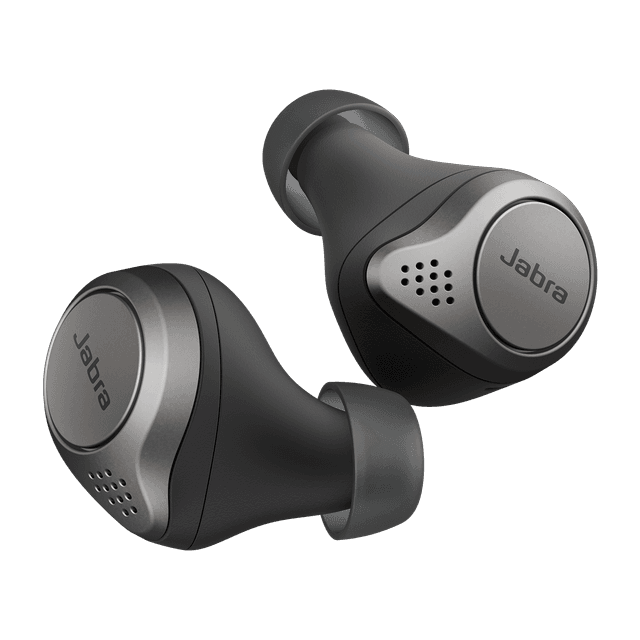
Advanced notes: multipoint, calls, and audio routing
If your Jabra supports multipoint, you can pair it to a laptop and your iPhone at once. Audio may prefer one device. Use the iPhone audio tile to force playback to Jabra. For phone calls, check microphone permissions and ensure the Jabra is set as the audio device in the call screen.
These settings help when you work across devices. They are part of mastering how to connect jabra headphones to iphone in mixed-device environments.

Frequently Asked Questions of how to connect jabra headphones to iphone
How do I put my Jabra into pairing mode?
Press and hold the power or multifunction button for several seconds until the LED blinks blue or a voice says “pairing.” Check your model guide for exact timing.
Why won’t my iPhone find my Jabra headphones?
The Jabra may not be in pairing mode, or it may be already connected to another device. Try resetting Bluetooth on your iPhone and restarting the Jabra.
Do I need the Jabra Sound+ app to pair?
No. The Jabra Sound+ app is optional. It adds firmware updates and extra features but is not required for pairing.
Can one Jabra pair with two devices at once?
Some Jabra models support multipoint pairing. If your model does, it can connect to two devices at the same time.
How do I update Jabra firmware with an iPhone?
Install the Jabra app, connect your Jabra, and follow the in-app prompts to check for and install firmware updates.
Conclusion
You can pair quickly by putting the Jabra in pairing mode, opening iPhone Settings > Bluetooth, and tapping the Jabra entry. Follow the troubleshooting steps here if things go wrong. Try the tips and keep firmware up to date to avoid repeat issues. Now go ahead and connect your Jabra—test audio and enjoy clearer sound. If this guide helped, leave a comment or subscribe for more device tips.

Jamie Lee is a seasoned tech analyst and writer at MyTechGrid.com, known for making the rapidly evolving world of technology accessible to all. Jamie’s work focuses on emerging technologies, product deep-dives, and industry trends—translating complex concepts into engaging, easy-to-understand content. When not researching the latest breakthroughs, Jamie enjoys exploring new tools, testing gadgets, and helping readers navigate the digital world with confidence.