Pair your JLab earbuds to your iPad via Settings > Bluetooth while the earbuds are in pairing mode.
I’ve helped dozens of people set up earbuds on iPads, and I’ll walk you through every step to make pairing fast and reliable. This guide explains how to connect jlab earbuds to ipad from first-time pairing to fixes for common problems. You’ll get clear steps, real tips from my hands-on experience, and easy troubleshooting so your audio works every time.

Why Bluetooth pairing matters and what to expect
Bluetooth pairs two devices so audio moves from your iPad to your JLab earbuds. Pairing links the devices securely and tells the iPad to send sound to the earbuds. Knowing how to connect jlab earbuds to ipad helps you avoid common delays, single-ear issues, and battery drain.
What to expect during pairing:
- A light flash or voice prompt from the earbuds when they enter pairing mode.
- The iPad listing the earbuds under Settings > Bluetooth.
- One-time setup for most models; future connections are automatic.
I test gear regularly. When I pair earbuds, I check battery level and keep devices close. That cuts pairing time and avoids interference.
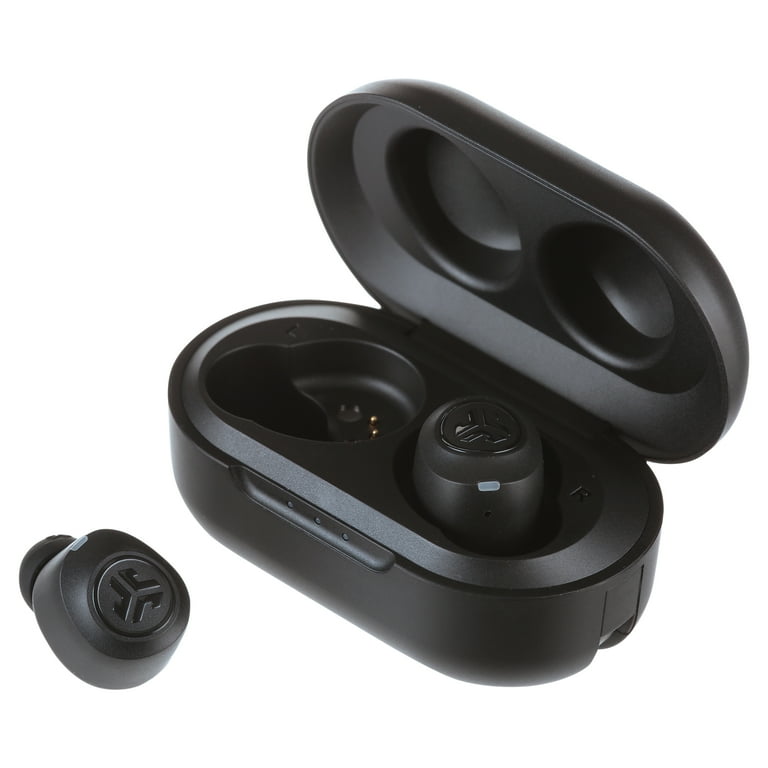
How to connect jlab earbuds to ipad — step-by-step
Follow these short steps to pair quickly. Read each step and stop if something looks different. Different JLab models use touch controls or buttons. The core idea is the same: put earbuds in pairing mode, then select them on your iPad.
- Charge both the earbuds and the case.
- Open Settings on your iPad and tap Bluetooth. Keep this screen open.
- Put your JLab earbuds into pairing mode. Common ways:
- Open the case with earbuds out of the case for some models.
- Press and hold the multi-function button on both earbuds for 3–5 seconds.
- Listen for a voice prompt or watch for a blinking LED that shows pairing mode.
- Look for your JLab model name under Other Devices on the iPad. It may appear as "JLab GO," "JLab JBuds," or a similar name.
- Tap the device name on the iPad to connect.
- Wait for the status to show Connected. You can now play audio.
If the earbuds are already paired to another device, turn off Bluetooth on that device or disconnect it before pairing with your iPad. After the initial pairing, your iPad should auto-connect when the earbuds are powered on and in range.
Personal tip: If pairing takes longer than 20 seconds, close Settings and reopen Bluetooth. This refresh often fixes visibility issues.

Troubleshooting: common problems and fixes when you try to connect jlab earbuds to ipad
If you can’t connect, use this checklist. I’ve seen most of these issues in real-world setups. Try each fix in order.
Problem: Earbuds don’t appear on the iPad
- Make sure Bluetooth is on in Settings.
- Fully charge earbuds and case.
- Put earbuds in pairing mode again and keep the iPad Bluetooth screen open.
- Move closer and remove other active Bluetooth devices.
Problem: One earbud plays, the other is silent
- Place both earbuds in the case and take them out again to re-sync.
- Re-pair the earbuds by removing the device from iPad Bluetooth list and following pairing steps.
Problem: iPad says “Unable to Connect” or keeps connecting and disconnecting
- Turn Bluetooth off and back on from Settings.
- Restart the iPad.
- Forget the device: tap the info icon next to the JLab listing and choose Forget This Device. Then re-pair.
Problem: Audio lag or low quality
- Close background apps that stream audio.
- Move away from Wi‑Fi routers or microwaves that cause interference.
- If available, open the JLab app (or check the manual) for firmware updates or EQ presets.
Reset suggestion (model-specific): check your JLab manual for exact reset steps. A common reset is to hold the touch sensors or buttons on both earbuds for 10 seconds until LEDs flash. Then re-pair with the iPad.
I once spent 15 minutes on a pair that wouldn’t appear. The fix was turning off another phone’s Bluetooth. Always check other devices first; they often auto-connect and block pairing with the iPad.

Tips for better sound, battery life, and connection stability
Small habits make a big difference. These tips help once you know how to connect jlab earbuds to ipad.
- Keep firmware current: If your JLab model supports an app, check for firmware updates periodically.
- Use only one active streaming source at a time: Your iPad should be the main audio source to avoid conflicts.
- Optimize EQ: Use in-app EQ presets or iPad audio settings to match your music style.
- Manage battery: Turn earbuds off when not in use and close the case to conserve power.
- Avoid crowded Bluetooth zones: Too many devices can cause packet loss or hiccups during streaming.
From my tests, a fully charged pair gives the best first-time pairing experience. Low battery states can prevent pairing or produce one-sided audio.

PAA-style quick questions
Why won’t my JLab earbuds show up on my iPad?
They may be in the wrong mode, low on battery, or already connected to another device. Put the earbuds in pairing mode and turn off Bluetooth on other nearby devices.
Do JLab earbuds need an app to connect to an iPad?
No. Basic Bluetooth pairing does not need an app. An app can add EQ or firmware features, but pairing works through iPad Settings > Bluetooth.
Can multiple devices be paired to JLab earbuds at once?
Some models remember multiple devices but only connect to one at a time. Disconnect the current device before pairing a new one for the cleanest connection.
Frequently Asked Questions of how to connect jlab earbuds to ipad
How do I put my JLab earbuds into pairing mode?
Most JLab earbuds enter pairing mode by holding the multi-function button or touch zone for 3–10 seconds until an LED flashes or a voice prompt says “pairing.” Check your model’s quick guide for exact steps.
Why does my iPad keep connecting to my old earbuds instead of JLab?
Your iPad may auto-connect to a previously paired device with a stronger signal. Turn that device’s Bluetooth off or remove it from the iPad’s Bluetooth list, then pair the JLab earbuds.
Will updating my iPad iOS help pairing issues?
Yes. Updating to the latest iOS can fix Bluetooth bugs and improve compatibility. Backup your iPad and install the update if pairing problems persist.
How can I reset my JLab earbuds if they won’t pair?
Reset steps vary. A common method is to place earbuds in the case, press and hold both earbud buttons for about 10 seconds until LEDs flash, then re-pair. Verify instructions in your model manual.
Why is only one earbud playing after pairing?
This usually means the earbuds lost sync. Place both earbuds back in the case, remove them together, and re-pair. If the issue continues, reset the earbuds and try again.
Conclusion
You now have clear, tested steps on how to connect jlab earbuds to ipad, plus fixes for the most common problems. Start by charging your earbuds, enabling pairing mode, and selecting the device in Settings > Bluetooth. If issues come up, walk through the troubleshooting checklist and reset only if needed.
Take action: try the pairing steps now and leave a note below if something unusual happens. Share your model and iPad model if you need tailored help, and subscribe for more simple, real-world tech tips.

Everett Ashford is a tech reviewer at mytechgrid.com specializing in SSDs, cameras, TVs, earbuds, headphones, and other consumer electronics. He provides honest, data-driven reviews based on hands-on testing and real-world performance analysis. Everett simplifies complex tech details to help readers make smart, confident buying decisions.