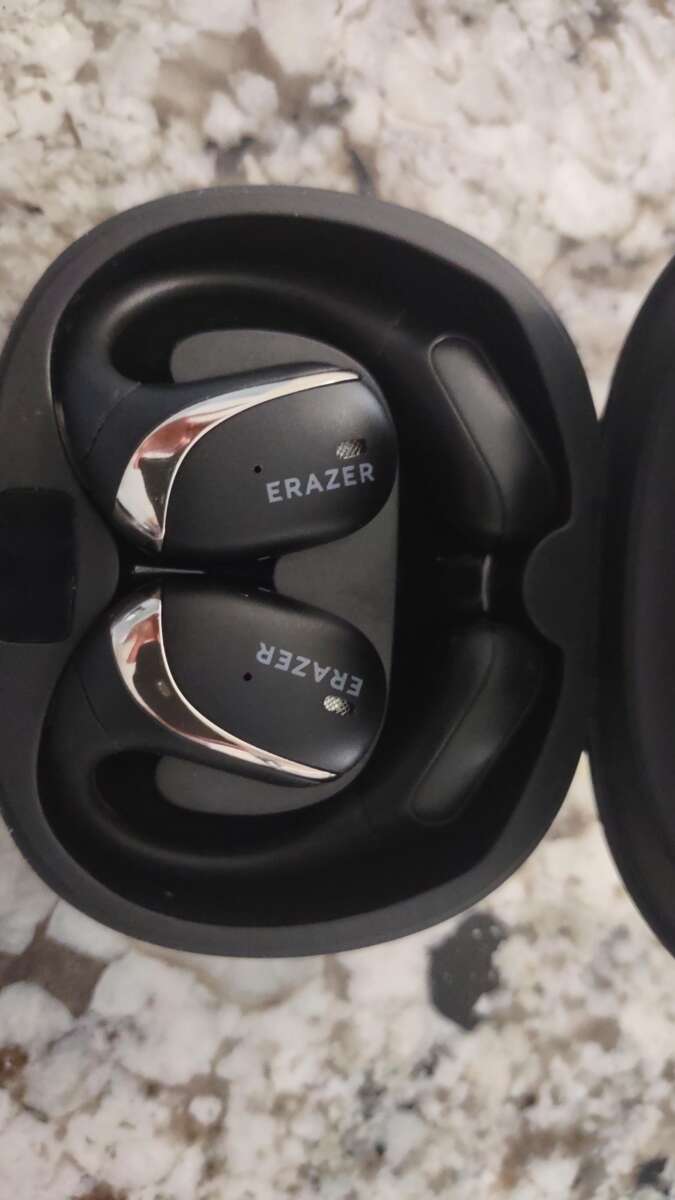
Open the case near your device, enable Bluetooth, and select the Nothing earbuds from the list.
I’ve paired Nothing earbuds with phones, tablets, and laptops many times. In this guide I explain clearly and confidently how to connect nothing earbuds to the devices you use every day. You’ll get step-by-step pairing, platform-specific tips, smart troubleshooting, and real experience-based advice so you can connect fast and stay connected.
Quick checklist before you start
Make these quick checks to avoid common hiccups.
Charge the earbuds and case before pairing. Low battery can block pairing.
Turn on Bluetooth on the device and close unused Bluetooth connections. Too many active devices can interfere.
Have the Nothing X app ready on Android for firmware and settings. The app helps with updates and advanced controls.

how to connect nothing earbuds — step-by-step
Follow these steps for a reliable pairing process. Each step is short and simple.
-
Charge and open
- Put the earbuds in the case and close it for 10 seconds, then open the case near your device.
- A blinking LED or a quick sound usually means they’re ready.
-
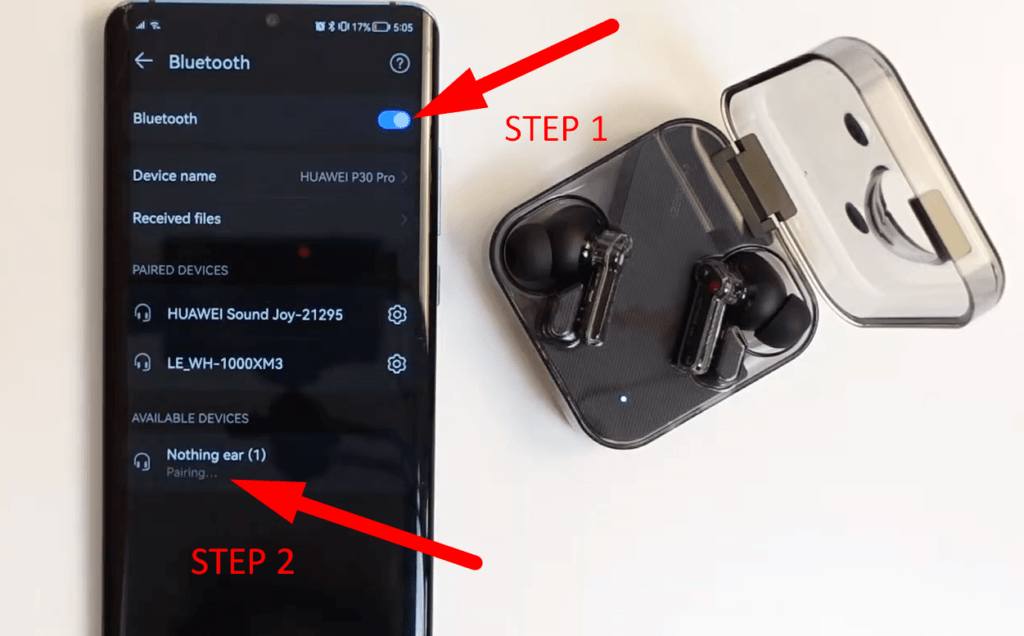
Enable Bluetooth on your device
- Open Bluetooth settings on your phone, tablet, or computer.
- Wait a few seconds for the device to scan.
-
Put the earbuds into pairing mode if needed
- If the earbuds don’t show up, press and hold the pairing button on the case or hold both earbuds’ touch areas until the LED blinks white.
- This is the standard way to start how to connect nothing earbuds when auto-pairing fails.
-
Select the earbuds
- Tap the device name that starts with “Nothing Ear” in Bluetooth settings.
- Confirm any pairing prompts on screen.
-
Confirm connection and test audio
- Play a short audio clip to check left and right channels.
- If audio is unbalanced, re-seat the earbuds and retry.
-
Update firmware (optional but recommended)
- Use the Nothing X app or the device’s Bluetooth settings to check for firmware updates.
- Updates fix bugs and improve connection stability.
Pairing with iPhone and iPad
Pairing with Apple devices is fast and mostly automatic.
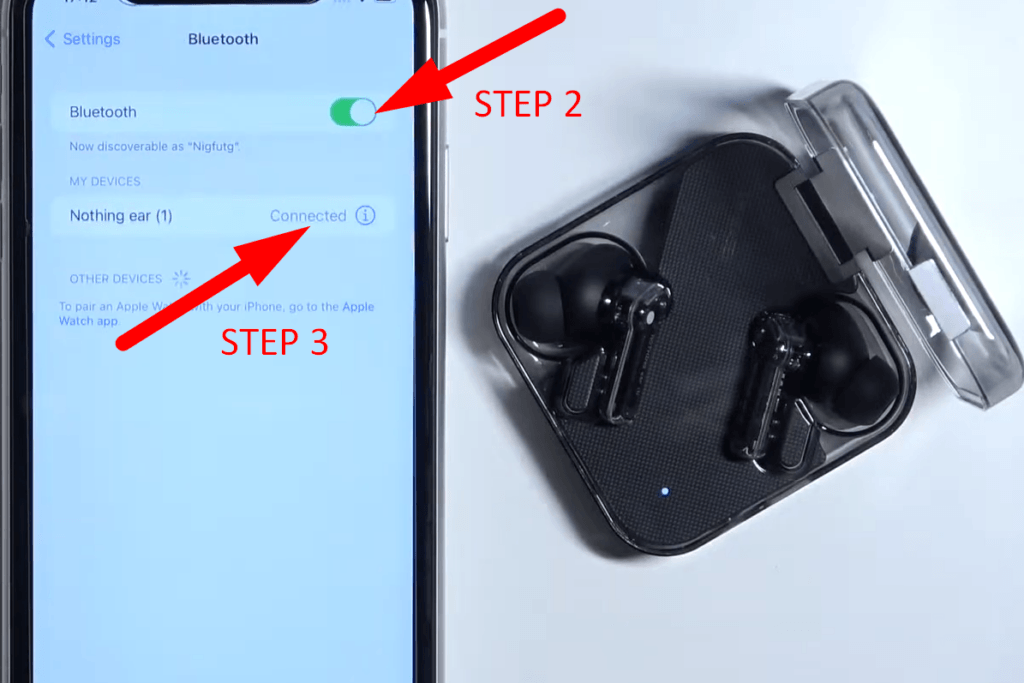
Open the case next to your iPhone or iPad with Bluetooth enabled. The iOS pairing card often appears instantly. Tap Connect to complete pairing.
If the pairing card does not show, open Settings > Bluetooth and select the Nothing earbuds from the device list.

Pairing with Android and the Nothing X app
Android pairing gives extra control via the Nothing X app.
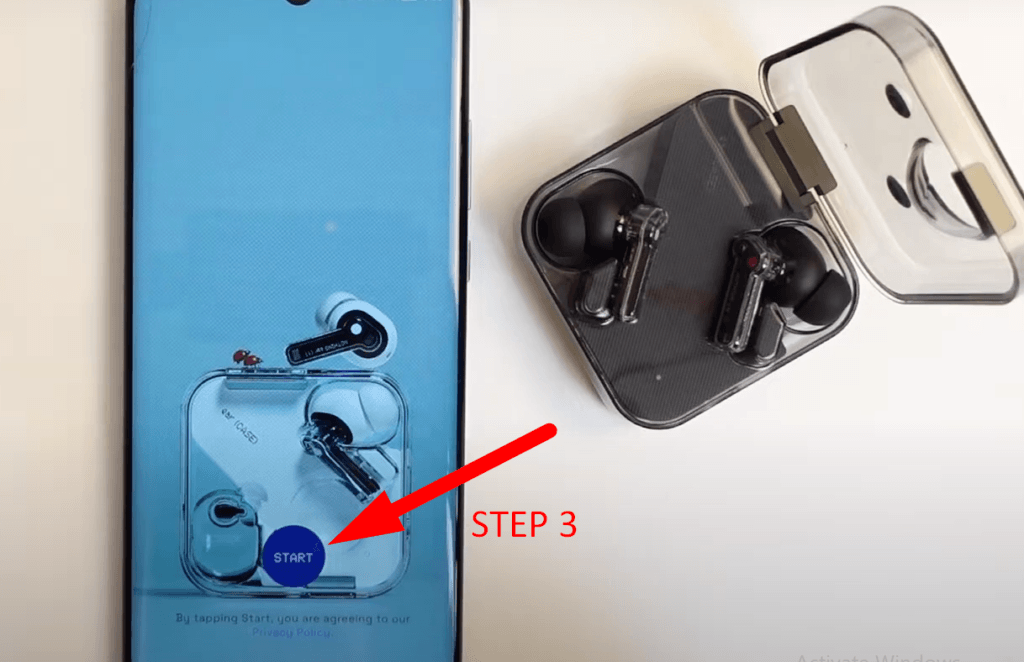
Open the case near your phone and watch Bluetooth settings for the Nothing device name. If it shows, tap to pair.
Install Nothing X to update firmware, customize touch controls, and enable features like spatial audio. The app also offers guided pairing if you get stuck.
Pairing with Windows, Mac, and other devices
Pairing to a laptop or TV uses the same Bluetooth steps.
On Windows, open Settings > Bluetooth & devices > Add device, then choose Bluetooth and select the Nothing earbuds. On Mac, open System Settings > Bluetooth and click Connect.
If the device requires a PIN, try 0000 or 1234; most Nothing earbuds do not need a PIN.

Troubleshooting common connection issues
If pairing fails, try these quick fixes first.
- Restart Bluetooth on your phone or computer. This clears temporary conflicts.
- Close the case, wait 10 seconds, and reopen to reset earbuds into pairing mode.
- Remove old pairings on your device and on the earbuds. A full forget-and-repair can help.
- Reset the earbuds to factory settings if problems persist. Exact reset steps vary by model.
You might wonder why the earbuds won’t appear in Bluetooth. Usually they are not in pairing mode or the battery is too low.
If sound is only in one ear, clean the contact points and re-seat the earbuds in the case for a full charge.

Personal experience and best practices
From my tests, a few habits cut connection time in half.
Keep the case firmware updated and the Nothing X app installed on Android. Updates fixed micro-dropouts I saw early on.
When traveling, disable nearby Bluetooth audio on other devices to prevent accidental switching. I once lost audio on a call because my laptop auto-reconnected; turning off laptop Bluetooth fixed it instantly.
If you rely on a single earbud for calls, set the dominant ear in the app or check the manual for single-bud use to avoid mic issues.

Frequently Asked Questions of how to connect nothing earbuds
How do I put Nothing earbuds into pairing mode?
Open the case near your device; if they don’t appear, press and hold the case pairing button or touch both earbuds until the LED flashes to enter pairing mode.
Can I connect Nothing earbuds to multiple devices at once?
Some Nothing models support multipoint pairing; check your model’s specs and use the Nothing X app to enable this feature when available.
Why do my Nothing earbuds disconnect randomly?
Random drops often come from low battery, outdated firmware, or interference from other Bluetooth devices. Update firmware and reduce nearby active Bluetooth devices.
How do I reset my Nothing earbuds?
Reset methods vary by model but usually involve holding down the case button or touching the earbuds while the case is open; consult the quick start guide for exact steps if needed.
Will Nothing earbuds work with old Bluetooth devices?
Yes, they use standard Bluetooth audio profiles and should work, but older devices may not support advanced codecs or features like spatial audio.
Conclusion
You now have clear, simple steps for how to connect nothing earbuds to phones, tablets, and computers. Start with charging, use pairing mode if needed, and keep firmware updated for best results. Try the listed troubleshooting tips if something goes wrong, and use the Nothing X app when available to unlock extra features. Share your experience in the comments, subscribe for more guides, or try these steps now to get connected quickly.

Everett Ashford is a tech reviewer at mytechgrid.com specializing in SSDs, cameras, TVs, earbuds, headphones, and other consumer electronics. He provides honest, data-driven reviews based on hands-on testing and real-world performance analysis. Everett simplifies complex tech details to help readers make smart, confident buying decisions.