To connect noise cancelling headphones, turn on Bluetooth, select the headphones, and complete pairing on your device.
Learning how to connect noise cancelling headphones is simple once you understand pairing mode, Bluetooth settings, and device switching. I have found that most connection problems come from one missed step, such as leaving the headphones connected to an old phone or forgetting to charge them first. This guide explains the process for phones, computers, TVs, and wired setups, along with practical fixes that work across many popular brands.
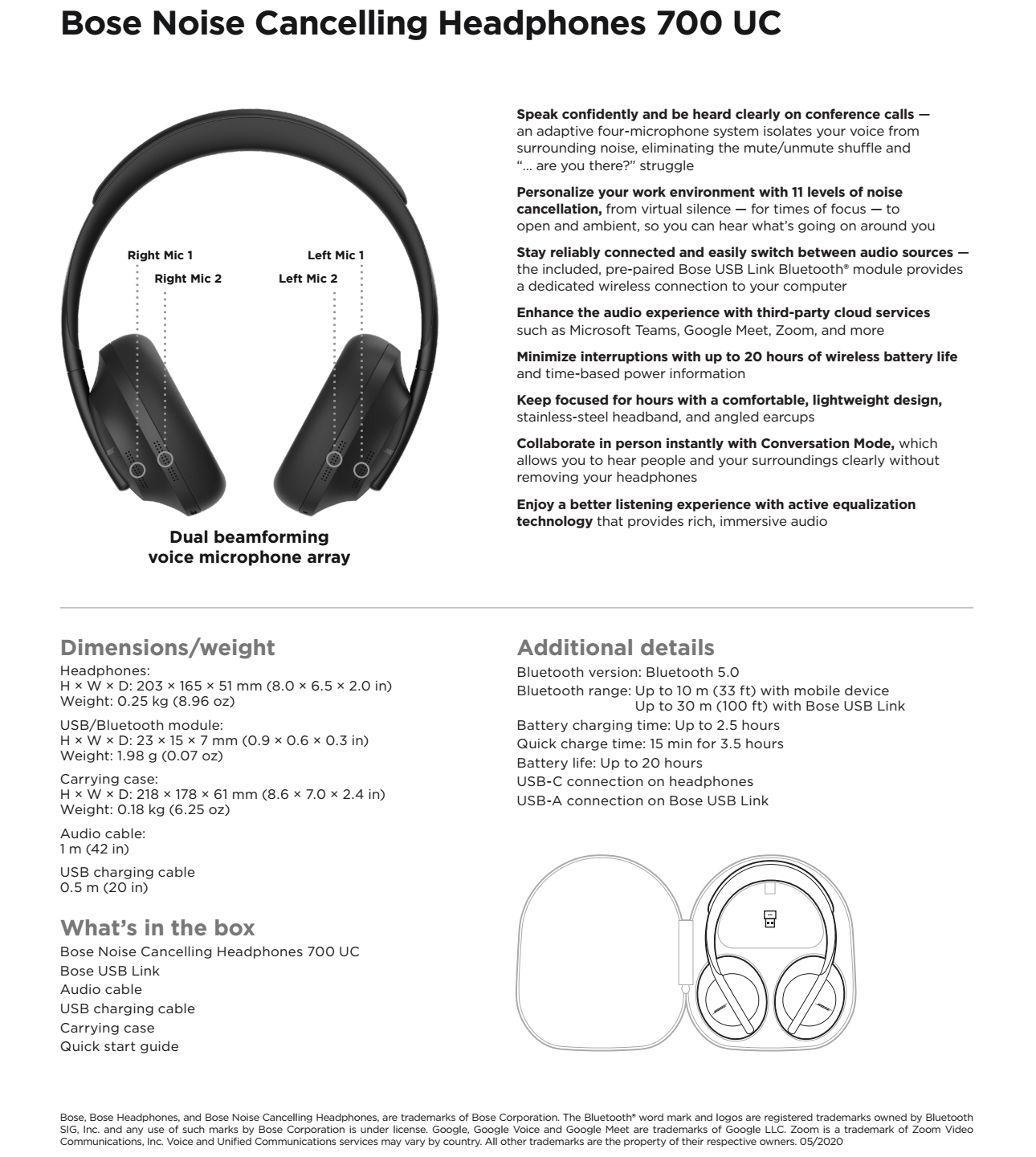
How to Connect Noise Cancelling Headphones to a Phone
Most noise cancelling headphones use Bluetooth for wireless listening. The steps are similar on iPhone and Android, although the names of some menus may differ.
Before you begin, charge the headphones and place them close to your phone. A low battery can prevent pairing or cause the connection to drop.
- Turn on your noise cancelling headphones.
- Press and hold the power or Bluetooth button.
- Keep holding it until the indicator light flashes or you hear “pairing.”
- Open your phone’s Settings app.
- Tap Bluetooth.
- Turn Bluetooth on.
- Look for your headphone name under Available Devices.
- Tap the name to connect.
- Accept a pairing request if one appears.
After pairing, play a song or video to test the sound. You can then turn noise cancellation on with the ANC button, touch control, or companion app.
When explaining how to connect noise cancelling headphones, it helps to separate Bluetooth pairing from noise cancellation. Bluetooth sends sound from your device, while ANC uses microphones and electronic processing to reduce outside noise. These are related features, but turning on ANC does not automatically pair the headphones.
Connecting to an iPhone
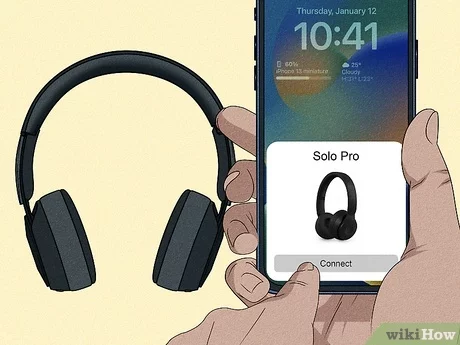
On an iPhone, open Settings, choose Bluetooth, and wait for the headphone name to appear. Some Apple-friendly models may show a setup card, but standard Bluetooth pairing works for nearly all brands.
If your headphones do not appear, turn Bluetooth off and on again. Also check that the headphones are not already connected to another nearby device.
Connecting to an Android phone
Android phones may show a pop-up notification when compatible headphones enter pairing mode. If no notification appears, open Settings, tap Connected devices or Connections, and select Bluetooth.
The exact menu can vary by Samsung, Google Pixel, Motorola, and other brands. Look for an option such as Pair new device if the headphones do not appear right away.
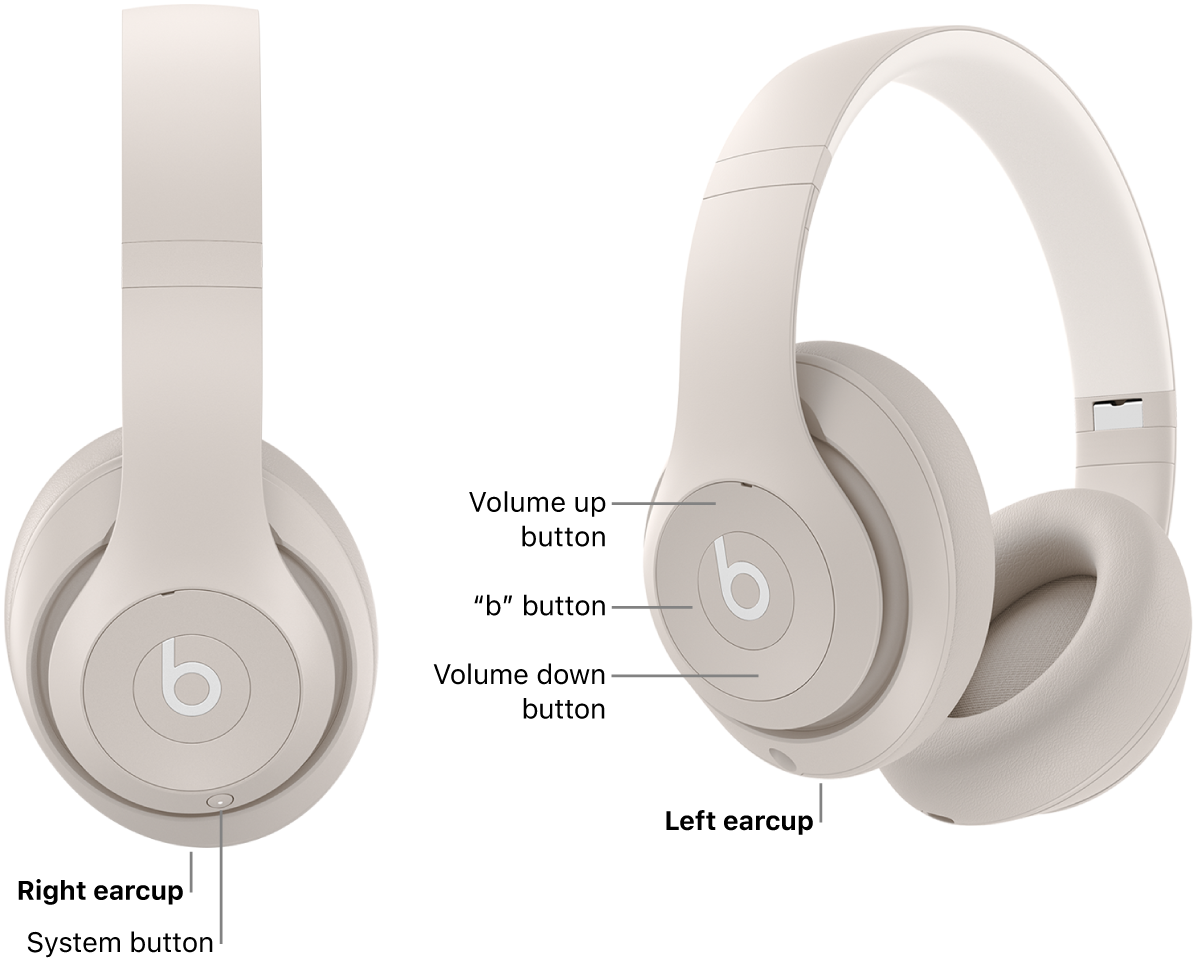
How to Connect Noise Cancelling Headphones to a Computer
Noise cancelling headphones can connect to Windows PCs, Mac computers, and many Chromebooks. The main steps are the same: activate pairing mode, open Bluetooth settings, and choose the headphones.
Windows 11 and Windows 10
- Put the headphones into pairing mode.
- Open Start and select Settings.
- Choose Bluetooth & devices.
- Turn Bluetooth on.
- Select Add device.
- Choose Bluetooth.
- Click your headphone name.
- Wait for the message that confirms the connection.
If the headphones connect but you hear no sound, select the speaker icon in the taskbar. Choose the headphones as the active output device. During video calls, also check that the same headphones are selected as the microphone.
Windows may show two audio profiles for some Bluetooth headphones. One profile may offer better music quality, while another is designed for calls. This change is normal and does not mean the headphones are defective.
Mac computers
- Turn on pairing mode on the headphones.
- Open the Apple menu.
- Select System Settings.
- Click Bluetooth.
- Find the headphones in the list.
- Click Connect.
On older macOS versions, Bluetooth appears inside System Preferences. After connecting, open the Sound settings and choose the headphones for output.
Chromebooks
Open the Quick Settings panel in the lower right corner. Turn on Bluetooth, select the headphones, and approve the connection. If the device does not appear, open the full Bluetooth settings and select Pair new device.
Understanding how to connect noise cancelling headphones to a computer is especially useful for remote work. Remember to test both speaker output and microphone input before an important meeting.

How to Connect Noise Cancelling Headphones to a TV
Many newer smart TVs support Bluetooth headphones. This lets you watch shows without disturbing other people in the room.
The menu names differ by manufacturer, but the general process is:
- Place the headphones in pairing mode.
- Open the TV’s Settings menu.
- Find Sound, Audio, or Bluetooth settings.
- Select Bluetooth speaker, Wireless speaker, or Audio device.
- Choose the headphones from the list.
- Confirm the connection.
Some TVs support only one Bluetooth audio connection at a time. Others may add a slight delay between the picture and sound. If voices do not match the actors’ lips, check the TV’s audio delay or synchronization setting.
Older TVs may not support Bluetooth. In that case, use a Bluetooth transmitter connected to the TV’s optical, USB, or headphone output. Confirm that the transmitter supports the correct audio connection before buying it.
When learning how to connect noise cancelling headphones to a TV, also check volume control. Some TVs control Bluetooth volume directly, while others require you to use the headphone buttons.
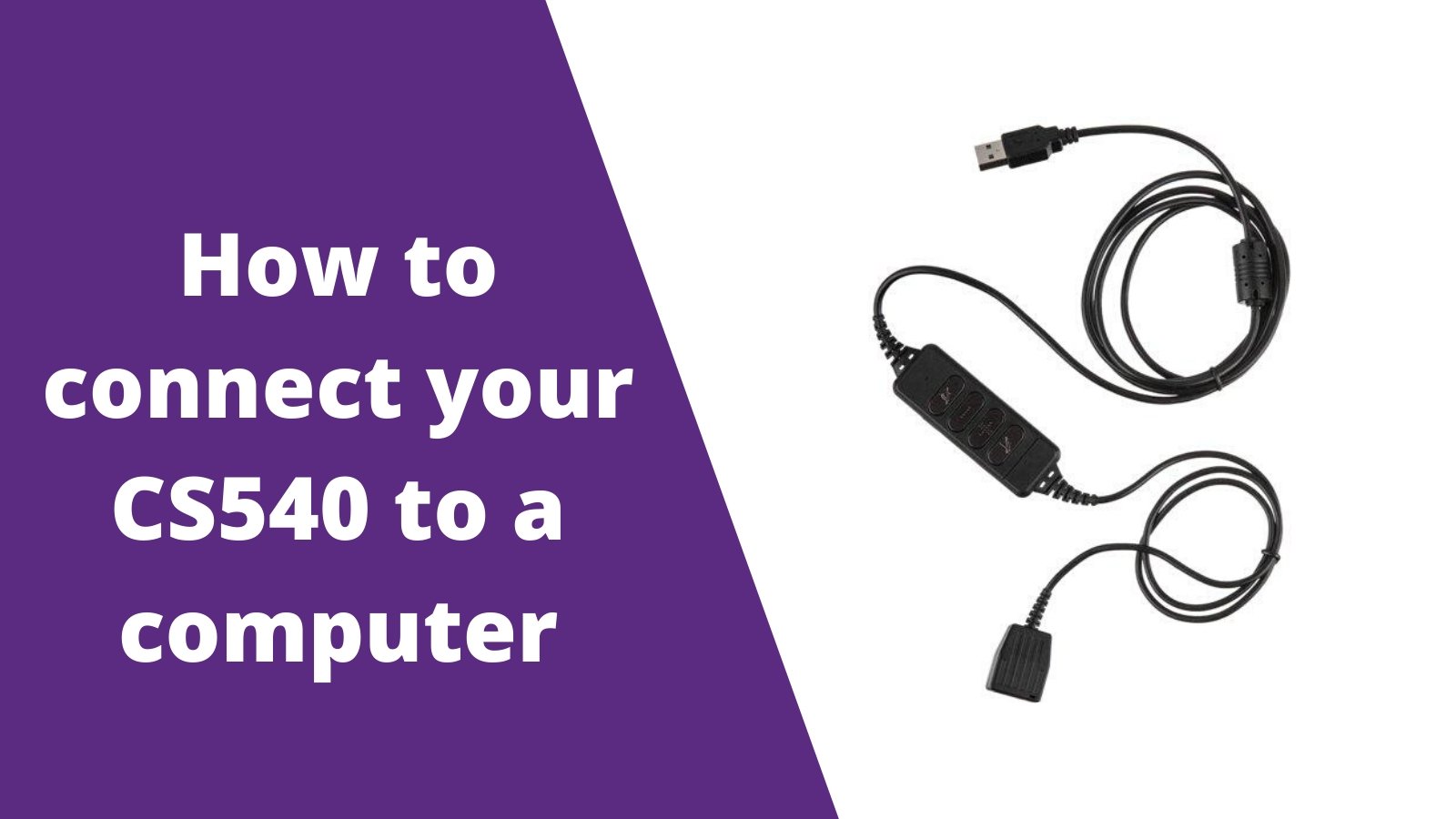
How to Connect Noise Cancelling Headphones with a Cable
Wireless headphones often include a 3.5-millimeter audio cable. A wired connection is useful when Bluetooth is not available or when you want to preserve battery power.
To use the cable:
- Plug one end into the headphones.
- Plug the other end into the phone, computer, airplane entertainment system, or TV.
- Select the headphone output if the device does not switch automatically.
- Turn on the headphones if you want to use ANC.
Some headphones support noise cancellation while connected by cable. Others require power for ANC, while basic audio still works with the headphones turned off.
Newer phones may not have a 3.5-millimeter port. You may need a USB C or Lightning audio adapter. Use an adapter that supports audio output, since some low-cost adapters are made only for charging.
A wired connection can reduce wireless delay, but it does not always provide the same features as Bluetooth. App controls, touch gestures, voice assistants, and battery readings may not work in wired mode.

How to Put Noise Cancelling Headphones in Pairing Mode
Pairing mode makes the headphones visible to a new device. This is different from simply turning them on.
Many models enter pairing mode when you hold the power button for several seconds. Other models have a separate Bluetooth button. A flashing blue, white, or red and blue light often confirms pairing mode, but the exact pattern depends on the brand.
Try these steps if you are unsure:
- Turn the headphones off.
- Move them within a few feet of the device.
- Press and hold the power or Bluetooth button for five to ten seconds.
- Listen for a pairing sound or voice prompt.
- Check whether the status light begins to flash.
Some headphones enter pairing mode automatically the first time you open the case. Earbuds often use this method, while over-ear models usually rely on a physical button.
One mistake I often see is releasing the button too soon. A short press may only turn the headphones on. Hold the button until the voice prompt or flashing light confirms pairing mode.
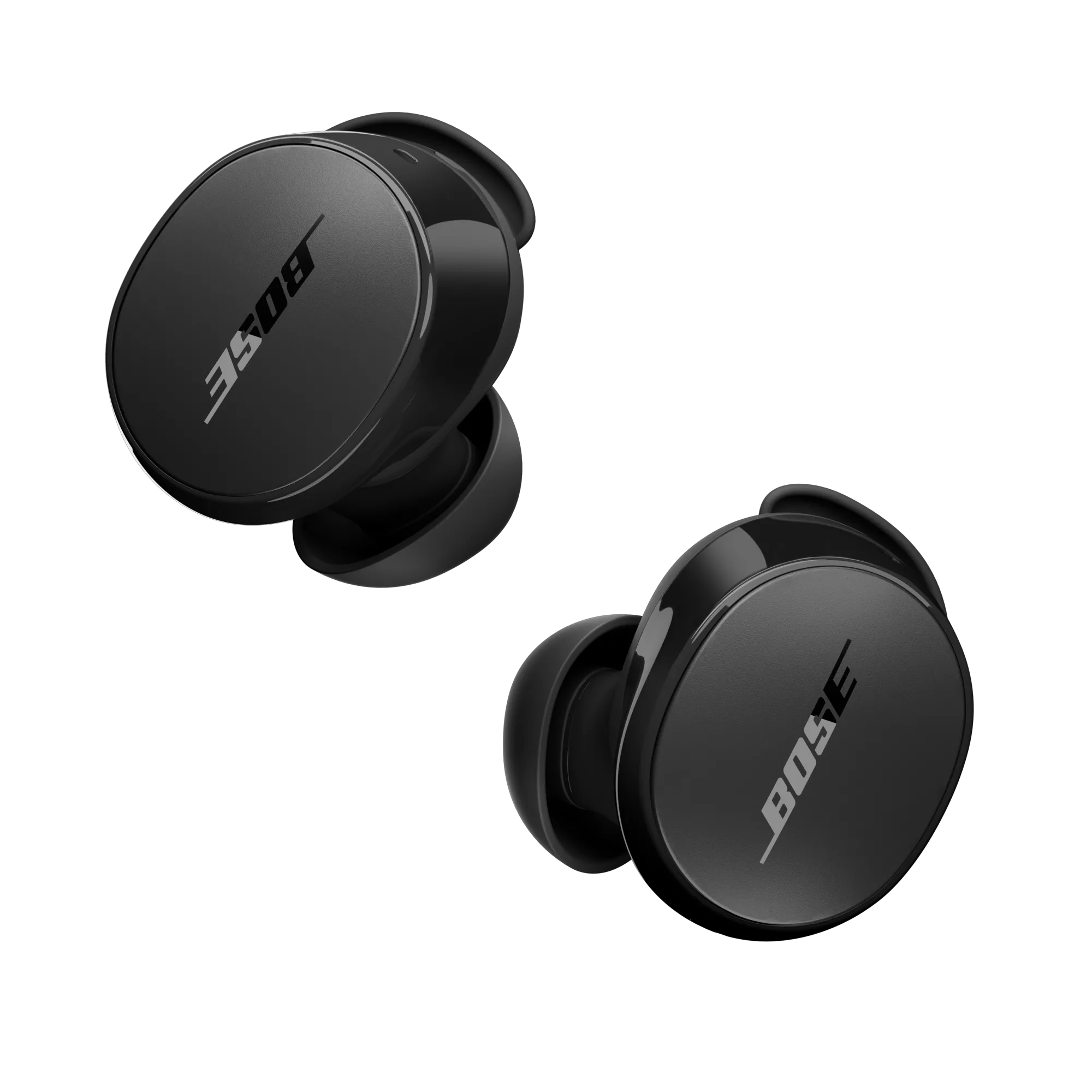
How to Connect Noise Cancelling Headphones to a Second Device
Many modern headphones support multipoint Bluetooth. This feature allows the headphones to stay connected to two devices, such as a laptop and a phone.
First, connect the headphones to the first device. Then activate pairing mode again and connect them to the second device. If the headphones support multipoint, the companion app may show a setting that lets you manage both connections.
For headphones without multipoint, you usually need to disconnect them from the first device before pairing them with the second. Bluetooth headphones may automatically reconnect to the last device they used, which can make the second connection confusing.
A practical routine is to disable Bluetooth on nearby devices that you do not need. This prevents the headphones from jumping back to an old tablet, work computer, or family member’s phone.
Knowing how to connect noise cancelling headphones to multiple devices can save time, but multipoint has limits. Some headphones cannot play audio from both devices at once. They normally pause one source when a call or notification arrives on the other.
How to Fix Noise Cancelling Headphone Connection Problems
Even reliable headphones can fail to connect. Most issues can be fixed without replacing the headphones.
The headphones do not appear
Check that pairing mode is active. Then move the headphones close to the device and turn Bluetooth off and on.
Also look for the headphone name under previously connected devices. It may already be saved but disconnected.
The headphones connect but have no sound
Open the device’s sound settings and choose the headphones as the output. On a computer, confirm that the correct audio profile is selected.
For a phone, raise both the phone volume and headphone volume. Some models have separate controls.
The headphones keep disconnecting
Charge the headphones fully and remove sources of interference. Wi-Fi routers, crowded public spaces, and many nearby Bluetooth devices can sometimes affect wireless performance.
Keep the headphones within the normal Bluetooth range. Walls, metal objects, and the human body can weaken the signal.
The headphones connect to the wrong device
Turn off Bluetooth on devices that you are not using. You can also open the old device’s Bluetooth menu and choose Forget This Device, Remove Device, or Unpair.
Reset the Bluetooth connection
If normal fixes fail, forget the headphones on your phone or computer. Turn both devices off and on, then pair them again.
A factory reset may solve deeper problems, but it removes saved devices and custom settings. Read the headphone manual before using the reset combination because the button sequence differs by model.
Bluetooth standards are designed for broad compatibility, but advanced features may depend on the operating system, codec, and headphone brand. This is why two devices can pair successfully while offering different sound quality or controls.
How to Use Noise Cancellation After Connecting
After you complete the connection, press the ANC button or use the headphone app to choose a listening mode. Most models offer three main options:
- Noise cancellation reduces steady outside sounds such as airplane engines, air conditioners, and bus noise.
- Transparency or ambient mode lets outside sound pass through so you can hear people and announcements.
- Normal or off mode uses less processing and may extend battery life.
Active noise cancellation works best with low, steady sounds. It may reduce engine hum very well, but sudden voices, claps, and sharp noises may still be heard.
A good seal also matters. Over-ear headphones need a firm cushion around the ears. Earbuds need the right ear tip size. If the seal is poor, even strong ANC may seem weak.
For safety, use transparency mode when walking near traffic, riding a bike, or speaking with someone. Noise cancellation improves comfort, but awareness is more important in places where you need to hear warnings.
Tips for a Better Bluetooth Connection
Good habits make the pairing process faster and more reliable.
- Keep the headphones charged.
- Install firmware updates through the manufacturer’s app.
- Keep the headphones close to the source device during pairing.
- Remove unused Bluetooth devices from your phone.
- Avoid pairing in a crowded wireless area when possible.
- Use only one active audio source during setup.
- Store the headphones in their case or power them off after use.
- Check the manual for special pairing and reset instructions.
Firmware updates can improve stability, battery reporting, and multipoint behavior. However, an update may also change menu names or control actions. Take a moment to review the release notes when the companion app provides them.
I also recommend naming the headphones clearly if you use several Bluetooth devices. A name such as “Office Headphones” is easier to identify than a generic model code.
Bluetooth Pairing and Privacy
Bluetooth pairing is designed to create a trusted link between devices. Still, you should pair headphones in a private setting when possible and avoid accepting unknown connection requests.
When you lend or sell the headphones, remove saved devices first. A factory reset is the safest option because it clears stored pairing information on many models.
Bluetooth connections use security features defined by the Bluetooth specification, but security also depends on the device software and headphone firmware. Keep phones, computers, and headphone apps updated to reduce avoidable risks.
Do not assume that noise cancellation provides privacy. ANC reduces sound around you, but people nearby may still hear audio leakage, especially at high volume.
Frequently Asked Questions About How to Connect Noise Cancelling Headphones
How do I connect noise cancelling headphones to my phone?
Turn on the headphones and hold the power or Bluetooth button until pairing mode starts. Open your phone’s Bluetooth settings, select the headphone name, and confirm the connection.
Why are my noise cancelling headphones not showing up in Bluetooth?
The headphones may not be in pairing mode, or they may already be connected to another device. Turn off Bluetooth on nearby devices, restart the headphones, and search again.
Can I connect noise cancelling headphones without Bluetooth?
Yes. Use a compatible audio cable if the headphones have a wired input. Phones without a headphone jack may require a USB C or Lightning audio adapter.
Can I connect noise cancelling headphones to two devices?
You can connect to two devices if the headphones support multipoint Bluetooth. Without multipoint, disconnect the headphones from the first device before pairing them with another.
Do noise cancelling headphones need to be turned on for ANC?
Most active noise cancelling headphones need power for ANC to work. Some still play audio through a cable when turned off, but noise cancellation and smart features may not function.
How do I reset noise cancelling headphones?
The reset method depends on the model. Check the user manual or companion app, then remove the headphones from your device’s Bluetooth list before pairing them again.
Does noise cancellation work during a wired connection?
It depends on the headphones. Many models support ANC while wired, but some require the battery to be charged and the headphones to be powered on.
Conclusion
Learning how to connect noise cancelling headphones usually takes only a few steps: charge them, activate pairing mode, open Bluetooth settings, and select the correct device. If the connection fails, check the output settings, remove old pairings, and reset the headphones only as a last resort.
Once connected, choose ANC for steady background noise and transparency mode when you need awareness. Try these steps with your headphones today, and share your model or connection experience in the comments for more practical audio guides.

Everett Ashford is a tech reviewer at mytechgrid.com specializing in SSDs, cameras, TVs, earbuds, headphones, and other consumer electronics. He provides honest, data-driven reviews based on hands-on testing and real-world performance analysis. Everett simplifies complex tech details to help readers make smart, confident buying decisions.