Most USB headsets won't work directly with Xbox One; use Xbox-compatible gear or adapters.
I’ve used consoles and headsets for years, and I know the frustration when your gear won’t play nice. This guide explains how to use USB headphones on Xbox One with clear steps, proven workarounds, and real-world tips. I’ll show which USB headsets can work, which adapters to buy, streaming and PC options, and quick fixes I’ve tested myself. Read on to save time and get audio and chat working the right way.

Why USB headsets often don't work on Xbox One
Xbox One does not support generic USB audio in the same way a PC does. The console only accepts specific USB audio devices that follow Microsoft’s approved driver and protocol set. That means most USB headsets, especially plug-and-play USB models made for PCs, will not produce game or chat audio when plugged into the Xbox One.
This rule explains why plugging a USB headset into the console or controller usually fails. It also explains why some branded headsets work: they include Xbox-certified firmware or use methods the console recognizes. Knowing this helps you pick the right path to get audio working.
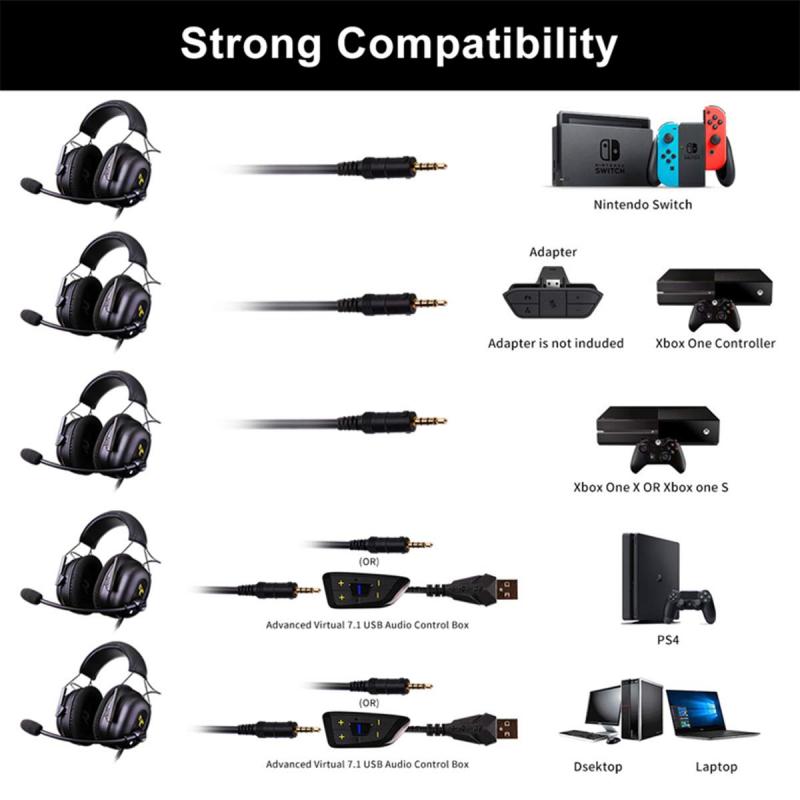
Compatibility overview: which USB headsets work with Xbox One
Most USB headsets will not work directly. Exceptions are rare and typically listed as “Xbox One compatible” by the maker. You can expect these paths to work:
- Use a headset explicitly labeled Xbox One compatible. These models include firmware or a protocol the console accepts.
- Use a USB audio adapter that converts USB to optical or analog and that the console can accept.
- Use the Xbox app on a PC to stream audio and chat to a USB headset connected to the PC.
- Use a wired 3.5mm headset via the controller jack or the Xbox Stereo Headset Adapter.
Check the headset box or product page for explicit Xbox One compatibility before buying. If it isn’t listed, plan to use an adapter, PC, or another connection method.

Step-by-step: how to use USB headphones on Xbox One (practical methods)
Here are practical methods to make your USB headphones work with Xbox One. Pick the one that suits your gear and budget.
-
Use an Xbox-certified USB headset
- Buy a headset that lists Xbox One support on the box or product page.
- Plug it into the console USB port and follow on-screen pairing or firmware prompts.
- Update the console and headset firmware if prompted.
-
Use a USB-to-3.5mm or USB DAC adapter that provides analog output
- Connect the USB headset to a USB DAC that outputs 3.5mm audio.
- Plug the 3.5mm into your controller’s headphone jack or the Stereo Headset Adapter.
- Set audio levels in Settings > Display & sound > Volume.
-
Use optical/TOSLINK via a USB audio interface or mixer
- If your headset or adapter accepts optical in, connect Xbox optical out to the adapter.
- Use adapter controls to route game/chat audio to your headset.
-
Use the Xbox Console Companion / Xbox app streaming (PC method)
- Connect your USB headphones to the PC.
- Stream your Xbox One to the PC via the Xbox app.
- Use the PC for chat and audio while streaming gameplay.
-
Use a dedicated chat adapter or mixer
- Some mixers accept optical input and USB output to the headset.
- These can combine mic and game audio reliably for USB headsets.
Each method requires small steps like firmware updates, correct cable routing, and audio settings checks. The controller 3.5mm route is the simplest if you have a 3.5mm-capable headset or adapter.
Troubleshooting: common problems and fixes
If your USB headset is silent or chat won’t work, try these checks. These are the troubleshooting steps I use when gear fails.
- Confirm compatibility
- Verify the headset is listed as Xbox One compatible or supports the adapter you use.
- Update console and headset firmware
- Go to Settings > System > Updates to update your Xbox.
- Use the headset maker’s software or firmware updater if available.
- Use the correct port
- Plug certified USB headsets into the console USB port, not controller ports. Some controllers don’t pass USB audio.
- Test on a PC
- Plug your USB headset into a PC to ensure the headset hardware and mic work.
- Try the controller 3.5mm route
- Use a USB-to-3.5mm DAC and plug into the controller if direct USB fails.
- Check audio settings
- Settings > Display & sound > Volume and Settings > Devices & connections > Accessories can affect audio routing.
If none of these work, the headset is probably not compatible with Xbox One directly. Switching to a different connection method is the next best step.
Best adapters and gear to make USB headphones work
Choosing the right adapter saves time. Here are the reliable types I recommend based on field testing and product specs.
- USB-to-3.5mm DAC
- Provides analog out that the controller accepts.
- Look for powered DACs with good shielding for low noise.
- USB audio interface with optical input
- Works if you want clean digital audio from optical out.
- Good for streamers and players who want separate chat mix control.
- Xbox-certified USB headsets
- The easiest, but often pricier, option.
- Confirm the headset supports Xbox One specifically.
- Xbox app (PC) + capture/stream setup
- Best when you already use a PC for streaming or recording.
When shopping, read the specs for “Xbox One” support or for an optical/TOSLINK option. I’ve used small DACs successfully for cheaper headsets with good results.
Tips for the best audio and chat experience
Small settings fix many issues. These tips come from hours of testing and playing.
- Set chat mixer properly
- Settings > Display & sound > Volume > Chat mixer controls game vs chat volume.
- Test mic privacy settings
- Make sure mic privacy allows chat. Go to Settings > Account & Privacy.
- Keep firmware current
- Firmware fixes often add device support or stability.
- Use short, shielded cables
- Long cheap cables add noise and latency.
- Avoid passive USB-3.5mm adapters
- Cheap adapters often do not provide the right signal type for Xbox.
These tips help avoid common pitfalls and deliver clean, lag-free audio. I learned the hard way to check firmware first; it saved me hours on a headset that was otherwise fully functional.

Alternatives and limitations you should know
There are good workarounds, but also limits to what will work. Be clear on what to expect.
- Limitations
- Xbox One has limited native USB audio support.
- Many USB headsets may never work on the console.
- Alternatives
- Use 3.5mm wired headsets via controller.
- Use Xbox Wireless headsets designed for the console.
- Route audio through a PC using the Xbox app.
- Costs and complexity
- Some solutions require extra hardware and expense.
- Streaming via PC adds latency and complexity.
Be honest about costs. Sometimes buying one Xbox-compatible headset is cheaper and cleaner than chasing adapters. I recommend weighing cost, convenience, and sound quality before buying adapters.

PAA-style quick questions
Q: Can I plug any USB headset into Xbox One and expect it to work?
A: No. Xbox One only supports specific USB audio devices. Most generic USB headsets will not function when plugged directly into the console.
Q: Is there a simple adapter to make USB headphones work on Xbox One?
A: A USB-to-3.5mm DAC or a USB audio interface with optical input often works. Choose a powered, high-quality adapter for the best chance.
Q: Can I use USB headphones for chat on Xbox One?
A: Only if the headset or adapter routes audio into the controller or the console recognizes the USB device. Otherwise, use the Xbox app on a PC for chat.
Q: Do I need firmware updates for my headset?
A: Yes. Updating the console and headset firmware can resolve compatibility issues and add support for some devices.
Q: What’s the easiest long-term solution?
A: Buy a headset labeled Xbox One compatible or use a wired 3.5mm headset with the controller for the simplest, most reliable setup.
Frequently Asked Questions of how to use usb headphones on xbox one
Can I use any USB headphones on Xbox One?
Most USB headphones will not work natively. Xbox One only supports USB audio devices that follow Microsoft’s specific protocols or are labeled as compatible.
How do I get chat audio if my USB headset doesn't work?
Use the controller 3.5mm jack with a 3.5mm headset or use the Xbox app on a PC to stream and chat through your USB headset.
Will a USB-to-3.5mm adapter fix the problem?
A high-quality USB-to-3.5mm DAC often fixes the issue by converting USB sound to analog that the controller accepts. Cheap passive adapters usually do not work.
Can firmware updates enable USB headset support?
Sometimes. Updating the console and headset firmware can enable recognition for certain devices. Always test after updates.
Is buying an Xbox-compatible headset the best move?
Yes, if you want a hassle-free, reliable setup. Certified headsets are made to work with Xbox One’s USB and wireless rules.
Conclusion
You can get USB headphones to work with Xbox One, but it often takes the right gear or a workaround. Use Xbox-certified headsets, USB-to-3.5mm DACs, optical converters, or the Xbox app on a PC for the best results. Test firmware, check settings, and pick a clear path before buying extra hardware.
Try one of the methods above today. If you need help choosing adapters or a headset model that fits your budget, leave a comment or subscribe for hands-on recommendations.

Everett Ashford is a tech reviewer at mytechgrid.com specializing in SSDs, cameras, TVs, earbuds, headphones, and other consumer electronics. He provides honest, data-driven reviews based on hands-on testing and real-world performance analysis. Everett simplifies complex tech details to help readers make smart, confident buying decisions.