Connect the red, white, and yellow cable to matching AV ports, then select the correct input on your smart TV.
Learning how to connect red white yellow cable to smart TV is simple once you know what each plug does. The yellow plug carries video, while the red and white plugs carry right and left audio. This guide explains the ports, connection steps, adapters, troubleshooting tips, and limits of older composite video.
What the Red, White, and Yellow Cables Mean
A red, white, and yellow cable is called a composite AV cable or RCA cable. It is common with DVD players, VCRs, older game consoles, cable boxes, camcorders, and some sound systems.
Each plug has a specific job:
• Yellow carries standard-definition video.
• White carries the left audio channel.
• Red carries the right audio channel.
The cable sends an analog signal. It does not carry high-definition video like HDMI. The picture may look softer, but it is often good enough for old movies, family videos, and classic games.
When learning how to connect red white yellow cable to smart TV, remember that plug color matters. Yellow goes to the video port. White and red go to the matching audio ports.

Check Your Smart TV for AV Inputs
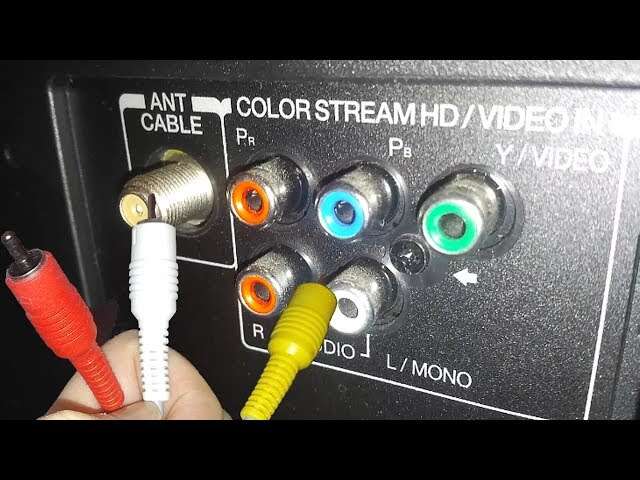
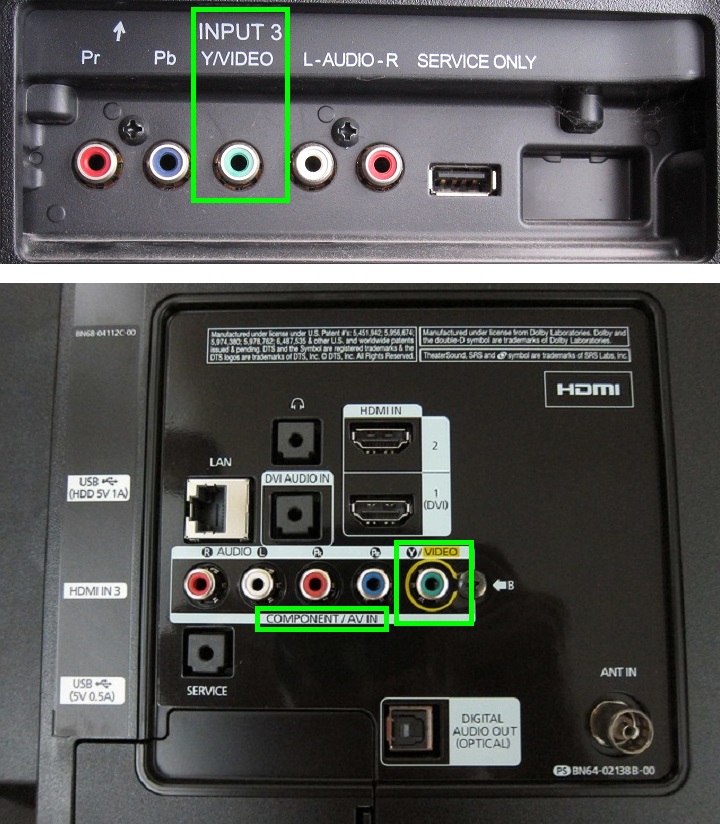
Before connecting anything, inspect the back, side, or bottom of the television. Look for labels such as AV In, Composite In, Video In, Audio In, or RCA.
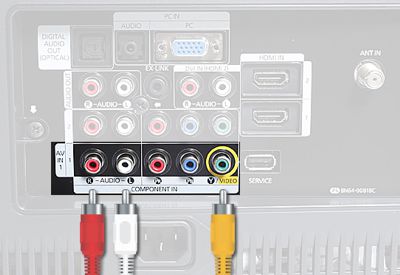
Some smart TVs have three round ports:
• Yellow for video
• White for left audio
• Red for right audio
Other TVs use a single 3.5-millimeter AV input. This port may look like a headphone jack, but it needs a special breakout adapter. The adapter usually has yellow, white, and red RCA sockets on one end.
Many newer smart TVs have no built-in composite ports. In that case, you need an RCA-to-HDMI converter. A simple cable cannot change an analog RCA signal into digital HDMI. The converter performs that task.
Also check the source device. It may label the ports as AV Out, Video Out, Audio Out, or Output. Always connect the cable from the source output to the television input.
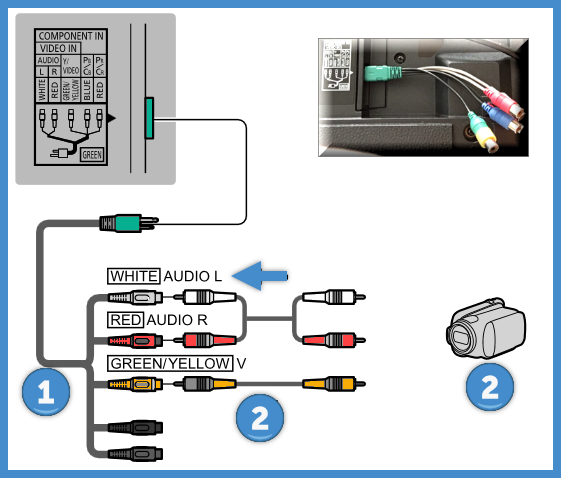
How to Connect Red White Yellow Cable to Smart TV
Follow these steps for a standard television with matching AV inputs.
-
Turn off the TV and the source device. This reduces the chance of static or accidental damage while you connect the plugs.
-
Find the AV output ports on the source device. They are usually grouped together and labeled Output.
-
Insert the yellow plug into the yellow video output.
-
Insert the white plug into the white audio output.
-
Insert the red plug into the red audio output.
-
Connect the other ends to the TV’s AV input. Match yellow to yellow, white to white, and red to red.
-
Turn on the source device.
-
Turn on the smart TV and press the Input, Source, or AV button on the remote.
-
Choose AV, Composite, Video, or the input name shown on the screen.
-
Start playback and check the picture and sound.
This is the basic method for how to connect red white yellow cable to smart TV. The most common mistake is connecting the cable to the TV’s output ports instead of its input ports. Look for “In” on the television and “Out” on the DVD player, console, or other source.

Connecting the Cable Through a 3.5-Millimeter AV Adapter
Some smart TVs do not have three RCA sockets. Instead, they use a small port labeled AV In. This port needs a brand-specific adapter.
The setup usually works like this:
-
Plug the 3.5-millimeter end into the TV’s AV input.
-
Connect the yellow RCA plug to the adapter’s yellow socket.
-
Connect the white RCA plug to the white socket.
-
Connect the red RCA plug to the red socket.
-
Select AV or Composite from the TV input menu.
Do not assume that every 3.5-millimeter adapter will work. The wiring order can differ between brands. A Sony, Samsung, LG, or TCL television may require a particular adapter made for that model.
Check the TV manual or the manufacturer’s support page for the correct part. A wrong adapter may cause no picture, distorted colors, or missing sound. This small detail saves a lot of frustration when you connect red white yellow cable to smart TV.
How to Use an RCA-to-HDMI Converter
If your smart TV has only HDMI ports, use an RCA-to-HDMI converter. This device accepts the analog composite signal and changes it into an HDMI signal.
You will need:
• The red, white, and yellow RCA cable
• An RCA-to-HDMI converter
• An HDMI cable
• The converter’s USB power cable or power adapter
Use these steps:
-
Connect the yellow, white, and red plugs from the source device to the converter’s input ports.
-
Connect one end of the HDMI cable to the converter’s HDMI output.
-
Connect the other end of the HDMI cable to an HDMI input on the smart TV.
-
Connect the converter to power if it requires USB power.
-
Turn on the source device, converter, and TV.
-
Select the matching HDMI input on the TV.
Most converters include a switch marked 720p or 1080p. This setting changes the output format, but it does not create true high-definition detail. The original composite signal remains standard definition.
Use a converter labeled AV to HDMI. An HDMI to AV converter works in the opposite direction and will not solve this connection. This direction issue is one of the most common problems people face when learning how to connect red white yellow cable to smart TV.
Correct Input and Output Ports
The source device sends the signal. The television receives it.
That means the cable should follow this path:
Source device AV Out → TV AV In
Or, when using a converter:
Source device AV Out → Converter AV In → Converter HDMI Out → TV HDMI In
Do not connect the cable from the source’s AV input. An input receives a signal and cannot send the picture to the television. Likewise, the television’s AV output is usually meant to send audio or video to another device.
I have seen many setups fail because the plugs were in the right colors but the wrong direction. Checking the small “In” and “Out” labels often fixes the issue in less than a minute.

What to Do If the TV Has No AV Option
The input menu may use a different name. Look for any of these choices:
• AV
• Composite
• Video
• Video 1
• Line In
• External Input
• HDMI 1, HDMI 2, or another HDMI number when using a converter
Some televisions hide unused inputs until a device is connected. If AV does not appear, open the TV settings and look for Input Setup, Device Connection, or Source Management.
If the screen says No Signal, confirm that the source device is powered on and playing content. A DVD player may show no useful image until a disc starts. A game console may need to be set to its home screen.
This input check is an important part of how to connect red white yellow cable to smart TV because the TV will not always switch inputs automatically.

Troubleshooting Picture and Sound Problems
No picture but the sound works
Check the yellow cable first. Make sure it is firmly connected to the yellow video port at both ends.
If you are using an adapter, verify that the yellow plug goes into the adapter’s video socket. A loose or damaged yellow cable can stop the picture while the red and white audio still work.
Picture appears in black and white
A black-and-white picture often points to a format mismatch. The source may be set to PAL while the television expects NTSC, or the reverse.
This can happen with imported game consoles, DVD players, and camcorders. Check whether the source device supports the TV’s video standard. In the United States, NTSC is the usual format, though some modern TVs support more than one standard.
No sound
Make sure the red and white plugs are connected to audio ports, not component video ports. On some devices, red and white audio ports sit near green, blue, and red component video ports.
Also check the TV volume, mute setting, and audio output menu. If the source uses a separate sound system, the audio may be routed away from the TV speakers.
The picture rolls or flickers
A rolling picture may indicate a video standard mismatch, a poor cable, or a weak converter. Test another RCA cable if possible.
Keep the AV cable away from power bricks and large speakers. Electrical interference can create lines, flicker, or buzzing.
The converter does not work
Confirm that the converter receives power. Many small RCA-to-HDMI converters need USB power even though the RCA cable is connected.
Check the converter direction. It must say AV to HDMI, not HDMI to AV. Then try another HDMI input and select that input on the television.

Improve Picture and Sound Quality
Composite video has clear limits. It usually supports standard-definition video, often around 480i in North America. It cannot match the sharpness of HDMI, component video, or modern streaming.
Still, you can improve the result with a few simple steps:
• Use a short, well-made RCA cable.
• Clean dusty plugs with a dry, soft cloth.
• Avoid sharply bending the cable.
• Keep the cable away from power cords.
• Set the TV picture mode to Standard or Game when suitable.
• Turn off excessive sharpness, which can make old video look harsh.
• Use the original power supply with an RCA-to-HDMI converter.
For old game systems, a dedicated upscaler may produce a cleaner image than a basic converter. For VHS tapes, a time base corrector or quality DVD/VHS combo unit can help stabilize an unstable signal.
Do not expect a converter to restore detail that was never present. It is more like translating a handwritten note into a modern format. The message remains the same, but the original detail still sets the limit.
Safety and Compatibility Tips
RCA cables are low-voltage signal cables, so normal use is safe. However, turn devices off before connecting or disconnecting them. This helps prevent loud pops and protects sensitive ports.
Never force a plug into a socket. The center pin can bend, especially on older equipment. If a plug feels tight, inspect the port and align it carefully.
Use only the correct power adapter for a converter. A damaged or incorrect adapter can overheat the device. Stop using any cable with exposed wires, a cracked plug, or a burning smell.
Smart TV menus change by brand and model. The steps in this guide apply broadly, but the exact input label, adapter type, and video format may vary. Always check the model guide when the TV uses a nonstandard AV port.
Benefits and Limits of Composite AV
Connecting old equipment with composite cables has several benefits:
• It works with many older devices.
• It is inexpensive.
• The color-coded plugs are easy to understand.
• It can preserve access to DVDs, VHS tapes, and classic consoles.
• It does not require an internet connection.
There are also important limits:
• The video is standard definition.
• The cable carries analog signals.
• Long or damaged cables may create noise.
• New TVs may need a special adapter or converter.
• Some converters add a small amount of delay.
• Copy-protected content may not display correctly through every converter.
For basic playback, composite is practical. For the best image, HDMI is the better choice when the source device supports it.
A Simple Example Setup
Suppose you have an older DVD player and a modern smart TV with only HDMI inputs. Connect the DVD player’s yellow, white, and red output plugs to the matching inputs on an AV-to-HDMI converter.
Next, connect an HDMI cable from the converter to HDMI 1 on the TV. Power the converter, start the DVD player, and select HDMI 1. The DVD picture should then appear on the screen.
If the DVD player has HDMI output, use HDMI instead. The RCA method is useful when HDMI is missing, damaged, or unavailable.
This example shows how to connect red white yellow cable to smart TV even when the television has no direct RCA ports.
Frequently Asked Questions About How to Connect Red White Yellow Cable to Smart TV
Can I connect red, white, and yellow cables directly to any smart TV?
No. Some smart TVs have composite AV inputs, while others have only HDMI ports. If your TV lacks AV inputs, you need a compatible 3.5-millimeter AV adapter or an RCA-to-HDMI converter.
Which color cable carries the picture?
The yellow cable carries the video signal. The white cable carries left-channel audio, and the red cable carries right-channel audio.
Do red and white cables work without the yellow cable?
Yes, red and white can carry audio by themselves, but you will not get a picture. The yellow cable is needed for composite video.
Why does my smart TV say No Signal?
The TV may be on the wrong input, the source device may be off, or the cable may be connected to output ports instead of input ports. Check the power, cable colors, input selection, and converter direction.
Can I use a red white yellow cable for high-definition video?
No. Composite RCA cable carries standard-definition video. Use HDMI or another supported digital connection for high-definition content.
Do I need a converter for a TV with a headphone-style AV port?
Usually, yes. That port often requires a special manufacturer-compatible AV breakout adapter, and ordinary headphone adapters may not have the correct wiring.
Will an RCA-to-HDMI converter improve video quality?
It converts the signal so a modern TV can display it, but it does not create new detail. The image will usually remain close to the original standard-definition quality.
Conclusion
Connecting red, white, and yellow cables is mainly a matter of matching colors, using the source output, selecting the correct TV input, and choosing the right adapter when needed. Yellow carries video, while red and white carry stereo audio. If your smart TV has no AV input, an AV-to-HDMI converter provides the bridge.
Take a moment to check your TV model and source device before buying accessories. Then connect the equipment carefully, select the right input, and enjoy your older movies, consoles, or home videos. If this guide helped, explore more setup guides or share your connection experience in the comments.

Everett Ashford is a tech reviewer at mytechgrid.com specializing in SSDs, cameras, TVs, earbuds, headphones, and other consumer electronics. He provides honest, data-driven reviews based on hands-on testing and real-world performance analysis. Everett simplifies complex tech details to help readers make smart, confident buying decisions.