Raise device volume, remove volume limits, improve fit, and use a suitable headphone amp without risking your hearing.
If your music sounds weak, the cause may be a phone setting, a poor seal, low-quality audio, or headphones that need more power. I have tested many headphone setups, and the best results usually come from fixing the signal path before buying new gear. This guide explains how to make music louder in headphones on phones, computers, gaming systems, and streaming apps while keeping sound clear and your ears safe.
Check the Simple Volume Controls First
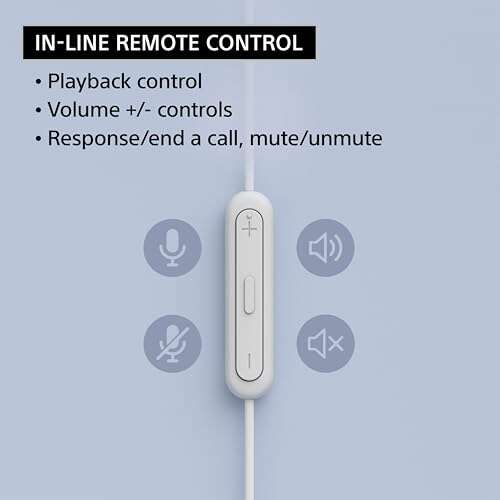
The first step in learning how to make music louder in headphones is checking every volume control. Many devices have more than one level, and one setting may limit another.
Check these controls:
• Raise the main volume on your phone, tablet, or computer.
• Check the volume inside Spotify, Apple Music, YouTube, or another music app.
• Look for buttons or a dial on the headphones themselves.
• Check the volume mixer on Windows or the sound menu on macOS.
• Disconnect Bluetooth devices that may have separate volume controls.
On some Android phones, the media volume and Bluetooth volume work together. On others, they may act as separate controls. If your headphones have a volume wheel, turn it up slowly after raising the device volume.
On Windows, right-click the speaker icon and open the volume mixer. Make sure the music app is not set lower than the main system volume. On a Mac, open System Settings, select Sound, and confirm that the correct output device is active.
A common mistake is changing the wrong slider. You may raise the computer volume while the music app remains muted or set at a low level. This simple check often solves the problem in less than a minute.
Turn Off Volume Limits and Sound Restrictions
Phones and music apps may reduce loudness to protect hearing. This feature is useful, but it can also make music seem too quiet when you are in a noisy place.
On an iPhone, check the headphone safety settings. Depending on your iOS version, you may find options such as Headphone Safety, Reduce Loud Audio, or a headphone volume limit. If a limit is active, the phone may lower loud peaks even when the volume slider is high.
On Android, search Settings for terms such as:
• Media volume limit
• Volume limiter
• Hearing protection
• Safe headphone volume
The exact menu name differs by phone maker and Android version. Some phones show a warning instead of a permanent limit. Read the warning before changing anything, because the limit exists for a real reason.
Streaming apps may also change perceived volume. Loudness normalization makes tracks play at a similar level. This can make some songs sound quieter than others, especially when a very loud song is matched to a quieter master.
Look in the playback settings for:
• Volume normalization
• Loudness normalization
• Sound check
• Replay gain
Turning normalization off may make some songs louder. However, it can also create large jumps between tracks. If you share a room or listen while driving, steady volume is often safer and more comfortable.

Improve the Headphone Fit and Seal
Headphone fit has a major effect on loudness, especially with earbuds. A weak seal lets bass escape and allows outside noise to enter. The music then sounds thin, distant, and quiet.
Try these practical fixes:
• Test every ear tip size that came with your earbuds.
• Push the earbuds in gently until they form a seal.
• Clean wax and dust from the speaker openings.
• Adjust the headband so over-ear cups sit evenly.
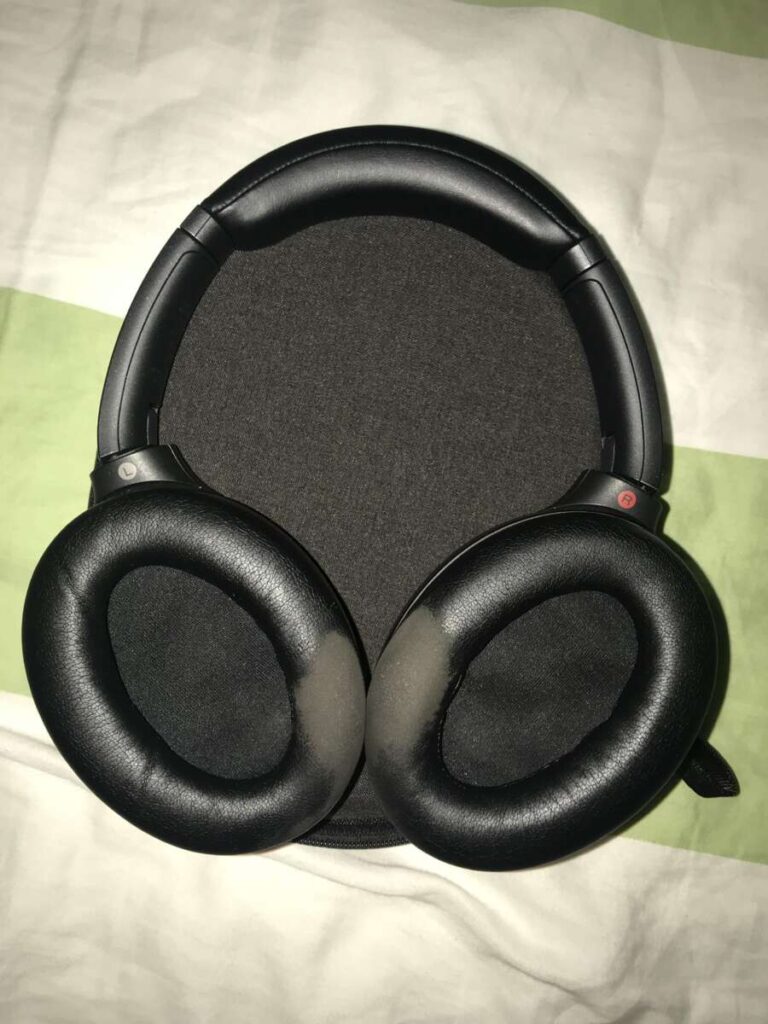
• Replace worn ear cushions.
A good seal works like closing a window. It blocks outside noise and keeps more of the music inside your ears. You may not need to raise the volume as much.
With wired earbuds, test both sides. If one ear sounds much quieter, the cable or connector may be damaged. With Bluetooth earbuds, clean the charging contacts and confirm that both earbuds have a similar battery level.
I once spent several minutes raising the volume on a pair of in-ear headphones that sounded weak. The real issue was a loose silicone tip. A larger tip created a better seal, restored the bass, and made the same volume setting feel much louder.
Use Equalizer Settings to Increase Perceived Loudness
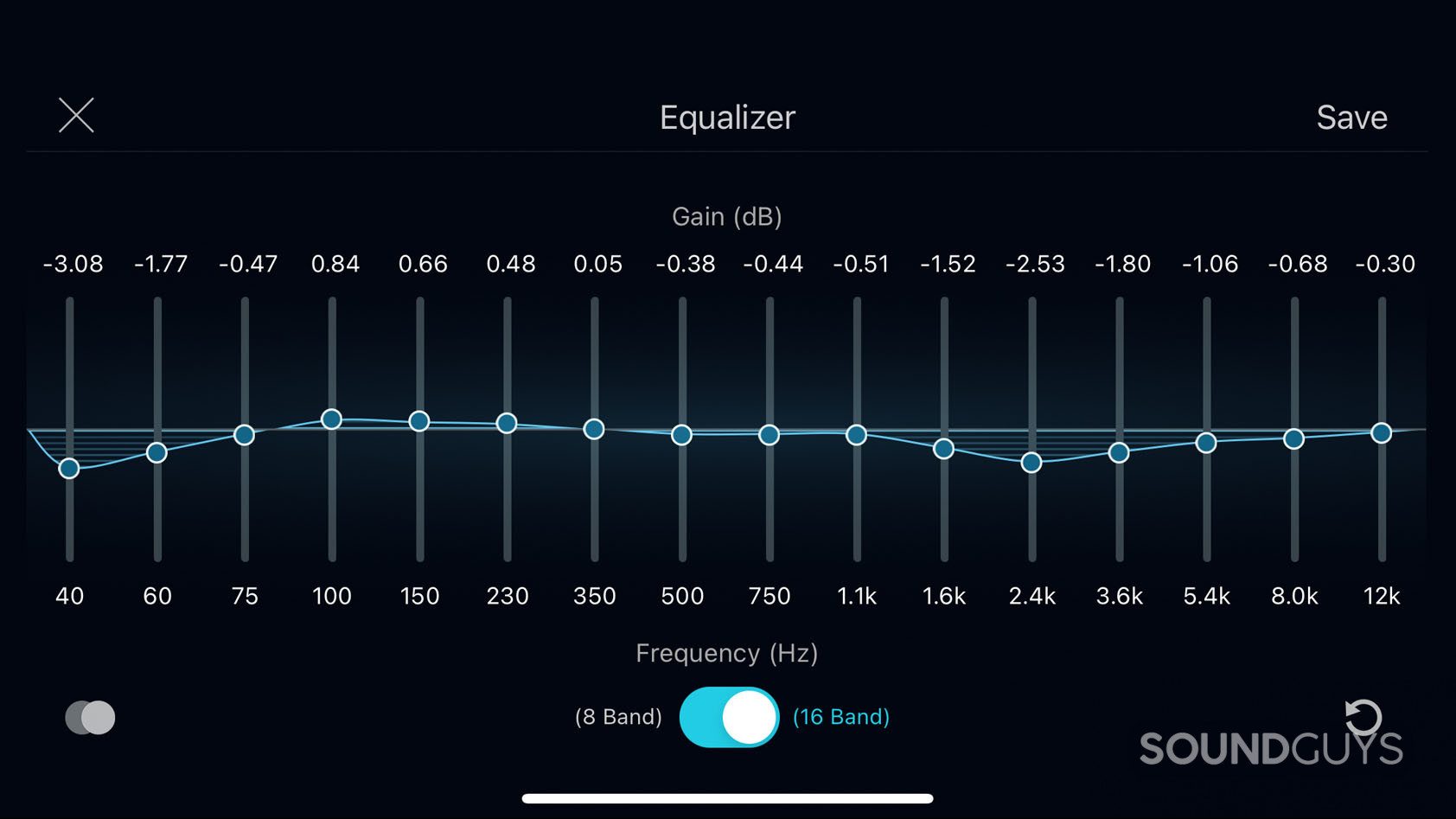
An equalizer changes the balance of bass, mids, and treble. It does not always increase total power, but it can make music feel louder and clearer.
If vocals are hard to hear, try a small boost in the midrange. If the sound feels dull, a gentle treble boost may add detail. Avoid raising every frequency band, because that can cause clipping and distortion.
A simple starting point is:
• Reduce very low bass slightly if it sounds muddy.
• Add a small boost around the vocal range.
• Raise treble only a little if cymbals and detail are missing.
• Keep the equalizer preamp below zero when making large boosts.
The preamp matters because digital boosts can push the audio signal beyond its limit. When that happens, the sound may clip. Clipping creates harsh distortion and can make music seem louder without making it better.
Many phones include presets such as Bass Boost, Rock, Pop, or Treble Boost. Try them with several songs, not just one track. A setting that works for hip-hop may sound sharp with classical music or tiring with podcasts.
Equalizer changes cannot fix weak hardware. They can improve balance, but they cannot turn low-power earbuds into powerful studio headphones. Use small changes and trust your ears.

Disable Audio Enhancements That Reduce Volume
Some audio effects can lower volume or create a weak sound. Others may help, so test them one at a time.
Check for settings such as:
• Spatial audio
• Mono audio
• Balance control
• Dolby sound modes
• Virtual surround
• Crossfade
• Volume normalization
Spatial audio can sound wider, but it may reduce the direct impact of stereo music. Mono mode can also make music seem different, especially if the mix depends on left and right channels.
Check the left and right balance slider. If it is moved far to one side, one ear may receive a much quieter signal. This setting is usually found under Accessibility, Audio, or Hearing settings.
Also test the headphones with audio enhancements turned off. If the sound becomes clearer and stronger, enable only the effects that improve your listening experience. More processing does not always mean more volume.

Choose the Right Headphone Connection
The connection type can affect how to make music louder in headphones. Wired, Bluetooth, USB, and wireless systems do not all use the same hardware.
Wired headphones
A phone or laptop sends power through its headphone jack. Easy-to-drive earbuds usually play loudly from almost any device. Large headphones with high impedance or low sensitivity may need more power.
Bluetooth headphones
Bluetooth headphones contain their own amplifier and battery. The phone sends a digital signal, so the headphones control much of the final volume. Charge the headphones fully and check their own controls.
If Bluetooth volume seems unusually low, unpair the headphones and connect them again. You can also restart both devices. On some Android phones, changing the Developer Options setting called Disable absolute volume may affect Bluetooth loudness, but this setting is not available or helpful on every device.
USB headphones and DACs
USB headphones and digital-to-analog converters process audio outside the phone or computer. They can provide a stronger, cleaner output when the built-in audio hardware is weak.
A USB adapter is not automatically better. It must support the device, work with the operating system, and provide enough output for the headphones. Cheap adapters may add noise or have their own volume limits.
Know When You Need a Headphone Amplifier
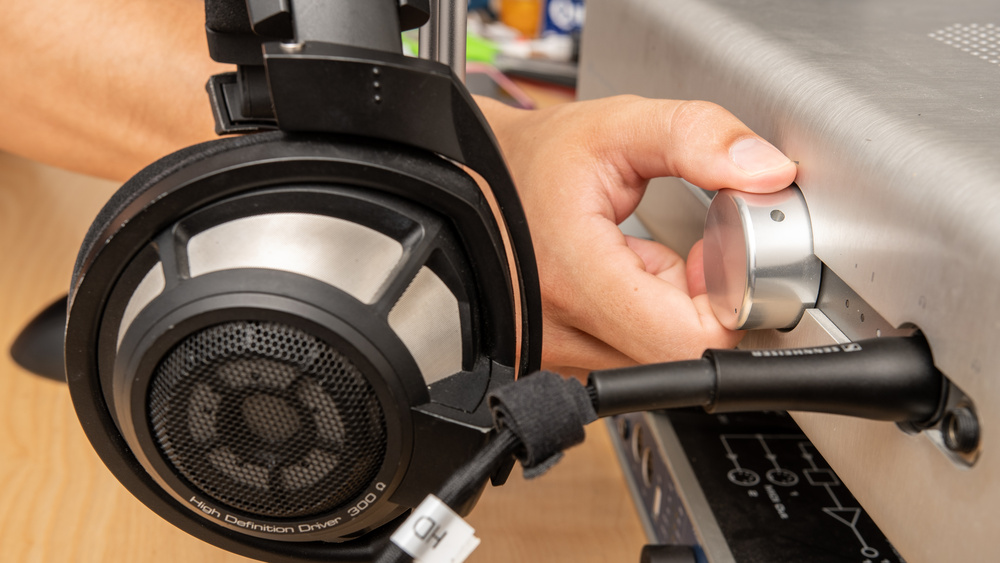
A headphone amplifier can help when your headphones are difficult to drive. This is more common with some over-ear studio headphones than with small earbuds.
Look at two headphone specifications:
• Impedance, measured in ohms
• Sensitivity, often listed as decibels per milliwatt or decibels per volt
High impedance alone does not prove that an amplifier is needed. Sensitivity and the device’s output level matter too. A 250-ohm headphone with good sensitivity may work acceptably from one laptop but sound quiet from a weak phone.
Signs that an amplifier may help include:
• You use nearly maximum volume all the time.
• The sound remains quiet across several devices.
• Bass becomes weak or soft at higher volume.
• The headphones sound distorted from a phone or laptop.
• A proper adapter does not solve the problem.
Use a compatible headphone amp rather than a random power adapter. An amplifier should provide clean power, have a suitable connector, and match the headphone type. For most modern earbuds and consumer Bluetooth headphones, a separate amp is usually unnecessary.
In my own testing, changing from a weak laptop jack to a small USB DAC made demanding over-ear headphones louder and more controlled. The improvement was clear, but it was not magic. Well-recorded music still sounded best, and poor recordings remained poor.
Fix Quiet Music Files and Streaming Tracks
Not every quiet song has a hardware problem. Some recordings are mastered at a lower level. Older albums, live recordings, classical music, and independent releases may have more headroom and less overall loudness.
You can compare the same song from different sources. If one service sounds louder, check its quality and playback settings. The difference may come from loudness normalization, mastering, or a lower-quality stream.
Avoid using random “volume booster” apps without care. These apps may push the signal beyond its safe digital range. The result can be clipping, harsh distortion, or an unpleasant sound.
If you edit your own music, raise the level with a limiter or normalize the track carefully. Leave enough headroom to avoid clipping. For regular listening, use the streaming service’s built-in settings instead of unknown booster tools.
File format can also matter, but it is rarely the main cause of low volume. A high-resolution file will not automatically play louder than a standard file. Volume depends more on mastering, playback settings, and hardware.

Make Music Louder in Headphones on Common Devices
iPhone and iPad
Raise the media volume, then check Headphone Safety settings. Test Sound Check both on and off, because it can change the level between songs.
Make sure the correct Bluetooth or wired output is selected. If only one app sounds quiet, force-close it, restart it, and check its internal volume settings.
Android phones
Search Settings for a media volume limit or hearing protection option. Check the Bluetooth device’s own volume and reconnect it if the level seems stuck.
Some Android phones also include an equalizer under Sound and vibration. Use small boosts and avoid pushing every band to the top.
Windows computers
Open the volume mixer and raise the music app separately. Then open the output device properties and check enhancements, spatial sound, and balance.
If you use a USB DAC, select it as the active output device. Windows may continue sending audio to the laptop speakers or an older Bluetooth device.
Mac computers
Select the correct output in System Settings. Check the balance control and test audio effects in the music app.
If a wired headphone sounds quiet, try another adapter or port. A damaged dongle can reduce output or cause one channel to sound weak.
PlayStation and Xbox
Open the console’s audio settings and choose the correct headset output. Check chat and game mix controls, because a chat balance setting can reduce game music.
Use the headset’s own volume wheel or buttons. Some gaming headsets store separate profiles for games, music, and chat.
Stay Safe While Increasing Headphone Volume
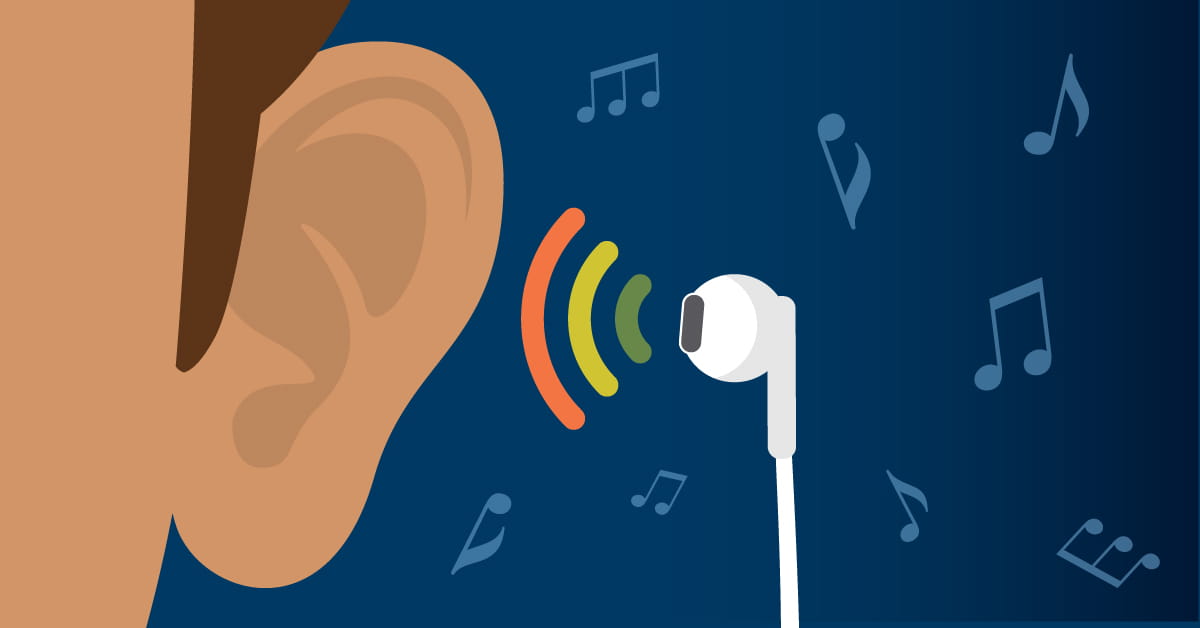
Learning how to make music louder in headphones should never mean ignoring hearing safety. Loud sound can damage the tiny sensory cells in the inner ear, and this damage may be permanent.
Warning signs include:
• Ringing after listening
• Muffled hearing
• Ear pain or pressure
• Needing higher volume over time
• Trouble hearing speech after using headphones
Lower the volume if you notice any of these signs. Give your ears quiet breaks, especially during long listening sessions. Noise-canceling headphones can help because they reduce the need to compete with traffic, office noise, or airplane engines.
A useful habit is to set the volume in a quiet place, then avoid raising it just because the environment becomes louder. If you must increase the volume to hear music over outside noise, consider better-sealing earbuds or active noise cancellation.
Hearing risk depends on both loudness and time. A short loud burst and hours of moderately loud listening are not the same, but both can become harmful at high levels. Because phone volume percentages do not equal a fixed decibel level across devices, treat them as rough guides rather than medical measurements.
Troubleshoot Quiet Headphones Step by Step
Use this checklist before replacing your headphones:
-
Test another song and another app.
-
Check the main volume and app volume.
-
Turn off or adjust volume normalization.
-
Check the left and right balance.
-
Clean the earbuds or headphone connectors.
-
Test the headphones on another device.
-
Test another pair of headphones on the same device.
-
Reconnect or reset Bluetooth headphones.
-
Try a different cable, adapter, or USB port.
-
Check whether a volume limit is active.
This process helps you find the weak link. If one pair is quiet on every device, the headphones may be damaged or underpowered. If every pair is quiet on one device, check its settings, port, operating system, or internal amplifier.
A sudden change deserves extra attention. A blocked ear, ear infection, or hearing loss can make normal music seem quiet. If one ear sounds different or muffled, speak with a qualified health professional rather than simply raising the volume.
Mistakes to Avoid When Boosting Headphone Volume
The fastest way to make music louder is not always the best way. Avoid these common mistakes:
• Do not use maximum volume to overcome a poor earbud seal.
• Do not boost every equalizer band to the highest level.
• Do not assume an expensive amplifier will fix damaged headphones.
• Do not ignore crackling, imbalance, or sudden volume changes.
• Do not use unsafe volume levels in traffic or near machinery.
• Do not keep raising volume when your ears already feel tired.
• Do not judge a headphone only by its loudest setting.
Clear sound is more useful than raw loudness. A balanced mix with good bass control and clear vocals can feel more powerful at a safer level. Your goal should be enjoyable detail, not the highest number on the volume slider.
Frequently Asked Questions About How to Make Music Louder in Headphones
Why are my headphones still quiet at full volume?
The device may have a volume limit, a low app volume, or a poor connection. Test the headphones on another device and check the headphone fit, balance setting, and Bluetooth controls.
Does an amplifier make headphones louder?
A headphone amplifier can make difficult-to-drive wired headphones louder and cleaner. It will not fix a damaged cable, poor recording, bad fit, or an active volume limit.
How do I make Bluetooth headphones louder?
Raise both the phone volume and the headphone volume, then reconnect the Bluetooth device. Check for media volume limits, hearing protection settings, and the headphone maker’s app.
Does an equalizer increase headphone volume?
An equalizer mainly changes frequency balance, but it can make music seem louder by improving vocals, bass, or detail. Large boosts may cause clipping, so use small changes and lower the preamp when needed.
Are volume booster apps safe for headphones?
Some booster apps can cause clipping and may encourage unsafe listening levels. Use your device’s built-in controls first, and stop if you hear distortion or experience ringing in your ears.
Can better ear tips make earbuds louder?
Yes. A proper seal can improve bass, block outside noise, and make the same volume setting sound stronger. Try different tip sizes and keep the earbuds clean.
Why is one headphone quieter than the other?
The cause may be a blocked earbud grille, damaged cable, incorrect balance setting, or a hearing issue. Check the headphones on another device and seek medical advice if the difference remains.
Conclusion
The best way to make music louder in headphones is to check volume limits, app settings, headphone fit, equalizer controls, and connection quality before buying new gear. A clean seal and correct settings often create a bigger improvement than a volume booster. Hard-to-drive wired headphones may benefit from a compatible amp, while most earbuds and Bluetooth models do not need one.
Increase volume in small steps, avoid clipping, and give your ears regular breaks. Try the troubleshooting checklist today, then share your favorite safe listening tips or explore more guides on improving your headphone sound.

Everett Ashford is a tech reviewer at mytechgrid.com specializing in SSDs, cameras, TVs, earbuds, headphones, and other consumer electronics. He provides honest, data-driven reviews based on hands-on testing and real-world performance analysis. Everett simplifies complex tech details to help readers make smart, confident buying decisions.