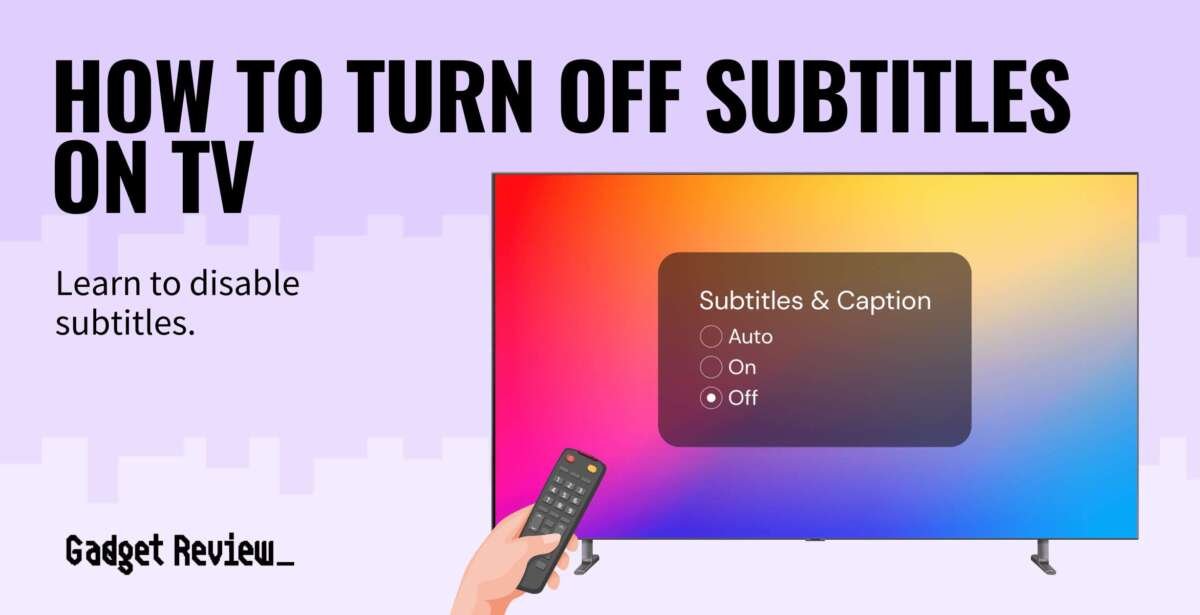
Press the CC, Subtitle, or Accessibility button on your remote, then select Off to remove captions from your TV.
Learning how to get rid of captions on TV is usually simple, but the correct steps depend on your TV, remote, cable box, or streaming app. This guide explains the fastest fixes, why captions may return, and how to turn them off for good.
How to get rid of captions on TV quickly
The fastest way to get rid of captions on TV is to look for a button labeled CC, SUB, Subtitle, or Accessibility on your remote. Press it once, then choose Off, Disabled, or Closed Captions Off.
If your remote has no caption button, open the TV’s Settings menu. Look for Accessibility, Captions, Subtitles, or Closed Captioning.
Try these general steps:
- Turn on the TV and play a program.
- Press Menu, Home, Settings, or the gear button.
- Open Accessibility or Caption settings.
- Select Closed Captions, Subtitles, or Digital Caption Options.
- Change the setting to Off.
- Exit the menu and check the program again.
The name may vary by brand. For example, one TV may use Closed Caption, while another uses Subtitles or Caption Settings.
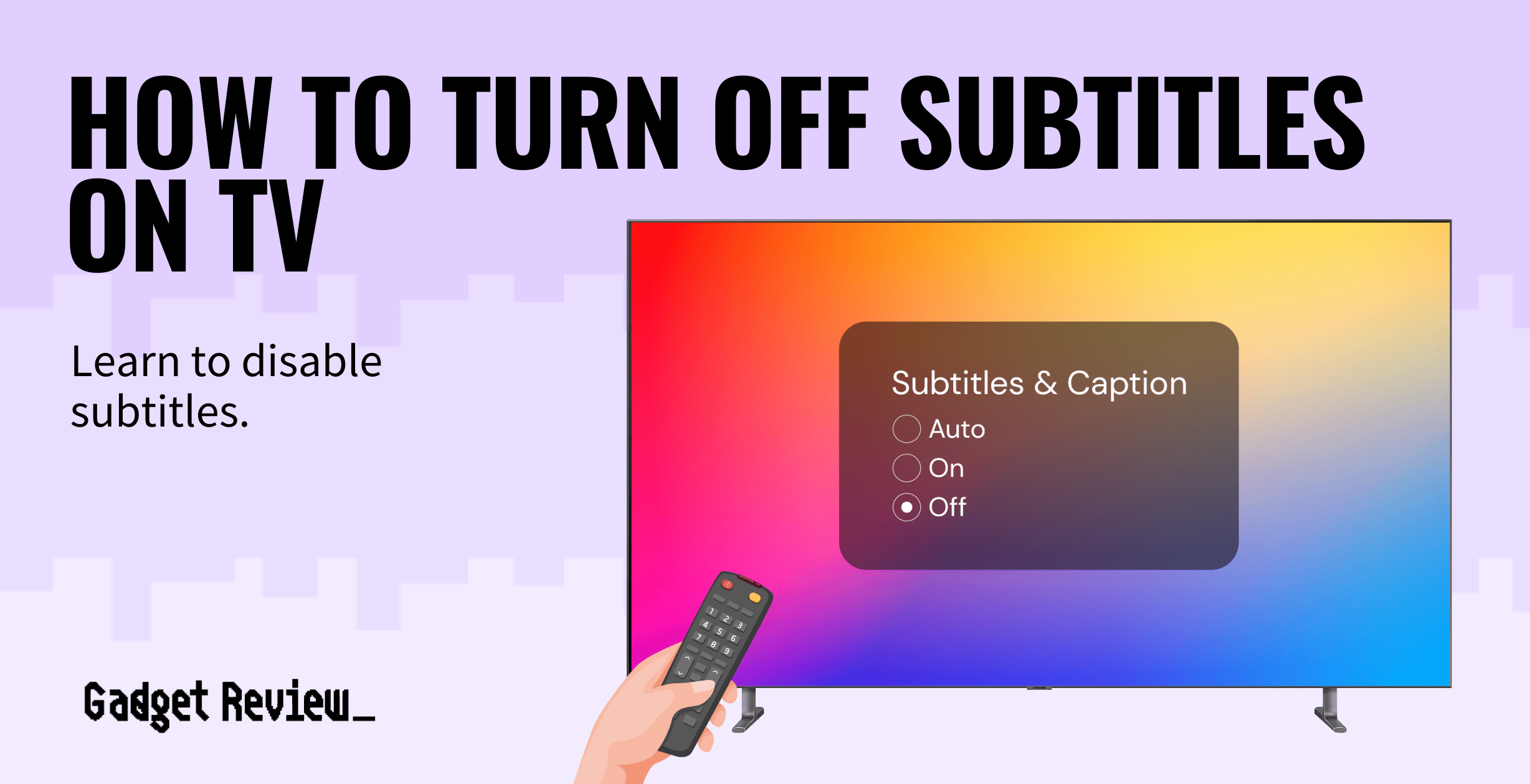
Turn off captions on popular TV brands
Most smart TVs use a similar menu path, but the wording and button order can differ. If one path does not match your screen, search for the word caption inside the TV settings.
Samsung TV
To turn off captions on a Samsung TV:
- Press the Home button.
- Select Settings.
- Choose General.
- Select Accessibility.
- Open Caption Settings.
- Set Caption to Off.
On some older Samsung models, go to Menu, Broadcast, Caption, and then select Off. Samsung TVs may also let you change caption size, color, font, and background.
LG TV
For an LG television:
- Press the Settings button.
- Select All Settings.
- Choose General.
- Open Accessibility.
- Select Closed Caption.
- Change the option to Off.
Some LG models place this option under General, Accessibility, Subtitles, or Closed Captions. If you use an antenna, check both the TV menu and the broadcast settings.
Sony TV
To disable captions on a Sony TV:
- Press the Home button.
- Open Settings.
- Select Accessibility.
- Choose Captions or Closed Captions.
- Set the feature to Off.
Sony BRAVIA models may use the label Closed Captions. Android TV and Google TV models can place accessibility tools under System or Device Preferences.
Vizio TV
On many Vizio TVs:
- Press the Menu button.
- Select Closed Captions.
- Choose Digital CC or Analog CC.
- Set the option to Off.
If captions still appear, check the connected cable box or streaming device. The TV may not be creating the captions itself.
TCL TV
For a TCL Roku TV:
- Press the Home button.
- Open Settings.
- Select Accessibility.
- Choose Captions.
- Select Off.
You can also press the asterisk button on some Roku remotes while watching a program. Open Accessibility or Caption settings and turn captions off.
Hisense TV
On many Hisense models:
- Press Home.
- Open Settings.
- Select Accessibility.
- Choose Captions.
- Set Closed Captions to Off.
The exact menu can vary between Roku TV, Google TV, and VIDAA models. Check the device platform as well as the Hisense brand.

How to turn off captions on a cable box
If captions remain after you change the TV settings, your cable or satellite receiver may be adding them. This is common because the television and receiver can each have separate caption controls.
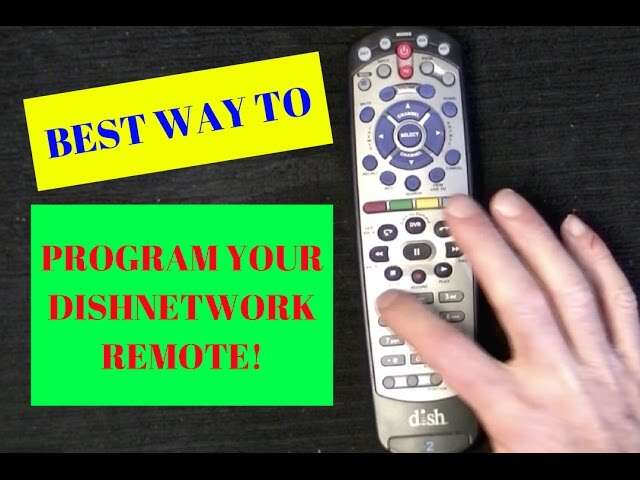
First, check the cable box remote. Look for buttons labeled CC, B, Settings, Menu, or Options. Press the button while a program is playing and choose Off.
You can also open the receiver menu:
- Press Menu or Settings on the cable remote.
- Open Setup, Preferences, or Accessibility.
- Select Closed Captioning.
- Set captions to Off.
- Save the change if the box asks you to confirm it.
Common providers use different menus. Xfinity, Spectrum, Cox, DIRECTV, and Dish may place caption settings under Accessibility or User Preferences.
A useful test is to switch from the cable box to a built-in TV app. If captions disappear in the app, the cable box is the source. If captions stay on every input, check the TV settings again.

Remove captions from streaming devices and apps
Streaming devices often control captions separately from the television. Turning off captions on the TV may not affect Netflix, Hulu, Prime Video, YouTube, or another app.
Roku
To get rid of captions on a Roku device:
- Press Home.
- Select Settings.
- Choose Accessibility.
- Open Captions.
- Select Off.
While watching some content, press the Star button on the remote. Open the caption menu and choose Off.
Roku may offer four choices:
- Off: Captions stay off unless you turn them on.
- On: Captions appear when available.
- On replay: Captions show after you press the replay button.
- On mute: Captions appear when the sound is muted.
Choose Off if you do not want captions to appear during normal viewing.
Amazon Fire TV
On Fire TV:
- Play a video.
- Press the Menu or three-line button.
- Select Subtitles.
- Choose Off.
You can also go to Settings, Accessibility, and Closed Captions. Some Fire TV apps use their own subtitle menu, so the setting may need to be changed inside the app.
Apple TV
To disable captions on Apple TV:
- Open Settings.
- Select Accessibility.
- Choose Subtitles and Captioning.
- Turn off Closed Captions and SDH.
While a video is playing, swipe down or press the down button. Open the Audio or Subtitles panel and select Off.
Netflix
When watching Netflix:
- Start a movie or show.
- Select the Audio and Subtitles icon.
- Under Subtitles, choose Off.
- Close the menu.
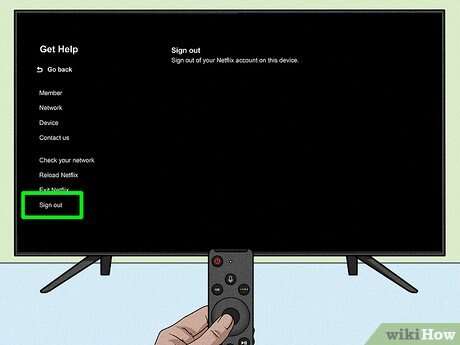
Netflix may remember this choice for a profile. If captions appear only on one profile, check that profile’s playback settings.
Hulu
For Hulu:
- Start the program.
- Select the settings or subtitle icon.
- Choose Subtitles.
- Select Off.
Some Hulu content uses captions supplied by the channel or content provider. The option may look different across devices.
YouTube
To turn off captions on YouTube:
- Start a video.
- Select the CC button on the video player.
- Make sure the button is not highlighted.
On a TV app, open the video controls first. You can also review YouTube’s playback settings if captions keep turning on automatically.

Why captions keep turning back on
Sometimes captions are not broken. They are simply controlled by more than one device or account.
Common reasons include:
- The streaming app has its own subtitle setting.
- The cable box is sending captions to the TV.
- A remote shortcut turned captions on by mistake.
- A system update restored default accessibility settings.
- A viewing profile has captions enabled.
- The program includes forced subtitles for foreign speech.
- The TV is set to display captions when muted.
- A voice command enabled captions.
- The TV has separate settings for digital and analog channels.
Forced subtitles are different from regular closed captions. A movie may display translated speech or signs even when you turn normal captions off. This content is often part of the video itself, so the TV cannot remove it.
I have seen many people change the TV settings several times when the real problem was the streaming app. A good troubleshooting habit is to test one source at a time. Check a built-in app, a live channel, and an external device. This quickly shows where the captions begin.

How to stop captions when the TV is muted
Some televisions have an On When Muted setting. This feature displays captions whenever the sound is muted.
To disable it:
- Open Settings.
- Select Accessibility.
- Choose Captions or Closed Captions.
- Look for On When Muted.
- Set it to Off.
- Make sure the main caption setting is also Off.
This feature can be useful in a quiet home, such as when someone is sleeping. However, it can be confusing if you expect captions to remain off at all times.
Roku devices may call this option On mute. Other brands may use When muted, Captions on mute, or Automatic captions. The meaning is the same.

What to do if the CC button does not work
A CC button may not work for several reasons. The button could control the cable box instead of the TV, or the program may not offer captions through that input.
Try the following checks:
- Press CC while the program is playing, not while the home screen is open.
- Point the remote at the correct device.
- Replace weak batteries.
- Try the TV’s on-screen settings.
- Check the cable box or streaming device separately.
- Restart the TV and the connected device.
- Install available software updates.
- Test another channel or video.
If the captions appear as part of the picture, they are burned into the video. These captions cannot be removed through the TV menu. This can happen with some DVDs, older recordings, social media clips, and videos edited with text already placed on the image.
If the menu is frozen, unplug the TV for about one minute. Plug it back in and test the settings again. Avoid repeatedly changing many options at once because it makes the source harder to identify.
Closed captions, subtitles, and SDH explained
The terms captions and subtitles are often used together, but they are not exactly the same.
Closed captions are designed mainly for viewers who are deaf or hard of hearing. They may include spoken words, speaker changes, music, sound effects, and other important audio details.
Subtitles usually translate spoken dialogue into another language. They may not describe background sounds or music.
SDH means subtitles for the deaf and hard of hearing. SDH may include dialogue and sound information, much like closed captions.
The FCC requires captioning for much covered television programming in the United States, although rules and exemptions can vary by content type and delivery method. Streaming services and device makers also use different accessibility systems, so one universal caption switch does not always exist.
Captions are an important accessibility tool. Turning them off is a personal viewing choice, but it is wise to know how to restore them when needed.
Best troubleshooting method for any TV
When learning how to get rid of captions on TV, use a simple source test instead of guessing.
- Check whether captions appear on every channel.
- Open a built-in streaming app.
- Test an external device, such as a Roku or cable box.
- Turn off captions at the source that displays them.
- Restart the TV if the change does not appear.
- Check the app profile or device settings.
- Contact the device maker if captions remain on every source.
This method works because it separates the screen from the signal. Think of the TV as a window. Captions may be painted on the window, or they may be coming from the scene outside. You need to find the source before you can remove them.
Write down your TV model and the device connected to it before contacting support. That small detail helps support staff provide the correct menu path.
Common mistakes to avoid
Turning off captions should not damage your TV, but a few mistakes can waste time.
- Do not change picture settings when the problem is captions.
- Do not assume the TV controls captions from every device.
- Do not confuse audio language with subtitle settings.
- Do not forget to check the app profile.
- Do not disable all accessibility features if you only want captions off.
- Do not mistake forced subtitles for closed captions.
- Do not reset the entire TV before trying the caption menu.
A full factory reset removes apps, accounts, network details, and personal settings. It should be a last resort, not the first solution.
How to get captions back later
If you want to restore captions, repeat the same steps and choose On instead of Off. You can also select On replay or On mute if your device offers those options.
Captions may help when:
- The speaker talks softly.
- The room is noisy.
- You are watching in a second language.
- Someone nearby is sleeping.
- The audio mix is hard to understand.
- You want to follow names, songs, or sound effects.
Many viewers switch captions on and off based on the situation. There is no need to change the entire TV setup each time. Learn the remote shortcut for your main device, and the process takes only a few seconds.
Frequently Asked Questions About How to Get Rid of Captions on TV
Why are captions showing on my TV?
Captions may be enabled on the TV, cable box, streaming device, or app. Check each device separately, especially if captions appear only on one channel or service.
How do I turn off captions without a remote?
Use the buttons on the TV to open Settings, then look for Accessibility, Captions, or Closed Captioning. You can also use the brand’s mobile remote app if the TV supports one.
Why do captions stay on after I turn them off?
The captions may be controlled by a cable box or streaming app instead of the television. They may also be forced subtitles that are part of the video itself.
How do I turn off captions on a Samsung Smart TV?
Go to Home, Settings, General, Accessibility, and Caption Settings. Set Caption to Off, then check the connected cable box or streaming device if captions continue.
How do I remove captions from Netflix on my TV?
Start a Netflix video, open the Audio and Subtitles menu, and select Off under Subtitles. Netflix may save this choice to the profile you are using.
Can I turn off captions only when the TV is muted?
Yes. Open the caption settings and disable the On When Muted option. The label may differ by brand, but it usually appears near the main closed-caption setting.
Are closed captions and subtitles the same thing?
No. Closed captions often include dialogue and sound details, while subtitles usually focus on spoken words and language translation. Some devices group both features under one menu.
Conclusion
How to get rid of captions on TV usually takes only a few steps: open the caption menu, choose Off, and check the device that supplies the video. If captions return, test the TV, cable box, streaming device, and app one at a time.
Remember that forced subtitles and burned-in text cannot always be removed. Save the steps for your TV and streaming device, so you can switch captions on or off whenever you need them. If this guide helped, share it with someone who is struggling with unwanted captions or explore your TV brand’s accessibility resources for more options.

Everett Ashford is a tech reviewer at mytechgrid.com specializing in SSDs, cameras, TVs, earbuds, headphones, and other consumer electronics. He provides honest, data-driven reviews based on hands-on testing and real-world performance analysis. Everett simplifies complex tech details to help readers make smart, confident buying decisions.