To pair JLab Sport earbuds, place them in pairing mode, select them in your device’s Bluetooth menu, and confirm the connection.
Learning how to pair JLab Sport earbuds is simple once you know what the LED lights and touch controls mean. Most JLab sport models use a similar Bluetooth process, but small differences can appear between the GO Air Sport, JBuds Air Sport, and newer models. This guide explains each step, fixes common pairing problems, and shares practical tips for a stable connection during workouts.

How to Pair JLab Sport Earbuds for the First Time
The first pairing process usually takes less than two minutes. Before you begin, charge the earbuds and keep your phone, tablet, or computer nearby.
Follow these steps:
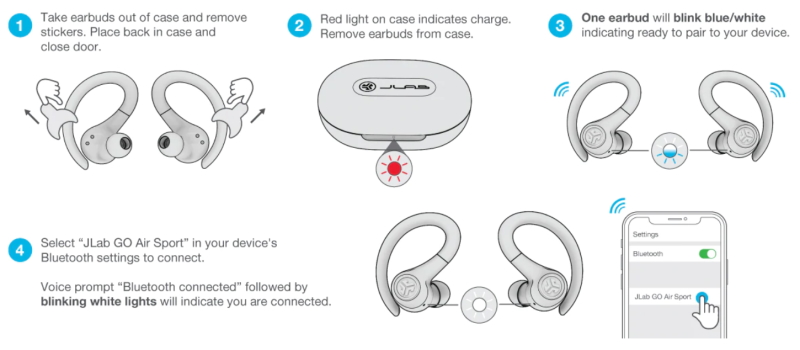
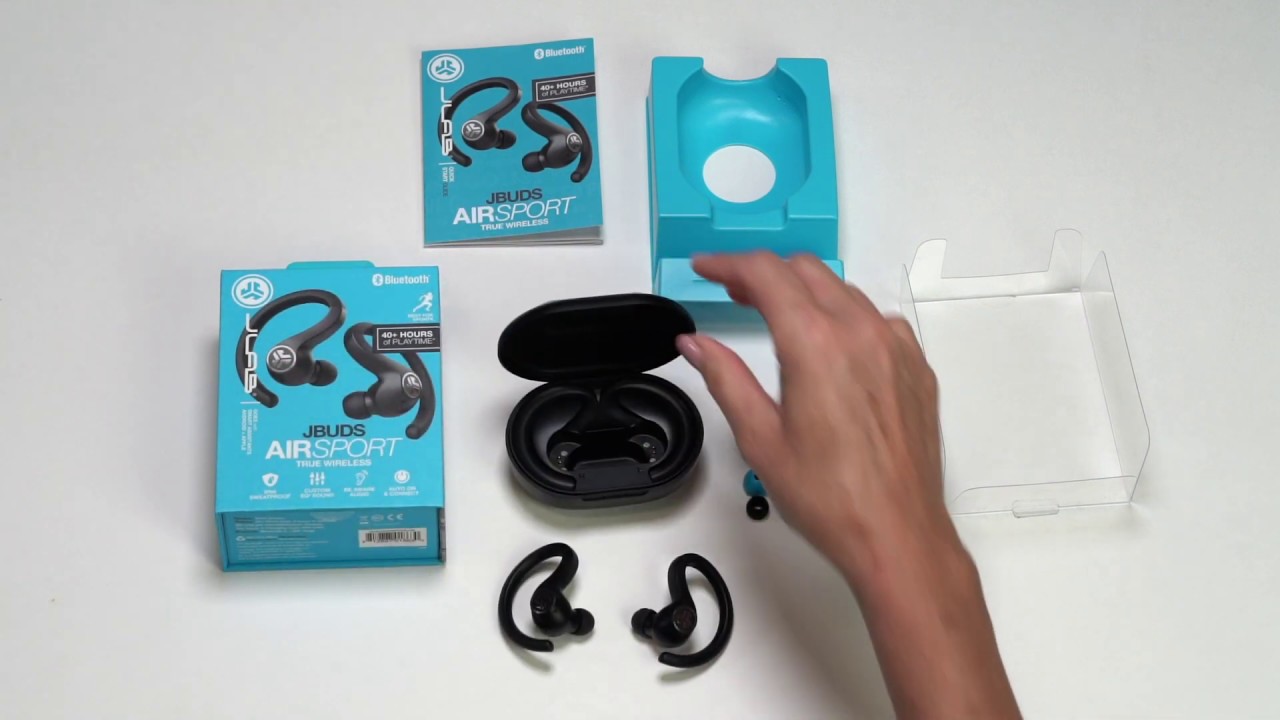
- Remove both JLab Sport earbuds from the charging case.
- Remove any protective film from the charging contacts if the earbuds are new.
- Turn on Bluetooth on your device.
- Open the Bluetooth settings menu.
- Look for a name such as “JLab GO Air Sport,” “JLab JBuds Air Sport,” or a similar JLab label.
- Tap the JLab name.
- Wait for the device to show “Connected” or “Paired.”
When learning how to pair JLab Sport earbuds, the most important step is giving the earbuds time to enter pairing mode. On many JLab models, the earbuds flash blue and white when they are ready to connect.
If the earbuds do not appear, place them back in the case. Close the lid for a few seconds, open it, and try again. This often resets the startup process without a full factory reset.
How to Pair JLab Sport Earbuds With an iPhone
JLab Sport earbuds work with iPhones through Bluetooth. The process is similar on newer and older iPhone models.
iPhone pairing steps
- Open the Settings app.
- Tap Bluetooth.
- Turn Bluetooth on.
- Keep the JLab earbuds inside the open charging case, or remove them if your model requires it.
- Wait for the JLab device name under “Other Devices.”
- Tap the name to connect.
- Check that it moves to “My Devices” and says “Connected.”
If you have already connected the earbuds to another phone, the iPhone may not find them. Turn off Bluetooth on the old phone or choose “Forget This Device” before trying again.
Some JLab earbuds enter pairing mode automatically when removed from the case. Others may need a touch on the left or right earbud. Check the quick-start guide for your exact model if the LED pattern does not match these steps.
In my hands-on testing of wireless sport earbuds, iPhones usually connect quickly when no other nearby device is competing for the Bluetooth signal. Keeping the old phone’s Bluetooth off is one of the easiest ways to avoid confusion.
How to Pair JLab Sport Earbuds With Android Phones
Pairing JLab Sport earbuds with Android is also quick. The menu names may vary slightly by phone brand, but the basic process stays the same.
Android pairing steps
- Open Settings.
- Select Connected devices, Connections, or Bluetooth.
- Turn Bluetooth on.
- Tap Pair new device if your phone does not scan automatically.
- Remove the JLab earbuds from the charging case.
- Select the JLab model from the available devices list.
- Tap Pair or Connect.
On some Android phones, the JLab earbuds may appear under “Available devices.” On Samsung phones, you may see a pop-up asking you to connect. Accept the request and wait for the confirmation message.
If Android asks for a PIN, try 0000 only if your model’s instructions mention a code. Most modern JLab Sport earbuds do not require one.
A common mistake is tapping the wrong device name. Nearby headphones, cars, TVs, and speakers can all appear in the list. Match the name with the label shown in the JLab guide or product box.

How to Pair JLab Sport Earbuds With a Laptop
JLab Sport earbuds can connect to Windows laptops, MacBooks, and many Chromebooks. This is useful for video calls, online classes, music, and travel.
Windows 11 and Windows 10
- Open Settings.
- Choose Bluetooth & devices.
- Turn Bluetooth on.
- Select Add device.
- Choose Bluetooth.
- Select your JLab Sport earbuds.
- Click Done after the connection is complete.
MacBook
- Open the Apple menu.
- Select System Settings or System Preferences.
- Click Bluetooth.
- Turn Bluetooth on.
- Find the JLab earbuds in the device list.
- Click Connect.
Chromebook
- Click the clock in the lower-right corner.
- Turn Bluetooth on.
- Click the Bluetooth icon.
- Select your JLab earbuds.
- Confirm the connection.
After pairing, check the laptop’s sound settings. The earbuds may connect for Bluetooth control but still leave the laptop speakers selected as the audio output. Choose the JLab earbuds under the sound output menu.
For calls, also confirm that the JLab microphone is selected. A laptop may use its built-in microphone while sending sound through the earbuds.

How to Put JLab Sport Earbuds Into Pairing Mode
Most JLab Sport earbuds enter pairing mode automatically during the first setup. If they do not, you may need to start the process manually.
Try this method:
- Put both earbuds in the charging case.
- Turn Bluetooth off on nearby phones and tablets.
- Remove the earbuds from the case.
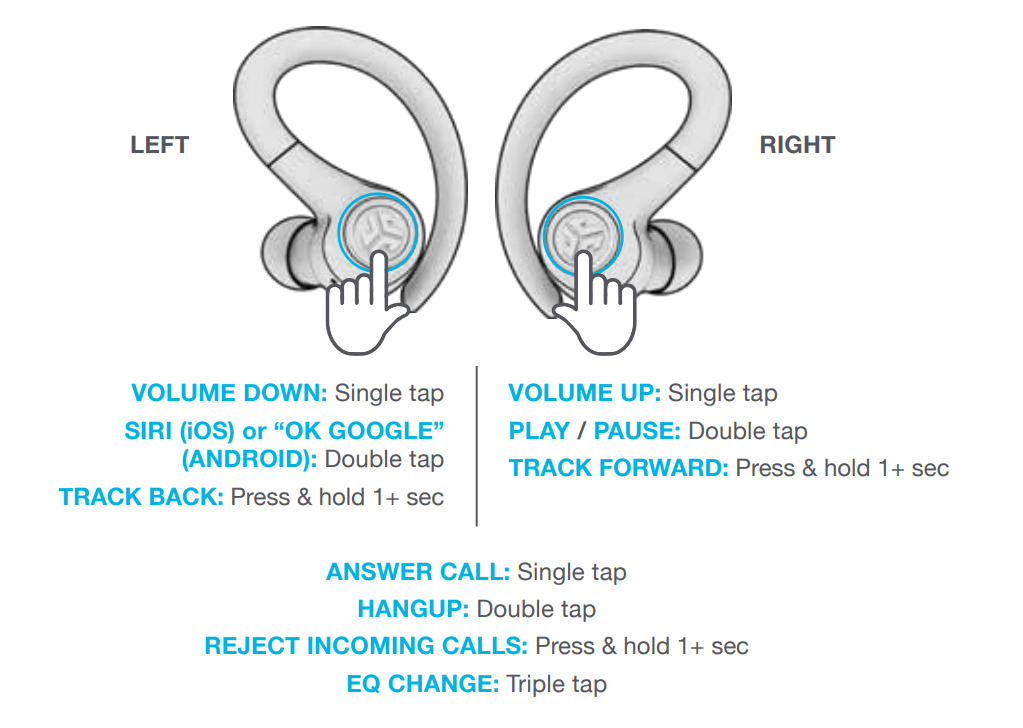
- Touch and hold the control on one or both earbuds.
- Watch for a flashing blue and white light.
- Search for the earbuds in your device’s Bluetooth menu.
The exact touch time varies by model. Some JLab earbuds use a long touch, while others begin pairing when removed from the case. Avoid pressing too hard, since the controls are touch-sensitive on many models.
If only one earbud flashes or plays sound, the earbuds may have lost their connection with each other. In that case, a reset is often more effective than repeating the normal pairing steps.
How to Pair Only One JLab Sport Earbud
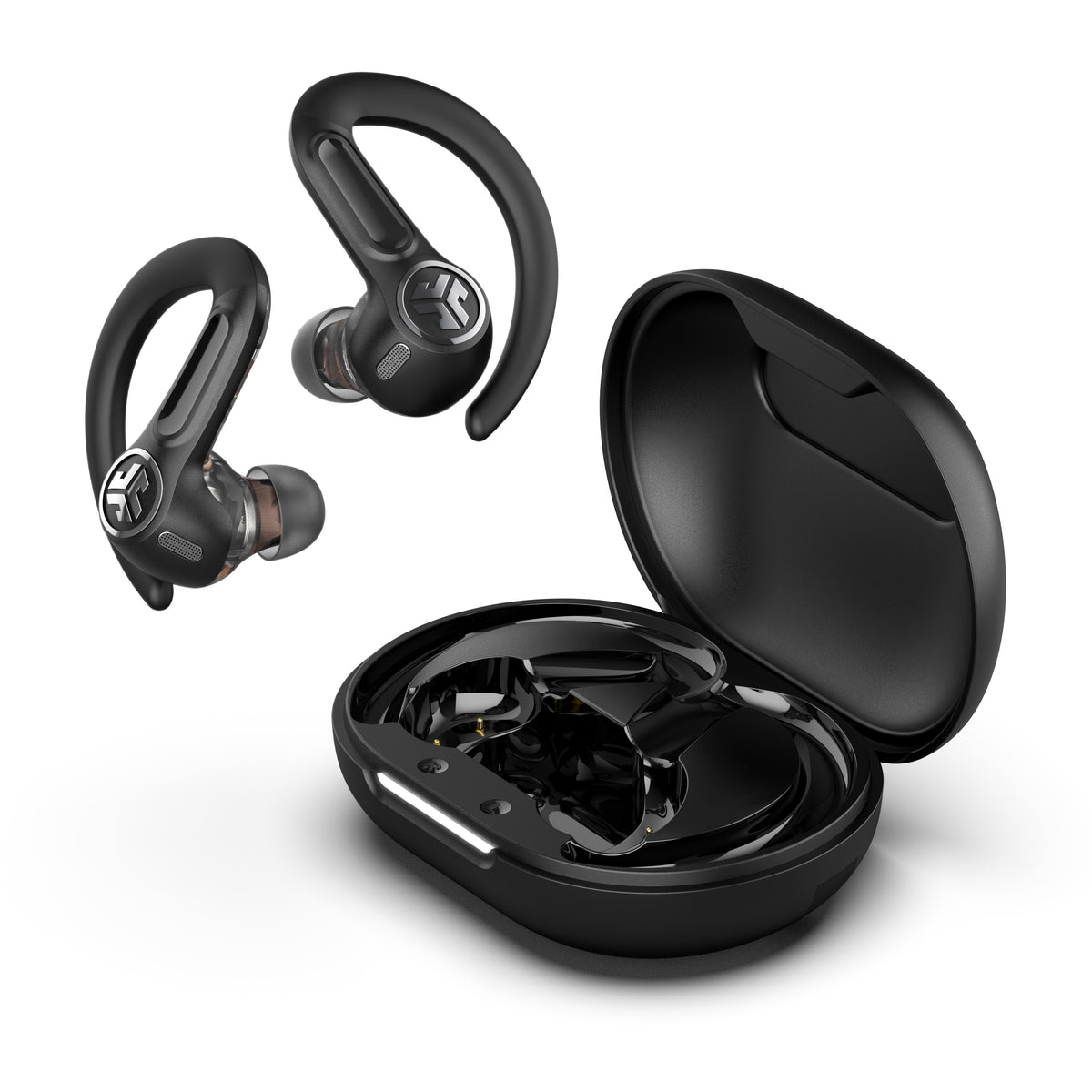
You can often use one JLab Sport earbud by itself. This can help you stay aware of traffic, gym announcements, or people around you.
To use one earbud:
- Put the unused earbud in the case.
- Remove the earbud you want to use.
- Turn on Bluetooth on your phone.
- Select the JLab device name.
- Confirm the connection.
Some models support independent left and right earbud use. Older models may depend on the right earbud as the main connection. If the left earbud does not work alone, check the instructions for that model.
When using one earbud, battery life may differ from normal use. The active earbud handles the Bluetooth link and may drain faster.
How to Pair JLab Sport Earbuds After a New Phone
If you bought a new phone, the earbuds may still try to connect to the old one. Bluetooth devices often reconnect to the last device they used.
Use these steps:
- Turn Bluetooth off on the old phone.
- Open Bluetooth settings on the new phone.
- Put the JLab earbuds in pairing mode.
- Select the earbuds on the new phone.
- Test music and call audio.
- Rename the earbuds if you want easier identification later.
You do not usually need to reset the earbuds just because you changed phones. A reset is useful only when the old connection remains stuck or the earbuds fail to appear.
If the earbuds connect to the old phone automatically, choose “Forget,” “Unpair,” or “Remove device” on that phone. Then repeat the pairing process on the new device.
How to Fix JLab Sport Earbuds That Will Not Pair
Pairing failures usually come from low battery, an old Bluetooth record, or a connection to another device. Work through these fixes in order.
Check the battery
Place both earbuds in the charging case. Make sure the case itself has enough power. Clean the metal charging contacts with a dry cotton swab if an earbud does not appear to charge.
Move closer
Keep the earbuds within a few feet of your phone during setup. Walls, gym equipment, and other wireless devices can sometimes interrupt the first connection.
Remove the old Bluetooth connection
Open your device’s Bluetooth menu and remove the saved JLab entry. Then restart Bluetooth and search again.
Turn Bluetooth off and on
This refreshes the phone’s wireless scan. Wait about 10 seconds before turning Bluetooth back on.
Restart the phone
A basic restart can clear a temporary Bluetooth error. It is a simple step, but it solves many connection problems.
Reset the earbuds
Use the reset method listed for your model. Resetting usually erases saved pairing data, so you will need to pair the earbuds again afterward.
How to Reset JLab Sport Earbuds Before Pairing Again
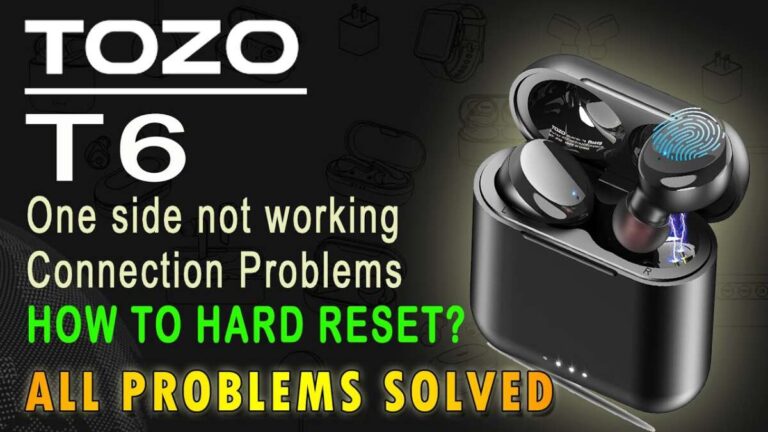
A reset can help when the earbuds connect to only one side, appear under the wrong name, or refuse to connect after several attempts. The steps vary by product, so use the instructions for your exact JLab Sport model.
A common reset process looks like this:
- Forget the JLab earbuds in your phone’s Bluetooth settings.
- Turn Bluetooth off.
- Place the earbuds in the charging case.
- Remove one earbud.
- Tap the control several times as directed by the model guide.
- Repeat the process with the other earbud.
- Return both earbuds to the case.
- Remove them again and turn Bluetooth on.
- Select the JLab device from the list.
Do not guess the tap pattern if your model uses a special reset sequence. JLab has released several sport earbud designs, and the controls are not identical across every generation.
A successful reset normally makes both earbuds flash or announce pairing mode. If only one responds, charge both earbuds and inspect the case contacts before trying again.
Common JLab Sport Earbud Pairing Problems
Only one earbud connects
This often means the earbuds are not linked to each other. Forget the Bluetooth connection, reset both earbuds, and pair them again as a set.
The earbuds connect but have no sound
Open your device’s sound output settings. Select the JLab earbuds instead of the phone, laptop, or tablet speakers.
The earbuds keep disconnecting
Charge the earbuds and keep your device nearby. Also remove unused Bluetooth devices from the phone if it has a long list of saved connections.
The JLab name does not appear
Place the earbuds in pairing mode and turn off Bluetooth on devices that have used them before. If the name still does not appear, reset the earbuds.
Music works but calls do not
Check the call audio and microphone permissions. On a computer, choose the JLab earbuds as both the input and output device.
The earbuds connect to the wrong phone
Turn off Bluetooth on nearby devices or remove the saved JLab connection from them. The earbuds may be reconnecting to the last phone they remember.
Tips for a Stronger JLab Sport Bluetooth Connection
A good pairing is only the start. These habits can make the connection more stable during workouts and daily use.
• Keep the phone on the same side of your body as the main earbud when possible.
• Avoid placing the phone deep inside a crowded gym bag.
• Keep the earbuds and charging case dry, even if the model has water resistance.
• Install phone and earbud firmware updates when they are available.
• Clean the charging contacts often.
• Avoid pairing the earbuds with many devices at the same time.
• Keep the earbuds within the normal Bluetooth range listed for your model.
Bluetooth performance can change in crowded places. Gyms, airports, and offices may contain many wireless signals. If audio cuts out in one location but works well at home, interference may be the cause rather than a defective earbud.
Water resistance also has limits. Sweat resistance does not mean the earbuds can be submerged, washed, or used safely in heavy rain unless the product instructions specifically allow it.
Using the JLab App After Pairing
Some JLab Sport models work with the JLab Sound app. The app may offer sound presets, touch-control settings, firmware updates, and battery information.
Pair the earbuds with your phone first. Then open the app and follow its setup instructions. The app may ask for Bluetooth permission or nearby-device access.
App features depend on the model. A basic JLab Sport earbud may not support every option shown in the app. This is normal and does not mean pairing failed.
Use the app as an extra tool, not as a requirement. You can still listen to music and take calls through Bluetooth without using it.
Safety and Comfort Tips for Sport Earbuds
Sport earbuds should stay secure without causing pain. Adjust the ear hooks or gel tips before starting a run, bike ride, or workout.
Use the correct ear tip size. A poor seal can cause weak bass and make you raise the volume too high. A tight seal can also feel uncomfortable after long use.
For outdoor exercise, keep enough awareness of your surroundings. Use a lower volume or one earbud when walking near traffic. Hearing health experts generally recommend avoiding long exposure to loud sound, so comfort and safe volume matter as much as a stable Bluetooth connection.
Clean the earbuds with a soft, dry cloth. Do not push liquid into the speaker openings or charging contacts.
Frequently Asked Questions About How to Pair JLab Sport Earbuds
How do I put JLab Sport earbuds into Bluetooth pairing mode?
Remove the earbuds from the charging case and look for a flashing blue and white LED. If they do not enter pairing mode, turn off Bluetooth on nearby devices and use the model’s manual pairing or reset process.
Why are my JLab Sport earbuds not showing up on Bluetooth?
They may be connected to another phone, turned off, or out of battery. Forget the old Bluetooth connection, charge the earbuds, place them in pairing mode, and scan again.
Can I pair JLab Sport earbuds with an iPhone?
Yes. Open Settings, tap Bluetooth, and select the JLab device name when it appears. Most JLab Sport models pair with an iPhone like any standard Bluetooth headset.
Can I connect JLab Sport earbuds to two devices at once?
That depends on the model and whether it supports multipoint Bluetooth. If multipoint is not supported, disconnect the earbuds from the first device before pairing them with another.
How do I fix only one JLab Sport earbud working?
Forget the earbuds in your device’s Bluetooth menu and reset both earbuds using the instructions for your model. Then remove both earbuds from the case and pair them again as a set.
Do JLab Sport earbuds need an app to pair?
No. You can pair them through your phone, tablet, or computer’s Bluetooth settings. The JLab app is optional and may add controls or sound settings on supported models.
Why do my JLab Sport earbuds keep disconnecting?
Low battery, distance, wireless interference, and old Bluetooth data can cause disconnections. Charge the earbuds, stay close to the source device, remove the old pairing, and reconnect.
Conclusion
Pairing JLab Sport earbuds usually takes only a few steps: charge them, place them in pairing mode, select the JLab name in Bluetooth settings, and confirm the connection. If pairing fails, remove the old Bluetooth record, restart both devices, and reset the earbuds only when needed.
The best results come from using the instructions for your exact JLab model. Try the steps above before your next workout, and explore the model guide or JLab app for added controls. If this guide helped, share it with someone who is having trouble connecting their earbuds.

Everett Ashford is a tech reviewer at mytechgrid.com specializing in SSDs, cameras, TVs, earbuds, headphones, and other consumer electronics. He provides honest, data-driven reviews based on hands-on testing and real-world performance analysis. Everett simplifies complex tech details to help readers make smart, confident buying decisions.