To connect 3M Bluetooth headphones, turn them on, hold the Bluetooth button, and select them from your device’s Bluetooth menu.
Learning how to connect 3M Bluetooth headphones is simple once you know the correct pairing sequence. This guide covers 3M WorkTunes Connect models, common phone and computer settings, pairing problems, safety tips, and practical fixes that help your headphones connect faster.
What You Need Before Pairing 3M Bluetooth Headphones
Before you begin, check that your headphones have enough battery power. A low battery can stop pairing or cause the connection to drop soon after it starts.
You also need a phone, tablet, or computer with Bluetooth enabled. Most modern devices support Bluetooth, but older computers may need a small USB Bluetooth adapter.
For the smoothest setup, keep your device close to the headphones. A distance of less than 3 feet is best during the first connection.
Check these items first:
• Charge the headphones for at least a few minutes.
• Turn off Bluetooth on nearby devices that may connect automatically.
• Keep the headphones within a few feet of your phone or computer.
• Remove the headphones from an old device if they are already paired elsewhere.
• Read the label or manual to confirm that your model supports Bluetooth.
The steps below focus on 3M WorkTunes Connect hearing protectors. Button names may differ slightly between models, but the basic pairing process is similar.

How to Connect 3M Bluetooth Headphones to a Phone
Connecting 3M Bluetooth headphones to an iPhone or Android phone usually takes less than a minute. The key is to place the headphones in pairing mode before searching for them.
Follow these steps:
-
Turn on the 3M headphones by pressing and holding the power button.
-
Continue holding the Bluetooth or power button until you hear a pairing message or see a flashing blue light.
-
Open the Settings app on your phone.
-
Select Bluetooth.
-
Turn Bluetooth on if it is disabled.
-
Look under Available Devices or Other Devices.
-
Tap the name of your 3M headphones, such as “WorkTunes Connect.”
-
Wait for the status to change to Connected.
-
Play a short audio clip to test the sound.
If the headphones ask for a PIN, try 0000. Many Bluetooth devices do not need a code, but some older products may request one.
When learning how to connect 3M Bluetooth headphones, do not release the pairing button too soon. A quick press may only turn the headphones on, while a longer press starts pairing mode.
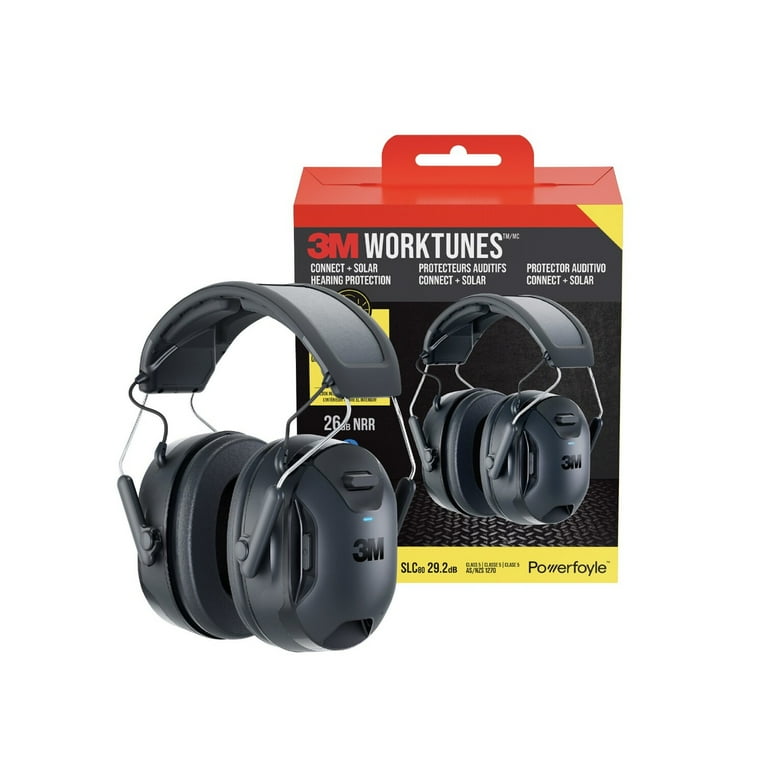
How to Connect 3M Bluetooth Headphones to an iPhone
The iPhone keeps Bluetooth controls in the Settings app. The Control Center can turn Bluetooth on, but the full device list is easier to use for pairing.
Open Settings, tap Bluetooth, and make sure the switch is green. Turn on the 3M headphones and hold the pairing button until the indicator flashes or the headphones announce pairing mode.
Tap the 3M device when it appears. After the iPhone shows Connected, open a music app or video to confirm that audio plays through the headphones.
If the headphones appear under My Devices but show Not Connected, tap their name once. If they still will not connect, tap the information icon next to the device, choose Forget This Device, and pair them again.
One useful tip is to check the audio output. During playback, tap the AirPlay or audio output icon and choose your 3M headphones. Sometimes the phone connects correctly but continues sending sound to its speaker.

How to Connect 3M Bluetooth Headphones to Android
Android menus vary by phone brand, but the process is nearly the same. On most devices, open Settings, choose Connected devices or Connections, and then tap Bluetooth.
Turn Bluetooth on and select Pair new device if that option appears. Put the 3M headphones into pairing mode, then tap their name in the list.
After the connection is complete, Android may show options for phone calls and media audio. Keep Media audio enabled if you want to listen to music, podcasts, videos, or navigation directions.
If you are checking how to connect 3M Bluetooth headphones on Android and the device does not appear, tap Scan or Refresh. You can also switch Bluetooth off and on, then try pairing again.
Some Android phones remember many old Bluetooth devices. Removing unused devices can make the list easier to manage and may prevent the phone from trying to reconnect to the wrong product.
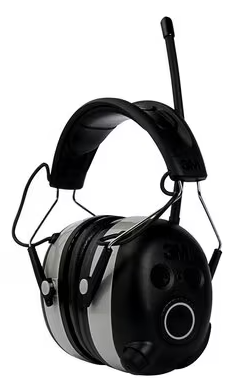
How to Connect 3M Bluetooth Headphones to a Computer
3M Bluetooth headphones can connect to Windows laptops, Mac computers, and some Chromebooks. Your computer must have working Bluetooth hardware.
Windows
Open Settings and select Bluetooth & devices. Turn Bluetooth on, choose Add device, select Bluetooth, and click the name of your 3M headphones.
Wait for the Connected message. Then select the speaker icon in the Windows taskbar and choose the 3M headphones as the sound output.
If you use the headphones for meetings, open the microphone settings in your video app. Select the 3M device as the input and output device if you want to use its built-in microphone.
Mac
Open the Apple menu and select System Settings. Choose Bluetooth, turn it on, and find the 3M headphones in the list.
Click Connect next to the device name. Then open System Settings, select Sound, and choose the headphones under Output.
Chromebook
Click the time in the lower-right corner. Select Bluetooth, turn it on, and choose your 3M headphones from the available devices.
After pairing, play audio to confirm that the Chromebook uses the headphones rather than its built-in speakers.
The main lesson in how to connect 3M Bluetooth headphones to a computer is that pairing and audio output are separate steps. A computer may show a successful connection while still using the wrong speaker.

How to Put 3M WorkTunes Connect Into Pairing Mode
Pairing mode allows another device to find the headphones. Without it, your phone may search but never display the 3M product.
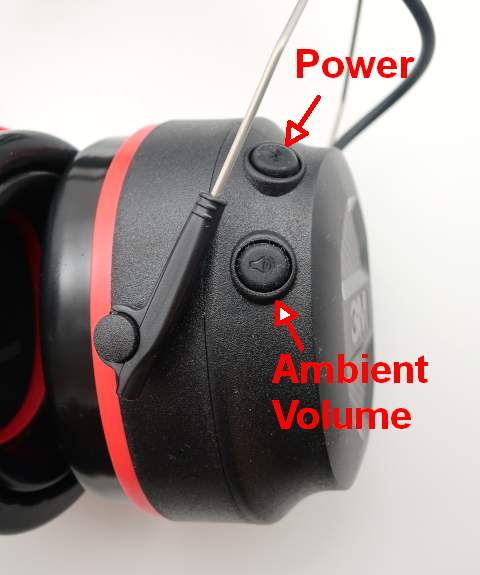
To enter pairing mode, turn the headphones off if they are already running. Press and hold the power or Bluetooth button until the light flashes blue or you hear a voice prompt.
Some models announce “Bluetooth pairing” or a similar message. Once that happens, open your phone or computer’s Bluetooth menu and select the headphones.
Pairing mode often ends after a short period. If the device does not appear, turn the headphones off and repeat the process. Keep the source device close during this step.
A common mistake is holding the volume button instead of the power or Bluetooth button. Volume controls change sound level, but they normally do not start Bluetooth discovery.

How to Reconnect 3M Bluetooth Headphones Automatically
After the first successful pairing, most 3M Bluetooth headphones reconnect to the last device when both products are turned on. Make sure Bluetooth is active on the phone or computer before powering on the headphones.
Automatic reconnection may fail when the headphones are already connected to another device. For example, they may connect to a tablet in a nearby room instead of your phone.
To fix this, turn off Bluetooth on the unwanted device. Then power cycle the headphones and select them from the device you want to use.
Bluetooth connection memory is helpful, but it can also cause confusion. Think of it like a short guest list: the headphones may remember several devices, but they usually connect to only one audio source at a time.
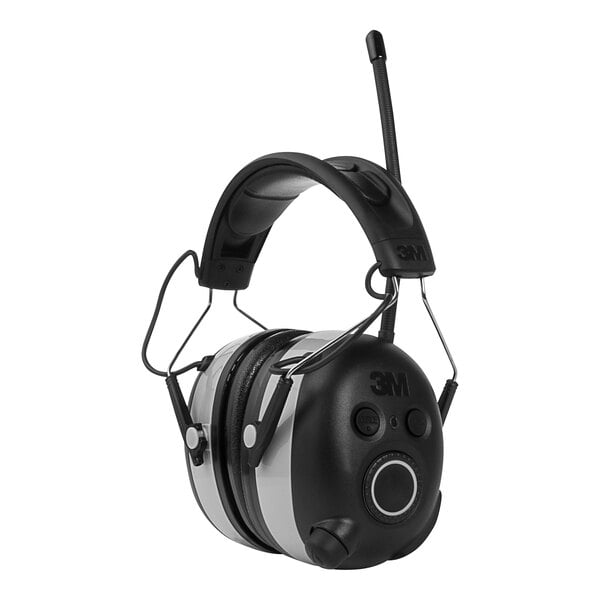
3M Bluetooth Headphones Not Connecting: Common Fixes
If you are still learning how to connect 3M Bluetooth headphones, do not assume the headphones are defective. Most failed connections come from pairing mode, battery, distance, or an old saved connection.
Try these fixes in order:
• Charge the headphones and try again.
• Move the phone within 3 feet of the headphones.
• Turn Bluetooth off and back on.
• Restart the phone, tablet, or computer.
• Forget the 3M headphones in the Bluetooth menu.
• Turn off Bluetooth on nearby devices.
• Reset the headphones according to the model instructions.
• Check for physical damage or water exposure.
If the 3M headphones appear but will not connect, remove them from the saved Bluetooth list. Then restart both devices and pair them as if they were new.
If the headphones do not appear at all, confirm that the indicator light is flashing or that the voice prompt says pairing. A steady light often means the headphones are already connected or simply powered on.
Bluetooth works best with a clear path between devices. Metal walls, crowded wireless areas, and other electronic equipment can reduce connection quality. Hearing protection may also limit how clearly you hear voice prompts, so use the indicator light when possible.

How to Reset 3M Bluetooth Headphones
A reset can clear a frozen connection or an incorrect pairing record. The exact reset method depends on the model, so check the instructions supplied with your headphones.
A safe general approach is to turn the headphones off, remove them from your phone’s Bluetooth list, and restart both devices. Then place the headphones back into pairing mode.
Some models use a combination of power and Bluetooth buttons. Do not hold random buttons for a long time because you may activate another function or change a setting.
After a reset, you will need to pair the headphones again. This is normal. A reset does not usually repair physical damage, weak batteries, or Bluetooth problems caused by the phone.
Improving Sound and Connection Quality
Once you know how to connect 3M Bluetooth headphones, a few simple habits can improve daily use. Keep the source device on the same side of your body as the Bluetooth receiver when possible.
Avoid placing the phone deep inside a backpack or behind large metal objects. Bluetooth signals can pass through many materials, but distance and obstacles still affect performance.
Use the volume controls on both the headphones and the device. If the sound is quiet, raise the phone volume first, then adjust the headphones.
For hearing protection, fit matters. Place the ear cushions fully around your ears, and check that hair, glasses, or a hat do not create large gaps. Bluetooth controls do not replace proper hearing protection practices.
3M WorkTunes products are designed for specific work and recreation needs. They may reduce harmful noise, but they are not a substitute for following workplace safety rules or checking the product’s noise reduction rating.
Battery, Safety, and Care Tips
Bluetooth headphones are convenient, but they still need basic care. Wipe the cushions and controls with a soft, slightly damp cloth. Avoid soaking the headphones or using harsh cleaners unless the product instructions allow them.
Keep the headphones away from extreme heat and direct sunlight. Store them in a dry place, especially after outdoor work or exercise.
Remember these safety points:
• Do not use music to block safety alarms or warning signals.
• Keep volume at a level that lets you stay aware of your surroundings when needed.
• Follow workplace rules for hearing protection.
• Inspect ear cushions for cracks, flattening, or damage.
• Replace worn parts when the manufacturer provides approved replacements.
• Charge the headphones with a suitable cable and power source.
In practical testing, the most avoidable mistake is wearing the headphones before confirming the connection. Play a short test sound first. That small step prevents missed calls, silent videos, and last-minute frustration.
Mistakes to Avoid When Pairing
The first mistake is searching for the headphones while they are only powered on. They must be discoverable, which usually means holding the Bluetooth button until the light flashes or a voice prompt plays.
The second mistake is pairing with the wrong device. If several products have similar names, check the model label on the headphones before tapping a result.
The third mistake is ignoring the phone’s audio output menu. A connection can be active while the sound still comes from the phone, laptop, monitor, or another Bluetooth speaker.
Avoid pairing the headphones with several devices during setup. Start with one source, confirm that it works, and then add another device later if the model supports it.
Frequently Asked Questions About How to Connect 3M Bluetooth Headphones
How do I put 3M Bluetooth headphones into pairing mode?
Turn the headphones on, then press and hold the power or Bluetooth button until the light flashes or a voice prompt announces pairing. Open the Bluetooth menu on your phone or computer and select the 3M headphones.
Why are my 3M Bluetooth headphones not showing up?
They may not be in pairing mode, may be connected to another device, or may have a low battery. Turn off Bluetooth on nearby devices, restart the headphones, and search again with your phone close by.
Can I connect 3M WorkTunes headphones to an iPhone?
Yes. Open Settings, tap Bluetooth, put the headphones into pairing mode, and select the 3M device from the list. After pairing, check the iPhone audio output if sound does not play through the headphones.
Can I connect 3M Bluetooth headphones to a laptop?
Yes, if the laptop has Bluetooth. Add the headphones through the computer’s Bluetooth settings, then choose them as the sound output device.
How do I reset 3M Bluetooth headphones?
The reset method varies by model. In many cases, removing the headphones from the saved Bluetooth list, restarting both devices, and pairing again solves the problem; check your model instructions for a button reset.
Why do my 3M headphones connect but have no sound?
Your device may still be using its built-in speakers. Open the sound or audio output settings and select the connected 3M headphones as the active output.
Conclusion
Learning how to connect 3M Bluetooth headphones comes down to four steps: charge the headphones, enter pairing mode, select them in your device’s Bluetooth menu, and confirm the correct audio output. If pairing fails, restart both devices, remove old connections, and try again at close range.
Once the headphones work, protect the battery, keep the ear cushions clean, and follow safe hearing practices. Try the steps with your 3M WorkTunes model today, and share your setup or troubleshooting experience in the comments.

Everett Ashford is a tech reviewer at mytechgrid.com specializing in SSDs, cameras, TVs, earbuds, headphones, and other consumer electronics. He provides honest, data-driven reviews based on hands-on testing and real-world performance analysis. Everett simplifies complex tech details to help readers make smart, confident buying decisions.