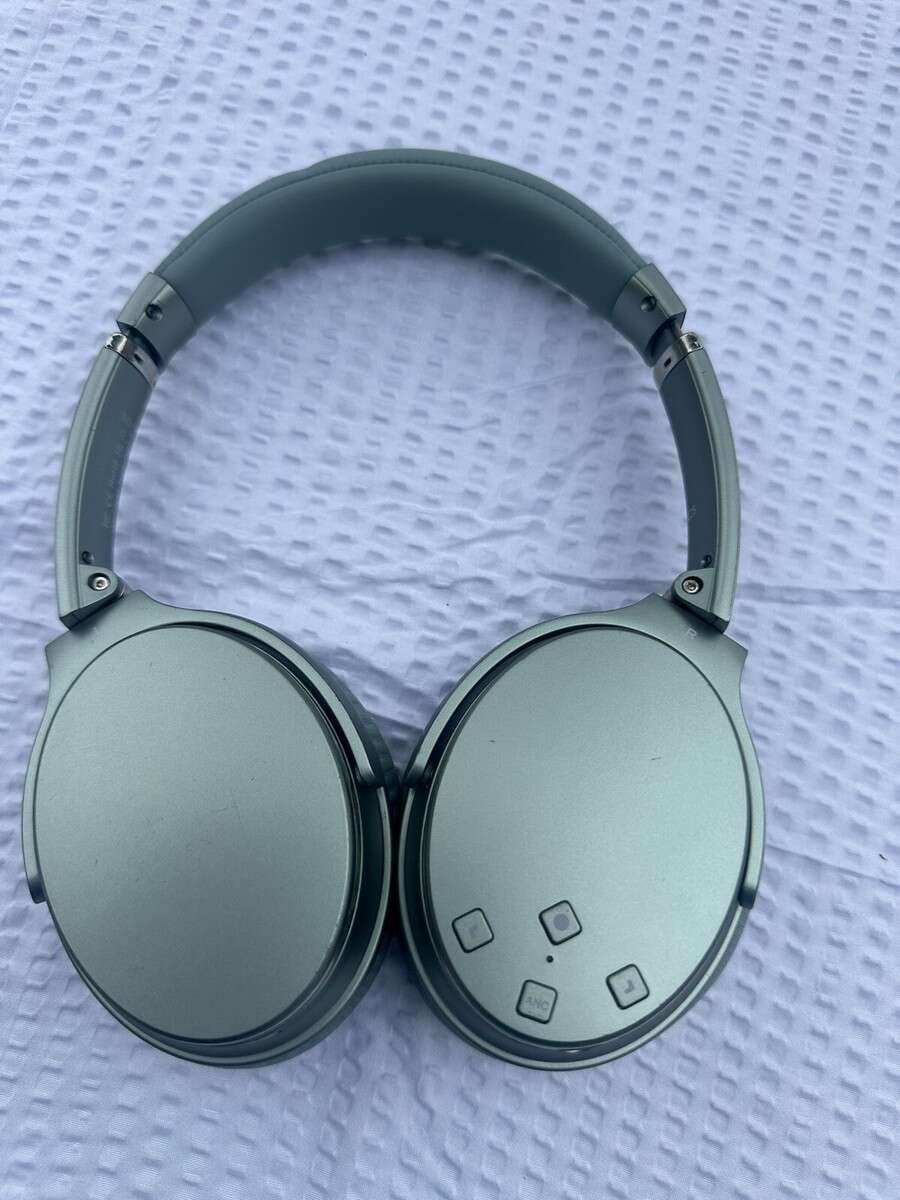
To pair Srhythm headphones, turn on Bluetooth, enter pairing mode, select Srhythm, and confirm the connection.
Pairing Srhythm headphones is usually simple, but small details matter. I have tested Bluetooth headphones across phones, tablets, laptops, and smart TVs, and most pairing problems come from one of three causes: the headphones are not in pairing mode, another device is already connected, or an old Bluetooth record is blocking the link. This guide explains how to pair Srhythm headphones, fix common connection errors, and keep the connection stable.
How to Pair Srhythm Headphones for the First Time
The first pairing takes about a minute. Keep your phone or other device close to the headphones, and make sure both devices have enough battery.
Follow these steps:
- Remove your Srhythm headphones from the case or turn them on.
- Press and hold the power button for several seconds.
- Wait for the LED light to flash, often in blue and red or blue and white.
- Open Bluetooth settings on your phone, tablet, or computer.
- Turn Bluetooth on.
- Look for a device name that includes “Srhythm.”
- Tap the name to connect.
- Wait for the message that confirms the headphones are connected.
This is the standard method for how to pair Srhythm headphones with most Bluetooth devices. The exact button timing can vary by model, so check the user manual if the LED does not flash or the device name does not appear.
Some Srhythm models enter pairing mode automatically the first time you turn them on. Others need you to hold the power button for about five seconds. If the headphones say “pairing” or “Bluetooth pairing,” they are ready to connect.
How to Pair Srhythm Headphones With an iPhone or iPad
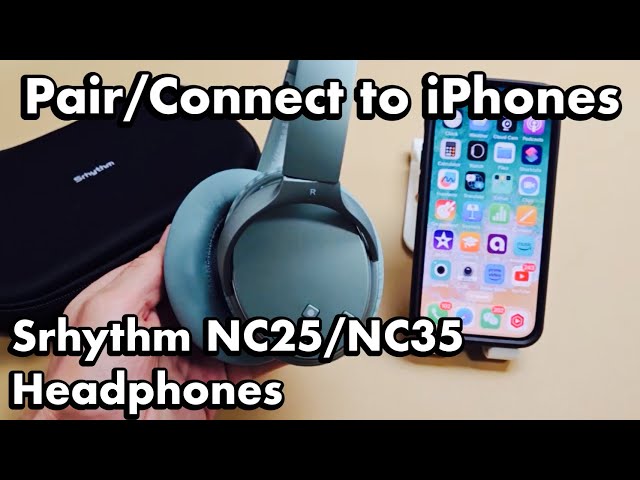
Apple devices usually show Srhythm headphones quickly. The main task is to open the correct Bluetooth menu and choose the right device.
- Open the Settings app.
- Tap Bluetooth.
- Turn Bluetooth on if it is off.
- Put the Srhythm headphones into pairing mode.
- Find the Srhythm model under Other Devices.
- Tap the model name.
- Wait until it moves to My Devices and shows Connected.
After you learn how to pair Srhythm headphones with an iPhone, future connections should happen automatically. Turn on the headphones near the iPhone, and they may reconnect without extra steps.
If your iPhone asks for a passcode, try 0000 or 1234. Most newer Bluetooth headphones do not need a passcode, but some older models may request one.
If the headphones appear but will not connect, tap the information icon beside the device name. Choose Forget This Device, then repeat the pairing process. This clears the old Bluetooth record and often solves the problem.
How to Pair Srhythm Headphones With an Android Phone
Android menus can look different across Samsung, Google Pixel, Motorola, and other phones. Still, the basic process is much the same.
- Open Settings.
- Select Connected devices, Connections, or Bluetooth.
- Tap Pair new device if needed.
- Turn on the Srhythm headphones.
- Hold the power button until the LED enters pairing mode.
- Select the Srhythm headphones from the list.
- Tap Pair or Connect.
When learning how to pair Srhythm headphones with Android, do not tap the headphones while they are still connected to another device. Many models remember the last phone or tablet they used and try to reconnect to it first.
On some Android phones, you can also open the quick settings panel and hold the Bluetooth icon. This takes you directly to the device list. If the headphones do not appear, turn Bluetooth off, wait a few seconds, and turn it back on.
Android may ask whether the headphones can access contacts or call history. These permissions are optional for basic music playback. Allow them only if you want to use the headphones for calls and voice features.

How to Pair Srhythm Headphones With a Windows PC
Srhythm headphones work with many Windows laptops and desktop computers. Your computer must have Bluetooth support, either built in or through a USB Bluetooth adapter.
On Windows 11:
- Open Settings.
- Select Bluetooth & devices.
- Turn Bluetooth on.
- Click Add device.
- Choose Bluetooth.
- Put the Srhythm headphones into pairing mode.
- Select the Srhythm device.
- Click Done after the connection is complete.
On Windows 10, open Settings, select Devices, and choose Bluetooth & other devices. Click Add Bluetooth or other device, select Bluetooth, and then choose the Srhythm headphones.
If Windows connects the headphones but no sound plays, adjust the audio output:
- Click the speaker icon on the taskbar.
- Open the sound output menu.
- Select the Srhythm headphones.
- Choose the Stereo option for music when more than one profile is listed.
Windows may show two audio profiles, such as Stereo and Hands-Free AG Audio. Stereo usually provides better music quality. Hands-Free mode is designed for microphone use and may reduce audio quality during calls.
How to Pair Srhythm Headphones With a Mac
Pairing Srhythm headphones with a Mac takes only a few steps.
- Click the Apple menu.
- Open System Settings.
- Select Bluetooth.
- Turn Bluetooth on.
- Put the headphones into pairing mode.
- Find the Srhythm model.
- Click Connect.
On older versions of macOS, Bluetooth appears in System Preferences instead of System Settings. The names may differ, but the pairing process remains similar.
If the Mac connects but plays sound through its speakers, open System Settings and select Sound. Choose the Srhythm headphones under Output. You can also hold the Option key while clicking the sound icon in the menu bar to select the headphones.
One useful tip from testing Bluetooth headphones with Macs is to close unused audio apps before pairing. Video calls, music players, and browser tabs can sometimes hold on to an older audio route.
How to Pair Srhythm Headphones With a Smart TV
Many smart TVs support Bluetooth audio, but the menu location varies by brand. Look for a menu called Sound, Audio Output, Bluetooth Speaker List, or Wireless Speaker.
A typical process looks like this:
- Turn on the Srhythm headphones.
- Hold the power button until pairing mode starts.
- Open the TV’s Settings menu.
- Go to Sound or Audio.
- Select Bluetooth devices or Bluetooth speaker list.
- Scan for nearby devices.
- Choose the Srhythm headphones.
- Confirm the connection.
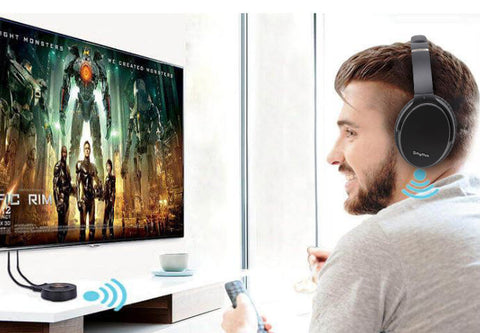
This method for how to pair Srhythm headphones may not work on every television. Some TVs support Bluetooth keyboards and remotes but not Bluetooth audio. Others support only certain audio profiles.
Bluetooth audio can also create a small delay between video and sound. If your TV has an audio delay or lip-sync setting, adjust it after pairing. Keep the headphones within a reasonable range of the TV, since walls and other wireless devices can weaken the signal.
What to Do When Srhythm Headphones Are Not Showing Up
If the Srhythm headphones do not appear in the Bluetooth list, start with the simple checks. The headphones may be on but not discoverable.
Try these steps:
• Charge the headphones for at least 15 minutes.
• Turn Bluetooth off and back on on the source device.
• Move the headphones within three feet of the phone or computer.
• Turn off Bluetooth on nearby devices that may connect automatically.
• Restart both the headphones and the source device.
• Hold the power button longer to enter pairing mode.
• Remove the headphones from the Bluetooth case before searching.
A flashing LED usually means the headphones are ready to pair. A steady light often means they are already connected or powered on without being discoverable.
When I troubleshoot how to pair Srhythm headphones, I first check the old device connection. This is the mistake people miss most often. A headset may silently connect to a tablet in another room, which prevents a new phone from finding it.

How to Reset Srhythm Headphones
Resetting can solve repeated pairing failures, random disconnections, and problems after switching between devices. The reset method depends on the Srhythm model, so use the model-specific manual when possible.
Common reset methods include:
- Turn off the headphones.
- Press and hold the power button for 10 to 15 seconds.
- Release the button when the LED flashes or the headphones announce a reset.
- Open Bluetooth settings on your phone.
- Remove or forget the old Srhythm connection.
- Put the headphones back into pairing mode.
- Connect them as a new device.
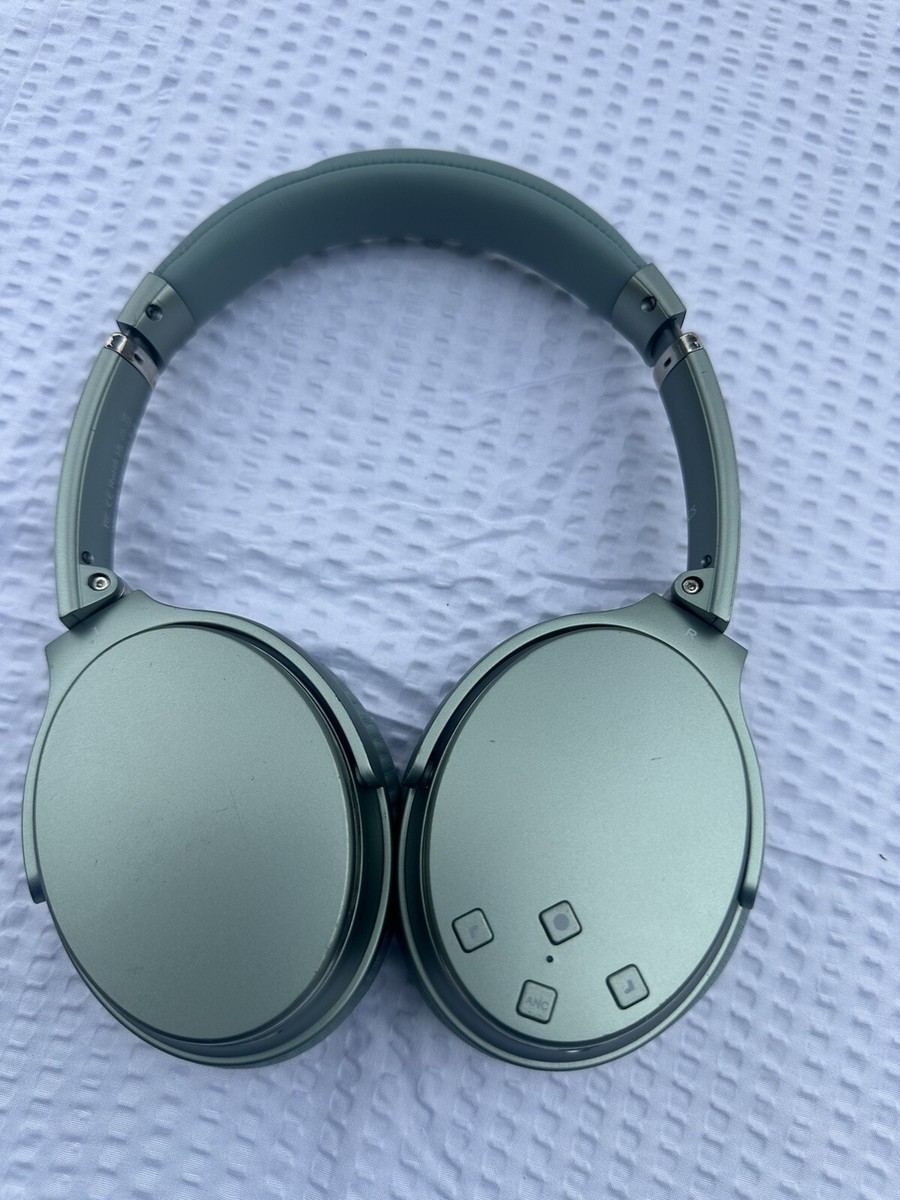
Some models use a combination of buttons instead of the power button. For example, the volume buttons or noise-canceling button may be part of the reset process. Do not guess if the manual gives different instructions.
Resetting erases stored Bluetooth connections on many headphones. That means you may need to reconnect them to your phone, tablet, laptop, or TV afterward. Think of it as clearing a crowded address book so the headphones can start fresh.
How to Fix Srhythm Headphones That Keep Disconnecting
A successful pairing does not always mean a stable connection. Dropouts usually come from distance, interference, low battery, or an unstable Bluetooth record.
Use these fixes:
• Keep the source device within about 30 feet in an open area.
• Avoid placing the phone in a crowded bag or behind a metal surface.
• Charge both the headphones and the source device.
• Disconnect unused Bluetooth accessories.
• Update the phone, computer, or tablet software.
• Forget the Srhythm headphones and pair them again.
• Reset the headphones if the issue continues.
Bluetooth uses radio signals, and crowded areas can create interference. Wi-Fi routers, wireless game controllers, smartwatches, and other Bluetooth products may compete for space. Moving a few feet away from a router or disconnecting unused devices can make a noticeable difference.
If the headphones disconnect only during phone calls, check the microphone profile and call permissions. If they disconnect only when walking away, distance or physical barriers are the likely cause.
How to Use Srhythm Headphones With Two Devices
Some Srhythm models support multipoint Bluetooth, while others can remember several devices but connect to only one at a time. These features are not the same.
With multipoint, the headphones can stay connected to two devices, such as a laptop and phone. You can listen to music on the laptop and answer a call from the phone. Without multipoint, you usually need to disconnect from one device before connecting to another.
To switch devices:
- Pause audio on the first device.
- Open Bluetooth settings on the second device.
- Select the Srhythm headphones.
- Confirm the connection.
- Start playback on the second device.
If the second device cannot connect, turn Bluetooth off on the first device. This is often faster than repeatedly tapping Connect.
When learning how to pair Srhythm headphones with multiple devices, check the product manual for multipoint support. Do not assume that a model supports it just because it can remember earlier connections.
Common Pairing Mistakes to Avoid
Small mistakes can make Bluetooth pairing feel harder than it is. Avoid these common problems:
• Searching for the headphones before turning on pairing mode.
• Selecting a similarly named device that belongs to someone else.
• Leaving the headphones connected to an old phone.
• Trying to pair with a nearly empty battery.
• Keeping the headphones too far from the device.
• Forgetting to choose Srhythm as the computer’s audio output.
• Resetting the headphones without removing the old Bluetooth record.
Pairing mode and normal power mode are different. A headset can be powered on and still remain invisible to new devices. Look for a flashing LED or a voice prompt before opening the Bluetooth menu.
Also, do not pair in a crowded public place if several devices have similar names. At home, pairing is easier because fewer signals and device names compete for your attention.
Bluetooth Safety and Connection Tips
Bluetooth is designed for short-range wireless connections, but good habits improve reliability and battery life.
Keep the headphones and source device updated when the manufacturer provides safe firmware updates. Use the official app or support instructions for your model. Avoid unofficial firmware files, since they can damage the device or create security risks.
For hearing safety, follow the 60/60 approach often recommended by hearing-health professionals: listen at about 60% volume and take regular breaks. Noise-canceling headphones can make music feel quieter, so check the actual volume instead of raising it for long periods.
Srhythm headphones may not perform the same way on every device. Codec support, operating system versions, Bluetooth hardware, and TV software can affect sound quality and delay. These limits are normal and do not always indicate a fault with the headphones.
Frequently Asked Questions About How to Pair Srhythm Headphones
Why are my Srhythm headphones not showing in Bluetooth?
The headphones may not be in pairing mode or may already be connected to another device. Turn off Bluetooth on nearby devices, restart the headphones, and hold the power button until the LED flashes.
How do I put Srhythm headphones into pairing mode?
Turn the headphones off, then press and hold the power button until the indicator light flashes or you hear a pairing message. The exact timing varies by model, so check the manual if this does not work.
Can I pair Srhythm headphones with an iPhone?
Yes, most Srhythm Bluetooth headphones pair with iPhones through Settings > Bluetooth. Select the Srhythm model when it appears under Other Devices.
Can I connect Srhythm headphones to a laptop?
Yes, you can connect compatible Srhythm headphones through the laptop’s Bluetooth settings. After pairing, select the headphones as the audio output device if sound still comes from the laptop speakers.
Why do my Srhythm headphones connect but have no sound?
The device may be connected but using its built-in speakers as the output. Open the sound settings on your phone, computer, or TV and choose the Srhythm headphones as the active output.
How do I pair Srhythm headphones with a new phone?
First, disconnect or forget the headphones on the old phone. Then place the headphones in pairing mode, open Bluetooth on the new phone, and select the Srhythm device.
Do Srhythm headphones support two devices at once?
Some models support multipoint, but not all do. Check your model’s specifications or manual to confirm whether it can remain connected to two devices simultaneously.
Conclusion
Learning how to pair Srhythm headphones is mainly about using the correct sequence: charge the headphones, enter pairing mode, open Bluetooth, select Srhythm, and choose the headphones as the audio output. If the connection fails, forget the old Bluetooth record, disconnect nearby devices, and reset the headphones when needed.
Once you know how to pair Srhythm headphones with your phone, computer, or TV, future connections should be much faster. Try the steps for your device today, and share your model or pairing experience in the comments for more troubleshooting help.

Everett Ashford is a tech reviewer at mytechgrid.com specializing in SSDs, cameras, TVs, earbuds, headphones, and other consumer electronics. He provides honest, data-driven reviews based on hands-on testing and real-world performance analysis. Everett simplifies complex tech details to help readers make smart, confident buying decisions.