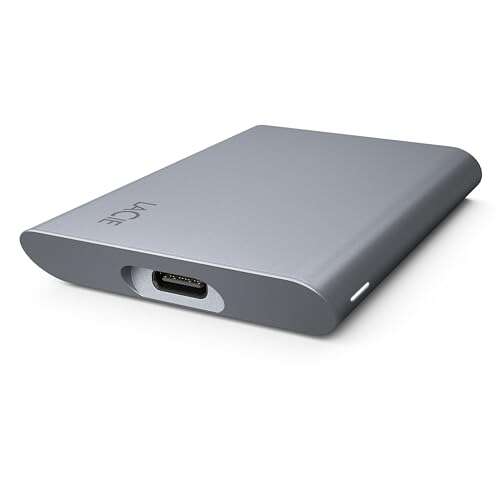
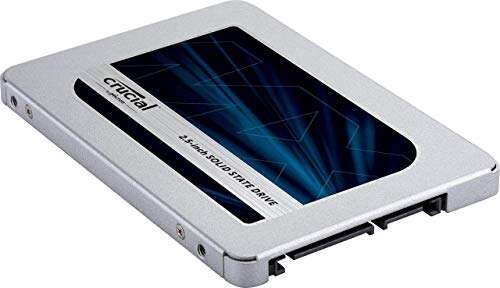
Use BIOS, Disk Management, or system commands to confirm that your computer sees the new SSD.
Learning how to detect new SSD hardware is usually simple, but the right steps depend on your operating system and drive type. A new SSD may appear in firmware but remain missing in Windows, or it may need initialization before you can store files on it. This guide explains how to detect new SSD hardware, fix common detection problems, and check whether the drive is ready for safe use.
What It Means to Detect a New SSD
Detecting a new SSD means confirming that your computer can identify the drive and communicate with it. This process has several layers.
Your motherboard may detect the SSD in BIOS or UEFI. The operating system may then detect it as a storage device. Finally, the drive may need a partition, a file system, and a drive letter before it appears in File Explorer or Finder.
Think of the process like sending a package. The motherboard receives it first. The operating system sorts it next. A drive letter or mount point is the final delivery address.
When you learn how to detect new SSD hardware, check these areas:
• Physical installation and power
• BIOS or UEFI detection
• Operating system detection
• Disk initialization and partitioning
• Drive health and capacity
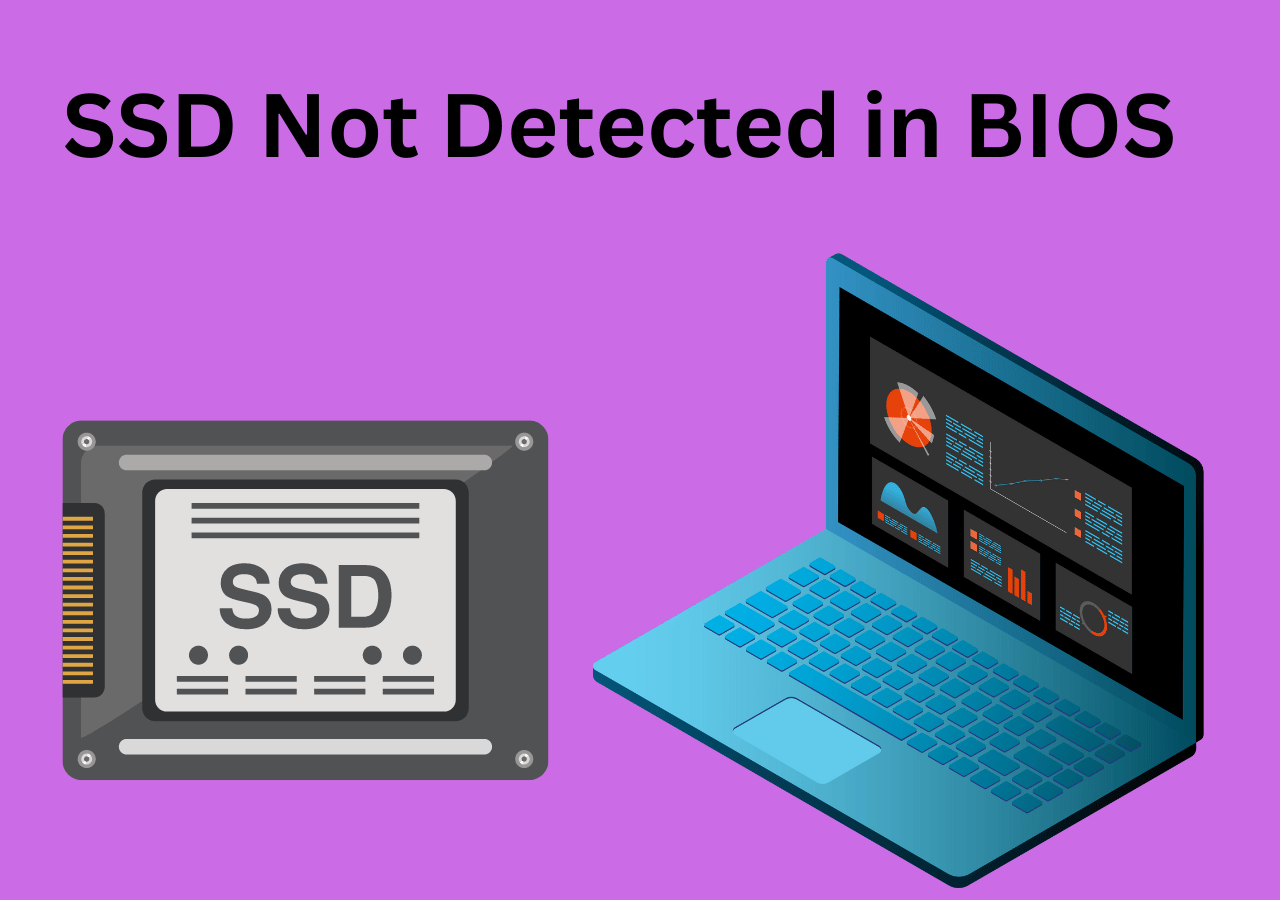
Check the Physical SSD Installation First
Before changing settings, turn off the computer and inspect the installation. Many “missing SSD” problems come from a loose connection or an incompatible slot.
For a 2.5-inch SATA SSD, check both cables. The drive needs a SATA data cable connected to the motherboard and a SATA power cable from the power supply. A loose data cable can prevent detection, while a loose power cable can make the drive completely inactive.
For an M.2 SSD, make sure the drive is fully inserted into the slot at an angle. Then press it down gently and secure it with the correct screw. Do not force the module into place.
Check these details before powering on:
• Confirm that the M.2 notch matches the slot.
• Make sure the SSD supports the slot type, such as SATA M.2 or NVMe PCIe.
• Confirm that the drive is not installed in a slot disabled by another device.
• Check the motherboard manual for shared SATA ports or PCIe lanes.
• Make sure the SSD has no visible damage.
Some M.2 slots support only NVMe drives. Others support only SATA M.2 drives, while some support both. The connector can look almost identical, so checking the motherboard manual is safer than guessing.
A useful repair-bench lesson is to reseat the drive before changing advanced settings. This simple step often solves the issue faster than a long software troubleshooting session.

How to Detect New SSD in BIOS or UEFI
BIOS or UEFI is the best first software check because it runs before Windows, macOS, or Linux loads. If the firmware sees the SSD, the computer is usually communicating with the hardware correctly.
To open BIOS or UEFI, restart the computer and press the setup key during startup. Common keys include Delete, F2, F10, and Esc. The correct key varies by manufacturer, so watch the startup screen or check the computer manual.
Once inside the firmware menu, look for areas named:
• Storage
• NVMe Configuration
• SATA Information
• Advanced Storage Configuration
• System Information
• Boot Devices
The SSD may appear by its brand name, model number, or a long device code. Do not worry if the listed capacity is slightly lower than the number on the box. Manufacturers use decimal storage units, while many operating systems display capacity in binary-based units.
If you can see the SSD in BIOS but not in Windows, the problem is likely related to initialization, partitioning, a drive letter, or an operating system setting. If BIOS cannot see the drive at all, focus on the installation, slot compatibility, power, firmware, or the SSD itself.
When learning how to detect new SSD devices, BIOS provides an important dividing line. It tells you whether the issue begins before or after the operating system starts.

How to Detect New SSD in Windows
Windows offers several ways to detect a new SSD. Start with Disk Management because it shows drives that may not appear in File Explorer.
Use Disk Management
-
Press Windows key + X.
-
Select Disk Management.
-
Look for a disk marked Unknown, Not Initialized, Unallocated, or Offline.
-
Compare the disk capacity with the new SSD.
-
Right-click the disk and choose the needed action.
A new SSD may show a black bar labeled Unallocated. This means Windows sees the physical drive, but no usable partition exists yet.
To prepare a new data SSD:
-
Right-click the disk label on the left.
-
Select Initialize Disk.
-
Choose GPT for most modern computers.
-
Right-click the unallocated space.
-
Select New Simple Volume.
-
Follow the wizard to format the drive and assign a letter.
GPT, or GUID Partition Table, is the modern partition style. It supports large drives and works well with UEFI systems. MBR, or Master Boot Record, is older and may be useful for certain legacy systems, but it has more limits.
Formatting deletes existing data. If the SSD contains files, stop before choosing initialization or formatting. A drive that is truly new is normally safe to prepare, but confirm this before continuing.
Use Device Manager
Device Manager can help you detect new SSD hardware at the controller level.
-
Press Windows key + X.
-
Open Device Manager.
-
Expand Disk drives.
-
Look for the SSD model.
-
Also check Storage controllers and IDE ATA/ATAPI controllers.
If the SSD appears with a warning icon, right-click it and select Properties. The General tab may show an error code that points to a driver or hardware issue.
You can also select Action, then Scan for hardware changes. This asks Windows to search again for connected devices.
Use PowerShell
PowerShell gives you a quick way to list physical disks. Open PowerShell as an administrator and run:
Get-Disk
This command shows the disk number, size, partition style, operational status, and whether the disk is online.
You can also run:
Get-PhysicalDisk
This may show the media type, health status, and bus type. An NVMe drive may appear with a PCIe bus type, while a SATA SSD may show SATA.
Use Command Prompt and DiskPart
DiskPart can list disks that Windows recognizes. Open Command Prompt as an administrator and enter:
diskpart
list disk
To leave DiskPart, type:
exit
Be careful with DiskPart. Commands such as clean and format can erase data immediately. Use it to inspect the drive unless you fully understand the command you plan to run.
These Windows tools are useful because File Explorer is not the same as hardware detection. A drive can be visible to Windows but absent from File Explorer because it has no drive letter or usable partition.

How to Detect New SSD on macOS
macOS can detect a new SSD even when the drive is not visible on the desktop. Disk Utility is the main tool for checking it.
-
Connect the SSD or install it internally.
-
Open Applications, then Utilities, then Disk Utility.
-
Select View.
-
Choose Show All Devices.
-
Look for the physical SSD in the sidebar.
The physical drive usually appears above its volumes. If the device is listed but has no volume, you may need to erase and format it before use.
For a new drive used mainly with modern Macs, APFS is usually appropriate. ExFAT can work when you need to share the drive between macOS and Windows. Formatting removes existing data, so confirm that the disk is new or backed up.
If Disk Utility does not show the SSD, open System Information:
-
Hold the Option key.
-
Select the Apple menu.
-
Open System Information.
-
Check NVMExpress, SATA, or USB under the Hardware section.
You can also use Terminal. These commands help identify storage devices:
diskutil list
For more detailed information, use:
system_profiler SPNVMeDataType
For an external USB SSD, check:
system_profiler SPUSBDataType
If macOS sees the drive in System Information but Disk Utility cannot mount it, the issue may involve the partition map or file system. If neither tool sees it, inspect the cable, enclosure, adapter, power supply, and drive compatibility.

How to Detect New SSD in Linux
Linux provides strong command-line tools for storage detection. You can also use a graphical disk utility on many distributions.
Open a terminal and run:
lsblk
This lists block devices, partitions, sizes, and mount points. A new SSD may appear as a device such as /dev/sda or /dev/nvme0n1.
For PCIe NVMe drives, use:
sudo nvme list
This command may require the nvme-cli package. It displays the model, serial number, firmware, and capacity.
To inspect recent kernel messages, run:
dmesg | grep -i -E "nvme|ata|scsi|ssd"
On some systems, permission restrictions may require:
sudo dmesg | grep -i -E "nvme|ata|scsi|ssd"
You can also list PCI devices with:
lspci | grep -i -E "nvme|sata"
If Linux detects the physical SSD but does not mount it, the disk may have no file system or may use a file system that Linux cannot write to without extra support. A graphical tool such as GNOME Disks can help you view the device, create partitions, and mount volumes.
Do not format a disk from Linux until you verify its device name. Accidentally selecting the wrong device can erase your operating system or personal files.

Why a New SSD May Not Appear
When how to detect new SSD troubleshooting does not work at first, consider the most common causes.
The SSD is not seated correctly
An M.2 drive may look installed but fail to make full contact. Power down the computer, remove the drive, and reinstall it carefully.
The slot does not support the drive
An M.2 SATA SSD may not work in an NVMe-only slot. The reverse can also happen. Check the motherboard specifications, not only the physical shape of the connector.
The motherboard disables a shared port
Some motherboards share bandwidth between M.2 slots, SATA ports, and PCIe slots. Installing an M.2 drive may disable one or more SATA ports. The manual usually lists these limitations.
The drive is offline or uninitialized
Windows may detect the SSD but leave it offline or unallocated. Disk Management can often resolve this without a hardware repair.
The SSD has no drive letter
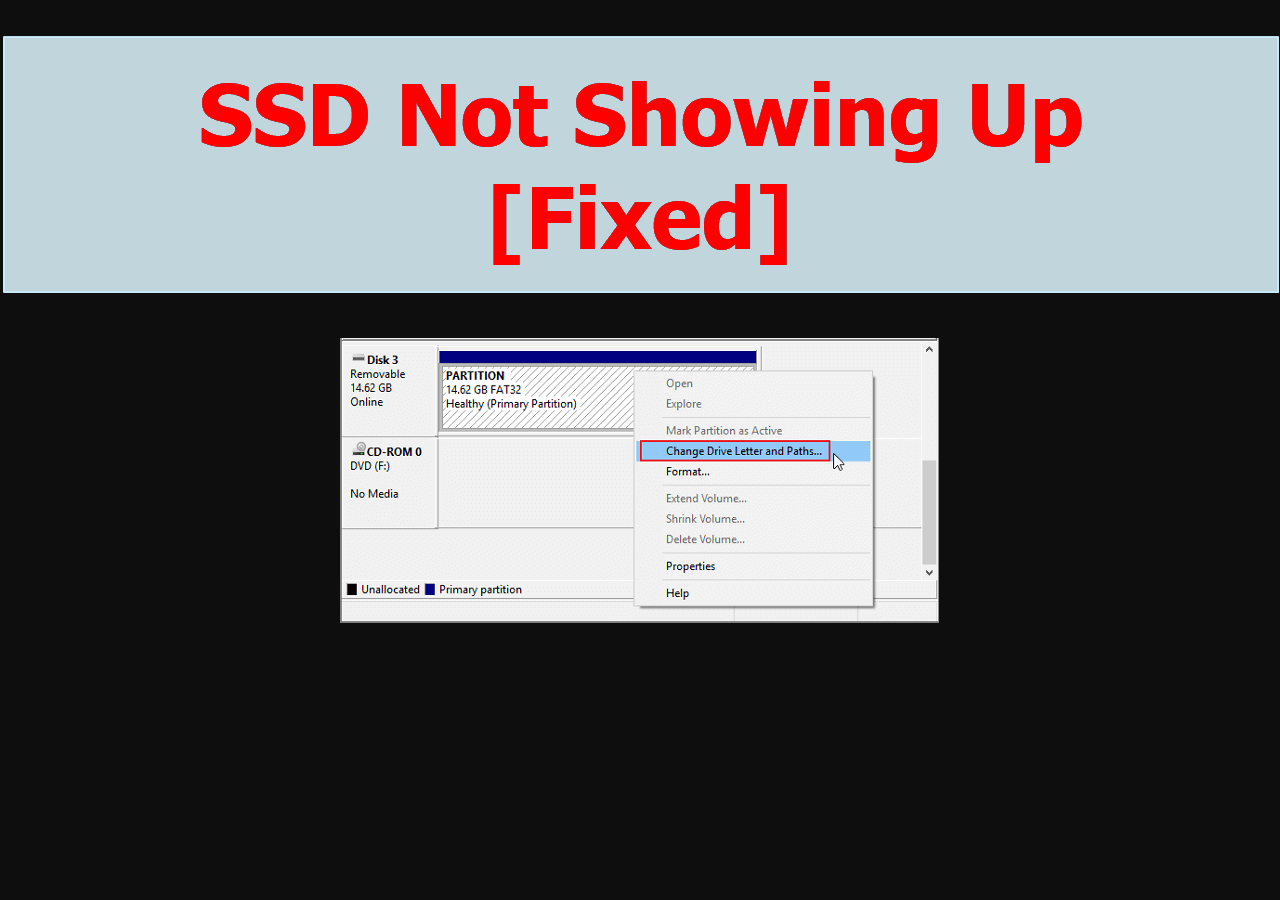
A partition without a drive letter may not appear in File Explorer. Disk Management allows you to assign one.
The cable, adapter, or enclosure is faulty
External SSDs depend on the USB cable, adapter, and enclosure. Try another cable and another USB port. Avoid using an unpowered hub during testing.
The firmware is outdated
A motherboard firmware update can improve compatibility with newer NVMe drives. Update firmware only by following the computer or motherboard maker’s instructions. Interrupting a firmware update can cause serious problems.
The drive is defective
If the SSD is missing from BIOS, Disk Management, Disk Utility, and Linux tools after you verify the connections, the drive may be faulty. Test it in another compatible computer or enclosure if possible.
What to Do When BIOS Sees the SSD but Windows Does Not
This situation is common and often fixable. First, open Disk Management and look for an uninitialized, offline, or unallocated disk.
If it appears there, initialize it with GPT and create a new volume if the drive is empty. If it does not appear, open Device Manager and select Scan for hardware changes.
Next, check Storage controllers in Device Manager. Some systems use a storage mode such as Intel RST or RAID. Changing storage modes without preparation can make the existing operating system unbootable, so do not switch AHCI, RAID, or RST settings casually.
You should also install current chipset and storage drivers from the computer or motherboard manufacturer. Avoid random driver websites. Official support pages are safer and more reliable.
If the SSD is intended as a boot drive, confirm that the system supports its interface and that the drive has a compatible operating system installation. A detected SSD does not automatically become a bootable drive.
How to Verify SSD Capacity and Health
Detecting an SSD is only the first step. You should also verify that the reported capacity and health look normal.
Compare the capacity shown by the operating system with the label on the drive. A small difference is normal because storage manufacturers and operating systems use different measurement methods.
For health information, use a trusted tool that supports your SSD brand and interface. Useful details may include:
• Drive temperature
• Total host writes
• Percentage used
• Available spare capacity
• Reported health status
• Firmware version
• Power-on hours
SMART data can help identify warning signs, but it is not a perfect prediction of failure. A drive can pass a health check and still fail because of a controller, power, firmware, or sudden hardware problem.
For this reason, health tools should support a backup plan, not replace one. Keep important files in at least two separate locations. The 3-2-1 backup approach is a practical model: three copies of data, on two types of storage, with one copy stored away from the main device.

How to Test a Newly Detected SSD Safely
After you detect the SSD, perform a few basic checks before trusting it with important files.
-
Confirm the model and serial number.
-
Verify the usable capacity.
-
Check that the correct partition style is used.
-
Create a test folder.
-
Copy several files to the drive.
-
Open the files from the SSD.
-
Restart the computer and confirm that the volume remains available.
-
Check the drive temperature during normal use.
You can run a benchmark, but avoid repeated stress tests on a brand-new drive unless you have a clear reason. A benchmark measures performance under a set workload. It does not prove that the SSD will never fail.
If you plan to use the SSD as a system drive, install the operating system only after confirming the correct target disk. During setup, compare the drive capacity and model carefully. This helps prevent accidentally deleting data from another disk.
One mistake people often make is confusing detection with readiness. Seeing an SSD in BIOS proves that the hardware is recognized. It does not prove that the drive is partitioned, healthy, formatted, or suitable for booting.
Common Mistakes to Avoid
Good storage troubleshooting is often about avoiding one destructive click.
• Do not format a disk until you confirm it contains no needed data.
• Do not use DiskPart commands such as clean without checking the disk number.
• Do not force an M.2 module into a slot.
• Do not assume every M.2 slot supports both SATA and NVMe.
• Do not change RAID, AHCI, or RST settings without understanding the boot impact.
• Do not trust a single health test as a complete safety guarantee.
• Do not install firmware from an unofficial website.
• Do not use an unknown USB enclosure for important data until it has been tested.
A clear photo of the motherboard manual or a note of each drive’s model and capacity can prevent confusion. Labeling cables also helps when a computer has several SATA drives installed.
Frequently Asked Questions About How to Detect New SSD
How do I know if my computer detected the new SSD?
Check BIOS or UEFI first, then open Disk Management on Windows, Disk Utility on macOS, or lsblk on Linux. If the SSD appears in one of these tools but not in File Explorer or Finder, it may need a partition, file system, mount point, or drive letter.
Why is my new SSD not showing in File Explorer?
Windows may detect the physical SSD without assigning it a drive letter. Open Disk Management and check whether the drive is unallocated, offline, or missing a volume.
Should I use GPT or MBR for a new SSD?
GPT is the best choice for most modern computers using UEFI firmware. MBR is mainly useful for older systems that require legacy BIOS support.
Can BIOS detect an SSD that Windows cannot use?
Yes. BIOS may recognize the hardware while Windows still needs a driver, partition, file system, or drive letter. Check Disk Management and Device Manager to identify the missing step.
Why does my M.2 SSD not appear in BIOS?
The drive may be loose, incompatible with the slot, disabled by shared lanes, or affected by outdated firmware. Reseat the SSD and verify whether the slot supports SATA, NVMe, or both.
Does detecting an SSD prove that it is healthy?
No. Detection only confirms that the computer can communicate with the drive. Use a reliable health tool, monitor unusual errors, and maintain backups.
Can I detect an SSD without formatting it?
Yes. BIOS, Device Manager, Disk Management, Disk Utility, PowerShell, and Linux commands can identify the drive without erasing it. Do not initialize or format it if it may contain important data.
Conclusion
The most reliable way to detect new SSD hardware is to work from the physical connection upward. Check the installation, confirm the drive in BIOS or UEFI, inspect it with your operating system’s storage tools, and then initialize or format it only when the drive is confirmed to be new.
Remember that detection and readiness are different steps. An SSD may be visible but still need a partition, file system, drive letter, mount point, or firmware update. Follow the checks in order, protect existing data, and keep a backup before moving important files.
Use these steps the next time you install a drive, and share your SSD model and operating system if you need help with a specific detection problem.

Everett Ashford is a tech reviewer at mytechgrid.com specializing in SSDs, cameras, TVs, earbuds, headphones, and other consumer electronics. He provides honest, data-driven reviews based on hands-on testing and real-world performance analysis. Everett simplifies complex tech details to help readers make smart, confident buying decisions.