Cloning your SSD to a larger SSD copies your system, files, apps, and settings without reinstalling everything.
When your current SSD is running out of space, learning how to clone SSD to larger SSD is often the fastest and safest upgrade path. The process creates a nearly exact copy of your old drive, including the operating system, personal files, boot data, and installed programs. With the right preparation, you can swap drives and continue working with little or no change to your setup.
This guide explains how to clone SSD to larger SSD on Windows, macOS, and Linux, including the tools you need, common mistakes, partition expansion, encryption concerns, and ways to verify that the new drive works correctly.
What Does Cloning an SSD Mean?
SSD cloning means copying the complete contents of one drive to another. Unlike a normal file copy, cloning also transfers hidden partitions, boot files, file system structures, and operating system data.
Think of it as moving your entire digital workspace into a larger room. Your desk, folders, tools, and settings stay in the same place, but you gain more space around them.
A successful clone may include:
• Windows, macOS, or Linux
• Installed applications and games
• Personal documents, photos, and videos
• Recovery and system partitions
• Boot information
• User accounts and system settings
Cloning is different from creating a backup. A backup protects your files so you can restore them later. A clone creates a bootable replacement drive, although you should still maintain a separate backup before starting.
Knowing how to clone SSD to larger SSD also helps you avoid a common problem: copying only the visible files while missing the partitions needed to start the computer.
Why Clone an SSD to a Larger SSD?
The most obvious reason is limited storage. A small 256GB or 512GB SSD can fill quickly after installing modern games, creative software, system updates, and media files.
Other reasons include:
• Replacing an aging SSD before it fails
• Moving from a slower SATA SSD to a faster NVMe SSD
• Upgrading a laptop with a larger internal drive
• Avoiding a clean operating system installation
• Keeping existing applications and settings
• Improving storage performance and capacity
A larger SSD does not automatically make every computer faster. If your old drive and new drive use the same interface and similar technology, the main benefit may be capacity. However, moving from a SATA SSD to a PCIe NVMe SSD can reduce load times when the computer supports the newer interface.
In my experience, the biggest benefit is convenience. A clean installation can take hours when you include drivers, updates, passwords, app settings, and game downloads. Learning how to clone SSD to larger SSD can reduce that work to a planned migration.

What You Need Before You Start
Preparation is the most important part of the process. A clone usually works well, but one mistake, such as selecting the wrong destination drive, can erase valuable data.
Gather these items first:
• The new SSD, with more capacity than the used space on the old SSD
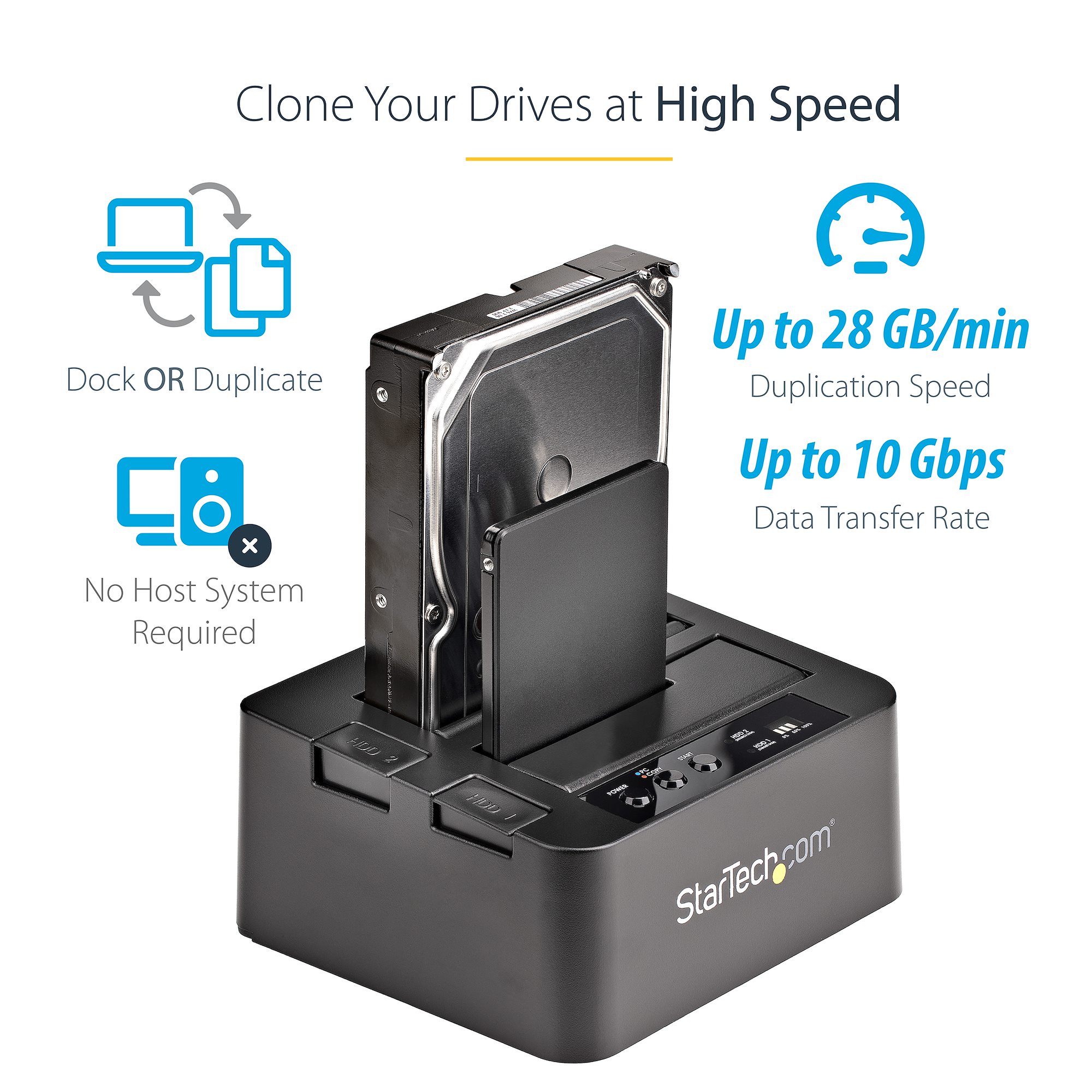
• A USB to SATA adapter, NVMe enclosure, or second internal drive slot
• Cloning software
• A backup of important files
• The correct screwdriver for a laptop or desktop
• A stable power source
Check the drive type before buying anything. SATA and NVMe SSDs use different connectors and protocols. An M.2 drive may be either SATA or NVMe, so the size and shape alone do not tell you whether it will work.
Also check your computer’s manual or manufacturer support page. Confirm the supported drive length, such as 2280, the interface type, and whether the system supports the new capacity.
Before you clone SSD to larger SSD, review these checks:
• Confirm the new SSD appears in Disk Management, Disk Utility, or a Linux disk tool.
• Make sure the destination drive has no important data.
• Connect the laptop to its charger.
• Disable sleep during the cloning process.
• Close open programs.
• Check the health of the source SSD.
A drive with serious errors may produce a damaged clone. Use a health tool that reads SMART information, but remember that SMART data is a warning system, not a guarantee of future reliability.
Choose the Right Cloning Software
The best cloning tool depends on your operating system and comfort level. Many reputable tools support disk-to-disk cloning, partition resizing, and boot repair.
Common choices include:
• Clonezilla, a powerful free tool that runs from bootable media
• Rescuezilla, a more user-friendly Clonezilla-based option
• Macrium Reflect, commonly used for Windows disk imaging and migration
• Acronis cloning tools, often included with selected SSD brands
• Disk Utility, included with macOS for some drive-copy tasks
• dd, available on Linux but intended for experienced users
Some SSD makers provide migration software for their own drives. These tools may work well, but they can refuse to clone to a drive from another brand or may offer fewer advanced options.
For most Windows users, a graphical cloning tool is easier than a command-line tool. For Linux users, Rescuezilla can provide a simpler interface than manually using dd.
Never choose software based only on a download page that promises a “one-click clone.” Verify that the tool supports your partition style, encryption setup, and operating system.
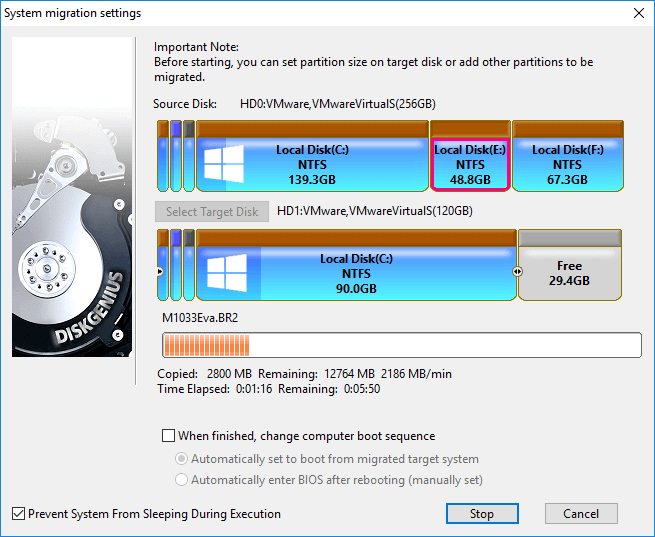
How to Clone SSD to Larger SSD on Windows
The exact buttons vary by software, but the workflow is similar. The following steps explain how to clone SSD to larger SSD with a typical Windows cloning application.
1. Install the new SSD
Connect the new drive internally or through a compatible USB adapter. A USB connection is convenient, but the process may be slower than using a direct internal connection.
Open Disk Management by right-clicking the Start button and selecting Disk Management. Windows may ask you to initialize the drive. Do not create partitions if your cloning software will copy the entire disk, unless the software specifically requires initialization.
2. Open the cloning tool
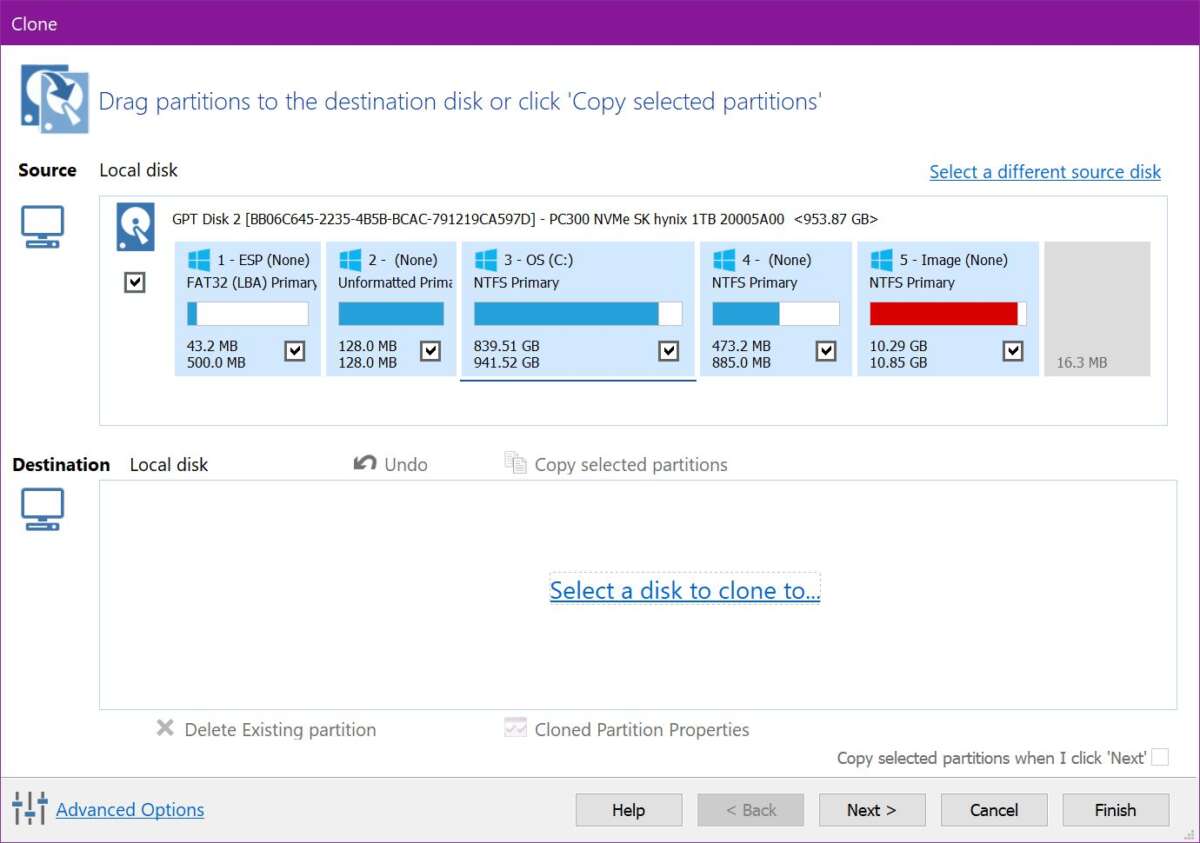
Start the cloning program with administrator permission. Locate the current system SSD. It may contain partitions labeled EFI System, Windows, Recovery, or other system names.
Take your time here. Compare the disk capacity and partition layout with the physical drive you intend to copy.
3. Select the source disk
Choose the old SSD as the source. The source contains your current Windows installation and files.
Some tools show the source as Disk 0, but disk numbers can change. Use capacity, partition size, and model name to confirm the correct disk.
4. Select the destination disk
Choose the new larger SSD as the destination. The software should warn you that existing data on the destination will be deleted.
Read this warning carefully. If the new SSD contains files, copy them elsewhere before continuing. Selecting the wrong destination is the most serious mistake people make when they clone SSD to larger SSD.
5. Copy all required partitions
For a bootable Windows clone, copy every important partition, not just the C: drive. These may include:
• EFI System Partition
• Microsoft Reserved Partition
• Windows partition
• Recovery partition
The cloning program may automatically select them. If it does not, choose the full-disk clone option.
6. Expand the Windows partition
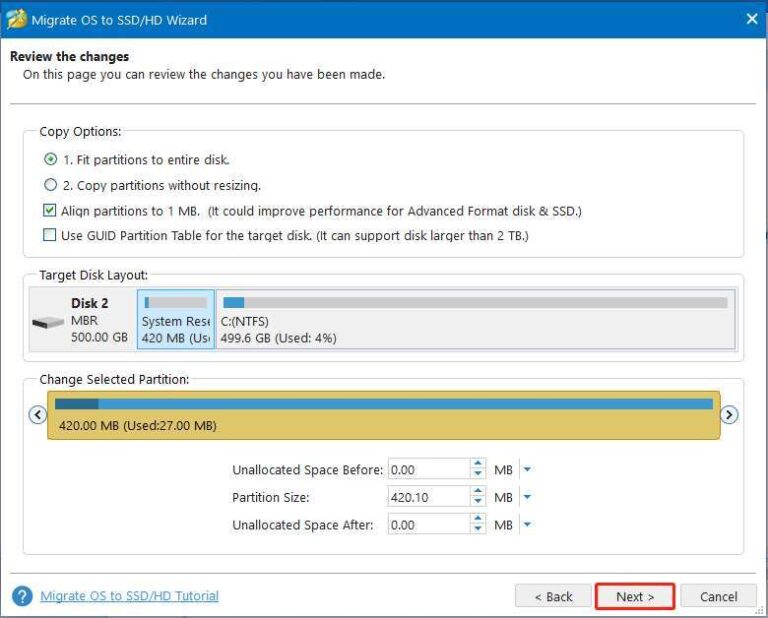
Many cloning programs let you expand the main Windows partition during the process. Select the option that uses the extra space on the larger SSD.
If you skip this step, the clone may boot correctly but still show the old capacity. You can often expand the partition later with Windows Disk Management or a partition manager.
7. Start the clone
Begin the operation and avoid using the computer while it runs. The time required depends on the amount of data, connection type, drive speed, and software.
Do not disconnect the SSD or force the computer to shut down. A laptop should remain connected to AC power.
8. Shut down and change the boot drive
When cloning finishes, shut down the computer. For the first test, disconnect the old SSD if possible. This prevents the computer from accidentally booting from the original drive.
Install the new SSD in the main slot, then start the computer. If it boots into Windows and your files are present, the migration likely worked.
9. Confirm the new capacity
Open File Explorer and check the C: drive. Then open Disk Management to verify that the extra space is assigned.
If the larger SSD still shows unused space, right-click the Windows partition and choose Extend Volume, provided the unallocated space is directly next to that partition.
:max_bytes(150000):strip_icc()/10-how-to-clone-hdd-to-ssd-in-windows-4775671-cb797c04c8484fce946ada08517c7685.jpg)
How to Clone SSD to Larger SSD on macOS
macOS migrations can be more sensitive because modern Macs may use Apple silicon, hardware security, and encrypted APFS volumes. An external clone may not behave like a fully bootable replacement on every Mac model.
For Intel-based Macs, disk cloning and startup testing are often more flexible. For Apple silicon Macs, use a tool that clearly supports your macOS version and hardware.
A general process looks like this:
-
Connect the larger SSD using a compatible enclosure.
-
Open Disk Utility and confirm that the drive is detected.
-
Use cloning software that supports APFS and your Mac’s startup method.
-
Select the internal drive as the source.
-
Select the external SSD as the destination.
-
Erase or format the destination only after confirming it has no needed data.
-
Start the clone and wait for it to finish.
-
Restart while holding the appropriate startup selection key on an Intel Mac, or use the startup options process on an Apple silicon Mac.
-
Test whether the Mac can start from the new SSD.
FileVault encryption can change the cloning process. Some tools copy an encrypted volume directly, while others require the source to be unlocked. Keep your recovery key available before beginning.
If the Mac is used for work, do not erase the original drive until the new installation has started successfully and your important files are available.
How to Clone SSD to Larger SSD on Linux
Linux gives you several ways to clone a drive. Rescuezilla provides a graphical method, while Clonezilla offers more control. The dd command can copy a disk directly, but it is unforgiving.
A typical Rescuezilla process is:
-
Download the Rescuezilla image from its official project page.
-
Create a bootable USB drive.
-
Boot the computer from that USB drive.
-
Select the disk cloning option.
-
Choose the old SSD as the source.
-
Choose the larger SSD as the destination.
-
Review the disk names and sizes carefully.
-
Start the clone.
-
Shut down and boot from the new SSD.
If you use dd, verify the source and destination device names first. Reversing them can overwrite the original drive. A command such as lsblk can help identify disk sizes and partitions, but experienced users should still confirm the model names.
After cloning, expand the partition and file system. Tools such as GParted can resize many Linux partitions, but the process depends on whether the system uses ext4, Btrfs, LVM, or another format.
This is one reason a guided cloning tool is safer for beginners. It handles more of the partition work and reduces the chance of a destructive command.
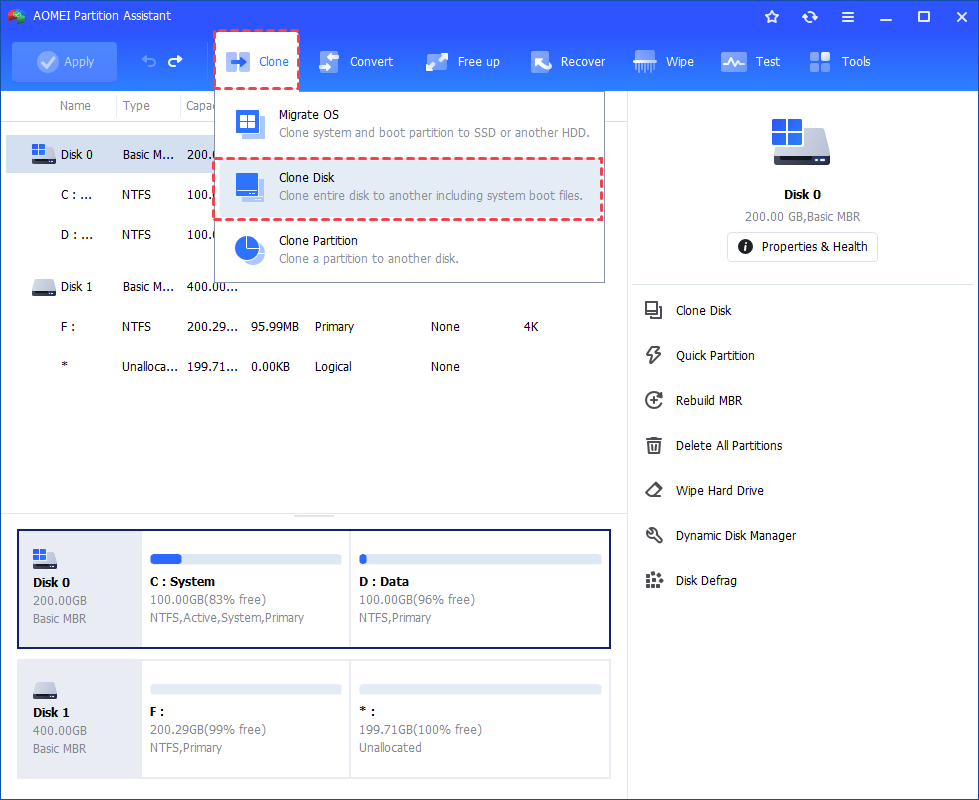
How to Expand the Extra Space After Cloning
A larger destination SSD does not always give your operating system more usable space immediately. The clone may preserve the original partition size and leave the remaining capacity as unallocated space.
On Windows:
-
Open Disk Management.
-
Find the cloned system drive.
-
Check whether unallocated space sits next to the main partition.
-
Right-click the main partition.
-
Select Extend Volume.
-
Follow the wizard.
If the recovery partition sits between the Windows partition and the unallocated space, Disk Management may not extend the volume. In that case, use a trusted partition manager or resize the partitions from bootable media.
On Linux, expand the partition first and then expand the file system. The correct command depends on the file system type. On macOS, Disk Utility may automatically manage APFS container space, but check the container and volume layout carefully.
The key lesson from many migration problems is simple: cloning and resizing are related, but they are not always the same operation.

What to Do If the New SSD Will Not Boot
A cloned drive can contain all your files and still fail to start. Boot problems usually come from a mismatched boot mode, missing boot files, encryption issues, or an incorrect partition layout.
Try these checks:
• Disconnect the old SSD and test again.
• Enter the firmware settings and select the new SSD as the first boot device.
• Confirm that the system uses UEFI when the disk uses GPT.
• Use the cloning tool’s boot repair feature.
• Check that the EFI System Partition was copied.
• Reconnect the original drive only after testing the new one.
Windows may offer startup repair from its recovery environment. Linux users may need to reinstall or repair GRUB. Mac users may need to select the startup disk or reinstall macOS recovery components.
Do not immediately format the old SSD. Keep it unchanged until the new installation works for several days. This gives you a reliable fallback if a hidden problem appears.
SSD Cloning Problems and Mistakes to Avoid
Even when you understand how to clone SSD to larger SSD, small oversights can create trouble. These are the problems I see most often during storage upgrades.
Choosing the wrong destination
This can erase the original drive. Always compare the model and capacity before starting, and unplug other external drives if they are not needed.
Ignoring encryption
BitLocker, FileVault, and Linux disk encryption can affect cloning and boot behavior. Save recovery keys and confirm that your cloning tool supports encrypted volumes.
Forgetting to expand the partition
The computer may boot normally while showing no extra space. Check the partition map after the migration.
Cloning a failing SSD
A clone cannot repair corrupted files or failing hardware. Copy important files separately first.
Using an unsuitable adapter
A cheap or incompatible enclosure can cause disconnects. Use an adapter that matches the SSD’s interface and supports stable data transfer.
Booting with both drives connected
Some computers may boot from the old drive or become confused by duplicate disk identifiers. Test with the old drive disconnected.
Erasing the old drive too soon
Keep the old SSD as a temporary backup until the new one passes your checks.
How to Verify the Clone
After you clone SSD to larger SSD, test more than just the boot screen. A successful startup is a good sign, but it does not prove that every file and application works.
Check the following:
• The operating system starts without repair messages.
• Your user account opens normally.
• Documents and photos are present.
• Common applications launch.
• Browser profiles and saved settings work.
• The new SSD shows the expected capacity.
• Device Manager shows no storage errors.
• The computer enters sleep and wakes normally.
• Your backup software can see the new drive.
You can compare used space on the old and new drives. The numbers may not match perfectly because of temporary files, reserved space, and file system behavior, but a major difference deserves investigation.
Run a health check on the new SSD after installation. Also update firmware only when the manufacturer recommends it and you have a current backup.
Should You Clone or Perform a Clean Install?
Cloning is best when your current operating system is stable and you want to preserve your setup. It saves time and keeps your applications, settings, and files in place.
A clean installation may be better when:
• The current system has malware or serious corruption.
• You want to remove years of unused software.
• You are changing from one operating system to another.
• The old installation has persistent driver problems.
• You want a completely fresh configuration.
Cloning moves both the useful parts and the clutter. A clean install takes longer, but it can improve organization and remove hidden problems.
For many home users, the practical approach is to clone first, verify the new drive, and perform cleanup later. That gives you a working system without forcing a full reset on upgrade day.
Frequently Asked Questions About How to Clone SSD to Larger SSD
Can I clone an SSD to a larger SSD with different brands?
Yes. SSD brands do not usually need to match. The new drive must be compatible with your computer, and the cloning software must support the operating system and partition layout.
Will cloning copy Windows and my installed programs?
Yes, a full-disk clone can copy Windows, applications, settings, files, and boot partitions. A file-only copy will not normally create a bootable replacement.
Do I need to format the larger SSD before cloning?
Usually, no. Many cloning tools erase and prepare the destination automatically. Check the software instructions, and back up anything stored on the destination before starting.
Why does my larger SSD show the old capacity?
The clone may have copied the original partition size and left the remaining space unallocated. Extend the main partition with Disk Management, Disk Utility, GParted, or a trusted partition tool.
Can I clone an encrypted SSD?
Often, yes, but encryption may require special support. Save your BitLocker, FileVault, or Linux recovery key before you begin, and confirm that the cloning software supports your encryption setup.
Should the old SSD remain connected during the first boot?
It is safer to disconnect the old SSD during the first test. This ensures the computer boots from the new drive instead of silently using the original.
How long does it take to clone an SSD?
The time depends on the amount of data, the drive interface, and the connection. A clone with 300GB of data may take far longer through USB than through a direct internal connection.
Conclusion
Learning how to clone SSD to larger SSD lets you upgrade storage while keeping your operating system, applications, files, and settings. The safest process is to back up important data, confirm drive compatibility, select the correct source and destination, copy every required partition, expand the new volume, and test the replacement before erasing the old drive.
Take your time during disk selection. That one habit prevents the most serious cloning mistakes. Once the new SSD boots and your files are verified, you can enjoy more room without rebuilding your computer from scratch. Share your experience, explore your SSD manufacturer’s support resources, or leave a comment about the setup you are planning.

Everett Ashford is a tech reviewer at mytechgrid.com specializing in SSDs, cameras, TVs, earbuds, headphones, and other consumer electronics. He provides honest, data-driven reviews based on hands-on testing and real-world performance analysis. Everett simplifies complex tech details to help readers make smart, confident buying decisions.