How To Reverse Headphone Left And Right: Easy Guide
Reverse headphone left and right by swapping the stereo channels in your device, app, or audio software settings.
If music, games, or videos sound backward, you can usually fix the problem in a few minutes. I have tested channel-swapping methods on computers, phones, game systems, and audio apps, and the best option depends on your device. This guide explains how to reverse headphone left and right safely, check the result, and avoid common sound problems.

What does reversing headphone left and right mean?
Stereo audio uses two separate channels:


• The left channel sends sound to the left ear.
• The right channel sends sound to the right ear.
Reversing headphone left and right swaps these channels. Sound meant for the left ear plays in the right ear, and sound meant for the right ear plays in the left ear.
This change does not improve sound quality by itself. It only changes the direction of the stereo image. For example, a guitar recorded on the left may sound as if it comes from the right after the swap.
People reverse headphone left and right for several reasons:
• Their headphones have unclear or incorrect L and R markings.
• They wear the headset on the opposite side.
• A cable or internal driver may be wired incorrectly.
• A game may use directional sound that feels reversed.
• They want to correct a hearing or comfort preference.
• They need a temporary fix for a damaged or modified headset.
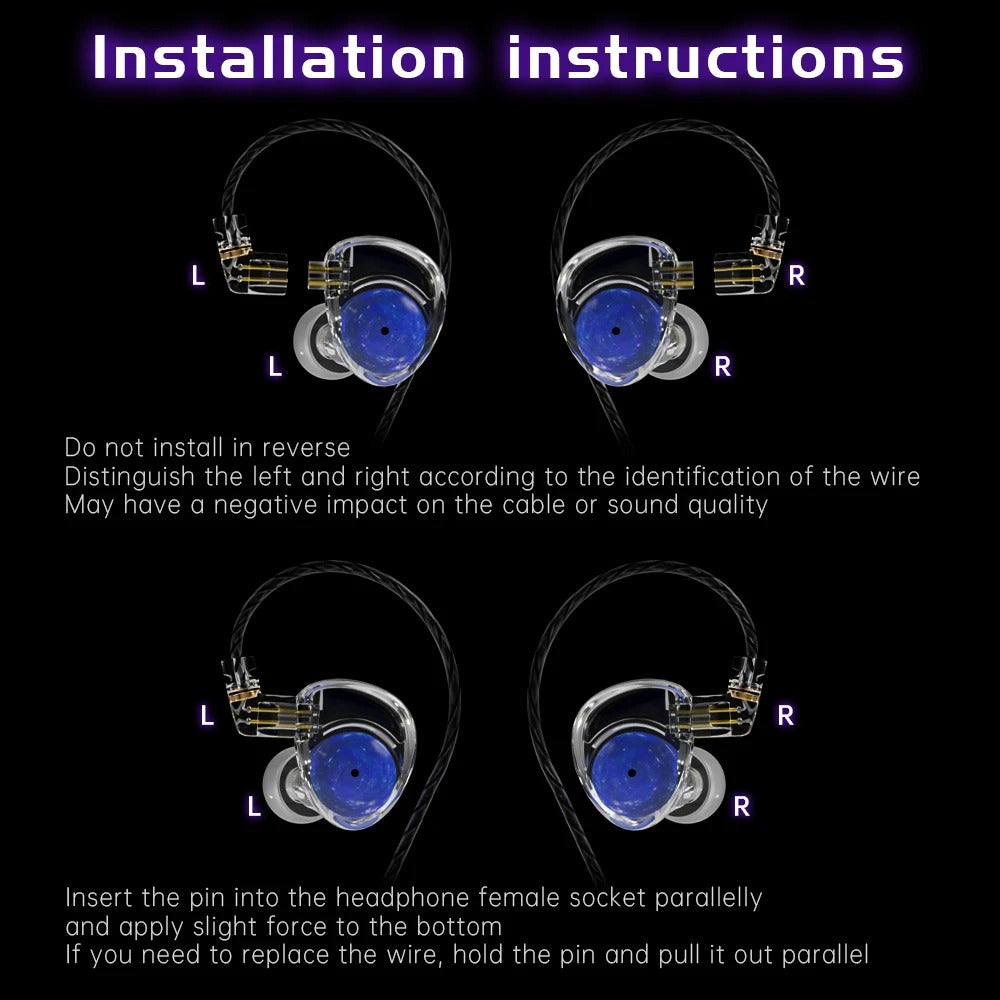
Before changing settings, check the earcups or earbuds. Look for a small L on the left side and R on the right side. Some markings are hidden near the cable, so use a flashlight if needed.


How to reverse headphone left and right on Windows
Windows does not include a universal left-right swap button in every version. Some sound drivers and audio control apps provide one, while others need a third-party tool or a system-wide audio mixer.
Try these methods in order.
Method 1: Check your headphone or sound driver app
Many computers include audio software from the sound chip maker or headphone brand. Common examples include audio control panels from Realtek, ASUS, Dell, Lenovo, SteelSeries, and other manufacturers.
- Open the Start menu.
- Search for your audio control app.
- Open speaker, headphone, or output settings.
- Look for options called Channel Swap, Reverse Stereo, Swap Left and Right, or Stereo Flip.
- Turn the option on.
- Play a left-right test sound.
The exact name can vary. If you cannot find the setting, search the app for “channel” or “stereo.”
Method 2: Use an audio routing app
Audio mixer tools can apply effects to a selected output device. Look for a stereo balance or channel-routing feature.
Set the left input to the right output, then set the right input to the left output. Do not raise the volume too much while testing. A routing mistake can create silence, one-sided audio, or loud feedback.
Method 3: Use an Equalizer APO setup
Equalizer APO is a popular Windows audio processor. It can reverse channels when configured with a channel-mapping command.
A typical channel swap uses this logic:
Left output = Right input
Right output = Left input
The exact configuration depends on your audio device and the software version. Restart the computer after installation if the audio processor does not activate.
Method 4: Use the physical solution
If software feels too complex, turn the headphones around only when the design allows it. This works best with symmetrical over-ear headphones. It may not work well with earbuds, gaming headsets, or headphones shaped for one specific ear.
Windows users should test the result with a stereo channel test after every change. This prevents confusion when several audio apps apply different effects at the same time.

How to reverse headphone left and right on Mac
macOS includes a balance control, but the standard Sound settings usually do not provide a simple left-right swap button. Balance changes volume between channels; it does not reverse the channels.
You can use an audio utility that supports channel mapping or a virtual audio device.


Use an audio routing or mixer app
- Install a trusted macOS audio routing tool.
- Select your headphones as the output device.
- Open the channel or routing panel.
- Send the left channel to the right output.
- Send the right channel to the left output.
- Play a stereo test track.
Some tools call this feature “matrix mixing.” In that case, set the routing matrix so each channel crosses to the opposite side.
Use a digital audio workstation
A digital audio workstation, or DAW, can reverse channels for music and video projects.
- Import the audio file.
- Add a channel utility or stereo-mapping plug-in.
- Swap the left and right channels.
- Export the corrected file.
This method changes the file itself. It does not necessarily reverse every sound from your Mac. For system-wide changes, use an audio routing tool instead.
When I troubleshoot Mac audio, I first check whether the problem affects one app or every app. If only one program sounds reversed, fixing that program is safer than changing the entire system.

How to reverse headphone left and right on Android
Android phone settings vary by brand and operating system version. Most Android devices include mono audio and balance controls, but many do not include a built-in stereo channel swap.
Check your phone first:
- Open Settings.
- Search for Accessibility.
- Open Hearing enhancements, Audio adjustment, or Hearing.
- Look for Left/right balance.
- Check whether a channel-swap option is available.
The balance slider is not the same as reversing headphone left and right. It only makes one side louder or quieter.
If your phone does not offer channel swapping, use a trusted audio player or headphone app that supports stereo reversal. Some music players include a “reverse stereo” effect under equalizer or playback settings.
You can also use an external USB audio adapter with channel-routing controls. This may be useful for a permanent setup, but confirm that the adapter works with your phone before buying it.
Android apps can behave differently. A player may reverse music inside the app while leaving videos, games, calls, and notifications unchanged.

How to reverse headphone left and right on iPhone or iPad
iPhone and iPad accessibility settings include mono audio and balance controls. However, iOS does not normally offer a universal left-right stereo swap for every app.
To check the available settings:
- Open Settings.
- Tap Accessibility.
- Select Audio and Visual.
- Review the Balance and Mono Audio options.
- Test the headphones with a stereo recording.
If you move the balance slider, you are not swapping channels. You are only changing the level sent to each side.


For a true channel swap, use an audio app that supports stereo reversal. This usually affects audio played inside that app. Another option is to reverse the channels before transferring a music or video file to the device.
Bluetooth headphones may also have their own app. Check the manufacturer’s app for channel mapping, hearing settings, or custom controls.

How to reverse headphone left and right on Linux
Linux offers several ways to reverse headphone channels. The best method depends on whether your system uses PulseAudio or PipeWire.
Using PulseAudio tools
PulseAudio can use a virtual remapped output. A channel-remapping configuration sends the left source to the right speaker and the right source to the left speaker.
The basic channel layout is:
Left source → Right output
Right source → Left output
You can create the remapped output with a terminal command or a graphical audio control tool. Select the new output after creating it.
Using PipeWire tools
PipeWire systems can create a virtual sink with swapped channel positions. Some desktop audio tools make this easier by offering channel mapping through a graphical interface.
After applying the change:
- Select the remapped output.
- Open a browser video.
- Play a left-right test tone.
- Confirm that the channels are reversed.
- Save the profile if you want to use it again.
Linux gives you strong control over audio routing, but configuration files can be confusing. Save a copy of your original settings before editing them.

How to reverse headphone left and right on a gaming console
Game consoles handle audio differently from computers. Some support channel swapping through accessibility or audio settings, while others do not.
PlayStation and Xbox
Look under:
• Accessibility
• Audio output
• Headset settings
• Chat mixer
• Spatial audio
• Advanced audio options
A console may offer mono audio or balance control without offering a true stereo reversal. If no swap option exists, use a headset app, compatible audio mixer, or external adapter.


Nintendo Switch
The Switch has limited system-level audio controls. If the headset direction is wrong, check the headset markings first. Some games also have their own surround or spatial audio settings, which can make direction seem incorrect.
Gaming headsets
Many gaming headsets use a USB dongle or a companion app. Open the app and search for:
• Channel mapping
• Spatial audio
• Surround mode
• Game chat mix
• Left and right test
• Device reset
Turn off virtual surround sound while testing. Surround processing can make a simple channel problem harder to identify.
How to reverse headphone left and right in VLC
VLC can reverse stereo channels during playback with an audio filter.
The menu names may differ slightly by version, but the usual process is:
- Open VLC.
- Go to Preferences.
- Choose Audio.
- Open the audio filters or effects area.
- Select a channel mixer or stereo effect.
- Choose a reverse-stereo setting if available.
- Save the change.
- Restart playback.
VLC affects playback inside VLC. It does not automatically reverse audio in other apps.
If the setting produces silence, return to the audio filter menu and disable other channel effects. Two filters can conflict, much like two people trying to steer the same wheel.
How to reverse headphone left and right in a DAW
A DAW is useful when you need to reverse a recording, podcast, video soundtrack, or music file permanently.
Most DAWs support one of these options:
• Stereo channel utility
• Track routing
• Channel mixer
• Audio pan matrix
• Plug-in channel swap
The simplest workflow is:
- Import the stereo track.
- Insert a stereo utility plug-in.
- Swap the left and right inputs.
- Listen with a known stereo test.
- Export the corrected file.
Do not confuse channel swapping with stereo widening. Widening changes the space and phase of the sound. Channel swapping only changes which ear receives each channel.
If speech becomes hollow or thin after processing, check for phase problems. A file may contain unusual stereo information that does not respond well to aggressive channel processing.
How to check whether your headphones are reversed
Before changing system settings, confirm that the problem is real. Use a left-right test track or a trusted stereo test video.
A correct test should say “left” in the left ear and “right” in the right ear. Keep the volume low at first. Test both wired and Bluetooth modes if your headphones support both.
Follow these steps:
- Put the headphones on normally.
- Play the test.
- Confirm the left and right labels.
- Try another app.
- Test another pair of headphones.
- Check whether the issue follows the headphones or the device.
This process helps you find the source:
• If every headphone sounds reversed on one device, the device settings may be wrong.
• If one headset sounds reversed everywhere, the headset may be wired incorrectly.
• If only one game sounds reversed, its audio settings may be responsible.
• If the sound changes when you enable surround mode, spatial processing may be the cause.
A channel test is more reliable than judging a song. Many songs use wide stereo effects, so it can be hard to tell which side is correct.
Common reasons headphone channels sound backward
Headphone left and right channels can seem reversed for several reasons.
The headphones are worn on the wrong sides
This is common with earbuds and gaming headsets. Earbuds often have an ergonomic shape that encourages a specific fit. Check the tiny L and R marks before changing software.
The cable is connected incorrectly
Some detachable headphones use separate connectors or balanced cables. An incorrect adapter can change the channel arrangement.
A device setting is active
A channel remapper, accessibility tool, equalizer, or audio driver may have changed the output. Check recent software updates and installed audio utilities.
Virtual surround is confusing the image
Spatial audio can move sound around your head. Turn it off and test plain stereo. If the channels become correct, adjust the spatial audio profile instead of swapping the channels.
The recording itself is unusual
Some videos, games, and music files use creative panning. A sound may appear on the “wrong” side because of the mix, not because your headphones are faulty.
Hearing differences affect perception
If one ear hears more clearly than the other, stereo direction may feel unusual. A medical hearing concern should be discussed with a qualified hearing professional. Software can move channels, but it cannot diagnose hearing loss.
Physical ways to reverse headphone left and right
Software is usually the cleanest option, but physical solutions can work.
Turn the headphones around
This works with symmetrical over-ear models. Make sure the ear cushions still form a good seal. A poor seal can reduce bass and make the sound seem unbalanced.
Use a channel-swapping adapter
Some audio adapters swap the left and right channels. Choose an adapter that matches your connector, such as 3.5 mm TRS or TRRS. Headset connectors may carry microphone signals, so a basic stereo adapter may not support every function.
Rewire the cable
Rewiring is possible for experienced electronics users, but it can damage the headset. It may also create safety and warranty problems. Avoid this method unless you understand soldering, polarity, cable shielding, and connector wiring.
Replace the faulty headset
If one headset is reversed on every device, replacement may be more practical. A cheap adapter can fix the issue, but a persistent wiring fault may return later.
In my experience, physical fixes are best for a permanent setup, while software fixes are better when you use several devices.
Mistakes to avoid when reversing headphone channels
A few simple mistakes can create new audio problems.
• Do not use balance controls as a channel swap. Balance changes volume, not direction.
• Do not enable several audio enhancers at once. They can conflict.
• Do not assume Bluetooth is the cause. Bluetooth normally carries stereo channels correctly.
• Do not test only with surround audio. Use plain stereo first.
• Do not raise the volume during troubleshooting. Sudden routing errors can be uncomfortable.
• Do not edit system files without saving the original settings.
• Do not rewire a headset without checking its connector type.
• Do not trust a song alone as a channel test. Use spoken left and right prompts.
One mistake I often see is changing three settings before testing the first one. Make one change at a time. That way, you know what solved the problem and can undo it later.
Benefits and limits of reversing headphone left and right
Reversing headphone left and right can be useful, but it is not the right answer for every problem.
Benefits
• It corrects a channel mismatch quickly.
• It helps gamers restore accurate directional sound.
• It works around unclear headphone markings.
• It can support a preferred wearing style.
• It may help users who need a temporary audio adjustment.
• It can correct a reversed audio file before publishing.
Limitations
• It does not repair a damaged driver.
• It does not improve bass, clarity, or volume.
• It may work in one app but not another.
• It can make music and games less accurate if the original channels were correct.
• It may not work with all phones or consoles.
• It cannot replace professional hearing advice.
The main benefit is control. You decide whether the swap should affect one app, one file, or the whole device.
Frequently Asked Questions About How to Reverse Headphone Left and Right
Can I reverse headphone left and right without an app?
Sometimes. Certain sound drivers, headphone apps, game consoles, and audio mixers include a channel-swap feature. If your device lacks one, use a compatible audio routing tool or a physical channel-swapping adapter.
Is headphone balance the same as reversing left and right?
No. Balance makes one channel louder or softer, while reversing headphone left and right sends each channel to the opposite ear. A balance slider cannot perform a true channel swap.
Why do my headphones sound reversed in only one game?
The game may use its own audio settings, spatial sound, or surround processing. Turn off virtual surround, check the game’s audio options, and compare the result with a plain stereo test.
Can I reverse left and right on Bluetooth headphones?
Yes, but the feature usually comes from the phone, computer, headphone app, or audio software. Bluetooth itself is not normally the reason channels sound reversed.
Will reversing headphone channels damage my headphones?
No. Software channel swapping does not harm the headphones because it changes the audio signal before it reaches the drivers. Rewiring or using the wrong physical adapter can cause damage, so use care with hardware changes.
How can I tell which side of my headphones is left?
Look for the L and R marks on the earcups, earbuds, cable, or connector. You can also play a left-right stereo test and compare the spoken prompt with the side you hear.
Should I reverse the channels if one ear hears less clearly?
Not without testing the cause first. Swapping channels may help with a specific preference, but hearing differences should be assessed by a qualified professional rather than corrected only through audio settings.
Conclusion
Reversing headphone left and right is usually a simple channel-routing task. Start with a left-right test, confirm whether the problem comes from the headphones or the device, and then use the correct setting for Windows, Mac, Android, iPhone, Linux, a console, or an audio app.
Remember that balance is not the same as a channel swap, and surround sound can make testing confusing. Make one change at a time, keep the volume low, and save your original settings before using advanced tools.
Try the method that matches your device, test the result with a clear stereo track, and share your experience or questions in the comments.

Everett Ashford is a tech reviewer at mytechgrid.com specializing in SSDs, cameras, TVs, earbuds, headphones, and other consumer electronics. He provides honest, data-driven reviews based on hands-on testing and real-world performance analysis. Everett simplifies complex tech details to help readers make smart, confident buying decisions.