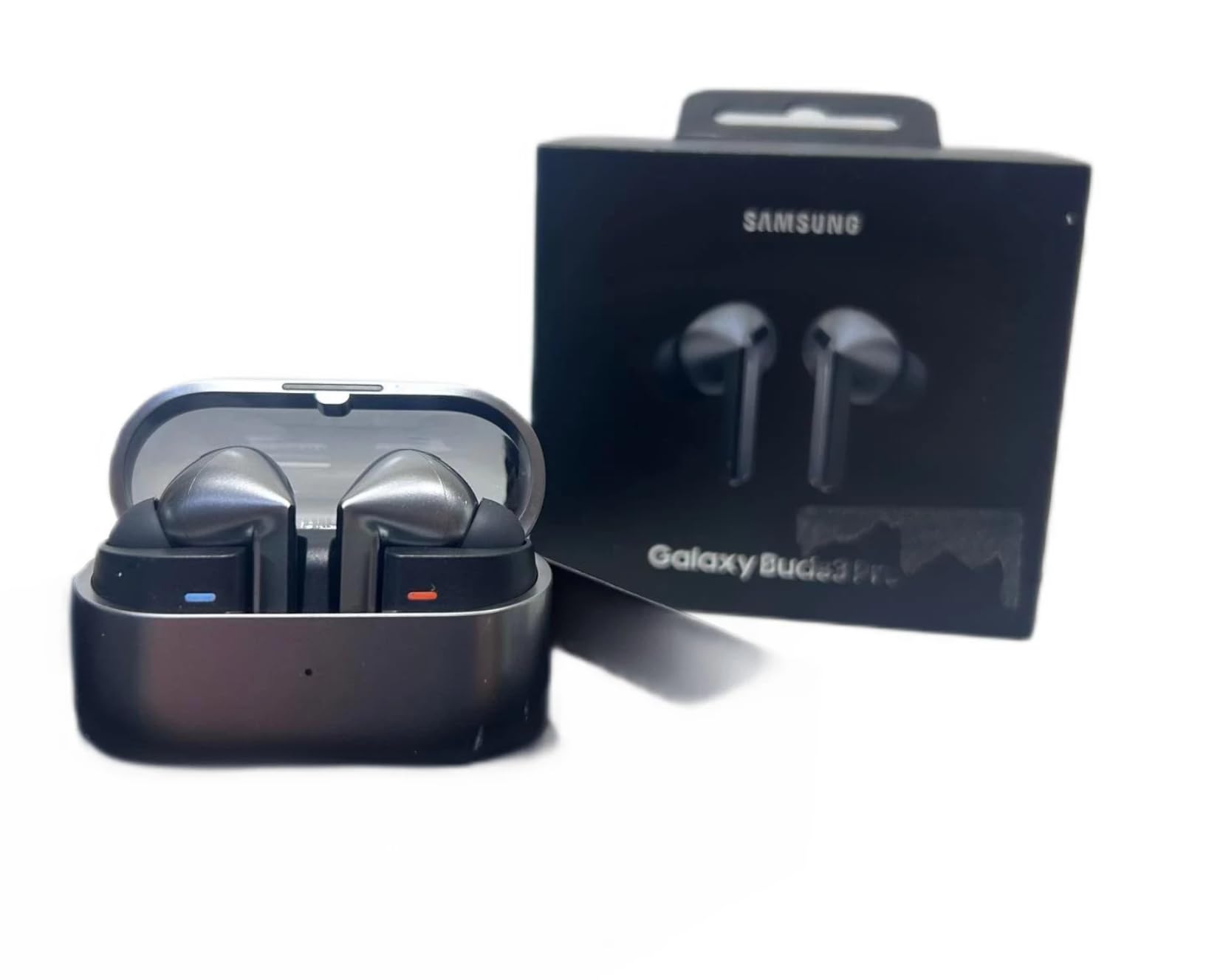
Use Galaxy Buds3 Pro with a compatible Samsung Galaxy phone and Interpreter or Live Translate to hear translated speech.
Learning how to translate with Samsung Earbuds Pro 3 is easier once you understand one key detail: the earbuds work with your Galaxy phone rather than translating speech alone. Samsung’s Interpreter and Live Translate tools handle the language work, while the earbuds deliver the translated audio in a private, natural way. This guide explains the setup, the best modes to use, supported features, common problems, and practical tips for real conversations.
How Samsung Galaxy Buds3 Pro translation works
Samsung Galaxy Buds3 Pro do not act as a fully independent translation device. Instead, they connect to a compatible Samsung Galaxy smartphone that runs Samsung’s translation features.
The phone uses Galaxy AI tools to listen to speech, process the language, and create translated text or audio. The earbuds then play the translated result in your ears.
Think of the system as a three-part bridge:
• Your Galaxy phone captures and processes the conversation.
• Samsung Interpreter or Live Translate converts the speech.
• Galaxy Buds3 Pro play the translated audio and may use their microphones to capture your voice.
This setup is useful for travel, business meetings, customer service, and casual conversations. It can also help when you want to speak with someone without passing one phone back and forth.
The exact features depend on your phone model, One UI version, language pair, Samsung account, and regional availability. Samsung has expanded Galaxy AI support over time, so menus can differ slightly between devices.
What you need before translating
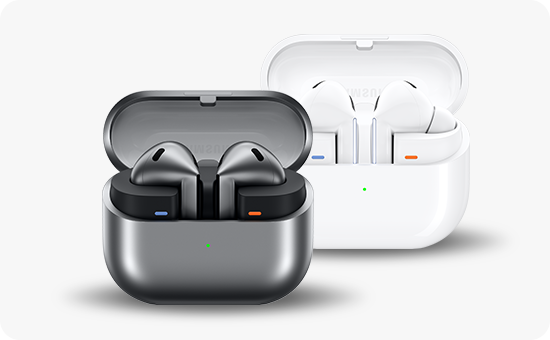
Before learning how to translate with Samsung Earbuds Pro 3, check that your devices and software meet the basic requirements.
You will usually need:
• Samsung Galaxy Buds3 Pro with charged earbuds and case
• A compatible Samsung Galaxy smartphone
• The latest version of the Galaxy Wearable app
• Updated Galaxy Buds3 Pro firmware
• A supported version of One UI
• A Samsung account in some regions or for some Galaxy AI tools
• Internet access for downloading language packs or using cloud-based features
• A supported language pair
Newer Galaxy phones may offer Interpreter and Live Translate through Galaxy AI. Some features may work on the device, while others may need an internet connection. Downloading language packs before travel can help reduce delays and improve access when mobile service is weak.
To check for updates:
-
Open the Galaxy Wearable app.
-
Select Galaxy Buds3 Pro.
-
Tap Earbuds settings.
-
Choose Earbuds software update.
-
Install any available update.
Then update your phone through Settings > Software update. You should also update relevant Samsung apps through the Galaxy Store.
A useful lesson from hands-on setup is simple: test the full system before you need it. Many translation problems come from an old phone update, missing language pack, or disconnected earbuds rather than from the translation feature itself.

How to translate with Samsung Earbuds Pro 3 using Interpreter mode
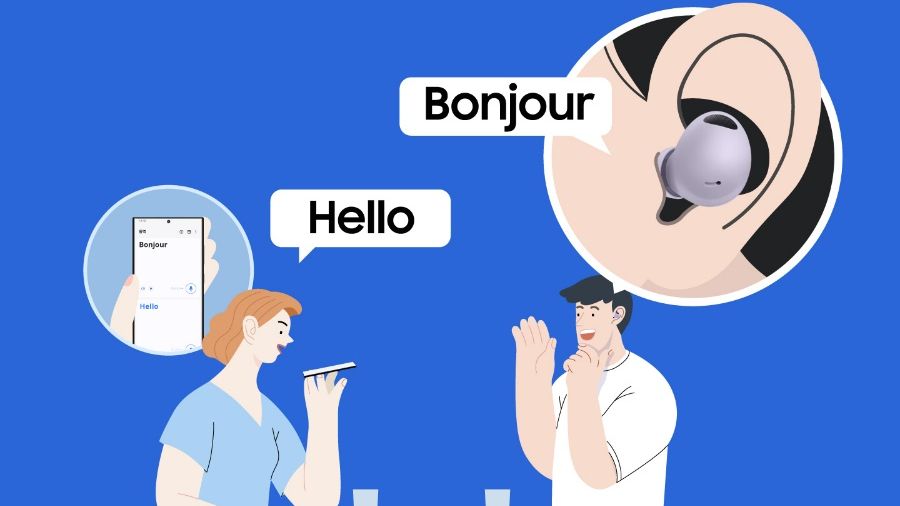
Interpreter mode is designed for face-to-face conversations. It can show translated text on the phone while playing translated speech through your Galaxy Buds3 Pro.
Here is how to translate with Samsung Earbuds Pro 3 in Interpreter mode:
-
Put your Galaxy Buds3 Pro in your ears.
-
Connect them to your compatible Galaxy phone.
-
Swipe down twice from the top of the phone screen to open Quick Settings.
-
Tap Interpreter.
-
Select the language you speak.
-
Select the other person’s language.
-
Choose the conversation or listening view, depending on the options shown.
-
Ask the other person to speak clearly.
-
Listen to the translated audio through your earbuds.
The screen may show the original and translated text. This is helpful when audio is unclear or when you want to confirm a name, number, or place.
In conversation mode, each person can speak in turn. The phone can display the translation, while your earbuds help you hear the result. Some Galaxy phones also support a listening mode that lets you hear translated speech without constantly handing the phone to another person.
For the best result, keep the phone near the person speaking. The earbuds are not a magic microphone from across a busy room. Distance, noise, accents, and overlapping voices can affect accuracy.

How to use Live Translate with Galaxy Buds3 Pro
Live Translate is mainly used for phone calls. If your Samsung Galaxy phone supports the feature, it can translate a call while you listen through Galaxy Buds3 Pro.
To learn how to translate with Samsung Earbuds Pro 3 during a call, follow these steps:
-
Connect the earbuds to your Galaxy phone.
-
Open the Phone app.
-
Start a call or answer an incoming call.
-
Tap Call assist or the Galaxy AI option shown on the call screen.
-
Select Live Translate.
-
Choose your language and the other caller’s language.
-
Speak normally, but pause between sentences.
-
Listen to the translated call through the earbuds.
The other person may hear a translated version of your speech, depending on the phone’s Live Translate design and language support. Your phone may also display a transcript or translation on screen.
Call translation is useful for hotel bookings, travel questions, delivery issues, and basic customer support. Still, it is not ideal for legal, medical, or financial conversations where a small error could cause harm.
Before an important call, test the feature with a friend. Confirm that both sides hear the correct languages and that the translated voice is not muted or routed to the phone speaker.
How to set up translation step by step
A clean setup makes how to translate with Samsung Earbuds Pro 3 much easier. Start by pairing the earbuds before opening the translation tool.
Connect Galaxy Buds3 Pro
-
Open the charging case near your Galaxy phone.
-
Follow the pairing prompt.
-
If no prompt appears, open Settings > Connections > Bluetooth.
-
Select Galaxy Buds3 Pro.
-
Confirm the connection.
If the earbuds were paired with another device, place them in the case, close it, and open it again. You may need to press and hold the touch areas or use the Galaxy Wearable app to enter pairing mode.
Check audio output
Open the media output panel on your phone. Confirm that Galaxy Buds3 Pro are selected instead of the phone speaker.
This step matters more than it seems. The translation may be working, but the sound can appear missing if the phone sends audio to the wrong output.
Select language packs
Open the Interpreter or Live Translate settings. Review the available languages and download any required offline packs.
Language availability can change by device and region. If a language is not listed, the feature may not support it on your phone or in your location.
Allow microphone access
Go to Settings > Apps and select the relevant Samsung app. Check that microphone access is allowed.
Also make sure Bluetooth access and nearby-device permissions are active. Android permission names can vary between One UI versions.

Tips for more accurate earbud translation
Translation software works best when speech is clear and simple. You can improve results with a few easy habits.
• Speak one sentence at a time.
• Pause after each thought.
• Use common words instead of slang.
• Avoid jokes, idioms, and very local expressions.
• Keep the phone close to the speaker.
• Reduce music, traffic, and background noise.
• Do not let several people speak at once.
• Confirm names, dates, prices, and addresses.
• Watch the translated text when the message is important.
For example, instead of saying, “I’m just trying to get my bearings around here,” say, “I am lost. Where is the train station?” The second sentence is more direct and easier for an AI translation system to process.
A practical mistake to avoid is speaking louder rather than speaking more clearly. Loud speech does not always improve recognition. Short phrases, steady pacing, and clear pronunciation usually help more.
You should also tell the other person that a translation tool is in use. This sets the right expectation and gives them a chance to repeat anything that sounds incorrect.

Common uses for Samsung Buds3 Pro translation
Once you know how to translate with Samsung Earbuds Pro 3, you can use the system in many daily situations.
Travel
You can use Interpreter mode at a hotel, airport, restaurant, or train station. It may help you ask for directions, understand local instructions, or explain a food allergy.
Keep a written backup for key details. Save your hotel address and travel documents in the local language when possible.
Work and meetings
The earbuds may help with short, informal conversations with international clients or coworkers. They are less suitable for fast meetings with several speakers.
For a formal meeting, use a human interpreter or a verified translation service. AI translation can miss tone, context, and industry terms.
Phone calls
Live Translate can help with simple service calls. It may be useful when asking about an order, appointment, or booking.
Call quality still matters. Poor cellular service can affect speech recognition, delay the translation, or interrupt the conversation.
Learning a language
You can use the feature to compare a spoken phrase with its translation. This may help you notice sentence patterns and common words.
However, translation tools should support language study rather than replace lessons. They may not explain grammar or show why one word fits a sentence better than another.

Limitations and privacy considerations
Knowing how to translate with Samsung Earbuds Pro 3 also means understanding what the system cannot do.
Translation accuracy is not guaranteed. Errors are more likely with:
• Strong accents
• Fast speech
• Technical terms
• Names and addresses
• Humor and sarcasm
• Mixed languages
• Multiple speakers
• Poor internet connections
Some translation features may process voice data through online services. Others may use on-device language packs. Review the privacy information and settings on your phone before using the feature for sensitive discussions.
Do not rely on automatic translation for medical instructions, contracts, immigration documents, legal advice, or emergency situations. If the meaning could affect someone’s health, safety, rights, or money, use a qualified human translator or interpreter.
Battery life is another practical limit. Translation uses the phone, Bluetooth, microphones, and sometimes mobile data. Charge both the phone and earbuds before a long trip.
There can also be a short delay between speech and translated audio. This is normal. Avoid interrupting until the translation finishes.
Troubleshooting translation problems
If you are having trouble learning how to translate with Samsung Earbuds Pro 3, use this quick checklist.
The translated audio is not playing
• Check the phone’s media volume.
• Confirm that Galaxy Buds3 Pro are the selected audio output.
• Disconnect and reconnect the earbuds.
• Restart Interpreter or Live Translate.
• Check whether Do Not Disturb or an audio limit is affecting sound.
The phone does not hear speech
• Move the phone closer to the speaker.
• Check microphone permissions.
• Reduce background noise.
• Make sure another app is not using the microphone.
• Restart the phone if the issue continues.
A language is missing
• Update One UI and Samsung apps.
• Look for downloadable language packs.
• Check your region and Samsung account settings.
• Confirm that the language pair is supported.
Not every language is available in every Galaxy AI feature. Interpreter support and Live Translate support may also differ.
The translation is slow
• Use a strong Wi-Fi or mobile data connection.
• Download offline language packs when available.
• Speak in shorter sentences.
• Close apps that use heavy network activity.
• Keep the phone and earbuds close together.
If none of these steps work, unpair the earbuds, restart both devices, and pair them again through the Galaxy Wearable app.
Does translation work without a Samsung phone?
In most cases, no. Galaxy Buds3 Pro need a compatible Samsung Galaxy phone for Samsung’s built-in Interpreter and Live Translate features.
The earbuds can connect to other phones through Bluetooth, but Samsung’s full translation experience may not be available. Third-party translation apps may offer alternatives, but their controls, audio routing, and language support can differ.
Can Samsung Buds3 Pro translate conversations by themselves?
No. The earbuds do not normally translate speech as a stand-alone device.
They act as the audio and microphone link, while the connected Galaxy phone and its software process the translation.
Is an internet connection required?
It depends on the feature and language pack. Some translation functions may work with downloaded language data, while others may need internet access for processing.
Download supported language packs before traveling, then test the feature in airplane mode if offline use is important.
Frequently Asked Questions About How to Translate With Samsung Earbuds Pro 3
Can I use Samsung Galaxy Buds3 Pro to translate languages?
Yes, but you usually need a compatible Samsung Galaxy phone. The phone runs Interpreter or Live Translate, and the earbuds provide translated audio.
How do I activate Interpreter with Galaxy Buds3 Pro?
Connect the earbuds, open Quick Settings, and tap Interpreter. Choose both languages, then select the conversation or listening mode available on your phone.
Can Galaxy Buds3 Pro translate phone calls?
They can work with Live Translate on supported Samsung Galaxy phones. Start a call, open the call assistance options, choose Live Translate, and select the two languages.
Do Samsung earbuds support every language?
No. Supported languages vary by feature, phone model, software version, region, and language pack. Check the language list on your specific Galaxy phone before relying on the feature.
Do I need mobile data to translate with Galaxy Buds3 Pro?
Not always. Some features may support downloaded language packs, but other translation tasks may require an internet connection. Download offline data when available and test it before you travel.
Can I use translation for medical or legal conversations?
You should not rely on automatic translation for high-risk topics. Use a qualified interpreter when an error could affect health, legal rights, safety, or finances.
Conclusion
Learning how to translate with Samsung Earbuds Pro 3 is mainly about using the earbuds with a compatible Samsung Galaxy phone. Interpreter mode works well for face-to-face chats, while Live Translate can assist with supported phone calls. Updates, language packs, clear speech, and a steady connection all improve the experience.
The best approach is to treat Galaxy Buds3 Pro as a helpful bridge, not a perfect human interpreter. Set up the system before you need it, test your language pair, and confirm important details on screen. Explore your Galaxy phone’s Interpreter settings today, and share your experience or questions in the comments.

Everett Ashford is a tech reviewer at mytechgrid.com specializing in SSDs, cameras, TVs, earbuds, headphones, and other consumer electronics. He provides honest, data-driven reviews based on hands-on testing and real-world performance analysis. Everett simplifies complex tech details to help readers make smart, confident buying decisions.