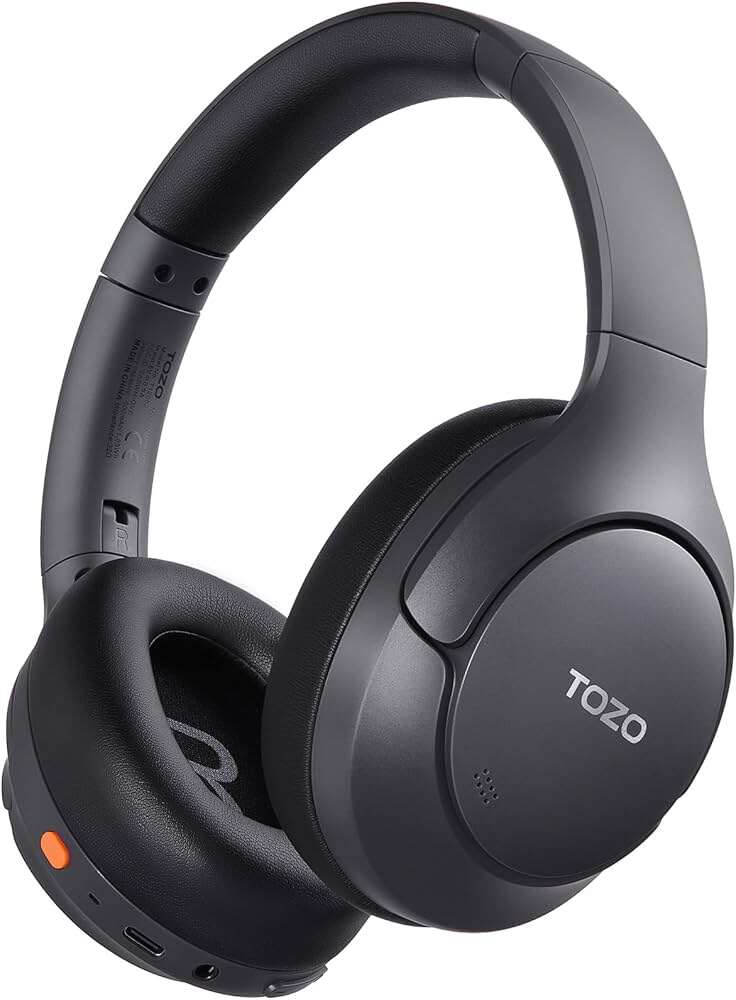
Open Sony’s app, disable Speak-to-Chat or the voice assistant, then save the setting and reconnect your headphones.
Learning how to turn off voice activation on Sony headphones is easier once you know which feature is listening. Sony models may use Speak-to-Chat, Google Assistant, Alexa, or a touch control to respond to your voice. This guide explains each option with clear steps, model limits, and practical fixes so you can enjoy quiet listening without unwanted interruptions.
What “voice activation” means on Sony headphones
The phrase “voice activation” can describe several Sony headphone features. They sound similar, but they work in different ways. Identifying the right feature is the first step in learning how to turn off voice activation on Sony headphones.
Speak-to-Chat
Speak-to-Chat pauses music when the headphones detect your voice. It uses the built-in microphones to listen for speech. On many models, it resumes playback after a short delay.
This feature is useful in a store or office. It can also pause music when you hum, cough, talk to yourself, or speak near someone else.
Voice assistant activation
Sony headphones may connect to:
• Google Assistant on Android phones
• Siri on iPhones and iPads
• Amazon Alexa on supported devices
• A custom voice assistant assigned to a button or touch panel
A button press usually starts the assistant. Some phone settings may also allow hands-free activation through a wake phrase.
Accidental touch or button activation
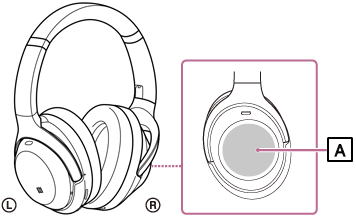
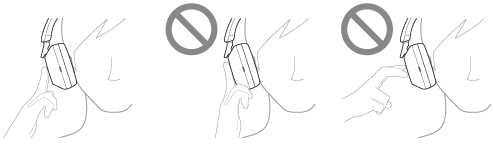
A touch panel can respond when you adjust the ear cup, wear a hood, or brush against the headphones. A voice assistant may seem to activate by itself when the real cause is accidental contact.
Sony headphone controls vary by model. The WH-1000XM series, WF-1000XM series, LinkBuds, and older models do not always use the same menu names.
How to turn off voice activation on Sony headphones with the app
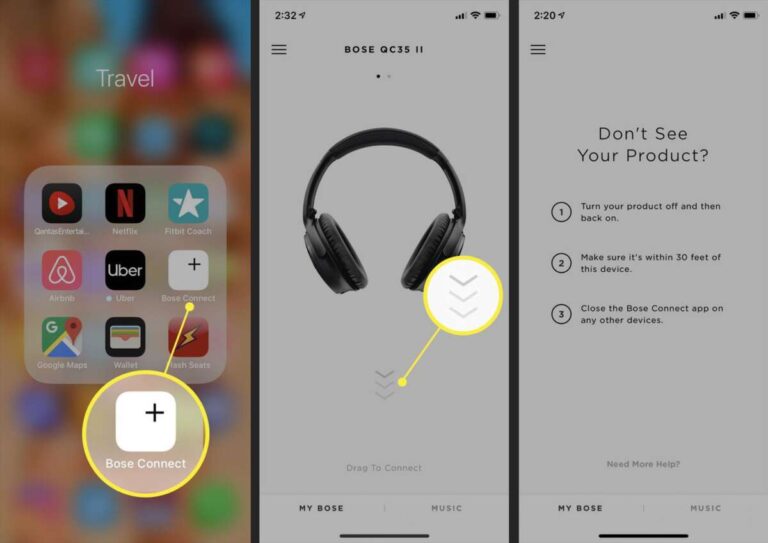
The most reliable way to turn off voice activation on Sony headphones is through Sony’s companion app. The app is called Sony | Sound Connect on newer devices. Older instructions may call it Sony | Headphones Connect.
Before changing settings, charge the headphones and keep them close to your phone.
-
Install or open Sony | Sound Connect.
-
Turn on Bluetooth on your phone.
-
Power on the Sony headphones.
-
Connect the headphones inside the app.
-
Open the Device Settings or System tab.
-
Look for Speak-to-Chat, Voice Assistant, or Assistant.
-
Set Speak-to-Chat to Off.
-
Set the voice assistant function to Do not use or None, if that option appears.
-
Save the setting and test the headphones.
App labels can differ by model and software version. If you do not see a voice assistant option, your model may assign it to a physical button instead.
Turn off Speak-to-Chat
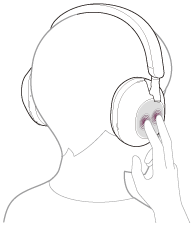
To disable Speak-to-Chat, open the app and find the feature under Device Settings. Move the switch to Off. On some models, you can also disable it by placing two fingers on the touch panel, but the app is more dependable.
Do not confuse Speak-to-Chat with Ambient Sound Control. Ambient Sound Control lets outside sound enter the headphones. It does not always detect your voice or launch an assistant.
Disable the voice assistant control
Some Sony headphones let you choose what the custom button does. Open the button or touch control settings, then change the action from Voice Assistant to another option, such as Ambient Sound Control or Noise Canceling.
If your model only offers a voice assistant button, you may not be able to remove every assistant function. You can still avoid pressing the button and disable hands-free assistant access on your phone.

How to turn off Speak-to-Chat without the app
If you cannot use the app, try the headphone controls. This method depends on the model, so check the guide for your exact product.
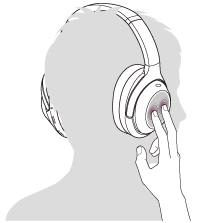
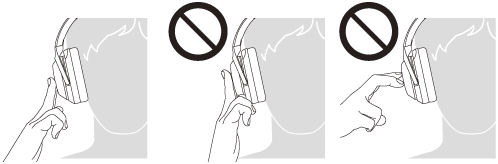
On many over-ear Sony models, place two fingers on the right ear-cup touch sensor. Keep them there for a moment. A voice prompt may confirm that Speak-to-Chat is off.
This gesture does not work on every model. It can also fail if:
• The touch sensor is wet
• Your fingers are covered by gloves
• The headphones are not fully connected
• The model uses physical buttons instead of touch controls
If the gesture fails, use Sony | Sound Connect. App controls usually show the current status more clearly.
Turn off automatic pause caused by speech
If your music stops whenever you speak, Speak-to-Chat is likely the cause. Turning off voice activation on Sony headphones in this case means disabling speech detection, not disabling your phone’s assistant.
After switching it off, play audio and say a few words. Your music should continue playing. If it still pauses, check whether your music app has its own voice or auto-pause setting.
How to disable Google Assistant, Siri, or Alexa
The headphones may not be the source of the activation. They may simply send a button command to your phone. This matters because turning off voice activation on Sony headphones may require changes on both devices.
Android phones
On Android, open the Google app or Assistant settings. Look for voice activation, Hey Google, or Voice Match. Turn off the wake-word feature if you do not want the phone to respond to spoken commands.
You can also return to the Sony app and change the custom button assignment. If possible, set the button to Noise Canceling or Ambient Sound instead of Google Assistant.
Android menus vary by phone brand and operating system version. Samsung, Google Pixel, and OnePlus phones may place assistant settings in different areas.
iPhone and iPad
On an iPhone, open Settings, then Siri or Apple Intelligence & Siri. Review the options for listening for the wake phrase and activating Siri when the side button is pressed.
To prevent accidental activation, turn off the side-button Siri option if you do not use it. Then check the Sony app and remove Siri from the headphone button if the model offers that choice.
Amazon Alexa
If Alexa is linked to the headphones, open the Alexa app and review the device settings. Disable hands-free voice activation or remove the headphone connection if you no longer want Alexa to respond.
Some Sony models support Alexa through a custom button rather than a constant listening mode. In that case, changing the button assignment may be enough.
How to stop accidental voice assistant activation
Sometimes the assistant activates because the control surface is too easy to touch. This often happens when users adjust the ear cup, put on a hat, or remove one earbud.
Try these practical steps:
• Change the custom button to Noise Canceling or Ambient Sound.
• Turn off touch controls if your model supports that option.
• Avoid pressing the ear cup while adjusting the fit.
• Keep the phone’s wake-word feature disabled.
• Remove the headphones from other phones or tablets nearby.
• Update the Sony app and headphone firmware.
• Clean the touch panel with a soft, dry cloth.
A crowded Bluetooth environment can also cause confusion. If the headphones are connected to two devices, the assistant may open on the device that receives the command first.
In my own headphone testing, the most common mistake is disabling Speak-to-Chat while leaving the assistant button active. The user then hears fewer music pauses but still sees Siri or Google Assistant appear after brushing the ear cup. Treat these as two separate settings.
What to do if voice activation keeps turning on
If the feature returns after you disable it, work through the following checklist.
-
Reopen Sony | Sound Connect and confirm the setting is still off.
-
Update the app from the Apple App Store or Google Play.
-
Check for a headphone firmware update in the Sony app.
-
Disconnect the headphones from every device.
-
Restart the phone and headphones.
-
Pair the headphones again.
-
Test the headphones with only one phone connected.
-
Reset the headphones if the problem continues.
A reset removes stored Bluetooth connections and returns many settings to their default state. It does not always remove every phone-side assistant setting, so you may still need to change Siri, Google Assistant, or Alexa separately.
Bluetooth reset versus factory reset
A Bluetooth reset usually clears pairing information. A factory reset may also restore sound, control, and connection settings. Sony’s reset method differs by model, so do not hold random buttons for a long time.
Check the support guide for the exact model number printed on the headphones or charging case. This avoids triggering a different function or draining the battery.
When the microphone may be the cause
A damaged or blocked microphone can create unusual behavior. Moisture, dust, or a loose connection may cause poor voice detection or unexpected control changes.
If the assistant activates with no touch, no speech, and no wake phrase, test the headphones with another phone. If the issue follows the headphones, contact Sony support or an authorized repair center.
Voice activation settings by Sony headphone type
The steps for how to turn off voice activation on Sony headphones depend partly on the product family.
WH-1000XM over-ear headphones
Many WH-1000XM models use a right-ear-cup touch panel. They commonly support Speak-to-Chat, Ambient Sound Control, and a custom button.
Use Sony | Sound Connect to manage these settings. Menu names may change after firmware updates, but the controls usually remain under device or system settings.
WF-1000XM earbuds
WF-1000XM earbuds use touch sensors on the left and right earbuds. The Sony app lets you assign actions to each earbud, including noise control, playback, and voice assistant access.
If one earbud activates the assistant, review the touch control assignment for that side. You may need to edit both earbuds separately.
LinkBuds and other open designs
Open-style Sony earbuds may detect speech or touch differently from sealed earbuds. Their microphone design can make nearby speech seem more noticeable.
Check both Speak-to-Chat and the assigned touch command. Also test the fit, because movement can create accidental touch input.
Older Sony models
Older models may not support the newest Sony app or every control option. Some use the Sony Headphones Connect app, while others rely on phone settings and physical buttons.
If your model lacks a voice assistant menu, disable the assistant on the connected phone and avoid using the assigned button.

Benefits and limits of turning off voice activation
Turning off voice activation on Sony headphones can make listening more stable. Music will not pause every time you speak, and the assistant will be less likely to appear during travel or exercise.
It can also improve privacy. The headphones may still use microphones for calls, noise control, or environmental sound features, but disabling assistant and speech detection reduces unwanted voice responses.
There are trade-offs:
• You may need to pause music manually when someone speaks to you.
• Hands-free calls and assistant commands may take more steps.
• Ambient Sound mode may still use the microphones.
• A button can still activate another assigned feature.
Turning off one setting does not make the headphones microphone-free. If privacy is your main concern, disconnect the headphones or power them off when you are not using them.
Best settings for common situations
Different settings work well for different routines.
At work
Turn off Speak-to-Chat if normal conversation keeps pausing your music. Assign the custom button to noise control so you can stay focused without launching an assistant.
During exercise
Touch controls may activate when you adjust sweaty earbuds. Lock or disable touch controls when possible. Use physical phone controls if you need to change audio.
While traveling
Keep Speak-to-Chat off if announcements or nearby speech interrupt your audio. Turn on Ambient Sound manually when you need to hear traffic or staff.
At home
If family conversations trigger pauses, disable speech detection. You can still use the assistant later by opening it from your phone.
Frequently asked questions about how to turn off voice activation on Sony headphones
Why do my Sony headphones pause when I talk?
Speak-to-Chat is probably enabled. Open Sony | Sound Connect and switch Speak-to-Chat off, or use the supported touch gesture on your model.
How do I stop Google Assistant from opening on Sony headphones?
Change the custom button assignment in the Sony app, then disable the phone’s wake-word or headphone assistant access. The exact Android menu depends on your phone and operating system.
Can I turn off Siri activation on Sony headphones?
Yes, in many cases. Remove Siri from the headphone control in Sony | Sound Connect and review Siri settings on your iPhone.
Why does Speak-to-Chat turn on again?
An app update, firmware change, reset, or connection with another device can restore a default setting. Recheck the Sony app after updates and test the headphones with one paired device.
Can I disable all microphones on Sony headphones?
Usually, no single setting disables every microphone function. Microphones may still support calls, noise canceling, Ambient Sound, and other headphone features.
Do all Sony headphones support Speak-to-Chat?
No. Speak-to-Chat is available only on selected Sony models. If the option is missing from the app, your headphones may not support it or may require a different companion app.
Will resetting Sony headphones turn off voice activation?
A reset may restore default control settings, but it does not always change the assistant settings on your phone. After resetting, review both the Sony app and the phone’s assistant settings.
Conclusion
Turning off voice activation on Sony headphones starts with identifying the feature that is causing the interruption. Disable Speak-to-Chat in Sony | Sound Connect, change the custom button assignment, and review Siri, Google Assistant, or Alexa settings on your phone.
If the problem continues, update the app, remove extra Bluetooth connections, restart the devices, and reset the headphones only as a final step. Try these settings today, then explore your model’s official control guide or share your experience in the comments.

Everett Ashford is a tech reviewer at mytechgrid.com specializing in SSDs, cameras, TVs, earbuds, headphones, and other consumer electronics. He provides honest, data-driven reviews based on hands-on testing and real-world performance analysis. Everett simplifies complex tech details to help readers make smart, confident buying decisions.