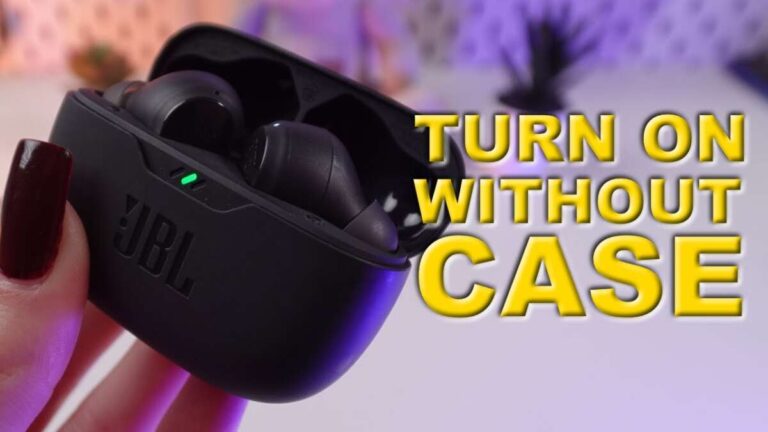
Most TWS earbuds turn on when removed from the case or when you hold the power button.
Learning how to turn on TWS earbuds is simple once you know which activation method your model uses. Most earbuds power on automatically when removed from the charging case, while others need a touch, tap, or long press. This guide explains each method, common problems, pairing steps, and practical fixes based on how modern true wireless earbuds work.
How to Turn On TWS Earbuds
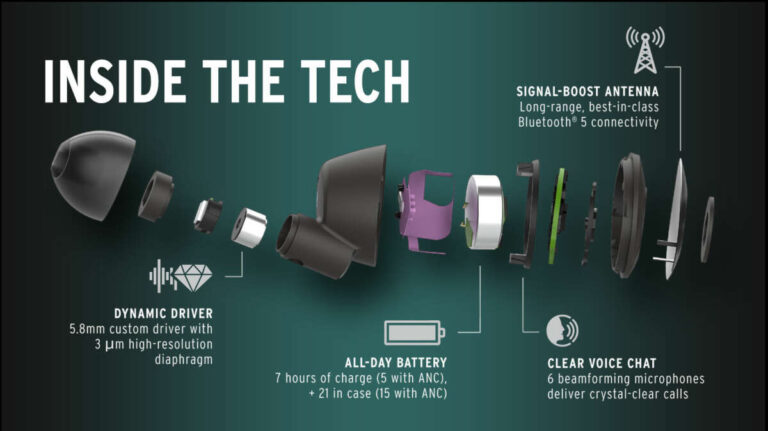
TWS means “True Wireless Stereo.” These earbuds work as a left and right pair without a cable between them. Each earbud has a small battery, Bluetooth chip, speaker driver, and control surface.
There are three common ways to turn on TWS earbuds:
- Remove both earbuds from the charging case.
- Press and hold the power button for a few seconds.
- Touch and hold the control panel on each earbud.
For most models, the easiest method is to open the charging case and remove the earbuds. A light may flash, and you may hear a sound that confirms they are on.
If your earbuds do not turn on, place them back in the case for a few seconds. Then remove them again. This often resets the charging contacts and wakes the earbuds.

Method 1: Turn On TWS Earbuds With the Charging Case
Most newer TWS earbuds use the charging case as their power control. The case stores extra battery power and tells the earbuds when to turn on or off.
Follow these steps:
- Charge the case for at least 15 to 30 minutes.
- Open the lid.
- Check that the earbuds are seated correctly inside.
- Remove both earbuds.
- Look for a flashing white, blue, or green light.
- Listen for a power-on sound or voice prompt.
Many earbuds turn on as soon as they leave the case. They may also enter Bluetooth pairing mode if they have not been connected to a device before.
Some models use magnetic pins to detect when the earbuds are inside the case. If dust, wax, or dirt covers these contacts, the earbuds may stay off. Wipe the metal contacts gently with a clean, dry cotton swab.
A common mistake is removing only one earbud while the other remains in the case. Some models work this way, but others need both earbuds to leave the case before they start properly.
Method 2: Turn On TWS Earbuds With a Button
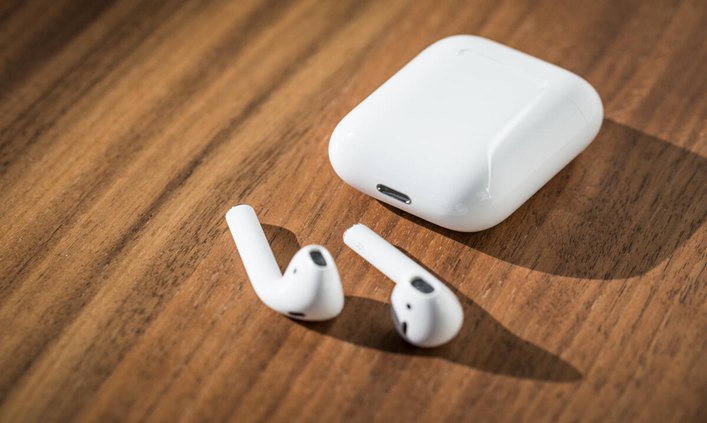
Some TWS earbuds have a physical button on the outside. This button may sit on the stem, side, or top of the earbud.
To turn on TWS earbuds with a button:
- Remove the earbuds from the case.
- Press and hold the button on each earbud.
- Keep holding for about 3 to 5 seconds.
- Release the button when the indicator light appears.
- Wait for the startup sound or voice prompt.
Do not press the button too quickly. A short press may pause music or answer a call instead of turning on the earbuds.
Some models use a longer press, such as 5 to 10 seconds. Check the instruction booklet if the normal method does not work. Button behavior differs between brands and models, so one timing does not fit every pair.
During hands-on testing of wireless earbuds, I have found that users often confuse a power press with a reset press. A 3-second press may turn the earbuds on, while a 10- to 15-second press may erase pairing data. Use the longer press only when troubleshooting.
Method 3: Turn On TWS Earbuds With Touch Controls
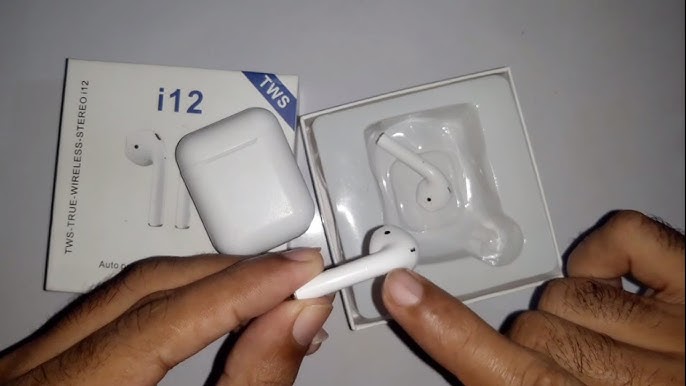
Many modern earbuds have no physical button. Instead, they use a touch-sensitive panel.
To turn on TWS earbuds with touch controls:
- Remove the earbuds from the case.
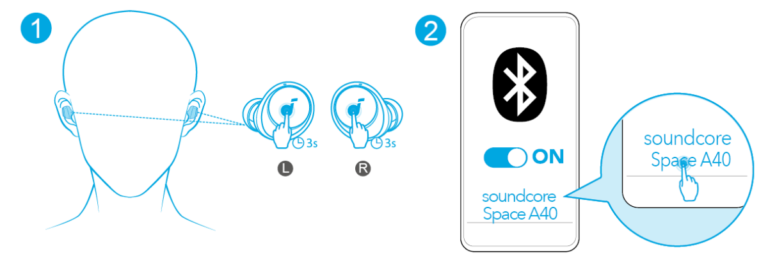
- Touch the outer panel of each earbud.
- Hold the panel for 3 to 5 seconds.
- Watch for a flashing light.
- Wait for a sound or voice prompt.
Keep your finger steady on the touch panel. Tapping several times may activate music controls, voice assistance, or call functions.
Touch controls may fail when your fingers are wet, oily, or covered by gloves. Dry your hands and try again. Also check whether the earbuds are fitted with protective shipping stickers. Some new earbuds have a thin plastic film over the charging contacts.
If the earbuds turn on but do not respond to touch, the problem may involve the control app, firmware, or a damaged sensor. In that case, use the charging case and Bluetooth settings to continue troubleshooting.
How to Tell If TWS Earbuds Are On
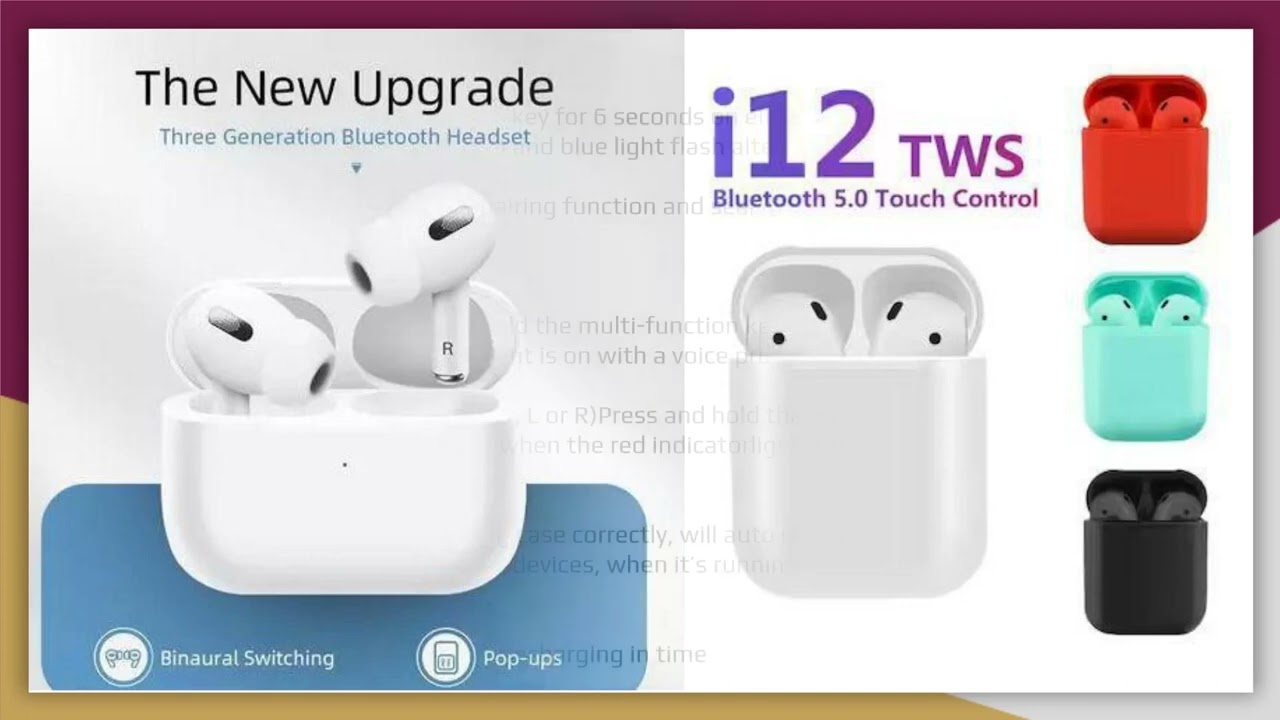
TWS earbuds usually provide one or more signs when they power on. These signs help you separate a power problem from a Bluetooth problem.
Look for the following signals:
• A white, blue, green, or red LED light
• A startup sound
• A voice prompt such as “power on”
• The earbuds appearing in your phone’s Bluetooth list
• A battery symbol showing on the phone
• Music playing through the earbuds after connection
The light color is not universal. On one model, blue may mean pairing mode. On another, blue may mean the earbuds are connected. Always check your model’s guide before treating a color as a definite diagnosis.
It is also important to know that turning on TWS earbuds is not the same as pairing them. Power allows the earbuds to operate. Pairing creates a wireless connection between the earbuds and your phone, tablet, or computer.

How to Pair TWS Earbuds After Turning Them On
After you turn on TWS earbuds, you may need to pair them with your device. Pairing is usually required only the first time.
Use these steps:
- Turn on both earbuds.
- Keep them close to your phone.
- Open your phone’s Settings app.
- Select Bluetooth.
- Turn Bluetooth on.
- Find the earbud name in the available devices list.
- Tap the name.
- Select Pair or Connect.
If the earbuds do not appear, place them back in the case. Open the lid and remove them again. Some models enter pairing mode automatically after a reset or when they have no saved connection.
For a better connection, turn off Bluetooth on nearby devices that used the earbuds before. Earbuds often reconnect to the last phone, laptop, or tablet they remember. This can make them appear missing even though they are already connected elsewhere.
Bluetooth devices normally use short-range radio communication. Walls, metal objects, crowded wireless areas, and low battery levels can affect connection quality. Keep the phone within a few feet during the first setup.
What to Do If TWS Earbuds Will Not Turn On
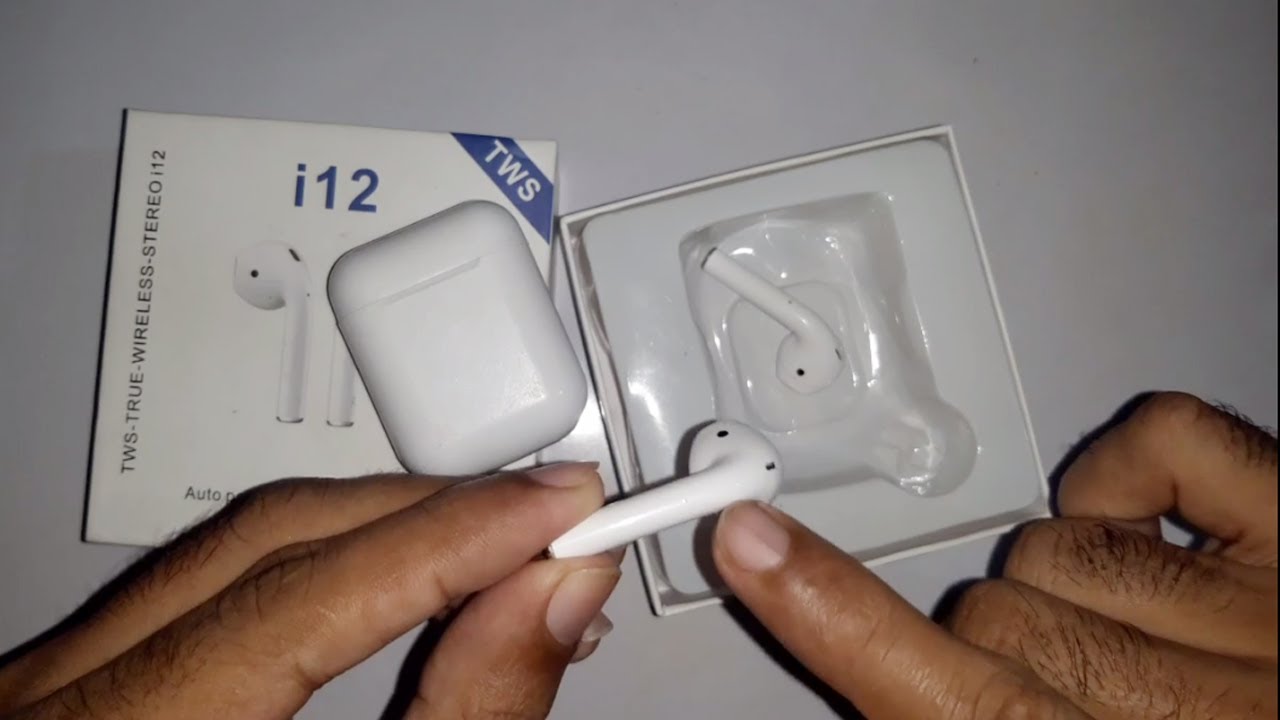
When TWS earbuds do not turn on, the battery and charging contacts are the first things to check. A dead earbud can look like a Bluetooth failure, but Bluetooth cannot work without power.
Try this troubleshooting order:
- Charge the case for at least 30 minutes.
- Place both earbuds inside the case.
- Check whether the case light turns on.
- Clean the charging pins and earbud contacts.
- Make sure each earbud sits firmly in its slot.
- Close the lid for 10 seconds.
- Open the lid and remove the earbuds.
- Press or hold the control area.
- Try a different charging cable and power adapter.
If the case has no light, the case battery may be empty. Test another compatible cable. Avoid using damaged cables or loose charging ports, since they can cause unstable charging.
If only one earbud turns on, clean both contact points and charge the pair together. The working earbud may also be connected to your phone while the other has lost synchronization.
Extreme heat and cold can reduce battery performance. Let the earbuds return to room temperature before charging them. Do not use a swollen, cracked, wet, or overheated charging case.
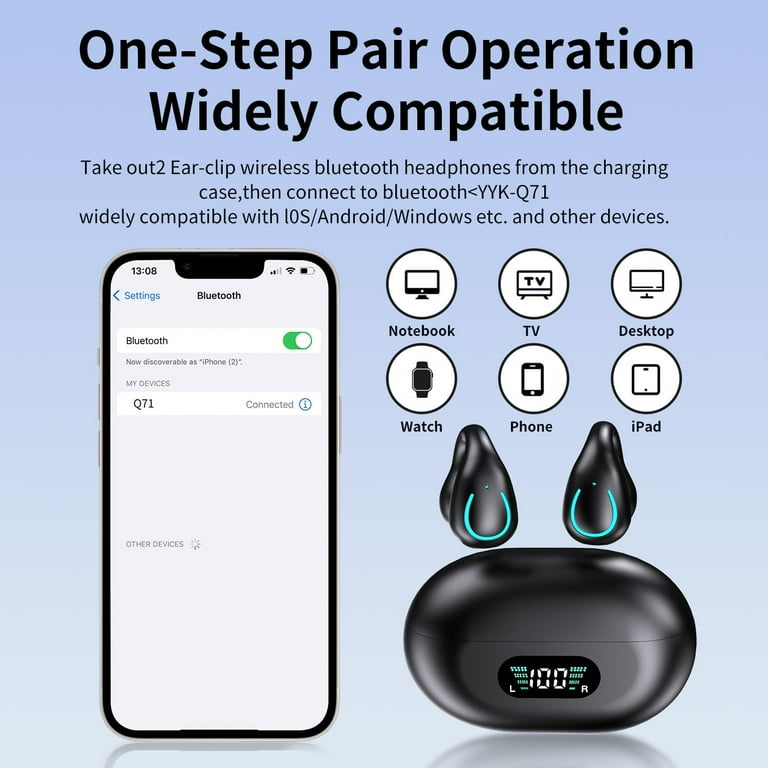
How to Reset TWS Earbuds
A reset can fix startup problems, connection errors, and left-right synchronization issues. It usually removes saved Bluetooth connections, so you will need to pair the earbuds again.
A common reset process is:
- Forget the earbuds in your phone’s Bluetooth settings.
- Turn off Bluetooth on the phone.
- Place both earbuds in the charging case.
- Leave the lid open.
- Press and hold both earbud buttons or touch panels.
- Continue for 10 to 15 seconds.
- Wait for the lights to flash.
- Close and reopen the case.
- Turn Bluetooth back on.
- Pair the earbuds again.
The exact reset method depends on the brand and model. Some earbuds reset through a mobile app. Others require tapping one earbud several times or holding a case button.
Resetting should be a later step, not the first one. It will not repair a damaged battery, broken charging pin, water damage, or a failed circuit. If the earbuds remain dead after charging and resetting, contact the manufacturer or an authorized repair service.

Why TWS Earbuds Turn Off by Themselves
TWS earbuds can switch off for several normal reasons. The most common cause is low battery power.
Other possible causes include:
• The earbuds are placed back in the charging case.
• The case lid closes and activates auto power-off.
• The Bluetooth connection stays inactive for a set time.
• The earbuds are not touching the charging pins correctly.
• A touch control is being pressed by a hat, hair, or helmet.
• The earbuds have moisture or dirt around the sensors.
• The battery is old or damaged.
Many earbuds use automatic power management to save battery life. This feature is useful, but it can seem like a fault if you expect the earbuds to remain active all day.
If your earbuds turn off while walking, check the fit and charging level. A loose fit may also cause the earbud’s wear sensor to pause or stop playback. Disable in-ear detection in the companion app if you want to test whether that sensor is causing the issue.
Tips for Better TWS Earbud Performance
Good care can make turning on TWS earbuds faster and more reliable. Small habits matter because these devices have tiny charging contacts and compact batteries.
Use these practical tips:
• Keep the charging case above 20% battery.
• Clean the contacts once every few weeks.
• Store the earbuds inside the case when not in use.
• Keep the case away from water and high heat.
• Use the supplied or manufacturer-approved charging cable.
• Install firmware updates through the official companion app.
• Avoid pressing the touch panels while placing the earbuds in your ears.
• Remove old Bluetooth profiles when connection problems repeat.
One lesson I have seen often is that people charge the earbuds but forget the case. The earbuds may have power for a short time, then fail the next morning because the case cannot recharge them. Think of the case as the earbuds’ small garage and fuel station.
Battery capacity decreases over time. If fully charged TWS earbuds run for only a few minutes, the battery may be near the end of its useful life. Software changes cannot restore a physically worn battery.
TWS Earbuds and Different Devices
The steps for how to turn on TWS earbuds are usually the same across phones, tablets, laptops, and smart TVs. The difference comes after startup, when you select the earbuds in the device’s Bluetooth menu.
On an iPhone or Android phone, open Bluetooth settings and tap the earbud name. On Windows, open Bluetooth settings and select Add device. On a Mac, open System Settings, choose Bluetooth, and select the earbuds.
Some TVs and computers have limited Bluetooth audio support. They may connect to the earbuds but offer fewer controls, such as no battery display or no companion app features.
If the earbuds connect to one device but not another, the earbuds may be working correctly. The second device could have an outdated Bluetooth driver, an audio setting problem, or a saved connection conflict.
Frequently Asked Questions About How to Turn On TWS Earbuds
How do I turn on TWS earbuds without a case?
Remove the earbuds and press and hold each power button for about 3 to 5 seconds. If they use touch controls, hold the outer panel for the same amount of time.
Why are my TWS earbuds not turning on?
The earbuds may have a dead battery, dirty charging contacts, or poor contact inside the case. Charge the case, clean the contacts, and make sure both earbuds sit correctly in their slots.
How long should I press the TWS earbud button?
A normal power command often takes 3 to 5 seconds. Avoid holding the button for 10 to 15 seconds unless you intend to reset the earbuds.
How do I turn on TWS earbuds for the first time?
Charge the case, place both earbuds inside, open the lid, and remove them. Then enable Bluetooth on your device and select the earbud name from the available devices list.
Can I turn on only one TWS earbud?
Yes, many models allow one earbud to work alone. However, some pairs require both earbuds to be removed from the case for normal startup and stereo synchronization.
How do I know if my TWS earbuds are charging?
Place the earbuds in the case and look for an indicator light or battery symbol in the companion app. The earbuds should sit firmly against the charging pins.
Do TWS earbuds turn on automatically?
Most modern TWS earbuds turn on automatically when removed from a charged case. Models with physical buttons or touch controls may also require a manual press.
Conclusion
Turning on TWS earbuds usually takes only a few seconds: charge the case, open the lid, remove the earbuds, and wait for the light or startup sound. If that does not work, use the power button or touch panel, clean the charging contacts, and check the battery.
Remember that power and Bluetooth pairing are separate steps. Once you understand that difference, fixing most startup and connection problems becomes much easier. Try the steps above with your earbuds, then explore the manufacturer’s guide or companion app for model-specific controls.

Everett Ashford is a tech reviewer at mytechgrid.com specializing in SSDs, cameras, TVs, earbuds, headphones, and other consumer electronics. He provides honest, data-driven reviews based on hands-on testing and real-world performance analysis. Everett simplifies complex tech details to help readers make smart, confident buying decisions.