Turn off headphone message announcements by disabling Announce Notifications on iPhone or spoken notifications in Android settings.
Headphones reading messages can be useful when you are driving or exercising, but constant alerts can quickly become distracting. This guide explains how to turn off headphones reading messages on AirPods, Beats, Pixel Buds, and other wireless headphones, including how to stop announcements from specific apps without disabling every notification.
Why Are Your Headphones Reading Messages?
Your headphones read messages because your phone has a spoken notification feature enabled. On an iPhone, this feature is usually called Announce Notifications. Siri can read incoming texts, reminders, and alerts through compatible AirPods or Beats headphones.
On Android, the feature may come from Google Assistant, TalkBack, the Google app, or the headphone maker’s companion app. The exact name can vary by phone model and Android version.
Common reasons include:
• You enabled the feature during headphone setup.
• A software update switched on a notification option.
• Siri or Google Assistant is connected to your headphones.
• A specific app has permission to announce alerts.
• Your headphones use a built-in voice alert feature.
How to Turn Off Headphones Reading Messages on iPhone
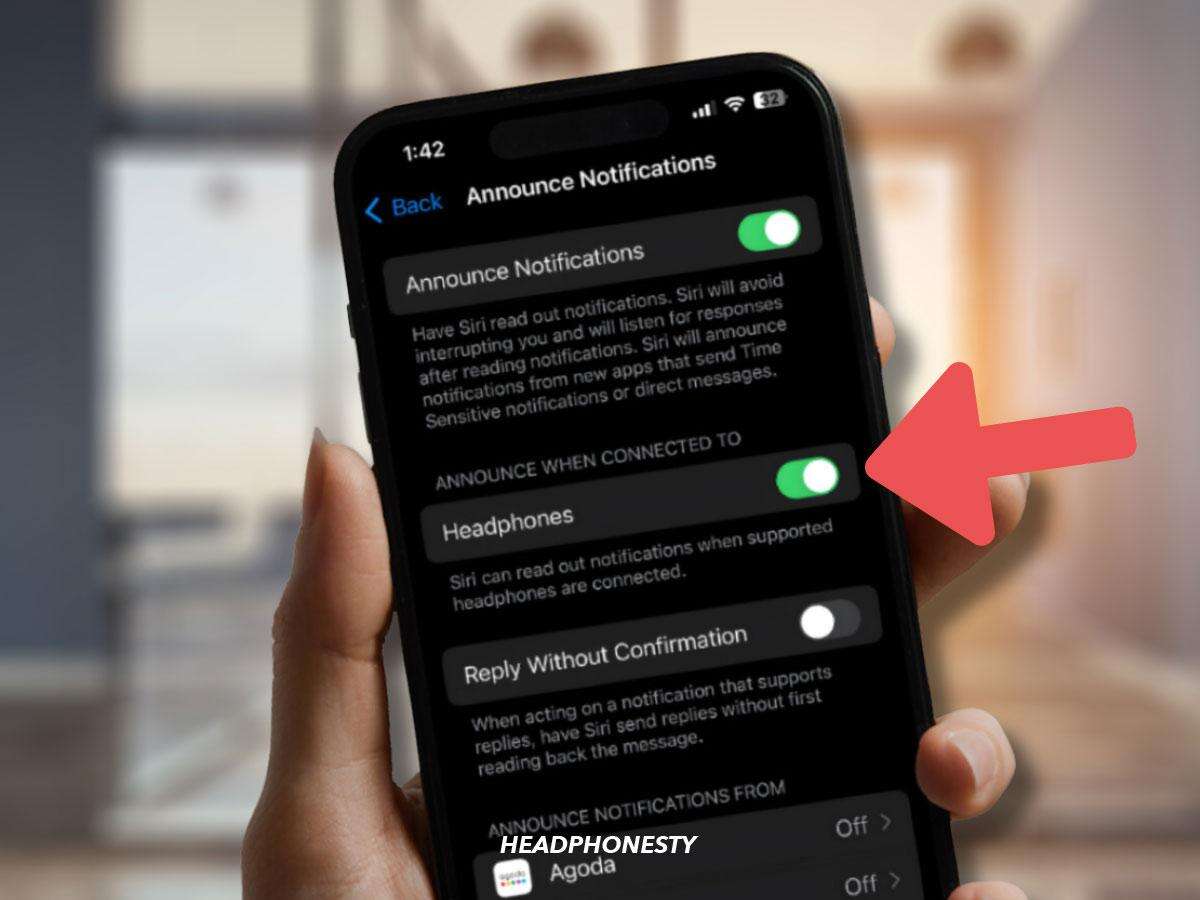
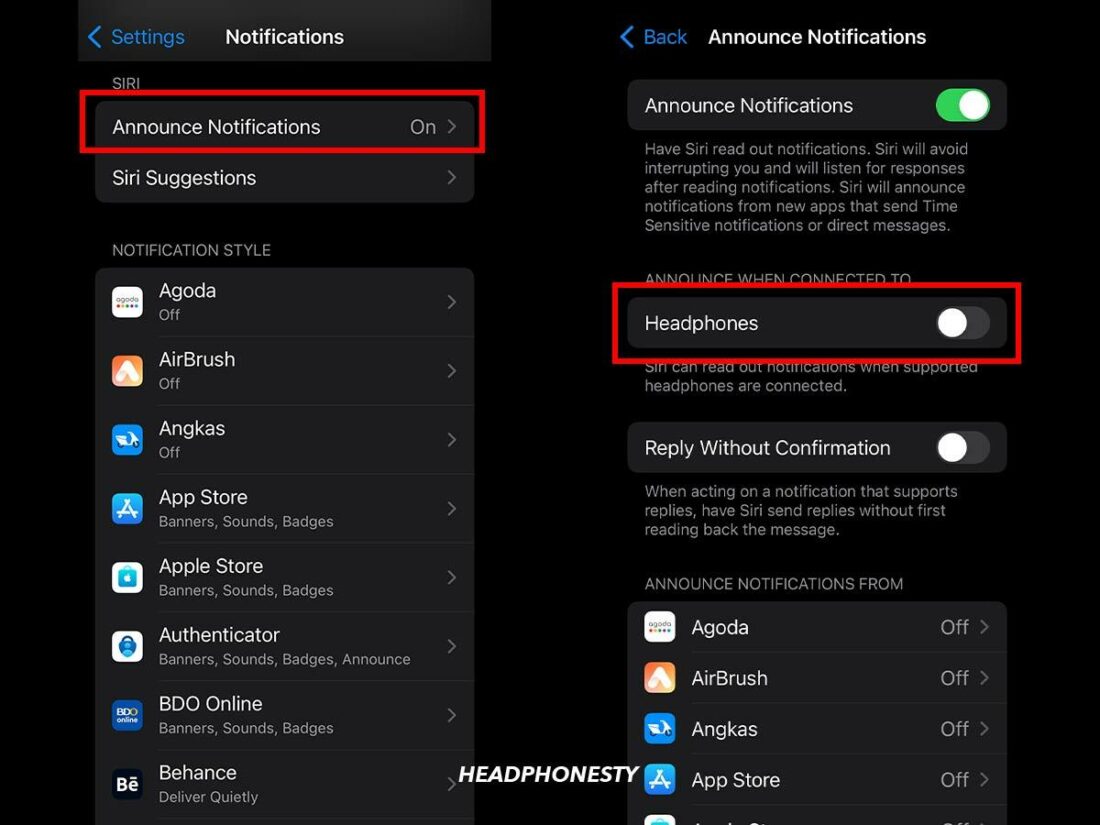
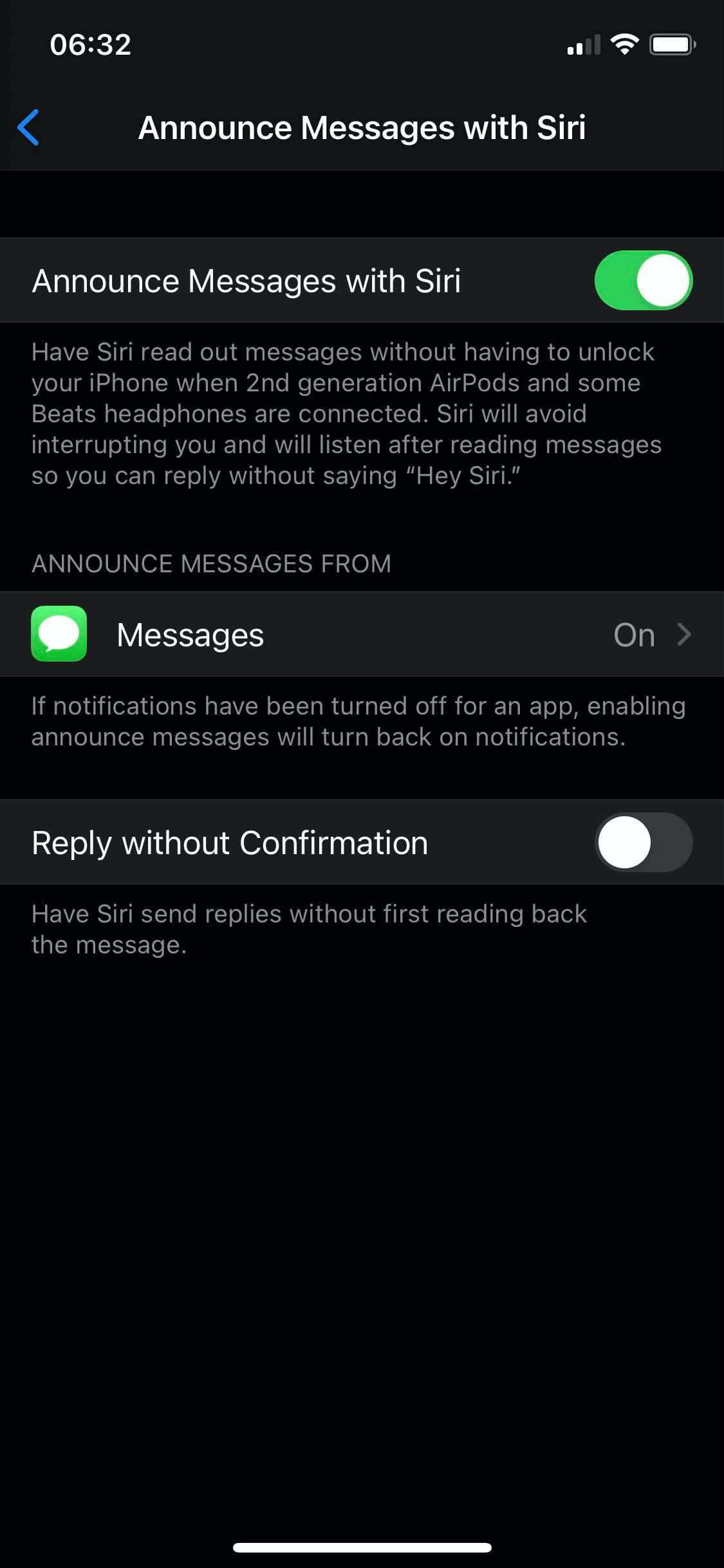
The fastest way to stop AirPods from reading messages is to turn off Announce Notifications. This setting controls whether Siri speaks incoming notifications through connected headphones.
Follow these steps:
- Open the Settings app on your iPhone.
- Tap Notifications.
- Select Announce Notifications.
- Turn off Announce Notifications.
Once this setting is off, Siri should stop reading messages through your AirPods and compatible Beats headphones. Your normal message banners and sounds will still work unless you disable those separately.
If you want to keep some spoken alerts, leave the main feature on and change the app settings below it. You can stop message announcements while allowing alerts from apps such as Calendar or Reminders.
Turn Off Announced Messages Only
Apple allows you to control which apps can announce notifications. This is useful if you still want important alerts but do not want your headphones to read every text.
- Open Settings.
- Tap Notifications.
- Tap Announce Notifications.
- Find Messages or another messaging app.
- Turn off its announcement option.
The menu can look slightly different on newer iOS versions. If you cannot find the setting, use the search bar inside Settings and type “Announce Notifications.”
Use Control Center for a Temporary Fix
You can also control announcement settings from Control Center on some iPhone models.
- Swipe down from the upper-right corner of the screen.
- Touch and hold the bell or announcement control.
- Choose an option such as Announce Notifications Off for one hour or for the day.
This is helpful during meetings, classes, flights, or quiet work sessions. It lets you silence spoken alerts without changing your long-term notification settings.

How to Turn Off Headphones Reading Messages on Android
Android phones use several systems for spoken notifications. The steps depend on your phone, Android version, headphones, and installed apps.
Start with Google Assistant settings:
- Open the Google app or say, “Hey Google.”
- Tap your profile picture.
- Select Settings.
- Tap Google Assistant.
- Look for Devices, Notifications, or Spoken notifications.
- Turn off spoken notifications or headphone announcements.
On some Android phones, the setting is inside the Google Assistant menu under Transportation, Devices, or Notifications. Search for terms such as “spoken notifications,” “read notifications aloud,” or “headphones.”
Turn Off Spoken Notifications in the Google Assistant App
Some Android devices show a direct option for headphone notifications.
- Open the Google Assistant settings.
- Tap Devices.
- Choose your headphones.
- Select Spoken notifications.
- Turn off the feature or disable specific apps.
If your phone uses a different menu, open Settings and search for “Assistant.” Android settings can vary between Samsung Galaxy, Google Pixel, Motorola, OnePlus, and other brands.
Check Your Headphone App
Some headphones read messages through their own app rather than the phone’s main Assistant setting. Check the app connected to your headphones, such as:
• Google Pixel Buds
• Samsung Galaxy Wearable
• Sony Headphones Connect
• JBL Headphones
• Bose Music
Open the app, select your headphones, and look for Assistant, Voice notifications, Spoken notifications, or Read messages aloud. Turn off the feature or remove access for individual messaging apps.
How to Stop AirPods From Reading Text Messages
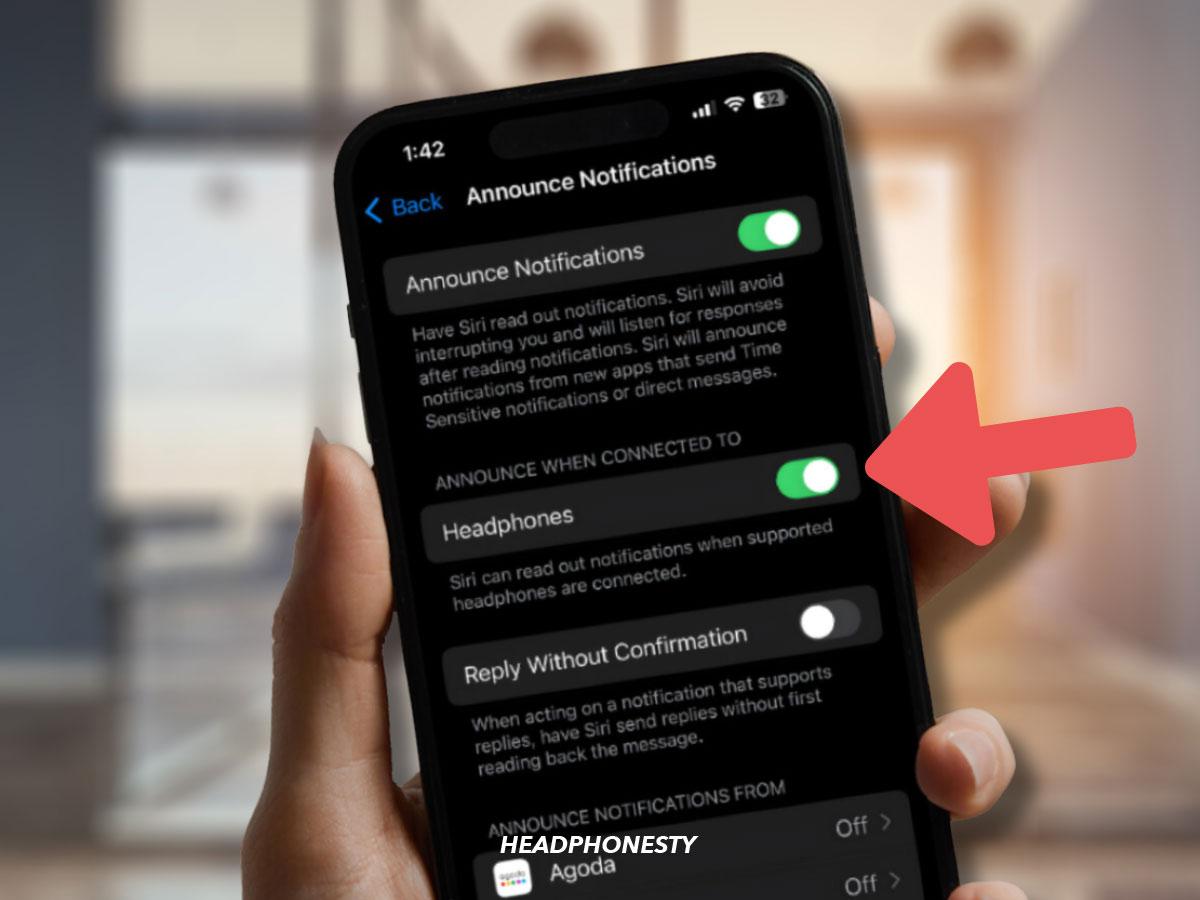
AirPods read messages through Siri’s Announce Notifications feature. Turning off that feature is the most reliable way to stop headphone message announcements.
If the problem continues, check these settings:
• Make sure Announce Notifications is off.
• Check the Messages app under Announce Notifications.
• Disconnect and reconnect your AirPods.
• Restart your iPhone.
• Update iOS and your AirPods firmware.
• Check whether another Apple device is signed in with the same Apple ID.
Sometimes people turn off message previews but still hear spoken alerts. Message previews control what appears on the screen. Announce Notifications controls what Siri says through your headphones, so they are separate settings.
Stop Siri From Reading One Conversation
If only one person’s messages are being announced, check whether that conversation has a special notification setting. Open the Messages app, swipe left on the conversation, and review its alert options.
You can also mute the conversation. This stops its regular alerts and may prevent it from triggering spoken notifications, depending on your iOS version and notification settings.
How to Stop Beats Headphones From Reading Messages
Compatible Beats headphones use the same Apple notification system as AirPods when paired with an iPhone. To turn off headphone message announcements:
- Open Settings on your iPhone.
- Tap Notifications.
- Choose Announce Notifications.
- Turn off the main setting or disable Messages.
If your Beats headphones are paired with Android, use Google Assistant or the Beats app settings instead. The controls may not match the iPhone menu.
Beats can also respond to voice commands or a press-and-hold control. If Siri keeps speaking after announcements are disabled, check whether you are accidentally activating the voice assistant through the headphone button.
How to Stop Pixel Buds From Reading Messages
Pixel Buds can announce notifications through Google Assistant. The feature may be controlled from the Pixel Buds app or Android Assistant settings.
Try this process:
- Open the Pixel Buds app or Pixel phone Settings.
- Tap Connected devices.
- Select your Pixel Buds.
- Open Google Assistant settings.
- Tap Spoken notifications.
- Turn off all announcements or select individual apps.
You may also say, “Hey Google, turn off spoken notifications.” Google Assistant may respond with a confirmation or open the related setting.
If messages continue to play, check notification access for Google Assistant and the messaging app. Also confirm that TalkBack is not enabled, since TalkBack can speak many items on the screen for accessibility.

How to Stop Headphones From Reading WhatsApp Messages
WhatsApp announcements are usually controlled by the phone’s assistant or notification access. Turning off all headphone announcements should stop WhatsApp messages from being read aloud.
To limit WhatsApp only on an iPhone:
- Open Settings.
- Tap Notifications.
- Tap Announce Notifications.
- Select WhatsApp.
- Turn off announcements.
On Android, open the Google Assistant or headphone app settings and remove WhatsApp from spoken notifications. You can also change WhatsApp notification permissions in Android Settings if you want to stop its alerts more broadly.
Remember that disabling spoken notifications is not the same as disabling WhatsApp notifications. You can still receive a vibration, banner, or notification light.

How to Keep Important Alerts but Stop Message Reading
You do not have to choose between hearing every message and hearing nothing. Most phones let you customize announced apps.
A practical setup may look like this:
• Disable announcements for Messages, WhatsApp, Messenger, and social media.
• Keep announcements for Calendar and Reminders.
• Allow calls from favorite contacts.
• Use Focus or Do Not Disturb during work and sleep.
• Turn on announcements only while driving.
This approach treats spoken alerts like a gatekeeper. Only useful information gets through, while casual conversations stay on your phone.
On an iPhone, Focus modes can limit notifications by person and app. On Android, Do Not Disturb and notification categories provide similar control, although the exact options depend on the device.

What to Do If Headphones Still Read Messages
If you turned off the correct setting and messages still play, another feature may be responsible. Use this troubleshooting order.
Check the Active Device
Your phone may be connected to more than one device. A car system, smartwatch, tablet, or second pair of headphones could be announcing notifications.
Turn off Bluetooth on nearby devices for a moment. Then test your headphones again.
Restart the Phone and Headphones
Temporary software errors can cause old settings to remain active. Restart your phone, place your earbuds in their case, and reconnect them.
For persistent problems, forget the headphones in Bluetooth settings and pair them again. This often clears a damaged connection profile.
Check Accessibility Features
On iPhone, review VoiceOver and other spoken content settings. On Android, check TalkBack, Select to Speak, and accessibility notification tools.
These features are designed to read screen content aloud. They can sound similar to headphone message announcements, but they use different controls.
Review Individual App Settings
Some apps have their own voice alert systems. Open the app’s settings and look for:
• Voice notifications
• Read messages aloud
• Driving mode
• Assistant access
• Audio alerts
I have found that checking the headphone app is often the missed step. People usually change the phone setting, but the headphone app may still have permission to announce alerts.
Benefits and Limitations of Turning Off Spoken Messages
Turning off headphones reading messages can make your day calmer and more private. It also prevents an embarrassing announcement in a crowded train, office, gym, or waiting room.
Key benefits include:
• Better focus during work or study.
• More privacy around other people.
• Fewer interruptions during exercise.
• Less confusion when several notifications arrive together.
• More control over which alerts deserve attention.
There is one important limitation. Spoken notifications can improve safety for people who cannot easily view a phone screen. They can also help drivers and runners avoid handling a phone.
If you rely on audio alerts for accessibility, do not disable everything at once. Customize the feature so critical alerts remain available. Apple and Google both provide accessibility settings that may offer better control than a complete shutdown.
Privacy and Safety Tips for Headphone Notifications
A headphone announcement can reveal private information in public. It may say the sender’s name, message preview, appointment details, or other sensitive data.
Use these habits to improve privacy:
• Turn off message previews on the lock screen.
• Disable spoken alerts in public places.
• Use Focus or Do Not Disturb for meetings.
• Avoid reading messages while driving.
• Keep your phone and headphone software updated.
• Review notification access after installing a new app.
Voice assistants are convenient, but they need permission to process notifications. Only grant notification access to apps you trust. Remove access from apps you no longer use.
Common Mistakes to Avoid
Many people change the wrong setting first. These are the most common mistakes when trying to turn off headphones reading messages.
• Turning down headphone volume instead of disabling spoken alerts.
• Muting one chat and assuming all messages are muted.
• Disabling message previews while leaving announcements active.
• Forgetting to check the headphone maker’s app.
• Ignoring Google Assistant or Siri settings.
• Testing only one app and assuming the problem is fixed.
• Disabling all phone notifications when only spoken alerts need to stop.
The best method is to identify which service is speaking. If the voice sounds like Siri, check Apple notification settings. If it sounds like Google Assistant, check Android Assistant settings. If it only happens with one headphone brand, check its companion app.
Frequently Asked Questions About How to Turn Off Headphones Reading Messages
How do I stop my AirPods from reading messages?
Open Settings, tap Notifications, choose Announce Notifications, and turn off the feature. You can also disable announcements for Messages while keeping alerts from other apps.
Why are my headphones still reading messages after I turned off notifications?
The announcements may come from Siri, Google Assistant, TalkBack, or the headphone maker’s app. Check each service, then restart and reconnect your headphones.
Can I stop WhatsApp from being read through my headphones?
Yes. Disable WhatsApp under Announce Notifications on iPhone or remove WhatsApp from spoken notifications on Android. This usually leaves normal WhatsApp banners and sounds active.
How do I turn off headphone message announcements on Android?
Open Google Assistant settings and look for Spoken notifications or headphone notification controls. You may also need to check the app connected to your headphones.
Can I turn off message reading but keep call announcements?
Usually, yes. Disable announcements for messaging apps while leaving call alerts or selected contact notifications enabled.
Does turning off Announce Notifications stop all iPhone notifications?
No. It only stops Siri from speaking supported notifications through compatible headphones. On-screen alerts, sounds, and vibrations can continue.
Why do my headphones read messages only when I am driving?
Driving mode, CarPlay, Android Auto, or a headphone assistant setting may be triggering the announcements. Check those features separately and disable spoken messages in the active driving settings.
Conclusion
Turning off headphones reading messages is usually simple once you find the right control. On iPhone, disable Announce Notifications or remove specific apps from the announcement list. On Android, check Google Assistant, spoken notifications, accessibility settings, and the headphone companion app.
Start with the main setting, then test one message from each app. Keep useful alerts if you need them, but remove private or distracting messages from your headphones. Explore your phone’s Focus, Do Not Disturb, and notification controls for even better control, and share this guide with someone tired of unexpected message announcements.

Everett Ashford is a tech reviewer at mytechgrid.com specializing in SSDs, cameras, TVs, earbuds, headphones, and other consumer electronics. He provides honest, data-driven reviews based on hands-on testing and real-world performance analysis. Everett simplifies complex tech details to help readers make smart, confident buying decisions.