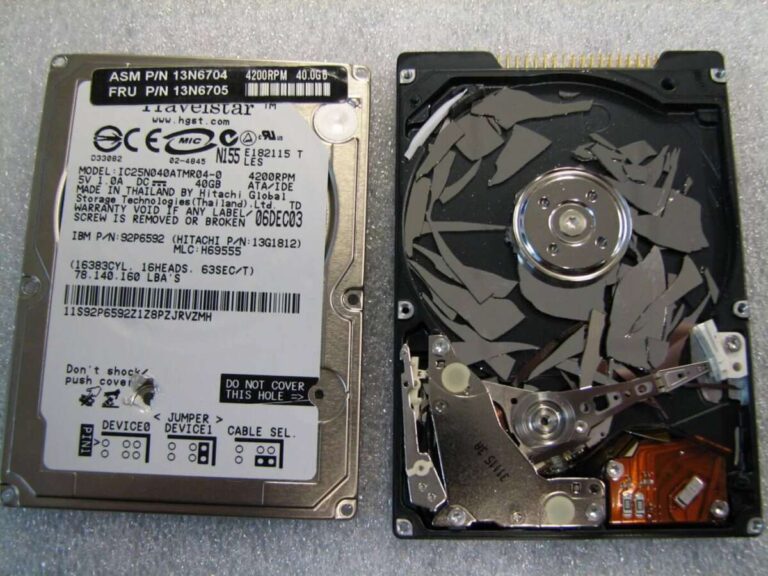
Flash storage and SSDs are closely related, but they are not the same thing. Flash storage is the memory technology. An SSD, or solid-state drive, is a complete storage device that usually uses flash memory.
For example, a USB thumb drive, SD card, smartphone, and internal laptop drive may all use NAND flash. Only some of them are SSDs. In the United States, you will commonly see this difference when comparing a Windows laptop, Mac, game console, external drive, phone, or memory card.
The short version is:
- Flash storage: A broad type of electronic, non-volatile memory.
- SSD: A storage drive with no moving parts, usually built with NAND flash.
- NAND flash SSD: The type of SSD found in most current PCs, Macs, game consoles, and external drives.

Flash storage and SSD: The key difference
Flash storage describes how data is stored. An SSD describes the finished storage device that stores and manages data.
Think of flash memory as the pages inside a notebook. The SSD is the full notebook, including the cover, index, page system, and tools used to find and protect the information.
| Feature | Flash storage | SSD |
|---|---|---|
| What it is | A memory technology | A complete storage device |
| Typical examples | USB drives, SD cards, eMMC, UFS, SSDs | Internal laptop drives, external portable drives, data-center drives |
| Moving parts | None | None |
| Main benefit | Stores data electronically | Provides fast, managed storage |
| Needs a controller? | Usually part of the finished product | Yes, normally includes a storage controller |
| Common interfaces | Depends on the product | SATA, USB, PCIe, NVMe, SAS |
| Typical user choice | Memory card, phone storage, USB drive | Laptop upgrade or external drive |
The terms overlap because most modern SSDs use NAND flash memory. However, saying “flash storage” does not tell you the drive’s speed, connection, durability, or form factor.
An SD card and an NVMe SSD both use flash memory, but they can perform very differently. The SSD usually has a stronger controller, more memory channels, better firmware, and a faster interface.

What is flash storage?
Flash storage is a type of non-volatile memory. It keeps data even when power is removed.
That makes it different from RAM. RAM is fast working memory, but it loses its contents when a computer shuts down. Flash storage keeps files, apps, photos, operating systems, and other data without continuous power.
Most flash storage used in consumer electronics is NAND flash. NAND stores data in memory cells by changing their electrical state. A controller reads and writes those cells and works around the limits of flash memory.
You may find flash storage in:
- Smartphones and tablets
- USB flash drives
- SD and microSD cards
- Digital cameras
- Smart TVs
- Chromebooks
- Laptops and desktops
- Game consoles
- Automotive systems
- Network equipment
- Data-center servers
Common flash-storage formats
USB flash drives
A USB flash drive is a small removable storage device. It contains flash memory, a controller, and a USB connection.
Performance varies widely. A low-cost USB drive may be fine for moving documents but slow for large video files or frequent backups. The USB connector alone does not reveal the real speed. USB 2.0, USB 3.2, and USB4 products can have very different results.
SD and microSD cards
SD cards use flash memory and are common in cameras, drones, handheld game systems, and some computers.
Their labels can be confusing. A card’s speed class, UHS rating, and application performance class describe different parts of its performance. A card designed for a camera may not be the best choice for running a computer operating system.
eMMC storage
eMMC is embedded flash storage. It combines flash memory and a controller in one package.
It is common in low-cost laptops, tablets, industrial devices, and embedded systems. eMMC can work well for basic tasks, but it is generally less flexible and slower than a modern NVMe SSD.
UFS storage
UFS, or Universal Flash Storage, is common in many smartphones and mobile devices. It uses a more advanced interface than older eMMC designs and can support better performance.
Phone storage is still flash storage even though it does not look like a removable drive.
What is an SSD?
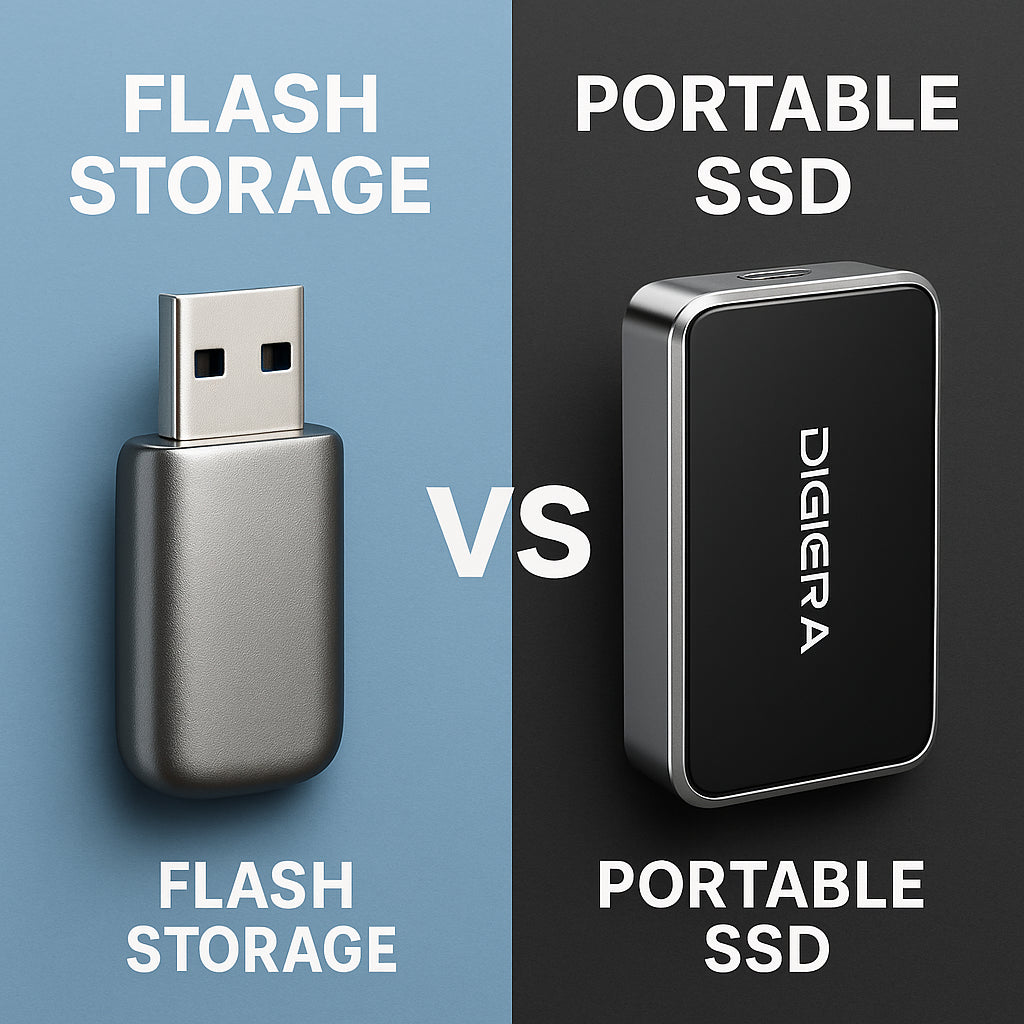
An SSD is a solid-state drive. It stores data electronically and has no spinning platters or moving read/write heads.
Traditional hard disk drives, or HDDs, use magnetic platters that spin. An SSD normally uses NAND flash, a controller, firmware, and sometimes dedicated cache memory.
A consumer SSD may include:
- NAND flash memory chips
- A storage controller
- Firmware
- Error correction
- A cache system
- Wear-management features
- A connection such as SATA or PCIe
- A physical housing or circuit board
The controller is a major reason an SSD is more than “just flash.” It maps logical file locations to physical flash cells, corrects errors, spreads writes, and handles background tasks such as garbage collection.
SATA SSDs
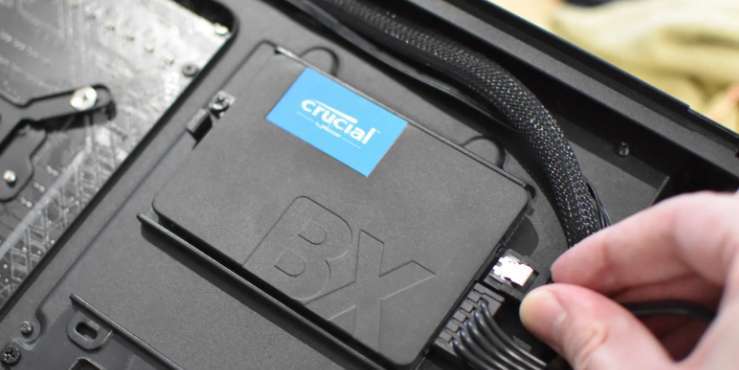
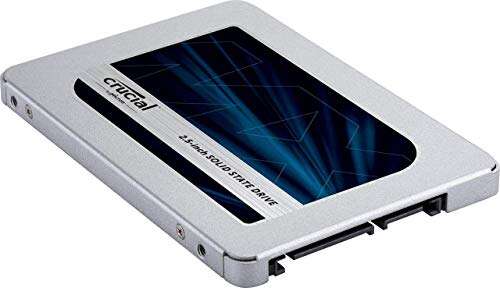
A SATA SSD uses the Serial ATA interface. Many 2.5-inch SATA SSDs are designed as drop-in replacements for 2.5-inch laptop hard drives.
SATA limits performance compared with modern PCIe drives. Still, a SATA SSD can feel much faster than an HDD because it has low access latency and no mechanical seek time.
SATA SSDs remain useful for:
- Older laptops
- Desktop upgrades
- Basic external storage
- Systems that lack an M.2 PCIe slot
- Affordable storage with broad compatibility
NVMe SSDs
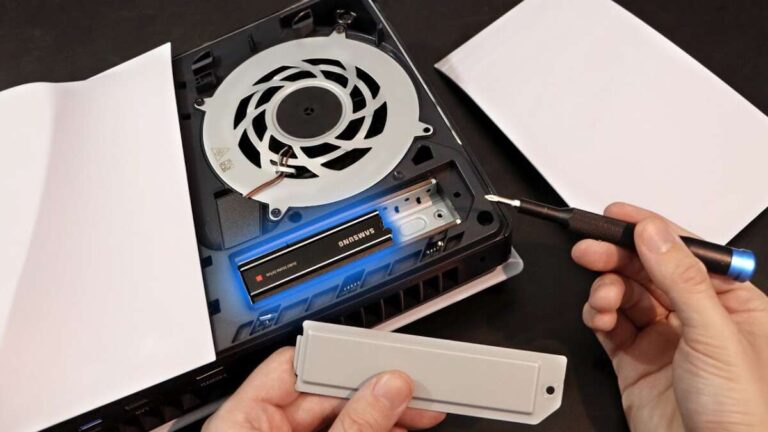
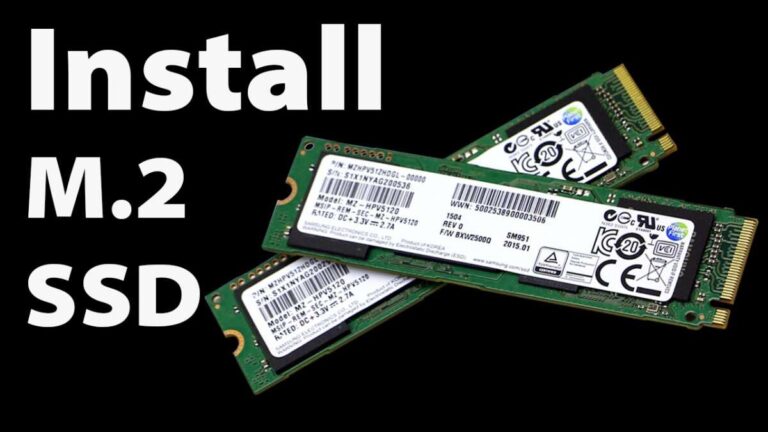
NVMe is a storage protocol designed for PCIe-based drives. Most NVMe SSDs use an M.2 form factor, although NVMe drives can also use add-in cards and other designs.
An NVMe SSD is often faster than a SATA SSD for large file transfers and heavy workloads. It can also offer lower command overhead and more parallel work.
However, a faster interface does not make every task faster by the same amount. Web browsing, email, and office work may feel similar on a good SATA SSD and a good NVMe SSD. Large video projects, software builds, virtual machines, and some games benefit more from higher throughput.
Enterprise and specialized SSDs
Data-center SSDs may use technologies and features not found in ordinary consumer drives. They may offer:
- Higher write endurance
- Power-loss protection
- More consistent performance
- Larger overprovisioning
- Dual-port support
- Different endurance ratings
- Advanced monitoring
Do not assume that a consumer SSD and an enterprise SSD are interchangeable. Their workloads, firmware, warranties, and power requirements may differ.

How flash storage and SSDs are related
The relationship is simple:
- Flash memory is the storage material.
- A controller manages the flash.
- Firmware coordinates reading, writing, error correction, and maintenance.
- The complete package becomes a storage product.
- If that product is designed as a drive, it may be called an SSD.
This means the phrase flash storage vs. SSD is not a direct comparison between equal categories. It is similar to comparing “steel” with “a car.” Steel may be part of a car, but the car includes many other parts and functions.
A flash-based product’s performance depends on more than its memory chips. Important variables include:
- NAND type
- Controller design
- Number of memory channels
- Interface
- Firmware
- Cache size
- Drive capacity
- Temperature
- Workload
- Amount of free space
- Sustained-write behavior

NAND flash types: SLC, MLC, TLC, and QLC
NAND flash stores bits in memory cells. The main categories describe how many bits each cell stores.
| NAND type | Bits per cell | General trade-off |
|---|---|---|
| SLC | 1 | Fast and durable, but expensive per gigabyte |
| MLC | 2 | Strong balance of speed, endurance, and cost |
| TLC | 3 | Common in consumer SSDs; good capacity and value |
| QLC | 4 | Lower cost per gigabyte, but often lower sustained-write endurance |
These labels describe the flash cells, not the entire drive. A TLC SSD can outperform a QLC SSD, but controller design, cache behavior, capacity, and firmware also matter.
SLC
SLC stores one bit per cell. It has fewer voltage states to distinguish, which can support high endurance and consistent performance.
True SLC is expensive and is uncommon in ordinary consumer drives. Some SSDs use a small portion of TLC or QLC flash in an SLC cache. That cache can make short bursts of writing appear faster.
MLC
MLC stores two bits per cell. It can offer strong endurance and performance, but its higher cost has made it less common in mainstream consumer SSDs.
Be careful with product names. Some sellers use “3D MLC” or similar terms in ways that do not always match how buyers expect the term MLC to be used. Check the manufacturer’s full specifications.
TLC
TLC stores three bits per cell. It is widely used in consumer SSDs because it balances price, capacity, speed, and endurance.
For many U.S. laptop, desktop, and gaming users, a good TLC SSD is a practical middle choice.
QLC
QLC stores four bits per cell. It can lower the cost of high-capacity drives.
QLC may be a reasonable fit for game libraries, media collections, and general storage with moderate write activity. It may be less suitable for workloads that write huge amounts of data every day, such as heavy video scratch work or some server applications.

Flash storage vs. SSD performance
An SSD is not automatically fast just because it uses flash memory. The product’s interface and design determine much of its real-world behavior.
Sequential speed
Sequential speed measures large, continuous transfers. It matters when you:
- Copy large videos
- Move disk images
- Load large project files
- Create backups
- Work with large datasets
Manufacturers usually list sequential read and write speeds in megabytes per second, or MB/s.
Random performance
Random performance measures many small, scattered operations. It matters for:
- Starting an operating system
- Opening applications
- Loading many small files
- Software development
- Virtual machines
- Database workloads
Random performance is often shown as input/output operations per second, or IOPS.
Latency
Latency is the delay before a storage operation begins or completes. Lower latency can make a computer feel more responsive, especially during many small operations.
Sustained performance
A drive may reach its advertised speed during a short test but slow down during a long write. This often happens when an SLC cache becomes full or when the drive gets hot.
For a large file copy, the first few gigabytes may move quickly, followed by a slower sustained rate. This does not always mean the SSD is defective. It may reflect the drive’s design.
Thermal throttling
Some compact NVMe SSDs can become hot during heavy use. When that happens, the drive may reduce speed to protect itself.
A desktop with good airflow may handle this better than a thin laptop. A heatsink can help in some systems, but it must fit the computer and should not interfere with the manufacturer’s thermal design.

Is flash storage better than an SSD?
That question has a misleading premise because an SSD usually contains flash storage.
The better comparison is between different flash-based products:
- A microSD card versus an NVMe SSD
- A USB flash drive versus a portable SSD
- eMMC storage versus an internal SATA SSD
- A QLC SSD versus a TLC SSD
- A SATA SSD versus an NVMe SSD
In most cases, an internal SSD offers better performance and management than a basic removable flash product. But the right option depends on the task.
| Your need | Usually suitable | Why |
|---|---|---|
| Expand phone storage | microSD, if supported | Small and removable |
| Move occasional documents | USB flash drive | Compact and simple |
| Store photos from a camera | SD card with the camera’s required rating | Designed for the device |
| Upgrade an older laptop | 2.5-inch SATA SSD | Broad compatibility |
| New gaming PC | NVMe SSD | High bandwidth and low latency |
| Carry a working library of large files | Portable SSD | Better sustained performance than many USB drives |
| Long-term backup | More than one backup drive | One flash device is not a complete backup plan |

SSD durability and flash endurance
Flash memory has a finite number of program-and-erase cycles. Each time data is changed, the cells experience wear.
Modern SSDs manage this with:
- Wear leveling
- Error-correcting code
- Spare blocks
- Overprovisioning
- Garbage collection
- Bad-block management
Manufacturers may list endurance as TBW, or terabytes written. TBW is an estimate of how much data can be written under specified conditions. It is not a promise that the drive will fail immediately after reaching that number.
Drive endurance depends on:
- NAND type
- Capacity
- Workload
- Write size
- Temperature
- Firmware
- Amount of free space
- Power conditions
A larger version of the same SSD may have a higher endurance rating because it has more flash cells available for wear leveling.
For most home users, ordinary daily use does not quickly consume a modern SSD’s rated endurance. Heavy workloads deserve closer attention, especially when the drive is used for constant recording, scratch files, surveillance video, or database activity.
SSDs are not archival storage
An SSD can lose data if it is left unpowered for a long time, especially in difficult storage conditions. Retention depends on the drive’s wear, temperature, design, and storage period.
Do not treat one SSD, USB drive, or memory card as your only copy of important files. A practical backup plan keeps multiple copies, with at least one copy stored separately from the main device.

Which should you choose for a laptop or desktop?
Choose the drive type that matches your computer’s slot and your workload.
For an older Windows laptop
A 2.5-inch SATA SSD may be the simplest upgrade if the laptop has a 2.5-inch drive bay. Check the laptop manual before buying. Some models use a proprietary connector or require a mounting bracket.
The upgrade can reduce startup time and improve application response compared with a hard disk drive.
For a newer PC
An M.2 NVMe SSD is often the standard choice when the motherboard supports it. Check:
- M.2 key type
- Supported PCIe generation
- Physical drive length
- Whether the slot supports NVMe
- Whether the slot shares lanes with another connector
- Heatsink clearance
- Operating-system support
An M.2 drive is a physical shape, not a performance guarantee. Some M.2 drives use SATA rather than NVMe.
For a Mac
Apple computers use different internal storage designs across model years. Some newer Macs have storage integrated into the system architecture, while older models may support limited upgrades or external storage.
Check the exact Mac model and year. A generic M.2 SSD may not be a direct internal replacement.
For a gaming console
Console compatibility is specific. The drive may need a certain interface, capacity range, physical size, or performance level. Some consoles support internal expansion only with approved specifications.
A portable USB SSD may store games but may not run every game directly. Check the console maker’s requirements before purchasing.

Which is better for external storage?
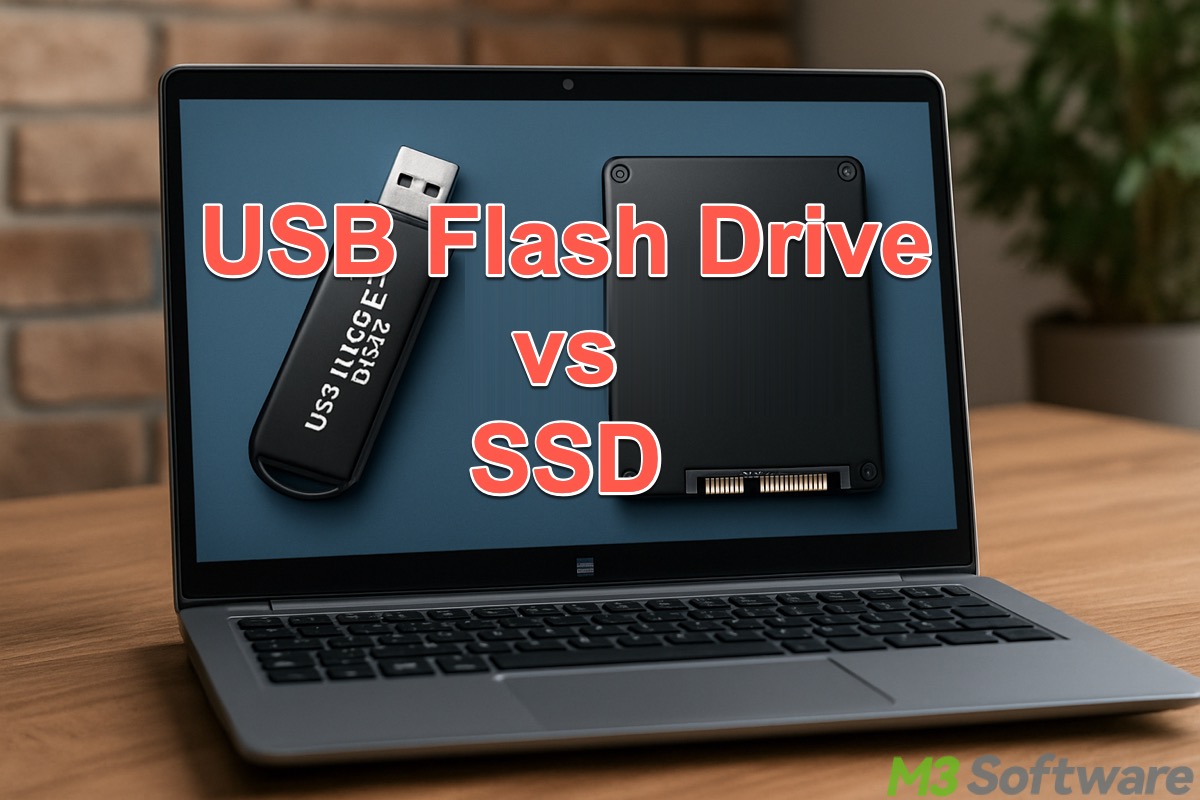
A portable SSD is usually the better choice for frequent transfers, large files, and active projects. A USB flash drive is often better for occasional file movement when size and low cost matter most.
Choose a USB flash drive when:
- You need to move small files
- You want a very small device
- You use it occasionally
- You do not need sustained high write speed
- The files are also stored elsewhere
Choose a portable SSD when:
- You edit photos or video from the drive
- You move large files often
- You need better sustained performance
- You want a more responsive external application drive
- You need more capacity than a typical thumb drive offers
The USB port still matters. A portable SSD connected to a slow USB port cannot reach its full rated speed. Use a compatible cable and port, and remember that the slowest part of the connection limits the result.
How to compare flash storage and SSD specifications
Use this checklist instead of relying on one advertised speed.
1. Confirm the interface
Look for SATA, USB 3.2, USB4, Thunderbolt, PCIe, NVMe, or another exact interface. “High speed” is not a technical specification.
2. Check real capacity
Storage companies normally use decimal units:
- 1 TB = 1,000,000,000,000 bytes
- 1 GB = 1,000,000,000 bytes
Operating systems may report capacity using binary-based values or reserve space for formatting and system functions. A drive sold as 1 TB will therefore show less than 1,000 GB in many operating systems.
3. Review sustained write behavior
Look for independent tests that show long transfers, not only short benchmark bursts. A short burst score may reflect the drive’s temporary cache.
4. Check endurance
Review TBW, warranty terms, and the workload used to define the rating. Do not compare TBW numbers without considering capacity and drive class.
5. Check warranty and support
Confirm the warranty period, eligible region, software support, firmware tools, and replacement process. These details can change and should be checked on the manufacturer’s U.S. support page before purchase.
6. Check physical compatibility
For internal drives, verify the connector, size, thickness, screw position, heat clearance, and system support.

Common mistakes to avoid
Mistake 1: Treating all flash storage as equally fast
A memory card, USB thumb drive, eMMC module, SATA SSD, and NVMe SSD may all use NAND flash. Their controllers and interfaces differ greatly.
Mistake 2: Buying based only on peak read speed
Peak speed may apply only to short transfers and specific test conditions. Sustained writes, random access, and thermal behavior can matter more.
Mistake 3: Assuming M.2 means NVMe
M.2 describes a physical form factor. An M.2 drive may use SATA or PCIe NVMe. Confirm the protocol your computer supports.
Mistake 4: Filling an SSD completely
An SSD needs working space for background management. Keeping some free capacity can help maintain performance, especially during heavy writes.
Mistake 5: Using one flash device as a backup
Flash storage can fail, be lost, become corrupted, or be damaged. Keep separate copies of important data.
Mistake 6: Removing an external drive during a write
Use the operating system’s eject function before disconnecting a USB drive or external SSD. This reduces the risk of incomplete writes and file-system damage.
Mistake 7: Ignoring encryption
If a drive holds personal, work, or financial data, use operating-system encryption or a drive with a documented hardware-encryption feature. Store recovery keys safely. Encryption does not replace backups.

Frequently asked questions
Is an SSD the same as flash storage?
No. Flash storage is the memory technology. An SSD is a complete storage device that commonly uses NAND flash.
Is flash storage faster than an SSD?
Not as a general rule. Most SSDs use flash storage, so speed depends on the controller, interface, NAND type, firmware, capacity, and workload.
Is eMMC the same as an SSD?
Both can use flash memory, but eMMC is an embedded storage package often used in lower-cost devices. An SSD is usually a more capable drive with a different interface, controller design, and performance profile.
Is NVMe the same as SSD?
No. SSD describes the storage device. NVMe is a protocol used by many PCIe SSDs. An NVMe SSD is one type of SSD.
Which lasts longer: a flash drive or an SSD?
There is no universal answer. Endurance varies by NAND type, controller, capacity, workload, temperature, and design. A quality SSD may have a published TBW rating, while a basic USB flash drive may provide less detailed endurance information.
Are SSDs safe for long-term backups?
An SSD can be used in a backup plan, but it should not be your only copy. Keep multiple copies and check important backups from time to time.
Key takeaways
- Flash storage is a technology; an SSD is a complete storage device.
- Most modern SSDs use NAND flash memory.
- USB drives, SD cards, eMMC, UFS, and SSDs can all contain flash storage.
- NVMe SSDs usually offer more bandwidth than SATA SSDs, but the benefit depends on the workload.
- TLC often provides a practical balance for consumer use, while QLC can reduce cost for capacity-focused storage.
- Compare interface, sustained performance, endurance, compatibility, and warranty—not just peak speed.
- Keep important files in more than one location.
Conclusion
The simplest answer to “what is flash storage vs. SSD?” is that flash storage is the underlying memory, while an SSD is a storage drive built around that memory and a controller.
For a laptop, desktop, or console, focus on the complete SSD: its interface, compatibility, sustained speed, endurance, temperature behavior, and warranty. For a phone, camera, or removable device, focus on the flash product’s speed class and the requirements of the device.
Before buying, identify the slot or port first. Then choose a drive that fits the workload and keep a separate backup of anything you cannot replace.

Everett Ashford is a tech reviewer at mytechgrid.com specializing in SSDs, cameras, TVs, earbuds, headphones, and other consumer electronics. He provides honest, data-driven reviews based on hands-on testing and real-world performance analysis. Everett simplifies complex tech details to help readers make smart, confident buying decisions.