Clone or reinstall: simple steps to move your OS to an SSD safely and quickly.
I’ve moved operating systems to SSDs for years, from old Windows 7 laptops to modern Windows 11 rigs and Linux boxes. This guide explains how to move os to ssd with clear choices, step-by-step instructions, real-world tips, and troubleshooting so you can finish the job with confidence and minimal downtime. Read on to learn which method fits your needs, which tools to trust, and how to avoid common mistakes I’ve seen many people make.
Why move your OS to an SSD?
Moving your OS to an SSD makes your computer feel new again. Boot times drop from minutes to seconds. Apps open faster and file access is smoother.
An SSD improves overall system responsiveness more than a simple RAM upgrade in many cases. If you want a fast, reliable machine, learning how to move os to ssd is one of the best upgrades you can do.
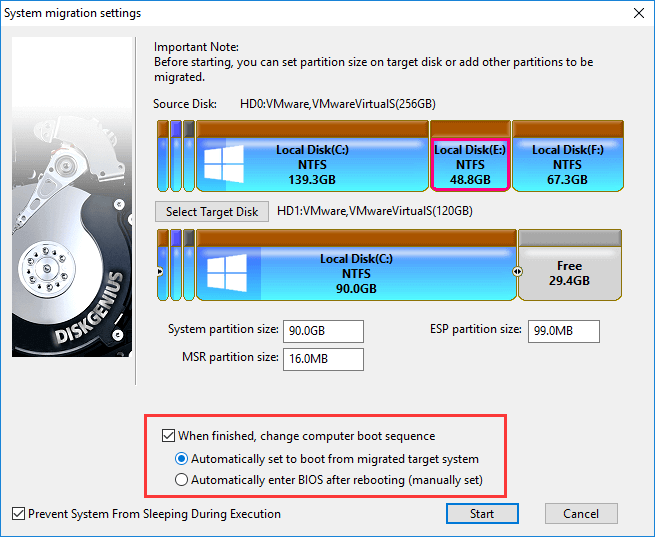
Plan and prepare before you move os to ssd
Plan first. Back up important files and create a system image. Check SSD size and interface compatibility with your PC.
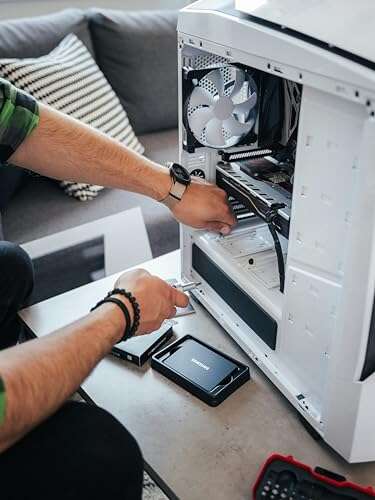
Confirm whether your SSD supports SATA or NVMe. Make sure your laptop or desktop has a spare slot or you have a USB-to-SATA/NVMe adapter. Note your current partition layout and free space. If your OS drive is larger than the SSD, you’ll need to shrink data or choose a clean install.
- Create a full backup to an external drive.
- Verify SSD capacity and interface.
- Download cloning or installation tools ahead of time.
- Record your Windows product key or account details if needed.
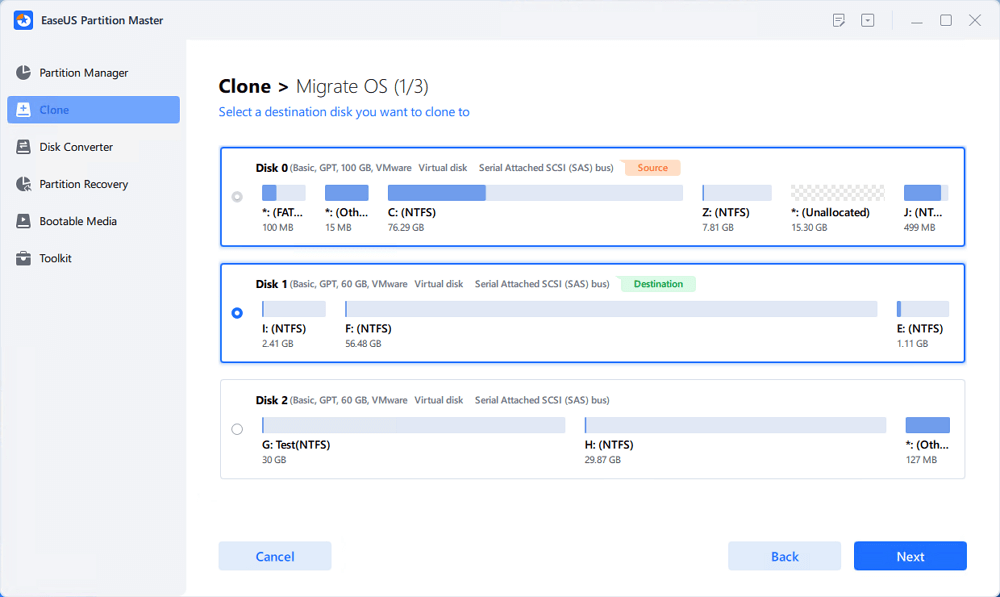
Method 1: Clone your OS to SSD (best if you want an exact copy)
Cloning copies your current system and settings to the SSD. It keeps apps, files, and drivers intact. This method is faster than reinstalling everything.
Tools commonly used for cloning include dedicated cloning apps and disk-imaging software. The process below shows a typical clone workflow.
Steps to clone your OS to SSD:
- Connect the SSD to your PC using internal slot or adapter.
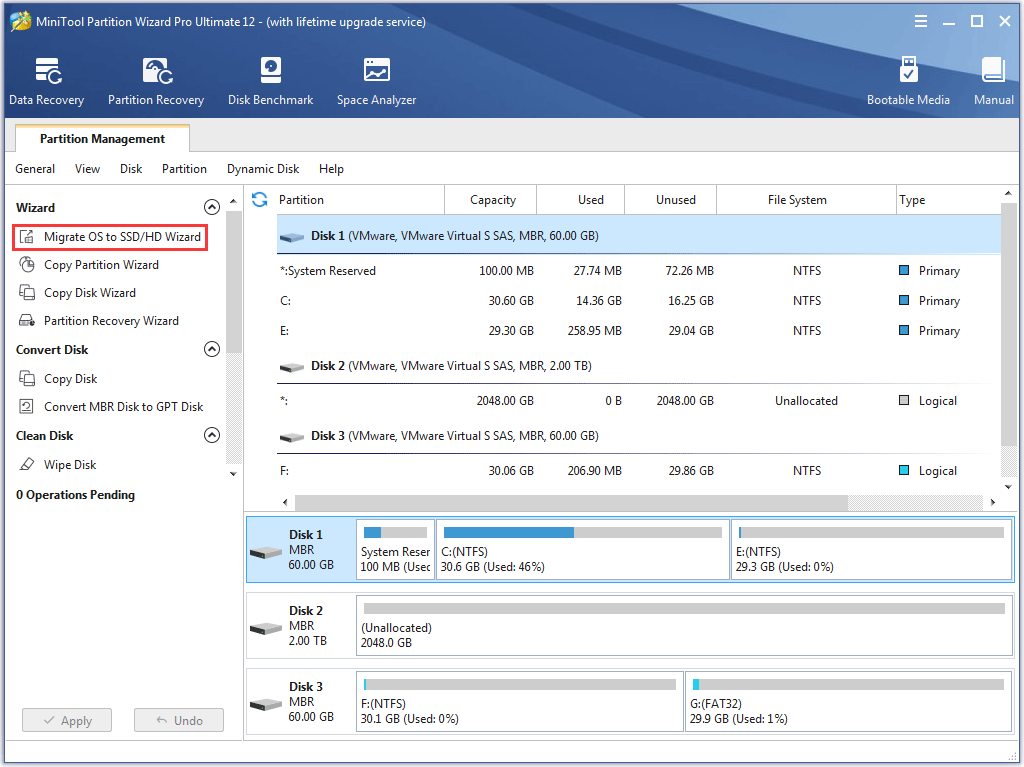
- Open your cloning software and select the source drive (your current OS disk).
- Select the SSD as the destination drive. Choose sector-by-sector clone only if needed.
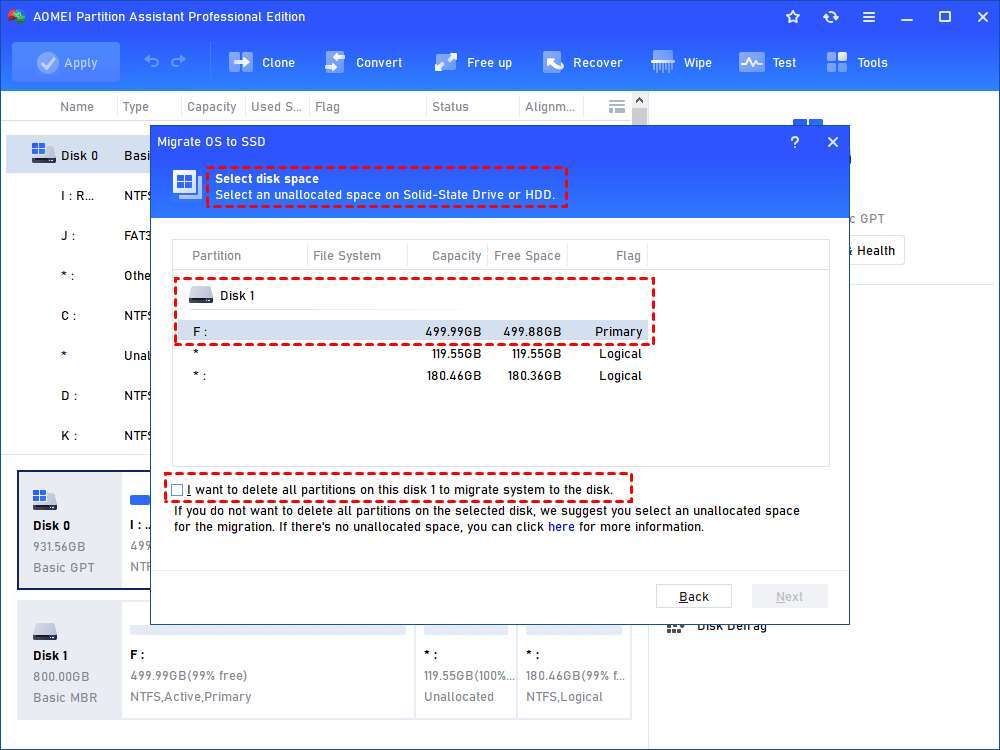
- Adjust partitions to fit the SSD. Resize the main partition to use the SSD space.
- Start the clone and wait for the process to finish. This can take 30 minutes to several hours.
- Shut down the computer and swap drives or change boot order in BIOS/UEFI to boot from the SSD.
- Boot into the OS on the SSD and verify all files and apps are present.
Common cloning tips:
- Disable BitLocker or encryption before cloning to avoid unlock issues.
- If your SSD is smaller, make sure used space on the old drive fits the SSD.
- Always check that the cloned SSD is set as the first boot device.
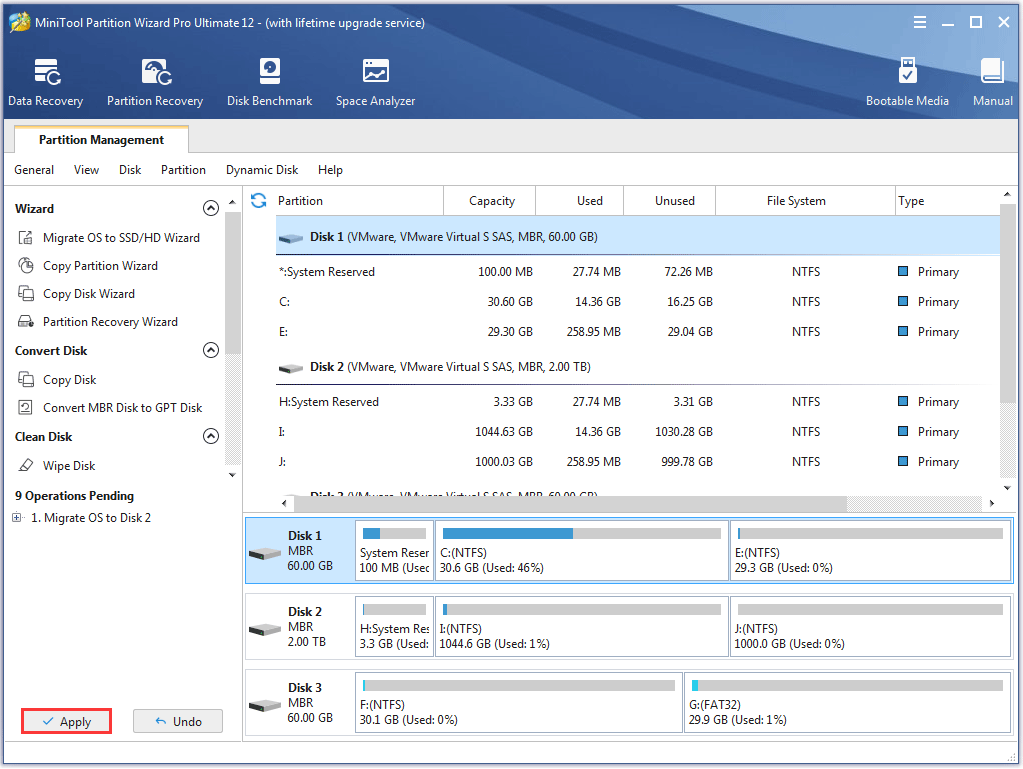
Method 2: Clean install to SSD (best for a fresh start and fewer legacy issues)
A clean install gives the best long-term performance and a lean system. You reinstall the OS from scratch on the SSD and then copy your files back. This removes leftover software, bloatware, and configuration errors.
Steps for a clean install:
- Back up your files and export bookmarks, saved settings, and keys.
- Create bootable installation media for your OS.
- Install the SSD and set it as the primary boot device in BIOS/UEFI if possible.
- Boot from the installation USB and choose custom install. Format the SSD and install the OS.
- Install drivers, system updates, and essential apps first.
- Restore your files from backup and reconfigure settings.
When to choose a clean install:
- You want to remove years of accumulated files and software.
- The current OS is unstable or infected.
- You have an SSD smaller than your current drive used space.

Post-migration steps and optimization after you move os to ssd
After moving the OS to SSD, do a few checks and tweaks to ensure longevity and speed.
Check boot order and make sure the SSD boots reliably. Enable TRIM support for longevity and consistent performance. Confirm that AHCI mode is enabled in BIOS for SATA SSDs. Update storage drivers and firmware for the SSD if available.
Recommended post-migration tasks:
- Run disk cleanup and remove old system files.
- Enable TRIM using the command line or system settings.
- Verify alignment of partitions. Misaligned partitions can slow SSDs.
- Update your OS and chipset drivers.
- If you cloned and plan to keep the old drive, wipe or repurpose it after cleaning the OS data.
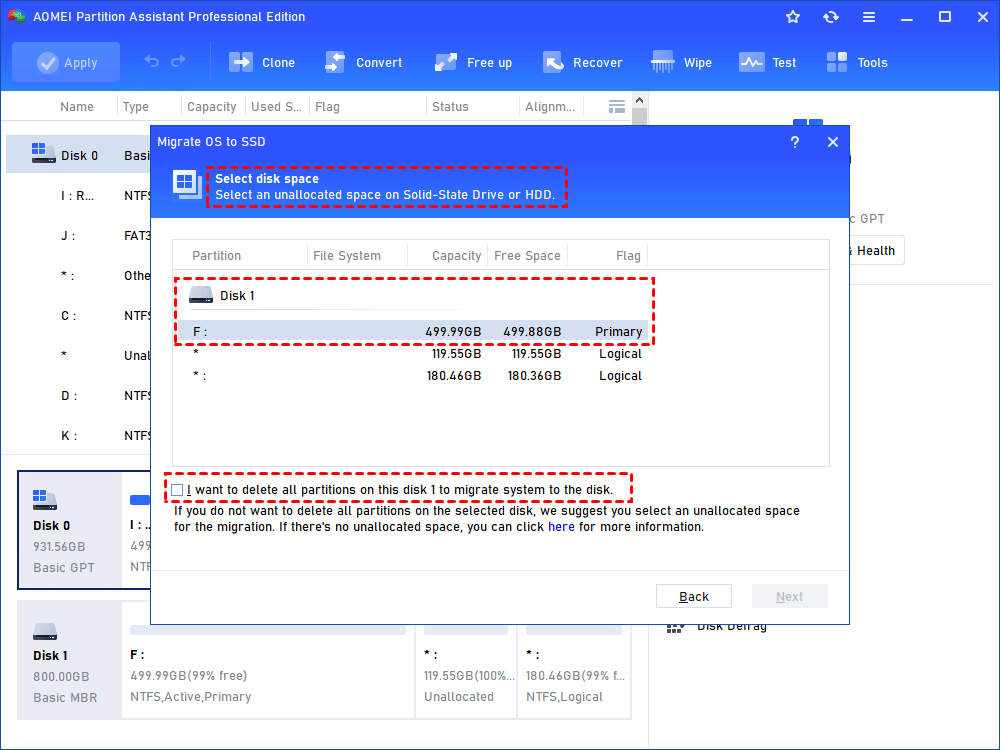
Troubleshooting common issues when you move os to ssd
If your PC won’t boot from the SSD, check BIOS/UEFI settings first. Ensure the SSD is set as the first boot device and the correct boot mode (UEFI vs Legacy) matches your OS.
If you see degraded performance after cloning, confirm alignment and drivers. A cloned partition that is not aligned or an AHCI driver missing can cause slowdowns. If apps fail to run, check for missing drivers and run system file checks.
Quick troubleshooting checklist:
- Confirm SSD is recognized in BIOS/UEFI.
- Check boot order and mode (UEFI/Legacy).
- Reinstall or update storage drivers.
- Run a disk diagnostic tool to verify SSD health.

My experience and tips from real migrations
I’ve migrated dozens of machines between 2014 and today. Early on I cloned without shrinking partitions and hit boot failures. I learned to always shrink the source partition first and test the SSD on a spare machine.
Practical tips I use now:
- Always make a backup before you start. Backups saved my bacon when a clone failed.
- Use a reputable cloning tool. Free tools can work well but read the instructions.
- If unsure, do a clean install for long-term reliability. It takes longer but reduces future headaches.
- Label your drives physically. It helps in cramped desktops and laptops.

Frequently Asked Questions of how to move os to ssd
How long does it take to move an OS to an SSD?
Cloning can take 30 minutes to several hours depending on drive size and connection speed. A clean install usually takes 20 to 60 minutes, plus time to reinstall apps.
Will I lose my files if I move the OS to an SSD?
If you clone correctly, your files remain intact. Always back up first to prevent data loss from unexpected errors.
Can I move Windows 10 or 11 to a smaller SSD?
Yes, if the used data on your current drive fits the smaller SSD. You may need to shrink partitions and remove large files before cloning.
Do I need a special cable or adapter to move the OS to an SSD?
A USB-to-SATA or NVMe adapter helps when you have only one drive bay. For desktops, you can often connect both drives internally.
Should I format the old drive after moving the OS to SSD?
You can wipe the old drive if you plan to repurpose it. Securely erase it if you will sell or recycle the drive.
Conclusion
Moving your OS to an SSD is one of the most rewarding upgrades you can do. Whether you clone for convenience or do a clean install for a fresh system, the result is faster boot times and snappier performance. Back up first, pick the method that fits your needs, and follow steps to ensure alignment and TRIM support. Try it on a test machine if you’re nervous, and leave a comment sharing your experience or questions — I’ll help where I can.

Everett Ashford is a tech reviewer at mytechgrid.com specializing in SSDs, cameras, TVs, earbuds, headphones, and other consumer electronics. He provides honest, data-driven reviews based on hands-on testing and real-world performance analysis. Everett simplifies complex tech details to help readers make smart, confident buying decisions.