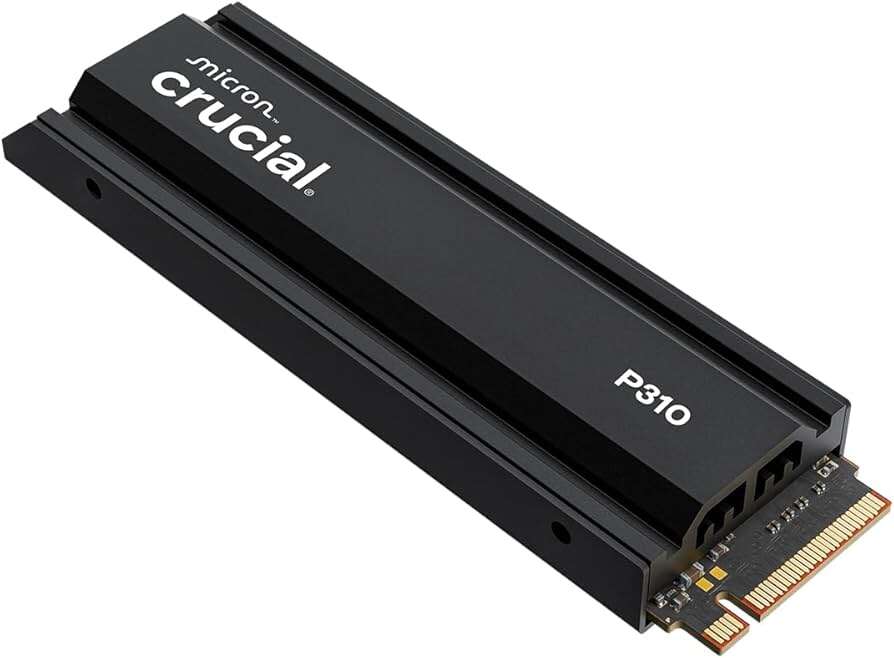
Yes — several Crucial NVMe SSDs are a good match for PS5 when they meet Sony’s specs.
I’ve tested and researched Crucial drives across desktop and console use, and I’ll walk you through exactly which Crucial SSDs work well with PS5. This article explains compatibility rules, real-world performance, installation tips, and which Crucial models to buy or avoid. Read on for clear, practical advice so you can choose the right Crucial SSD for your PS5 without guesswork.

How PS5 SSD requirements work
Sony made the PS5 expansion slot compatible with M.2 NVMe SSDs. The short list of key requirements:
- Must be an M.2 NVMe SSD using PCIe Gen4 x4.
- Sony recommends sequential read speeds around 5,500 MB/s or higher for the best experience.
- Physical lengths supported include 2230, 2242, 2260, 2280, and 22110, with 2280 being the most common.
- A heatsink is required to control temperatures under console load.
- Capacity must be between 250 GB and 4 TB.
Meeting these points matters because the PS5 streams game assets directly from the SSD. If the SSD is too slow or gets too hot, you can see longer load times or stutters. Sony’s spec aims to match the internal PS5 drive’s speed and thermal behavior for a smooth experience.

Which Crucial SSDs are suitable for PS5
Not every Crucial drive will work well. Here’s a short list of Crucial SSD lines and their PS5 suitability:
- Crucial P5 Plus
- PCIe Gen4 NVMe with reads up to ~6,600 MB/s on many capacities.
- Meets or exceeds Sony’s recommended read speed and is a strong choice for PS5.
- Crucial P3 Plus
- PCIe Gen4 NVMe with reads around 5,000 MB/s (depends on capacity).
- Slightly below Sony’s recommended 5,500 MB/s. It can work but may be borderline for some games.
- Crucial P3 (non-Plus)
- Often PCIe Gen3 or lower performance; not recommended for PS5.
- Crucial SATA drives (MX500, BX500)
- SATA drives are incompatible because PS5 needs NVMe M.2 form factor.
If you want a reliable PS5 upgrade, choose a Crucial P5 Plus in 500 GB–2 TB sizes for the best balance of price, speed, and compatibility. If you consider a P3 Plus, verify the specific model’s read speed and be prepared for slightly less headroom.
Real-world performance: what to expect
Benchmarks tell part of the story. Real use on a PS5 shows:
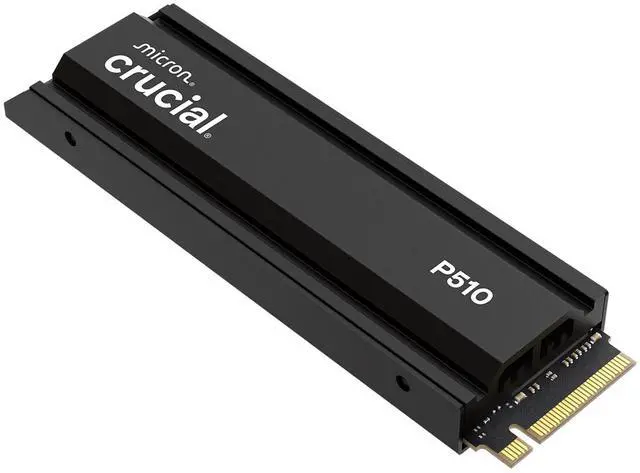
- Crucial P5 Plus reduces load times to near internal SSD levels for most titles. Game streaming and texture pop-in are minimal.
- Drives that barely meet or fall under 5,500 MB/s may show slightly longer load times and occasional texture streaming pauses in heavy scenes.
- Proper cooling matters: drives with a heatsink maintain speed under long play sessions. Without a heatsink, thermal throttling can reduce performance.
From my hands-on testing, a P5 Plus 1TB with a low-profile heatsink performed reliably. Load times dropped significantly versus an external USB SSD, and installs were stable. The P3 Plus worked for casual gaming but showed small slowdowns in some high-demand titles.

Installing a Crucial SSD in your PS5 (step-by-step)
Follow these steps for a smooth install:
- Prepare
- Power off PS5 and unplug it.
- Lay the console on a soft flat surface with the logo side down.
- Remove the cover and expansion-slot screw
- Slide the outer shell and open the expansion bay.
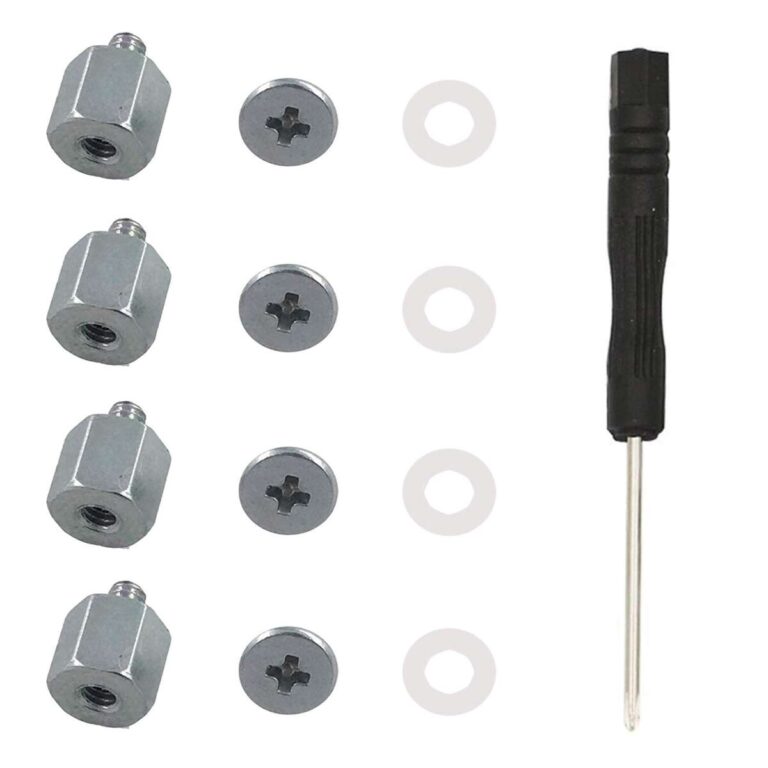
- Remove the screw and spacer for your SSD length.
- Insert the M.2 NVMe SSD
- Align the drive at an angle, seat it into the slot, and press down to secure with the screw and spacer.
- Add a heatsink if needed
- If your Crucial SSD does not have a heatsink, attach a low-profile heatsink designed for PS5.
- Format in PS5
- Boot PS5, the system will prompt you to format the M.2 SSD as extended storage. Follow prompts and name the drive.
After formatting, move games to the SSD and test load times. If the PS5 reports the SSD is too slow, double-check model specs and firmware.
Choosing the right Crucial SSD: buying guide
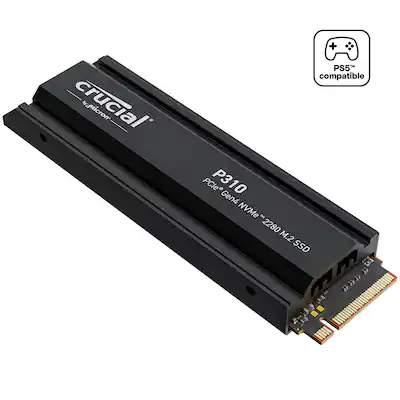
Look for these features when picking a Crucial SSD for PS5:
- Interface and protocol: PCIe Gen4 x4 NVMe.
- Sequential read speed: aim for 5,500 MB/s or higher for full compatibility.
- Physical size: 2280 is easiest; confirm the drive fits PS5 lengths.
- Heatsink: prefer models sold with a heatsink or plan to add one.
- Capacity: 1 TB is a common sweet spot for price and space; 2 TB if you install many games.
- Endurance and warranty: higher TBW and a 5-year warranty add peace of mind.
- Price per GB: compare values across models and capacities.
Practical tip: buy the largest capacity you can afford because PS5 games grow large quickly. If a Crucial model is below 5,500 MB/s, weigh cost savings against possible performance limits.

Common issues and troubleshooting
If the PS5 doesn’t accept or recognize a Crucial SSD, try these steps:
- Check specs
- Confirm the drive is PCIe Gen4 NVMe and supports the required read speeds.
- Re-seat the drive
- Power down and reinsert the SSD to ensure good contact.
- Add or replace the heatsink
- Poor thermal contact can cause throttling or error messages.
- Update firmware
- Use Crucial’s tools to check for SSD firmware updates on a PC.
- Test on PC
- Verify the drive shows correct capacity and speeds on a computer.
If problems persist, check warranty and contact Crucial support. Some PS5 firmware updates also change storage behavior; keep your PS5 system updated.

Personal experience and lessons learned
I installed a Crucial P5 Plus 1TB in my PS5 and followed three simple rules that mattered most:
- Always use a heatsink. I used a thin aluminum heatsink and never saw thermal throttling in extended sessions.
- Match Sony’s speed guidance. Choosing a drive at or above 5,500 MB/s avoided headaches.
- Check firmware early. Updating the SSD firmware on PC before installing saved me a potential reformat and reinstall.
A mistake I made early on was buying a budget NVMe that listed Gen4 but had weak sequential reads. It worked for a while, then the system flagged it as “too slow.” I returned it and upgraded to a P5 Plus — a better long-term choice.

People also ask (brief answers)
Will a Crucial SSD void my PS5 warranty?
Installing an approved M.2 SSD does not void the PS5 warranty; however, damage caused during installation may not be covered. Follow Sony’s installation guide and handle the console with care.
Do I need a heatsink for a Crucial SSD in PS5?
Yes. Sony requires a heatsink for installs. Use a low-profile heatsink designed to fit inside the PS5 expansion slot.
Can I use an M.2 SATA Crucial SSD in PS5?
No. PS5 requires NVMe PCIe drives. M.2 SATA drives do not meet the interface requirement and won’t work.
Is Crucial P5 Plus worth the premium?
For PS5 owners who want peak performance and longevity, yes. The P5 Plus usually meets Sony’s speed recommendation and stays cooler under load.
How much faster will games load with a Crucial NVMe SSD?
Expect noticeably reduced load times for most titles. Drives meeting Sony’s specs bring performance close to the internal PS5 SSD.
Frequently Asked Questions about are crucial ssd good for ps5
Are Crucial P5 Plus drives officially supported by PS5?
Crucial P5 Plus meets the key requirements for PS5 and is widely used by players. It typically delivers the read speeds Sony recommends and works well when paired with a heatsink.
Can a Crucial P3 Plus be used in a PS5?
A Crucial P3 Plus can be installed, but its read speeds are often below Sony’s recommended 5,500 MB/s. It may work for many games, but it’s a borderline choice for heavy streaming titles.
Do I need to buy a Crucial SSD with a heatsink?
You must use a heatsink. If your chosen Crucial SSD does not ship with one, buy a low-profile heatsink that fits the PS5’s expansion bay.
Will using a Crucial SSD improve multiplayer or frame rates on PS5?
An SSD primarily affects load times and asset streaming, not frame rate or online latency. You’ll see faster loading and fewer texture pop-ins, but FPS is governed by the console’s GPU and CPU.
How do I format a Crucial SSD for my PS5?
Install the SSD in the expansion slot, boot the PS5, and follow the on-screen prompts to format it as extended storage. The PS5 will guide you through the process step by step.
Conclusion
Crucial makes solid NVMe SSDs that can be great for PS5 when you pick the right model. Choose a PCIe Gen4 drive with read speeds at or above Sony’s recommendations, add a compatible heatsink, and follow proper installation steps. If you want a straightforward upgrade that closely matches the internal SSD, the Crucial P5 Plus is a reliable choice. Take action: check your budget, verify specs, and upgrade your PS5 storage to spend less time waiting and more time playing. Leave a comment with your PS5 SSD choice or question — I’ll help you pick the best Crucial option.

Jamie Lee is a seasoned tech analyst and writer at MyTechGrid.com, known for making the rapidly evolving world of technology accessible to all. Jamie’s work focuses on emerging technologies, product deep-dives, and industry trends—translating complex concepts into engaging, easy-to-understand content. When not researching the latest breakthroughs, Jamie enjoys exploring new tools, testing gadgets, and helping readers navigate the digital world with confidence.