An SSD makes games load faster, reduce texture delays, and feel smoother without directly increasing average FPS.
If you are asking what does SSD do for gaming, the answer goes beyond shorter loading screens. A solid-state drive changes how quickly your PC or console reads game files, loads maps, streams textures, and responds during large open-world scenes. After testing storage upgrades across modern gaming setups, I have found that an SSD often makes a system feel faster and more responsive, even when the graphics card and processor stay the same.
What Does SSD Do for Gaming?
An SSD stores game data on flash memory instead of spinning magnetic disks. It has no moving parts, so it can find and transfer files much faster than a traditional hard disk drive, or HDD.
Games contain many files. These include:
• Maps and level data
• Character models
• Audio files
• Textures
• Animation data
• Shader files
• Save files
• Updates and patches
When a game needs this data, the storage drive reads it and sends it to the rest of the system. A faster drive can complete this task sooner.
So, what does SSD do for gaming in practical terms? It can:
• Reduce game launch times
• Shorten loading screens
• Speed up level changes
• Reduce texture pop-in
• Improve open-world streaming
• Make game installation and updates faster
• Reduce stuttering caused by slow asset loading
• Make Windows and game menus feel more responsive
An SSD does not act like a stronger graphics card. It does not render more frames by itself. Instead, it helps your system deliver game content quickly and consistently.
Does an SSD Increase Gaming FPS?
In most games, an SSD does not create a major increase in average frames per second. Your graphics processing unit, or GPU, and central processing unit, or CPU, have a much larger effect on FPS.
However, an SSD can improve the way those frames are delivered. Some games stream new assets while you move through the world. If the storage drive is slow, the game may pause briefly or display low-quality textures before the correct files arrive.
This can lead to:
• Short stutters
• Delayed texture loading
• Sudden pauses when entering a new area
• Uneven frame delivery
• Longer waits after fast travel
In this situation, an SSD may improve frame-time consistency. The FPS counter may not change much, but the game can feel smoother.
For example, moving from an HDD to an SSD will not turn 45 FPS into 100 FPS. It may, however, reduce the small pauses that make 45 FPS feel worse than it should.
When Can an SSD Improve FPS?
An SSD may help FPS indirectly when the HDD is causing a serious data-loading bottleneck. This is more likely in large games that constantly stream content from storage.
The result depends on the game, system memory, graphics settings, and drive speed. A fast PCIe 4.0 NVMe SSD cannot fix a weak GPU, limited RAM, or an overheated CPU.

SSD vs. HDD for Gaming
The main difference between an SSD and an HDD is how each device stores and reads data.
An HDD uses spinning platters and a moving read head. The drive must physically move to the correct location before reading a file. An SSD uses memory chips, so it can access data with far less delay.
Here is a simple comparison:
| Feature | SSD | HDD |
|---|---|---|
| Game loading | Much faster | Slower |
| Moving parts | None | Yes |
| Noise | Silent | Can make noise |
| Power use | Usually lower | Usually higher |
| Shock resistance | Better | Lower |
| Cost per gigabyte | Higher | Lower |
| Open-world asset streaming | Better | More limited |
| Game installation speed | Faster | Slower |
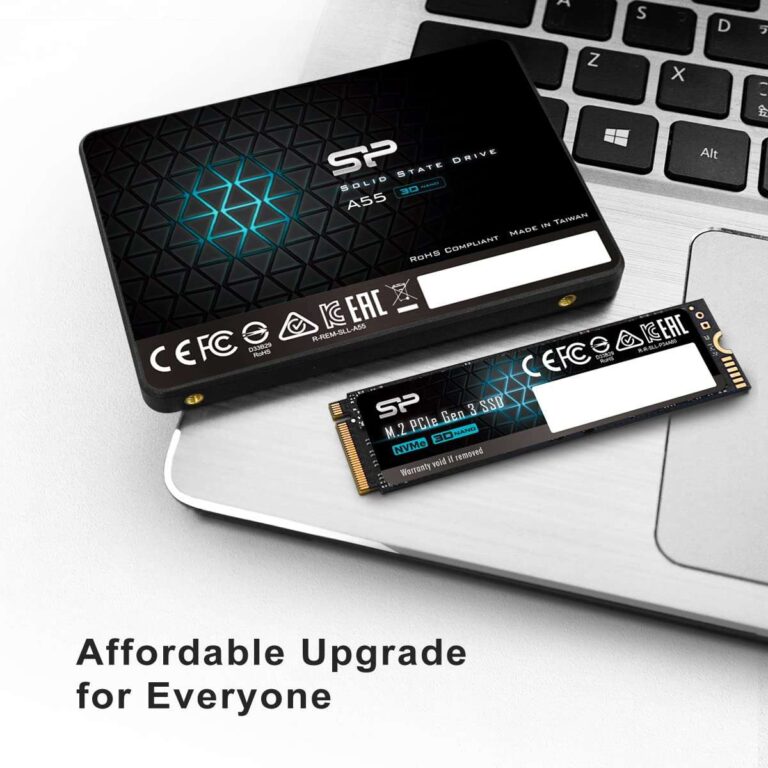
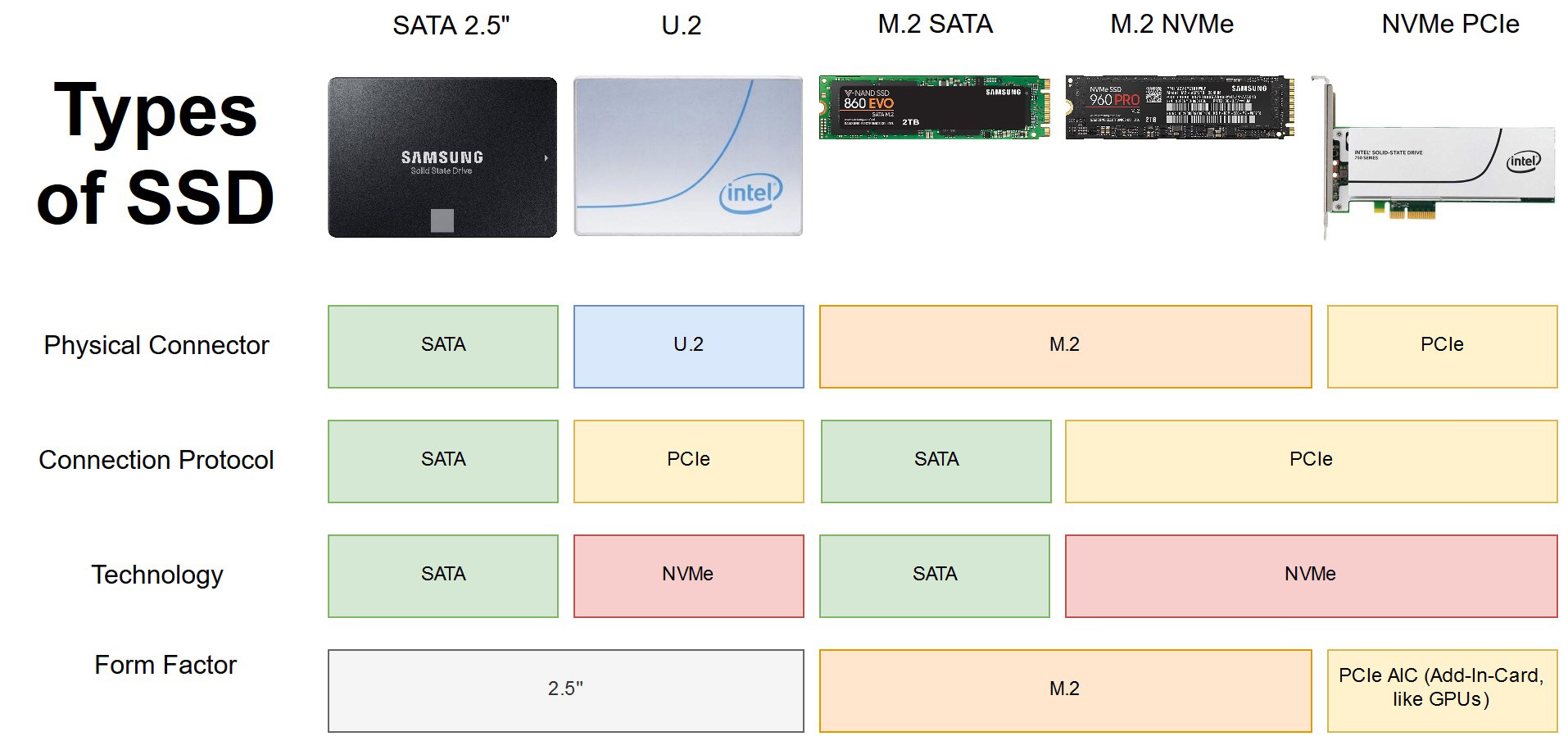
A SATA SSD is already much faster than an HDD for normal gaming. An NVMe SSD can be even faster, especially when it uses a PCIe 4.0 or PCIe 5.0 connection.
Still, the difference between a SATA SSD and a modern NVMe SSD is often smaller in games than the difference between an HDD and any SSD. This is an important buying lesson. You do not always need the most expensive drive to get a major upgrade.
The Main Gaming Benefits of an SSD
Faster Game Loading
The most obvious benefit is shorter loading. A game can start sooner, and you can return to the action faster after dying or changing areas.
This matters most in games with frequent loading screens. Role-playing games, simulation titles, and large multiplayer games may benefit greatly from faster storage.
Faster Level and Map Transitions
An SSD can reduce the time needed to move between areas. Fast travel, entering buildings, and restarting missions can feel much quicker.
The exact result varies. Some loading time comes from CPU work, game design, or network checks. Storage is only one part of the process.
Better Open-World Streaming
Open-world games load parts of the map as you travel. A fast SSD helps provide buildings, roads, terrain, and textures at the right time.
This can reduce texture pop-in. It can also help prevent brief pauses when traveling quickly through a busy area.
Faster Game Installation
Large games can take over 100 GB. An SSD can write and unpack that data faster than an HDD, depending on the source drive and the installation process.
Your internet speed still controls most of the download time. But once the files arrive, a fast SSD can reduce installation and update delays.
Faster Game Updates
Game patches often replace or rebuild large files. SSD storage can process these tasks faster than an HDD.
Some updates still take a long time because they require file verification, compression, or server access. An SSD helps, but it cannot remove every delay.
Quicker System Response
Installing games on an SSD also improves the general feel of your computer. Windows starts faster, game launchers open quickly, and menus respond with less delay.
This benefit is easy to notice because you experience it every day, not only when launching a game.

How SSD Speed Affects Gaming
SSD speed is measured in several ways. The most common numbers are sequential read speed, sequential write speed, and random access performance.
Sequential Read and Write Speed
Sequential speed measures how quickly a drive reads or writes large blocks of data. It matters during tasks such as copying a large game or installing an update.
A PCIe 4.0 NVMe SSD may advertise read speeds above 7,000 MB/s. A SATA SSD usually reaches about 500 to 550 MB/s in ideal conditions.
These numbers look dramatic, but games do not always use storage in a simple, continuous way. Real game performance depends on many small requests and other system tasks.
Random Access Performance
Random access describes how quickly a drive handles many small files in different locations. This can matter when a game loads many separate assets.
Low latency and strong random performance can help a drive respond quickly. This is one reason a good SSD can feel much faster than its headline speed suggests.
DirectStorage and Modern Games
Microsoft DirectStorage is designed to help compatible games move data from fast storage to the GPU more efficiently. It can reduce some CPU overhead and support faster asset streaming.
DirectStorage does not make every game faster. The game must support the technology, and the full result depends on the GPU, CPU, operating system, and SSD.
Do You Need an NVMe SSD for Gaming?
No. A SATA SSD is enough for many gamers.
A SATA SSD can provide a huge improvement over an HDD. It is a smart choice for an older desktop, a budget gaming PC, or a laptop with a SATA drive bay.
An NVMe SSD connects through a PCIe interface. It usually offers:
• Higher transfer speeds
• Lower latency
• Smaller physical designs
• Better performance during heavy file transfers
• Strong support for newer gaming features
Choose an NVMe SSD when:
• Your motherboard supports the correct M.2 PCIe standard
• You often install or move very large games
• You want a clean, modern build
• The price difference is small
• You plan to keep the drive for several years
Choose a SATA SSD when:
• You are upgrading from an HDD
• Your computer does not support NVMe
• You need more storage for less money
• Your main goal is faster loading
• You are building a secondary game library
For most players, moving from an HDD to any reliable SSD gives the largest improvement. Moving from SATA SSD to high-end NVMe SSD usually gives a smaller gaming benefit.
How Much SSD Storage Do You Need for Gaming?
Storage needs depend on your game library. Modern games are large, and a 1 TB drive can fill faster than expected.
A practical guide looks like this:
• 500 GB: Suitable for a small library and a few major games
• 1 TB: A good starting point for most gamers
• 2 TB: Better for many large games and long-term use
• 4 TB or more: Useful for large libraries, content creation, and multiple operating systems
Remember that a 1 TB drive does not provide a full 1,000 GB of usable space. The operating system, formatting, updates, and reserved space reduce the available capacity.
Try to keep some free space. A nearly full SSD may lose performance, especially during large writes. Leaving about 10% to 20% free is a sensible habit, although the exact impact varies by drive.
I have seen many upgrades fail to feel useful because the buyer chose too little capacity. Reinstalling games every week becomes frustrating. A slightly larger, reliable SSD is often better than a very fast drive that fills immediately.

SSD Limitations for Gaming
An SSD is valuable, but it is not a magic upgrade.
It Does Not Replace a Better GPU
If your game runs at 30 FPS because the graphics card is overloaded, an SSD will not solve that problem. Lowering resolution or upgrading the GPU will have a much larger effect.
It Does Not Fix Network Lag
Online lag comes from network speed, latency, server distance, and connection quality. An SSD may load the game faster, but it cannot reduce ping.
It Does Not Eliminate Every Stutter
Stuttering can come from shader compilation, insufficient RAM, CPU limits, driver problems, overheating, or poor game optimization. Storage is only one possible cause.
It Costs More Than an HDD
Hard drives still offer more capacity per dollar. They can be useful for photos, videos, backups, and games that you rarely play.
SSDs Have Limited Write Endurance
Flash memory has a rated write limit. Normal gaming use is usually not a concern because reading game files does not consume endurance in the same way as writing them.
Avoid unnecessary stress, such as repeatedly moving your entire game library without a reason. A quality SSD from a trusted manufacturer should last for many years under normal use.

How to Choose the Best SSD for Gaming
Look beyond the advertised speed. A good gaming SSD should offer a balance of performance, capacity, endurance, temperature control, and price.
Check these details before buying:
• Interface: Confirm whether your system supports SATA, PCIe 3.0, PCIe 4.0, or PCIe 5.0.
• Form factor: Make sure the M.2 size fits your motherboard or laptop.
• Capacity: Select enough space for your current games and future updates.
• NAND type: TLC flash is often a strong balance of cost and durability.
• DRAM: A DRAM-equipped model may provide more consistent performance in demanding workloads.
• Warranty: Look for a clear warranty and a good total bytes written rating.
• Reviews: Check sustained performance and thermal behavior, not only peak speed.
• Cooling: Some NVMe drives need a heatsink to avoid thermal throttling.
Do not pay a large premium for a PCIe 5.0 drive if your games, motherboard, and budget do not justify it. In many gaming PCs, a high-quality PCIe 4.0 SSD is already more than fast enough.
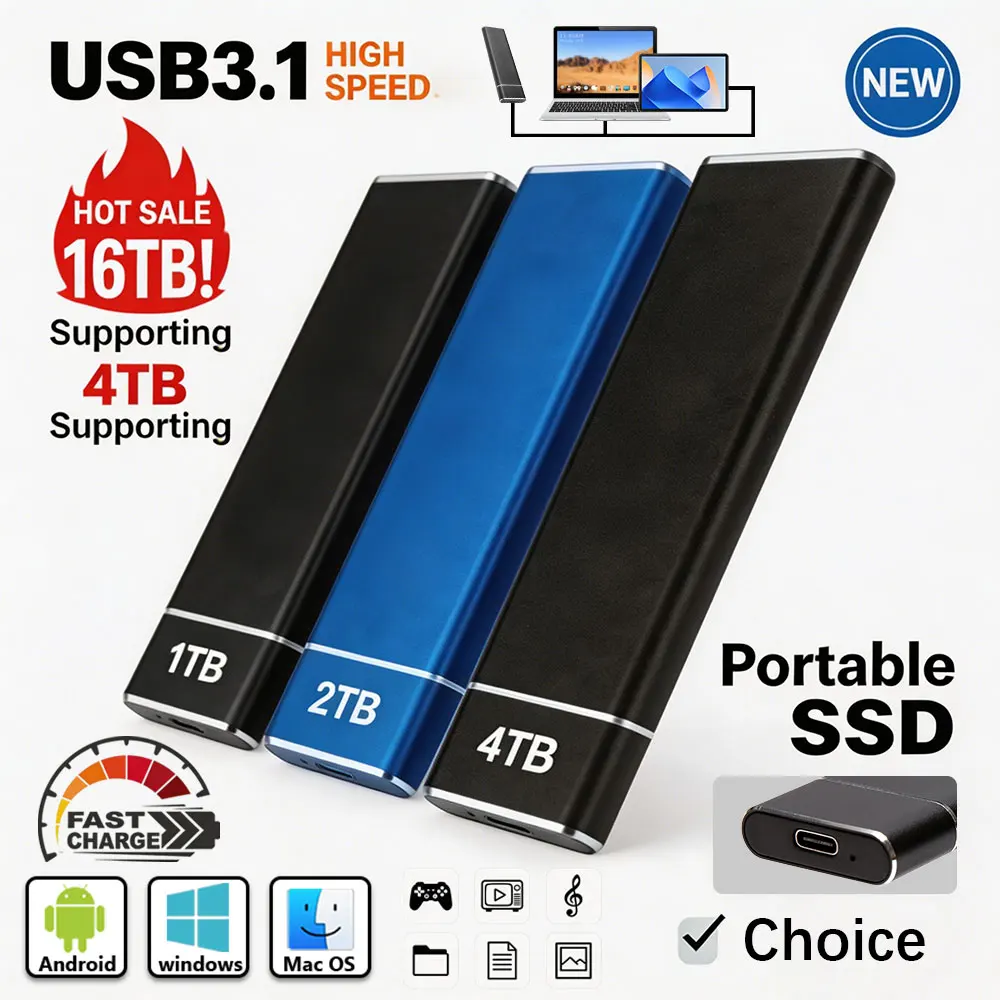
Installing Games on an SSD
Installing a game on an SSD is simple, but a few steps can prevent problems.
- Check that the SSD appears in your BIOS or operating system.
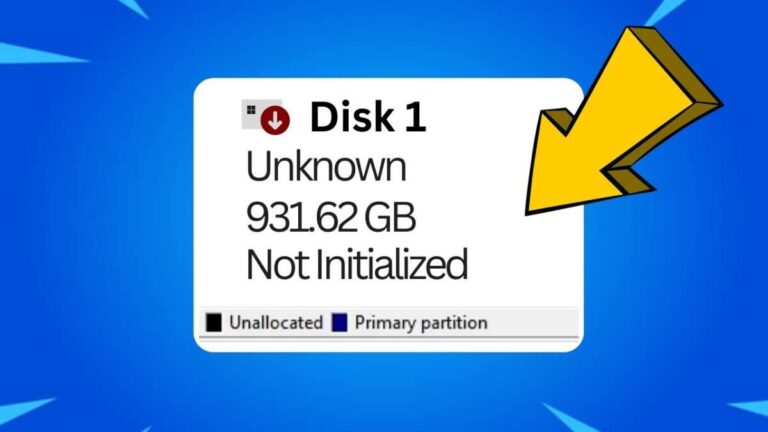
- Format and initialize the drive if it is new.
- Update the SSD firmware when the manufacturer provides a stable update.
- Install the latest motherboard chipset and storage drivers.
- Set the SSD as the game library location in your launcher.
- Move existing games through the launcher when possible.
- Keep free space available for updates and temporary files.
- Monitor temperatures during long transfers.
Do not place an NVMe SSD where it receives no airflow if the drive has a history of running hot. Thermal throttling can reduce speed during large transfers.
Also, avoid filling the drive to its absolute limit. A little empty space gives the controller more room to manage data.
Common Mistakes to Avoid
Many gamers focus only on the largest speed number on the product box. That number may describe an ideal test, not the way your games behave.
Avoid these mistakes:
• Buying an NVMe drive that your motherboard cannot support
• Choosing a 256 GB drive for a large modern game library
• Ignoring SSD temperatures
• Expecting higher FPS from storage alone
• Storing every game on a nearly full drive
• Buying an unknown model with weak warranty support
• Forgetting to enable the correct PCIe mode in the motherboard settings
• Moving a game but leaving its shader cache or launcher data elsewhere
• Replacing a healthy SSD when the real issue is CPU, GPU, RAM, or drivers
The best upgrade starts with identifying the current problem. If loading screens are long, upgrade storage. If FPS is low, examine the GPU and CPU first. If online matches lag, test the network.
Should You Put Every Game on an SSD?
No, but your most demanding games should usually go there.
Place these games on an SSD:
• Open-world games
• Competitive games with frequent map loading
• Games you play every day
• Titles with large texture packs
• Games that stutter when loading new areas
• Games with frequent patches and updates
Older games and smaller indie titles can run well from an HDD. An HDD is also useful for backups and games you rarely play.
A mixed setup works well. Use a fast SSD for Windows and active games, then use a larger SSD or HDD for storage. This gives you speed where you notice it most without wasting money.
What Does SSD Do for Gaming on PS5 and Xbox?
Modern consoles rely heavily on fast storage. The PlayStation 5 uses a custom internal SSD, while Xbox Series X and Series S use fast internal storage designed for quick game access.
On these consoles, the SSD can support:
• Shorter loading screens
• Quick Resume or similar resume features
• Faster world streaming
• Larger and more detailed game environments
• Fewer pauses while moving through a level
Console storage expansion must meet strict compatibility rules. A standard PC SSD may not work as an internal expansion drive.
The SSD does not automatically improve graphics quality in every game. Developers must design the game to use fast storage effectively.
Frequently Asked Questions About What Does SSD Do for Gaming
Does an SSD make games run faster?
An SSD makes games load faster and can improve asset streaming. It usually does not create a large increase in average FPS.
Is an SSD better than an HDD for gaming?
Yes. An SSD offers faster loading, lower access time, silent operation, and better performance when games stream data from storage.
Does an SSD reduce game stuttering?
It can reduce stuttering caused by slow asset loading or open-world data streaming. It cannot fix stutters caused by weak hardware, shader compilation, overheating, or poor optimization.
Is NVMe better than SATA SSD for gaming?
NVMe SSDs are faster on paper, but the gaming difference is often modest compared with the jump from an HDD to a SATA SSD. Choose NVMe when the price, capacity, and system support make sense.
How much SSD storage is enough for gaming?
A 1 TB SSD is a good starting point for most players. Choose 2 TB if you have many large games or want to avoid uninstalling titles often.
Can an SSD improve online gaming?
An SSD can make the game and maps load faster, but it does not improve ping or fix an unstable internet connection. Online responsiveness depends mainly on your network and the game server.
Does an SSD improve graphics quality?
An SSD does not directly improve resolution, texture quality, or visual effects. It can help a game load high-quality textures more quickly and reduce texture pop-in.
Conclusion
What does SSD do for gaming? It makes games load faster, improves system response, and can reduce delays when a game streams large amounts of data. It does not replace a powerful GPU or CPU, and it will not solve network problems or every form of stuttering.
For most gamers, upgrading from an HDD to a reliable SSD is one of the most noticeable quality-of-life improvements available. Start with enough capacity, check compatibility, keep free space available, and choose a dependable model instead of chasing the biggest speed number.
Review your current loading times and storage setup today. Then choose the SSD upgrade that fits your games, system, and budget, and share your experience with other gamers.

Everett Ashford is a tech reviewer at mytechgrid.com specializing in SSDs, cameras, TVs, earbuds, headphones, and other consumer electronics. He provides honest, data-driven reviews based on hands-on testing and real-world performance analysis. Everett simplifies complex tech details to help readers make smart, confident buying decisions.