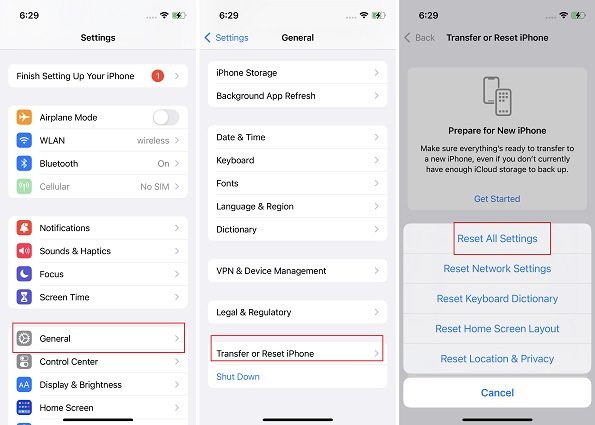
Reset iPhone camera settings by using Settings > General > Transfer or Reset iPhone > Reset All Settings.
I’ve fixed dozens of iPhones and helped users recover camera behavior that seemed broken. This guide explains exactly how to reset iPhone camera settings, when to use a full settings reset, safer alternatives, and what to expect afterward. You’ll get step-by-step instructions, real troubleshooting tips, and practical examples from hands-on experience so you can fix camera problems with confidence.

Why reset iPhone camera settings?
Resetting camera options can restore normal behavior when photos are blurry, orientation is wrong, or camera features act unpredictably. The iPhone does not offer a single “reset camera settings” button, so the usual route is to reset related system settings or adjust camera options manually. I explain both approaches so you can choose the least disruptive method for your situation.
Common reasons to learn how to reset iphone camera settings:
- Camera app crashes or freezes frequently.
- Photos are dark, overexposed, or focus is stuck.
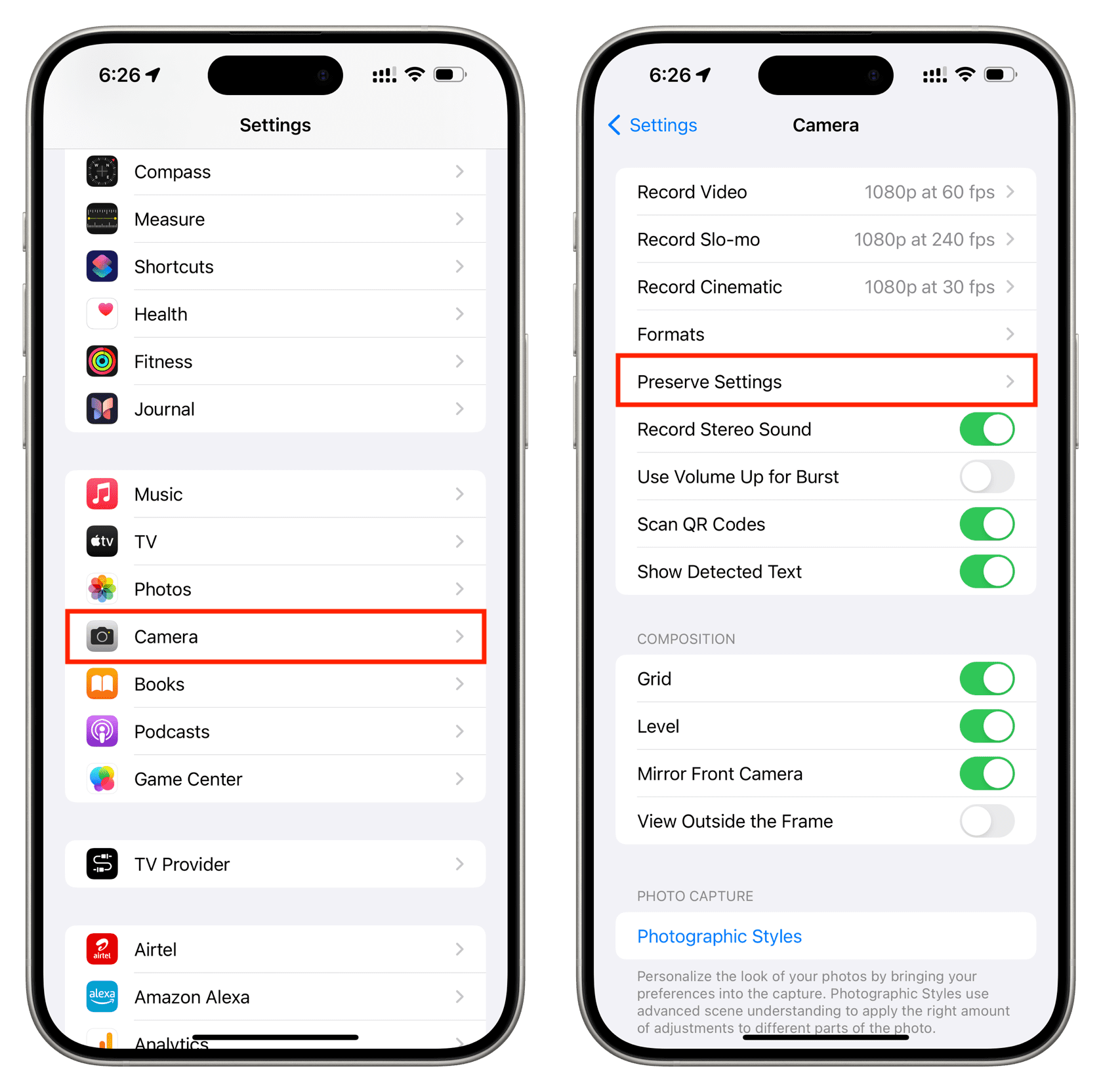
- Camera defaults like grid, formats, or preserve settings act oddly.
- Third-party apps can’t access the camera due to permissions.

When to reset iPhone camera settings vs. other fixes
Resetting is a useful step, but it’s not always the first thing to try. Try quicker fixes first. If they fail, use a settings reset.
Quick fixes to try before resetting:
- Restart the iPhone.
- Close and reopen the Camera app.
- Update iOS to the latest version.
- Toggle Camera permissions in Settings > Privacy & Security > Camera.
Use a reset when:
- Problems persist after updates and restarts.
- Multiple camera behaviors are wrong (formats, focus, exposure).
- You suspect corrupted system preferences.
How to reset iPhone camera settings — step-by-step
Because iOS groups many preferences, the most reliable method for resetting camera behavior is Reset All Settings. This does not erase your photos or apps, but it restores system preferences to defaults.
Step-by-step: Reset All Settings to address camera issues
- Open Settings.
- Tap General.
- Tap Transfer or Reset iPhone.
- Tap Reset.
- Choose Reset All Settings.
- Enter your passcode and confirm.
What happens when you reset all settings:
- Wi-Fi networks and passwords, Bluetooth pairs, and Home settings are cleared.
- Display, sound, and privacy settings revert to defaults.
- Camera options that are saved as system preferences will return to default behavior.
If you want to adjust camera-specific options without a full reset:
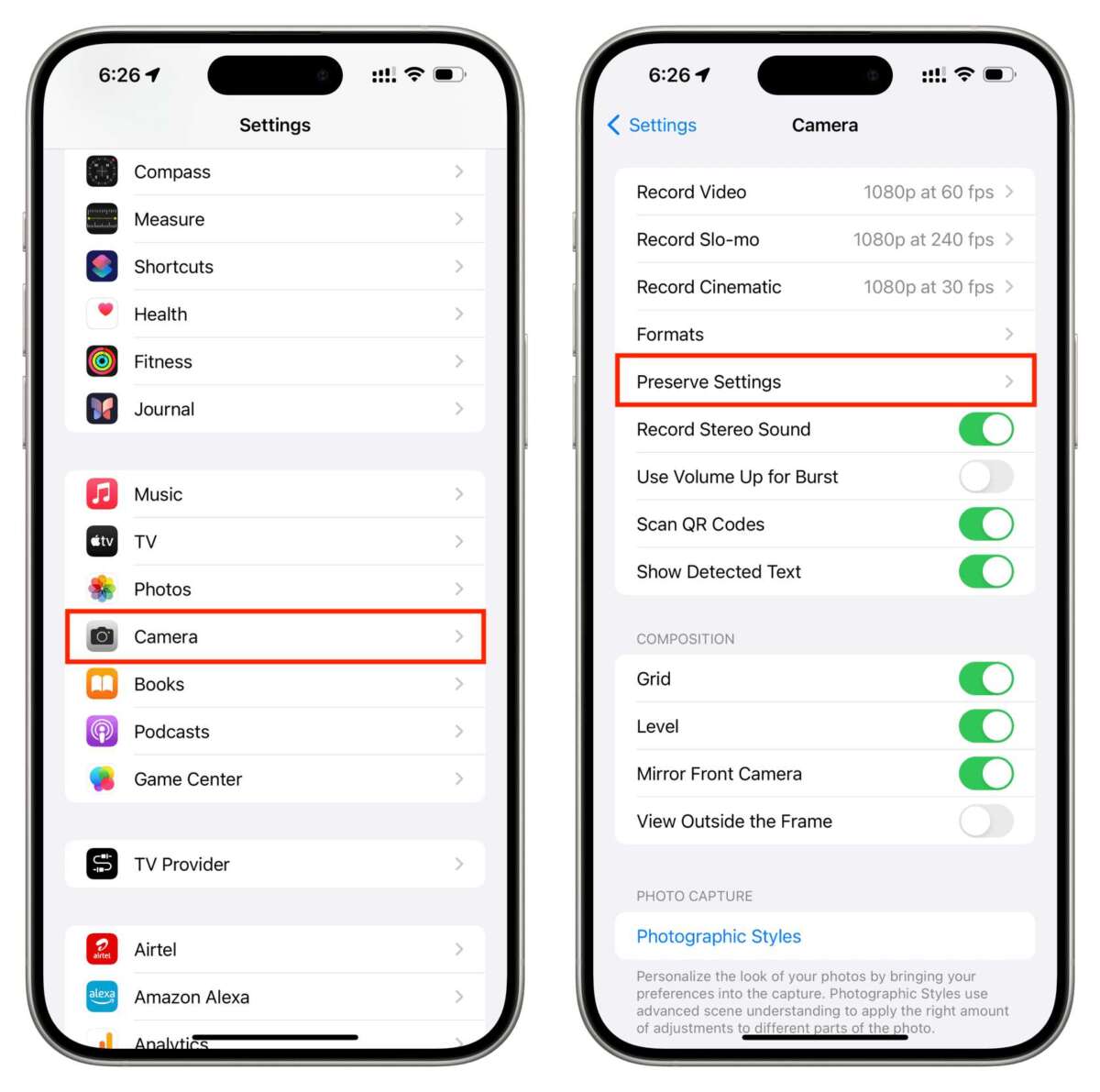
- Open Settings > Camera and manually change formats, grid, preserve settings, and record options.
- Open Settings > Privacy & Security > Camera to re-enable camera access for apps.
src="https://images.imyfone.com/en/assets/article/iphone-issues/how-to-reset-iphone-camera-settings.webp"
alt="Resetting location and privacy settings (safer alternative)”
style=”max-width: 100%; height: auto; border: 2px solid black; border-radius: 10px; display: block; margin: 0 auto;”
loading=”lazy”
/>
Resetting location and privacy settings (safer alternative)
If the issue involves app permissions or location-based camera behavior, reset only Location & Privacy instead of everything. This is less disruptive and can restore camera access to apps.
Steps to reset Location & Privacy:
- Open Settings.
- Tap General.
- Tap Transfer or Reset iPhone.
- Tap Reset.
- Choose Reset Location & Privacy.
- Confirm with your passcode.
When to use this:
- Apps report “camera access denied.”
- Location tags on photos behave incorrectly.
- You prefer not to lose Wi-Fi and Bluetooth settings.

Troubleshooting after you reset iPhone camera settings
After a reset, test the camera and related features. If problems continue, try these steps.
Post-reset checklist:
- Reconnect to Wi-Fi and Bluetooth.
- Open Camera and test photo, video, portrait, and night modes.
- Check Settings > Camera for preferred options and reapply them.
- Go to Settings > Privacy & Security > Camera to grant app access.
- Update iOS and restart again if needed.
If camera hardware still fails:
- Try a hard restart: power off, wait 30 seconds, power on.
- Test third-party camera apps to isolate app vs. system issues.
- If the lens or sensors are physically damaged, schedule service.
Preventive tips and best practices
Good habits reduce the need to reset iPhone camera settings. Small actions prevent problems and protect your settings.
Keep your camera healthy with these tips:
- Update iOS regularly to get bug fixes.
- Avoid beta system builds on your main device.
- Back up settings before major changes or updates.
- Keep the lens clean and avoid exposure to dust or moisture.
- Note custom Camera settings you prefer so you can reapply them fast after a reset.
Personal note: I once fixed a family iPhone by resetting all settings after the camera stopped focusing. It restored normal focus without losing photos. The trade-off was reentering Wi‑Fi passwords, which I solved by exporting passwords beforehand.

Frequently Asked Questions of how to reset iphone camera settings
Can I reset only camera settings without affecting Wi‑Fi and Bluetooth?
No. iOS doesn’t have a single “reset camera settings” option. Reset All Settings affects many preferences. Use Reset Location & Privacy to avoid losing Wi‑Fi passwords.
Will resetting settings delete my photos and videos?
Reset All Settings will not delete your photos or videos. It only restores system preferences like Wi‑Fi, display, and privacy settings.
How long does it take to reset iPhone camera settings?
The reset process itself takes a few minutes. Reconnecting to Wi‑Fi and reconfiguring preferences may add more time.
Does resetting settings fix a black or blank camera screen?
It can, if the issue is software-related. If the camera still shows a black screen after reset and restart, it may be a hardware issue or need service.
What should I do before resetting settings?
Back up your iPhone, note down Wi‑Fi passwords, and list camera preferences you want to restore. A backup protects your data if you choose a stronger restore later.
Conclusion
Resetting how to reset iphone camera settings usually means using Reset All Settings or targeted privacy resets to restore camera behavior without losing photos. Try simple fixes first, use a location and privacy reset when possible, and opt for Reset All Settings when multiple camera behaviors are affected. Take one careful step at a time: back up, test, and reapply preferences as needed. If you found this guide helpful, try the steps on your device, share your results below, or subscribe for more hands-on iPhone tips.

Jamie Lee is a seasoned tech analyst and writer at MyTechGrid.com, known for making the rapidly evolving world of technology accessible to all. Jamie’s work focuses on emerging technologies, product deep-dives, and industry trends—translating complex concepts into engaging, easy-to-understand content. When not researching the latest breakthroughs, Jamie enjoys exploring new tools, testing gadgets, and helping readers navigate the digital world with confidence.