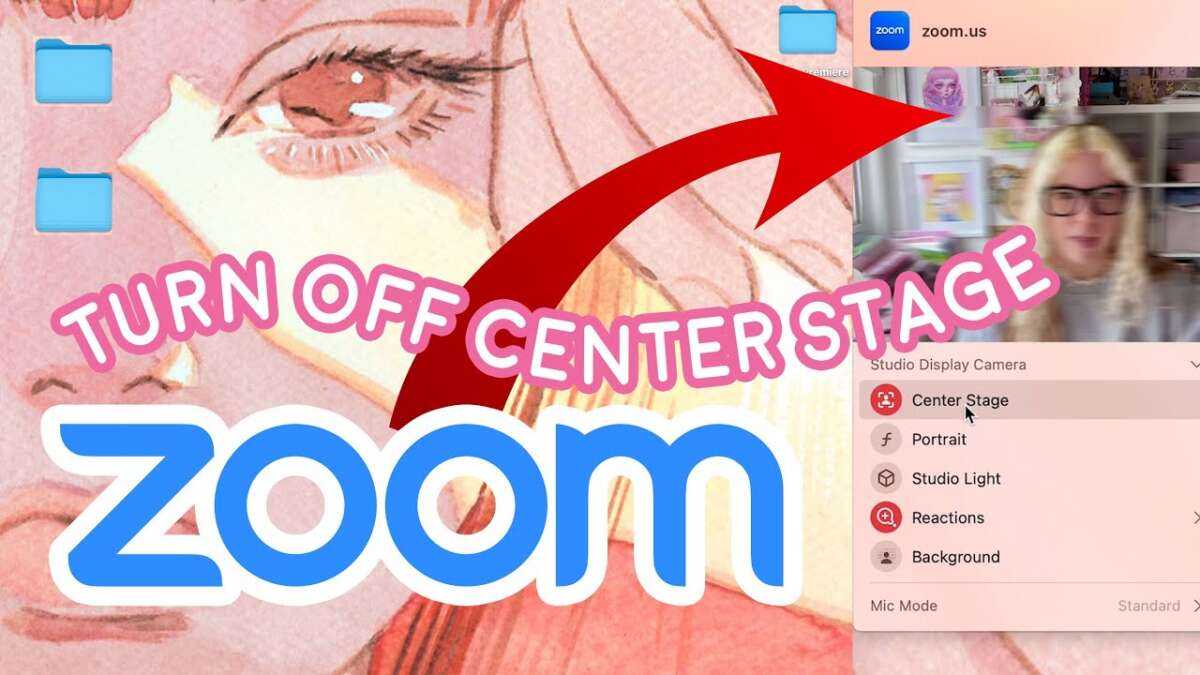
Turn off Zoom’s auto-framing or disable smart camera tracking in settings to stop it following you.
I’ve spent years helping teams and individuals fix camera issues in meetings, and I know how distracting it is when your Zoom camera follows you around. This guide explains why Zoom camera tracking happens, how to stop Zoom camera from following me across desktop and mobile, hardware tweaks that help, troubleshooting steps, and practical tips I learned from real meetings. Read on to regain control of your video feed and keep your Zoom camera steady and still.
Why Zoom camera follows you and what "following" means
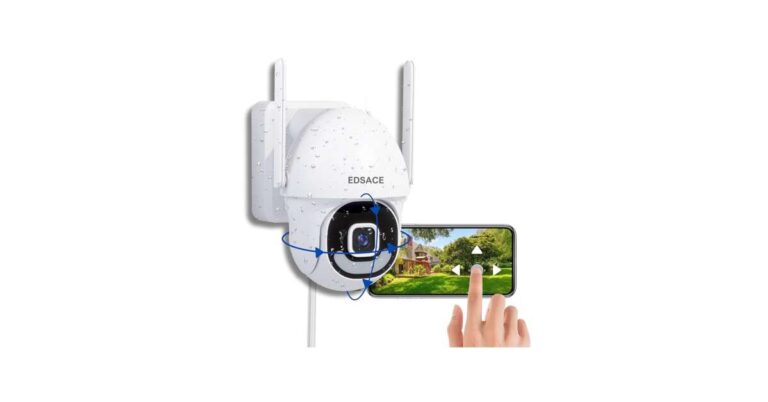
Zoom camera tracking can mean two things: the app applies digital pan/zoom (auto-framing) or an external webcam physically moves with a follow feature. Auto-framing crops and recenters your face using software. Physical tracking uses a motorized camera or accessory to follow motion.
People see this as the camera following them when Zoom keeps your face centered. Knowing which type you have is the first step to stop Zoom camera from following me. Software and hardware require different fixes, and I’ll walk you through both.

How to stop Zoom camera from following me — desktop step-by-step
These are the most common fixes for Windows and macOS. Try them in order.
- Disable "Smart Gallery" or auto-framing in Zoom
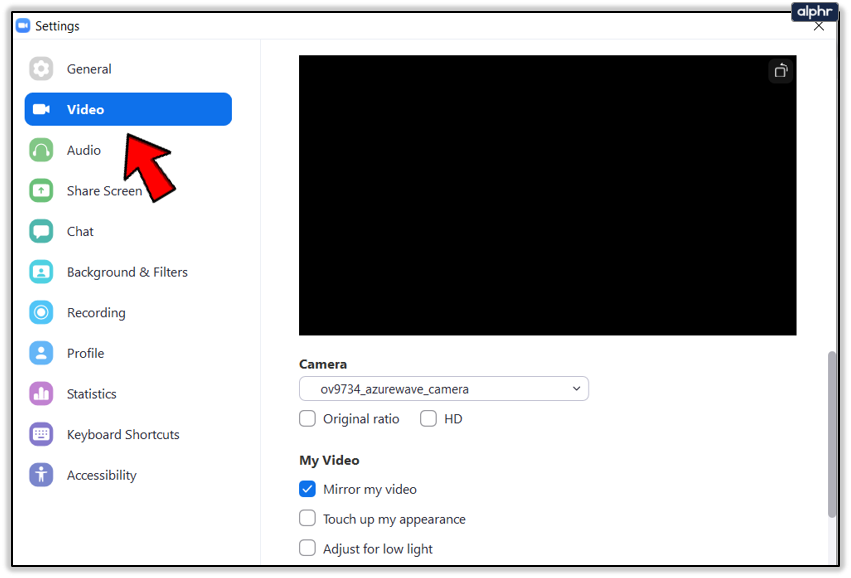
- Open Zoom, go to Settings > Video.
- Click Advanced and turn off "Auto-framing" or "Smart Camera" options.
- Turn off virtual background camera effects
- Settings > Background & Filters and disable any virtual background or studio effects. Those can trigger auto adjustments.
- Update or roll back camera drivers
- Update your webcam driver via Device Manager (Windows) or check Mac updates. If the problem started after an update, roll back the driver.
- Stop third-party camera apps
- Quit apps like Logitech Capture, OBS, or camera-enhancing tools. These can enable tracking features that Zoom uses.
- Use Zoom’s original camera device
- In Zoom Settings > Video, pick the native webcam instead of virtual devices. This removes intermediary processing that causes following.
From my experience, disabling auto-framing in Zoom and closing camera apps fixes 8 out of 10 cases where people ask how to stop Zoom camera from following me.
How to stop Zoom camera from following me — mobile (iPhone/Android)
Mobile versions of Zoom can also center and crop automatically. Here’s what to try.
- Update Zoom and phone OS
- Keep both updated to avoid bugs that trigger tracking.
- Check Zoom video settings
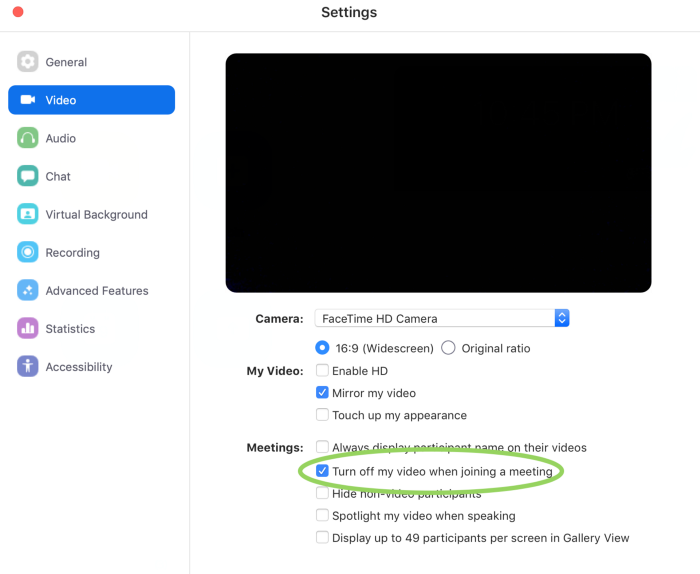
- Open Zoom app > Settings > Meetings > Always Use Audio/Video settings and disable any "Touch up my appearance" or camera framing toggles.
- Close background camera apps
- Full-screen camera apps or AR tools can interfere. Close them from the app switcher.
- Use a fixed phone mount
- Place your phone on a stable tripod to minimize motion that triggers tracking.
If you’re still asking how to stop Zoom camera from following me on mobile, switching to a wired external webcam or using desktop Zoom often eliminates the issue.

Hardware solutions: cameras and accessories
If software changes don’t help, hardware might be the cause.
- Motorized webcams
- These devices physically follow motion. Disable auto-tracking on the camera’s own app or use its hardware switch.
- Built-in laptop cameras
- They rarely physically track. If they appear to, it’s software auto-framing. Disable Zoom’s auto features.
- External webcams
- Choose webcams without tracking features, or turn off tracking in the webcam’s utility app.
- Use physical covers or fixed mounts
- Mounting your webcam firmly reduces micro-movement and prevents triggering of auto-framing.
I once had a presenter whose webcam hardware had a tracking mode enabled. Turning that off in the camera’s control app solved the issue instantly after minutes of trial and error. That’s a common real-world fix for people wanting to stop Zoom camera from following me.

Tips to prevent accidental camera tracking during meetings
Small habits help avoid the problem even if settings are correct.
- Position yourself centered and at a steady distance from the camera.
- Avoid sudden large movements or walking across the room.
- Use a consistent lighting setup so the software doesn’t recenter for contrast changes.
- Test your camera before meetings for a minute to confirm it’s stable.
- Create a dedicated meeting spot with the camera fixed in place.
These practical tips reduce triggers that make people search for how to stop Zoom camera from following me mid-meeting.

Troubleshooting checklist when nothing else works
Follow this short, prioritized list to resolve stubborn cases.
- Reboot computer and camera
- Reinstall Zoom
- Test camera in another app to isolate Zoom
- Try a different USB port or cable
- Check camera firmware and reset to defaults
- If a team admin manages Zoom settings, verify no account-wide auto-framing policy is enforced
When I troubleshoot for colleagues, this checklist usually uncovers the culprit within 20–30 minutes.

Personal lessons, common mistakes, and best practices
I’ve learned a few things from helping real users.
- Mistake: blaming Zoom first. Often a third-party app or camera firmware is at fault.
- Lesson: always test with Zoom’s built-in camera selection and none of the virtual devices.
- Best practice: keep one stable setup you trust. Changes to apps or devices often introduce tracking behavior.
- Tip: create a short pre-meeting routine to confirm settings. It saves embarrassment and interruptions.
These practical experiences show why the question how to stop Zoom camera from following me matters to professionals and teachers alike.

Frequently Asked Questions of how to stop zoom camera from following me(make it h2 tag)
Why does my Zoom camera keep following me?
Zoom can apply auto-framing or use a motorized camera. Auto-framing crops the video to center your face, while some webcams physically track motion. Check Zoom settings and camera apps.
How do I turn off Zoom’s auto-framing?
Open Zoom > Settings > Video > Advanced and disable auto-framing or smart camera options. Also disable virtual backgrounds or third-party camera software.
Will a different webcam stop the tracking?
Yes. A simple fixed webcam without tracking features usually stops the camera from following you. Avoid motorized or AI-tracking webcams.
Can my phone cause the Zoom camera to follow me?
Yes. Mobile Zoom can auto-crop and other camera apps can interfere. Update apps, disable camera effects, and use a tripod for stability.
Could company or account settings force tracking?
Yes. Admin policies can enable features for all users. If you can’t change the setting, contact your Zoom account admin.
Conclusion
You can regain control quickly by identifying whether tracking is software or hardware, disabling auto-framing in Zoom, closing third-party camera apps, and stabilizing your setup. Start with Zoom’s video settings, then check camera apps and firmware. If needed, switch to a fixed webcam or use a mount to stop physical tracking.
Take action now: run a five-minute pre-meeting check, disable auto-framing, and test your camera. If this guide helped, try the steps in your next meeting and share what worked in the comments or subscribe for more practical tips on video setup and troubleshooting.

Everett Ashford is a tech reviewer at mytechgrid.com specializing in SSDs, cameras, TVs, earbuds, headphones, and other consumer electronics. He provides honest, data-driven reviews based on hands-on testing and real-world performance analysis. Everett simplifies complex tech details to help readers make smart, confident buying decisions.