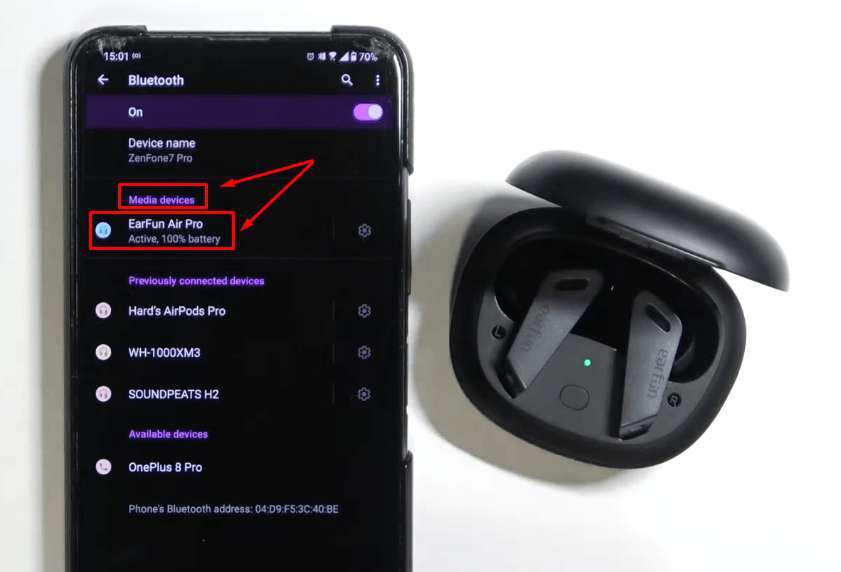
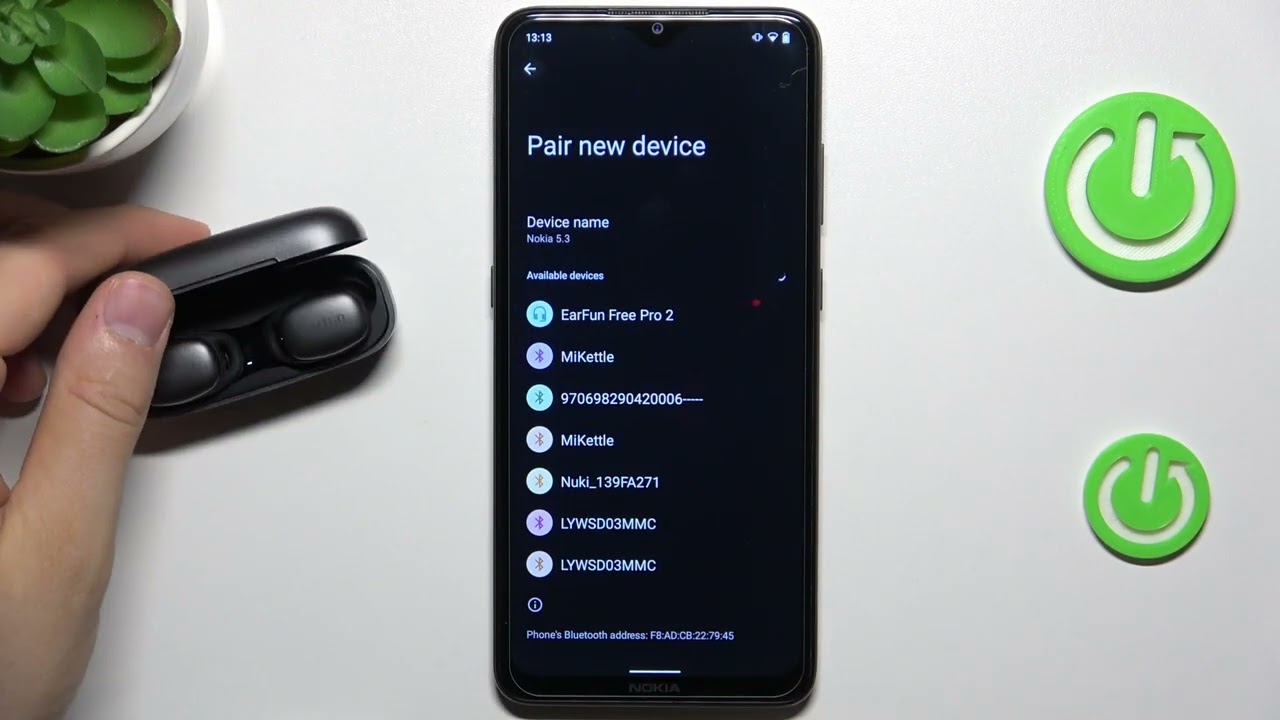
Open the EarFun case, enable Bluetooth on your device, and select the EarFun earbuds.
I’ve helped dozens of people and tested multiple EarFun models, so I’ll walk you through exactly how to pair EarFun earbuds step by step. This guide covers basic pairing, model-specific tips, common problems, multipoint pairing, resets, and real-world tricks I learned from hands-on use to make pairing fast and reliable.
What you need before pairing
Prepare these items and checks so pairing goes smoothly. This avoids wasted time and confusion.
- EarFun earbuds and charging case with some battery charge.
- A phone, tablet, or computer with Bluetooth enabled.
- The device you want to pair and any prior Bluetooth connections turned off if needed.
- The EarFun app if your model supports firmware updates or advanced settings.
Step-by-step pairing guide (basic method)
Follow these simple steps to learn how to pair earfun earbuds with most devices. Keep steps short and act in order.
- Charge the earbuds and case for at least 10–15 minutes if they are new.
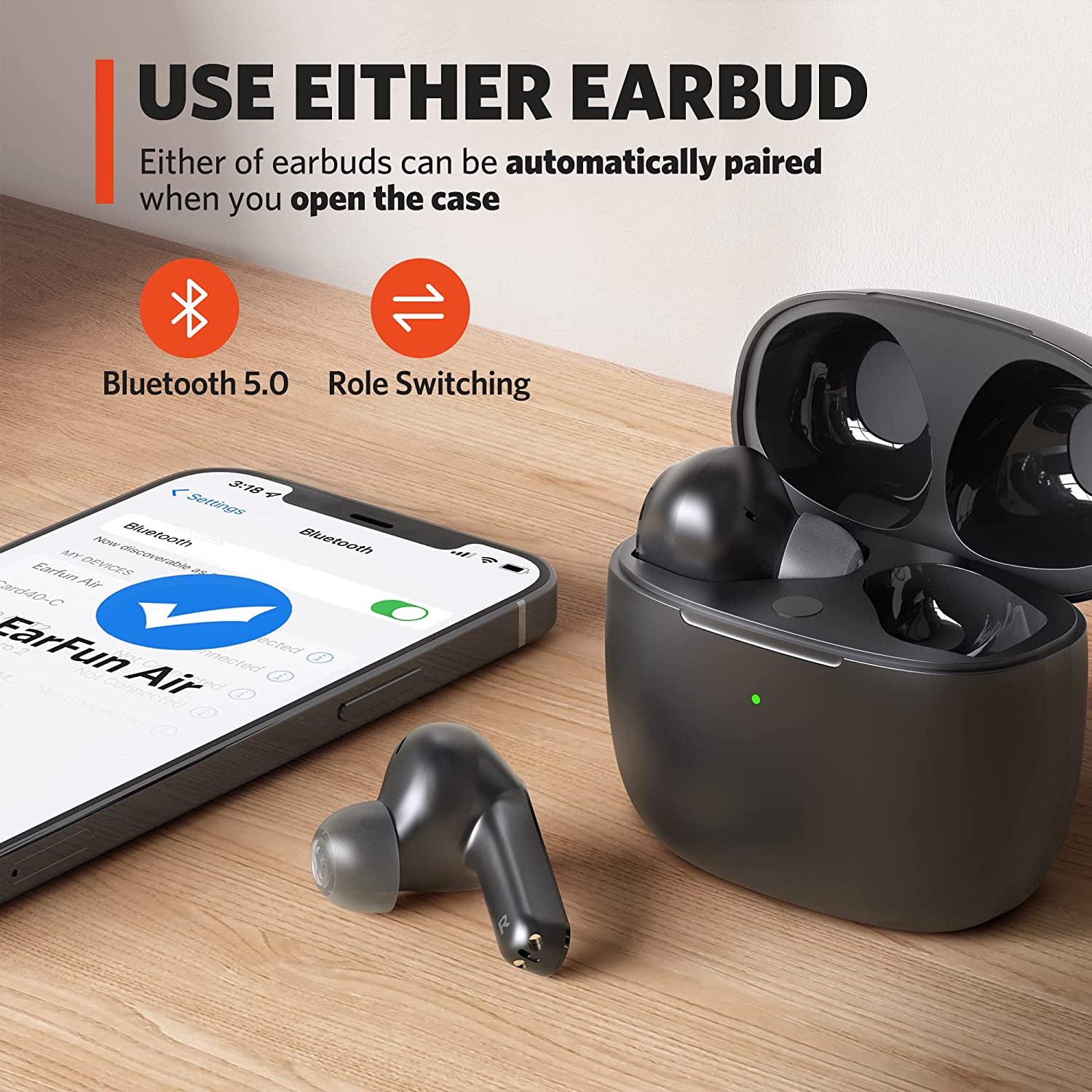
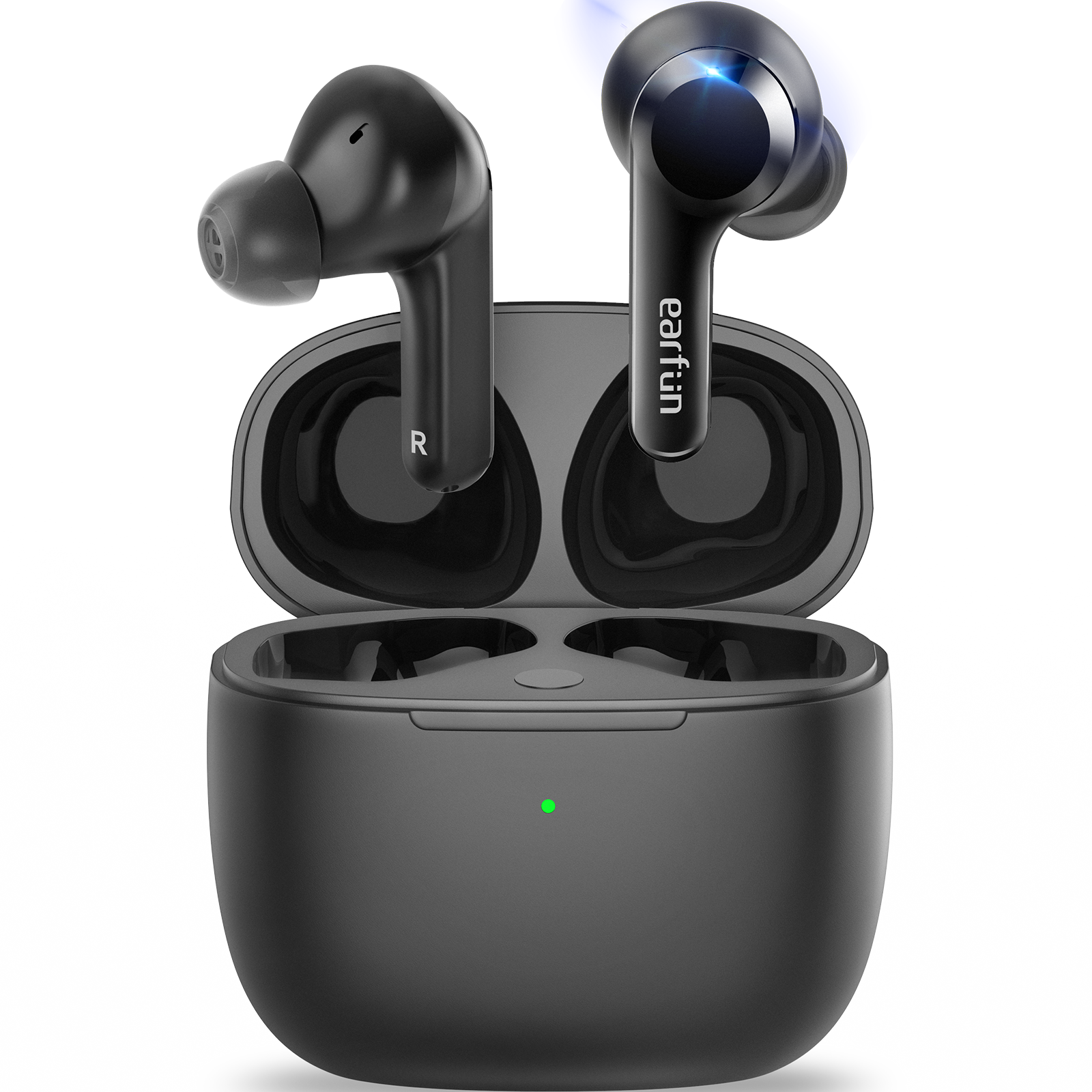
- Open the charging case and leave the earbuds inside. For many models, opening the case triggers pairing mode automatically.
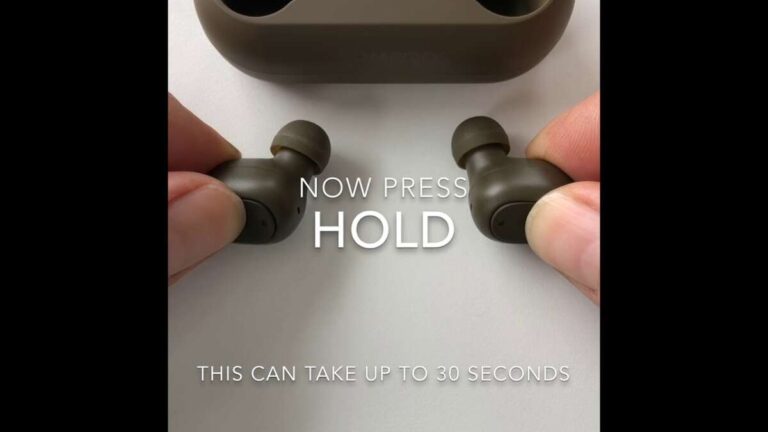
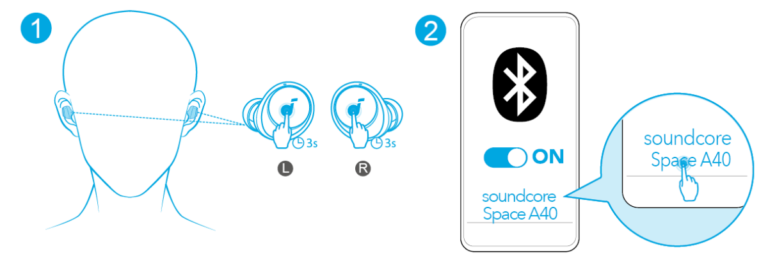
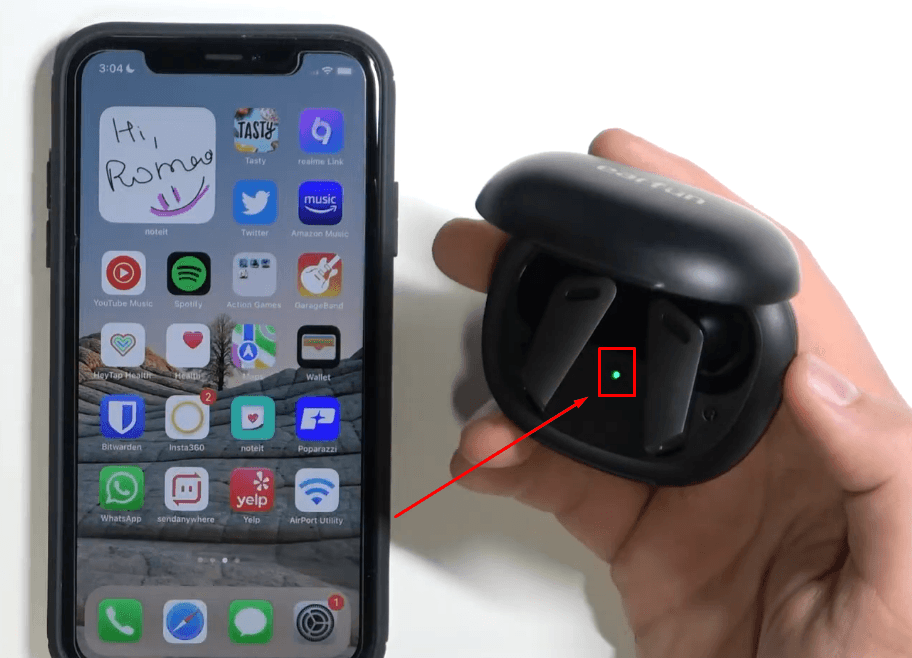
- If they do not auto-enter pairing, remove both earbuds and press and hold the touch area on both earbuds for about 3–5 seconds until the LED flashes white or alternates colors.
- On your phone or computer, open Bluetooth settings and make sure Bluetooth is on.
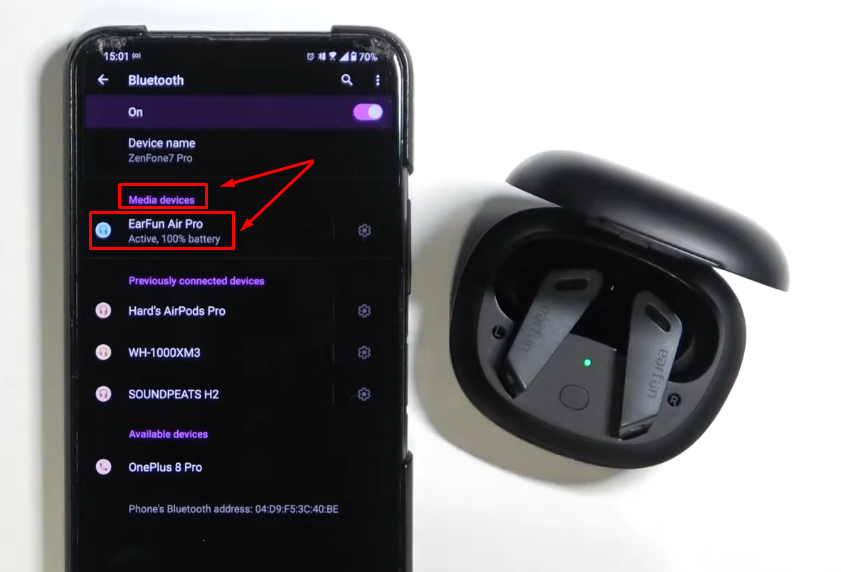
- Look for a device named “EarFun,” “EarFun Air,” or a similar model name in the list and tap to connect.
- If prompted, confirm pairing on the device. Connection should show as “Connected” or “Audio connected.”
These steps show how to pair earfun earbuds in most typical scenarios. If auto-pairing fails, try a reset (covered later).
Model-specific notes and examples
Different EarFun models have slight pairing differences. Here are quick model-focused tips so you can pair the exact unit you own.
- EarFun Air / EarFun Air Pro: Open case with earbuds inside to auto-pair. Long press both stems to manually enter pairing.
- EarFun Free: Press touch pads on both earbuds for a few seconds until LEDs flash white; then select EarFun Free in Bluetooth settings.
- EarFun Air S / newer models: Use the EarFun app for firmware and easier pairing; app prompts can speed first-time setup.
Knowing your model helps when following instructions for how to pair earfun earbuds. If unsure, check the quick start leaflet in the box.
Troubleshooting common pairing issues
Here are fast fixes for typical problems when you try to pair. These are practical, tested tips I use when pairing fails.
- Earbuds not appearing in Bluetooth list
- Make sure earbuds are in pairing mode and close to your device. Turn Bluetooth off and on again on your device.
- Earbuds connect to old device
- Forget or remove the EarFun entry from the old device’s Bluetooth list, then re-pair.
- One earbud not pairing
- Place both earbuds in the case and charge briefly, then remove them together and try pairing again.
- Frequent disconnects
- Check for firmware updates and ensure Bluetooth interference is minimal (move away from crowded Wi-Fi or other active Bluetooth devices).
Why won’t my EarFun earbuds show up on my phone?
Most often the earbuds are not in pairing mode or the case is closed. Put them explicitly into pairing mode by following model instructions and ensure you are close to the phone.
Do I need the EarFun app to pair?
No, pairing usually works without the app. The app helps with firmware updates and extra features but is not required to connect.

Resetting and advanced pairing (multipoint, firmware)
If basic pairing does not work, try these resets and advanced steps. They often fix stubborn pairing bugs.
- Reset earbuds
- Place both earbuds in the case. Press and hold the touch areas on both for about 10–15 seconds until LEDs flash red/white or follow the model reset procedure in the manual.
- Clear Bluetooth cache (Android)
- Open Bluetooth settings, tap the three dots, show system apps, clear cache for Bluetooth (device-specific).
- Multipoint pairing
- Some EarFun models support connecting to two devices simultaneously. Pair to device A first, then pair to device B while the earbuds are in pairing mode. Check model specs for multipoint support.
- Firmware updates
- Install the EarFun app to check for firmware updates. Updated firmware often fixes pairing stability and connectivity issues.
These advanced steps are part of learning how to pair earfun earbuds reliably, especially in mixed-device environments.
Compatibility, limits, and best practices
Understand what affects pairing and long-term use. These tips save time and reduce frustration.
- Compatibility: EarFun earbuds use standard Bluetooth, so they work with most modern phones, tablets, and laptops. Older devices with ancient Bluetooth may struggle.
- Range: Typical Bluetooth range is about 30 feet (10 meters) in open space. Walls and interference reduce range.
- Battery: Low battery causes unstable pairing. Keep the case charged to avoid mid-pair failures.
- Interference: Crowded wireless areas can cause drops. Move to a less crowded space for initial pairing.
Following these best practices makes pairing faster and more predictable when learning how to pair earfun earbuds.

Personal experience: lessons I learned
I pair earfun earbuds often, and a few small habits sped things up for me. Here are honest, practical tips from real use.
- Always charge earbuds a bit before first pairing. I once spent 20 minutes troubleshooting only to discover a dead battery.
- Remove old Bluetooth entries from devices when swapping often. This prevents automatic reconnection to the wrong device.
- Use the app for firmware checks. A quick update fixed a persistent skip I experienced on one unit.
- If one earbud is quiet after a pair, a reset solved it every time.
These are simple steps I follow now, saving time and avoiding stress when teaching others how to pair earfun earbuds.
PAA-style quick questions
How long does pairing take?
Pairing usually takes 10–30 seconds after you enter pairing mode. If it takes longer, a reset or closing and reopening the case helps.
Will the earbuds pair with a laptop?
Yes, EarFun earbuds work with laptops that have Bluetooth. Use the laptop’s Bluetooth settings to search and connect to the EarFun device name.
Can I use one earbud only?
Many EarFun models support mono mode. Remove one earbud and it will usually function alone; check your model’s manual for mono mode behavior.

Frequently Asked Questions of how to pair earfun earbuds
How do I put my EarFun earbuds into pairing mode?
Open the charging case near your device or press and hold the touch area on both earbuds until LEDs flash, then select the EarFun name in Bluetooth settings.
My device won’t connect after pairing — what now?
Forget the EarFun entry in your device’s Bluetooth list, reboot the device, and then try pairing again by placing earbuds in pairing mode.
Why does only one earbud play audio after pairing?
This often happens when the earbuds lose sync. Put both earbuds back in the case, wait 10 seconds, then remove them together and reconnect.
How do I update EarFun earbud firmware?
Install the EarFun app, connect your earbuds, and check the app for firmware updates. Follow on-screen instructions to complete the update.
Can I pair EarFun earbuds with two devices at once?
Some EarFun models support multipoint pairing. Check your model’s specs and pair with device A first, then with device B while in pairing mode.
What if my EarFun earbuds show “paired” but have no sound?
Ensure the output device is set to the earbuds in audio settings, check volume levels, and restart both earbuds and source device.
Conclusion
You now have clear, practical steps for how to pair earfun earbuds, model-specific tips, troubleshooting fixes, and reliable habits I use personally. Try the basic steps first, then use resets or the EarFun app only if needed. Take action: charge your earbuds, follow the pairing steps, and leave a comment about your experience or any issue you solved. If this helped, subscribe or bookmark this guide for quick reference next time you pair EarFun earbuds.

Everett Ashford is a tech reviewer at mytechgrid.com specializing in SSDs, cameras, TVs, earbuds, headphones, and other consumer electronics. He provides honest, data-driven reviews based on hands-on testing and real-world performance analysis. Everett simplifies complex tech details to help readers make smart, confident buying decisions.