The best inexpensive laptops balance strong battery life, solid performance, and useful features without a high price.
Finding the best inexpensive laptops is less about chasing the lowest price and more about choosing the right balance of speed, screen quality, battery life, and support. This guide compares reliable Windows laptops, Chromebooks, and refurbished options so you can spend wisely and avoid the common traps of cheap hardware.
What are the best inexpensive laptops right now?
The best inexpensive laptops for most people are the Acer Aspire Go 15, Lenovo IdeaPad Slim 3, ASUS Vivobook Go 15, and a good Chromebook Plus model. Each offers enough power for web browsing, schoolwork, video calls, streaming, and office tasks.
Prices change often, especially during back-to-school sales and holiday events. As a rule, expect to pay about $300 to $600 for a new budget laptop. Refurbished business laptops can cost less and may offer better build quality.
Here are the strongest choices to consider:
| Laptop type | Best for | Typical price range | Main strength |
|---|---|---|---|
| Acer Aspire Go 15 | Everyday Windows use | $350 to $550 | Large screen and good value |
| Lenovo IdeaPad Slim 3 | Students and home use | $350 to $600 | Comfortable keyboard and simple design |
| ASUS Vivobook Go 15 | Portable daily work | $350 to $550 | Light design and useful battery life |
| Chromebook Plus | Web apps and schoolwork | $300 to $500 | Simple software and strong value |
| Refurbished business laptop | Maximum quality for less | $200 to $500 | Durable build and better keyboards |
| Entry-level MacBook Air | Apple users on a budget | $500 to $800 refurbished | Fast chip and long software support |
The right choice depends on how you work. A Chromebook may be perfect for Google Docs and streaming, while a Windows laptop is more flexible for desktop programs.

Best inexpensive laptops for most people
Acer Aspire Go 15
The Acer Aspire Go 15 is one of the best inexpensive laptops for general home use. It often includes a 15.6-inch Full HD screen, a modern Intel Core or AMD Ryzen processor, 8GB of memory, and a solid-state drive.
That combination is enough for email, Microsoft Office, online banking, video meetings, and many browser tabs. The larger display also makes it more comfortable for spreadsheets and long documents.
Its main weakness is design. The case may feel less premium than a more expensive laptop, and the screen may not be bright enough for outdoor use. Still, it offers a strong mix of useful features for the money.
Look for these specifications:
• Intel Core i3, Intel Core 3, or AMD Ryzen 3 processor
• At least 8GB of RAM
• At least a 128GB SSD, though 256GB is better
• A 1080p display
Lenovo IdeaPad Slim 3
The Lenovo IdeaPad Slim 3 is a good pick for students, remote workers, and families. Lenovo usually gives this series a comfortable keyboard, a clean layout, and a reasonably light body.
The laptop handles everyday work well when equipped with 8GB of RAM and an SSD. It is also easy to find during major sales, which can make it one of the best inexpensive laptops under $500.
Do not assume every IdeaPad Slim 3 model is the same. Some cheaper versions use a lower-resolution display, 4GB of RAM, or slow storage. Check the full specification list before buying.
ASUS Vivobook Go 15
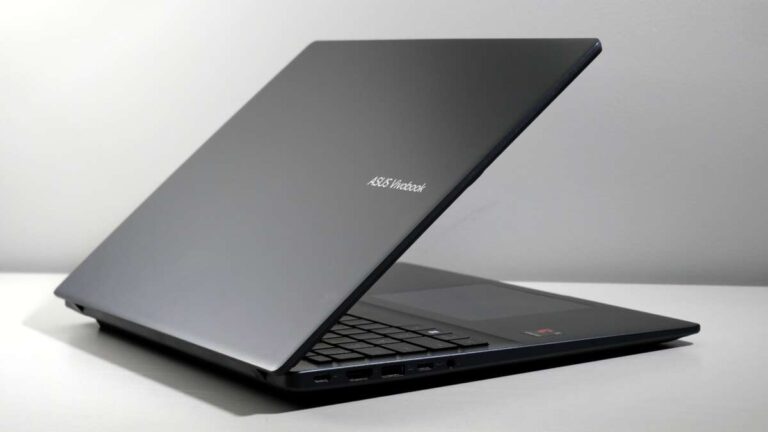
The ASUS Vivobook Go 15 is designed for people who want a thin, simple laptop for daily tasks. It is often available with AMD Ryzen processors, which provide good performance for web use and office work.
The keyboard is usually comfortable, and the large display helps with school assignments and work documents. It can also be a good travel laptop because many versions are lighter than traditional 15-inch models.
The speakers and webcam are basic. If you attend many video meetings, consider adding an affordable USB webcam or headset. That small upgrade can improve the experience more than spending extra on a slightly faster processor.
Chromebook Plus laptops
Chromebook Plus models are among the best inexpensive laptops for people who mainly use web apps. They are made for Gmail, Google Docs, YouTube, Zoom, Microsoft 365 online, and browser-based tools.
ChromeOS starts quickly and needs less maintenance than Windows. Automatic updates and built-in security are also helpful for families and students. Chromebook Plus models generally offer better memory and processor performance than older entry-level Chromebooks.
A Chromebook is not ideal for every user. Some Windows programs, professional creative tools, and specialized school apps may not work natively. Check your required apps before buying.

Best inexpensive laptops by use
Best inexpensive laptops for students
Students usually need a laptop for research, writing, presentations, video calls, and online learning. A Lenovo IdeaPad Slim 3, Acer Aspire Go 15, or Chromebook Plus can handle these tasks well.
Choose Windows if your school requires Microsoft desktop software, engineering tools, or special testing programs. Choose a Chromebook if your work is mostly in a web browser and you want simple setup and strong battery life.
A student laptop should have:
• 8GB of RAM
• A 128GB or larger SSD
• A 1080p screen
• A comfortable keyboard
• A webcam with a physical privacy shutter, if possible
• A battery rating that supports a full class day
Best inexpensive laptops for work from home
Remote work often requires more than a browser. You may need video meetings, spreadsheets, cloud storage, and several apps open at once.
For this reason, choose a Windows laptop with 8GB of RAM at minimum. If you work with large spreadsheets or keep many browser tabs open, 16GB is a better target.
The Acer Aspire Go 15 and Lenovo IdeaPad Slim 3 are practical choices. A refurbished Dell Latitude, Lenovo ThinkPad, or HP EliteBook can also be a smart buy if it has a recent processor, a new battery, and a warranty.
Best inexpensive laptops for travel
A 14-inch laptop is often easier to carry than a 15.6-inch model. The ASUS Vivobook Go 14, Lenovo IdeaPad Slim 3 14, and similar compact models offer a useful mix of screen space and portability.
Pay attention to weight, charger size, and battery capacity. A laptop may be light, but a large power adapter can still take up space in your bag.
For frequent travel, a durable refurbished business laptop may be better than a thin consumer model. Business laptops often have stronger hinges and better keyboards, though their screens can look less modern.
Best inexpensive laptops for light photo editing
Budget laptops can manage basic photo edits, cropping, and social media graphics. They are less suitable for large RAW files, advanced color work, or professional video editing.
Look for 16GB of RAM if your budget allows it. An IPS display with good color coverage is also important because many inexpensive screens have narrow color ranges.
A refurbished MacBook Air with an Apple M1 chip can be an appealing option for light creative work. It is fast and quiet, but confirm the battery condition and return policy before buying used.
Best inexpensive laptops for gaming
Most inexpensive laptops are not gaming laptops. Integrated graphics can handle older games, browser games, and lighter titles, but demanding games need a dedicated graphics processor.
If gaming matters, search for a laptop with:
• AMD Radeon 760M or 780M integrated graphics, or better
• NVIDIA GeForce RTX 2050, RTX 3050, or newer dedicated graphics
• At least 16GB of RAM
• A 512GB SSD
• Adequate cooling and a 120Hz or faster display
Gaming laptops below $600 often make compromises. Saving a little longer may provide a much better experience and longer useful life.

How to choose the best inexpensive laptop
Check the processor
The processor affects how quickly a laptop opens apps and handles multitasking. For current budget laptops, look for Intel Core i3, Intel Core 3, AMD Ryzen 3, AMD Ryzen 5, or newer equivalent chips.
Avoid judging a processor only by its name. A newer low-end chip may beat an older high-end chip. Check the laptop’s release year and read independent performance tests when possible.
For basic work, a modern entry-level processor is enough. For heavier multitasking, choose a Ryzen 5 or Core 5 model.
Buy enough RAM
RAM helps a laptop manage open apps and browser tabs. Eight gigabytes is the practical minimum for a new Windows laptop.
Four gigabytes can feel slow, especially after system updates. It may work for very light Chromebook use, but it leaves little room for growth.
Sixteen gigabytes is worth considering if you edit photos, work with large files, use many tabs, or plan to keep the laptop for five years.
Choose an SSD
A solid-state drive makes a laptop start faster and feel more responsive. It is much better than an older mechanical hard drive.
A 128GB SSD can work for cloud-focused users, but storage fills quickly after installing apps and saving photos. A 256GB SSD is a safer choice for most people, while 512GB is better for local files and creative work.
Do not ignore the screen
A screen is the part you look at every day. Try to choose a Full HD display with a resolution of 1920 by 1080 pixels.
Some inexpensive laptops still use 1366 by 768 screens. These screens may look cramped, especially on a 15-inch laptop.
IPS panels generally offer better viewing angles than basic TN panels. Brightness also matters. Around 250 to 300 nits is more comfortable indoors than a very dim panel.
Review ports and wireless features
Before buying, check whether the laptop includes the connections you need. Useful ports may include USB-C, USB-A, HDMI, and a headphone jack.
USB-C does not always support charging or video output. Read the manufacturer’s specifications instead of assuming every USB-C port works the same way.
Wi-Fi 6 or newer is helpful for busy homes, though your router must support it to receive the full benefit.
Consider repair and upgrade options
Some inexpensive laptops let you replace the SSD or add RAM. Others solder nearly everything to the motherboard.
Upgradeable laptops can last longer because you can add storage later. A sealed laptop may still be fine, but buy the specifications you need today.
Research the warranty, return window, and availability of replacement parts. These details matter more than a small difference in processor speed.

Windows laptop versus Chromebook
Windows gives you the widest choice of software. It supports desktop versions of Microsoft Office, Adobe apps, specialized work tools, and many games.
ChromeOS is simpler and often more secure for basic tasks. It works best when your files and apps live online, though many Chromebooks can also run Android apps and support offline work.
Choose Windows if you need:
• Desktop software
• Advanced file management
• Specialized work or school apps
• Greater gaming support
Choose a Chromebook if you want:
• Fast startup
• Simple updates
• Strong browser performance
• Easy use for email, documents, and streaming
• A lower maintenance device
Neither system is automatically better. The best inexpensive laptop is the one that supports your daily apps without forcing awkward workarounds.
New versus refurbished inexpensive laptops
A new laptop gives you a full warranty, a fresh battery, and less uncertainty. It may also include newer wireless hardware and a longer update period.
A refurbished business laptop can offer more value. Models such as the Lenovo ThinkPad T-series, Dell Latitude, and HP EliteBook often have strong keyboards, durable hinges, and easy access to replacement parts.
Buy refurbished only from a seller with a clear grading system and return policy. Confirm the following before placing an order:
• Battery health or battery replacement policy
• Charger inclusion
• Warranty length
• Screen condition
• Keyboard layout
• Windows activation
• Storage and RAM specifications
• Return shipping terms
One common mistake is buying an old premium laptop because it was expensive when new. A six-year-old laptop may have a weak battery, outdated wireless hardware, and limited software support. A newer budget laptop can be the better long-term choice.

Common mistakes to avoid
Buying the cheapest laptop can create problems later. A low price is not a bargain if the device becomes frustrating after a few months.
Avoid these mistakes:
• Buying a laptop with only 4GB of RAM for Windows
• Choosing a hard drive instead of an SSD
• Accepting a 1366 by 768 screen without checking
• Ignoring the battery condition on refurbished models
• Assuming every USB-C port supports charging
• Buying a gaming laptop with weak cooling
• Forgetting to check the return policy
• Choosing a model with storage that cannot be upgraded
• Paying for a powerful processor while accepting a poor screen and keyboard
In my experience helping people compare budget computers, the biggest regret is usually not a slightly slower processor. It is buying too little RAM, too little storage, or an uncomfortable screen.
A simple rule works well: prioritize the screen, RAM, SSD, keyboard, and warranty before chasing small benchmark gains.

How much should you spend?
The best inexpensive laptops usually fall into four price groups:
• Under $300: Suitable for basic Chromebook use, light browsing, and simple school tasks. Expect compromises in storage, display quality, and speed.
• $300 to $450: A strong range for Chromebooks and entry-level Windows laptops. Look for 8GB of RAM and an SSD.
• $450 to $600: Often the best value range. You may find better processors, 16GB of RAM, larger SSDs, and improved displays.
• $600 to $800: Worth considering for premium Chromebooks, refurbished MacBooks, stronger Windows laptops, and entry-level gaming models.
Prices can change quickly. Compare the exact model number, not just the product family name. Retailers may use nearly identical names for laptops with very different screens, processors, and memory.

How to make a budget laptop last longer
A low-cost laptop can last for years with basic care. Keep the operating system updated, use a padded sleeve, and avoid blocking the air vents.
Do not leave the laptop in a hot car. Heat can damage the battery and shorten its useful life. If the battery becomes swollen, stop using the device and seek professional service.
You can also extend its life by:
• Keeping at least 15 percent of storage free
• Using cloud storage or an external drive for large files
• Cleaning the keyboard and vents gently
• Using a surge protector at home
• Replacing the battery when an authorized shop recommends it
• Avoiding untrusted downloads and suspicious browser extensions
The best inexpensive laptops are not disposable products. With reasonable care, a good budget model can remain useful through school, work, and everyday home use.
Frequently asked questions about the best inexpensive laptops
What are the best inexpensive laptops for everyday use?
The Acer Aspire Go 15, Lenovo IdeaPad Slim 3, ASUS Vivobook Go 15, and Chromebook Plus models are strong everyday choices. Look for 8GB of RAM, an SSD, and a 1080p screen.
Is a Chromebook better than a cheap Windows laptop?
A Chromebook can be better for browsing, documents, email, and streaming because it is simple and often has good battery life. Windows is the better choice if you need desktop software, advanced file tools, or broader game support.
How much RAM should an inexpensive laptop have?
Choose at least 8GB of RAM for a new Windows laptop. Sixteen gigabytes is better for heavy multitasking, photo editing, and keeping a laptop for many years.
Are refurbished laptops worth buying?
Refurbished laptops can be excellent value, especially business models from Lenovo, Dell, and HP. Buy from a seller that provides a warranty, a clear condition report, and a reasonable return period.
Can an inexpensive laptop run Microsoft Office?
Yes. Windows laptops can run the desktop Office apps if the specifications are adequate. Chromebooks can use Microsoft 365 through the web, but some advanced desktop features may not be available.
Can inexpensive laptops run Zoom?
Most current inexpensive laptops can run Zoom for video meetings. A stable internet connection, 8GB of RAM, and a good webcam matter more than a very expensive processor.
How long should an inexpensive laptop last?
A well-chosen inexpensive laptop can last about four to six years for basic work. Its useful life depends on build quality, battery health, software support, and whether its RAM and storage meet your future needs.
Conclusion
The best inexpensive laptops are not always the models with the lowest price. The smarter choice has at least 8GB of RAM, an SSD, a Full HD display, a modern processor, and a dependable warranty.
For most buyers, the Acer Aspire Go 15, Lenovo IdeaPad Slim 3, ASUS Vivobook Go 15, and Chromebook Plus models offer excellent value. A carefully chosen refurbished business laptop can also deliver a stronger keyboard and build for less money.
Start by listing the apps you use, the screen size you prefer, and the amount you can spend. Then compare exact specifications rather than relying on a product name. Explore current deals, check the return policy, and choose the laptop that fits your real routine.

Everett Ashford is a tech reviewer at mytechgrid.com specializing in SSDs, cameras, TVs, earbuds, headphones, and other consumer electronics. He provides honest, data-driven reviews based on hands-on testing and real-world performance analysis. Everett simplifies complex tech details to help readers make smart, confident buying decisions.