Most SSDs load apps far faster than hard drives, with modern NVMe models reaching several gigabytes per second.
Understanding how fast are SSD drives takes more than reading one number on a product box. Drive type, connection standard, file size, workload, cooling, and system hardware all affect real speed. This guide explains SSD speeds in plain English, shows what you can expect from SATA and NVMe drives, and offers practical advice for choosing and testing the right model.
How Fast Are SSD Drives in Real Use?
How fast are SSD drives? The answer depends on the SSD class.
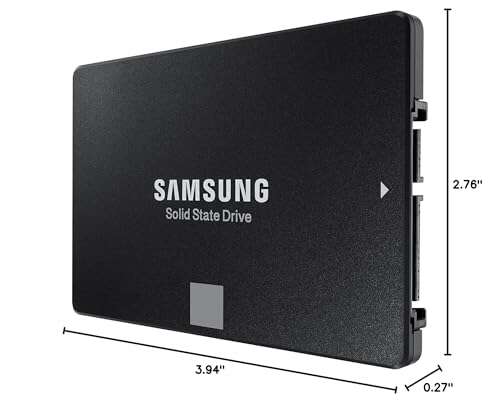
A basic 2.5-inch SATA SSD usually reaches about 500 to 550 MB/s for sequential reads and writes. That is close to the limit of the SATA III interface. Even an inexpensive SATA SSD feels much faster than a traditional hard disk drive.
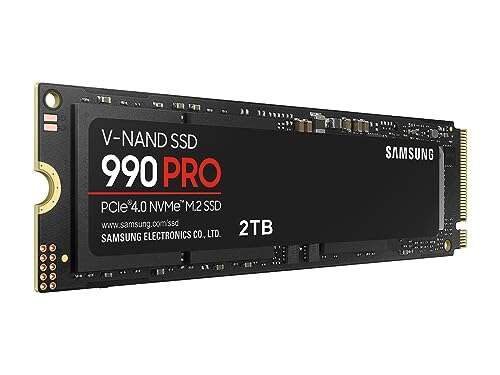
An NVMe SSD uses the PCIe interface. This gives it a much wider path for data. Common performance levels include:
• PCIe 3.0 NVMe SSDs: Up to about 3,500 MB/s read speed
• PCIe 4.0 NVMe SSDs: About 5,000 to 7,500 MB/s read speed
• PCIe 5.0 NVMe SSDs: About 10,000 to 14,000 MB/s read speed
• High-end enterprise SSDs: Sometimes higher, depending on the design and workload
These figures describe sequential speed. Sequential transfers involve large, continuous files, such as videos or disk images. Everyday tasks often use smaller, random files, so the real experience may not match the box speed.
For example, copying a large video file can show very high speeds. Opening a web browser may not show a dramatic difference between a fast PCIe 4.0 SSD and a good SATA SSD because the task involves many small files and software delays.

SSD Speed Compared With a Hard Drive
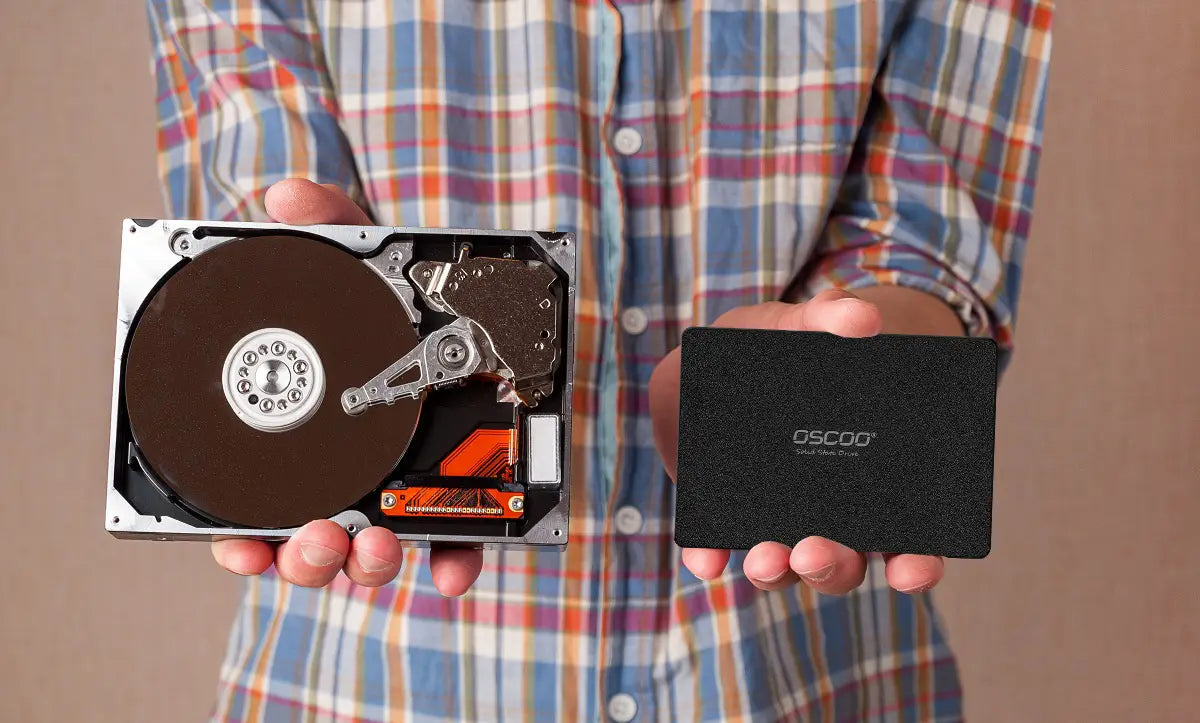
A solid-state drive has no spinning platters or moving read heads. It stores data in flash memory, so it can access many files at once with very little delay.
A typical hard drive may deliver about 80 to guable? 200 MB/s in sequential transfers, depending on its speed, capacity, and recording method. Its random access latency is much higher because the drive must physically move its read head to the correct location.
A SATA SSD can often read data at more than 500 MB/s. More important, it can respond to small requests in a fraction of the time. This makes a computer feel quicker when starting, opening programs, searching files, or switching between tasks.
Here is a simple comparison:
| Drive type | Typical sequential read speed | Common use |
|---|---|---|
| 5,400 RPM hard drive | 80 to 140 MB/s | Bulk storage and backups |
| 7,200 RPM hard drive | 120 to 220 MB/s | Desktop storage and media |
| SATA SSD | 450 to 550 MB/s | Affordable system upgrades |
| PCIe 3.0 NVMe SSD | 2,000 to 3,500 MB/s | Mainstream PCs and laptops |
| PCIe 4.0 NVMe SSD | 5,000 to 7,500 MB/s | Gaming and demanding work |
| PCIe 5.0 NVMe SSD | 10,000 to 14,000 MB/s | High-end systems and heavy transfers |
These are broad ranges, not guarantees. Drive capacity, controller design, NAND type, free space, and temperature can change the result.
In practical terms, moving from a hard drive to any decent SSD is usually a major upgrade. Moving from a SATA SSD to a high-end NVMe SSD is more noticeable during large file transfers, video work, software development, and other heavy tasks.

SATA SSD Speed Explained
SATA SSDs connect through the same basic interface used by many older hard drives. The SATA III standard has a theoretical link rate of 6 gigabits per second, but protocol overhead limits real transfer speeds to roughly 550 MB/s.
This means a faster SATA SSD cannot break through the SATA interface limit. Manufacturers may advertise slightly different results, but most quality SATA models perform within a similar range.
SATA SSDs still offer several advantages:
• Low access latency compared with hard drives
• Lower power use than most mechanical drives
• Quiet operation
• Broad compatibility with older desktops and laptops
• Affordable cost per gigabyte
For an older computer that has a hard drive, a SATA SSD is often the best value upgrade. It can make startup feel much quicker and reduce the time needed to open common programs.
One lesson I have seen repeatedly during system upgrades is that people often focus too much on maximum transfer speed. A reliable SATA SSD can transform an older laptop, even though its listed speed looks modest beside a PCIe 5.0 drive.
NVMe SSD Speed Explained
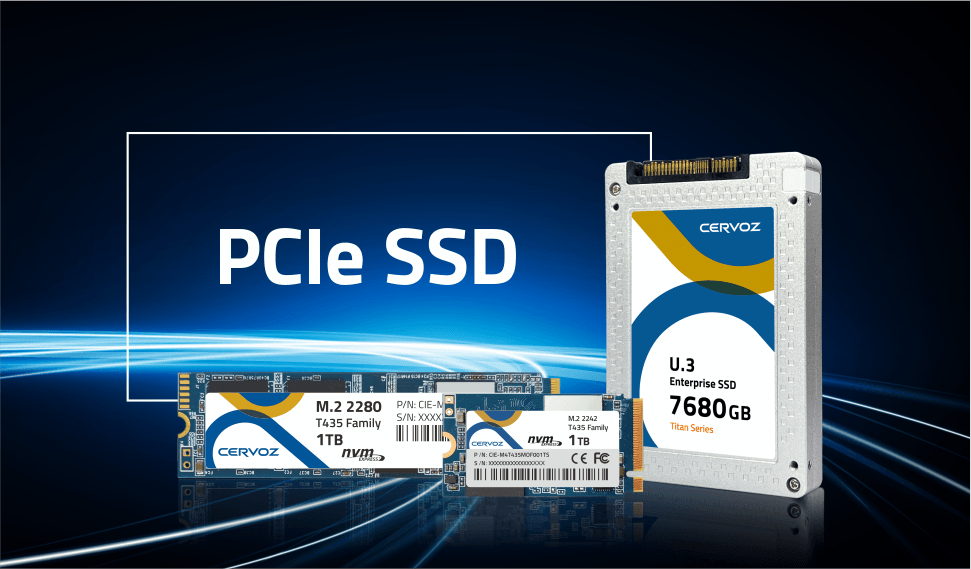
NVMe stands for Non-Volatile Memory Express. It is a storage protocol designed for flash memory. Unlike SATA, NVMe usually communicates over PCIe lanes connected directly to the motherboard.
This design reduces command delays and allows many requests to be processed at the same time. That is why NVMe SSDs can deliver much higher throughput and stronger random performance than SATA models.
The main NVMe speed groups are:
PCIe 3.0 NVMe
PCIe 3.0 drives commonly reach 2,000 to 3,500 MB/s in sequential reads. They remain fast enough for gaming, office work, photo editing, and most home computers.
PCIe 4.0 NVMe
PCIe 4.0 doubles the bandwidth of PCIe 3.0 per lane. High-end drives can approach 7,000 MB/s, though sustained write speed may fall after the cache fills.
PCIe 5.0 NVMe
PCIe 5.0 drives can exceed 10,000 MB/s in ideal conditions. They often require large heatsinks or active cooling because the controller produces more heat.
The fastest SSD is not always the best SSD for your system. Your motherboard must support the correct PCIe generation, and your workload must be demanding enough to use the extra bandwidth.

What Affects SSD Speed?
The answer to how fast are SSD drives changes under different conditions. A drive’s advertised speed comes from a controlled test. Your own result depends on the full system.
Drive interface
A PCIe 4.0 SSD installed in a PCIe 3.0 slot will normally run at PCIe 3.0 speeds. The drive does not create extra bandwidth that the motherboard does not provide.
NAND flash type
SSDs use different NAND designs, including SLC, MLC, TLC, and QLC. TLC is common in consumer drives because it balances speed, endurance, and price. QLC stores more bits per cell and can reduce cost, but large sustained writes may slow down more quickly.
SLC cache
Many consumer SSDs use a portion of their flash as a faster SLC-style cache. Small or short transfers may look extremely fast. Once that cache fills, write speed can drop, sometimes sharply.
This is one of the most important details that product advertisements may not explain clearly. A drive that writes at 6,000 MB/s for a short benchmark may write much more slowly during a very large transfer.
Temperature
Heat can cause thermal throttling. When the controller gets too hot, the SSD lowers its speed to protect the hardware.
Good airflow helps. A motherboard heatsink can also improve sustained performance, especially for PCIe 4.0 and PCIe 5.0 models.
Available free space
An SSD often performs best when it has free space for background management. Filling a drive almost completely can reduce write performance and make maintenance tasks more difficult.
As a practical rule, leaving around 10% to 20% of the drive free is helpful, especially for a system drive that receives frequent writes.
Operating system and workload
Large files favor sequential speed. Booting, browsing, and opening apps rely more on latency and random access performance. This explains why a benchmark may show a huge difference while daily use feels only somewhat faster.
Sequential Speed vs. Random Speed
Sequential speed measures how quickly an SSD moves large blocks of data in a continuous stream. It matters when you:
• Copy large video files
• Edit high-resolution footage
• Create disk images
• Load large scientific datasets
• Transfer virtual machine files
Random performance measures how quickly the SSD handles scattered data requests. It matters when you:
• Start the operating system
• Open applications
• Load game assets
• Search folders
• Run many programs at once
Random performance is often shown in IOPS, or input/output operations per second. Consumer SSDs may advertise hundreds of thousands or even millions of IOPS under ideal conditions.
Latency is also important. It measures how long the drive takes to respond to a request. A lower latency can make a system feel responsive, even when the total transfer speed is not extreme.
Think of sequential speed as the width of a highway. Random performance and latency describe how quickly vehicles can enter, find their lane, and reach the correct exit. Both matter, but they describe different parts of the journey.
How Fast Are SSD Drives for Gaming?
For gaming, how fast are SSD drives in the real world? A modern SSD can reduce game loading times and improve asset streaming. It can also help newer games load large environments with fewer pauses.
However, a PCIe 5.0 SSD does not make every game load twice as fast as a PCIe 4.0 SSD. Game loading also depends on the processor, memory, game engine, file compression, and software design.
A good PCIe 3.0 or PCIe 4.0 NVMe SSD is more than enough for most gamers. A SATA SSD is also a strong improvement over a hard drive.
The biggest gaming gains usually come from moving away from mechanical storage. Once you already have a capable NVMe drive, spending more for the highest advertised speed may produce only small improvements.
This is a common buying mistake. People see a higher number and assume every task will finish proportionally faster. In practice, the rest of the computer often becomes the limiting factor.
How Fast Are SSD Drives for Booting and Everyday Work?
An SSD can make a computer feel much faster during normal use. Startup times often drop because the drive responds quickly to many small files. Programs also open faster, and switching between applications feels smoother.
The exact boot time varies widely. Firmware checks, security tools, operating system services, memory size, and startup programs all affect it. A fast SSD cannot remove delays caused by those other components.
For office work, email, browsing, school tasks, and light photo editing, a quality SATA SSD may feel nearly as responsive as a much faster NVMe model. The difference often appears in large transfers rather than ordinary clicks.
If your current computer uses a hard drive, upgrade the storage before chasing a faster processor. In many older systems, storage is the largest source of delay.

How to Measure SSD Speed Correctly
You can test SSD performance with tools that measure sequential transfers, random access, IOPS, and latency. Run the test more than once, but avoid treating one result as absolute truth.
Use these steps for a more useful test:
-
Check the drive’s health and temperature first.
-
Close large downloads and background tasks.
-
Leave enough free space on the SSD.
-
Run both read and write tests.
-
Test several queue depths and file sizes if the tool allows it.
-
Compare the result with the manufacturer’s rating for the same test method.
-
Repeat the test after a long transfer to check sustained performance.
Benchmarks can be misleading when they use a small test file that fits inside the drive’s fast cache. A longer test gives a better picture of performance during real work.
I also recommend checking the drive after a large file copy. Some SSDs look excellent for the first few minutes, then slow down when the cache fills or the controller becomes hot. That sustained result is often more useful than the peak number.
How to Choose the Right SSD Speed
The right SSD depends on your computer, budget, and workload.
Choose a SATA SSD if:
• Your computer lacks an NVMe slot
• You want an affordable upgrade from a hard drive
• You mainly browse, study, or use office software
• You need broad compatibility
Choose a PCIe 3.0 NVMe SSD if:
• You want strong everyday performance
• Your computer supports PCIe 3.0
• You want good value for a laptop or desktop
• You regularly install software or manage large files
Choose a PCIe 4.0 NVMe SSD if:
• Your system supports PCIe 4.0
• You edit video or work with large project files
• You want a strong gaming and workstation drive
• The price is close to a PCIe 3.0 model
Choose a PCIe 5.0 NVMe SSD if:
• You regularly move very large files
• You use demanding professional applications
• Your motherboard and cooling support it
• You accept a higher price and greater heat output
Do not ignore endurance, warranty length, controller quality, and sustained write behavior. A slightly slower drive with stable performance may serve you better than a faster model that overheats or slows after a short burst.
Common SSD Speed Problems and Fixes
If your SSD is slower than expected, check the basics before assuming it has failed.
• Confirm the drive is installed in the correct slot.
• Check whether the slot supports the drive’s PCIe generation.
• Update the motherboard firmware and storage drivers.
• Make sure the SSD has adequate cooling.
• Keep at least 10% of the drive free.
• Check whether the drive is using an outdated firmware version.
• Test with a large file, not only a small benchmark.
• Review background antivirus scans and cloud synchronization.
• Check the health data with a trusted monitoring tool.
A laptop may also reduce performance when running on battery power. Power-saving settings can limit the processor, PCIe link, or storage controller.
Older operating systems may need proper TRIM support. TRIM helps the SSD manage deleted data and maintain write performance over time. Modern versions of Windows, macOS, and Linux generally support it, but it is still worth checking after an upgrade.
SSD Speed, Lifespan, and Reliability
Speed is only one part of SSD quality. Flash memory has a limited number of program and erase cycles, but modern drives use controllers, error correction, and wear leveling to manage this limit.
Drive endurance is often listed as TBW, or terabytes written. It estimates how much data can be written during the warranty period. Most everyday users will not reach the rating for many years.
A faster drive does not automatically last longer. In some cases, a model with a strong controller and high-quality NAND may offer better sustained performance and endurance than a cheaper drive with a higher peak specification.
Backups remain essential. SSDs do not have moving parts, but they can still fail because of controller faults, firmware problems, electrical damage, or normal wear. Keep important files in at least two separate locations.
Frequently Asked Questions About How Fast Are SSD Drives
How fast is a typical SSD?
A SATA SSD usually reaches about 500 to 550 MB/s. An NVMe SSD can range from about 2,000 MB/s to more than 14,000 MB/s, depending on its PCIe generation and design.
Is an SSD faster than a hard drive?
Yes. SSDs have much lower access latency and usually provide higher transfer speeds than hard drives. The improvement is especially clear when starting the operating system, opening apps, and handling many small files.
Is NVMe faster than SATA SSD?
Yes. NVMe SSDs use PCIe and can deliver several times the sequential speed of SATA SSDs. For basic tasks, the difference may be less noticeable than benchmark numbers suggest.
How fast are SSD drives for gaming?
A good SATA or NVMe SSD can greatly reduce game loading times compared with a hard drive. PCIe 4.0 and PCIe 5.0 drives may help with large asset transfers, but they do not make every game load proportionally faster.
Does a full SSD slow down?
It can. An SSD with very little free space has less room for background management, caching, and wear leveling. Keeping roughly 10% to 20% free can help maintain stable performance.
Do SSDs slow down when they get hot?
Yes. Many SSDs reduce speed through thermal throttling when the controller becomes too hot. Better airflow or a suitable motherboard heatsink can help maintain performance during long transfers.
Does SSD speed matter for boot time?
It matters, but it is not the only factor. Firmware checks, startup programs, memory, security software, and the operating system also affect how quickly a computer becomes ready.
Conclusion
How fast are SSD drives depends on the interface, PCIe generation, NAND type, temperature, free space, and workload. SATA SSDs can reach around 550 MB/s, while modern NVMe models can exceed 10,000 MB/s in ideal sequential tests.
For most people, the biggest upgrade is replacing a hard drive with any reliable SSD. Choose SATA for compatibility and value, PCIe 3.0 or 4.0 NVMe for strong everyday performance, and PCIe 5.0 only when your workload can use its extra bandwidth. Check sustained speed, cooling, endurance, and warranty instead of focusing only on the highest advertised number.
Compare your computer’s interface and your real storage needs before buying, then use a proper benchmark to confirm performance. Explore more storage guides, share your SSD experience in the comments, or subscribe for practical PC upgrade advice.

Everett Ashford is a tech reviewer at mytechgrid.com specializing in SSDs, cameras, TVs, earbuds, headphones, and other consumer electronics. He provides honest, data-driven reviews based on hands-on testing and real-world performance analysis. Everett simplifies complex tech details to help readers make smart, confident buying decisions.