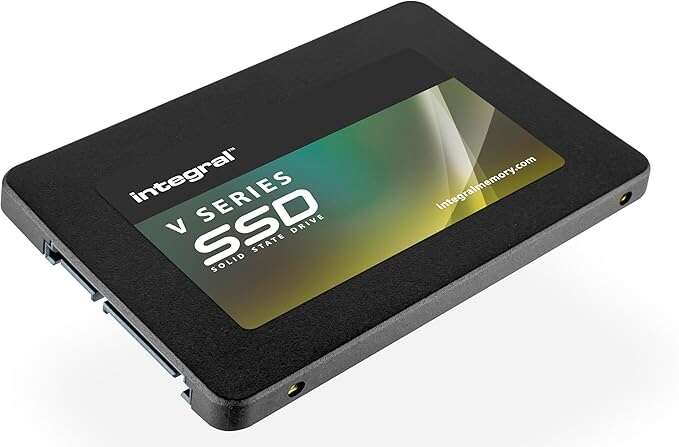
A SATA SSD is a solid-state drive that uses the SATA interface to store data quickly without moving parts.
If you are upgrading an old laptop, building a budget PC, or replacing a slow hard drive, understanding what is a SATA SSD can help you choose the right storage. This guide explains how SATA SSDs work, how fast they are, how they compare with NVMe drives, and what to check before buying one.
What Is a SATA SSD?
A SATA SSD is a solid-state drive that connects to a computer through the Serial ATA, or SATA, interface. It stores data on NAND flash memory instead of spinning magnetic disks. Because it has no moving parts, a SATA SSD is quieter, faster, and more resistant to physical shock than a traditional hard disk drive.
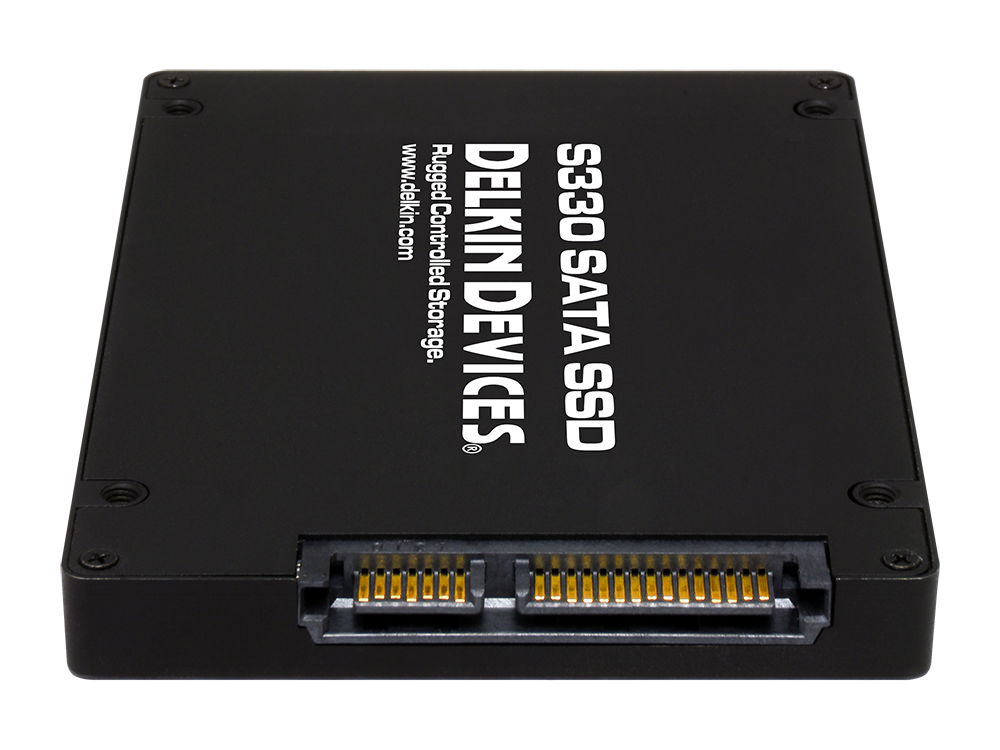
The most common type is the 2.5-inch SATA SSD. It usually connects with two cables:
• A SATA data cable that links the drive to the motherboard
• A SATA power cable that connects the drive to the power supply
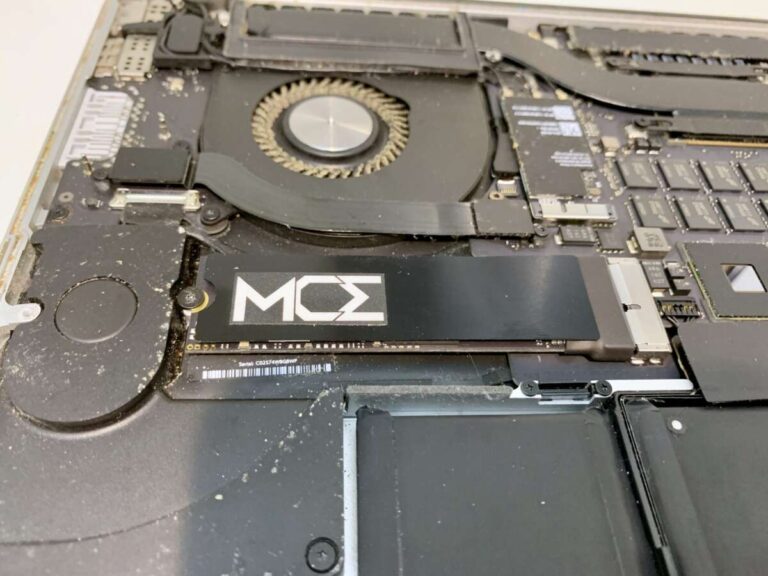
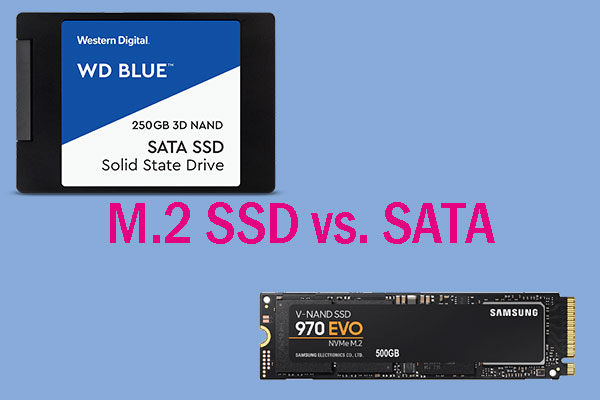
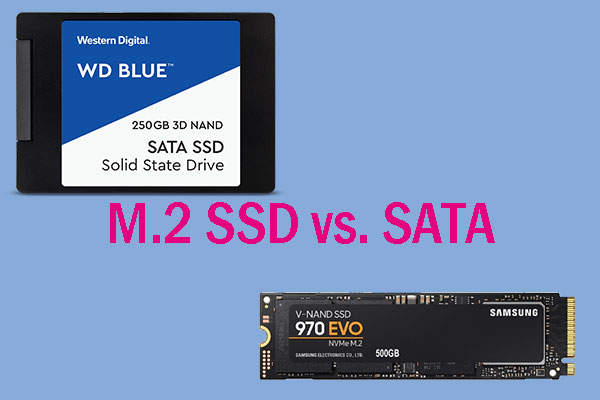
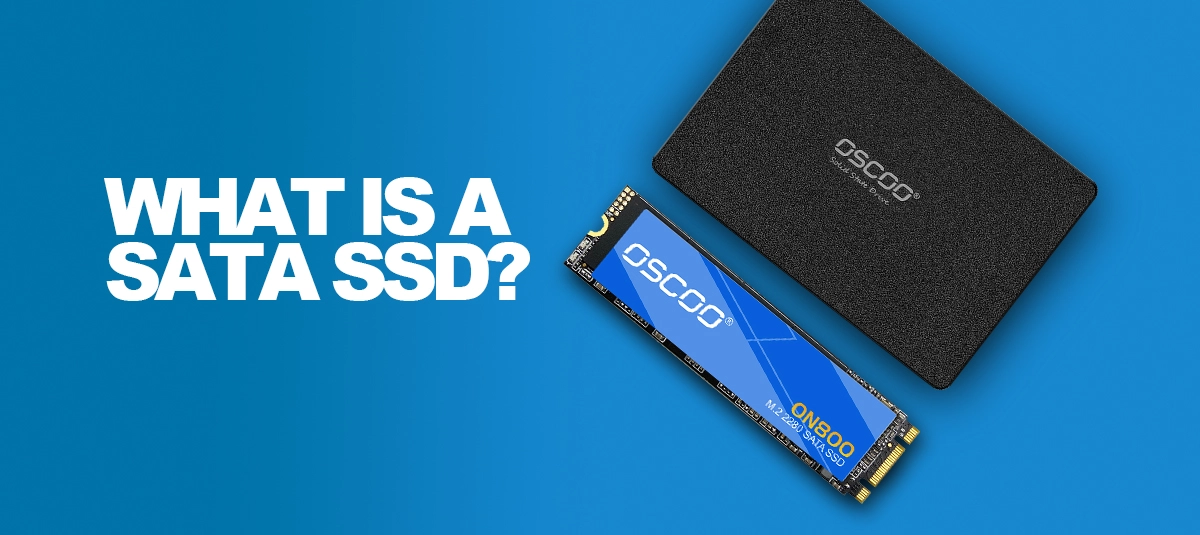
Some SATA SSDs use the M.2 shape. However, an M.2 drive is not always an NVMe drive. An M.2 SATA SSD still uses the SATA protocol, even though it looks different from a 2.5-inch model.
A SATA SSD acts like a fast digital filing cabinet. The controller finds data in flash memory instead of waiting for a disk platter and read head to move into place. This design is why a SATA SSD can make an older computer feel much more responsive.

How Does a SATA SSD Work?
A SATA SSD stores information in NAND flash cells. These cells hold electrical charges that represent data. The drive’s controller manages those cells, organizes files, corrects errors, and helps spread writes across the memory.
Most consumer SATA SSDs also include a small DRAM cache or use a technology called Host Memory Buffer. The cache helps the controller track where data is stored. Some low-cost drives have no DRAM, which can reduce performance during long or heavy workloads.
Here is the basic process:
- Your operating system sends a read or write request.
- The SATA controller passes the request to the SSD.
- The SSD controller locates the correct NAND memory cells.
- The drive reads or changes the data.
- The controller sends the result back to the computer.
A SATA SSD normally uses the AHCI protocol. SATA III, also called SATA 6 Gb/s, has a practical limit of about 550 MB/s for sequential transfers. The connection itself has a theoretical signaling rate of 6 gigabits per second, but protocol overhead reduces the speed available for real data.
This limit explains why many SATA SSDs have similar top speeds. The flash memory may be capable of more, but the SATA interface acts like a narrow bridge between the drive and the motherboard.
SATA SSD Speed and Performance
A SATA SSD is much faster than a hard drive for everyday tasks. A typical SATA SSD can reach about 500 to 560 MB/s for sequential reads or writes. Random access performance also improves greatly, which matters when opening apps, loading small files, or starting an operating system.
A hard drive may take tens of milliseconds to access scattered data. A SATA SSD often responds in a fraction of a millisecond. This difference makes a computer feel faster even when the advertised transfer speed does not seem dramatic.
You may notice these improvements after installing a SATA SSD:
• Faster Windows or macOS startup
• Quicker application launches
• Shorter game loading screens
• Faster file searches
• Less waiting when opening many files
• Smoother multitasking
• Lower noise during use
A SATA SSD will not make your processor more powerful. It also cannot fix a lack of memory or a weak graphics card. However, storage affects many small tasks, and these small improvements add up throughout the day.
In practical testing, the biggest upgrade usually comes when replacing a hard drive. Moving from a SATA SSD to an NVMe SSD can also help, but the difference may be smaller during normal web browsing, office work, and light gaming.
SATA SSD vs. NVMe SSD
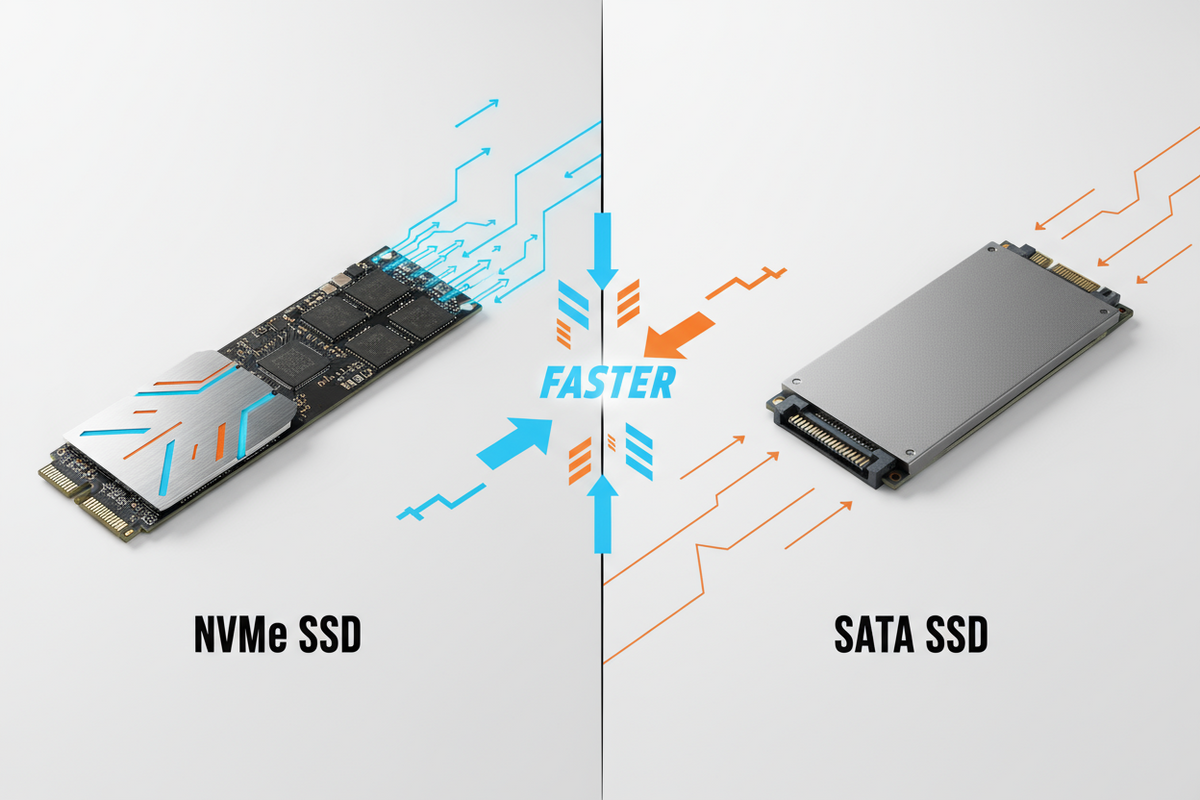
The main difference between a SATA SSD and an NVMe SSD is the connection and communication protocol.
A SATA SSD uses the SATA interface and commonly uses AHCI. An NVMe SSD usually connects through PCI Express, or PCIe, and uses the NVMe protocol. PCIe provides much more bandwidth and allows more commands to be processed at once.
| Feature | SATA SSD | NVMe SSD |
|---|---|---|
| Common form | 2.5-inch or M.2 SATA | M.2 or add-in card |
| Interface | SATA III | PCIe |
| Protocol | AHCI | NVMe |
| Typical sequential speed | Up to about 550 MB/s | About 1,500 MB/s to more than 14,000 MB/s, depending on PCIe generation |
| Heat output | Usually low | Can be higher |
| Compatibility | Works with many older systems | Requires NVMe and PCIe support |
| Best advantage | Affordable, simple upgrades | High-speed workloads |
NVMe is faster on paper and in demanding tasks. It is useful for video editing, large file transfers, professional software, database work, and modern gaming systems.
Still, a SATA SSD remains a smart choice in many cases. It can be less expensive, easier to install in older computers, and fast enough for schoolwork, office tasks, browsing, media playback, and everyday gaming.
One common mistake is buying an M.2 SATA SSD for a slot that supports only NVMe, or buying an NVMe drive for a slot that supports only SATA. Always check the computer or motherboard manual before ordering.
Benefits of a SATA SSD
A SATA SSD offers several strong advantages over a hard drive. It also provides a practical balance between cost, speed, and compatibility.
Faster everyday performance
A SATA SSD reduces loading times across the operating system. Your computer can boot faster, open programs sooner, and respond more quickly to file requests.
No moving parts
A hard drive uses spinning platters and a moving read head. A SATA SSD uses electronic memory instead. This makes it more resistant to bumps and vibration, which is useful in laptops and portable computers.
Lower noise
Because a SATA SSD does not spin, it operates silently. This can make a noticeable difference in a quiet office, bedroom, or home theater PC.
Lower power use
Many SATA SSDs use less power than hard drives. The exact savings depend on the model and workload, but lower power use can help extend laptop battery life.
Easy installation
A 2.5-inch SATA SSD can fit into many desktops and laptops that once used a 2.5-inch hard drive. In many cases, the upgrade requires only a screwdriver, a SATA cable, and cloning or reinstalling the operating system.
Better access to small files
The strong random performance of a SATA SSD helps with software that reads many small files. This includes operating systems, browsers, antivirus tools, and productivity apps.
Limitations of a SATA SSD
A SATA SSD is not perfect. Knowing its limits can help you set realistic expectations.
First, SATA limits the maximum speed. Even a premium SATA SSD cannot match a modern PCIe 4.0 or PCIe 5.0 NVMe SSD in sequential transfers.
Second, flash memory has a limited number of program and erase cycles. Manufacturers measure expected endurance with a rating called TBW, or terabytes written. A higher TBW rating generally means the drive is designed to handle more written data.
Third, performance can drop during very large transfers when the SSD’s write cache becomes full. This is more common with smaller or budget models. The drive may still work correctly, but sustained writing can become slower.
Fourth, recovering deleted data from an SSD can be more difficult than recovering data from some hard drives. The TRIM command helps the drive manage unused blocks, but it can also remove data blocks that recovery software might otherwise find.
For this reason, a SATA SSD should not be your only copy of important files. Use a backup system that follows the 3-2-1 approach:
• Keep three copies of important data
• Store those copies on two different types of media
• Keep one copy in another location or in secure cloud storage
SATA SSD Form Factors and Compatibility
Before buying a SATA SSD, check both its physical size and its interface.
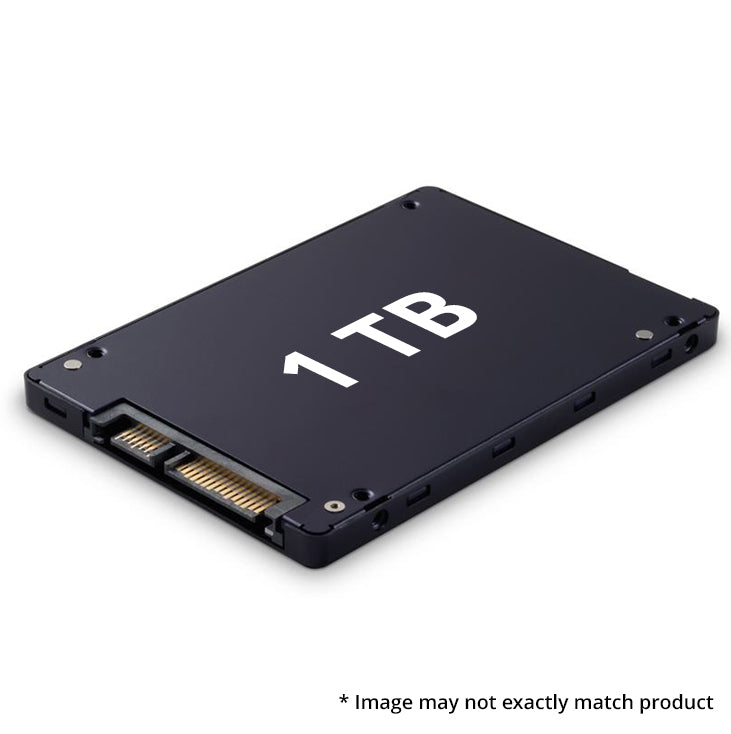
2.5-inch SATA SSD
This is the most common type. It is usually 7 millimeters thick and fits many laptops, desktops, and external drive enclosures. A desktop may need a mounting bracket if the case does not include a 2.5-inch bay.
M.2 SATA SSD
An M.2 SATA SSD is a slim circuit board. It fits into a compatible M.2 slot, but the slot must support SATA storage. Some M.2 slots support both SATA and NVMe, while others support only one type.
SATA cable and power
A desktop installation usually needs a SATA data cable and an available SATA power connector from the power supply. Many retail drives include the drive but not every cable or mounting screw.
Capacity
Common capacities include:
• 250 GB or 256 GB for basic systems
• 500 GB or 512 GB for everyday use
• 1 TB for games, photos, and general storage
• 2 TB or more for large media libraries and backups
A 500 GB drive may be enough for an operating system and common apps. A 1 TB SATA SSD often offers a better balance for a main computer because modern games and creative files can use storage quickly.

How to Choose a SATA SSD
Choosing a SATA SSD does not require memorizing every technical term. Focus on the features that affect reliability, speed, and value.
- Check compatibility. Confirm the computer has a compatible SATA port or M.2 SATA slot.
- Choose enough capacity. Leave free space for updates, temporary files, and future software.
- Review endurance. Compare the TBW rating when two drives have similar prices.
- Look for a good warranty. Many reputable SSDs include a three-year or five-year limited warranty.
- Check sustained performance. Reviews can show how a drive performs after its cache fills.
- Consider the controller and NAND type. TLC NAND often offers a good balance of performance, endurance, and price.
- Avoid unknown brands with no clear support. A very low price is not useful if firmware tools and warranty service are unavailable.
- Keep backups. A warranty replaces a failed drive, but it cannot replace personal files.
QLC NAND can provide affordable high capacities, but some QLC drives may slow more during long writes. That does not make them bad. They can be a good fit for game libraries, documents, and media storage when the price is right.
One practical lesson from storage upgrades is to check the actual bottleneck before spending money. If a computer already has a SATA SSD, adding more RAM may help multitasking more than replacing the drive with a faster NVMe model.
How to Install and Use a SATA SSD
Installing a 2.5-inch SATA SSD is usually simple, but careful preparation matters.
Before installation
• Back up important files
• Check whether the computer supports a 2.5-inch drive
• Confirm that you have a SATA data cable for a desktop
• Create a recovery drive if replacing the system drive
• Record software licenses or encryption recovery keys
Installation steps
- Shut down the computer and disconnect its power.
- Open the case or service panel.
- Mount the SATA SSD securely.
- Connect the SATA data cable to the motherboard.
- Connect the SATA power cable to the SSD.
- Start the computer and open the system firmware if needed.
- Use disk management to initialize and format the drive.
- Clone the old drive or install the operating system from scratch.
- Confirm that the computer recognizes the new storage.
Cloning is convenient because it keeps your files and settings. A clean installation can remove old software clutter, but it takes more time to reinstall applications and restore data.
After installation, keep the SSD firmware updated when the manufacturer provides a trusted tool. Do not fill the drive completely. Leaving around 10% to 20% free space can help maintain performance, especially on busy system drives.
Common Mistakes to Avoid
Many storage problems come from small setup errors rather than a defective SATA SSD.
• Buying the wrong M.2 type
• Forgetting the SATA power cable
• Cloning a larger drive to a smaller drive without checking used space
• Installing the new drive without backing up files
• Treating the SSD as a backup
• Filling the drive to its maximum capacity
• Using an old or damaged SATA cable
• Ignoring encryption recovery keys
• Assuming every SATA port has the same boot support
• Removing the old drive before confirming the new one works
Another mistake is judging a SATA SSD only by its advertised sequential speed. Random performance, sustained writes, endurance, warranty service, and real-world reviews often matter more for daily use.
It is also wise to avoid unnecessary defragmentation. Modern operating systems send appropriate maintenance commands, such as TRIM, to solid-state drives. Traditional defragmentation creates extra writes and is not normally needed for a SATA SSD.
Frequently Asked Questions About What Is a SATA SSD
Is a SATA SSD better than a hard drive?
Yes, a SATA SSD is usually much faster, quieter, and more resistant to shock than a hard drive. A hard drive may still offer a lower cost per gigabyte for large archives.
Is a SATA SSD the same as an NVMe SSD?
No. Both use flash memory, but a SATA SSD uses the SATA interface while an NVMe SSD usually uses PCIe. NVMe drives can be much faster, but they require compatible hardware.
Can I use a SATA SSD in an M.2 slot?
Only if that M.2 slot supports SATA drives. Some M.2 slots support both SATA and NVMe, while others support only NVMe, so check the motherboard or laptop manual.
How long does a SATA SSD last?
Its lifespan depends on the NAND type, drive capacity, workload, and total data written. A TBW rating gives an estimate of expected endurance, but regular backups remain essential.
Does a SATA SSD improve gaming?
A SATA SSD can reduce game and level loading times compared with a hard drive. It usually does not increase frame rates unless the hard drive was causing severe loading or texture problems.
Do SATA SSDs need defragmentation?
No. Operating systems use SSD maintenance features such as TRIM instead of traditional defragmentation. Keeping free space available and installing trusted firmware updates is more useful.
What capacity SATA SSD should I buy?
A 500 GB drive suits basic use, while 1 TB is a flexible choice for most home computers. Choose 2 TB or more if you store many games, videos, photos, or project files.
Conclusion
A SATA SSD is a fast, quiet, and dependable storage device that uses NAND flash memory and the SATA interface. It can transform an older computer by shortening startup times, improving application response, and removing the noise and delays of a hard drive.
Its main limit is speed: SATA III usually tops out near 550 MB/s, while NVMe drives can move far more data. Even so, a SATA SSD remains an excellent upgrade for compatible laptops, desktops, office systems, and budget builds.
Check compatibility, choose enough capacity, compare endurance and warranty details, and keep reliable backups. If you are planning an upgrade, review your computer’s manual first and then compare trusted SATA SSD models before making your purchase.

Everett Ashford is a tech reviewer at mytechgrid.com specializing in SSDs, cameras, TVs, earbuds, headphones, and other consumer electronics. He provides honest, data-driven reviews based on hands-on testing and real-world performance analysis. Everett simplifies complex tech details to help readers make smart, confident buying decisions.