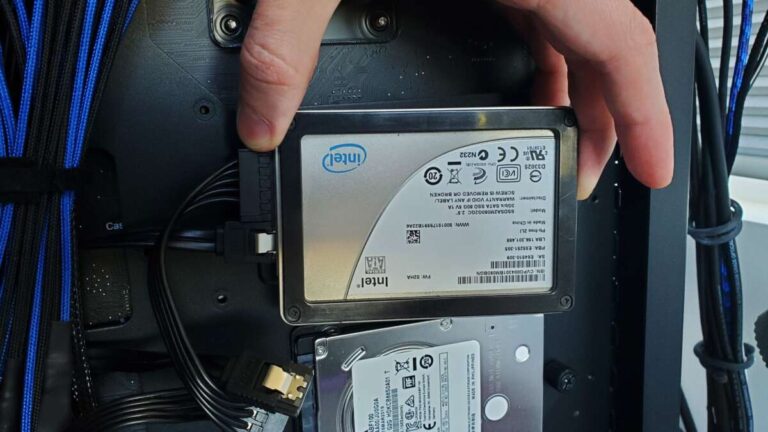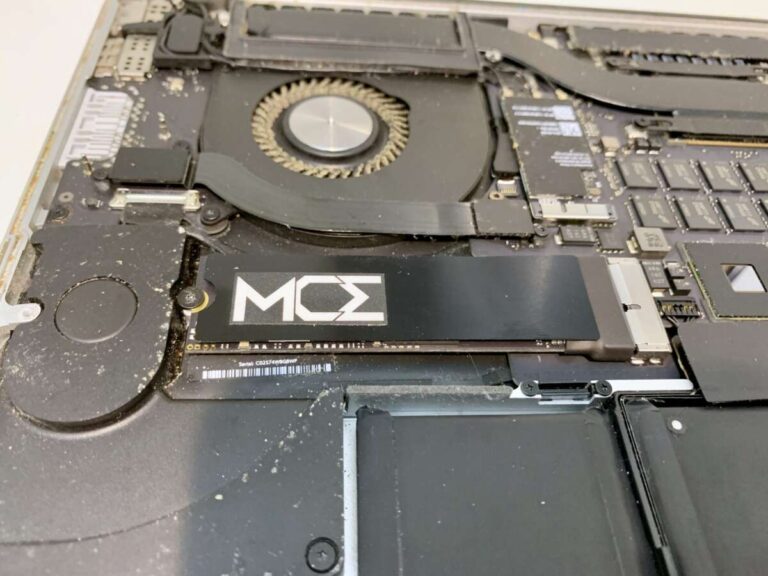
Yes, SSD drives are usually more reliable than hard disk drives because they have no moving parts.
The question “are SSD drives more reliable” has a clear but balanced answer: usually, yes. Solid-state drives resist drops, run quietly, and often deliver faster, steadier performance than traditional hard disk drives (HDDs). Still, every drive has limits. NAND flash memory wears over time, controllers can fail, and no storage device should be treated as a backup.
This guide explains SSD reliability in practical terms. It covers lifespan, failure risks, endurance ratings, data safety, real-world use, and the steps that help an SSD last longer.
Are SSD drives more reliable than HDDs?
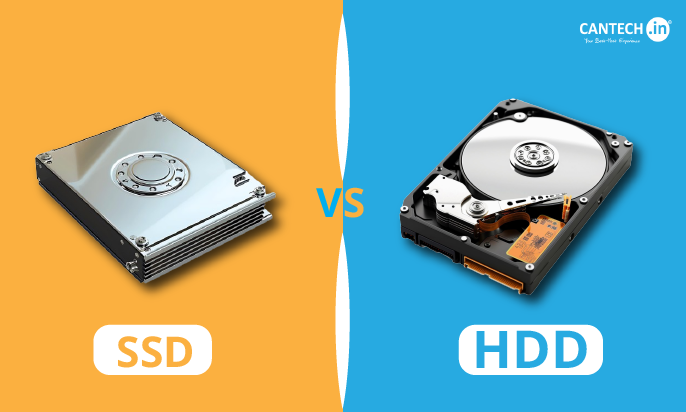
For most everyday users, SSDs are more reliable than HDDs. The main reason is simple: an SSD stores data on flash memory chips, while an HDD uses spinning platters and a moving read/write head.
Moving parts create more points of failure. A hard drive can suffer damage if it is dropped while running. Its motor, bearings, head, or platter may also fail with age. An SSD has no spinning disk or mechanical head, so it handles shock and vibration much better.
That does not make SSDs indestructible. An SSD can still fail because of:
• Worn flash memory cells
• A damaged controller
• Firmware problems
• Power surges
• Excessive heat
• Manufacturing defects
• Sudden electronic failure
In normal use, though, SSDs tend to offer stronger physical reliability and better performance. Research from large cloud operators has also shown that SSD failure patterns differ from HDD failure patterns. SSDs may have fewer mechanical issues, but their failure can sometimes happen suddenly and without much warning.
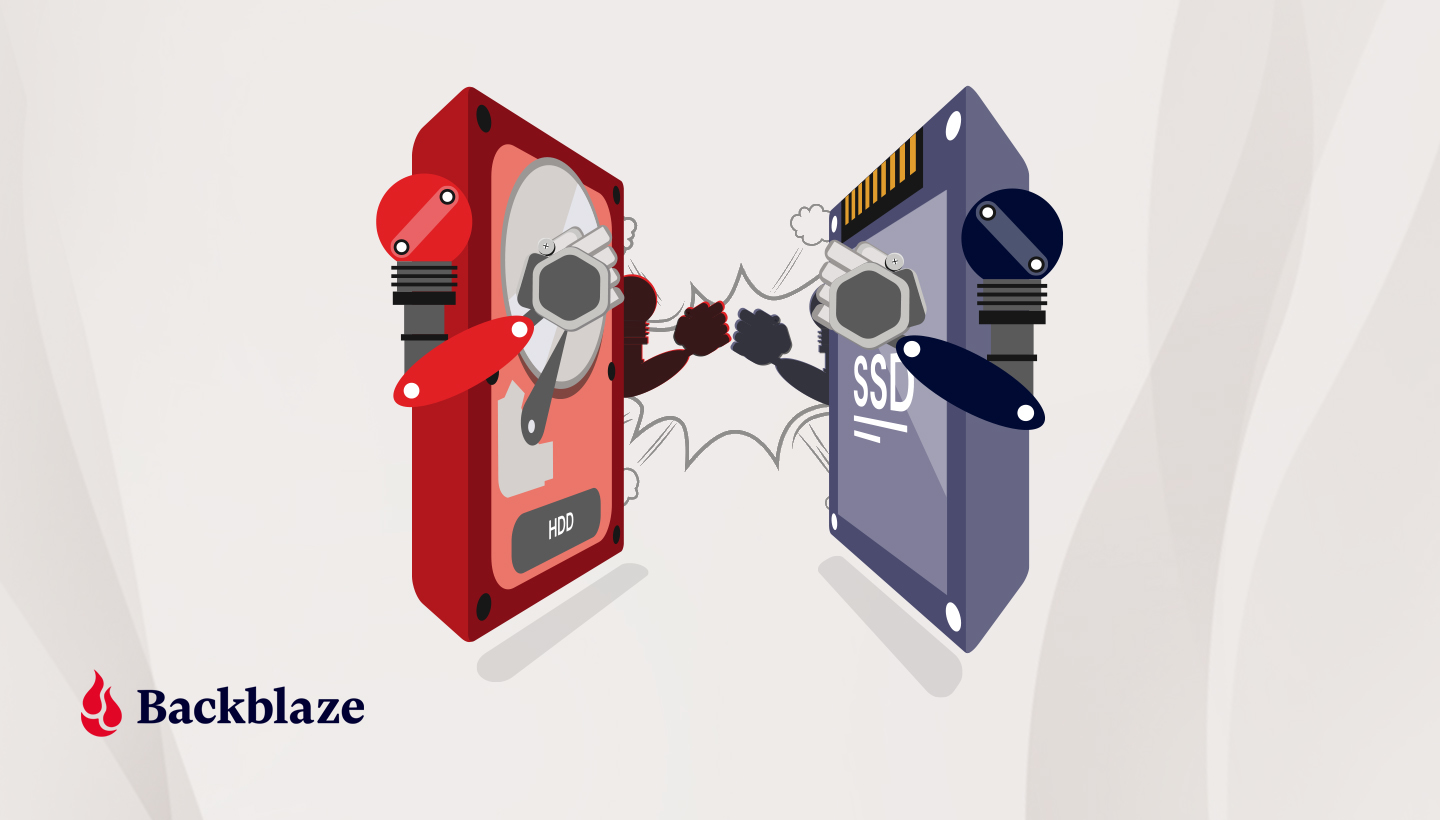
The best answer to “are SSD drives more reliable” is therefore based on the type of risk you care about. SSDs are better against drops and vibration. HDDs may offer easier data recovery after some mechanical failures, but they are more vulnerable to physical wear.
How long do SSDs last?
Most modern SSDs can last for many years under normal home or office use. A typical consumer SSD may remain useful for five to ten years, although its actual life depends on how much data you write to it.
Manufacturers often rate SSD endurance with a measurement called terabytes written, or TBW. This number estimates how much data you can write to the drive before its flash cells may reach their rated limit.
For example, an SSD rated at 600 TBW could theoretically handle:
• About 164 GB of writes each day for 10 years
• About 328 GB of writes each day for five years
Most users write far less data than this. Web browsing, office work, photo storage, gaming, and streaming usually create modest write workloads. Video editing, database work, security camera recording, and large-scale file transfers create much heavier workloads.
The drive may not stop working when it reaches its TBW rating. TBW is a warranty and endurance estimate, not an exact expiration date. Some drives continue working well beyond that number, while rare drives can fail earlier because of other problems.
A better way to judge SSD life is to check several factors:
• The drive’s TBW rating
• The memory type, such as TLC or QLC
• The warranty period
• Your daily write workload
• The drive’s temperature
• Its health data in monitoring software
Why do SSDs often seem more reliable?
SSDs avoid several common causes of HDD failure. Their design is more like a large group of electronic memory cells than a tiny machine with moving parts.
No moving parts
An HDD spins platters at thousands of revolutions per minute. A small head moves across each platter to read and write data. Even a minor shock can cause the head to touch the platter, creating what is often called a head crash.
An SSD uses memory chips instead. This makes it more resistant to:
• Accidental drops
• Vibration
• Transport damage
• Movement during operation
• Noise and mechanical wear
This benefit matters in laptops, vehicles, cameras, and portable external drives.
Lower heat and power use
Many SSDs use less power than HDDs. They also produce less heat during ordinary tasks because they do not spin a motor. Lower heat can reduce stress on the device and help laptops run cooler.
However, high-speed NVMe SSDs can become hot during long file transfers. Some need a heatsink or better airflow. Heat is one of the main factors that can reduce performance and may affect long-term reliability.
Faster error correction
Modern SSDs use error-correcting code, or ECC, to detect and fix some data errors. SSD controllers also use wear leveling. This spreads writes across memory cells so that one small area does not wear out too quickly.
These systems improve reliability, but they cannot prevent every failure. They are safety nets, not guarantees.
SSD reliability by flash memory type
The type of NAND flash inside an SSD affects speed, endurance, cost, and reliability. The main types are SLC, MLC, TLC, and QLC.
SLC
Single-level cell, or SLC, stores one bit per memory cell. It offers excellent endurance and speed, but it is expensive. It is mainly used in specialized enterprise and industrial products.
MLC
Multi-level cell, or MLC, stores two bits per cell. It generally offers strong endurance and performance. True MLC is now less common in affordable consumer drives.
TLC
Triple-level cell, or TLC, stores three bits per cell. It offers a good balance of price, capacity, speed, and endurance. Many high-quality consumer SSDs use TLC memory.
QLC
Quad-level cell, or QLC, stores four bits per cell. It allows large, affordable drives, but it usually has lower write endurance than TLC. QLC can work well for games, media libraries, and general storage. It is less ideal for constant heavy writing.
When asking “are SSD drives more reliable,” do not look only at the brand or interface. Check the flash type, controller, TBW rating, warranty, and independent reviews.
SSD failure versus HDD failure
SSD and HDD failures often look different. An HDD may become noisy, slow, or unstable before it fails. Clicking sounds, repeated spin-up attempts, and bad sectors can provide warning signs.
An SSD may show fewer clues. It might suddenly disappear from the operating system, switch to read-only mode, or refuse to boot. Some SSDs provide health warnings through SMART data, but a warning is not guaranteed.
This difference affects data recovery. In some HDD failures, a specialist can replace a damaged board or repair mechanical parts. SSD recovery can be harder because data is spread across flash chips and managed by the controller. Encryption and wear leveling add more complexity.
That is why an SSD should never be your only copy of important files. Reliability reduces risk, but it does not remove risk.
A practical backup plan can include:
- Keep your main files on the computer.
- Back them up to an external drive.
- Store another copy in a trusted cloud service or a separate location.
- Test the backups from time to time.
The 3-2-1 backup rule remains useful: keep three copies of data, on two types of storage, with one copy away from your main device.

Are SSD drives more reliable for gaming?
Yes, SSDs are usually a reliable choice for gaming. They load games faster, reduce loading screens, and make large game updates feel less painful. An SSD also handles the movement and vibration of a gaming laptop better than an HDD.
Gaming itself does not usually create extreme write workloads. Installing, updating, and removing games writes data, but most players will not approach the endurance limit of a good SSD for many years.
For a gaming PC, a TLC NVMe SSD is often a strong choice. A QLC model can also work well when capacity and price matter more than sustained write speed.
Keep these points in mind:
• Leave some free space on the drive
• Keep the drive cool
• Buy a model with a clear warranty
• Avoid unknown brands with no support
• Back up game saves and personal files
Game platforms can redownload most games. Your personal screenshots, recordings, and save files may be much harder to replace.

Are SSD drives more reliable for laptops?
SSDs are often more reliable than HDDs in laptops because laptops move around. A laptop may travel in a backpack, sit on a couch, or receive a small bump while running. An SSD is better suited to this environment.
SSDs also improve the laptop experience. They start the operating system faster, open apps quickly, and use less power in many situations. This can help battery life, although the exact result depends on the laptop and drive.
The main laptop concern is heat. Thin laptops may have limited airflow, and an NVMe drive can become warm during large transfers. The drive may slow down to protect itself, a process called thermal throttling.
You can reduce heat by:
• Keeping vents clear
• Using the laptop on a hard surface
• Installing the latest firmware
• Avoiding unnecessary heavy transfers
• Choosing a drive designed for your laptop
How to check SSD health
You can monitor an SSD with health tools supplied by the drive maker or built into your operating system. These tools may show remaining life, total data written, temperature, and SMART status.
Important values may include:
• Percentage used or remaining life
• Total host writes
• Drive temperature
• Reallocated or failing blocks
• Unsafe shutdown count
• Available spare capacity
Different brands report these values in different ways. A “percentage used” reading is an estimate, not a promise. A drive showing 90 percent remaining life can still fail because of an electronic fault.
Watch for warning signs such as:
• The drive disappears from the BIOS or operating system
• Files become corrupted
• The computer freezes during file access
• The drive switches to read-only mode
• Health software reports a critical warning
• Write speeds drop sharply and stay low
If you see these signs, copy important files at once. Do not wait for the drive to fail completely.
How to make an SSD last longer
Good habits can extend SSD life and protect your data. You do not need to treat the drive like glass, but a few simple steps matter.
Keep free space available
An SSD needs spare cells to manage writes and replace worn areas. Try to keep at least 10 percent to 20 percent of the drive free, especially on a heavily used system.
Control heat
Heat can reduce performance and increase stress. Check temperatures during long transfers or demanding work. Desktop users should ensure that the SSD has suitable airflow or a proper heatsink.
Avoid unnecessary writes
Do not constantly move large files unless you need to. You can also avoid placing temporary downloads, cache files, or security camera recordings on a low-end consumer SSD.
Update firmware carefully
Firmware updates may fix bugs and improve compatibility. Read the manufacturer’s instructions first, and back up important data before updating.
Use a surge protector
Power problems can damage computers and storage devices. A quality surge protector helps at home. For critical systems, an uninterruptible power supply can provide added protection.
Back up before trouble starts
A healthy drive can fail tomorrow. Backups are the most important reliability measure because they protect you from both hardware failure and human mistakes.
Choosing a reliable SSD
A reliable SSD does not need to be the most expensive model. Look for a product with a clear track record and useful technical information.
Consider these features:
• TLC NAND for a strong balance of endurance and cost
• A published TBW rating
• A five-year warranty when available
• Good independent performance and endurance tests
• Thermal protection
• A reputable controller and firmware history
• Support for SMART health monitoring
• A capacity that leaves room for free space
For a boot drive, a 1 TB SSD is often a practical starting point. It gives the operating system, applications, and games enough room without filling too quickly.
For important business data, look beyond consumer specifications. Enterprise SSDs may offer power-loss protection, higher endurance, stronger monitoring, and better support. They also cost more, so the right choice depends on the value of the data and the workload.
In my experience, the most common mistake is buying based only on advertised read speed. A slightly slower SSD with good endurance, stable firmware, and a strong warranty is often a wiser long-term choice.
Common SSD reliability myths
Several myths make it harder to answer “are SSD drives more reliable” fairly.
Myth: SSDs never fail
SSDs can fail. Their lack of moving parts lowers some risks, but electronic parts and flash memory still have limits.
Myth: Reading data wears out an SSD quickly
Reading usually creates far less wear than writing. Heavy, repeated writes are the main concern for flash endurance.
Myth: Filling an SSD completely is harmless
A nearly full SSD may slow down and have less room for background maintenance. Keeping free space improves performance and management.
Myth: HDDs are always safer for long-term storage
HDDs can be useful for backups and large archives, but they also fail. Both SSDs and HDDs need periodic checks and more than one copy of important data.
Myth: A premium brand guarantees safety
A trusted brand can reduce quality and support risks, but no brand can promise zero failures. Backups matter more than branding.
Frequently Asked Questions About Are SSD Drives More Reliable
Are SSD drives more reliable than hard drives?
In many everyday situations, yes. SSDs resist shock and vibration better because they have no moving parts, but they can still suffer sudden electronic or controller failure.
Do SSDs last longer than HDDs?
There is no universal answer. SSDs may last longer in mobile devices and light workloads, while HDDs can remain useful for years in cool, stable conditions; workload, temperature, quality, and usage habits all matter.
What is the most reliable type of SSD?
TLC SSDs with a strong controller, a clear TBW rating, good reviews, and a long warranty are often a good consumer choice. Enterprise SSDs can offer higher endurance and power-loss protection for demanding workloads.
Can an SSD fail without warning?
Yes. Some SSDs provide SMART warnings, but a controller or electronic failure may happen with little notice. Keep current backups instead of relying only on health software.
How often should I replace my SSD?
Replace an SSD when it shows health warnings, errors, unstable behavior, or insufficient capacity. If it works well and has plenty of free space, there is usually no need to replace it only because it is several years old.
Is an SSD safe for storing photos and documents?
An SSD is suitable for storing photos and documents, but it should not be the only copy. Use an external backup or cloud copy, and check that your backup can restore files correctly.
Conclusion
So, are SSD drives more reliable? In most personal computers, laptops, and gaming systems, SSDs are more reliable against shock, vibration, and mechanical wear than HDDs. They are fast, quiet, efficient, and usually durable enough to serve for many years.
Their limits are important. SSDs can fail suddenly, flash memory has finite write endurance, and heat or poor firmware can create problems. Choose a reputable drive, keep free space available, monitor its health, and follow a dependable backup plan.
The smartest storage setup is not based on one “perfect” drive. It combines a quality SSD with tested backups. Review your current storage, check your SSD health today, and make one extra copy of the files you cannot replace.

Everett Ashford is a tech reviewer at mytechgrid.com specializing in SSDs, cameras, TVs, earbuds, headphones, and other consumer electronics. He provides honest, data-driven reviews based on hands-on testing and real-world performance analysis. Everett simplifies complex tech details to help readers make smart, confident buying decisions.