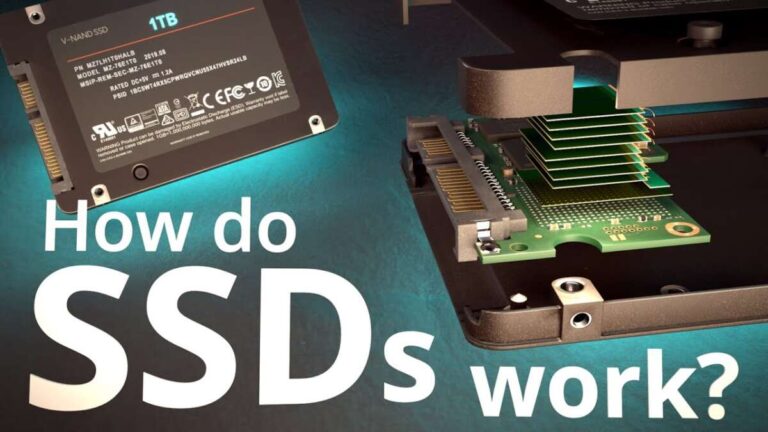
Yes, Windows fixed several SSD bugs, but not every SSD slowdown or failure is caused by Windows.
The answer to “did Windows fix the SSD issue” depends on the exact Windows version, update, SSD model, and symptom. Microsoft has patched several storage bugs, including performance problems, compatibility errors, and update-related faults. However, SSD firmware, drivers, overheating, low free space, and failing hardware can create very similar signs. This guide explains what was fixed, what still needs attention, and how to check your own PC safely.
What SSD issue did Windows have?
There has not been one single “Windows SSD issue.” Users have reported several different problems across Windows 10 and Windows 11.
Common complaints include:
• Slow read and write speeds
• Long boot times
• SSD usage stuck at 100%
• System freezes during file transfers
• Blue screen errors
• NVMe drives disappearing after sleep
• Windows updates failing on systems with certain SSDs
• SSD health warnings that appear after an update
• Random crashes during gaming or heavy workloads
This makes the question “did Windows fix the SSD issue” harder to answer with a simple yes or no.
Some problems were caused by Windows updates. Others came from SSD firmware, chipset drivers, motherboard settings, or damaged system files. Windows may be the messenger, but it is not always the cause.
In practical troubleshooting, the first step is to identify the exact symptom. A slow SSD needs a different fix from an SSD that vanishes from File Explorer.

Did Windows fix the SSD slowdown issue?
Microsoft has fixed several Windows storage performance bugs through cumulative updates. In many cases, newer Windows 11 builds perform normally after the affected update is installed.
Some users reported slower NVMe performance after moving from Windows 10 to Windows 11. The slowdown was more noticeable during small file transfers and random write tests. These tasks matter because Windows uses many small files during startup, app launches, and updates.
Microsoft released later updates that addressed various storage and file system problems. However, not every report was linked to one confirmed Windows bug. Benchmark results also varied based on:
• SSD brand and model
• PCIe generation
• Available free space
• Power settings
• Driver version
• Thermal throttling
• Test software
• Background apps
This is why the answer to “did Windows fix the SSD issue” is usually “Windows fixed some software-related cases, but not all performance complaints.”
If your SSD is only slightly slower than its advertised speed, that may be normal. Manufacturers often list peak speeds under ideal conditions. Real-world speeds can be lower, especially when the drive is nearly full or handling many small files.
Which Windows updates helped SSD problems?
Windows updates often include storage fixes without listing “SSD” in the headline. Microsoft groups many changes under terms such as file system, kernel, storage stack, NTFS, BitLocker, or device compatibility.
Important improvements have appeared through:
• Monthly cumulative updates
• Servicing stack updates
• Windows 11 feature updates
• NVMe and storage driver updates
• security updates that also include reliability fixes
Older Windows 11 builds had several reported performance and compatibility concerns. Later builds improved system stability for many users. Still, the result depends on the specific drive and computer.
To check your Windows version:
- Press Windows + R.
- Type
winver. - Press Enter.
- Note the Windows edition, version, and build number.
- Open Settings, then Windows Update.
- Select Check for updates.
Do not judge a storage fix by the update name alone. Read the update details when possible, especially the known issues section.
If a problem began immediately after an update, record the update number. That information helps you compare the timing with Microsoft’s release notes and decide whether uninstalling the update is reasonable.
How to check whether Windows fixed your SSD issue
You can test the problem without changing advanced settings. Start with basic checks, then move toward drivers and hardware.
1. Check Windows Update
Open Settings > Windows Update and install all available updates. Restart the PC after installation.
A restart matters because some storage components do not fully reload until Windows boots again.
2. Check Device Manager
Right-click the Start button and open Device Manager. Expand these sections:
• Disk drives
• Storage controllers
• IDE ATA/ATAPI controllers
• System devices
Look for warning icons. A warning may indicate a driver, firmware, or hardware communication problem.
3. Check the SSD health
Many SSD brands provide their own management tools. These apps can show:
• Drive health
• Temperature
• Total written data
• Firmware version
• Available spare capacity
• Performance settings
Windows also provides a basic drive health view under Settings > System > Storage > Advanced storage settings > Disks & volumes. Third-party tools can show more detail, but use trusted software.
4. Test speed more than once
Run a trusted benchmark when the PC is idle. Close games, cloud sync tools, browsers, and large downloads first.
Run the test again after a restart. If the results change greatly, background activity or heat may be affecting performance.
5. Check free space
Try to keep at least 10% to 20% of the SSD free. Some drives slow down when they have little room for garbage collection and wear leveling.
This is one of the most common reasons people think Windows caused an SSD slowdown.

How to fix SSD problems that Windows did not fix
If Windows is fully updated and the SSD still behaves badly, check the other parts of the storage system.
Update the SSD firmware
SSD firmware controls how the drive manages data, heat, power, and error correction. Manufacturers sometimes release firmware that improves stability or fixes compatibility problems.
Back up important files before applying firmware updates. A firmware process is usually safe, but power loss can create serious problems.
Update motherboard and chipset drivers
Install chipset drivers from the computer or motherboard manufacturer. Generic Windows drivers may work, but the manufacturer’s package can improve PCIe and power management.
For laptops, use the support page for the exact model. Avoid random driver websites.
Check temperatures
NVMe SSDs can reduce speed when they become too hot. This process is called thermal throttling.
Signs of thermal throttling include:
• Fast performance at the start of a transfer
• A major speed drop after several minutes
• High SSD temperatures
• Better results when the computer is cool
Desktop users may need a heatsink or better airflow. Laptop users should keep vents clear and avoid using the device on soft surfaces.
Review power settings
Aggressive power saving can sometimes cause sleep, wake, or detection problems with certain NVMe drives.
For testing, use the Balanced power plan. If the issue occurs after sleep, temporarily disable fast startup and test again.
Run Windows repair commands
Open Terminal or Command Prompt as an administrator and run:
sfc /scannow
After it finishes, run:
DISM /Online /Cleanup-Image /RestoreHealth
These commands repair Windows system files and the component store. They do not repair a physically damaged SSD.
Check the file system
You can check a drive with:
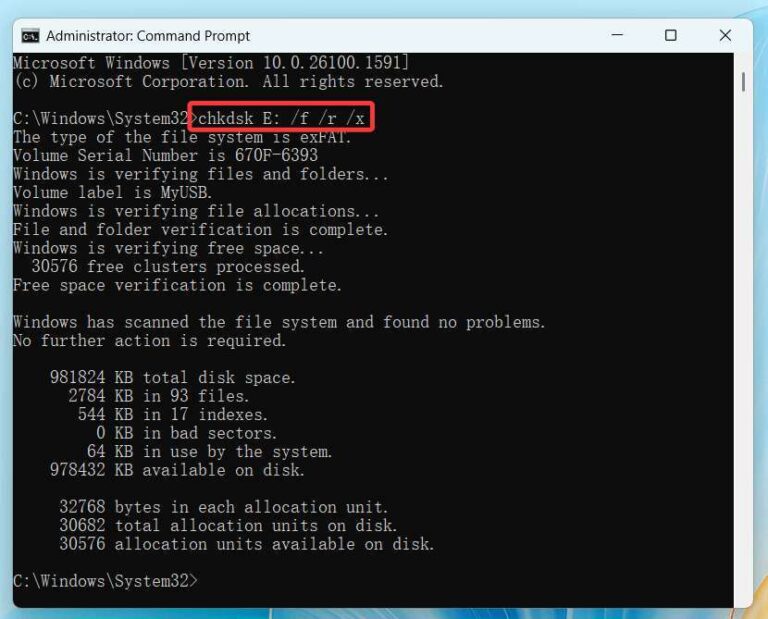
chkdsk C: /scan
Replace C: with the correct drive letter if needed. Do not use repair commands casually on a failing drive. Back up your files first.
Could the SSD itself be failing?
Yes. A failing SSD can look like a Windows problem.
Warning signs include:
• Files becoming corrupted
• Frequent blue screens
• The drive disappearing from BIOS
• Repeated system freezes
• Very slow file copying
• Unusual read-only behavior
• Health software showing critical warnings
• Errors that appear on more than one operating system
If the SSD disappears from the BIOS or UEFI menu, Windows updates will not solve the problem. The issue may involve the drive, slot, cable, power supply, or motherboard.
Back up important data immediately if you notice these signs. Do not wait for a health percentage to reach zero. SMART data is useful, but it cannot predict every SSD failure.
In my troubleshooting experience, one of the biggest mistakes is running repeated benchmarks on a drive that already shows file errors. Benchmarking adds more stress and does not recover lost data. Backup comes first.

Why Windows may still show 100% disk usage
Windows Task Manager can show 100% disk usage even when transfer speed is low. The percentage measures active time, not the drive’s maximum speed.
For example, a drive may show 100% usage while handling many tiny requests at only a few megabytes per second. This can happen during:
• Windows Update
• Antivirus scans
• OneDrive or cloud synchronization
• Search indexing
• Game updates
• Memory paging
• Browser cache activity
To find the cause, open Task Manager and sort the Processes tab by Disk. Resource Monitor can provide more detail about which files and processes are active.
Do not assume that 100% usage means the SSD is damaged. Look at response time, temperature, health data, and whether the problem continues when the system is idle.

How to roll back a Windows update safely
If the SSD problem started right after a Windows update, you can investigate the update history.
Open Settings > Windows Update > Update history. Review the date and name of recent updates.
Before removing an update:
• Back up personal files
• Confirm that the problem began after the update
• Check whether a newer update is available
• Review Microsoft’s known issues
• Create a restore point when possible
Windows normally allows you to uninstall some quality updates. Feature updates have different rollback rules and time limits.
Do not remove security updates without a clear reason. A temporary rollback may help confirm the cause, but it should not become the permanent solution. The safer long-term fix is usually a later patched build, updated firmware, or a corrected driver.
What I learned from testing Windows SSD problems
The most useful lesson is to change one thing at a time. If you update Windows, replace a driver, change power settings, and update firmware together, you may never know which step solved the problem.
A simple troubleshooting record helps. Write down:
• Windows build number
• SSD model and capacity
• Firmware version
• Temperature
• Benchmark result
• Error message
• Date the problem began
• Changes made before the problem appeared
I have also seen people replace a healthy SSD because their benchmark was below the advertised peak speed. That is an expensive mistake. Real-world speed depends on workload, drive capacity, temperature, and how full the drive is.
Another common mistake is trusting one health tool completely. Compare the manufacturer’s tool with Windows information and the system’s behavior. Data from several sources gives a clearer picture.
Best practices to prevent future SSD problems
Good storage habits reduce risk, even when Windows is stable.
• Keep Windows and chipset drivers updated
• Install SSD firmware from the manufacturer
• Leave free space on the drive
• Keep important files backed up
• Avoid unknown driver tools
• Watch SSD temperatures during large transfers
• Use a surge protector for desktop computers
• Shut down properly during firmware updates
• Replace drives that show repeated errors
• Use a reliable backup routine
A useful backup plan follows the 3-2-1 rule:
- Keep three copies of important data.
- Store the copies on two different types of media.
- Keep one copy in another location or in secure cloud storage.
Windows can fix software bugs, but no update can protect your files from a dead drive. A backup is the safety net that matters most.
Frequently Asked Questions About Did Windows Fix the SSD Issue
Did Windows fix the SSD issue in Windows 11?
Windows fixed several storage bugs through cumulative and feature updates. However, “the SSD issue” can refer to many different faults, so an update may not solve problems caused by firmware, heat, drivers, or failing hardware.
How do I know if Windows caused my SSD slowdown?
Check whether the slowdown started immediately after a Windows update and whether it affects more than one storage test. Also compare temperatures, free space, firmware, and performance after a clean restart.
Can a Windows update damage an SSD?
A Windows update can expose a compatibility problem or cause a temporary software fault, but permanent physical SSD damage is uncommon. Back up your data and check the SSD firmware, health, and system logs before blaming the update.
Should I update Windows if my SSD is working normally?
Yes, you should normally install supported Windows updates because they include security and reliability fixes. Create a backup first, and check the release notes if your computer has a known storage compatibility problem.
Can updating SSD firmware fix the issue?
Yes, firmware updates can fix detection errors, crashes, power-state problems, and performance issues. Only use firmware made for your exact SSD model, and protect the computer from power loss during the update.
Does low free space make an SSD slow?
Yes, an SSD can slow down when it is nearly full because it has less room for background maintenance. Keeping roughly 10% to 20% free can help maintain consistent performance, although the ideal amount varies by drive.
Conclusion
So, did Windows fix the SSD issue? Windows fixed several known storage bugs, but there is no single update that repairs every SSD problem. Your result depends on the Windows build, SSD firmware, drivers, temperature, free space, and the physical condition of the drive.
Start with a backup, install current updates, check firmware and health data, and test one change at a time. If the SSD keeps disappearing, corrupting files, or producing repeated errors, replace it rather than waiting for another Windows patch. Share your Windows version and SSD model in the comments if you want to compare symptoms and solutions.

Everett Ashford is a tech reviewer at mytechgrid.com specializing in SSDs, cameras, TVs, earbuds, headphones, and other consumer electronics. He provides honest, data-driven reviews based on hands-on testing and real-world performance analysis. Everett simplifies complex tech details to help readers make smart, confident buying decisions.