Google AI Mode has not necessarily been removed. In the United States, Google has been moving AI Mode from an experimental Search Labs feature into the main Google Search experience. Because of that shift, the button may have changed location, disappeared from Labs, or failed to show on a specific account, device, or search page.
The most common reasons are:
- Google moved AI Mode out of Search Labs.
- The AI Mode tab is now part of the main Search page.
- Google is testing different layouts and access rules.
- Your Google account, browser, app, language, or location does not meet the current requirements.
- A work, school, child, or managed account may not have access.
- Google temporarily changed the feature while testing a new version.
This guide explains where AI Mode went, how it differs from AI Overviews, and what to check if you cannot find it in Google Search in the U.S.
Why did AI Mode disappear from Google Search?
AI Mode changed because Google began treating it as a core Search feature rather than only a Search Labs experiment.
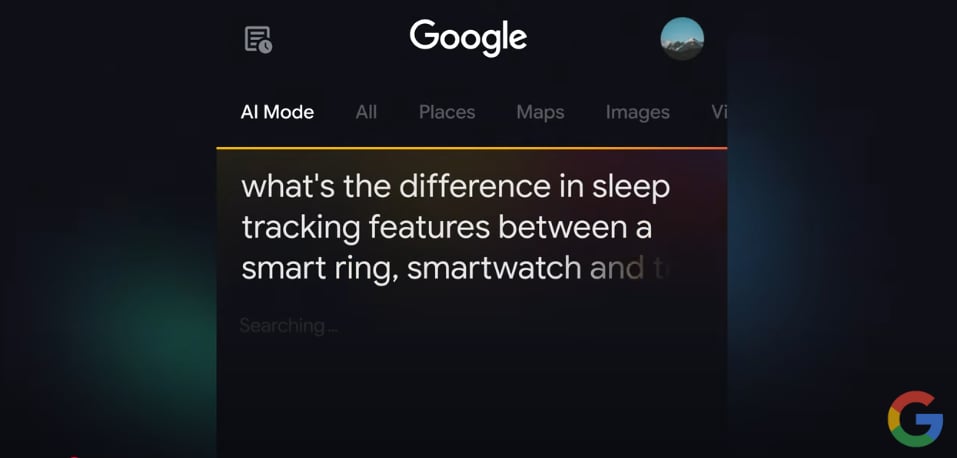
Google first introduced AI Mode as an experimental feature. Users who joined Search Labs could try a more conversational search page that handled follow-up questions, comparisons, and multi-part requests. Later, Google began bringing AI Mode into the standard Google Search experience for users in the United States.
That transition can make the feature seem as if it vanished. A Labs toggle may disappear even when AI Mode is still available elsewhere.
Google also runs interface tests. Two people in the same city may see different Search layouts. One person may see an AI Mode tab beside All, Images, and News. Another may only see an AI Overview at the top of a results page.
The key distinction is simple:
- AI Overviews appear inside regular Google Search results.
- AI Mode opens a separate, longer conversation within Google Search.
Google documents AI Mode through its official Google Search AI features page, but availability and screen layout can change over time.

AI Mode vs. AI Overviews: What is the difference?
AI Overviews and AI Mode both use generative AI, but they serve different purposes.
AI Overviews give a quick answer
An AI Overview is an AI-generated summary that may appear above regular Search results. It can include links to web pages that support or expand on the answer.
For example, a search for:
How long should I roast a five-pound chicken?
may show a short summary, cooking guidance, and links to related sources.
AI Overviews are designed to help with a single question. They do not appear for every search, and Google may change when they show.
AI Mode supports a longer search session
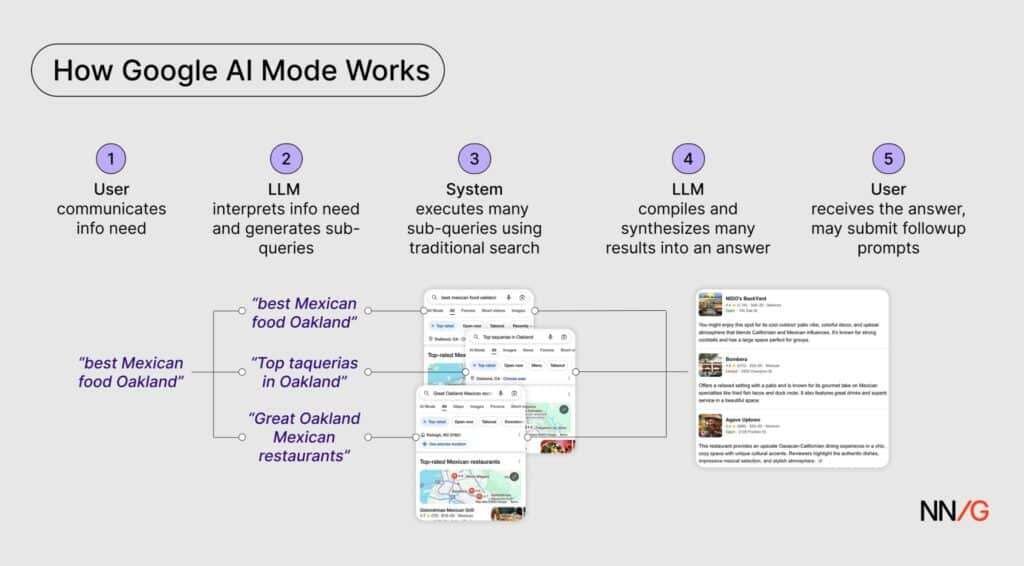
AI Mode is designed for questions that need more context or several steps. You can ask a follow-up question without repeating the full subject.
For example, you might ask:
- What are good weekend trips from Chicago?
- Which ones have direct flights?
- Compare the weather in April.
- Build a two-day plan for the cheapest option.
That type of search is closer to a conversation than a standard list of links.
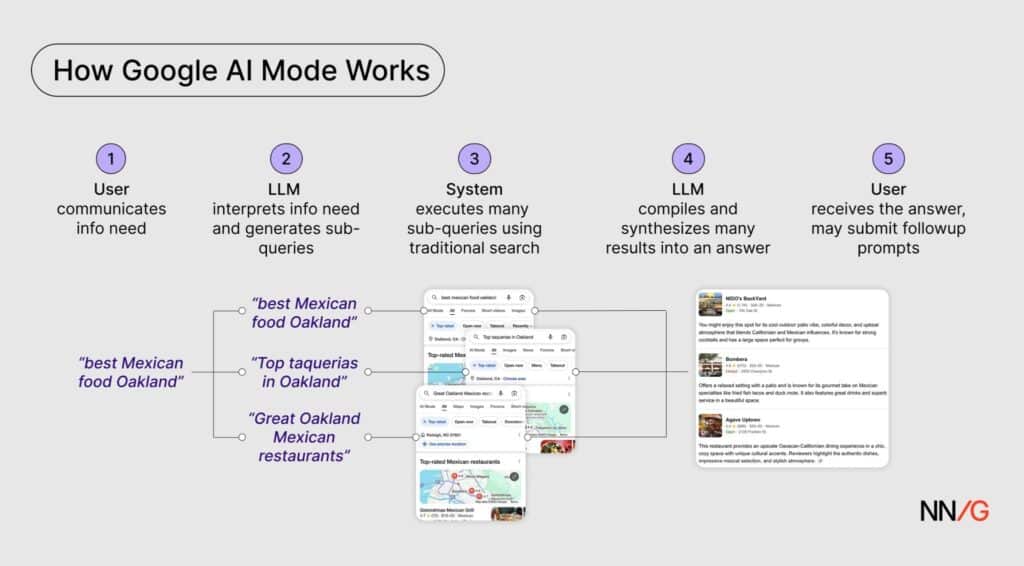
AI Mode may also use information from several searches or sources to build a broader response. However, its answers can still contain errors. Important claims should be checked against the linked pages or trusted primary sources.
Quick comparison
| Feature | AI Overviews | AI Mode |
|---|---|---|
| Where it appears | Within standard Search results | In a separate AI Search view |
| Main purpose | Brief answer or summary | Multi-step research and follow-up questions |
| Follow-up questions | Limited | Central to the experience |
| Access | May appear automatically | May require a visible tab, link, or eligible account |
| Search style | Short and direct | Conversational and exploratory |
| Traditional results | Usually remain below the summary | May appear beside or below the AI response |
In short, AI Overviews did not replace AI Mode. They are related features with different roles.

Where can you find AI Mode now?
In the United States, AI Mode may appear in several places. The exact location depends on the Google Search version, account, device, and current Google test.
Look for the AI Mode tab
Open Google Search and enter a question. Check the row of search options near the top of the results page.
You may see:
- All
- Images
- Videos
- News
- Shopping
- Maps
- AI Mode
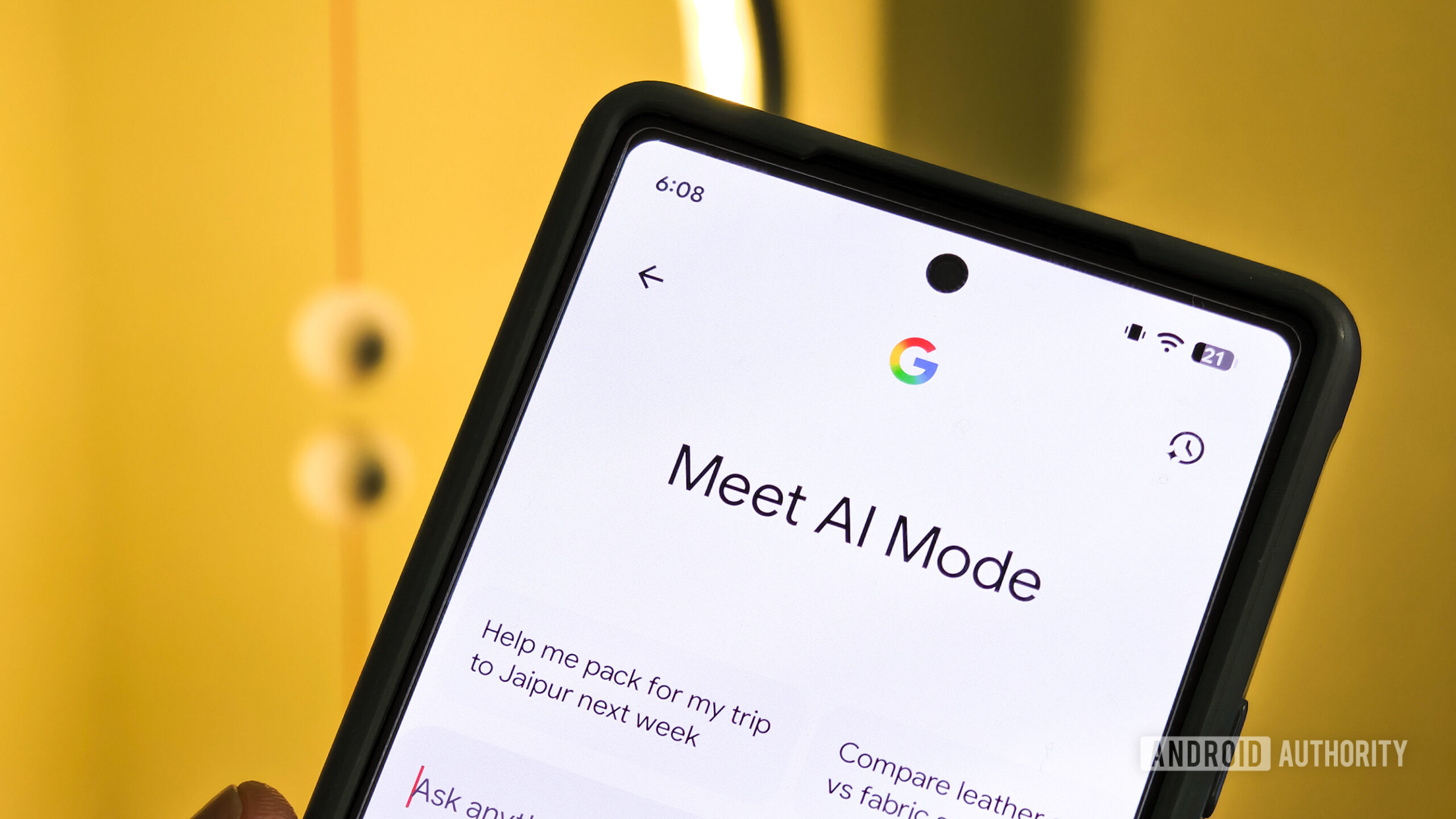
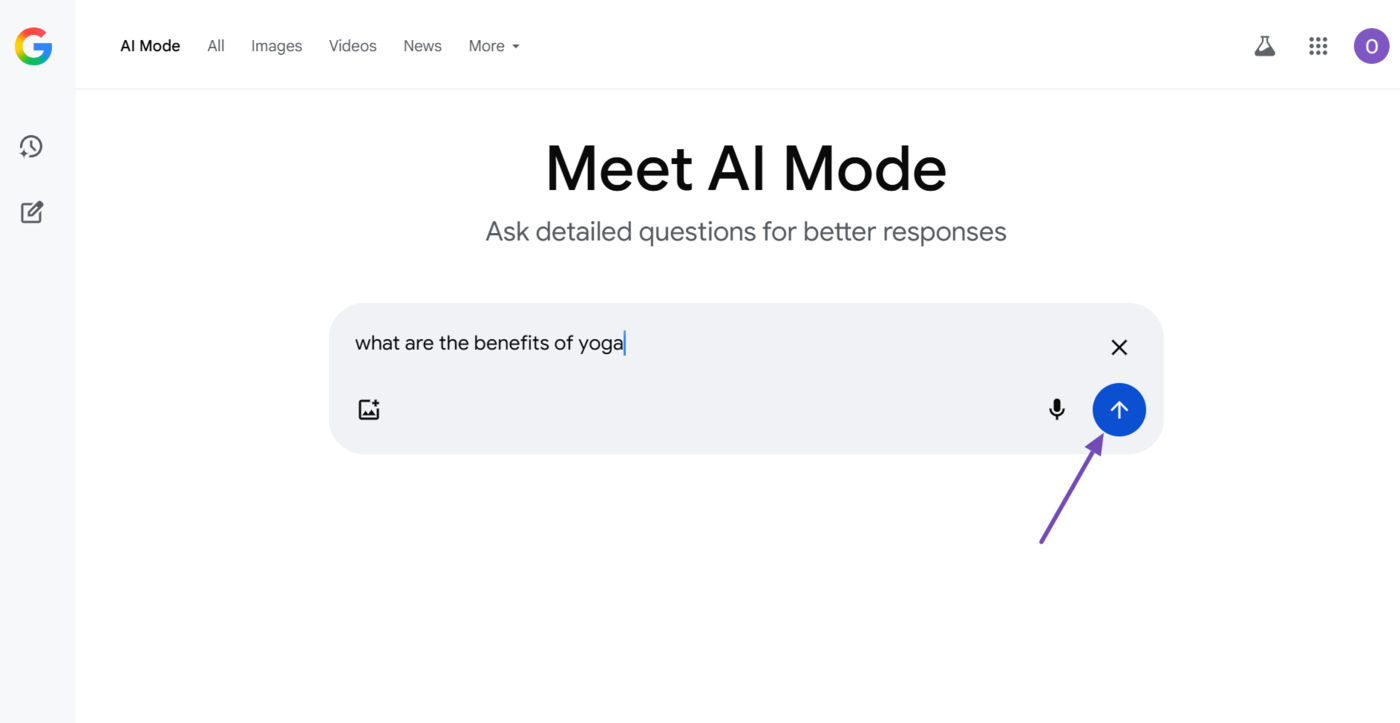
If the tab is available, select AI Mode to open the conversational search page.
On a phone, swipe the search tabs sideways. The option may be off screen.
Check the Google homepage
Some users may see an AI Mode link or prompt on the Google homepage. This location can change, so do not assume that the homepage is the only way to open it.
Try a direct Google Search URL
Google may provide a direct AI Mode page for eligible users. A common route is:
https://www.google.com/aimode
If that page does not open AI Mode, Google may have changed the route, limited access, or not enabled it for your account.
Do not rely on unofficial links or browser extensions that claim to “restore” AI Mode. They may collect account data or create security risks.
Check Search Labs
Search Labs is where Google tests early Search features. AI Mode may appear there during an experiment, but it may also leave Labs when Google expands it to more users.
To check:
- Open Google Search.
- Sign in to your Google Account.
- Open the Search Labs page at
labs.google.com/search. - Review the active and available experiments.
- Look for an AI-related Search experiment.
If AI Mode is not listed in Labs, that does not prove that Google removed it. It may have moved into the regular Search interface.

How to restore AI Mode when it is missing
Try these checks in order. Start with the simple steps before changing account or browser settings.
1. Confirm that you are in the United States
Google rolls out Search features by country. A feature available in the U.S. may not be available in Canada, the United Kingdom, Australia, or another market.
Check:
- Your current location
- The Google domain you use
- Your device location settings
- Any VPN or proxy
- Your Google Search region setting
A VPN can make Google think you are in another country. Turn it off, then reload Search.
2. Sign in to a personal Google Account
Some experimental AI features require a signed-in account. A personal account may also have different access from a work or school account.
If you use a managed Google Workspace account, an administrator may restrict some services. Test with a personal account if that is appropriate and safe.
Do not create a new account merely to bypass age or access controls.
3. Update the Google app and browser
On a phone, update the Google app through the Apple App Store or Google Play. On a computer, update your browser.
Then:
- Close the browser or app.
- Reopen it.
- Sign in again.
- Run a new search.
- Check the search tabs.
An old app version can show a different Search interface.
4. Search in English
Google often launches new Search features in English before adding other languages. In the U.S., English may be the first supported language.
Review the language settings for:
- Google Search
- Your Google Account
- The Google app
- Your browser
Changing language settings may not create access if the feature is not enabled for your account, but it can explain why the interface differs.
5. Check age and account restrictions
Google may limit AI features for younger users or accounts with parental controls. Family Link settings, supervised accounts, and school controls can affect access.
If the account is supervised, the account manager may need to review the available Search settings.
6. Clear a stale session
A stored cookie or cached page can preserve an old Search layout.
Try one of these safe tests:
- Open Google in a private or incognito window.
- Sign out and back in.
- Try another supported browser.
- Clear cookies for Google Search only.
- Restart the Google app.
If AI Mode appears in a private window but not your normal browser, an extension or saved session may be the cause.
7. Disable extensions for a short test
Privacy tools, ad blockers, custom search extensions, and script blockers can change the Search page.
Temporarily disable them, reload Google, and check again. Re-enable extensions one at a time after testing.
Do not leave security software disabled for longer than needed.
8. Search for the option on both desktop and mobile
Google may release AI Mode on one platform before another. The desktop site and Google mobile app may not show the same controls.
Check:
- A current desktop browser
- The Google app on iPhone
- The Google app on Android
- A mobile browser
If the feature appears on one device but not another, the difference is likely tied to rollout, app version, or interface testing.
What if AI Mode still does not show?
If you completed the checks and still cannot find AI Mode, the most likely explanation is that Google has not enabled the current version for your account or device.
Access to a Google Search feature is not guaranteed just because another U.S. user has it. Google can limit a rollout by account, platform, language, age group, or test group.
Use the following symptom guide:
| What you see | Likely cause | Best next step |
|---|---|---|
| AI Overview appears, but AI Mode does not | AI Mode is not enabled for your account or layout | Check the Search tabs and direct page |
| AI Mode appears on desktop only | Mobile rollout or app issue | Update the app and test a mobile browser |
| AI Mode appears in incognito mode | Cookie, extension, or account session issue | Disable extensions and clear Google cookies |
| AI Mode disappeared after leaving Labs | The experiment changed or moved | Check standard Search and Search Labs |
| The option is missing on a work account | Admin or Workspace restriction | Test a permitted personal account |
| Google shows a country message | Regional rollout limit | Turn off VPN and check Search region |
| The page shows an error | Temporary service or account issue | Retry later and check Google support |
Google may also remove or rename a feature during testing. A missing button does not necessarily mean that your account is broken.
Avoid repeatedly changing your location, age, or account details. Those actions may create account problems and will not reliably unlock a feature.
Why does Google keep changing AI Mode?
Google is still refining how AI fits into Search. AI Mode affects the way people ask questions, view sources, and move from an answer to a web page.
Google may change:
- The name of the feature
- Its location in Search
- Which accounts can use it
- How many follow-up questions are allowed
- Which searches trigger AI results
- The sources shown with an answer
- The way ads and regular results appear around AI features
Search features also need to work at a large scale. Google may expand access in stages instead of giving every user the same version at once.
This is why screenshots and older tutorials can become outdated quickly. A guide that tells you to enable AI Mode in Labs may no longer match the current U.S. Search interface.
The practical lesson is this: look for the feature in the main Search page first, then check Labs. Do not assume that an old Labs setting is still required.

Can you use Google Search without AI Mode?
Yes. Standard Google Search remains available even when AI Mode does not appear.
You can still use:
- Regular web results
- Search filters
- Images
- News
- Maps
- Shopping
- Featured snippets
- AI Overviews, when Google shows them
You can also add words that guide a normal search, such as:
site:.govfor many U.S. government pagessite:.edufor many educational pages- Quotation marks for an exact phrase
- A date or year for time-sensitive results
- A product model or document number for precise results
For important topics, regular results may be preferable because they let you compare the original pages yourself.
AI Mode can help with broad research, but it is not a replacement for checking a doctor, lawyer, government agency, school, manufacturer, or other qualified source when the decision matters.

Is AI Mode accurate?
AI Mode can produce useful summaries, but it can also make mistakes. Generative AI may misunderstand a question, combine details from different pages, or state an incorrect claim with confidence.
Treat an AI answer as a starting point, not final proof.
For low-risk topics, you can usually verify the answer by opening several linked sources. For high-risk topics, use primary and official sources.
Check the original source when the answer involves:
- Medical care or medication
- Legal rights or deadlines
- Taxes or government benefits
- Financial products or investments
- Safety instructions
- Product recalls
- Travel documents or immigration rules
- Current prices, policies, or availability
Look for the date of the source and confirm that it applies to the United States. A correct answer from another country may still be wrong for a U.S. reader.
Common mistakes when looking for AI Mode
Mistake 1: Confusing AI Overviews with AI Mode
An AI Overview is usually a summary within normal Search. AI Mode is a separate search experience. Seeing one does not guarantee access to the other.
Mistake 2: Assuming Labs controls the current version
Labs is for experiments. If AI Mode leaves Labs, its old toggle may disappear even if Google continues to offer the feature elsewhere.
Mistake 3: Using an old screenshot as proof
Google changes its interface often. Older screenshots may show a button that no longer exists in the same place.
Mistake 4: Assuming a VPN will unlock access
A VPN can cause the opposite result by making Google detect the wrong country. It can also trigger extra security checks.
Mistake 5: Trusting unofficial “unlock” tools
Browser add-ons and scripts that promise hidden Google features may access browsing data or account information. Use Google’s own Search pages and settings instead.
Mistake 6: Treating an AI answer as a source
AI Mode may link to sources, but the generated text itself is not the original evidence. Open the source before relying on a claim.

Frequently asked questions
Did Google remove AI Mode?
Not necessarily. Google has been changing AI Mode from a Search Labs experiment into a broader Search feature. The option may be in a new location, unavailable for a particular account, or temporarily absent during a rollout change.
Why do I see AI Overviews but not AI Mode?
AI Overviews and AI Mode have separate availability rules. Google may show an AI Overview in standard Search without enabling the full conversational AI Mode experience.
Is AI Mode available in the United States?
Google has made AI Mode available to users in the U.S. through staged launches and expanded Search access. Availability can still vary by account, age, language, device, and Google’s current rollout.
Do I need to join Search Labs to use AI Mode?
Not always. AI Mode began as a Search Labs experiment, but Google has also integrated it into the main Search experience. Check both the regular Search tabs and Search Labs.
Why did AI Mode work yesterday but not today?
Google may have changed the test, updated the interface, ended a temporary experiment, or encountered a short-term service issue. First, refresh the session, update the app, check your account, and try another device.
Can I force Google to enable AI Mode?
There is no reliable or safe method to force access. Avoid changing account details or using unofficial tools. If Google has not enabled the feature for your account, the safest choice is to wait and use standard Search or AI Overviews when available.
What should you do next?
If AI Mode disappeared from Google Search, check the main Search tabs before looking in Search Labs. Then confirm that you are using a U.S. connection, a current browser or Google app, a supported language, and an account without access restrictions.
If the feature is still missing, it is probably a rollout or eligibility issue rather than a problem with your device. Use normal Google Search in the meantime, and verify important AI-generated claims against the linked source or an official U.S. website.

Everett Ashford is a tech reviewer at mytechgrid.com specializing in SSDs, cameras, TVs, earbuds, headphones, and other consumer electronics. He provides honest, data-driven reviews based on hands-on testing and real-world performance analysis. Everett simplifies complex tech details to help readers make smart, confident buying decisions.