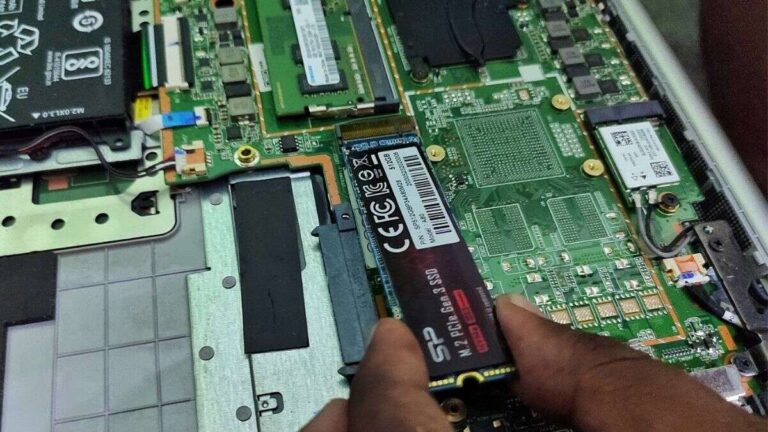
The SSD sits on the motherboard as an M.2 stick or in 2.5-inch drive bays.
If you have ever asked where is the ssd in a pc, you are not alone. I help people find and upgrade drives every week. This guide breaks it down with clear steps, photos-in-your-head tips, and pro tricks. Stick with me and you will know where is the ssd in a pc in minutes.

SSD types and where they usually sit
Most SSDs come in a few shapes and slots. Each shape points to a spot in the case.
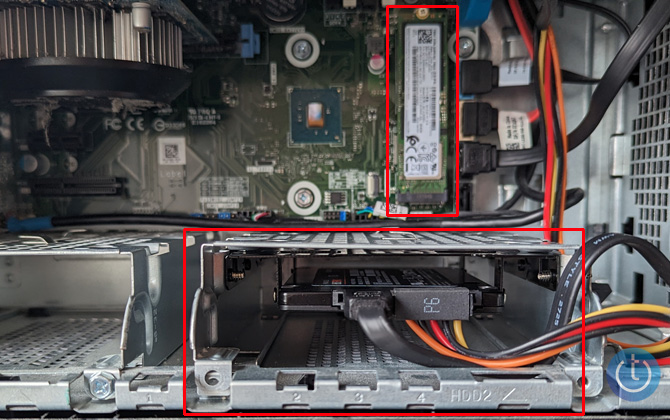
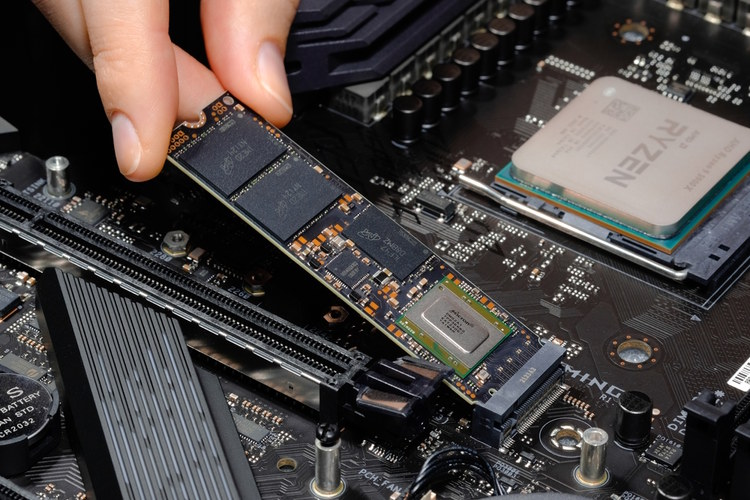
- M.2 NVMe or SATA. A thin gum-stick on the motherboard. Often near the CPU or PCIe slots.
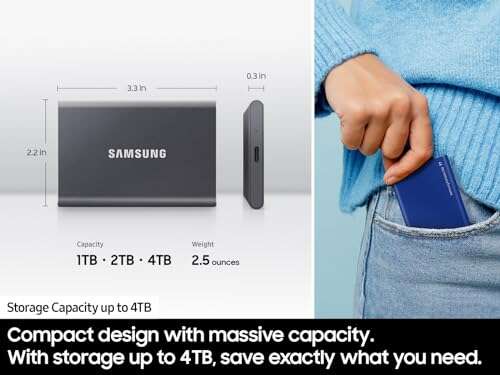
- 2.5-inch SATA. A small flat brick. It mounts in drive bays or behind the motherboard tray.
- mSATA. Older mini card. Often in compact laptops and tiny desktops.
- U.2 (rare at home). Uses a cable to PCIe lanes. Found in pro gear.
Why it helps: The type tells you the place to look first. When clients ask where is the ssd in a pc, I start by guessing the type from the year and model. That speeds things up a lot.
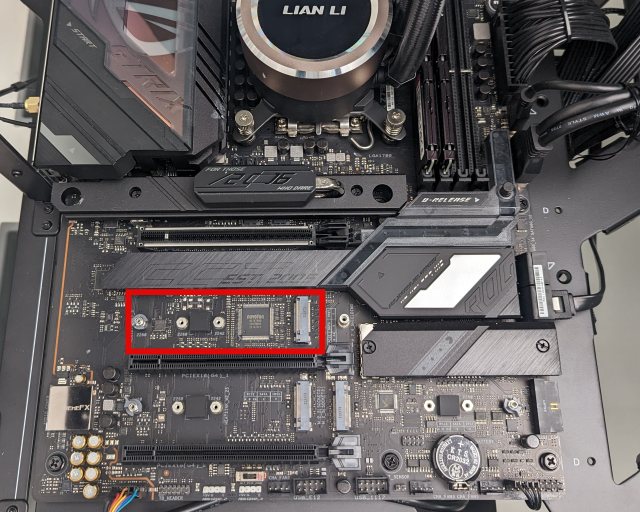
Where is the SSD in a desktop PC case?
In a tower or small form factor case, check these spots first.
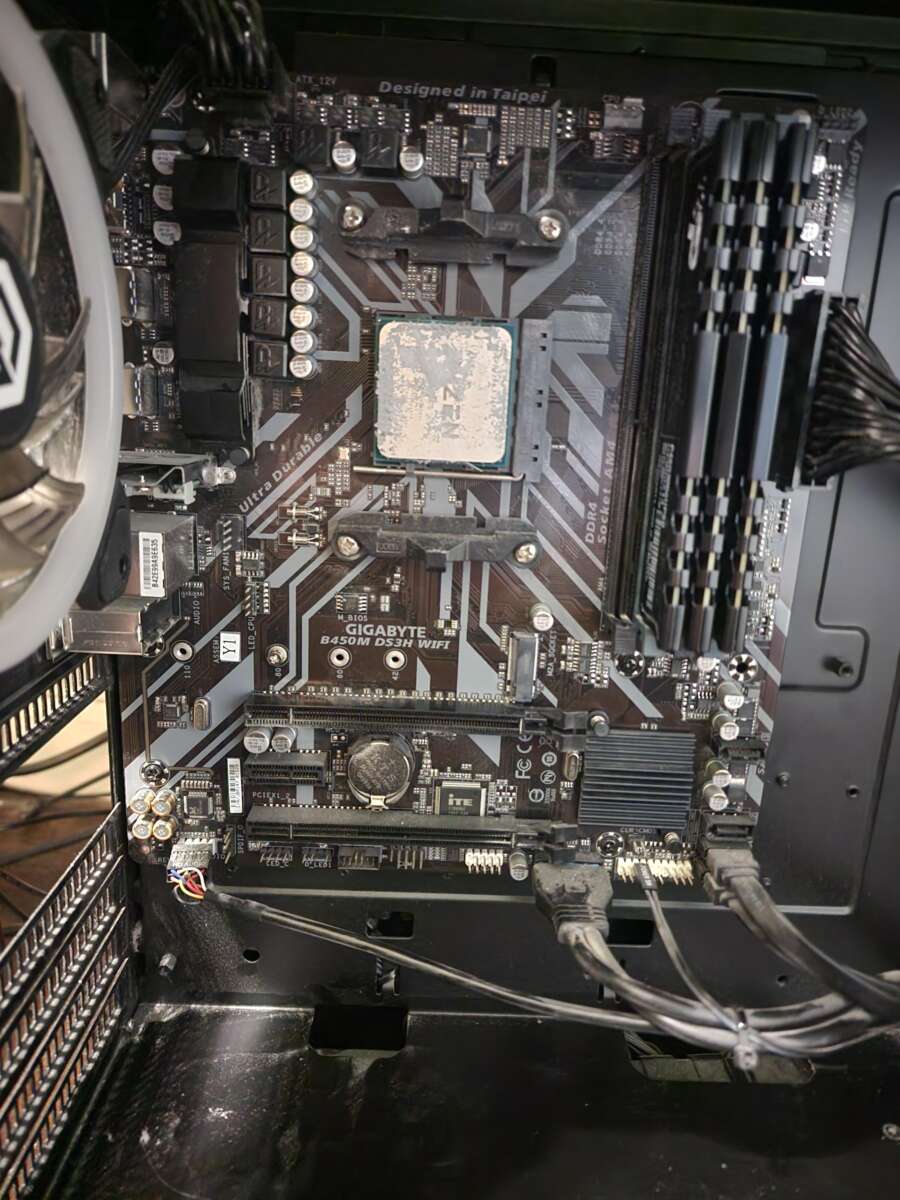
- On the motherboard. Look for a slim M.2 slot. It sits between PCIe slots or near the chipset sink. Some boards hide the slot under a small metal cover called a heatsink.
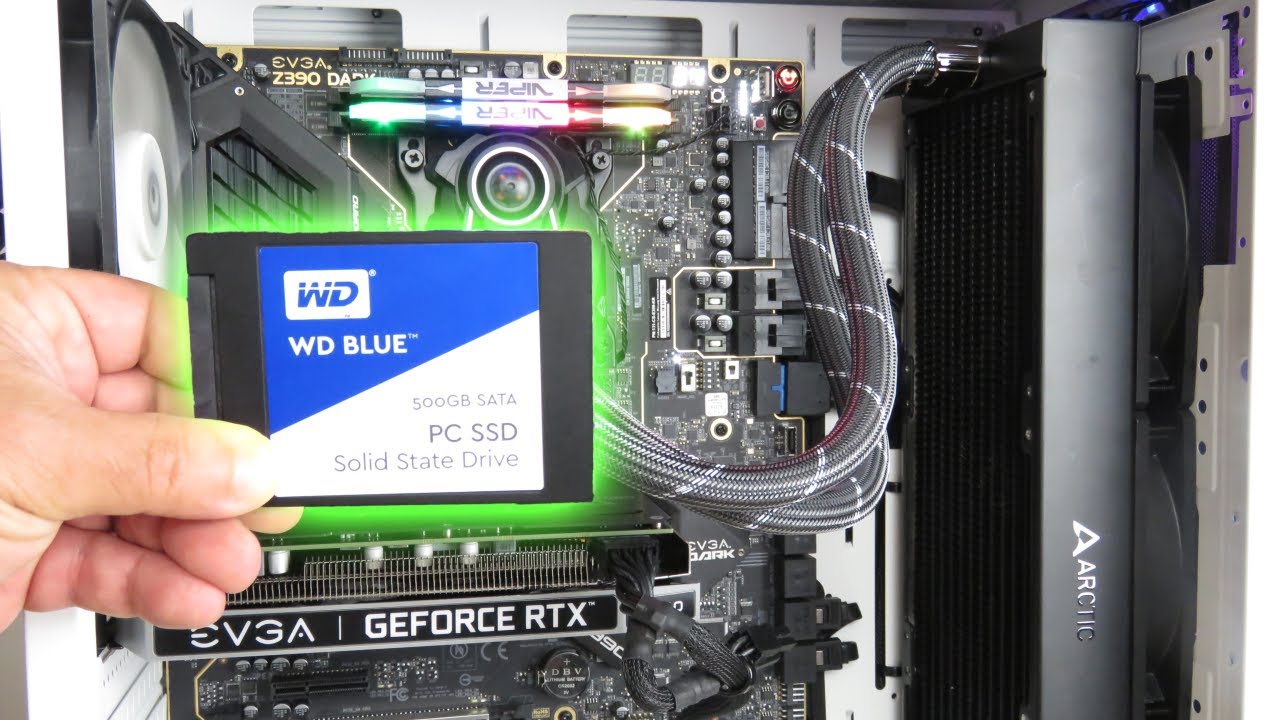
- In 2.5-inch bays. These sit in the front drive cage or on the back of the motherboard tray. Many cases place them behind the right side panel.
- With adapters. A 2.5-inch SSD can be on a 3.5-inch bracket in a big drive cage. An M.2 SSD can live on a PCIe adapter card in a PCIe slot.
Cables tell the story.
- SATA SSDs use a thin data cable to the board and a power cable from the PSU.
- M.2 SSDs have no cables. They use a tiny screw at the tip.
If a friend asks where is the ssd in a pc, I say this: check the M.2 covers first. Then scan the back side of the case for 2.5-inch trays. You will find it fast.
Where is the SSD in a laptop?
Laptops hide drives under the bottom cover. The place depends on design.
- Ultrabooks. One or two M.2 slots near the battery or RAM. Some use M.2 2230. Most use 2280.
- Gaming laptops. A 2.5-inch bay on one side. One or two M.2 slots near the center.
- Budget models. Often one M.2 slot near the Wi‑Fi card. Do not mix them up.
- Older models. A 2.5-inch bay with a small caddy by the edge.
Steps I use on service calls.
- Kill power. Hold the power button for 10 seconds.
- Remove the back cover screws. Keep sizes sorted.
- Lift from the hinge side. Watch for ribbon cables.
If you wonder where is the ssd in a pc that is a laptop, think near the battery and RAM. That is the hot zone in most builds.
src="https://www.crucial.com/content/dam/crucial/articles/about-ssd/How-to-install-an-SSD-in-your-desktop-PC/SSD%20Desktop%20Installation_Locating%20Your%20Desktops%20Storage%20Bay-01.jpg.transform/small-jpg/img.jpg"
alt="Safety, tools, and warranty checks”
style=”max-width: 100%; height: auto; border: 2px solid black; border-radius: 10px; display: block; margin: 0 auto;”
loading=”lazy”
/>
Safety, tools, and warranty checks
A quick check saves parts and time.
- Back up your data. Always do this first.
- Power off and unplug. Hold the button to discharge.
- Ground yourself. Use an anti-static strap or touch the case.
- Use the right drivers. A PH0 or PH1 fits most screws.
- Check the warranty. Some systems have seals or stickers.
These steps matter. If you skip them, you risk a slip or a dead board. People ask where is the ssd in a pc, but the better question is how to find it safely.
Find the SSD from Windows first
You can confirm the drive before you open the case.
- Device Manager. Open Disk drives. Look for NVMe or SATA in the name.
- Task Manager. Open Performance, then Disk. It shows NVMe or SATA type.
- Settings. Open System, then Storage, then Advanced. See drive details.
- Disk Management. See the disk number and size. Handy for clones.
- Vendor tools. Use the app from your laptop or board maker for slot maps.
This flow is fast and safe. When someone asks where is the ssd in a pc, I start here. It tells me the type and size in 30 seconds.

How to spot an M.2 slot on the motherboard
An M.2 SSD looks like a stick of gum. The slot is thin and short.
- Look for a tiny screw post at 2280, 2260, or 2242 marks.
- Find the notch. NVMe uses M-key. Some SATA sticks use B-key or B+M.
- Check for a metal cover. Many boards use a heatsink over the slot.
- Read the print. Boards label slots as M2_1, M2_2, or PCIe/SATA.
Tip from the field: Do not confuse the Wi‑Fi card slot with storage. The Wi‑Fi slot often has antenna wires. If you are unsure where is the ssd in a pc, the presence of antenna wires is a red flag.

Cable clues for 2.5-inch SATA SSDs
Cables tell you a lot at a glance.
- Data cable. A small L-shaped plug to the board SATA port.
- Power cable. A wider L-shaped plug from the PSU.
- Path. Data to SATA_1 or SATA_2. Power to a flat chain of plugs.
Follow the cables from the board or PSU into the drive cage. You can answer where is the ssd in a pc just by tracing those lines.
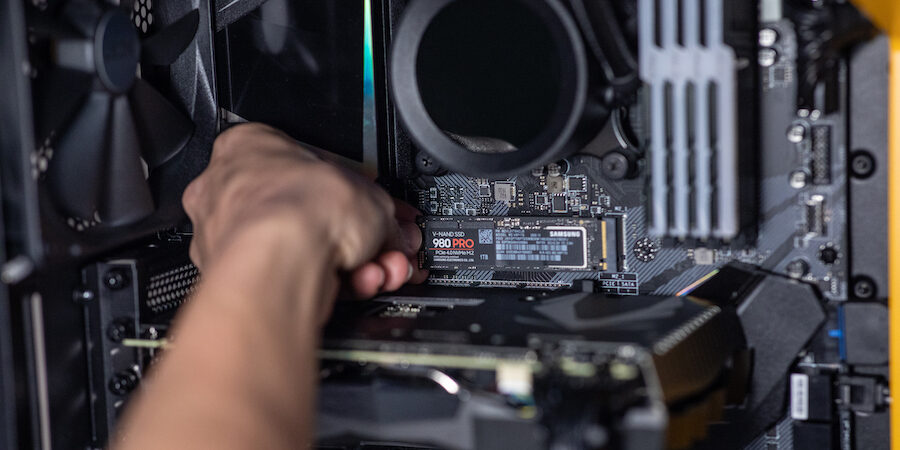
Step-by-step: Physically locate and confirm your SSD
Follow this simple checklist.
- Shut down and unplug. Hold the power button.
- Open the side panel or bottom cover.
- For desktops, scan the motherboard for M.2 slots and covers.
- Check the back of the tray for 2.5-inch mounts and cages.
- For laptops, look near the battery and RAM area.
- Match what you saw in Windows to what you see in hardware.
- Take a quick photo so you recall screw spots and cable paths.
Do not rush. If you are stuck on where is the ssd in a pc, pause and compare model photos in the manual. That solves most puzzles.
Common mistakes and how to avoid them
Here are the slip-ups I see most.
- Removing the wrong heatsink. Some covers hide the chipset, not M.2. Check labels.
- Using the wrong screw. M.2 uses tiny thread. Do not force it.
- Mixing keys. An NVMe M-key drive will not fit a B-key only slot.
- Pulling on the Wi‑Fi card. Look for the antenna leads to avoid this.
- Forgetting standoffs. Set the post at the right length (2280 is common).
If you still ask where is the ssd in a pc after this, take a breath. Slow wins with tiny parts.
Upgrades near the SSD area
You may find spare slots or ways to add more storage.
- Extra M.2 slots. Many boards have two or three. Some share lanes with SATA.
- PCIe M.2 adapter. Add NVMe to a spare PCIe slot.
- 2.5-inch brackets. Add SSDs in 3.5-inch cages.
- Thermal pads and heatsinks. Keep NVMe cool for top speed.
Plan the lane map. Some slots disable SATA ports when used. That is a common gotcha in where is the ssd in a pc upgrade jobs.
Compatibility quick notes
Match the right drive to the right slot.
- Length. 2230, 2242, 2260, 2280, 22110. Most use 2280.
- Interface. NVMe needs PCIe lanes. SATA uses SATA ports.
- Keys. M-key for NVMe. B-key or B+M for some SATA M.2.
- Height. 2.5-inch SSDs use 7 mm in most laptops.
Do a quick check of the model manual. This avoids returns and keeps where is the ssd in a pc tasks short and sweet.
Real-world tips from the bench
A few lessons from daily work.
- Take a photo before you lift an M.2 heatsink. Thermal pads can tear.
- Keep spare M.2 screws. They go missing often.
- Label SATA cables. It helps when you clone and swap later.
- Update BIOS after you add NVMe. It fixes boot issues on old boards.
- Place cloned drives side by side before your first boot. It saves panic later.
These small habits make where is the ssd in a pc work simple and stress-free.
Frequently Asked Questions of where is the ssd in a pc
Where is the SSD in a PC if it uses M.2?
Look for a slim slot on the motherboard, often near PCIe slots. It may sit under a small metal cover called a heatsink.
Where is the SSD in a PC if it’s a 2.5-inch drive?
Check the front drive cage or the back of the motherboard tray. Follow the SATA data and power cables to spot it fast.
Where is the SSD in a PC that is an all-in-one?
It sits near the motherboard center, under the rear cover. Most use M.2 or a single 2.5-inch bay.
How do I know if my SSD is NVMe or SATA?
In Windows, open Task Manager, then Performance, then Disk. It will show NVMe or SATA next to the drive.
Can an SSD be soldered and not visible?
Some thin laptops use soldered storage or M.2 2230 in tight spots. Check your service manual to confirm.
Conclusion
Now you can spot the drive by type, slot, and cables. You know how to confirm in Windows, open the case, and avoid the common traps. Use this guide the next time someone asks where is the ssd in a pc and you will have the answer ready.
Ready to get hands-on? Find your drive, plan an upgrade, and enjoy the speed. Share your model and what you found in the comments, or subscribe for more step-by-step guides.

Jamie Lee is a seasoned tech analyst and writer at MyTechGrid.com, known for making the rapidly evolving world of technology accessible to all. Jamie’s work focuses on emerging technologies, product deep-dives, and industry trends—translating complex concepts into engaging, easy-to-understand content. When not researching the latest breakthroughs, Jamie enjoys exploring new tools, testing gadgets, and helping readers navigate the digital world with confidence.