For a NAS server in a U.S. home or small business, choose an SSD based on workload, drive interface, endurance, power-loss protection, NAS compatibility, and total cost—not just the advertised read speed.
A good SSD for a NAS may be a SATA SSD, an NVMe SSD, or an enterprise model. The right choice depends on how many users access the NAS, whether the SSD stores data or acts as a cache, how much writing it will handle, and whether your NAS can use its full speed.
Introduction
An SSD can make a NAS feel faster and quieter. It can reduce access delays, improve virtual machines, speed up databases, and handle many small files more smoothly than hard disk drives.
However, an SSD does not fix every NAS bottleneck. A 1Gbps network link can limit file transfers to roughly 100–120 MB/s in real use. A faster NVMe drive cannot remove that limit. The SSD also needs enough endurance for its job and enough cooling to stay stable during long writes.
This guide explains how to choose an SSD for a NAS server in the United States. It covers home NAS systems, small offices, media servers, surveillance storage, virtual machines, and cache drives.
Start With the NAS Workload
The best NAS SSD depends on what the server does each day. Begin with the workload, not the brand.
File storage and backups
If the SSD will store documents, photos, music, or backups, a SATA SSD is often enough. Many NAS systems connect to clients through 1Gbps or 2.5Gbps Ethernet, so the network may be slower than the drive.
For this use, focus on:
- Capacity
- Warranty
- Endurance
- NAS compatibility
- Cost per terabyte
- Backup and replacement options
A high-end PCIe 4.0 NVMe SSD may provide little visible benefit when the NAS uses 1Gbps Ethernet and serves a few users.
Media streaming
Media streaming is usually less demanding than people expect. A NAS can often stream large video files from hard drives if the network and media software are configured well.
An SSD becomes more useful when the NAS also performs:
- Video transcoding
- Media library scans
- Thumbnail creation
- Metadata searches
- Multiple small file reads
- Container or application workloads
For direct-play streaming, prioritize capacity and reliability. For frequent transcoding or media management, an SSD can improve application response time.
Virtual machines and containers
Virtual machines and containers benefit from low latency and strong random input/output performance. These workloads access many small files and may write constantly.
For this use, look for:
- NVMe support
- TLC NAND when practical
- High endurance
- Consistent write performance
- Good cooling
- Power-loss protection for important virtual machines
A consumer SSD may work in a lightly used home lab. A business NAS running several virtual machines should usually use a higher-endurance model designed for sustained workloads.
Surveillance recording
Security cameras create a steady write stream. The total write load depends on the number of cameras, resolution, frame rate, compression, and retention period.
A rough calculation is:
Daily data in gigabytes = camera bitrate in megabits per second × 10.8
For example, eight cameras recording at 6 Mbps each would produce about:
8 × 6 × 10.8 = 518.4 GB per day
this is a simplified estimate. Video software may add overhead, and motion-based recording may reduce the actual amount.
For continuous recording, endurance matters more than peak benchmark speed. A hard drive may be a better value for large video archives, while an SSD can help with the operating system, event database, or recent footage.
Databases and business applications
Databases can create frequent small writes. The SSD must deliver stable latency, not just a high maximum sequential-read number.
For a database NAS, favor:
- Enterprise or data-center SSDs when the workload is serious
- Power-loss protection
- High endurance
- Stable performance under sustained load
- Monitoring support
- A tested backup and recovery plan
Do not place a database on an SSD cache unless the NAS vendor documents that cache mode and you understand how it protects data.
Workload decision table
| NAS workload | Usually suitable SSD type | Main priority |
|---|---|---|
| Documents and light file sharing | SATA consumer SSD | Capacity and value |
| Media library and streaming | SATA SSD or HDD | Capacity and network speed |
| Containers | SATA SSD or NVMe SSD | Random performance and endurance |
| Virtual machines | NVMe SSD or enterprise SATA SSD | Latency, endurance, and cooling |
| Surveillance recording | High-endurance SSD or HDD | Sustained writes and retention |
| Database or business service | Enterprise SSD | Power-loss protection and write endurance |
| SSD cache | NAS-supported SATA or NVMe model | Compatibility and data safety |

Choose SATA or NVMe
SATA and NVMe describe different ways to connect the SSD to the NAS.
SATA SSDs
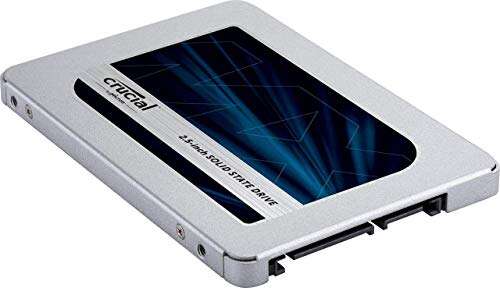
A 2.5-inch SATA SSD uses the SATA interface. Its theoretical interface limit is about 6Gbps, and practical sequential speeds are often around 500–560 MB/s.
SATA is a sensible choice when:
- The NAS has 2.5-inch drive bays
- The NAS does not support NVMe storage pools
- The network is 1Gbps or 2.5Gbps
- You want lower heat
- You need several affordable drives
- The workload is mostly file storage
SATA SSDs are simple to install and widely supported. They also tend to use less power than fast NVMe drives, although the exact result depends on the model and workload.
NVMe SSDs
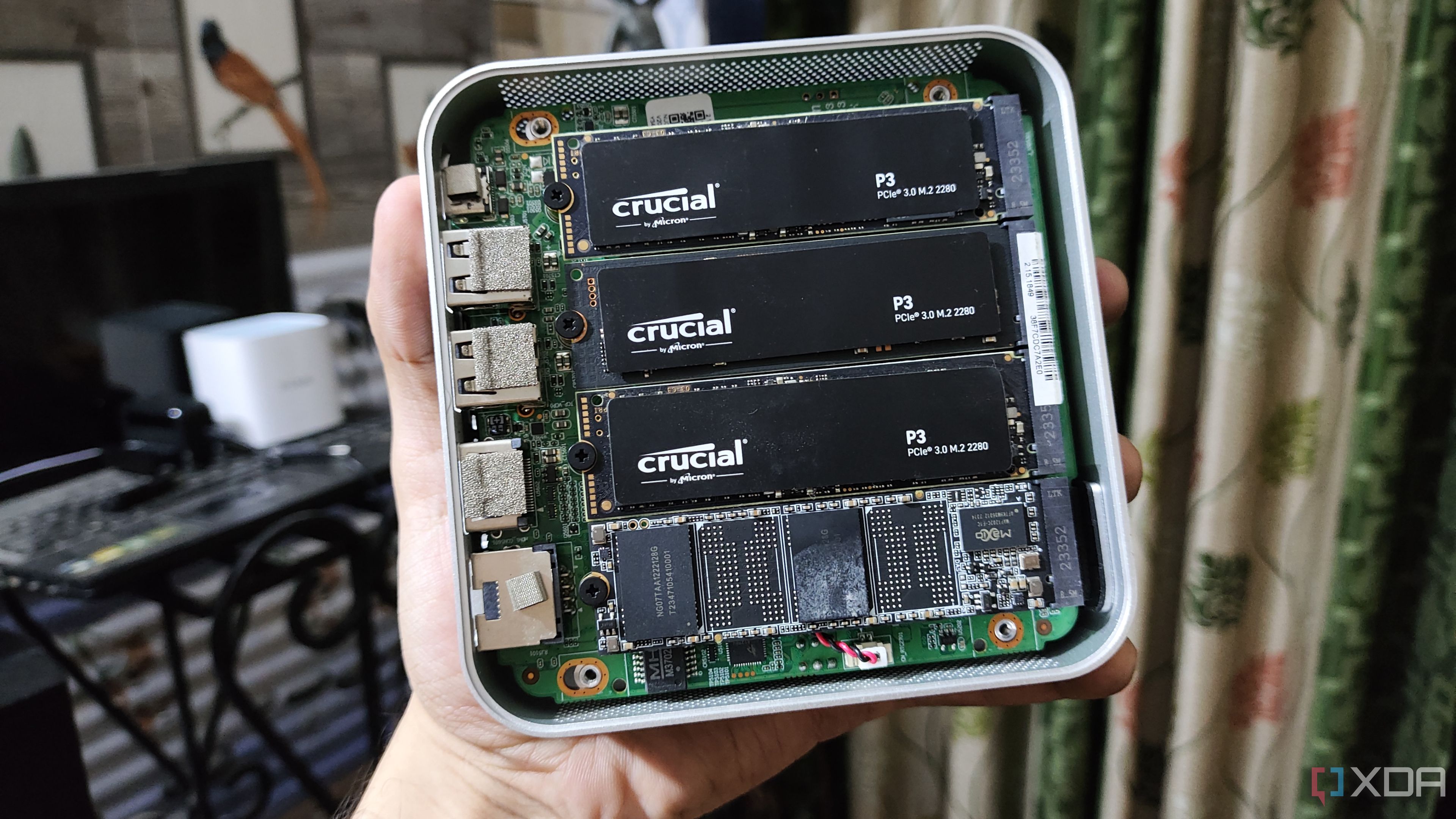
An NVMe SSD usually uses an M.2 slot, U.2 bay, or PCIe expansion card. NVMe drives communicate over PCIe and can offer much lower latency and much higher throughput than SATA drives.
NVMe is useful when the NAS has:
- PCIe 3.0, 4.0, or newer support
- NVMe storage-pool support
- 10GbE or faster networking
- Several virtual machines
- Databases
- Many concurrent users
- A supported SSD cache design
Do not assume that an M.2 slot supports a storage pool. Some NAS units allow M.2 drives only for read/write caching. Others support NVMe storage volumes. The NAS manual and operating system documentation are the final authority.
Network speed changes the decision
Approximate network limits help keep the purchase realistic:
| Ethernet connection | Approximate maximum file-transfer rate |
|---|---|
| 1Gbps | 100–120 MB/s |
| 2.5Gbps | 280–300 MB/s |
| 5Gbps | 500–600 MB/s |
| 10Gbps | 900–1,100 MB/s |
These figures are practical estimates, not guarantees. Protocol overhead, client storage, RAID, file size, and NAS processor performance affect the result.
A SATA SSD may already exceed the speed of a 2.5Gbps network connection. NVMe becomes more attractive with 10GbE, local applications, or workloads that use many small files.
Check the physical format
Before buying, confirm all of these details:
- 2.5-inch SATA or M.2 NVMe
- M.2 length, such as 2280
- M.2 key type
- PCIe generation supported
- Maximum drive thickness
- Drive tray requirements
- Cooling or heatsink clearance
- Whether the bay supports SSDs
- Whether the NAS accepts third-party drives
An M.2 SATA drive and an M.2 NVMe drive may look similar but use different protocols. They are not automatically interchangeable.

Compare Endurance, NAND, and Power-Loss Protection
Peak speed is only one part of SSD quality. For a NAS, endurance and consistent operation often matter more.
SSD endurance and TBW
Manufacturers commonly rate endurance in TBW, or terabytes written. A 600 TBW rating means the manufacturer specifies a certain write limit under its stated test conditions.
TBW is not a promise that the drive will fail immediately after reaching that number. It is also not a guarantee that the drive will last for a particular number of years. It is a comparison figure that must be read with the warranty terms.
You can estimate the required endurance:
Required TBW = average daily writes × 365 × years
Example:
- 150 GB written per day
- 5-year target
- 150 × 365 × 5 = 273,750 GB
- About 274 TBW
Add a safety margin for updates, temporary files, RAID repair, snapshots, and workload growth. A target of 400–550 TBW would provide more room in this example.
For heavy write workloads, also compare DWPD, or drive writes per day:
DWPD = rated TBW ÷ usable capacity ÷ warranty years ÷ 365
A 1.92TB SSD rated for 3,500 TBW over five years has an approximate endurance rating of:
3,500 ÷ 1.92 ÷ 5 ÷ 365 = about 1.0 DWPD
The calculation is useful for comparison, but manufacturer methods differ. Do not compare DWPD values without checking capacity, warranty length, and product category.
TLC, QLC, and other NAND types
Most modern SSDs use one of these NAND types:
- TLC: Three bits per cell; generally a strong balance of speed, endurance, and cost.
- QLC: Four bits per cell; often offers lower cost and higher capacity, but may have lower write endurance.
- MLC or SLC: Less common in new consumer drives; often used in specialized or enterprise products.
TLC is a practical default for an SSD that will run applications, virtual machines, or frequent writes. QLC can make sense for read-heavy storage, large media libraries, or a lightly used home NAS when the endurance rating fits the workload.
Do not judge a drive only by NAND type. The controller, firmware, spare area, cache design, warranty, and endurance rating also matter.
Power-loss protection
Power-loss protection uses hardware capacitors to help an SSD complete critical writes when power fails. It is especially valuable for:
- Databases
- Virtual machines
- File systems with frequent metadata updates
- Business applications
- Write-back cache
- Heavy random-write workloads
A consumer SSD may report that data was written before the data has reached nonvolatile NAND. A sudden power loss can then corrupt recent data or file-system metadata.
A UPS helps keep the NAS powered during short outages, but a UPS does not replace drive-level power-loss protection. A UPS may not react before a drive loses power, and it cannot prevent every hardware failure.
For important data, use both:
- A UPS that the NAS can monitor.
- SSDs with suitable power-loss protection when the workload needs it.
- Snapshots and tested backups.

Select the Right Capacity and RAID Layout
Capacity affects both cost and performance. Do not fill an SSD to its last few gigabytes.
Leave free space
SSDs need free blocks for garbage collection and wear leveling. Performance can drop when a drive is nearly full, especially during sustained writes.
A practical planning rule is to leave at least 10% to 20% of the drive unused when the NAS workload is write-heavy. The ideal amount depends on the SSD, file system, overprovisioning, and workload.
NAS systems may also reserve space for:
- RAID metadata
- Snapshots
- File-system overhead
- Cache management
- Temporary files
- Rebuild operations
Use the NAS vendor's capacity calculator when planning a RAID pool.
Understand usable RAID capacity
RAID protects against some drive failures, but it does not replace backups.
Common layouts include:
- RAID 1: Two drives mirror the same data. Usable capacity is about one drive.
- RAID 5: Usable capacity is about the total capacity minus one drive.
- RAID 6: Usable capacity is about the total capacity minus two drives.
- RAID 10: Half of the raw capacity is usable, with strong performance and redundancy.
For four 2TB drives:
- RAID 1 capacity depends on the exact mirror layout and system design.
- RAID 5 provides about 6TB before file-system overhead.
- RAID 6 provides about 4TB before overhead.
- RAID 10 provides about 4TB before overhead.
The figures are simplified. Drive manufacturers advertise decimal terabytes, while many operating systems display smaller binary units.
Use matching drives carefully
RAID arrays can use drives from different brands, but mixing capacities or performance levels can create limits. The smallest drive often determines the usable size of each member.
For a new array, use drives with:
- The same rated capacity
- Similar endurance
- Similar performance
- Similar intended workload
- Firmware that the NAS supports
Identical models simplify replacement and troubleshooting, but a single model family does not guarantee immunity from a shared firmware or manufacturing problem. Keep a tested backup outside the array.

Check NAS Compatibility and Cooling
A compatible SSD is more than a drive that fits into a bay.
Confirm the NAS support list
Check the current documentation for your exact NAS model and operating system. Verify:
- Supported interface
- Supported SSD form factor
- Whether the SSD can be used for storage
- Whether it can be used for read cache
- Whether it can be used for write cache
- Required firmware
- Drive health monitoring
- Capacity limits
- Vendor validation rules
Some NAS vendors issue compatibility warnings for unlisted drives. A warning does not always mean the SSD will not work, but it can affect support, alerts, and firmware updates.
Watch NVMe temperatures
NVMe drives can become hot during sustained writes. When a drive reaches its thermal limit, it may reduce speed to control temperature. This is called thermal throttling.
Cooling depends on:
- NAS airflow
- Drive position
- Heatsink clearance
- SSD controller
- Workload duration
- Ambient room temperature
Do not add a heatsink if the NAS tray or cover cannot safely accommodate it. A heatsink that touches the enclosure can cause installation or electrical problems.
Use the NAS health page or SSD monitoring tools to check:
- Temperature
- Percentage used
- Media errors
- Unsafe shutdowns
- Critical warnings
- Remaining life
- Total host writes
SMART data is useful, but it is not a complete prediction of failure. Backups remain necessary.
Consumer or enterprise SSD?
A consumer SSD may be enough for:
- Home file storage
- Media libraries
- Light containers
- Occasional backups
- A small personal cloud
An enterprise SSD is more appropriate for:
- Heavy daily writes
- Databases
- Several virtual machines
- Continuous business workloads
- Write-back caching
- Systems that need power-loss protection
Enterprise drives may cost more, use more power, and have lower usable capacity after overprovisioning. Their value comes from endurance, consistency, monitoring, and protection features—not from a guarantee that failure is impossible.
Decide Whether You Need an SSD Cache
An SSD cache is not automatically better than an SSD storage pool.
Read cache
A read cache stores frequently accessed data on SSDs. It may help when the same files are read repeatedly and the NAS has enough RAM and cache-management support.
Read cache usually does not help much when:
- Files are rarely accessed again
- The workload is sequential video playback
- The network is already the bottleneck
- The NAS has too little memory
- The working set is much larger than the cache
Write cache
A write cache can acknowledge writes quickly and commit them later. This can improve burst performance, but it creates a higher data-safety risk if power fails.
Use write cache only when:
- The NAS vendor supports it
- The cache design protects data
- The SSD has suitable power-loss protection
- The NAS uses a reliable UPS
- You understand how cache failure is handled
- You have current backups
Some systems require two SSDs for a protected write cache. Others may use a mirrored cache or restrict write caching to certain models.
Dedicated SSD pool
A dedicated SSD pool is often easier to understand than caching. You place selected applications, virtual machines, or active files directly on the SSD volume.
This approach gives you:
- Clear capacity limits
- Predictable placement
- Easier performance testing
- Simpler troubleshooting
- Less dependence on cache algorithms
The trade-off is that you must decide which data belongs on the SSD pool. You also need to protect the SSD pool with the appropriate RAID level and backups.

Use This SSD Buying Checklist
Before you buy an SSD for a NAS server, complete this checklist:
-
Identify the workload.
Decide whether the SSD will store files, run applications, host virtual machines, record cameras, or act as a cache. -
Check the network.
Compare 1GbE, 2.5GbE, 10GbE, or faster networking with the SSD's real needs. -
Confirm the interface.
Verify SATA, NVMe, PCIe generation, M.2 length, or 2.5-inch mounting. -
Read the NAS manual.
Confirm storage-pool, cache, RAID, and monitoring support for the exact NAS model. -
Estimate daily writes.
Include normal writes, snapshots, downloads, database activity, camera recordings, and RAID repairs. -
Compare endurance.
Review TBW and DWPD under the same capacity and warranty period. -
Check power-loss protection.
Treat this as a priority for databases, virtual machines, and write-back cache. -
Plan free space.
Avoid filling a frequently written SSD to its full advertised capacity. -
Plan redundancy.
Use an appropriate RAID layout, but remember that RAID is not a backup. -
Plan replacement.
Keep a compatible spare or a clear replacement path, especially for a business NAS.
What SSD should most home NAS owners buy?
For a typical U.S. home NAS with 1GbE or 2.5GbE networking, a reliable SATA SSD with TLC NAND, adequate TBW, and confirmed NAS support is usually the sensible starting point.
Choose NVMe when the NAS supports it and you run virtual machines, databases, containers, 10GbE transfers, or other low-latency workloads. Choose an enterprise SSD when sustained writes, power-loss protection, or business uptime justify the higher cost.

Common Mistakes to Avoid
Buying by advertised read speed
Sequential read speed is easy to market, but NAS workloads may involve random access, many users, metadata, snapshots, and sustained writes.
Look at endurance, latency, sustained-write behavior, and compatibility too.
Using a cache without measuring the workload
A cache can add cost and another failure point. Check the NAS performance before and after enabling it. If the network, CPU, or hard-drive array is the real bottleneck, an SSD cache may produce little improvement.
Treating RAID as a backup
RAID can keep a NAS running after certain drive failures. It does not protect against ransomware, accidental deletion, theft, fire, or file corruption.
Maintain at least one separate backup. For important business data, follow the 3-2-1 approach: three copies, two types of storage, and one copy off site.
Ignoring write amplification
The SSD may write more data internally than the host sends. This happens because of garbage collection, block management, snapshots, and file-system behavior.
That is why a simple daily-write estimate should include a safety margin.
Mixing consumer and enterprise expectations
A consumer SSD may perform well in a home NAS but may not be suitable for nonstop database writes. An enterprise SSD may be wasteful for a lightly used media server.
Match the drive to the workload rather than assuming the most expensive model is best.
Failing to test recovery
A NAS is only as reliable as the recovery plan. Test restoring files from backup, replacing a failed drive, and rebuilding the array before a real emergency occurs.

Frequently Asked Questions
Is an SSD better than an HDD for a NAS?
An SSD is faster, quieter, and more resistant to vibration. An HDD usually offers more capacity for less money and may be better for large media archives or backups. Many NAS owners use SSDs for applications and HDDs for bulk storage.
Is NVMe better than SATA for a NAS?
NVMe is faster and often has lower latency, but SATA may be enough for 1GbE or 2.5GbE file sharing. NVMe is more useful for virtual machines, databases, containers, 10GbE networking, and supported SSD caches.
How much SSD storage does a NAS need?
The answer depends on the workload. A small application pool may need 500GB to 1TB. A virtual-machine pool may need several terabytes. For cache, capacity should match the NAS workload rather than being selected only by the largest available drive.
Can I use a regular consumer SSD in a NAS?
Yes, for many light home and small-office workloads. Check the NAS compatibility list, endurance rating, temperature, warranty, and power-loss behavior. Use a higher-endurance or enterprise model for heavy writes and business applications.
Do SSDs need RAID in a NAS?
Use RAID when you need continued operation after a drive failure. RAID does not protect against every kind of data loss. The correct RAID level depends on the number of drives, capacity, performance needs, and acceptable downtime.
Should I use SSDs for NAS cache?
Use an SSD cache only when the NAS supports it and testing shows a likely benefit. Read cache is generally lower risk. Write-back cache needs stronger power protection, suitable SSDs, and a recovery plan.
Conclusion
To choose an SSD for a NAS server, first define the workload. Then match the SSD interface, capacity, endurance, power-loss protection, cooling, and compatibility to that workload.
For basic U.S. home NAS storage, a reliable SATA SSD is often the practical choice. For virtual machines, databases, containers, and 10GbE networks, NVMe can provide a real benefit. For constant writes or business-critical services, select an enterprise SSD with strong endurance and power-loss protection.
The next step is simple: open your NAS model's support page, confirm the drive format and supported use, estimate daily writes, and compare SSDs by TBW, warranty, sustained performance, and total cost—not peak speed alone.

Everett Ashford is a tech reviewer at mytechgrid.com specializing in SSDs, cameras, TVs, earbuds, headphones, and other consumer electronics. He provides honest, data-driven reviews based on hands-on testing and real-world performance analysis. Everett simplifies complex tech details to help readers make smart, confident buying decisions.