Cloning a hard drive to an SSD copies your operating system, apps, and files for faster boot and performance.
I’ve cloned dozens of drives for friends, clients, and my own machines, so I know what works and what trips people up. This guide shows exactly how to clone a hard drive to SSD step by step, how to prepare, what tools to use, and how to avoid common mistakes. You’ll learn practical tips on partition alignment, boot configuration, and post-clone optimization so your new SSD performs reliably from day one.

Why clone a hard drive to SSD?
Cloning moves your entire system from a hard disk drive to a solid-state drive without reinstalling the OS or apps. It saves time and preserves settings, profiles, and activation data. Many users clone when upgrading to an SSD for faster boot times, improved app loading, and lower power draw. Cloning is also useful for migrating to NVMe or replacing a failing drive.
What you need before you clone a hard drive to SSD
Prepare a clean, simple workspace. Back up critical files to an external drive or cloud before you start. Confirm the SSD has enough usable space for your data and that your system supports the SSD interface (SATA or NVMe).
- Check free space on the source drive and compare to SSD capacity.
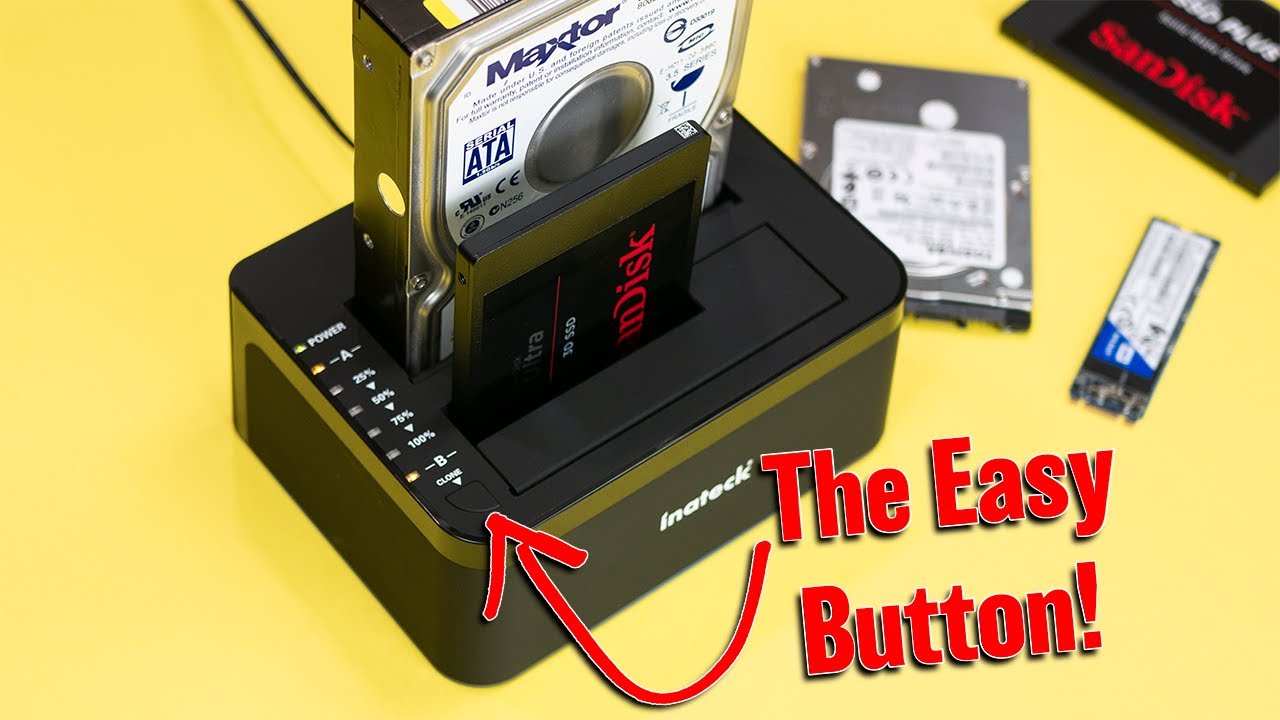
- Gather tools: SATA-to-USB adapter or enclosure, screwdriver, and cloning software.
- Decide on cloning type: file-level (copy files) or sector-by-sector (exact image).

Choosing the right SSD and cloning software
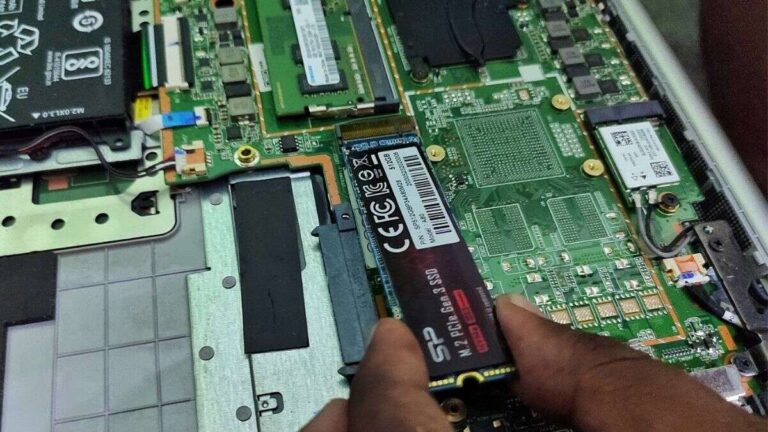
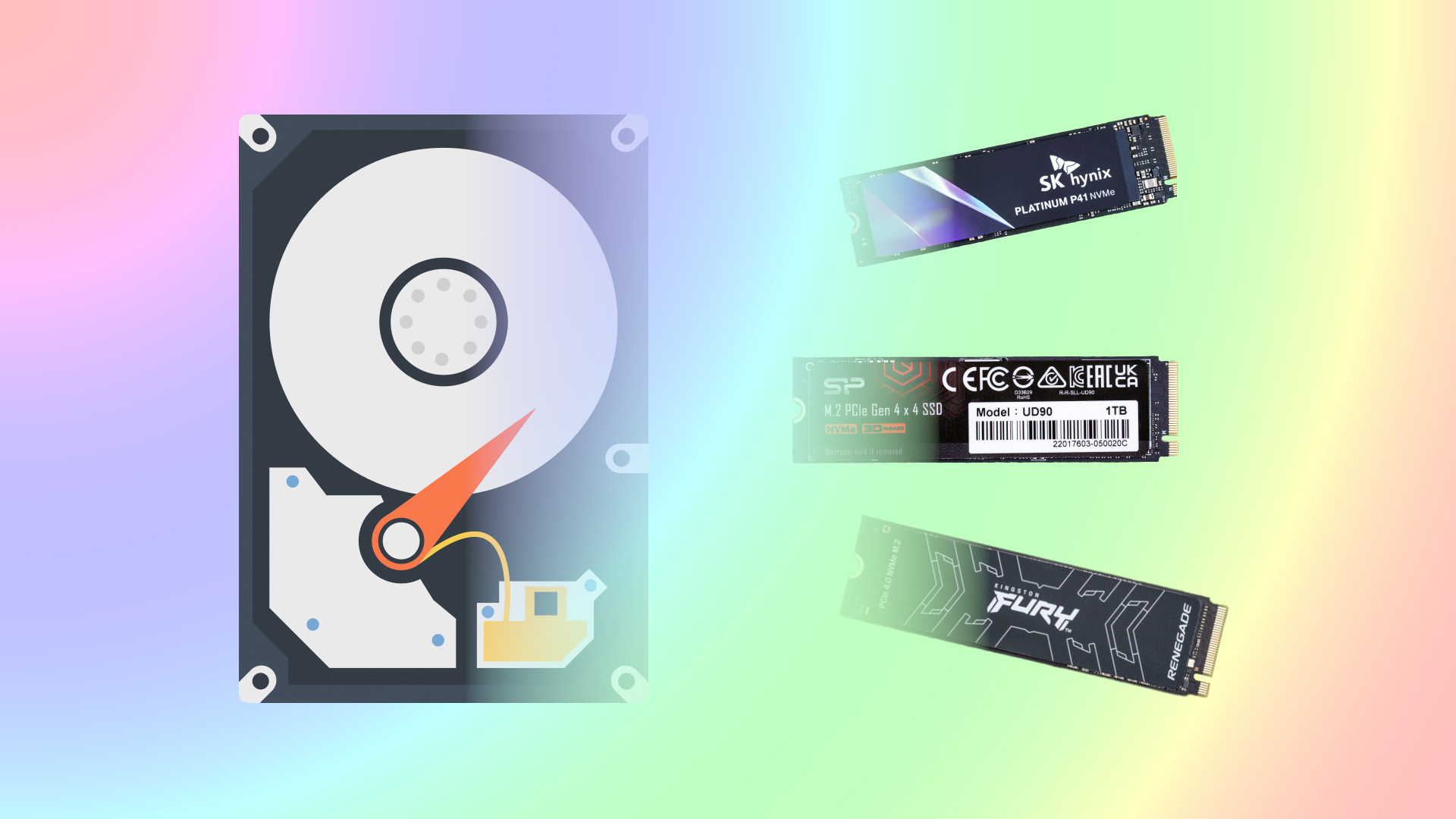
Pick the SSD type that fits your system: 2.5-inch SATA for older laptops and desktops, or M.2 NVMe for modern boards. Look at endurance (TBW), warranty, and controller performance. For software, choose a reliable cloning tool that supports partition resizing, GPT/UEFI, and alignment.
- Recommended software features: disk imaging, partition resize, sector alignment, verification.
- Common tools offer free and paid versions; for critical systems consider paid options with support.
- Verify support for MBR vs GPT and UEFI boot if your system is modern.

Step-by-step: How to clone a hard drive to SSD (Windows)
Follow these steps to clone a Windows system drive. Keep sentences short and follow each step carefully.
- Backup
- Make a file backup and create a system restore point.
- Check disk usage
- Ensure used space on the HDD is less than the SSD capacity.
- Connect the SSD
- Use a SATA cable or SATA-to-USB adapter for laptops.
- Initialize the SSD
- In Disk Management, initialize as GPT for UEFI systems or MBR for legacy BIOS.
- Run cloning software
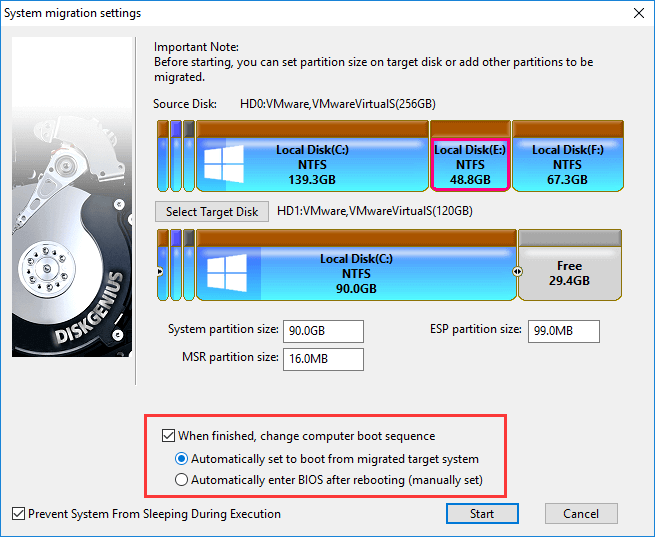
- Select source disk (HDD) and destination disk (SSD). Choose resize options if offered.
- Enable alignment and optimization
- Use 1 MB alignment for SSDs and enable TRIM if prompted.
- Begin clone and verify
- Let the clone finish. Use verification if your tool offers it.
- Swap drives or change boot order
- Replace the HDD with the SSD or set the SSD as primary boot device in BIOS/UEFI.
- Boot and test
- Boot from the SSD, check OS, apps, and files. Run disk check and performance tests.
- Final cleanup
- Enable TRIM, update SSD firmware, and consider wiping the old HDD for reuse.

Step-by-step: How to clone a hard drive to SSD (Mac)
Cloning on macOS is straightforward but requires attention to APFS and Fusion Drive setups.
- Backup with Time Machine (always first).
- Connect the SSD via USB-C or Thunderbolt adapter.
- Use Disk Utility or a cloning app like Carbon Copy Cloner.
- Format the SSD as APFS for modern macOS versions.
- Use the clone function to copy the entire boot volume.
- Restart holding Option and select the new SSD to test booting.
- If all works, replace the internal drive or keep the SSD as external boot disk.

Post-clone tasks: resize partitions, set SSD as boot, and optimize
After cloning, one or two tasks usually remain. Resize partitions if there’s extra space on the SSD. Confirm the SSD is the active boot drive. Enable OS-level SSD optimizations.
- Resize partitions using Disk Management (Windows) or Disk Utility (macOS).
- Enable TRIM: Windows usually enables it; run "fsutil behavior query DisableDeleteNotify" to check. On macOS, TRIM is enabled for Apple SSDs and can be enabled for third-party drives.
- Turn off disk defragmentation on SSDs and leave scheduled TRIM intact.
- Update firmware using the SSD manufacturer tool if available.
Troubleshooting common cloning problems
Cloning can fail for many reasons. Address issues step by step instead of redoing the whole process.
- SSD too small
- Shrink the source partition or move large files to temporary storage before cloning.
- Boot failure after cloning
- Check BIOS/UEFI boot order, repair bootloader, or convert MBR/GPT appropriately.
- Cloned system is slow
- Ensure alignment is correct and TRIM is enabled. Update drivers and firmware.
- Clone software errors
- Try a different cloning tool or create an image file and restore to the SSD.
Tips, mistakes to avoid, and personal experience
Small mistakes make cloning harder than it needs to be. From my experience, two errors repeat most often: using an SSD with insufficient usable space and skipping alignment checks.
- Always verify free space versus used space.
- Do not ignore partition alignment—misalignment kills performance.
- Test the SSD as an external boot before swapping internal drives.
- Keep a recovery USB on hand in case the bootloader needs repair.
I once cloned a 1 TB HDD to a 512 GB SSD without shrinking the C: partition. The clone failed mid-process. Shrinking the partition first and re-running the clone solved the problem. That taught me to always prepare partitions and keep a backup.
Frequently Asked Questions of how to clone a hard drive to ssd
How long does it take to clone a hard drive to SSD?
Cloning time depends on the amount of data and the interface speed. Expect 30 minutes to several hours; NVMe is much faster than USB-SATA adapters.
Will cloning erase my old drive?
Cloning copies data to the SSD and does not automatically erase the source drive. You can wipe the old drive later if you choose.
Can I clone a larger HDD to a smaller SSD?
Yes, if the used data fits the smaller SSD. Shrink partitions and remove unneeded files before cloning.
Do I need to reinstall Windows after cloning to SSD?
No. A proper clone keeps the OS and apps intact, so you typically won’t need to reinstall Windows.
Is cloning the same as backing up?
No. Cloning creates a bootable mirror of the drive. Backups store copies of files or images and often allow versioning and selective restore.
People also ask
Will my programs still work after I clone to an SSD?
Yes, programs should work after a direct clone because the OS registry and file paths remain intact. Activation issues are rare but possible with some licensed apps.
Do I need to align partitions when I clone to SSD?
Yes, alignment matters. Proper alignment improves SSD speed and longevity and most cloning tools handle alignment automatically if configured.
Conclusion
Cloning a hard drive to SSD is a practical way to speed up an older machine and keep your existing setup intact. Prepare carefully, pick the right SSD and software, verify alignment and boot settings, and test thoroughly before committing. If you follow these steps, you’ll reduce downtime and avoid common pitfalls. Try a practice clone with noncritical data first, then proceed with confidence — and share your results or questions below to learn from others.

Jamie Lee is a seasoned tech analyst and writer at MyTechGrid.com, known for making the rapidly evolving world of technology accessible to all. Jamie’s work focuses on emerging technologies, product deep-dives, and industry trends—translating complex concepts into engaging, easy-to-understand content. When not researching the latest breakthroughs, Jamie enjoys exploring new tools, testing gadgets, and helping readers navigate the digital world with confidence.