Turn on the headphones, enable pairing mode, and select "Beribes" from your device's Bluetooth list.
I’ve spent years testing headsets and guiding people through audio setups, so this guide walks you through how to connect Beribes headphones step by step. You’ll get clear pairing steps, device-specific tips, troubleshooting, and real-world advice I’ve learned from hands-on use. Read on to pair your Beribes quickly and keep them working reliably.
Understanding Beribes headphones and connection types
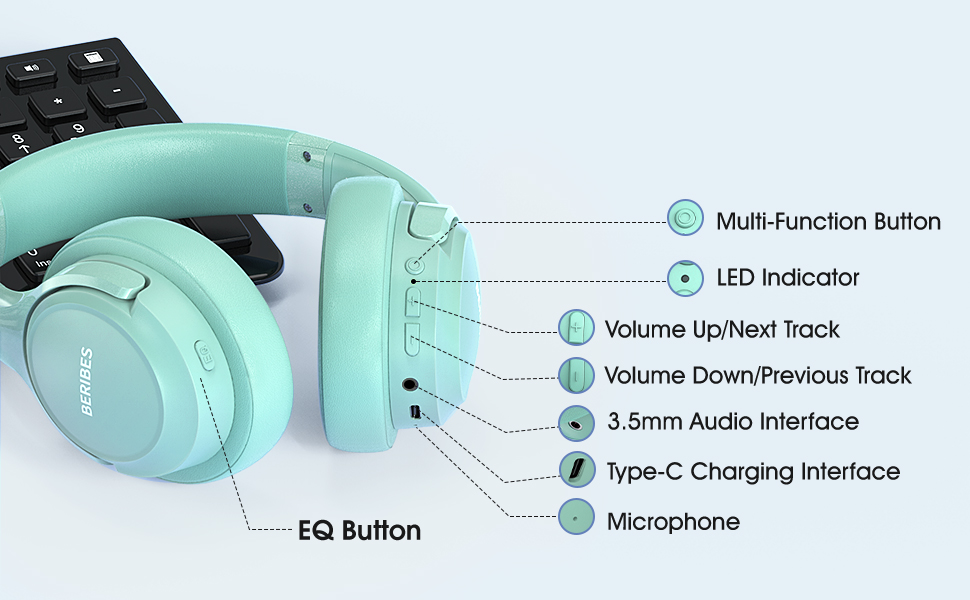
Beribes headphones come in Bluetooth wireless and wired models. Most users have the wireless version and want simple Bluetooth pairing. Knowing your model helps you follow the right pairing path and avoid mistakes.
Key connection options you may see
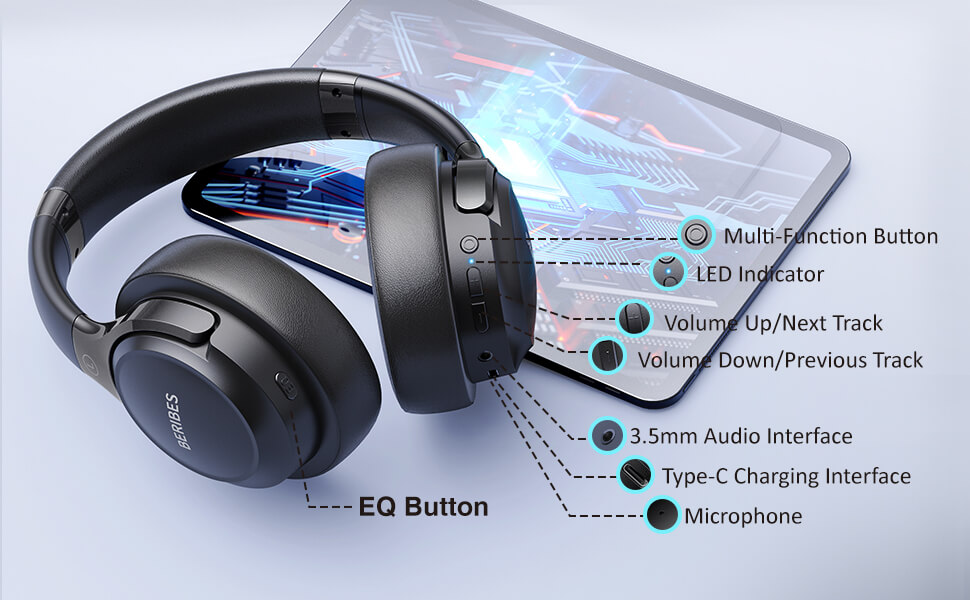
- Bluetooth wireless pairing for phones, laptops, and TVs.
- 3.5mm wired connection for older devices or low-latency needs.
- USB-C or micro-USB charging port for power and sometimes wired audio.
Why this matters
- Wireless pairing differs by device and OS.
- Wired connection is plug-and-play but loses some convenience.
- Firmware and battery can affect the pairing experience.
How this article helps
- You’ll learn how to connect Beribes headphones with Android, iPhone, Windows, macOS, and smart TVs.
- You’ll get clear troubleshooting steps if pairing fails.
Step-by-step: how to connect beribes headphones via Bluetooth
Follow these simple steps to pair any Beribes Bluetooth model. I keep this routine short because repetition makes it easy to remember.
- Charge the headphones
- Charge the Beribes fully before first use. A low battery can block pairing or make it intermittent.
- Turn on and enter pairing mode
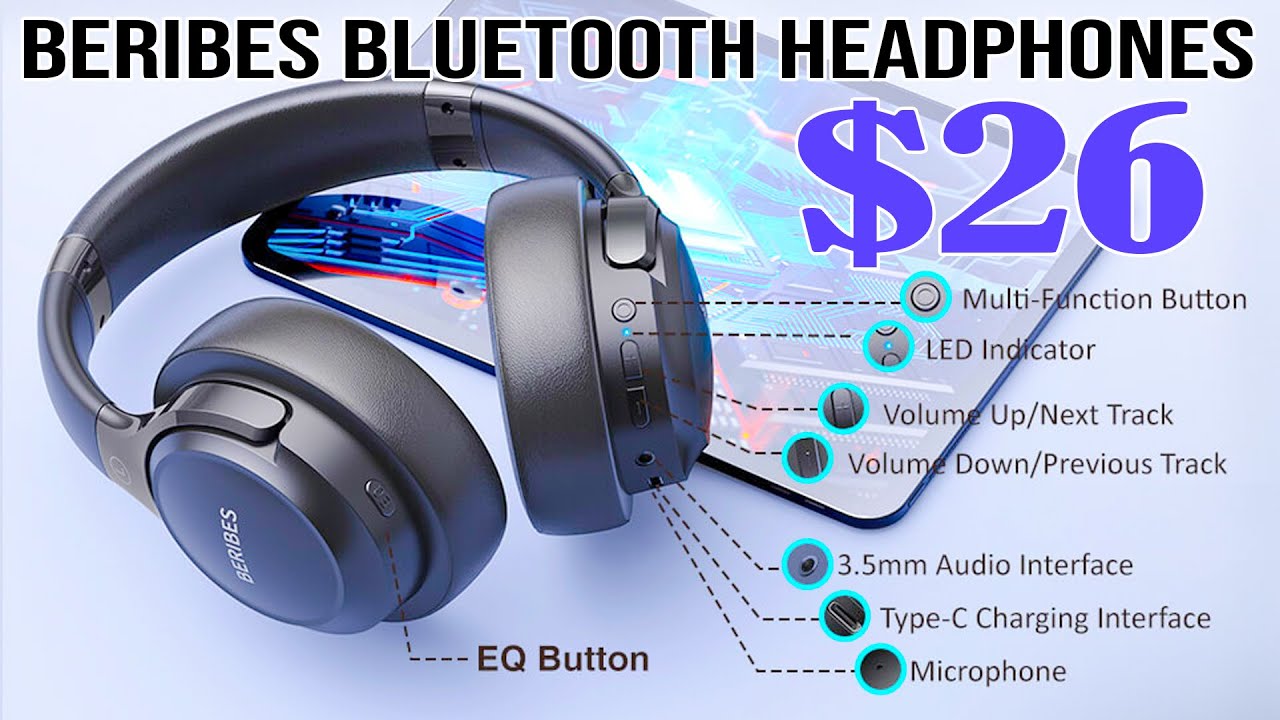
- Press and hold the power button for 4–6 seconds.
- Watch for a flashing LED or hear a voice prompt saying "pairing" or "ready".
- Open Bluetooth on your device
- On your phone or computer, open Bluetooth settings and enable Bluetooth.
- Select Beribes from the list
- Look for "Beribes" or a similar name. Tap to pair.
- If asked for a PIN, enter 0000 or 1234 (common defaults).
- Confirm connection
- You’ll see a "connected" status or hear a confirmation tone.
Quick tips
- Keep the headphones near the device during pairing.
- Remove other active Bluetooth devices to reduce interference.
Short answers to common pairing questions
Q: Why won’t my Beribes show in Bluetooth list?
- Ensure the headphones are in pairing mode and not already connected to another device. Restart Bluetooth on both devices.
Q: Do I need a PIN?
- Most Beribes models don’t need one. If requested, try 0000 or 1234.
Q: How far can I be from the device?
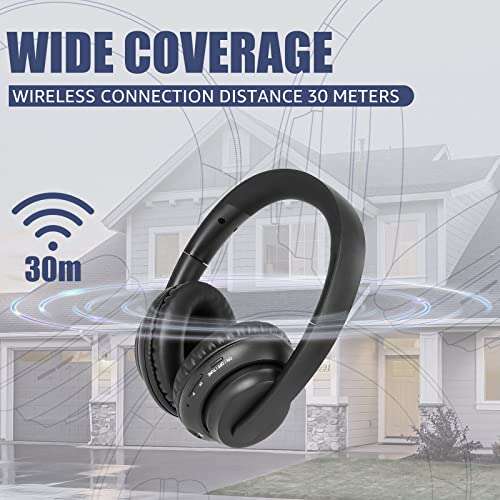
- Typical range is 30 feet (10 meters) with clear line of sight. Walls and interference reduce range.
How to connect beribes headphones to specific devices
Different devices have slightly different steps. Below are short, clear instructions for the most common platforms.
Android (phones and tablets)
- Open Settings > Bluetooth.
- Turn on Bluetooth and tap "Pair new device" or look in the available devices list.
- Tap "Beribes" and confirm pairing.
- If audio is low, check Bluetooth media volume and app volume.
iPhone and iPad
- Open Settings > Bluetooth.
- Make sure Bluetooth is on. The headphones appear under "Other Devices."
- Tap the Beribes name. A one-time confirmation may appear.
- iOS may show additional options like "Headset" and "Media Audio" in control center.
Windows 10/11
- Open Settings > Devices > Bluetooth & other devices.
- Click Add Bluetooth or other device > Bluetooth.
- Choose Beribes. Windows will install drivers automatically.
- Use Sound settings to select Beribes as playback and recording device.
macOS
- Open System Settings > Bluetooth (or System Preferences > Bluetooth).
- Turn on Bluetooth and click Connect next to Beribes.
- If the headphones have mic features, set input and output in Sound settings.
Smart TVs and streaming devices
- Open TV Settings > Sound > Bluetooth or Accessories.
- Put Beribes in pairing mode and select it on the TV.
- For latency-sensitive video, choose TV models that support low-latency codecs or use wired mode when available.

Troubleshooting common pairing problems
If pairing fails, work through these checks. I’ve used them often and they fix most issues.
Common problem: Headphones won’t enter pairing mode
- Make sure battery is charged.
- Hold the power button longer (6–10 seconds).
- Reset the headphones if available (see manual).
Common problem: Device sees Beribes but won’t connect
- Forget or remove the Beribes entry from your device’s Bluetooth list and retry.
- Restart Bluetooth on both devices.
- Reboot your phone or computer.
Common problem: Poor audio or dropouts
- Move closer to the device or remove obstacles.
- Turn off other Bluetooth devices to reduce interference.
- Update firmware if an update is available.
Resetting your Beribes headphones (general method)
- Power off.
- Hold power and volume up (or another combo) for 10 seconds until LED flashes differently.
- Pair again as new.
When to try wired mode
- Use wired 3.5mm when latency matters (gaming or video).
- Wired mode also helps if Bluetooth on a device is outdated.

Tips, battery, firmware, and maintenance
Good habits keep your Beribes reliable. I follow these and rarely see issues.
Battery care
- Charge before first use.
- Avoid full discharge often; partial charges extend battery life.
- Unplug when fully charged to avoid heat stress.
Firmware and updates
- Check the manufacturer app or support pages for firmware updates.
- Updates often fix connectivity bugs and improve performance.
Cleaning and storage
- Wipe earpads and ports with a dry soft cloth.
- Store in case to protect from dust and impacts.
- Avoid moisture and extreme heat.
Audio settings and equalizer
- Use the device EQ or the Beribes app if available.
- For clarity, slightly boost mids and lower heavy bass on phones if voices sound muddy.

Personal experience and common mistakes
I once tried pairing my Beribes while they were connected to a laptop and a phone. The headphones jumped between devices and refused stable audio. I learned three simple lessons from that day.
Lessons learned
- Always disconnect other devices before initial pairing. It saves time.
- Keep firmware up to date; one update fixed a dropout problem I had.
- Use wired mode when latency is a problem; Bluetooth isn’t perfect for competitive gaming.
Mistakes to avoid
- Don’t try pairing with low battery. It often fails.
- Avoid assuming the device name will be obvious; some builds add numbers or model codes.
How I test pairing
- I pair Beribes with multiple devices daily.
- I check latency with video playback and call quality with voice apps.
- Real-world tests reveal small quirks the manual won’t mention.

Frequently Asked Questions
How do I put Beribes headphones into pairing mode?
Press and hold the power button for about 5–8 seconds until the LED flashes or you hear a voice prompt indicating pairing. If that fails, fully charge the headphones and try again.
My device shows Beribes but will not connect. What should I do?
Remove or forget the Beribes entry from your device’s Bluetooth list, then restart Bluetooth and try pairing again. Restarting your phone or laptop often helps too.
Can I connect Beribes headphones to two devices at once?
Some Beribes models support multipoint pairing, but many do not. Check your model’s manual; if it’s not listed, pair to one device at a time for best reliability.
Why is the audio cutting out on my Beribes headphones?
Audio cutouts are often due to distance, interference, or low battery. Move closer, reduce obstacles, and charge the headphones fully to reduce dropouts.
Do Beribes headphones work with game consoles?
Beribes pair with consoles that support standard Bluetooth audio, but some consoles block Bluetooth headsets. Use a wired connection or a compatible Bluetooth transmitter for consoles that don’t support direct pairing.
Conclusion
You now have a clear, practical plan for how to connect Beribes headphones across phones, computers, and TVs. Start by charging and entering pairing mode, then select Beribes in your device’s Bluetooth settings. If something goes wrong, use the troubleshooting steps and consider a wired connection for low latency.
Take action: try the step-by-step pairing on your primary device now. If you hit a snag, use the reset and forget-device steps above, and leave a comment below describing your problem so I can help.

Everett Ashford is a tech reviewer at mytechgrid.com specializing in SSDs, cameras, TVs, earbuds, headphones, and other consumer electronics. He provides honest, data-driven reviews based on hands-on testing and real-world performance analysis. Everett simplifies complex tech details to help readers make smart, confident buying decisions.