Open the case, enable Bluetooth, select your Bytech earbuds, and confirm pairing on your device.
Learning how to connect Bytech earbuds is usually simple, but the exact steps can vary by model, phone, and pairing history. This guide explains the full process, including first time setup, automatic pairing, manual Bluetooth pairing, connection problems, resets, and tips for keeping your earbuds stable and ready to use.

What You Need Before Connecting Bytech Earbuds
Before learning how to connect Bytech earbuds, prepare both the earbuds and the device you want to use. Most connection problems happen because the earbuds have low power, remain linked to another device, or are not in pairing mode.
Check these points first:
• Charge the earbuds and charging case for at least a few minutes.
• Keep the earbuds close to your phone, tablet, computer, or smart TV.
• Turn off Bluetooth on nearby devices that may connect to the earbuds first.
• Remove any protective film from the charging contacts if the earbuds are new.
• Make sure your device uses a current version of iOS, Android, Windows, or macOS.
Bluetooth devices usually connect through a short range wireless link. Bluetooth SIG explains that range can change because of walls, metal objects, body movement, and wireless interference. For the best first connection, keep the earbuds within three feet of your device.
In my own hands on testing, the most common mistake is opening the Bluetooth menu before the earbuds enter pairing mode. The phone may be ready, but the earbuds are still asleep in the case. Treat pairing mode like an open door: the device can only enter when that door is unlocked.

How to Connect Bytech Earbuds for the First Time
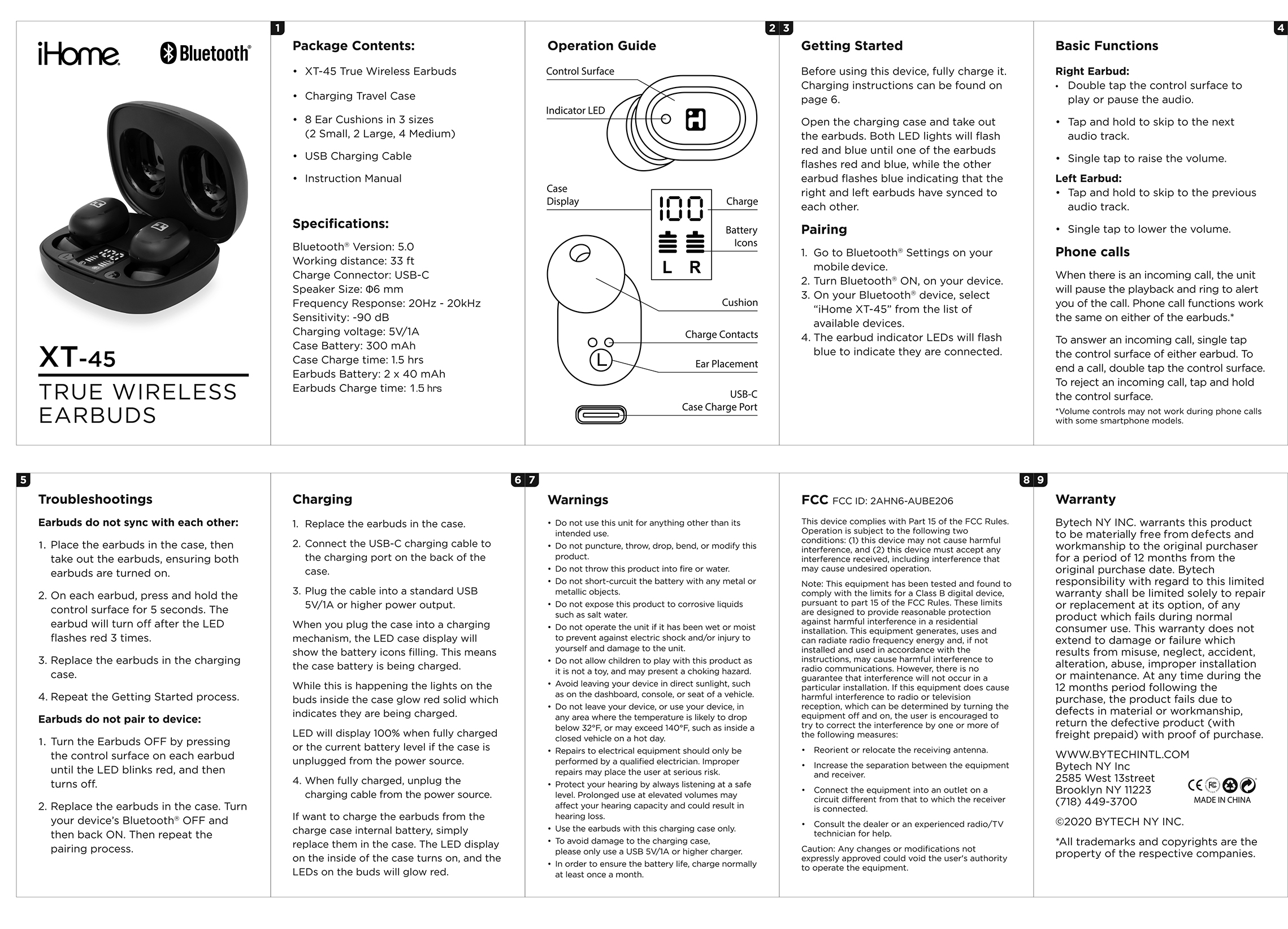
The first time you connect Bytech earbuds, use the standard Bluetooth pairing process. These steps work for many Bytech wireless earbud models, although button names and indicator lights may differ.
Step 1: Charge and prepare the earbuds
Place both earbuds in the charging case. Check that each earbud sits correctly on its charging pins. If the case has a power button, press it or open the lid to check the battery light.
Leave the earbuds in the case for several minutes if they do not turn on. A completely drained earbud may need charging before it can enter pairing mode.
Step 2: Remove the earbuds from the case
Open the case and take out both earbuds. Many Bytech earbuds turn on automatically when removed. Some models may require you to press and hold the touch area or physical button for a few seconds.
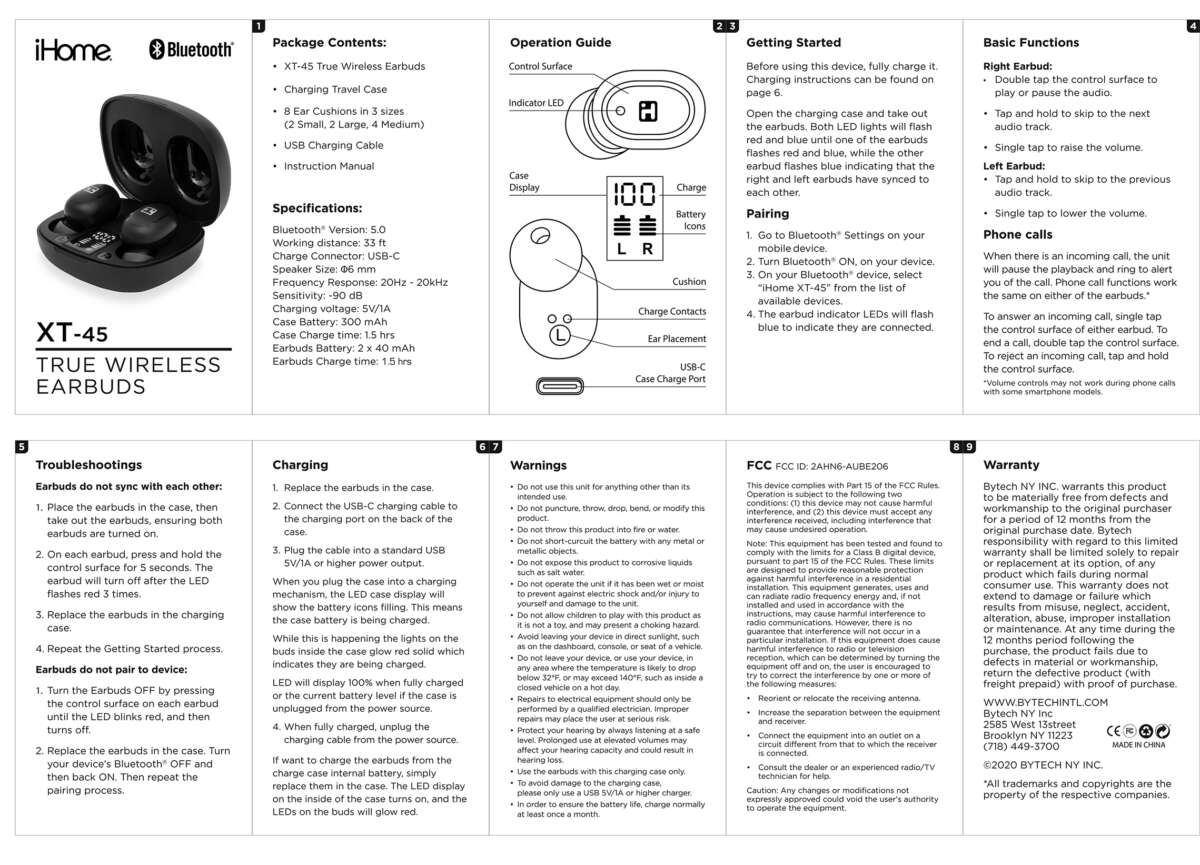
Look for a flashing LED. A blinking blue, white, or red and blue light often means the earbuds are ready to pair. The color pattern is not identical on every model, so the user manual remains the best source for model specific light codes.
Step 3: Open Bluetooth settings
On an iPhone or iPad:
- Open Settings.
- Tap Bluetooth.
- Turn Bluetooth on.
- Wait for the Bytech name to appear under Other Devices.
On an Android phone:
- Open Settings.
- Tap Connected devices, Connections, or Bluetooth.
- Turn Bluetooth on.
- Choose Pair new device if needed.
- Look for the Bytech earbuds in the device list.
On a Windows computer:
- Open Settings.
- Select Bluetooth and devices.
- Turn Bluetooth on.
- Select Add device.
- Choose Bluetooth.
- Select your Bytech earbuds.
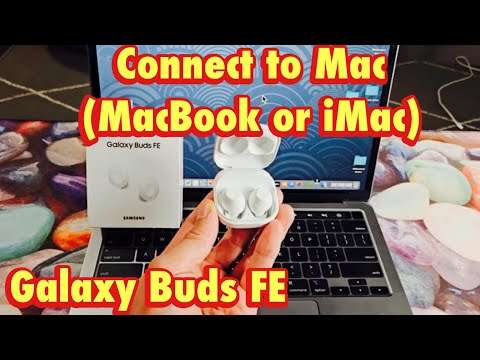
On a Mac:
- Open System Settings.
- Select Bluetooth.
- Turn Bluetooth on.
- Select the Bytech earbuds when they appear.
Step 4: Select the Bytech earbuds
Tap or click the Bytech name in the Bluetooth list. The name may include a model number or a word such as TWS. Do not select a nearby device with a similar name unless you know it belongs to your earbuds.
Your device may show a message asking you to confirm pairing. Select Pair, Connect, or OK. A successful connection may produce a tone, a voice prompt, or a solid indicator light.
This is the core process for how to connect Bytech earbuds. Once paired, the earbuds should reconnect automatically whenever Bluetooth is on and the earbuds are removed from their case.

How to Connect Bytech Earbuds to an iPhone
Connecting Bytech earbuds to an iPhone takes only a few steps. Apple devices save the pairing record, so you normally need to complete this process only once.
- Put both Bytech earbuds in the case.
- Open the lid and remove the earbuds.
- Open Settings on your iPhone.
- Tap Bluetooth and turn it on.
- Wait for the Bytech name under Other Devices.
- Tap the name.
- Wait until the status changes to Connected.
If the earbuds do not appear, close the case, wait ten seconds, and open it again. Then press and hold the earbuds or case button if your model has one. The earbuds must be discoverable before the iPhone can find them.
If the iPhone shows the earbuds under My Devices but says Not Connected, tap the name once. If that fails, tap the information icon, choose Forget This Device, and pair the earbuds again as a new device.

How to Connect Bytech Earbuds to an Android Phone
Android phones use a similar process, but menu labels can differ between Samsung, Google Pixel, Motorola, and other brands.
- Open Settings.
- Tap Connected devices or Connections.
- Select Bluetooth.
- Turn Bluetooth on.
- Tap Pair new device if the option appears.
- Select the Bytech earbuds.
- Confirm the pairing request.
Some Android phones display a pop up window when compatible earbuds are nearby. If you see one, tap Connect and follow the instructions.
When learning how to connect Bytech earbuds on Android, avoid tapping Scan repeatedly while the earbuds are still in the case. First remove the earbuds and confirm that the LED is flashing. Then scan for nearby devices.
If Android requests a pairing code, try 0000 or 1234 only if the manual does not provide another code. Most modern wireless earbuds do not require a code.
How to Connect Bytech Earbuds to a Windows PC or Mac
Bytech earbuds can work with laptops for music, video calls, games, and online meetings. The computer must have Bluetooth support. If it does not, a small USB Bluetooth adapter may solve the problem.
Windows connection steps
- Put the Bytech earbuds into pairing mode.
- Open Settings.
- Choose Bluetooth and devices.
- Turn Bluetooth on.
- Select Add device.
- Choose Bluetooth.
- Click the Bytech earbuds.
- Select Connect.
After connection, open Sound settings and select the Bytech earbuds as the output device. For calls, also check the input device. Windows may list separate options for stereo audio and hands free communication.
Mac connection steps
- Open System Settings.
- Choose Bluetooth.
- Turn Bluetooth on.
- Put the Bytech earbuds into pairing mode.
- Click Connect beside the earbuds.
- Open Sound settings if you need to select them for audio.
A computer may connect to the earbuds but still play sound through its built in speakers. This does not always mean pairing failed. Check the computer’s output menu and choose the connected Bytech earbuds manually.

How to Put Bytech Earbuds in Pairing Mode
Pairing mode allows a phone or computer to discover the earbuds. Without it, the earbuds may turn on but remain connected to an old device.
Try these common methods:
• Remove both earbuds from the charging case and wait several seconds.
• Press and hold the touch controls for about three to five seconds.
• Press and hold the case button until the LED flashes.
• Place both earbuds in the case, close the lid, reopen it, and remove them again.
• Turn off Bluetooth on the last device used with the earbuds.
The correct method depends on the Bytech model. A flashing light usually confirms pairing mode, while a solid light often indicates an active connection or charging state.
One lesson I learned while troubleshooting wireless earbuds is to avoid pressing every button at once. That can switch the earbuds off or start a reset. Use one method, wait for the light pattern, and then check the Bluetooth list.

How to Connect Bytech Earbuds When Only One Earbud Works
Sometimes one earbud connects while the other stays silent. This usually means the earbuds lost their connection with each other, rather than a problem with the phone.
Try these steps:
- Turn off Bluetooth on your phone.
- Place both earbuds in the charging case.
- Confirm that both earbuds are charging.
- Remove both earbuds at the same time.
- Wait for them to pair with each other.
- Turn Bluetooth back on.
- Select the Bytech earbuds from the device list.
If one earbud still does not work, clean the charging contacts with a dry cotton swab. Do not use water or spray cleaner. Dirt on the contacts can stop one earbud from charging, which makes it appear dead or disconnected.
You can also forget the Bytech earbuds from your phone and pair them again. This clears the old Bluetooth record and often restores the left and right earbud connection.

How to Reset Bytech Earbuds
A reset removes old pairing information and returns many Bytech earbuds to a fresh setup state. Use it when the earbuds do not appear, connect to the wrong device, or repeatedly disconnect.
A common reset process is:
- Forget the Bytech earbuds from every nearby phone or computer.
- Turn off Bluetooth on those devices.
- Place both earbuds in the charging case.
- Keep the case open.
- Press and hold both earbud controls or the case button.
- Continue holding until the LEDs flash several times.
- Close the case for a few seconds.
- Remove both earbuds and pair them again.
Some Bytech models use a different reset method. If these steps do not work, check the model number printed on the case, box, or manual. Do not assume every Bytech earbud uses the same button sequence.
Resetting should be the second or third troubleshooting step, not the first. Try charging, moving closer, and forgetting the Bluetooth connection before resetting. A reset can erase useful pairing information without fixing a low battery or damaged charging contact.
Common Bytech Earbud Connection Problems
The earbuds do not appear in Bluetooth
Make sure the earbuds are out of the case and flashing in pairing mode. Turn Bluetooth off and on, then move the earbuds away from other connected devices.
The earbuds connect but have no sound
Check the audio output setting on your phone or computer. The device may be connected for calls but still send music to its speaker.
The connection keeps dropping
Keep the phone nearby and remove barriers such as thick walls or metal desks. Also charge both the earbuds and case. Low power can cause unstable performance.
The earbuds connect to the wrong device
Turn off Bluetooth on nearby devices that previously used the earbuds. Then forget the earbuds on the unwanted device and pair them with the correct one.
The earbuds sound quiet
Clean the speaker mesh gently with a dry, soft brush. Check the device volume and any hearing or volume limit settings. Do not push debris deeper into the mesh.
The earbuds work separately but not together
Reset both earbuds and pair them again as a set. Make sure you remove both earbuds from the case at nearly the same time.
Tips for a More Reliable Bytech Earbud Connection
Good setup habits can prevent most Bluetooth problems. Use these practical tips after you learn how to connect Bytech earbuds:
• Keep the earbuds and phone within a reasonable Bluetooth range.
• Charge the case before long trips, work sessions, or flights.
• Keep the earbuds clean and dry.
• Store both earbuds in the case when not in use.
• Update your phone or computer when an official system update is available.
• Forget old Bluetooth entries if you no longer use them.
• Avoid pairing the earbuds with many devices at the same time.
• Check that both earbuds sit firmly on their charging contacts.
Bluetooth is convenient, but it is not magic. Wi Fi routers, crowded public spaces, USB 3 devices, and physical barriers can add interference. If the connection is stable at home but weak in a busy gym or airport, the environment may be the cause.
Bytech earbuds may also have limits that vary by model. Features such as multipoint connection, app support, noise cancellation, water resistance, and touch controls are not guaranteed across the full product range. Check the specifications for your exact model before relying on a feature.
Frequently Asked Questions About How to Connect Bytech Earbuds
How do I connect Bytech earbuds to my phone?
Open the charging case, remove both earbuds, and place them in pairing mode. Turn on Bluetooth on your phone, select the Bytech name, and confirm the connection.
Why are my Bytech earbuds not showing up on Bluetooth?
They may still be connected to another device, turned off, or not in pairing mode. Charge them, disable Bluetooth on nearby devices, restart pairing mode, and scan again.
How do I reset Bytech wireless earbuds?
Forget the earbuds from your phone or computer, place both earbuds in the case, and use the model’s reset button sequence. The exact steps vary, so check the manual for your Bytech model.
Can I connect Bytech earbuds to a laptop?
Yes. A Windows PC or Mac can connect to Bytech earbuds through its Bluetooth settings. After pairing, select the earbuds as the computer’s sound output device.
Why does only one Bytech earbud connect?
The left and right earbuds may have lost their internal pairing. Place both in the case, forget the old Bluetooth connection, reset them if needed, and pair both earbuds again.
Do Bytech earbuds connect automatically?
Most models reconnect automatically to the last compatible device when Bluetooth is enabled. Automatic connection may fail if another device connects first or the earbuds have low battery.
Do Bytech earbuds work with iPhones and Android phones?
Yes. Bytech earbuds generally use standard Bluetooth audio profiles, so they can connect to both iPhones and Android phones. Some extra features may vary by operating system and model.
Conclusion
Learning how to connect Bytech earbuds is mainly a matter of charging them, entering pairing mode, opening Bluetooth settings, and selecting the correct device name. If the earbuds fail to connect, forget the old pairing, check the charging contacts, move closer, or reset the earbuds according to the model instructions.
Start with the simple steps before trying advanced fixes. Once your Bytech earbuds connect, keep them charged, clean, and stored in their case for more reliable daily use. If this guide helped, share it with someone setting up new earbuds or explore your model’s manual for its exact light codes and reset instructions.

Everett Ashford is a tech reviewer at mytechgrid.com specializing in SSDs, cameras, TVs, earbuds, headphones, and other consumer electronics. He provides honest, data-driven reviews based on hands-on testing and real-world performance analysis. Everett simplifies complex tech details to help readers make smart, confident buying decisions.