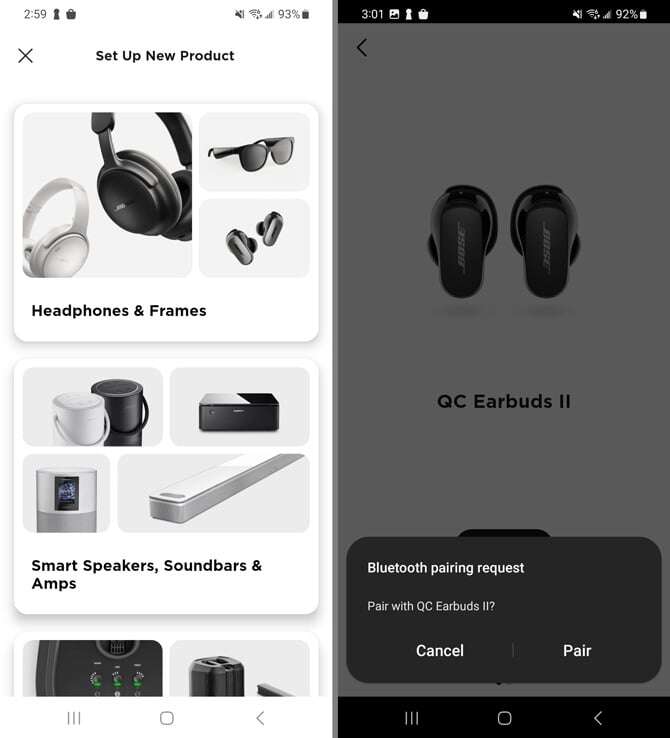
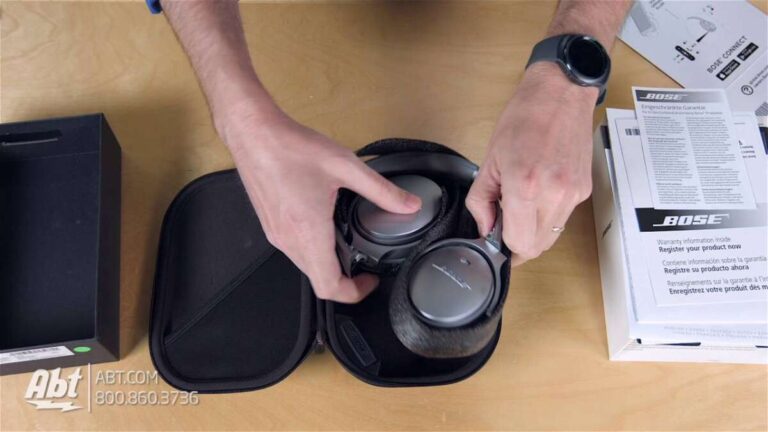
Turn on Bluetooth, enter pairing mode on the Soundcore, and choose it in your device’s Bluetooth list.
I’ve paired and tested many Soundcore models over years, from Liberty buds to Life Q headsets. This guide shows simple, proven steps for how to connect to Soundcore headphones across phones, tablets, and computers. Read on for step‑by‑step pairing, quick fixes, and tips I use every day to keep my connections fast and stable.

Why proper pairing matters and what to expect
Connecting right saves time and avoids drops. Poor pairing can mean no sound, lag, or interrupted calls. Knowing how to connect to Soundcore headphones helps you get better audio, longer battery life, and a smoother call experience.
Soundcore headphones use Bluetooth standards that vary by model. Newer models often support multipoint and fast pairing. Older models may require a manual reset. I’ll explain both so you can pair any Soundcore headset fast.

Prepare your Soundcore headphones
Follow these quick checks before you try to pair. They reduce errors and make pairing fast.
- Charge the headphones so they have at least 20% battery.
- Turn them off, then back on to clear glitches.
- Factory reset if you see pairing issues or strange behavior.
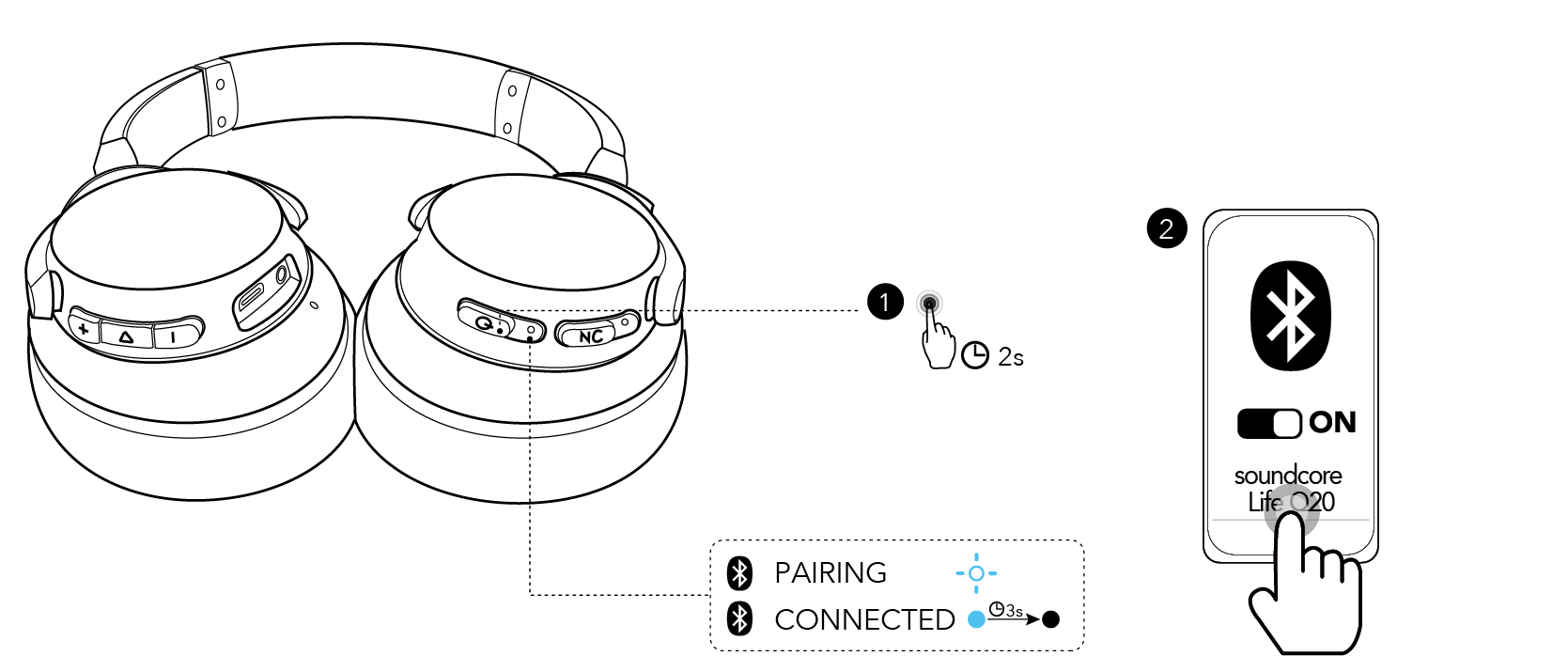
- Put headphones in pairing mode: usually hold the power button for 3–5 seconds until the LED blinks.
Knowing how to connect to Soundcore headphones starts with these prep steps. They often fix most problems before you pair.
How to connect to Soundcore headphones with iPhone or iPad (iOS)
iOS devices pair quickly and show battery status for many Soundcore models.
- Open Settings on your iPhone or iPad.
- Tap Bluetooth and ensure it’s on.
- Put the Soundcore in pairing mode (hold power button until LED flashes).
- Wait for the Soundcore name to appear under Other Devices.
- Tap the Soundcore entry to connect. A check mark shows it’s paired.
If you see a prompt to allow access to contacts or features, accept if you want call controls and click-to-dial options. If pairing fails, toggle Bluetooth off and on, then repeat the steps.

How to connect to Soundcore headphones with Android
Android interfaces vary, but steps are similar across phones.
- Open Settings, then Bluetooth or Connections.
- Turn Bluetooth on.
- Press and hold the Soundcore power button to enter pairing mode.
- Look for the Soundcore name in Available Devices.
- Tap to pair and connect.
Some Android phones show a pairing code. If asked, confirm the code shown on both devices. If your phone supports fast pairing, you may get a pop-up card to connect instantly.

How to connect to Soundcore headphones with Windows PC
Pairing to a PC is simple. Use this when you need audio for calls or music on a laptop or desktop.
- Open Settings and go to Bluetooth & devices.
- Turn Bluetooth on, then click Add device.
- Choose Bluetooth and select the Soundcore name when it appears.
- Wait for "Connected voice, music" confirmation.
If audio still goes to your PC speakers, open Sound settings and set the Soundcore as the output device.

How to connect to Soundcore headphones with Mac
Mac pairing is fast and consistent.
- Click the Apple menu, then System Settings or System Preferences.
- Go to Bluetooth and enable it.
- Put your Soundcore in pairing mode.
- Click Connect next to the Soundcore name on the Mac.
If the Mac routes sound to the wrong device, open Sound settings and choose the Soundcore as Output.

Common pairing features and terms to know
Knowing these small terms helps when you connect.
- Multipoint
- Lets Soundcore connect to two devices at once. Useful for switching between phone and laptop.
- Fast pair or quick connect
- Some models offer instant pairing pop-ups on compatible phones.
- ANC and transparency modes
- These don’t affect pairing but can change battery use after you connect.
Understanding these features helps you use your headset better once you learn how to connect to Soundcore headphones.

Troubleshooting: fixes for common issues
If pairing fails or drops, try these fixes I use often.
- Turn Bluetooth off and on on both devices.
- Restart your phone or computer.
- Fully charge the headphones and device.
- Forget the Soundcore entry in Bluetooth settings and re-pair.
- Factory reset the headphones: hold power and volume buttons together for 10 seconds (varies by model).
PAA-style question 1: Can I pair two phones to my Soundcore headphones?
Yes. Many Soundcore models support multipoint and let you connect two devices. Check the manual if your model does not allow it.
PAA-style question 2: Why do my Soundcore headphones drop sound during calls?
Drops often come from low battery, Bluetooth interference, or outdated firmware. Charge the headset, move closer to your device, and update firmware if available.

Tips and best practices from my experience
Here are habits that make pairing smooth every time.
- Keep firmware updated. Updates fix bugs and improve connectivity.
- Pair new devices one at a time. Avoid crowding the Bluetooth list.
- Use the Soundcore app when available. It shows battery and allows firmware updates.
- Store headphones in their case to save battery. Many models auto-power off when stored.
I once spent 20 minutes trying to pair until I reset the headset. After that, pairing took 30 seconds. Resetting is often the fastest fix.
Limitations and compatibility notes
Soundcore uses standard Bluetooth but may vary by model.
- Older Soundcore models may not support multipoint.
- Some smart TVs or game consoles need a Bluetooth adapter for audio.
- Latency may be noticeable on older Bluetooth stacks for gaming.
Be clear about your device’s Bluetooth version. It affects how you connect and what features you get when you learn how to connect to Soundcore headphones.
Frequently Asked Questions of how to connect to soundcore headphones
How do I put my Soundcore headphones in pairing mode?
Hold the power button for 3–5 seconds until the LED flashes or you hear a voice prompt. Check your model manual for exact steps.
Why won't my device find the Soundcore headphones?
Bluetooth may be off, or the headphones aren’t in pairing mode. Try turning Bluetooth off and on and re-enter pairing mode.
How do I reset my Soundcore headphones?
Most models reset by holding the power and volume buttons together for 10 seconds. Refer to the manual for model-specific steps.
Can I use Soundcore headphones with multiple devices at once?
Many newer models support multipoint and let you connect two devices simultaneously. Older models typically do not.
How do I update Soundcore firmware?
Use the Soundcore app on iOS or Android to check for and install firmware updates. This often fixes pairing bugs and improves performance.
Conclusion
You now have clear, practical steps for how to connect to Soundcore headphones on phones, tablets, and computers. Start by preparing your headset, using the right pairing steps for your device, and applying simple fixes if things go wrong. Try the tips here to speed up pairing and reduce drops.
Take action: charge your headphones, update firmware, and try pairing right now. If you hit a snag, leave a comment with your model and device, and I’ll help you troubleshoot.

Everett Ashford is a tech reviewer at mytechgrid.com specializing in SSDs, cameras, TVs, earbuds, headphones, and other consumer electronics. He provides honest, data-driven reviews based on hands-on testing and real-world performance analysis. Everett simplifies complex tech details to help readers make smart, confident buying decisions.