Clone your hard drive to an SSD using cloning software, an adapter, and simple partition fixes.
I’ve helped hundreds of users move their systems from aging hard drives to fast SSDs. This guide on how to copy hard disk to ssd walks you through every step. You’ll learn why cloning is useful, which tools to use, how to avoid common mistakes, and practical tips from real-world experience so you can finish the job with confidence.

Why upgrade from a hard disk to an SSD
Solid state drives are a big jump in speed and reliability over spinning hard disks. An SSD boots faster, launches apps quicker, and resists shock and wear far better than a mechanical drive. For everyday use, the difference is immediately noticeable.
Benefits you’ll see after you copy hard disk to ssd
- Faster boot and app load times that feel like a new computer.
- Lower power use and less noise, especially on laptops.
- Better durability with no moving parts.
- Improved multitasking thanks to faster read/write operations.
Common trade-offs
- SSD cost per gigabyte is higher than HDD.
- You may need a different connector (SATA vs NVMe).
- Some older systems need BIOS/UEFI tweaks to boot from an SSD.

Cloning versus fresh install: what to choose
Cloning copies everything as-is, including the OS, apps, and settings. A fresh install wipes the drive and installs the OS cleanly. Both approaches are valid depending on your goal.
When cloning makes sense
- You want the exact same system on a new drive with minimal downtime.
- You have many apps or custom settings you don’t want to reinstall.
When a fresh install is better
- Your system is cluttered or infected and you want a clean start.
- You want to change partition layout or move from MBR to GPT properly.
Either way, this guide focuses on how to copy hard disk to ssd by cloning, plus when a fresh install may be wiser.
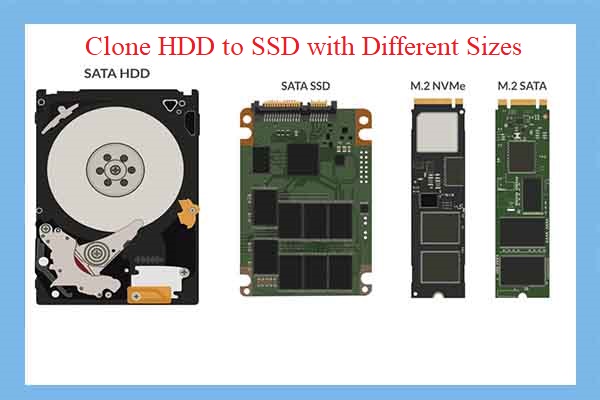
Prepare before you copy your hard disk to SSD
Preparation is the key to smooth migration. A short checklist saves hours later.
Checklist before you start
- Confirm SSD capacity is >= used space on the hard disk.
- Back up important files to an external drive or cloud.
- Update your system and drivers before cloning.
- Ensure you have a SATA-to-USB adapter or an SSD enclosure for laptops.
- Check BIOS/UEFI mode (Legacy/MBR vs UEFI/GPT) and record the current boot mode.
- Download cloning software or bootable tool and create recovery media.
Small but critical checks
- Run a disk health test on the source HDD to avoid copying bad sectors.
- Trim unused files and empty the recycle bin to reduce the clone size.
- Disable BitLocker or full-disk encryption before cloning; re-enable afterward.

Methods to copy hard disk to ssd
There are several ways to move your system. Pick the one that fits your skill level and hardware.
Main methods
- Cloning software: Copies the entire drive bit-for-bit or file-by-file.
- Disk imaging: Creates an image file that can be restored to the SSD.
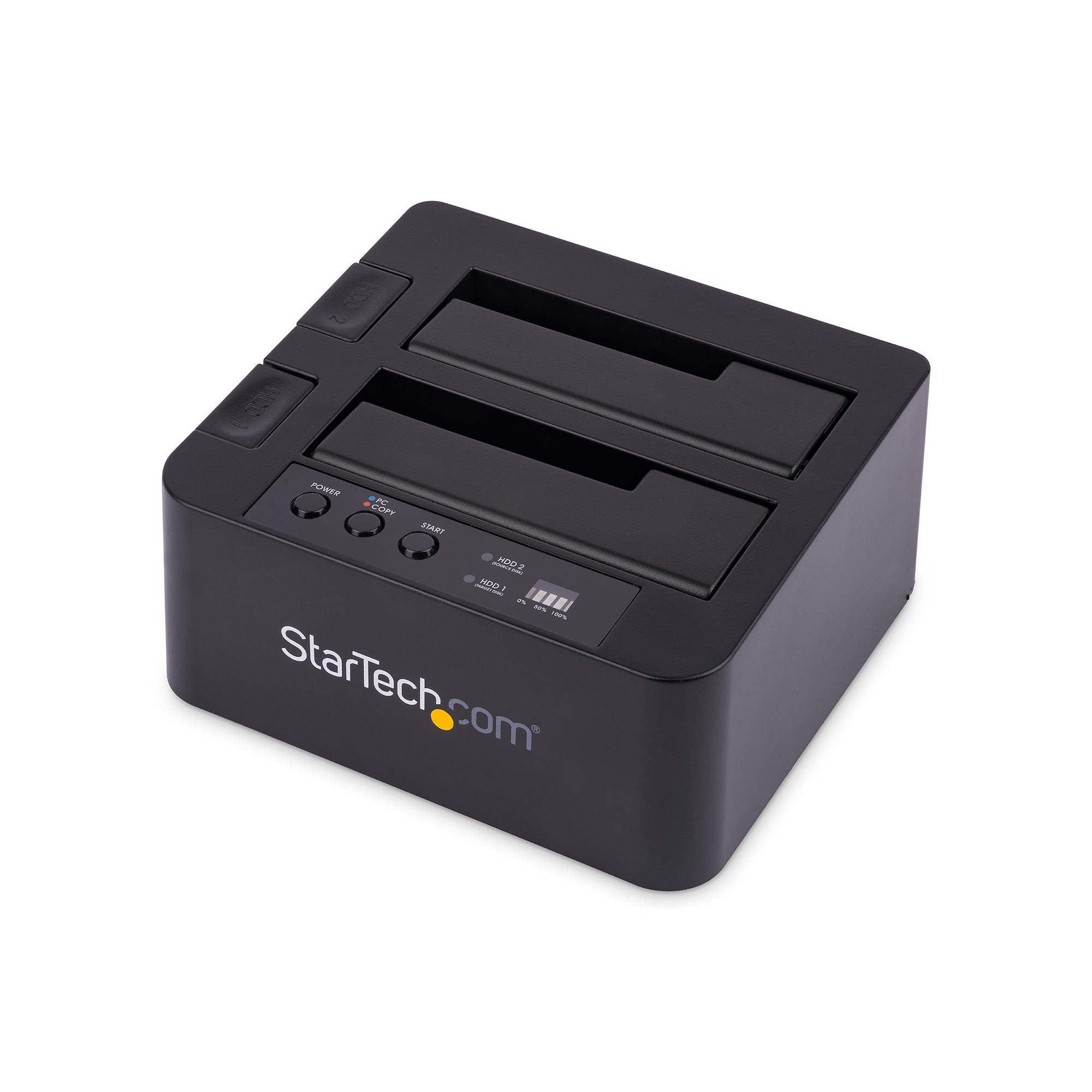
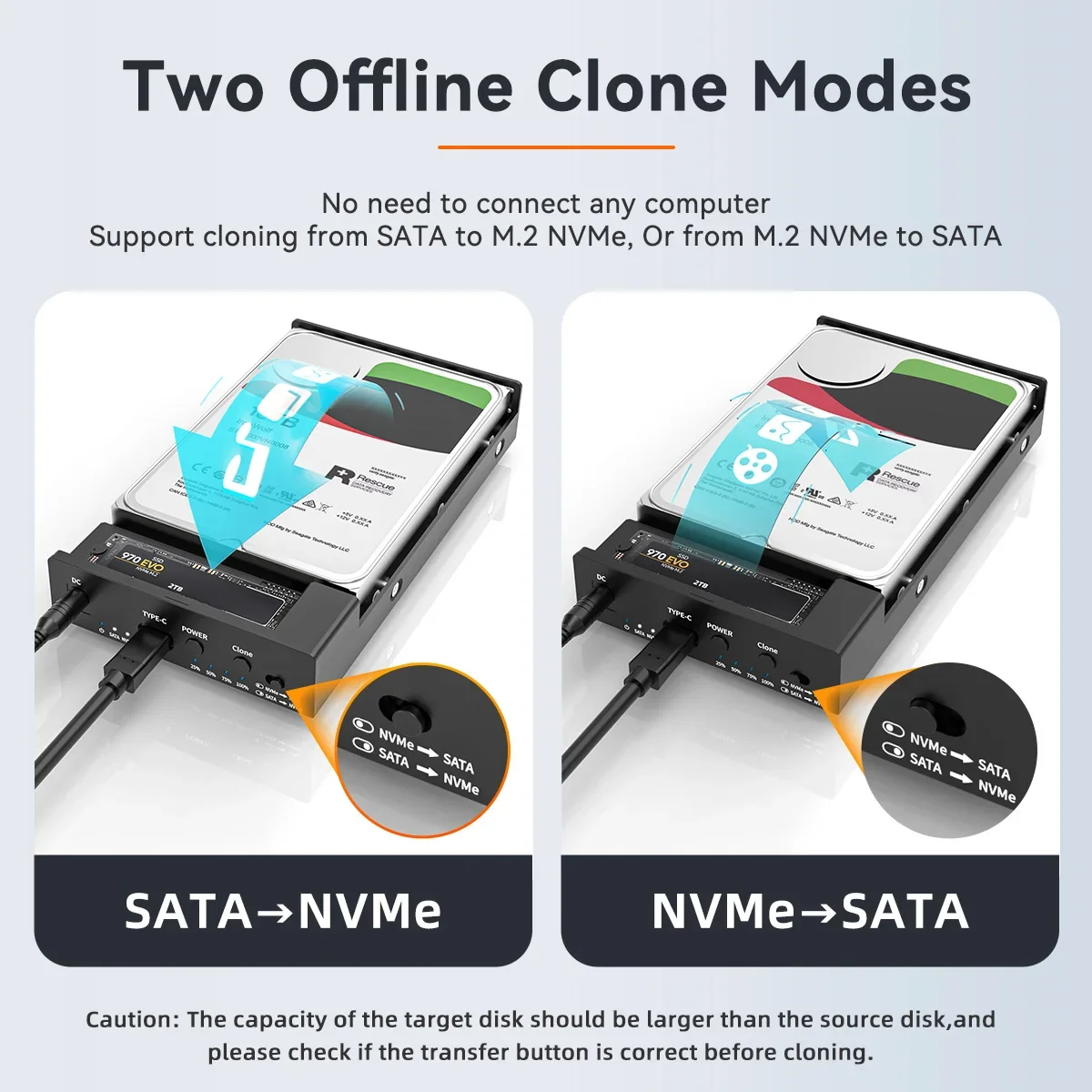
- Hardware cloners: Dedicated devices that copy drives without a PC.
- Fresh install + file copy: Install the OS on SSD then copy data folders.
Popular tool types
- GUI cloning apps for Windows and macOS for ease of use.
- Bootable Linux tools like Clonezilla for flexible, free cloning.
- Command-line tools on Linux (dd, rsync) for advanced users.
I use GUI cloning tools for most client machines for speed and ease, and Clonezilla when I need a free, reliable bootable tool for many machines at once.
How to copy hard disk to ssd on Windows — step-by-step
This step-by-step uses general cloning concepts that match most popular cloning tools.
Preparation
- Connect the SSD via SATA or USB adapter.
- Confirm the SSD is detected in Disk Management.
- If the SSD is new, initialize it using the same partition style (MBR or GPT) as the source drive.
Cloning steps
- Open your chosen cloning software.
- Select the source hard disk as the source.
- Select the SSD as the target. Choose sector-by-sector only if you need an exact copy.
- If the SSD is smaller, choose "copy used data only" or resize partitions to fit.
- Start the clone and wait; times vary by size and interface.
Post-clone boot
- Shut down and disconnect the old HDD (or change boot order in BIOS/UEFI).
- Boot from the SSD and confirm the system starts.
- If the system fails to boot, check BIOS/UEFI mode and set the SSD as the primary boot device.
Tips and checks
- Enable AHCI in BIOS before booting Windows from SSD for best performance.
- If Windows requests re-activation, follow the on-screen steps; activation may revalidate.
- Run TRIM (it’s usually on by default) and check alignment with a small utility.
I once cloned a 1 TB drive to a 512 GB SSD. I disabled large temp files and moved a 200 GB media folder to an external drive first. That let me resize the system partition and complete the clone without losing data.
How to copy hard disk to ssd on macOS — step-by-step
macOS has built-in tools and reliable third-party apps for cloning.
Using Disk Utility or third-party tools
- Connect the SSD to the Mac via USB or enclosure.
- Open Disk Utility and erase the SSD using APFS (or Mac OS Extended for older macOS).
- Use a cloning tool or Disk Utility’s Restore feature to copy the whole disk to the SSD.
Boot and verify
- Restart and hold Option to choose the SSD as the boot disk.
- Confirm apps and settings are intact.
- If using FileVault, decrypt before cloning and re-enable encryption after the clone.
Practical note
- For Macs with T2 chips or Apple Silicon, follow Apple’s recommended steps for external booting and security settings.

How to copy hard disk to ssd on Linux — step-by-step
Linux offers flexible options from GUI to command line.
Simple rsync method (file-based)
- Boot a live USB or mount both drives in your running system.
- Create partitions on the SSD and install a basic bootloader if needed.
- Use rsync -aAXv –exclude={"/dev/","/proc/","/sys/","/tmp/","/run/","/mnt/","/media/*","/lost+found"} / /mnt/ssd to copy system files.
- Update fstab and install GRUB on the SSD, then reboot.
Block-level clone with dd (caution)
- dd if=/dev/sda of=/dev/sdb bs=64K conv=noerror,sync will clone disk-to-disk.
- dd is powerful but will copy everything including errors. Use only when disks are same/similar size and health.
Clonezilla (recommended for full disk clones)
- Boot Clonezilla live and follow the menu to clone disk to disk. It handles partition resizing and is tolerant of different sizes if options allow.
Post-clone tasks and optimizations
After you copy hard disk to ssd, finish these small items for a smooth experience.
Must-do steps
- Verify partitions and free space; extend partition if SSD has extra space.
- Enable TRIM: on Windows this is usually enabled; on Linux use fstrim or schedule.
- Check alignment: correct 1 MB alignment prevents write penalties.
- Turn on AHCI in BIOS for SATA SSDs if not already enabled.
- Update SSD firmware for stability and speed.
Clean-up
- Format or repurpose the old HDD after you confirm the SSD boots and works.
- Keep a backup until you are 100% sure the clone is successful.

Troubleshooting common issues
Here are fixes for problems you may meet when you copy hard disk to ssd.
System won’t boot
- Check that BIOS/UEFI boot order points to the SSD.
- Confirm partition style (MBR vs GPT) matches boot mode (Legacy vs UEFI).
SSD boots but system is slow
- Ensure AHCI mode is on and TRIM is enabled.
- Check SATA cable and port; use SATA III port for best speed.
Cloned system shows less space
- Shrink or move large files before cloning, or expand partitions on the SSD.
- Some cloning methods don’t resize; use disk tools to extend filesystem.
Activation and drivers
- Windows activation may need re-validation. Log in with your Microsoft account and run activation troubleshooter.
- Update storage controller drivers after boot to improve stability.
Best practices, tips, and lessons from experience
I’ve cloned dozens of machines. These practical tips reduce risk and save time.
What I do every time
- Always back up before any cloning attempt.
- Clean up temp files and uninstall unused apps to shrink used space.
- Use a powered SATA-to-USB adapter for laptops to avoid dropouts.
- Check disk health first; cloning a failing HDD spreads problems to the SSD.
Mistakes to avoid
- Don’t force a sector-by-sector clone from a failing HDD unless you need every byte.
- Don’t forget to switch SATA mode to AHCI before booting an OS from SSD.
- Don’t discard the old drive until you’ve tested the SSD for a few days.
Tool choice tip
- For ease of use, pick a GUI cloning app with good reviews for your OS.
- For free, reliable full-disk clones, use Clonezilla and follow the docs carefully.
Frequently Asked Questions of how to copy hard disk to ssd
What is the easiest way to copy hard disk to ssd?
The easiest way is to use a user-friendly cloning app and a SATA-to-USB adapter. The app copies the system, then you swap drives and boot from the SSD.
Will cloning transfer my Windows license?
Yes, cloning usually keeps your Windows license active. If activation fails, use the activation troubleshooter or log in to your Microsoft account to reactivate.
Can I clone a larger HDD to a smaller SSD?
Yes, if the used data on the HDD fits within the SSD capacity and you resize partitions accordingly. Remove large files or move them to another disk if needed before cloning.
Do I need special hardware to clone a hard disk to ssd?
No special hardware is required, but a SATA-to-USB adapter, SSD enclosure, or docking station makes the process much easier. For desktops, you can connect both drives internally.
Is TRIM important after I copy hard disk to ssd?
Yes. TRIM maintains SSD performance over time by allowing the OS to tell the SSD which blocks are unused. Most modern OSes enable TRIM automatically.
Will cloning copy hidden system partitions?
Yes, a full-disk clone copies hidden system partitions such as recovery and EFI system partitions when done correctly. Verify the cloning tool includes system/EFI partitions.
How long does it take to copy hard disk to ssd?
Time varies by data size and interface speed; expect anywhere from 20 minutes to several hours for large drives. USB 3.0 or internal SATA III is much faster than USB 2.0.
Conclusion
You can confidently copy hard disk to ssd by preparing well, choosing the right method, and following clear steps. Back up first, pick a trusted tool, and test the SSD as your boot drive before retiring the old disk. Take action now: pick your SSD, gather the right adapter, and start the migration—your system will feel noticeably faster. If this guide helped, try the steps on a spare drive or leave a comment with your setup and questions.

Everett Ashford is a tech reviewer at mytechgrid.com specializing in SSDs, cameras, TVs, earbuds, headphones, and other consumer electronics. He provides honest, data-driven reviews based on hands-on testing and real-world performance analysis. Everett simplifies complex tech details to help readers make smart, confident buying decisions.