Update drivers, switch to a low-latency codec, and re-pair your headphones to fix audio lag.
I’ve spent years fixing audio issues on Windows PCs and testing Bluetooth gear. This guide shows clear steps and real fixes for how to fix sound delay on bluetooth headphones windows 11. Read on for fast checks, step-by-step fixes, advanced tools, and tips I use in real life.
Why Bluetooth audio gets delayed on Windows 11
Bluetooth audio delay happens when data takes too long to go from your PC to the headphones. The causes are many. They include slow codecs, driver glitches, interference, and Windows audio settings. Understanding the root makes a fix simple. If you want to know how to fix sound delay on bluetooth headphones windows 11, start with these core causes and then apply the right fix.

Quick checklist to try first
- Restart your PC and headphones. This clears simple glitches fast.
- Move closer and remove obstacles. Distance and interference matter.
- Re-pair the headphones. A fresh connection often clears latency.
- Update Windows and Bluetooth drivers. Old drivers cause lag.
- Try a different app or browser. Some apps add delay.
Step-by-step fixes for how to fix sound delay on bluetooth headphones windows 11
Below are clear, ordered steps. Try them in order. Stop when the delay is gone.
1. Restart Windows audio and Bluetooth devices
- Turn off headphones and turn them on again.
- Restart your PC.
This simple step fixes many problems quickly.
2. Move closer and remove interference
Keep the headphones within 10 feet of the PC. Walls, USB 3.0 hubs, microwaves, and other wireless gear can add lag. Try audio while standing next to the PC.
3. Update Windows
- Open Settings > Windows Update.
- Install updates and restart.
Windows updates include Bluetooth and audio fixes. This helps many users solve delay.
4. Update Bluetooth and audio drivers
- Right-click Start and open Device Manager.
- Expand Bluetooth and Sound, video and game controllers.
- Right-click each device, choose Update driver, and select Search automatically.
If automatic update fails, get drivers from your PC or adapter maker for best results. Updated drivers fix codec and stack issues that cause delay.
5. Change audio format and disable enhancements
- Right-click the speaker icon and open Sound settings.
- Choose your Bluetooth headphones, then Device Properties > Additional device properties.
- On the Advanced tab, pick a lower sample rate like 16 bit, 44100 Hz.
- Disable audio enhancements or spatial sound.
A simpler format and no enhancements lower processing time and reduce lag.
6. Switch the Bluetooth audio profile
Bluetooth can use two main profiles for stereo sound: high-quality A2DP and low-quality HFP/HSP for calls. Ensure your headphones use A2DP for music and video. Go to Sound settings and pick the correct profile. Switching back to A2DP often fixes sync issues.
7. Disable handsfree telephony (when not on calls)
- In Device Manager, under Bluetooth, find your headset services.
- Right-click and disable Handsfree Telephony for the headset.
This stops Windows from switching to low-quality call mode and reduces delay for media.
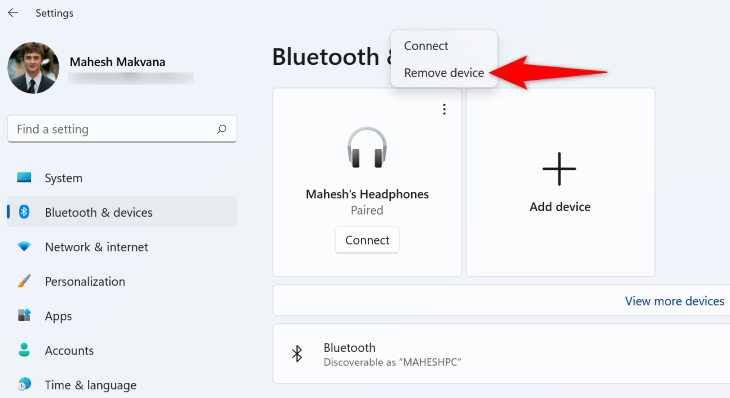
8. Re-pair the headphones
- Remove the device: Settings > Bluetooth & devices > Devices.
- Click the headphone entry and Remove.
- Put headphones in pairing mode and add them again.
Fresh pairings clear bad settings that cause lag.
9. Use a dedicated low-latency Bluetooth adapter
If your PC’s built-in Bluetooth is old, use a USB Bluetooth 5.0 adapter that supports aptX low latency or similar. This often gives a dramatic drop in delay. It’s one of the best hardware fixes for how to fix sound delay on bluetooth headphones windows 11.
10. Try a different app or use a browser with low-latency audio
Some apps buffer more audio. Test a local audio file or a different player. If video is out of sync, try switching browsers or playing the file in a native app.
11. Use a wired connection when needed
If gaming or live music needs zero lag, plug the cable. A wired connection removes Bluetooth latency entirely. Keep this in mind as a reliable fallback.

Advanced fixes and tools
These methods are for power users. Try them if basics don’t help.
- Use audio routing software like Voicemeeter to manage buffers and reduce delay.
- Install ASIO drivers or low-latency drivers where supported.
- Use a Bluetooth codec switch tool or headphones app to force aptX or AAC if available.
- Disable power saving for Bluetooth: Device Manager > Bluetooth > Properties > Power Management and uncheck power saving.
- Reset the Bluetooth stack: open an elevated command prompt and restart Bluetooth services (net stop bthserv; net start bthserv). This must be done carefully.
These tools give fine control but need care. If you use them, make a restore point first.
Tips to prevent delay and keep audio in sync
- Keep drivers and Windows updated regularly.
- Use headphones that support low-latency codecs.
- Avoid USB 3.0 ports near the Bluetooth adapter; they can add interference.
- Limit the number of paired devices. Many active devices can add traffic and delay.
- Test audio after each change. Change one thing at a time so you know what helped.

Personal experience and lessons learned
I fixed many Windows 11 Bluetooth delays by focusing on drivers and codecs. Most of my cases resolved after updating drivers or re-pairing devices. One time a client had constant lag until we replaced the old Bluetooth chip with a USB adapter that supported aptX LL. Lesson learned: hardware matters as much as software. Also, disabling handsfree telephony fixed sync for music in many tests.

Frequently Asked Questions of how to fix sound delay on bluetooth headphones windows 11
How do I reduce Bluetooth audio lag on Windows 11?
Start by updating Windows and drivers, re-pairing the headphones, and switching the audio profile to A2DP. If that fails, try a low-latency USB Bluetooth adapter.
Why does audio lag only with video and not music?
Video apps buffer to avoid stutter, which can add latency. Use a player with lower buffer settings or switch codecs to reduce delay.
Will changing the Bluetooth codec on Windows 11 help?
Yes. Low-latency codecs like aptX LL or AAC cut delay significantly, if both the PC adapter and headphones support them. Native Windows support may be limited, so a compatible adapter helps.
Can disabling handsfree improve sync?
Yes. Disabling Handsfree Telephony stops Windows from using the low-quality call profile that causes lag in media playback. Only disable it when you don’t need voice calls.
Do Bluetooth adapters fix the problem?
Often they do. A modern USB Bluetooth adapter with low-latency codec support can solve hardware limits in older PCs and cut delay a lot.
Conclusion
Fixing sound delay on Bluetooth headphones in Windows 11 is mostly about checking drivers, codecs, and the connection. Start with quick steps: restart, re-pair, update drivers, and pick the right profile. If the issue persists, try a better Bluetooth adapter or use advanced tools like Voicemeeter or low-latency drivers. Put these tips into practice today—test one change at a time and you’ll find the fix faster. Share your results or questions below, and subscribe for more step-by-step PC audio guides.

Everett Ashford is a tech reviewer at mytechgrid.com specializing in SSDs, cameras, TVs, earbuds, headphones, and other consumer electronics. He provides honest, data-driven reviews based on hands-on testing and real-world performance analysis. Everett simplifies complex tech details to help readers make smart, confident buying decisions.