A solid white light or a full Bose Music app reading usually means your headphones are charged.
Knowing how to know when Bose headphones are charged is simple once you understand the status light, battery voice prompts, and Bose Music app. Light patterns can vary by model, so this guide explains the most reliable checks for Bose QuietComfort, Noise Cancelling Headphones 700, and other popular models.
How to Know When Bose Headphones Are Charged
The fastest way to know when Bose headphones are charged is to check the status light near the charging port. On many Bose models, a blinking amber or orange light means the battery is still charging.
A solid white light often means the battery is full. However, some models may turn the light off after charging, so the light alone is not always enough.
You can also check the battery level through the Bose Music app or by turning on the headphones and listening for the battery voice prompt.
Here are the most useful signs:
• Blinking amber or orange light: The headphones are charging.
• Solid white light: The battery is usually fully charged.
• “Battery full” voice prompt: The headphones have reached a full charge.
• Full battery icon in the Bose Music app: Charging is complete.
• No charging light: The headphones may be fully charged, turned off, or not receiving power.
Bose Headphone Charging Light Meanings
Bose uses LED lights to show battery and connection status. The exact pattern depends on the model, but the basic meanings are similar across many Bose headphones.
Blinking amber light
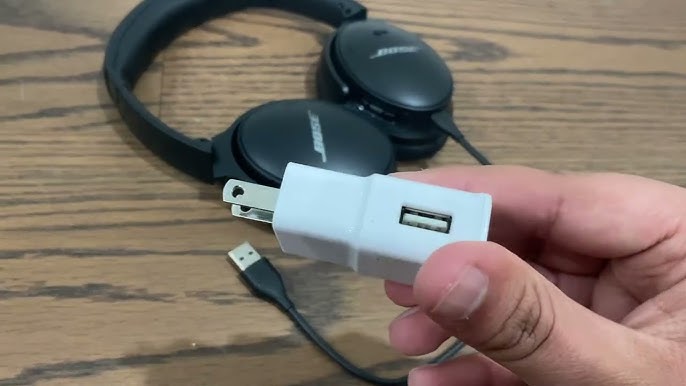
A blinking amber light usually means the headphones are charging. Leave the USB cable connected until the light becomes solid white, turns off, or the app shows a full battery.
If the light keeps blinking for many hours, check the cable, wall adapter, and charging port. A weak power source can make the process much slower.
Solid white light
A solid white light often indicates that charging is complete. This is one of the clearest answers to how to know when Bose headphones are charged.
Still, do not assume every Bose model uses the same light behavior. Look at your model’s guide if the light stays amber or turns off after a full charge.
Red or flashing red light
A red light may point to a low battery, a charging problem, or a system error. Disconnect the cable, wait a few seconds, and connect the headphones again.
If the red light continues, try another USB cable and a different wall charger. Avoid using a damaged cable or a loose charging port.
No light
No light does not always mean the headphones are not charging. The battery may already be full, the headphones may be powered off, or the cable may not be making a good connection.
Press the power button once, then check the Bose Music app. This gives you a better answer than relying on the LED alone.

How to Check the Battery in the Bose Music App
The Bose Music app is one of the easiest ways to know when Bose headphones are charged. It gives you a battery estimate and can also help identify connection problems.
Follow these steps:
-
Install the Bose Music app on your iPhone or Android phone.
-
Turn on your Bose headphones.
-
Open the app and select your headphones.
-
Look for the battery percentage or battery icon.
-
Connect the charging cable and watch for the battery level to increase.
When the app shows 100 percent or a full battery symbol, the headphones are charged. The app may show a rounded estimate, so a reading of 95 to 99 percent can also mean the battery is nearly full.
Keep Bluetooth enabled while checking the app. If the headphones are not connected, the app may show an old battery reading.
How to Know When Different Bose Models Are Charged
Bose headphone models use similar signals, but there are small differences. Knowing your model helps you read the indicator correctly.
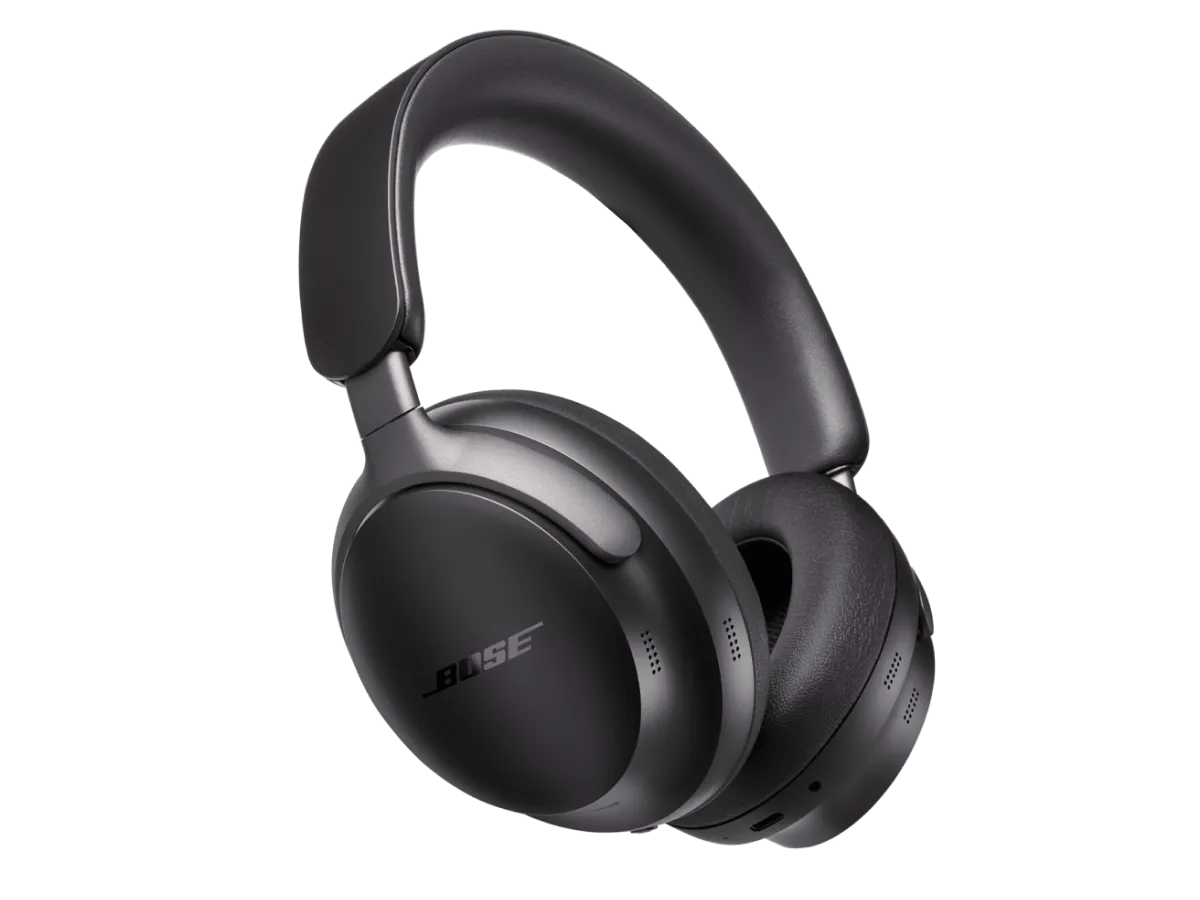
Bose QuietComfort Ultra Headphones
The QuietComfort Ultra Headphones usually show a blinking amber light while charging. A solid white light generally indicates that the battery is full.
You can also use the Bose Music app to check the battery level. This is helpful if the LED is hard to see or the headphones are charging in a dark room.
Bose QuietComfort Headphones
Bose QuietComfort headphones commonly use an amber light during charging and a white light when charging is complete. The light may turn off later, especially if the headphones are not being used.
The app and the battery voice prompt remain useful checks. These methods help confirm the status if the LED does not behave as expected.
Bose QuietComfort 45
The QuietComfort 45 typically uses a blinking amber light during charging. A solid white light usually means the battery has reached a full charge.
The headphones can also report their battery level when switched on. If the voice prompt says the battery is full, you can safely unplug the cable.
Bose Noise Cancelling Headphones 700
The Bose 700 uses a light near the charging port to show charging activity. An amber light generally means charging is in progress, while a white light usually signals a full battery.
The Bose Music app is especially helpful with this model because it shows battery information without requiring you to interpret the light.
Older Bose wireless headphones
Older Bose models may use slightly different LED patterns. Some show a steady amber light during charging, while others use blinking lights or turn the LED off when the battery is full.
For older models, the owner’s manual is the most accurate reference. You can also test the result by charging the headphones, unplugging them, and checking the battery voice prompt.
How Long Do Bose Headphones Take to Charge?
Most Bose wireless headphones take about two hours to charge fully. The exact time depends on the model, battery level, cable, charger, and temperature.
Some models offer a quick-charge feature. A short charge may provide several hours of listening, but the exact result varies by model and settings.
Charging can take longer when:
• The battery is completely empty.
• The headphones are being used during charging.
• The USB port provides limited power.
• The charging cable is worn or damaged.
• The headphones are very cold or hot.
• The battery is old and has lost capacity.
A full charge should not take an unusually long time under normal conditions. If your Bose headphones remain on a blinking amber light after four hours, troubleshoot the power source before assuming the battery is damaged.
The Best Way to Check if Bose Headphones Are Fully Charged
For the most accurate result, use more than one charging sign. A good check combines the LED, the Bose Music app, and the voice prompt.
Use this simple process:
-
Connect the headphones to a reliable wall charger.
-
Confirm that the charging light turns on.
-
Wait until the light becomes solid white, turns off, or the manual says charging is complete.
-
Open the Bose Music app and check the battery level.
-
Turn on the headphones and listen for the battery announcement.
If two or three of these signs show a full battery, you can be confident the headphones are charged. This approach is useful because LED behavior can vary between Bose models.
When I troubleshoot wireless headphones, the most common mistake is stopping after seeing one light. A cable can be connected without delivering power, and a light can turn off before the battery is full. Checking the app or voice prompt prevents that guesswork.
What to Do if Bose Headphones Will Not Charge
If the battery does not increase, start with the simple causes. Many charging problems come from a loose connection, a faulty cable, or a low-power USB port.
Try these steps:
• Use the original charging cable if available.
• Test another USB-C or micro-USB cable that fits correctly.
• Plug the cable into a wall adapter instead of a laptop.
• Try another wall outlet.
• Check the charging port for dust or lint.
• Make sure the cable sits firmly in the port.
• Let the headphones return to room temperature.
• Restart or reset the headphones according to the model guide.
Do not push objects into the charging port. Even a small bent contact can stop the headphones from charging.
If the headphones still do not charge after several cables and power sources, the battery or charging port may need service. Rechargeable lithium-ion batteries lose capacity over time, especially after years of frequent use.

Charging Tips That Help Protect the Battery
Good charging habits can help your Bose headphones work well for longer. Modern headphones have charging controls, but basic care still matters.
Use a safe, certified wall adapter and a cable that is in good condition. Avoid very cheap chargers with unclear safety ratings.
Keep these tips in mind:
• Do not store the headphones in a hot car.
• Keep the charging port clean and dry.
• Do not bend the cable sharply near the plug.
• Unplug the cable if the connector becomes hot.
• Charge the headphones before the battery reaches zero when convenient.
• Store the headphones with some battery power if you will not use them for weeks.
You do not need to unplug the headphones the instant they reach 100 percent. However, removing the cable after charging is complete is a sensible habit, especially if the headphones are stored in a warm place.
Common Mistakes When Charging Bose Headphones
Many users expect every Bose headphone to show the same light. That assumption causes confusion because Bose changes LED behavior across models and firmware versions.
Another common mistake is using the headphone’s battery estimate as an exact measurement. The percentage is an estimate, not a laboratory reading. It can change after the headphones reconnect or begin playing audio.
Avoid these errors:
• Assuming no light always means no charging.
• Using a loose or damaged cable.
• Checking the battery while the headphones are disconnected from Bluetooth.
• Charging only from a weak laptop port.
• Ignoring unusual heat, smells, or physical damage.
• Expecting a full charge in a few minutes.
If the headphones become unusually hot, stop charging them and seek professional support. Heat, swelling, or a damaged battery should never be ignored.

How to Know When Bose Headphones Are Charged Without the App
You do not need the Bose Music app to check the battery. The LED and voice prompt are enough for most users.
First, connect the charging cable and watch the status light. When the indicator shows the full-charge pattern for your model, unplug the cable and turn on the headphones.
The headphones may say “battery full,” “battery high,” or give another battery message. The exact wording can vary, but a full or high battery message confirms that charging is complete.
If there is no voice prompt, press the power or Bluetooth button once. Some models announce the battery level during startup, while others show it only through the app.
Frequently Asked Questions About How to Know When Bose Headphones Are Charged
How can I tell if my Bose headphones are fully charged?
A solid white light, a full battery icon in the Bose Music app, or a “battery full” voice prompt usually confirms a full charge. Light behavior can vary, so check your model’s manual if the signals do not match.
What color light means Bose headphones are charging?
A blinking amber or orange light usually means the headphones are charging. Some Bose models use a steady amber light, so the product guide remains the best model-specific reference.
What color light means Bose headphones are fully charged?
A solid white light often means the battery is full. On some models, the light may turn off after charging, so you can also check the Bose Music app or battery voice prompt.
Can I use Bose headphones while they are charging?
Some Bose headphones may support limited use while connected to power, but behavior depends on the model. For safer and faster charging, pause playback and leave the headphones powered off.
Why are my Bose headphones still blinking amber?
Blinking amber usually means the battery is still charging. If it continues for several hours, try another cable, wall adapter, and outlet, then inspect the charging port for dirt or damage.
How long does it take to fully charge Bose headphones?
Many Bose wireless headphones take about two hours to reach a full charge. The exact time depends on the model, battery level, charger, cable, and battery condition.
Do Bose headphones stop charging when the battery is full?
Bose headphones include charging controls designed to manage the battery when full. Even so, unplugging them after charging and avoiding extreme heat are good habits.
Conclusion
The easiest way to know when Bose headphones are charged is to check the status light, Bose Music app, and battery voice prompt together. A blinking amber light usually means charging, while a solid white light or full battery reading commonly means the process is complete.
Charging problems often come from a weak adapter, damaged cable, dirty port, or model-specific LED behavior. Use a reliable wall charger, keep the port clean, and check the correct guide for your Bose model.
Try these checks the next time you charge your headphones, and you will not have to guess whether they are ready. Explore more Bose care tips, and share this guide with anyone who wants a smoother listening experience.

Everett Ashford is a tech reviewer at mytechgrid.com specializing in SSDs, cameras, TVs, earbuds, headphones, and other consumer electronics. He provides honest, data-driven reviews based on hands-on testing and real-world performance analysis. Everett simplifies complex tech details to help readers make smart, confident buying decisions.