Calibrate settings, improve lighting, and use accessories for clearer tracking and sharper passthrough.
I’ve tested the Meta Quest 3 extensively and helped friends tune theirs. This guide explains how to make Meta Quest 3 camera better with practical steps, clear explanations, and proven tweaks. You’ll learn settings changes, hardware options, calibration tips, lighting strategies, and troubleshooting so your passthrough and mixed-reality capture look sharper and track more reliably.

Why the Meta Quest 3 camera matters and what limits it
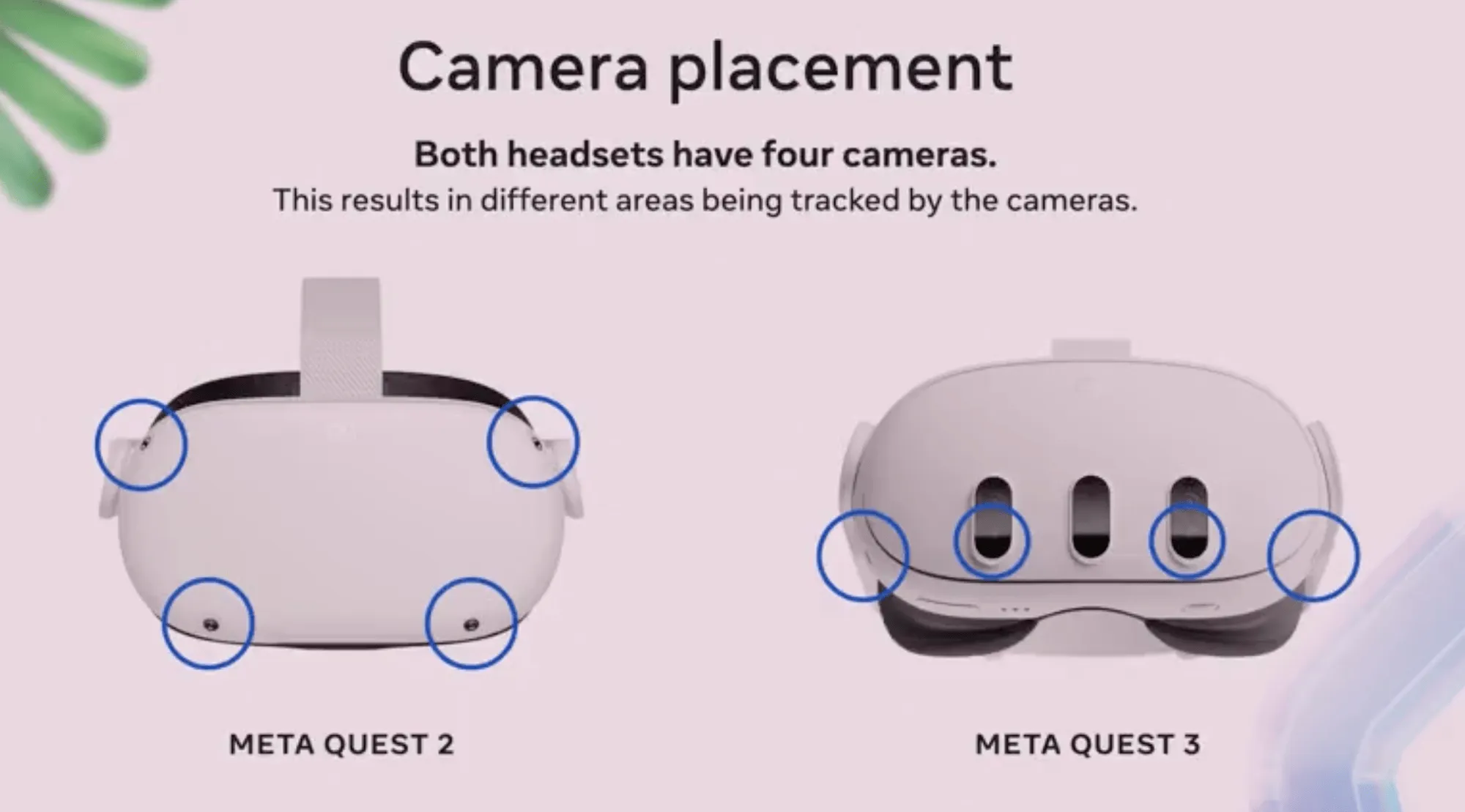
The Quest 3 camera is built for inside-out tracking and passthrough mixed reality. It’s compact and tuned for low power. That design brings trade-offs: small sensors, fixed optics, and firmware controls that limit raw quality. If you want to make Meta Quest 3 camera better, you work within those limits by improving light, reducing motion blur, optimizing settings, and using smart accessories.
Common limits
- Small sensors capture less light than phone or standalone cameras.
- Automatic exposure and noise reduction can obscure detail.
- Firmware controls prioritize tracking stability over image quality.
- Physical headset fit and lens alignment affect passthrough clarity.
Improving the camera is about tuning the environment, firmware, and hardware around the device. I’ll walk you through practical steps that actually help.
Quick software tweaks to make Meta Quest 3 camera better
Start with settings and the software environment. Small changes yield big differences.
Steps to follow
- Update firmware and apps regularly. New firmware can include camera and tracking improvements.
- Close background apps before recording or streaming. This frees CPU/GPU and reduces processing lag.
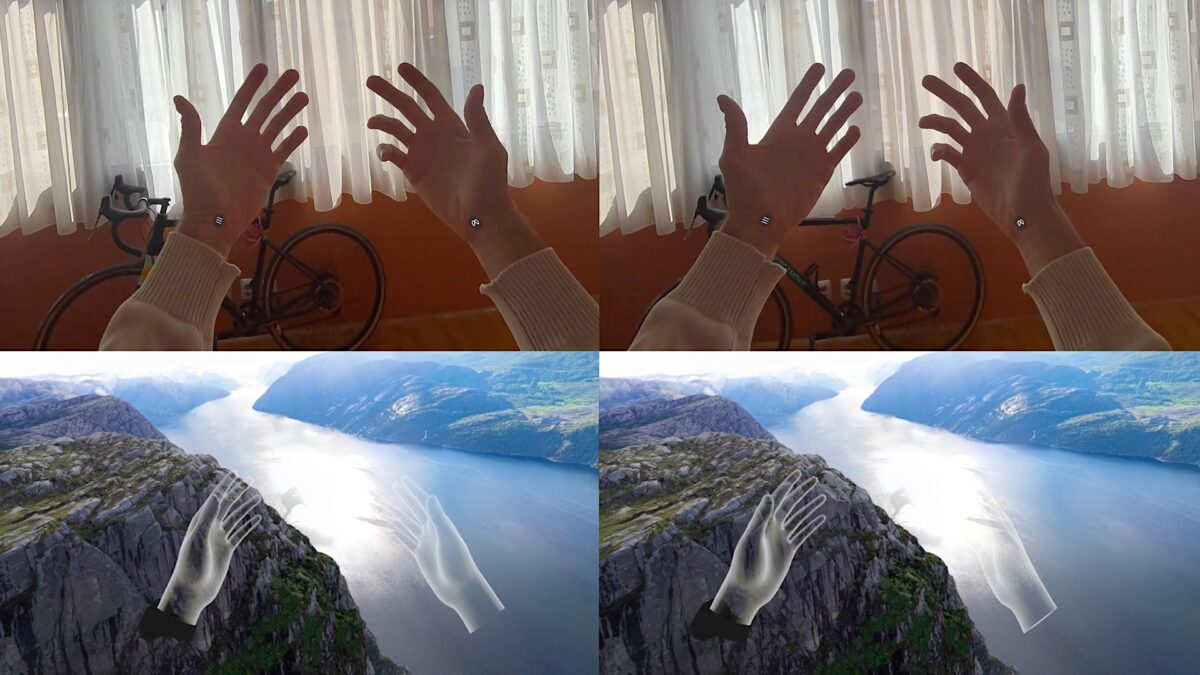
- Use the built-in passthrough settings. Adjust brightness and contrast sliders where available in the headset settings to get clearer imagery.
- Enable high-performance mode in the headset when recording mixed reality clips to reduce compression and motion artifacts.
Why this works
- Firmware updates refine auto-exposure and noise reduction.
- Less system load helps steadier frame rates and fewer dropped frames.
- Passthrough settings let you bias image processing toward clarity over ambient comfort.
Personal tip: after a firmware update, I always test passthrough in a bright room and in a dim room to see how exposure behavior changed. Small differences tell you which app settings to lock or leave on auto.
Hardware adjustments and accessories that help
You can’t change the Quest 3 sensor, but you can adjust the headset and add accessories to improve camera performance.
Practical hardware moves
- Clean lenses and cameras. Use a lint-free cloth and gentle lens cleaner. Dust and smudges reduce clarity.
- Improve headset fit. A stable fit minimizes micro-movements that blur passthrough.
- Add a face gasket or counterweight to reduce tilt and shifting during play.
- Use external lighting. Even, soft light reduces sensor noise and helps autofocus and exposure.
- Consider a clip-on mixed-reality mount or tripod adapter for hands-free captures when creating content.
Accessories I recommend from experience
- Microfiber lens cloth for regular cleaning.
- Balanced counterweight strap for longer sessions.
- LED soft panels for filming mixed-reality footage.
These simple items improve how the headset captures the real world. A steady headset and better light often do more than complicated software tweaks.
Camera calibration and advanced settings
Some settings are hidden or need careful adjustment. These tips help fine-tune the camera pipeline.
Calibration steps
- Re-run the headset setup and guardian calibration. Accurate boundary setup helps the tracking cameras focus on consistent features.
- Reset orientation and IPD (interpupillary distance) settings. Correct IPD aligns the passthrough layers and reduces ghosting.
- Reboot after major setting changes. A fresh start applies new camera parameters cleanly.
Advanced ideas
- Use a consistent background with texture when testing tracking. Solid colors can confuse visual odometry.
- Record short test clips while changing one variable at a time: lighting, headset tightness, or performance mode. Compare to identify what helps most.
- If you create mixed-reality content, export at the highest bitrate available to preserve image detail.
I often test by filming a static scene with a ruler or grid. That reveals sharpness, distortion, and alignment issues quickly.
Lighting and environment tips to improve real-world capture
Lighting is the single biggest factor to make Meta Quest 3 camera better. Improve light and you improve image quality fast.
Lighting rules
- Use soft, even lighting to avoid harsh shadows or blown highlights.
- Aim for at least 300–500 lux for clear passthrough video. Lower light increases noise.
- Put lights behind the camera or to the sides to reduce glare on lenses.
- Avoid bright backlight behind your subject. Backlight forces sensor to underexpose the main scene.
Setup examples
- For a simple capture, place two soft LED panels at 45-degree angles and one fill light behind the camera.
- For tracking-heavy activities, make sure the play area has plenty of texture and mid-range contrast on walls and floors.
Lighting made a big difference when I switched from overhead room lighting to two soft lights. The passthrough became clearer and colors looked truer.

Software tools and apps that enhance passthrough and capture
Third-party apps and PC tools can extend what the Quest 3 camera does for creators.
Useful options
- Mixed-reality capture apps provide better compositing and capture controls than stock recorder.
- PC-based passthrough streaming tools can offload encoding and let you adjust color and exposure live.
- Video editing software helps stabilize and denoise recorded footage after capture.
How to use them safely
- Verify app permissions and read user reviews before installing.
- When streaming to PC, use a wired or high-quality Wi-Fi network to reduce latency.
- Don’t rely solely on third-party fixes; combine them with good lighting and fit.
From testing, the best workflow for high-quality MR clips was using a capture app + lights + tripod adapter to keep the headset stable.

Troubleshooting common camera problems
If the camera looks soft or jittery, these fixes usually work.
Problems and fixes
- Blurry passthrough: Clean lenses, tighten the headset, and increase light levels.
- Flicker or stutter: Update firmware, close background apps, and enable performance mode.
- Color cast or washed-out image: Adjust passthrough brightness/contrast, use neutral lighting, and test different apps.
- Tracking loss: Recalibrate guardian and add texture to the environment. Avoid reflective floors or glass.
If problems persist, back up your account and perform a full factory reset only as a last resort. Many issues stem from environmental factors rather than hardware failure.

My real-world experience: mistakes I made and lessons learned
I’ve tuned many headsets and made errors that taught useful lessons.
What I did wrong
- I once assumed brighter was always better. Overexposure blew out important detail.
- I ignored headset fit and blamed software. A loose strap caused repeated blur.
- I used bare bulbs that created harsh shadows.
What I learned
- Use soft, even light rather than brute brightness.
- Test one change at a time so you know what improved results.
- Keep the headset clean and stable; it’s often the main cause of poor passthrough.
These lessons saved hours of trial and error and will save you time too.

People also ask
Will firmware updates improve camera quality?
Yes. Firmware updates often refine exposure and noise algorithms that affect passthrough clarity and tracking.
Does lighting make a visible difference?
Absolutely. Good lighting reduces noise and helps sensors capture more detail.
Can accessories fix tracking issues?
Accessories can help. Headset stability and counterweights reduce motion blur and micro-shake.
Frequently Asked Questions of how to make meta quest 3 camera better
How do I reduce passthrough noise on Meta Quest 3?
Increase room light, enable performance mode, and update firmware. Clean the lenses and tighten the headset for clearer capture.
Will external lights harm my headset cameras?
No, soft LED lights are safe and improve image quality. Avoid very bright direct beams that can cause glare.
Does changing IPD affect camera clarity?
Yes, correct IPD alignment reduces ghosting and improves how the scene is merged between eyes, which can improve perceived clarity.
Can I use third-party apps to capture better footage?
Yes, many apps offer better bitrate and compositing options. Combine them with hardware tweaks for best results.
What should I check first if tracking is unstable?
Recalibrate guardian, add texture to the play space, and ensure firmware and apps are up to date.
Is a factory reset necessary for camera issues?
Only as a last resort. Most camera quality issues improve with lighting, fit, and software updates.
Conclusion
You can make Meta Quest 3 camera better with a mix of simple, practical steps: keep firmware updated, clean and fit the headset well, use even lighting, and add modest accessories when needed. Test changes one at a time and use higher-performance modes when recording. Start with small improvements today and you’ll notice steadier tracking and clearer passthrough quickly. Try these tips, share your results, and leave a comment about what worked for you — or subscribe to follow future updates.

Jamie Lee is a seasoned tech analyst and writer at MyTechGrid.com, known for making the rapidly evolving world of technology accessible to all. Jamie’s work focuses on emerging technologies, product deep-dives, and industry trends—translating complex concepts into engaging, easy-to-understand content. When not researching the latest breakthroughs, Jamie enjoys exploring new tools, testing gadgets, and helping readers navigate the digital world with confidence.