Hold the Arlo camera reset button for 10–15 seconds to restore factory settings.
I’ve helped dozens of people and businesses fix Arlo cameras, and I know how frustrating a stuck device can be. This guide on how to reset Arlo camera walks you through simple restarts, full factory resets, and hub/base station procedures. You’ll get clear, step-by-step instructions for common Arlo models, reasons to reset, what you’ll lose or keep, and practical tips from real-world troubleshooting. Read on to fix your camera fast and safely.

Why and when to reset your Arlo camera
Resetting an Arlo camera can solve many common issues. A reset fixes connectivity problems, frozen firmware, bad behavior after updates, and forgotten settings. It can also prepare a camera for a new owner or a different network.
Reasons to reset your device:
- Restore normal operation after frequent disconnections.
- Remove corrupt settings after a failed update.
- Reclaim access if you forgot the device setup or credentials.
- Prepare a camera for resale or transfer.
When not to reset:
- Don’t reset if only the live view is slow. Try restarting first.
- Don’t reset if the problem is clearly power-related. Check cables and batteries first.
How to decide:
- Try a quick restart first. If the issue persists after two restarts, move to a full reset.
- If multiple cameras on the same network fail, check the router and base station before resetting each camera.

Types of resets and what they do
There are two main reset types for Arlo devices. Each one serves a different purpose.
Restart (soft reset)
- What it does: Reboots the camera without changing settings.
- When to use: For temporary glitches, stutters, or after power loss.
- How to do it: Remove power or battery, wait 10 seconds, then restore power.
Factory reset (hard reset)
- What it does: Erases all settings and removes the camera from your Arlo account.
- When to use: For persistent faults, to change ownership, or to completely reconfigure the device.
- How to do it: Press and hold the camera’s reset button for 10–15 seconds (model-dependent). You will need to add the camera back to the Arlo app.
Base Station / SmartHub reset
- What it does: Resets the hub that manages several cameras. This affects all connected devices.
- When to use: When multiple cameras lose connection or the hub shows errors.
- How to do it: Use the button on the Base Station or the app instructions to factory reset the hub.

Step-by-step: how to reset Arlo camera — common models
Below are clear steps for the most common Arlo models. Follow the model that matches your camera. If you aren’t sure, check the label on the camera or the original box.
Arlo Pro and Pro 2 (wire-free models)
- Remove the battery or power wire. Wait 10 seconds.
- Reinsert the battery or plug in power.
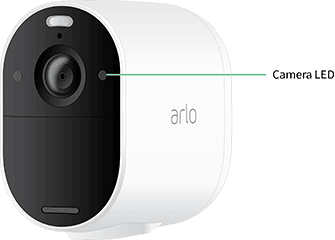
- Press and hold the reset button on the camera for 10 seconds until the LED blinks amber.
- Wait for the LED to blink green, then open the Arlo app and re-add the camera.
Arlo Ultra and Ultra 2
- Power off the camera by removing the battery or unplugging power.
- Power on the camera.
- Press and hold the reset button for 10–15 seconds until the LED blinks amber and then green.
- Use the Arlo app to go through the setup wizard to re-add the camera.
Arlo Essential series
- Remove power or battery for 10 seconds.
- Press and hold the reset button until the status LED blinks.
- Follow the app prompts to re-add the device to your account.
Arlo wired cameras
- Unplug the power cable for 10 seconds.
- Plug it back in.
- Hold the reset button for 10 seconds if a full reset is needed.
- Complete setup in the Arlo app.
Base Station / SmartHub factory reset
- Unplug the Base Station from power.
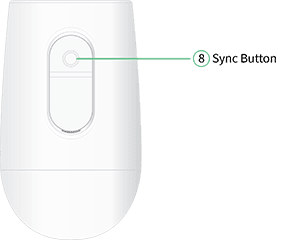
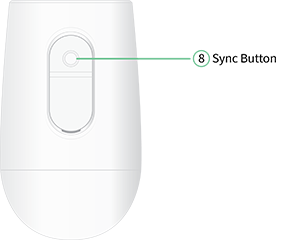
- Press and hold the Sync button.
- While holding Sync, reconnect power and keep holding for 10–15 seconds.
- Release the Sync button when the LED blinks amber. The station will reset and need re-setup.
After any factory reset, you must re-add the camera to your Arlo account. Keep your Arlo app and account login handy.
Before you reset: backup, prepare, and checklist
A factory reset removes settings and cloud connections. Prepare to avoid surprises.
Checklist before resetting:
- Note your camera names and locations from the Arlo app.
- Save any important settings, modes, schedules, or preferences.
- Ensure you know your Arlo account email and password.
- If you rely on local storage, back up any footage you need.
- Fully charge batteries or use a stable power source during setup.
Tips to smooth re-setup:
- Update the Arlo app to the latest version.
- Have your Wi-Fi password ready.
- Place the camera near the base station or router during re-setup.
- Disable VPNs on your phone while re-adding the camera.

Troubleshooting: common problems when you reset Arlo camera
Sometimes resetting does not fix the issue. Here are common causes and fixes.
Problem: Camera won’t reconnect after reset
- Ensure the network is 2.4 GHz if the model does not support 5 GHz.
- Move the camera closer to the router for setup.
- Reboot your router and try again.
Problem: LED not responding during reset
- Check battery level or power adapter.
- Try a different power outlet or cable.
- If LED remains off, the camera may be faulty.
Problem: Base Station shows offline
- Power-cycle the Base Station and router.
- Verify Ethernet connection if used.
- Factory reset the Base Station only after other steps fail.
When to contact support
- Hardware damage or persistent hardware failures.
- Repeated resets don’t restore basic functions.
- If the device is under warranty, get manufacturer support.
Personal experience and practical tips
I’ve reset different Arlo cameras for clients and for my own home system. One time, a recent firmware update left three cameras offline. A soft restart fixed one, but the other two needed a factory reset. I learned to always check the base station first. Resetting the base station fixed all three at once. That saved time and kept settings intact.
Lessons learned:
- Try the simplest fix first. Soft restart often works.
- Keep batteries fresh. Low power makes reset and pairing fail.
- Document settings before a factory reset to speed reconfiguration.
Tips I use:
- Use a small label on each camera with its name. It helps after re-adding devices.
- Set up one camera at a time after reset to avoid confusion.
- Keep firmware updated, but wait a few days after a major release if you rely on critical uptime.

Best practices and limitations
Best practices
- Perform resets during low-usage hours.
- Update the Arlo app and firmware before and after resets.
- Keep a backup of important footage and settings.
Limitations to know
- A factory reset deletes cloud links. You will lose any unsaved settings.
- Some older models don’t support 5 GHz networks.
- Re-adding many cameras takes time and patience.
PAA-style questions (People Also Ask)
-
What happens when you reset an Arlo camera?
- A factory reset restores default settings and removes the camera from your Arlo account. You must set it up again in the Arlo app.
-
Will resetting an Arlo camera delete recordings?
- Cloud recordings tied to your account are not removed by resetting the camera alone, but local or unsynced footage may be lost. Always back up important clips.
-
How long does it take to reset an Arlo camera?
- The physical reset action takes 10–15 seconds, but full re-setup in the app may take 5–15 minutes. Complex networks may take longer.
Frequently Asked Questions of how to reset arlo camera
How do I factory reset my Arlo camera?
Press and hold the reset button on the camera for 10–15 seconds until the LED blinks amber or green, then release. You will need to re-add the camera to your Arlo app.
Will resetting my Arlo camera remove it from my account?
Yes, a factory reset removes the camera from your Arlo account and deletes local settings. You must re-enroll it in the app.
Can I reset an Arlo camera without the app?
Yes, you can perform a hardware reset using the reset button on the camera. However, you will need the app to complete the setup afterward.
What should I do if the reset button doesn’t work?
Check power or battery levels first. Try a soft restart and then attempt the reset again. If it still fails, contact support or consider warranty service.
Do I need to reset the base station after resetting a camera?
Not usually. Reset the base station only if multiple cameras lose connection or the hub shows errors. Resetting the base station affects all connected cameras.
How long should I hold the reset button on my Arlo camera?
Hold the reset button for 10–15 seconds for a factory reset. For some models, a shorter press may only trigger a reboot, so follow model-specific guidance.
Conclusion
Resetting an Arlo camera is a powerful fix for many common issues. Start with a soft restart. Move to a factory reset only when needed. Back up settings and footage first, and be ready to re-add devices in the Arlo app. Use the step-by-step model guides above to complete a safe reset and reconfiguration.
Take action: try a soft restart first, then follow the precise factory reset steps if needed. If you found this guide helpful, leave a comment with your model and issue, or subscribe for more clear, practical smart-home fixes.

Everett Ashford is a tech reviewer at mytechgrid.com specializing in SSDs, cameras, TVs, earbuds, headphones, and other consumer electronics. He provides honest, data-driven reviews based on hands-on testing and real-world performance analysis. Everett simplifies complex tech details to help readers make smart, confident buying decisions.