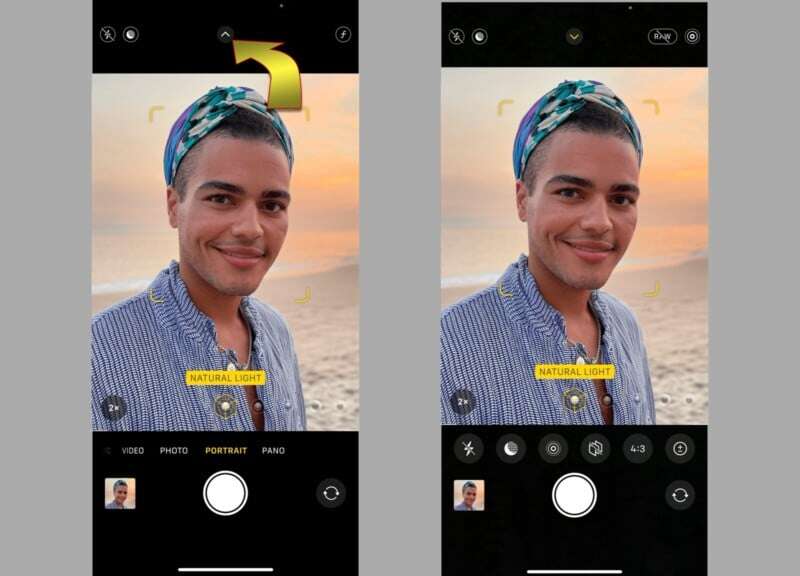
Tap the Timer icon, pick 3s or 10s, hit the shutter, then pose for the shot.
I’ve used iPhones for years to shoot portraits, group photos, and steady long exposures. This guide shows exactly how to use iPhone camera timer from basics to pro tips. You’ll learn step-by-step setup, timer modes, creative ideas, and fixes for common problems. Read on to master the iPhone timer and take sharper, better-timed photos every time.

How to use iPhone camera timer: step-by-step
The iPhone camera timer is simple to use and saves shaky selfies and rushed group shots. Follow these clear steps to learn how to use iphone camera timer on any modern iPhone.
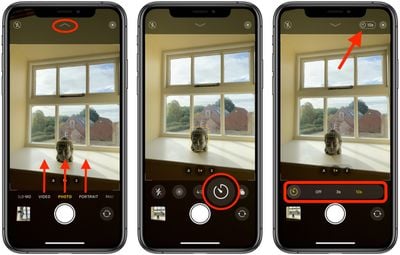
- Open the Camera app.
- Choose a photo mode such as Photo or Portrait.
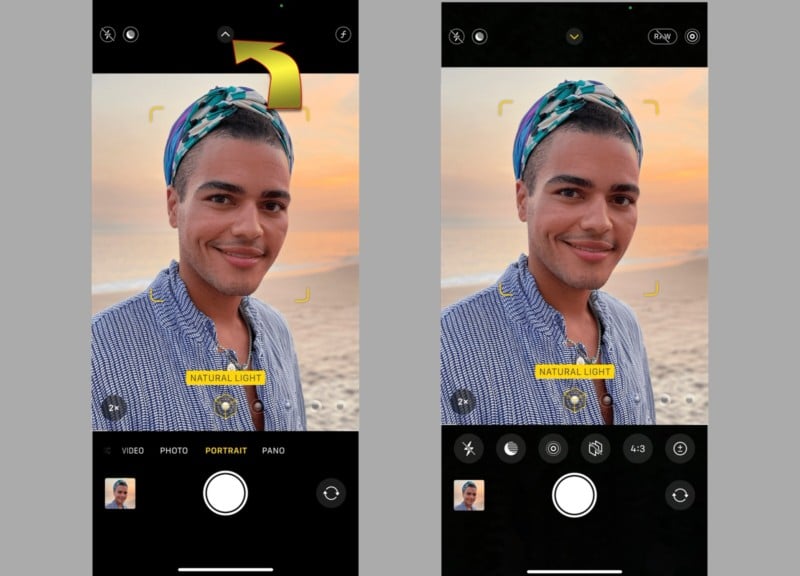
- Tap the timer icon at the top of the screen.
- Select 3s or 10s.
- Press the shutter or the volume button to start the countdown.
- Move into your spot and wait for the flash-like countdown animation, then hold still.
Practical notes:
- Use a tripod or stable surface for the best results.
- For group shots, pick 10s to give everyone time to get in frame.
- For quick self portraits, 3s is usually enough.
I repeat this process often. Practicing it helped me get clean, well-composed photos without someone holding the phone. Learning how to use iphone camera timer saved dozens of blurry family photos for me.

Timer modes and settings explained
There are a few timer-related features to know. These affect how the timer works and what results you get when you learn how to use iphone camera timer.
- 3 seconds and 10 seconds
- 3s is for quick self-portraits. 10s gives time to join a group or stabilize a tripod.
- Live Photos behavior
- When Live Photos is on, the timer still captures movement before and after the shutter.
- Burst mode interaction
- Timer can trigger burst if you hold the shutter. Test your model to see exact behavior.
- Remote triggering options
- Use Apple Watch, wired or Bluetooth remote, or the volume button on headphones to start the timer.
- Portrait and Night modes
- The timer works in Portrait and Night modes, but Night mode may need longer stabilization.
Tip: If you want multiple shots, try using a small Bluetooth remote. It speeds up the process and avoids accidental blur. These settings help you control timing and final image quality when you practice how to use iphone camera timer.
Creative uses and tips for better shots
Knowing how to use iphone camera timer unlocks creative shots beyond simple selfies. Here are practical ideas and tips I use.
- Long exposure tricks
- Use Night mode with a tripod and timer to avoid touching the phone and causing blur.
- Self-portraits with props
- Set the timer, then quickly arrange props or adjust lighting before the shutter fires.
- Group photos with a DIY reflector
- Put the phone on a stable surface, choose 10s, then use your free hands to adjust reflectors or pose.
- Candid style shots
- Start the timer and pretend to chat. Natural expressions often appear right before the shutter.
- Multiple pose series
- Take several timed shots back-to-back and pick the best one later.
From my experience, using a small folding tripod and a 10s timer produces the most reliable results for outdoor group shots. I once rescued a sunset portrait session by switching to a timer and tripod when the wind made handheld shots impossible.
Troubleshooting, limitations, and privacy
The iPhone timer is reliable, but you may face small issues. Below are common problems and fixes when you learn how to use iphone camera timer.
- Timer doesn’t appear
- Make sure you’re in Photo or Portrait mode. Some modes hide the timer.
- Blurry images after the countdown
- Use a tripod or set the phone on a stable surface. Avoid touching the phone right before the shutter.
- Timer stops working after update
- Restart the Camera app or the phone. Check for software updates if the problem persists.
- Autofocus or exposure shifts
- Lock focus and exposure by tapping and holding on the screen before starting the timer.
- Privacy and accidental recording
- Live Photos captures movement around the shutter. Turn it off if you want a single still.
Limitations:
- The built-in timer only offers 3s and 10s. For other intervals, use a third-party camera app.
- Some older iPhones may behave differently in burst or Live Photo modes.
I always test a quick shot before a big session. That habit avoided wasted photos for me and ensured the timer behaved as expected.

Frequently Asked Questions of how to use iphone camera timer
How do I set the timer on an iPhone camera?
Open Camera, choose Photo or Portrait, tap the timer icon, select 3s or 10s, then press the shutter. The countdown starts and the camera captures the shot.
Can I use the timer with the front camera?
Yes. Switch to the front camera, set the timer, and press the shutter; the countdown will appear so you can pose.
How do I avoid blurry timer photos?
Use a tripod or stable surface, lock focus and exposure, and avoid touching the phone during the countdown. A remote trigger can also help.
Does the timer work with Night mode and Portrait?
Yes. The timer works in Night and Portrait modes, but Night mode may need a tripod for the best sharpness.
Can I change the timer length beyond 10 seconds?
The built-in Camera only offers 3s and 10s. Use a third-party camera app for custom timer lengths and advanced options.
How to start the timer remotely?
Use an Apple Watch, Bluetooth remote, or headphones with a volume button to trigger the shutter without touching the phone.
Conclusion
Mastering how to use iphone camera timer is quick and practical. With basic setup, a tripod or steady surface, and a few creative tips you can take sharper, more natural photos. Try a 10s group shot or a tripod Night mode selfie this week and see the difference. If this guide helped, leave a comment, share your photos, or subscribe for more camera tips.

Everett Ashford is a tech reviewer at mytechgrid.com specializing in SSDs, cameras, TVs, earbuds, headphones, and other consumer electronics. He provides honest, data-driven reviews based on hands-on testing and real-world performance analysis. Everett simplifies complex tech details to help readers make smart, confident buying decisions.