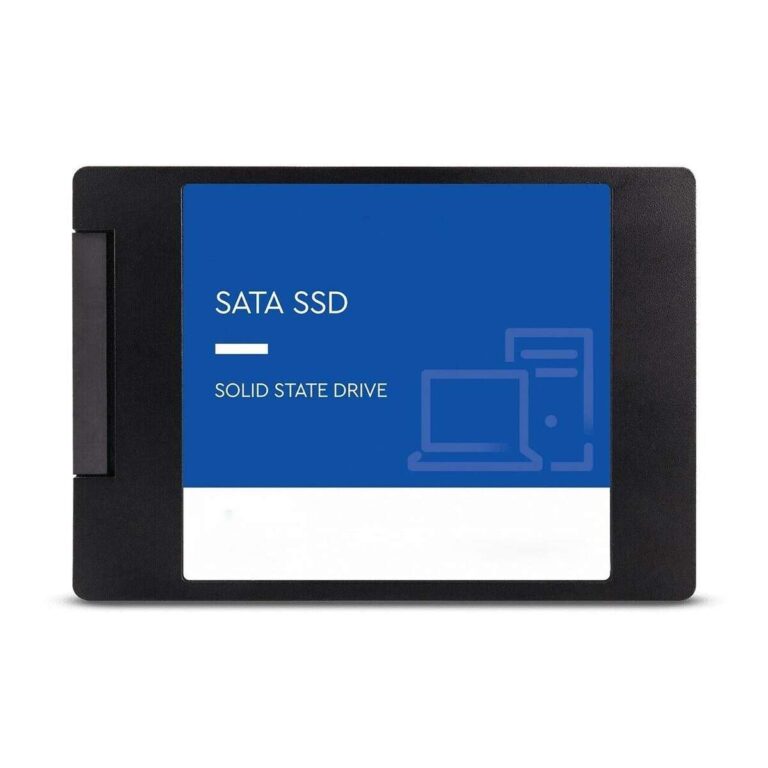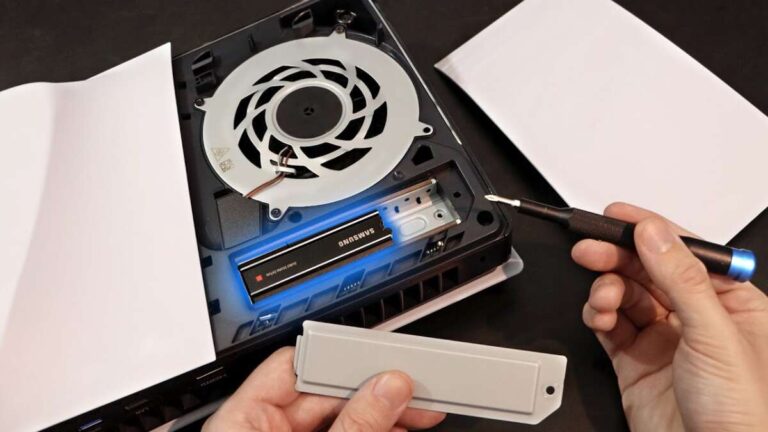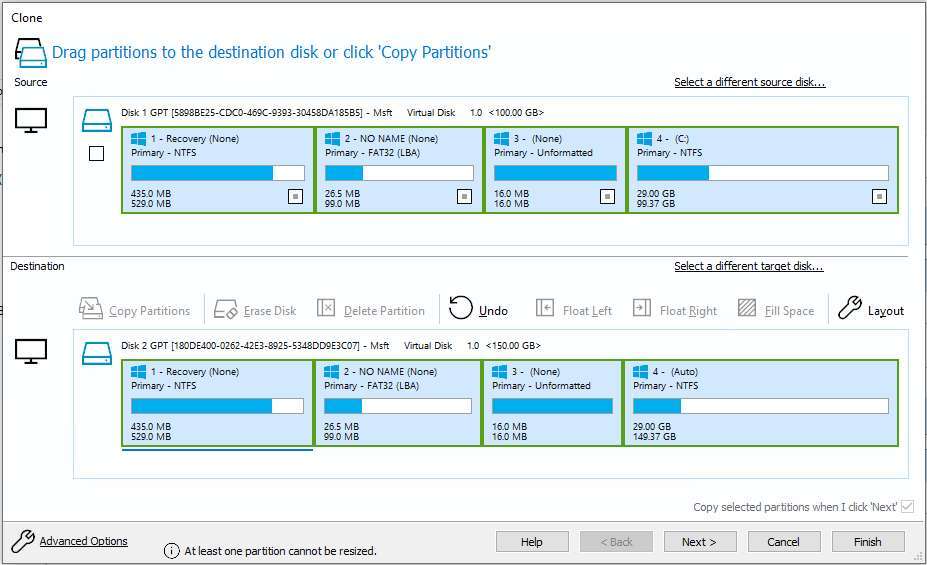
Use Macrium Reflect's Clone feature to copy your source SSD to a target SSD while preserving partitions.
I have used Macrium Reflect for years to move Windows and data from one drive to another. This guide shows exactly how to use Macrium Reflect to clone SSD to SSD, step by step. I will explain what to prepare, how to run the clone, how to troubleshoot common issues, and practical tips I learned the hard way. Read on to perform a safe, fast, and reliable SSD-to-SSD clone.
Why clone SSD to SSD
Cloning an SSD copies your entire drive—OS, apps, and files—to a new SSD in one process. This is useful when you want a larger drive, a faster NVMe upgrade, or a clean swap without reinstalling Windows. How to use Macrium Reflect to clone SSD to SSD matters because the right steps prevent boot problems and data loss.
Cloning keeps partitions and boot records intact when done correctly. Macrium Reflect offers an easy, reliable toolset for this job.
What you'll need before you start
- Macrium Reflect installed on your PC. The Free edition supports direct cloning.
- The source SSD and the target SSD connected to the machine. Use a USB-to-SATA adapter if needed.
- A backup of any critical files. Cloning usually works, but a backup removes risk.
- Enough free space on the target SSD to hold used data from the source SSD.
- A stable power source and time—cloning can take from minutes to hours.
If the target SSD is smaller, check used space on the source. You may need to delete files or shrink partitions before cloning. How to use Macrium Reflect to clone SSD to SSD includes checking fit and alignment.

Step-by-step guide: how to use macrium reflect to clone ssd to ssd
-
Prepare drives and back up data
• Connect both SSDs. Power on the PC and confirm both drives appear in Disk Management.
• Back up critical files to an external drive or cloud. -
Open Macrium Reflect
• Launch the app with admin rights. You will see a list of drives and partitions.
• If you don’t see a drive, check connections and rescan disks. -
Select the source disk
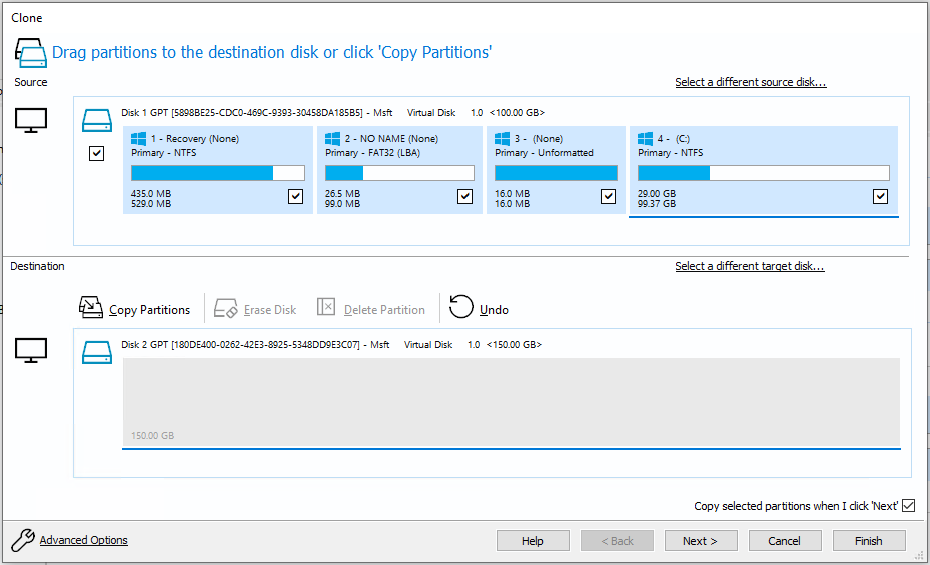
• Click the source SSD you want to clone. Confirm it’s the correct one by size and partition names.
• This step matters for how to use Macrium Reflect to clone SSD to SSD safely. -
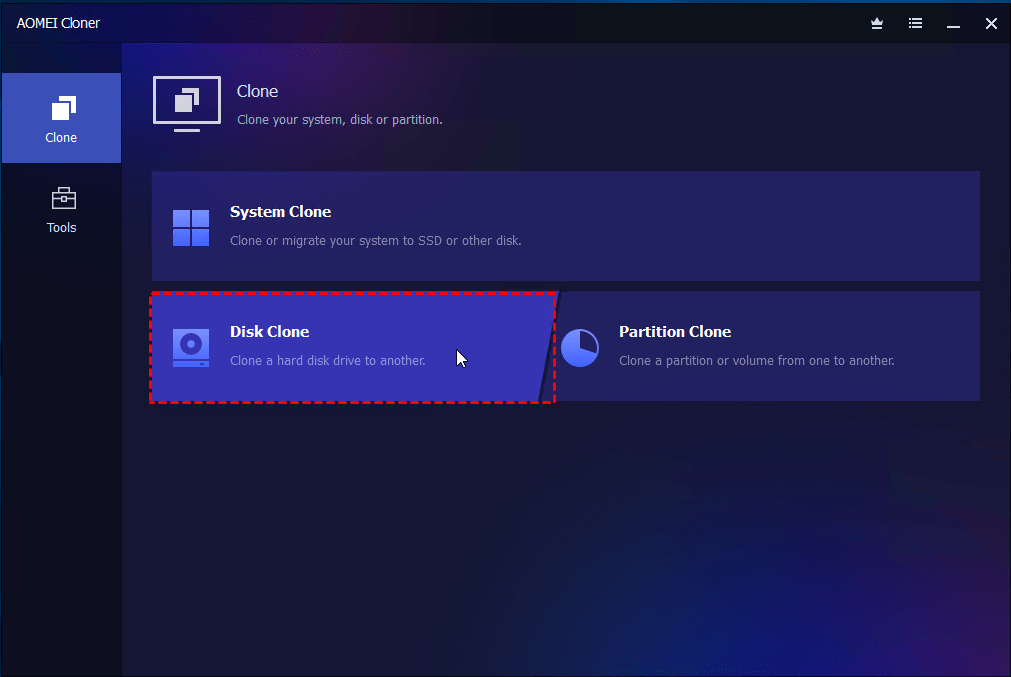
Choose “Clone this disk”
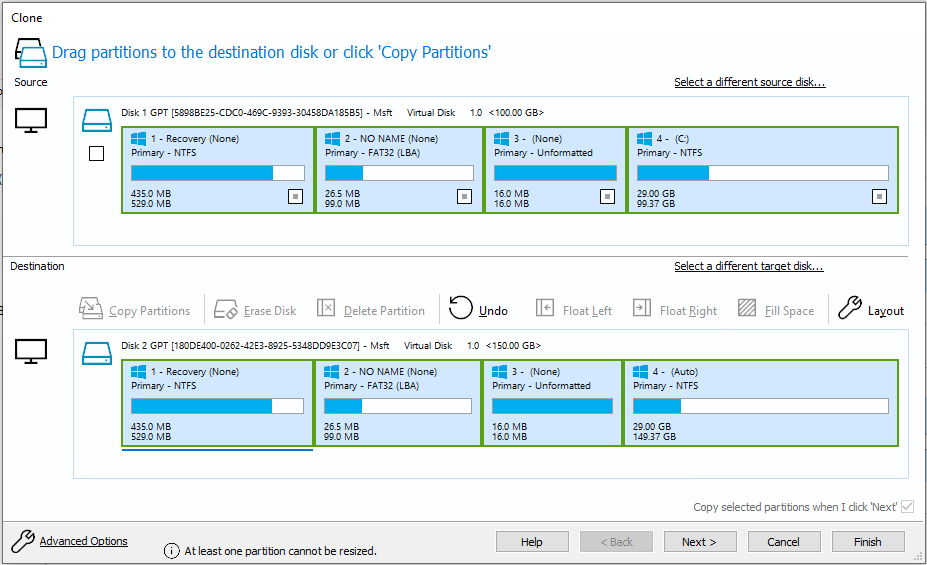
• Click Clone this disk and then Add a disk to select the target SSD.
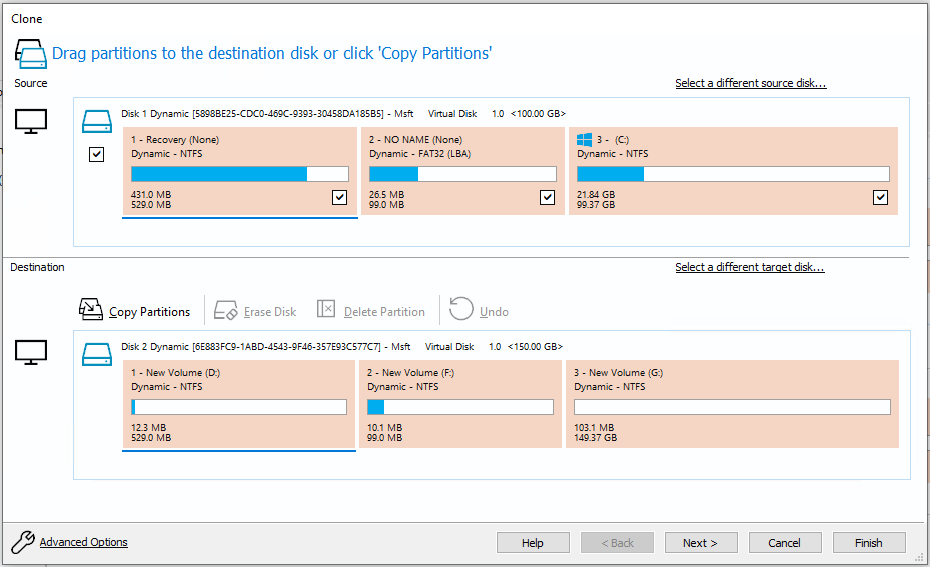
• Macrium will display partition mappings. Review them. -
Adjust partition sizes if needed
• Drag partitions to expand or shrink them on the target. Macrium shows used space.
• Align partitions to SSD defaults if the option appears. Proper alignment helps performance. -
Confirm options and advanced settings (optional)
• Enable SSD Trim on the target if offered and supported.
• You can set a sector-by-sector clone for exact copies, but it increases time and needs equal or larger target. -
Start the clone
• Click Finish and then OK to start. Monitor progress.
• Don’t interrupt power during cloning. -
Verify and change boot order
• After cloning, shut down and disconnect the source drive to test the target.
• Boot the PC from the new SSD. If it boots, reconnect drives and format or repurpose the old SSD.
These steps show how to use Macrium Reflect to clone SSD to SSD cleanly. If you need to clone across different interface types (SATA to NVMe), the steps are the same, but check BIOS boot mode and drivers before you swap.
Troubleshooting and common errors
-
Target drive not detected
• Recheck cables, adapters, and BIOS. Update drivers if needed.
• Try another USB port or a direct SATA connection. -
Clone fails midway
• Check for bad sectors using disk diagnostic tools. Run CHKDSK on the source.
• Disable antivirus and close other disk-heavy apps, then retry. -
Boot errors after cloning
• Verify BIOS boot order and switch between UEFI and Legacy modes if needed.
• Run Macrium’s Rescue media and use Fix Boot problems option. -
Target smaller than source used space
• Shrink the source partitions in Disk Management or Macrium before cloning.
• Remove large files or move data temporarily. -
Partition alignment or performance issues
• Ensure SSD alignment is correct. Macrium usually aligns partitions automatically.
• Enable TRIM and check SSD firmware updates.
Knowing how to use Macrium Reflect to clone SSD to SSD helps you spot these issues fast. Keep calm and work methodically.
Best practices, limitations, and performance tips
- Always back up first. Cloning is safe but not foolproof.
- Ensure the target SSD has equal or greater usable space than the used space on the source.
- Update your motherboard firmware and SSD firmware for best compatibility.
- Use the Rescue USB made in Macrium Reflect to repair boot issues.
- Secure erase old SSD if you plan to reuse or sell it. A clone does not wipe the old drive.
Limitations to note: Macrium’s free edition supports most standard clones. Some advanced features require a paid license. Cloning a system with encryption or BitLocker needs extra steps—suspend encryption before cloning. These points explain how to use Macrium Reflect to clone SSD to SSD safely and with good results.
Personal experience: tips and mistakes I made
I once cloned a Windows laptop to a smaller NVMe without checking used space. I had to redo the clone after freeing space. Lesson learned: always check source used space before starting. I also learned to create the Macrium Rescue media the first time I install the tool; it saved hours when a boot record failed.
Extra tips from my work: label drives before you start. Use a write-blocking adapter when handling critical data. Test the cloned drive by disconnecting the original and booting only from the clone. These are practical ways I use how to use Macrium Reflect to clone SSD to SSD successfully.

Frequently Asked Questions of how to use macrium reflect to clone ssd to ssd(make it h2 tag)
Can I clone a larger SSD to a smaller SSD with Macrium Reflect?
Yes. The target must have enough free space to hold the used data. Shrink partitions on the source first and verify used space before cloning.
Will cloning preserve my Windows activation and apps?
Yes. Cloning copies the OS and installed apps exactly. Most activations remain valid, but some activation systems may require re-activation after a hardware change.
Do I need the paid version of Macrium Reflect to clone an SSD?
No. The Free edition supports direct disk-to-disk cloning for most users. Some advanced features and business tools require paid editions.
How long does cloning an SSD take with Macrium Reflect?
Time varies by data size and connection speed. Small SSDs can clone in minutes; large drives can take hours. Using SATA or internal NVMe is faster than USB adapters.
What if my system does not boot from the cloned SSD?
Check BIOS boot order and boot mode (UEFI vs Legacy). Use Macrium Rescue media to repair the boot record and confirm the cloned disk is set active if needed.
Is TRIM preserved after cloning?
TRIM support depends on the OS and SSD drivers. After cloning, ensure TRIM is enabled in Windows and update SSD firmware for best performance.
Conclusion
Cloning an SSD to another SSD with Macrium Reflect is fast, reliable, and repeatable when you follow clear steps. Back up first, connect both drives, use the Clone this disk feature, adjust partitions, and test the new drive by booting from it. If problems arise, the Rescue media and boot repair tools usually fix them quickly.
Take action: prepare your backups, download Macrium Reflect, and try a test clone on a non-critical drive. Share how it went in the comments or subscribe for more guides on drive migration and system maintenance.

Everett Ashford is a tech reviewer at mytechgrid.com specializing in SSDs, cameras, TVs, earbuds, headphones, and other consumer electronics. He provides honest, data-driven reviews based on hands-on testing and real-world performance analysis. Everett simplifies complex tech details to help readers make smart, confident buying decisions.